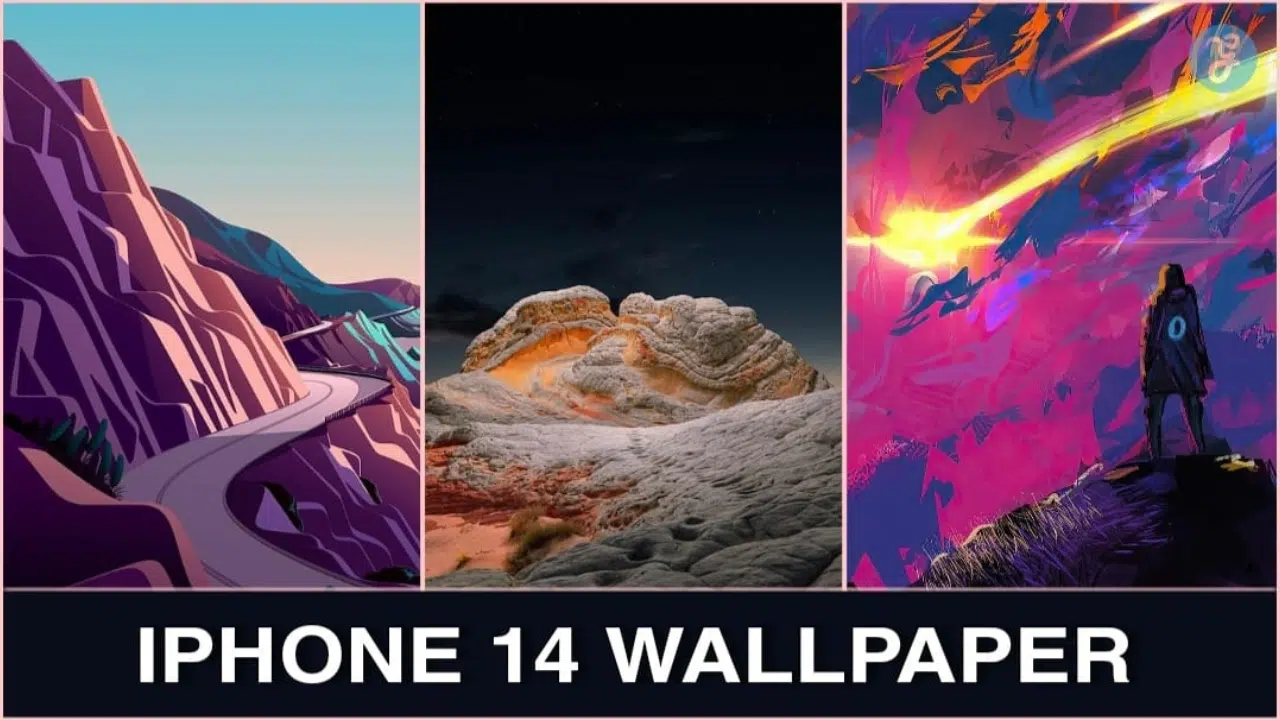
When choosing a new iPhone 14 wallpaper, you may feel overwhelmed by all the options and updates. An exciting feature of the iPhone 14’s software is its impressive collection of fresh wallpapers designed to accentuate its brilliant display.
This blog post will guide you step-by-step on selecting, customizing, and setting various types of wallpapers based on your preference or mood. Dive in to explore creative ways to personalize your device!
- The iPhone 14 offers many wallpaper options to personalize your device’s appearance.
- You can easily change your iPhone wallpaper by going to the Wallpaper section in Settings and selecting a new image.
- The iPhone 14 includes suggested photos, weather and astronomy themes, special wallpapers, emoji collections, and color options for wallpapers.
- While specific wallpapers may not be designed exclusively for the iPhone 14, many existing options are available, and new features are anticipated in future updates.
- Pexels, Vellum, Pixabay, and iLikeWallpaper are great sources for free high-quality wallpapers for your iPhone 14.
- You can download official iPhone 14 and 14 Pro wallpapers in full resolution for free to enhance your device’s visuals.
- New wallpapers are regularly introduced with iOS updates to refresh the look and feel of your device.
How to Change Your iPhone Wallpaper
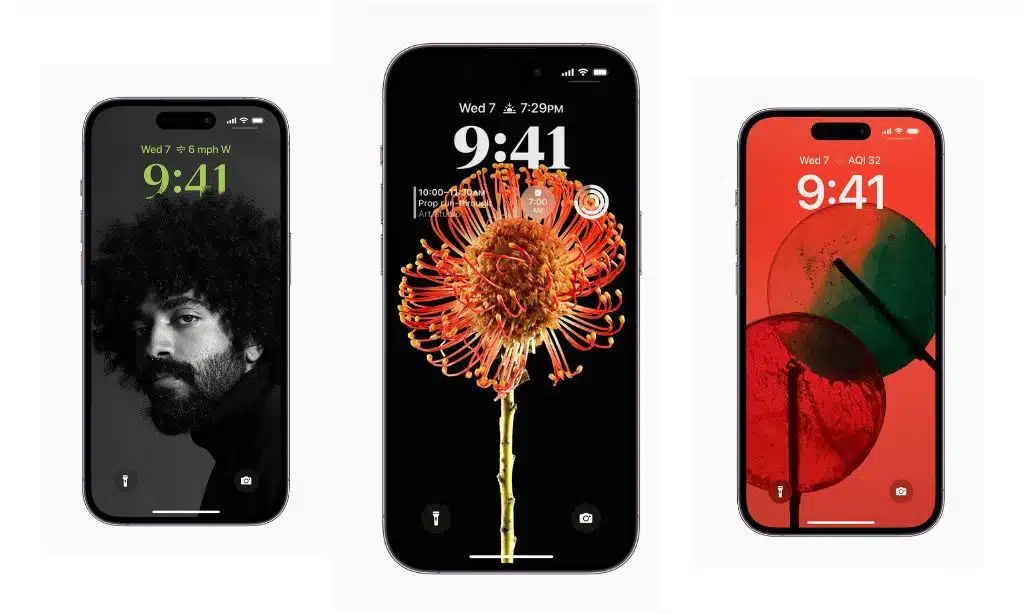
To change your iPhone wallpaper, go to the Wallpaper section of Settings and select a new wallpaper. Customize your lock screen and home screen with different images for a personalized look.
Go to the Wallpaper Section of Settings
First, open the Settings app on your iPhone. Next, scroll down until you see Wallpaper. Tap on it. Here is where you can change your wallpaper. This part of the settings lets you choose new looks for your phone.
Select a New Wallpaper
First, open the Settings app on your iPhone. Look for and tap on the Wallpaper. Here, you will see the “Add New Wallpaper” option. Tap it to pick a new wallpaper for your iPhone 14.
You can choose from many options. You might use one of your own photos or people’s pictures. Or maybe you want to try out the Photo Shuffle feature! After picking what you like, tap “Add”.
Now, that image is your new wallpaper! But wait, there’s more! If you have iOS 16 or higher, you can even set different wallpapers for your lock screen and home screen!
So go ahead and try it out – change up those wallpapers as much as you want!
Customize Your Lock Screen and Home Screen
Your iPhone lets you pick a new look anytime. Mix it up by changing your wallpaper! Spiffy things can happen with just a few taps. Go to Settings and tap on Wallpaper & Lock Screens.
You get many themes to choose from there. Like one? Great! Tap on it then hit the ‘Add New’ button for that theme to live on your lock screen home screen or both! Want more fun? Try adding cool widgets in iOS 16 for an extra dash of color and charm! Now, each time you light up your device, it’s all about joy and style for you!
Existing Wallpaper Choices on iPhone
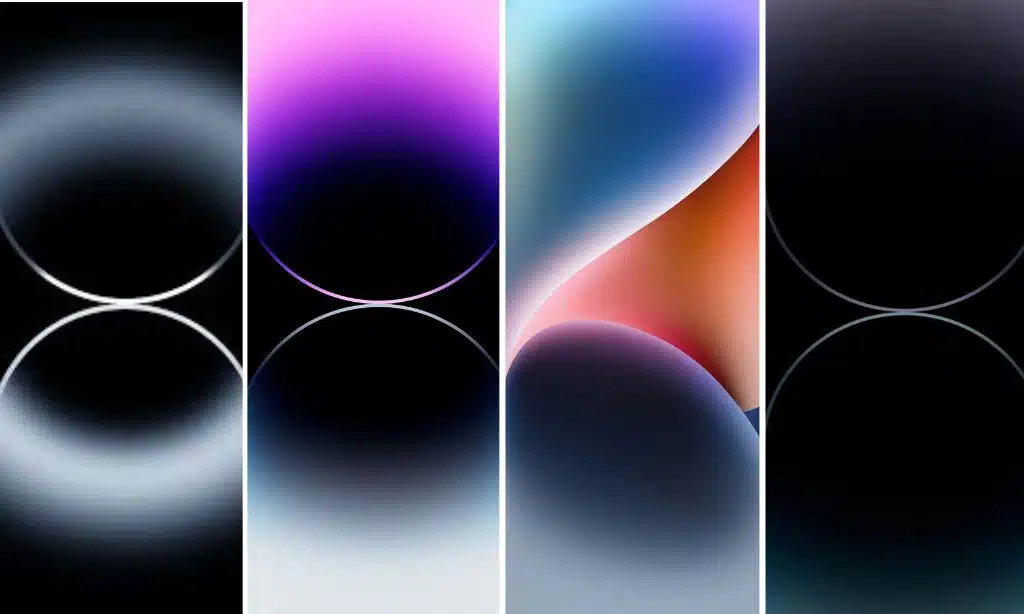
The iPhone offers a variety of wallpaper choices, including suggested photos, weather and astronomy themes, special wallpapers, emoji collections, and color options.
Suggested Photos
The iPhone offers a wide range of wallpaper choices, including suggested photos. These are pre-selected images that you can use as your wallpaper. The gallery includes beautiful landscapes, stunning nature shots, and other visually appealing pictures.
To set a suggested photo as your wallpaper, simply go to the Wallpaper section in Settings and choose from the available options. You can also customize your lock screen and home screen with different wallpapers if you prefer.
With so many suggestions to choose from, you’ll find the perfect background for your iPhone easily!
Weather & Astronomy
The Weather & Astronomy category is one of the wallpaper options available on iPhone. With this collection, you can have a personalized lock screen that shows the latest weather conditions.
It’s a basic option but still visually appealing and interesting. You can choose from different images related to weather and astronomy, such as landscapes with stars or photos of clouds.
This allows you to have a unique lock screen that reflects your interests while also keeping you informed about the current weather at a glance. So if you love looking at beautiful skies or want to know what the weather is like without opening an app, consider choosing a wallpaper from this collection for your iPhone 14.
Special Wallpapers

In iOS 16, users can choose from special wallpapers for their iPhones. These special wallpapers include dynamic and interactive options to make your lock screen come alive.
The system also intelligently suggests new lock screen wallpapers based on your preferences and the time of day. With these special wallpapers, you can personalize your iPhone and make it even more unique.
And the best part is it’s easy to set them up – go to the Wallpaper section in Settings and select your preferred wallpaper option. So go ahead and give your iPhone a fresh new look with these special wallpapers!
Emoji Collections
Users can have fun with their iPhone wallpapers by choosing from a variety of emoji collections. With pre-made emoji looks already available, users can easily switch out or select different emoji wallpapers to suit their preferences.
By accessing the “Add New Wallpaper” page, users can even create an Emoji Lock Screen wallpaper and add emojis of their choice. So, whether you want to express your emotions or add some personality to your device, the option to use emojis as wallpapers on your iPhone is there for you to enjoy.
Color Options
The iPhone 14 offers a range of color options for its wallpaper. Users can easily change the color of their lock and home screens by going to the Wallpaper section in Settings.
When selecting a new wallpaper, users have access to suggested photos, weather and astronomy wallpapers, special wallpapers, emoji collections, and even the ability to choose a specific color for their wallpaper.
With iOS 16, users can tap on a color to instantly change the wallpaper color on their iPhone Lock Screen. Whether you want something vibrant or calming, plenty of options are available to personalize your iPhone 14’s appearance.
iPhone 14-Specific Wallpaper
The iPhone 14 will come with specific wallpapers designed exclusively for this model.
Availability of Specific Wallpapers for iPhone 14
The iPhone 14 allows users to change their wallpaper, but no specific information is available about the availability of specific wallpapers for this model. However, users can still choose from a wide range of existing wallpapers and even find new options through various websites and apps.
So, while there may not be any iPhone 14-specific wallpapers, users can still enjoy customizing their devices with different backgrounds that suit their style and preferences.
Anticipated New Options for iPhone 15 or iOS 17
iOS 17 is the newest software update for iPhone, and it’s expected to bring some exciting new options. One of these is Contact Posters, which will improve communication by enhancing our experience when talking to someone.
Another cool addition to iOS 17 is a sticker experience that lets us express ourselves more creatively. And if you love voicemail, you’ll be happy to know that Live Voicemail is also coming with this update! These are just a few anticipated new iPhone 15 or iOS 17 options, so stay tuned for even more features and enhancements.
Best Places to Find iPhone Wallpaper
Several excellent sources for finding iPhone wallpapers include Pexels, Vellum, Pixabay, and iLikeWallpaper.
Pexels
Pexels is a popular website that offers over 1,000 free iPhone wallpapers. They have a wide range of options, and they add new wallpapers every day. You can find high-quality backgrounds for your lock screen and home screen on Pexels.
The best part is that you can use these wallpapers for different purposes, like presentations or social media posts. Pexels even has a mobile app that makes it easy to access their wallpapers directly on your iPhone.
So if you’re looking for a new wallpaper for your iPhone 14, be sure to check out Pexels for some great options.
Vellum
Vellum is an app that you can find on the App Store if you have an iPhone, iPad, or Mac. It’s a great app to get beautiful wallpapers for your Apple devices. The best part is that it’s completely free! Vellum has hundreds of stunning wallpapers, so you’ll never run out of options.
It gathers wallpapers from different sources, giving you many choices. And the good news is that Vellum also supports the latest iPhone 14 wallpaper options. So if you want to give your iPhone 14 a fresh look, check out Vellum for some amazing wallpaper choices!
Pixabay
Pixabay is a great place to find iPhone wallpapers. You can search for wallpapers on their website and choose one that you like. They have lots of high-definition options in different sizes.
The best part is, that Pixabay is completely free to use! They have over a million pictures available for download. If you want, you also have the option to purchase pictures from them.
So, if you’re looking for some new wallpapers for your iPhone 14, check out Pixabay!
iLikeWallpaper
iLikeWallpaper is a website that’s all about finding the best iPhone wallpapers. It’s considered one of the top places to go when you want to change up your wallpaper. On this site, you’ll find various HD wallpapers in different sizes.
What makes iLikeWallpaper special is that it features handpicked collections from artists and designers worldwide. This means you can be sure to find beautiful and unique wallpapers for your iPhone.
So if you’re looking for a fresh new look for your phone, iLikeWallpaper is worth checking out!
Download Official iPhone 14 and 14 Pro Wallpapers
You can download the official iPhone 14 and 14 Pro wallpapers in full resolution for free.
In Full Resolution
You can download the official iPhone 14 and 14 Pro wallpapers in their full resolution. This means you will get the highest quality image for your lock and home screens.
The wallpapers are designed to enhance the visuals of your iPhone 14, taking advantage of its Super Retina XDR display with a resolution of 2556-by-1179 pixels at 460 ppi. So, whether you want a beautiful landscape or a stunning abstract design, you can enjoy it in all its glory on your iPhone 14 by downloading the full-resolution wallpapers.
Free Options
The iPhone 14 and 14 Pro have some exciting news for you – they offer free options to download official wallpapers! These wallpapers come in a variety of colors, including the new yellow.
So if you want to change up your home screen and give it a fresh look, you don’t have to worry about spending money. Head over to the Settings app on your iPhone 14, tap on Wallpaper, and choose from the available options.
It’s that easy!
Wallpaper Updates with iOS Releases
New wallpapers are regularly introduced with iOS updates, providing users with various options to refresh their device’s look and feel.
New Wallpapers Introduced with iOS Updates
iOS updates bring exciting new wallpapers to your iPhone, adding a fresh look and feel. With the release of iOS 16, you can expect a range of new options, including a Unity wallpaper in honor of Black History Month.
These wallpapers are designed to inspire and enhance the visual experience on your iPhone. Apple also provides suggested photos and themed collections for you to choose from, allowing you to customize your device according to your preferences.
It’s worth noting that some users have encountered difficulty deleting these new wallpapers, which has confused. Nonetheless, iOS updates continue to offer an expanding gallery of wallpapers with each release, giving you plenty of choices for personalizing your iPhone’s appearance.
Range of Options With iOS 16 and Beyond
With the release of iOS 16 and future updates, iPhone users are given a wide range of options to personalize their wallpapers. The built-in wallpaper generator now allows users to create color gradients and emoji grids as wallpapers.
Additionally, the lock screen can be customized by changing the font and color of the date and time display. Furthermore, interactive wallpapers and widgets have been introduced to enhance the user experience on the lock screen.
As iOS continues to evolve beyond version 16, users can expect even more exciting features and designs for their iPhone wallpapers. These new options allow users to customize their iPhones according to their preferences. If you want, you can also read Midjourney V5.
Finding Teardown Wallpapers
Access teardown wallpapers by following these steps in the Settings app.
Steps to Access Teardown Wallpapers Through Settings App
You can follow a few simple steps to access teardown wallpapers on your iPhone 14. First, open the Settings app on your device. Then, scroll down and tap on “Wallpaper.” This will bring up a selection of different wallpaper options for you.
From there, you can browse the available choices and select the teardown wallpapers you like. Once you’ve made your selection, apply it as your new wallpaper and enjoy the unique design on your iPhone 14’s screen.
It’s an easy way to personalize your device with eye-catching wallpapers.
Should You Upgrade to iPhone 14 Pro?
Consider the notable features and benefits of the iPhone 14 Pro before deciding whether to upgrade. Discover why it might be worth your investment. Read more to make an informed decision on upgrading your device.
Considerations for Upgrading
If you’re thinking about upgrading to the iPhone 14 Pro, there are a few things to consider. First, this is Apple’s latest and greatest iPhone, so you’ll be getting the newest technology available.
However, if having the absolute latest is important to you, it might be worth waiting for the iPhone 15 Pro models. Second, the iPhone 14 Pro offers upgraded camera features that can improve your photography experience.
Thirdly, there are six reasons why upgrading to the iPhone 14 Pro could be beneficial for you. Lastly, keep in mind that trade-in deals can make upgrading more enticing by reducing the cost of the new device.
Notable Features and Benefits of iPhone 14 Pro
The iPhone 14 Pro has some impressive features that make it worth considering. One of the standout features is its new 48MP Main camera, which captures sharper and more detailed photos.
Additionally, the True Depth camera now has an oval-shaped screen cut-out, replacing the notch for a sleeker design. Another benefit is the Always On display, which keeps important information visible at all times without draining your battery.
With upgraded cameras and this convenient display feature, the iPhone 14 Pro offers significant improvements over previous models. Additionally, you can also read on Star Wars Wallpapers.
Frequently Asked Questions (FAQs)
Now you’ll get to know about some FAQS on this topic
1. Where can I find iPhone 14 wallpapers?
You can find iPhone 14 wallpapers on various websites, such as the official Apple website, wallpaper apps, or through a simple online search.
2. Can I use any wallpaper on my iPhone 14?
Yes, you can use any wallpaper on your iPhone 14 as long as it is compatible with the device’s screen resolution and aspect ratio.
3. How do I set a wallpaper on my iPhone 14?
To set a wallpaper on your iPhone 14, go to the “Settings” app, select “Wallpaper,” choose either the lock screen or home screen option, and then select the desired image from your photo gallery or saved wallpapers.
4. Are there any new updates regarding iPhone 14 wallpapers?
As of now, there are no specific updates regarding iPhone 14 wallpapers. However, you can stay updated by following official Apple announcements or checking reliable tech news sources for any future updates.