Shared device safety for kids is not only about blocking adult websites. When a child borrows a family phone, tablet, computer, or smart TV, they may also change settings, open private apps, reveal notifications, delete synced files, or drop the device.
I have seen these risks with my nephew, who turned seven this year. As his aunt, I help choose the apps and routines he follows. We allow him to use educational apps on a phone for about 30 minutes a day. He can also watch YouTube Kids on the television for around an hour.
His bedtime is 10 PM, and screens stop two hours before that. The routine sounds simple now, but it took time to establish. Before we set fixed limits, he regularly asked to continue watching. Once the schedule became predictable, the arguments became easier to manage.
Creating his own YouTube Kids profile also helped. His viewing activity no longer mixed with adult watch histories or recommendations. Still, I do not treat any child profile or content filter as a guarantee. A safe shared device needs the right settings, carefully selected content, consistent limits, physical protection, and an adult who remains involved.
A screen-time limit controls duration. It does not control everything the child can reach during that time.
A child may leave the learning app, open a message, change the device language, activate the camera, or follow an advertisement. On a shared adult profile, they may also reach work files, cloud photos, saved passwords, or payment details.
This creates two responsibilities:
- Protect the child from unsuitable content, contact, purchases, and data collection.
- Protect the family’s accounts, files, settings, and device from accidental changes or damage.
The safest setup should address both.
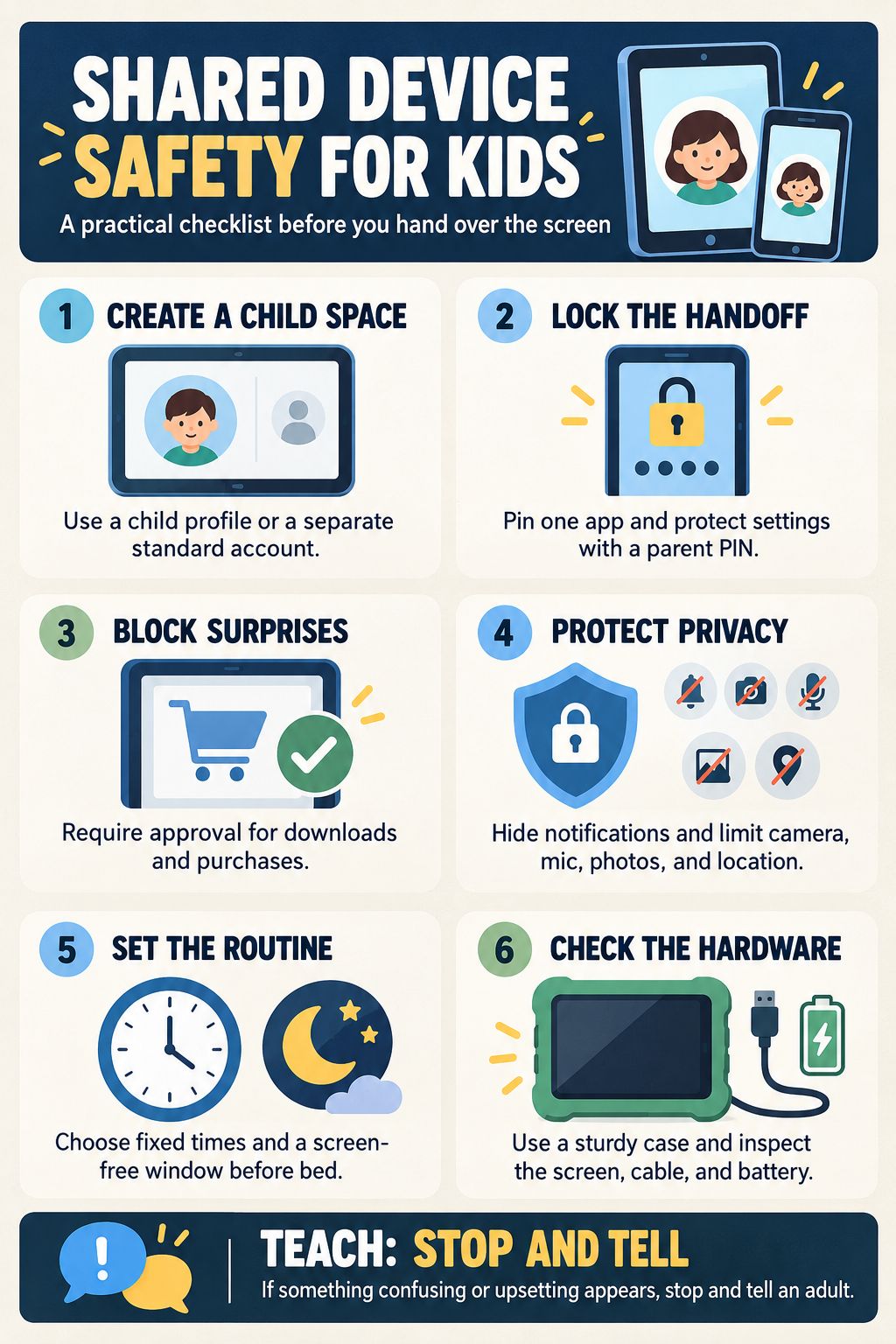
Decide Between a Child Profile and a One-App Handoff
Start by deciding how the child will use the device. If you are handing over your phone for one short lesson, lock it to that app. If the child uses the device regularly, create a separate child account or profile wherever the platform supports one.
For iPhone and iPad
Guided Access can temporarily lock an iPhone or iPad to one app. It can also disable buttons, selected parts of the screen, keyboard access, and certain gestures.
This is useful when you want a child to use one educational app without opening Messages, Photos, Safari, or another part of the device.
An ordinary household iPad does not offer traditional user profiles like a Windows computer. If an iPad mainly belongs to the child, create a child Apple Account through Family Sharing and manage it with Screen Time.
For Android Phones and Tablets
Android app pinning keeps one app on the screen until an adult unlocks it. Many Android devices also support separate user or child profiles, although availability varies by manufacturer.
Google Family Link can manage app access, screen time, downloads, content settings, and some permissions on a supervised child account.
For Computers and Chromebooks
Children should have standard accounts on Windows or macOS computers. Do not give a young child administrator rights.
On a Chromebook, use a supervised Google Account and disable guest browsing. Otherwise, a child may enter guest mode and use the browser without the controls attached to their supervised account.
For Fire Tablets
Use an Amazon Kids child profile instead of giving a young child access through the adult profile. Protect the adult side with a PIN that the child does not know.
Keep YouTube Kids Separate From Adult Viewing
Creating my nephew’s own YouTube Kids profile was one of the changes that helped us most. It gave him a viewing space based on his age and activity rather than the adults’ watch history.
In our experience, adult material has not appeared in his feed. However, that personal result does not mean unsuitable content can never slip through. YouTube Kids still requires regular checking.
Parents can strengthen the setup by:
- Selecting the appropriate content level
- Turning off search for younger children
- Disabling autoplay
- Reviewing watch history
- Blocking unwanted videos or channels
- Clearing history if recommendations become unsuitable
- Using a parent code on supported televisions
- Checking that the child has not switched to an adult profile
Turning off autoplay is particularly useful. It creates a stopping point instead of allowing one video to lead automatically into another.
If search remains available, check what the child has searched for. A seven-year-old may begin with an innocent phrase but receive results that require more context than they have.
Lock Settings, Downloads, and Sensitive Apps
We have not had an accidental purchase problem with my nephew. Changing settings and dropping the phone have been more realistic concerns.
Parents often protect a payment card but leave the rest of the device open. A child may then change Wi-Fi, Bluetooth, accessibility options, permissions, account details, or the device language without understanding the result.
Use a parent PIN or password that the child does not know. Avoid entering it where the child can watch and memorise it.
Depending on the device, restrict:
- App installations and deletions
- In-app purchases
- Account changes
- Password changes
- Privacy and location changes
- Profile switching
- Unrestricted browser access
- Permission changes
- Guest accounts
Purchase approval should still be enabled even if the child has never bought anything accidentally. Some games and learning apps place purchase buttons close to ordinary controls.
A purchase PIN is not enough if payment details remain available inside shopping apps, browsers, food-delivery services, or games that use an external checkout. Keep those apps outside the child’s profile or lock them separately.
Hide Adult Notifications, Photos, and Work Files
A child does not need to open an app to see private information. Message previews, email subjects, calendar events, verification codes, and delivery updates may appear as notifications.
Set sensitive notifications to appear only when the device is unlocked. If the operating system supports app locking or hiding, apply it to:
- Messaging and email
- Banking and payment apps
- Password managers
- Photo libraries
- Cloud storage
- Work communication apps
- Social media
- Shopping and delivery services
Cloud photo and file libraries need extra care. Deleting a synced photo or document from the shared device may also remove it from other connected devices.
Recovery folders can help after an accident, but they are not a complete backup strategy. Keep important family photos and work documents backed up, and do not leave the adult cloud library open during a child’s session.
What My Experience With Learning Apps Changed
Working with our in-house learning apps changed how I judge educational software. When my nephew was three, he used those apps to practice letter sounds, basic phonics, counting, and numbers. Short activities, clear audio, repetition, and immediate feedback suited him at that stage.
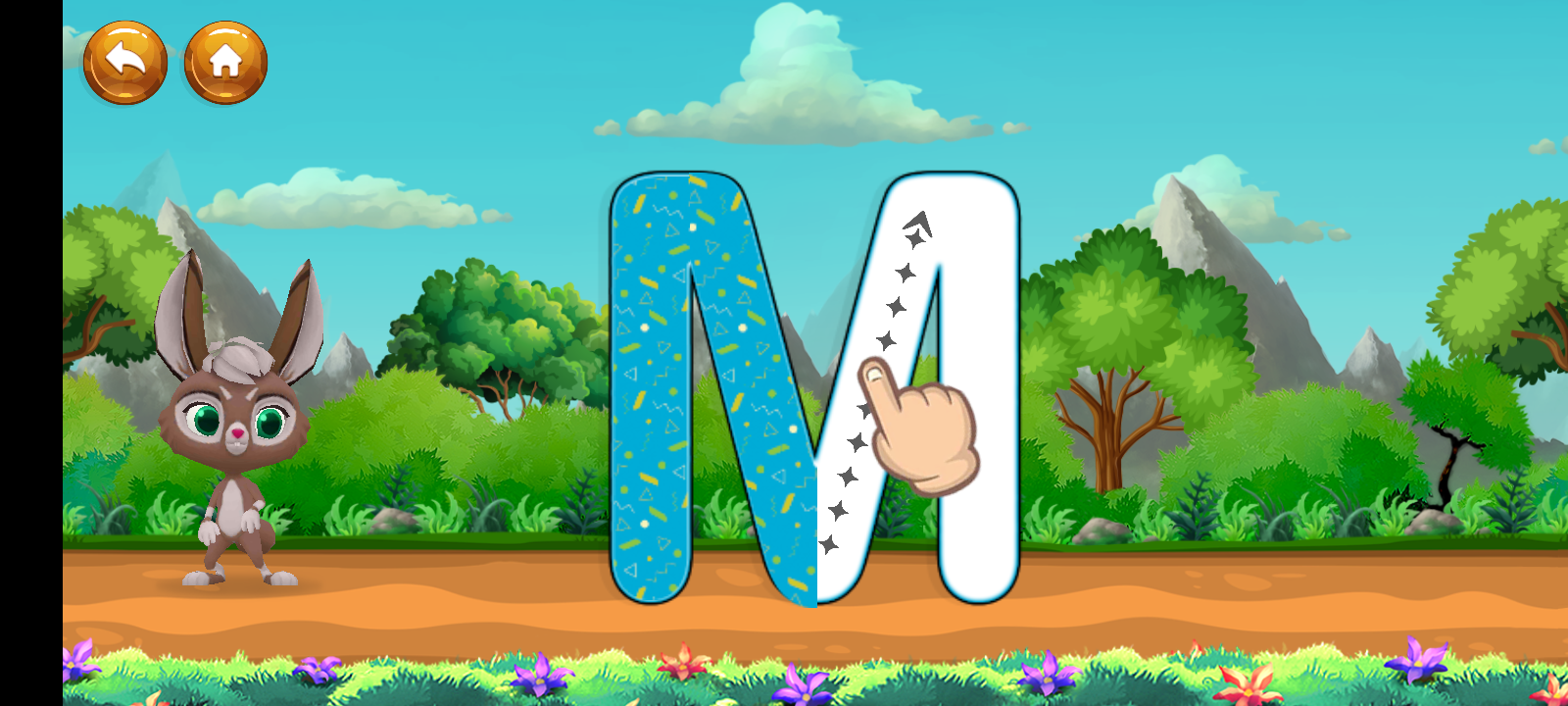
Now that he is seven, his learning needs are different. He uses Duolingo for supervised language practice. The progression reminded me that an app should not remain in a child’s routine simply because it was useful several years ago.
I now ask several questions before describing an app as educational:
- Does it have a clear learning goal?
- Does the child have to recall, speak, match, solve, or create something?
- Does the feedback help the child understand a mistake?
- Is the difficulty appropriate for the child’s current level?
- Can the child use something learned in an offline activity?
- Does the app end naturally, or does it pressure the child to continue?
- Are advertisements, purchases, and social features controlled?
- Does it collect more information than the lesson requires?
An app that teaches a child to recognise a sound, use a new word, or solve a problem may support learning. An app that only rewards rapid tapping may keep the child occupied without teaching very much.
Interactive learning time is also different from passive video viewing. Thirty minutes spent answering language questions should not automatically be treated as identical to 30 minutes of continuous entertainment. Both still need boundaries, but the purpose and level of engagement matter.
Educational apps work most effectively when an adult occasionally joins the activity. Ask the child to explain a new word, repeat a sound, count real objects, or use the lesson away from the screen. That is where digital practice begins to connect with real learning.
Make Screen Time Predictable, Not Negotiable
The hardest part for us was not choosing an app. It was deciding when the session would end. Before we introduced fixed times, my nephew kept asking for more. The limit felt unpredictable to him because it changed from one day to another.
Our current routine is clear:
- Around 30 minutes for educational apps on the phone
- Around one hour for YouTube Kids on the television
- No screens during the two hours before his 10 PM bedtime
This is our family’s routine, not a medical formula for every seven-year-old. It works because he knows what to expect.
Parents can make transitions easier by:
- Explaining the stopping time before the session begins
- Using a visible timer
- Giving a five-minute warning
- Stopping at the end of a lesson or video
- Preparing the next activity in advance
- Avoiding repeated negotiations once time is over
- Following similar screen-free rules during family time
The purpose of a limit is not simply to reduce a number. It should protect time for sleep, schoolwork, movement, reading, conversation, outdoor activity, and imaginative play.
If a child regularly becomes extremely upset when the device is removed, review the content as well as the duration. Fast rewards, autoplay, endless feeds, and unpredictable prizes can make stopping harder.
Protect the Device From Drops and Charging Damage
Dropping the phone has been a more realistic risk in our home than making a purchase.
Young children may hold a device by one corner, walk while watching, balance it on furniture, or leave it where someone can step on it. A protective case helps, but no case makes a device indestructible.
Useful precautions include:
- Use a well-fitted impact-resistant case.
- Choose a case with raised edges around the screen.
- Add a screen protector.
- Give the device a designated resting place.
- Ask the child to use it while seated.
- Keep drinks away from the device.
- Keep cables outside walking areas.
- Let an adult control charging.
- Inspect the device after a serious drop.
Stop using the device if you notice cracked glass, battery swelling, unusual heat, liquid damage, a damaged charging port, or an exposed cable.
Charge it on a hard, dry, ventilated surface. Do not leave it charging under bedding, on a soft sofa, or anywhere heat can become trapped.
Protect Eyes, Ears, and Sleep
A safer device routine should protect the child’s physical comfort as well as their online safety. Encourage regular breaks from close-up viewing. Ask the child to look across the room or out of a window, blink normally, and change position. Outdoor play also gives the eyes a break from sustained near work.
Use speakers when practical. If headphones are necessary, keep the volume moderate and make sure the child can still hear an adult speaking nearby.
The screen-free period before bed has worked well for us. Since my nephew sleeps at 10 PM, screens stop at 8 PM. That creates time for dinner, conversation, reading, and a calmer bedtime routine.
Test the Device From the Child’s Side
Do not configure parental controls inside the adult dashboard and assume everything works.
Open the child profile and try to:
- Leave the educational app.
- Switch to the adult profile.
- Enter guest mode.
- Open an unrestricted browser.
- Install or delete an app.
- Change the time limit.
- Reveal private notifications.
- Open photos or cloud files.
- Make a purchase.
- Grant camera or location access.
- Open an advertisement.
- Start a chat or voice call.
If one of those actions succeeds unexpectedly, adjust the controls and test again. This child-view test is especially important after an operating-system update, app redesign, password change, or device reset. An update may introduce a new feature or move an existing setting.
Teach a Simple “Stop and Tell” Rule
Parental controls cannot prepare a child for every possible screen. Teach one simple response: if something strange, frightening, confusing, or uncomfortable appears, stop and tell an adult.
The child should know that reporting a problem will not automatically lead to punishment. If children expect anger or immediate device removal, they may hide the next problem.
For a younger child, the rule can be very simple:
- Do not enter a name, school, address, photo, or password.
- Do not reply to unknown people.
- Do not approve a camera or microphone request.
- Do not click a purchase button.
- Show an adult anything that feels wrong.
Technical restrictions can prevent some mistakes. A calm conversation helps when the restriction does not.
Check out parental control apps to manage kids’ screen time.
Give Technology a Clear Place in Family Life
Shared device safety for kids works best when the device has a clear purpose, place, and stopping time.
With my nephew, the biggest improvements did not come from complicated monitoring software. They came from selecting suitable apps, creating his own YouTube Kids profile, fixing the duration of each activity, and keeping screens away during the two hours before bed.
Educational apps can support learning. YouTube Kids can provide entertainment and useful videos. But neither should become an unrestricted digital babysitter.
A safe shared device combines a protected child space, carefully chosen content, limited permissions, consistent timing, durable hardware, and an adult who remains interested in what the child is doing.
Create a separate child profile if the tablet supports one. Add content restrictions, block purchases and account changes, review app permissions, and protect the adult profile with a password. If the child needs only one app, use Guided Access on an iPad or app pinning on Android. Test the restrictions from the child’s profile before handing over the tablet.
Can I Create a Separate Child Profile on an iPad?
A personal iPad does not support traditional household user profiles. For a short handoff, use Guided Access to keep the child inside one app. If the iPad mainly belongs to the child, set it up with the child’s own Apple Account through Family Sharing and manage access with Screen Time. Do not share the adult’s Apple Account with the child.
How Do I Lock My Phone So My Child Stays in One App?
On an iPhone, turn on Guided Access in Accessibility settings. Open the app, start a Guided Access session, and protect the exit with a passcode or biometric authentication. On compatible Android phones, enable app pinning in the security settings. Pin the selected app and require the device PIN before it can be unpinned. Always inspect the app first because one-app mode does not block advertisements, external links, or purchases inside that app.
How Much Screen Time Should a Seven-Year-Old Have?
There is no single limit that suits every seven-year-old. Consider what the child is doing, whether an adult is involved, and what the activity may be displacing. Screen use should not interfere with sleep, schoolwork, physical activity, reading, family interaction, or offline play. A fixed family schedule is often more useful than changing the limit every day.
Is YouTube Kids Completely Safe?
No. YouTube Kids provides stronger content controls than standard YouTube, but no automated filtering system is perfect. Use a child profile, select the appropriate content level, consider disabling search and autoplay, review viewing history, and block unwanted channels. On a shared television, also prevent the child from switching to an adult YouTube profile.
How Can I Stop My Child From Changing Device Settings?
Use a child or standard user account rather than the adult administrator account. Protect parental controls with a PIN the child does not know. For short sessions, lock the phone to one app. Also restrict profile switching, app installation, account changes, privacy changes, and guest access. Recheck the setup after major software updates.