If you want to fix Discord screen share black screen, disable hardware acceleration in both your desktop browser and Discord settings, then share the browser window rather than the full screen. This method works for Netflix, Hulu, Prime Video, and other protected streaming services. Desktop browsers like Chrome and Firefox give you the controls to bypass digital rights management conflicts, while mobile devices on iPhone and Android lack the same access to acceleration settings.
Streaming movies on Discord without a black screen means turning off the hardware acceleration feature that causes capture conflicts. When hardware acceleration is enabled, Discord’s screen capture cannot read protected video content, so it shows a black frame instead.
You need an active Discord voice channel, a streaming subscription, and a desktop browser that can play the movie. The steps below cover video capture, audio routing, and the differences between desktop and mobile streaming.
Choose the Setup that Can Capture Video
Start with a desktop browser, Chrome or Firefox, rather than a standalone streaming app or a mobile device. Desktop browsers let you disable hardware acceleration, which removes the capture block that causes black screens.
The Discord desktop app and native streaming apps like the Netflix Windows application preserve protected video during capture, so they often fail even after you turn off acceleration. Safari also blocks Discord screen sharing even when hardware acceleration is off, so it is not a reliable choice.
Mobile devices on iOS and Android do not expose the same acceleration and capture controls that desktop browsers offer. You cannot toggle hardware acceleration in mobile browsers, and the operating system enforces digital rights management restrictions at a level you cannot change.
If you try to stream from an iPhone or an Android phone, you will see a black screen on most protected services. Desktop capture is the only route that consistently works.
The table below compares the three main approaches:
| Method | Hardware acceleration control | Typical result |
|---|---|---|
| Desktop browser | Yes, the user can disable it. | Video and audio both stream |
| Desktop streaming app | Limited—app may override | Black screen persists |
| Mobile (iOS or Android) | No—OS enforces DRM | Black screen persists |
Use desktop browser capture as your first choice, then troubleshoot source and audio settings if the stream still fails. Desktop streaming apps and mobile screen sharing remain unreliable for protected content.
Step 1: Prepare the browser and Discord channel
Open the movie in Chrome or Firefox on your desktop, and join the Discord voice channel where your viewers will watch. You need to prepare both applications before you start the stream so you can switch between them without losing your place.
- Log in to your Discord account in a desktop browser, then navigate to the server and voice channel you will use.
- Open the streaming service, Netflix, Hulu, or Prime Video, in a separate browser tab or window, and start playing the movie you want to share.
- Keep the movie window and Discord open side by side so you can switch between the browser and the Discord settings without closing either one.
- Confirm that you can hear the movie audio on your own device before you invite viewers.
You should see the movie playing normally in your browser, and Discord should show that you are connected to the voice channel. If the movie does not play, check your subscription status and your internet connection before moving to the next step.
Step 2: Remove the browser and Discord capture conflict
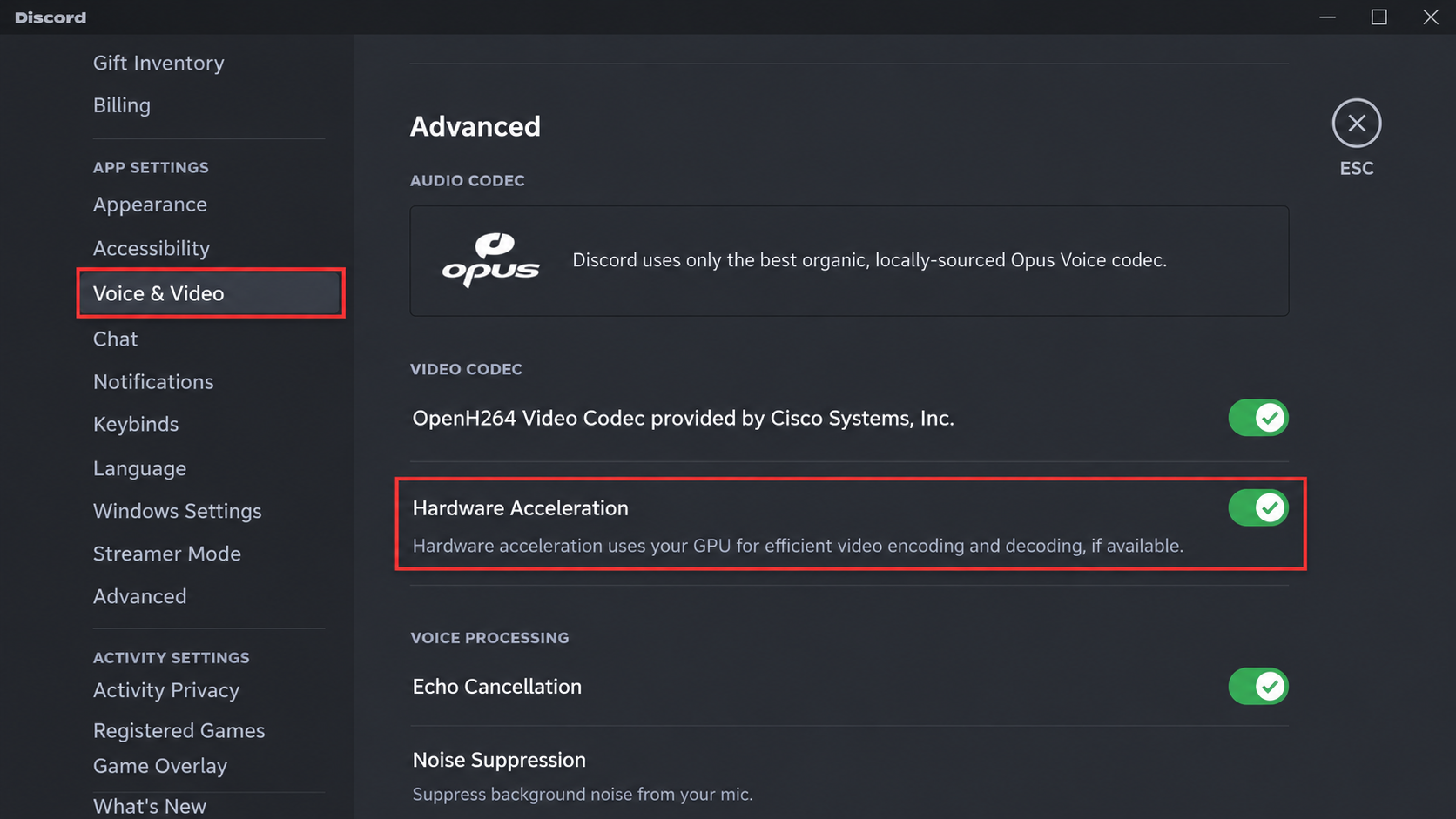
Turn off hardware acceleration in both your browser and Discord to remove the setting that blocks protected video capture. Hardware acceleration uses your graphics card to render video, but it also prevents Discord from reading the video stream.
- Open your browser settings and search for “hardware acceleration.” In Chrome, go to Settings > System, then toggle off “Use hardware acceleration when available.” In Firefox, go to Settings > General > Performance, uncheck “Use recommended performance settings,” then uncheck “Use hardware acceleration when available.” You should see the toggle switch turn off.
- Close your browser completely and reopen it so the change takes effect. The movie should still play normally after you relaunch.
- Open your Discord user settings, then scroll down to Voice & Video. Scroll down to look for “OpenH264 Video Codec.” If either option is enabled, turn it off.
- Restart Discord after you change the setting so it applies to new streams. When you reopen Discord, you should see the same voice channel connection you had before.
After you restart both applications, the capture conflict should be gone. The next step is to select the correct source and audio routing.
Step 3: Select the right source and preserve audio
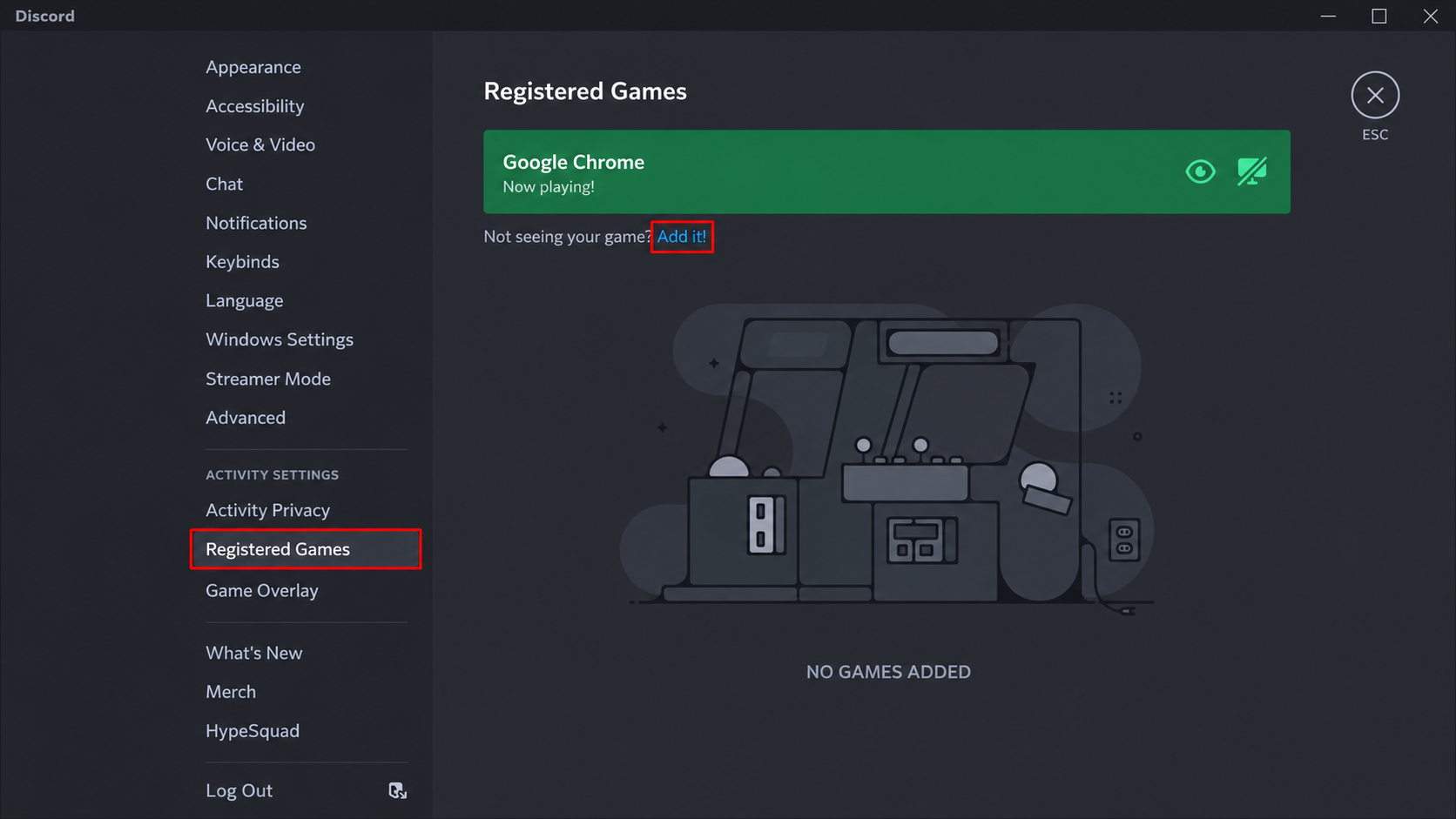
Test the browser application window before you try full-screen capture, and enable tab or application audio when Discord offers it. Window sharing is more reliable because it isolates the movie from other open windows.
- In Discord, click the “Share Your Screen” or “Go Live” button in the voice channel. Discord will show you a list of windows and screens you can share.
- Select the browser window where the movie is playing, not the full screen. Discord labels each window by application name, so look for “Chrome” or “Firefox” followed by the streaming service name.
- Check the “Sound” or “Audio” toggle at the bottom of the share dialog. This option enables tab audio, which routes the movie’s sound to viewers. If you do not enable it, viewers will see video but hear no sound.
- Start the stream and confirm that the movie plays without a black screen. If window capture fails, stop the stream and try again with full-screen sharing instead.
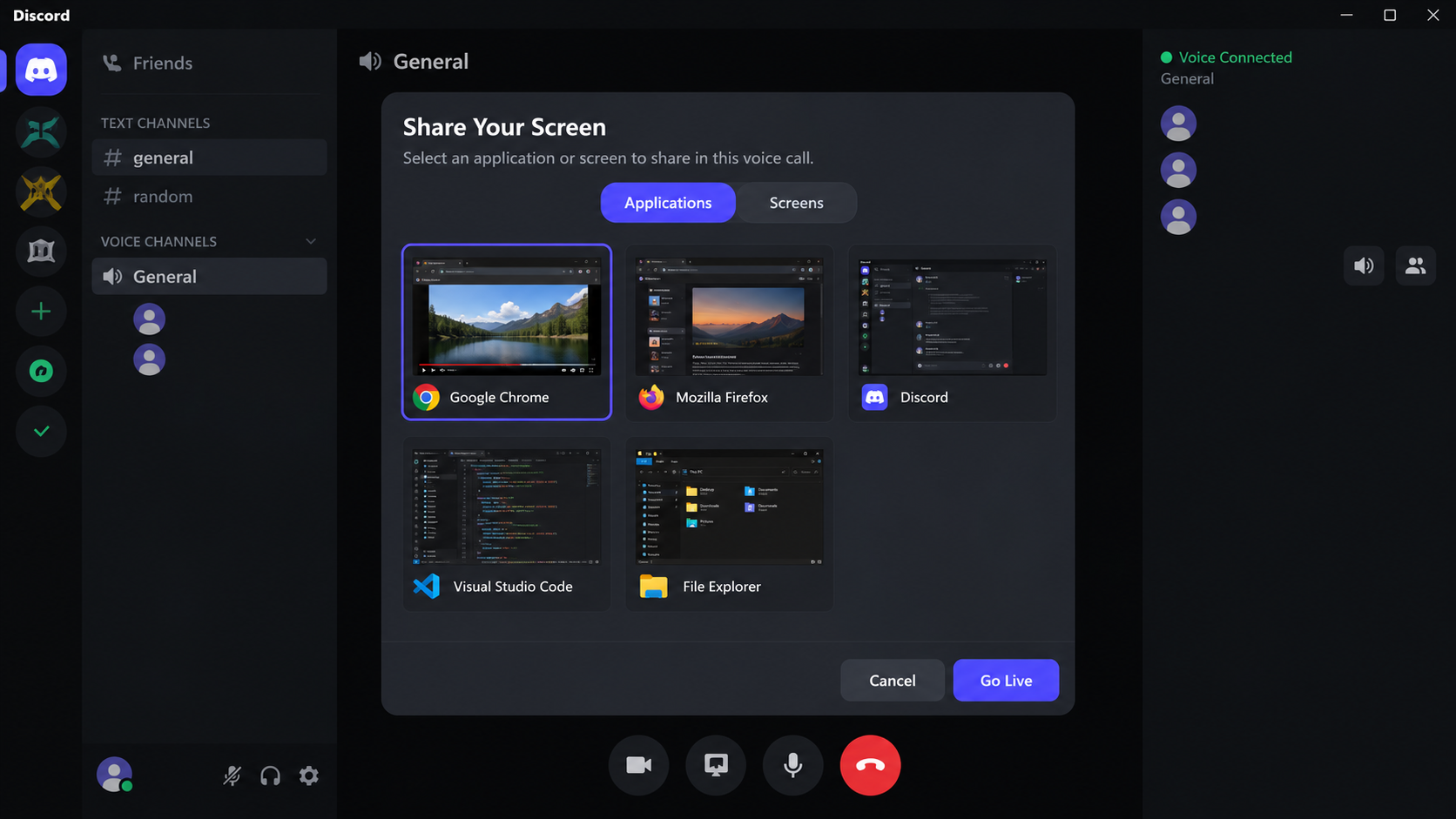
The table below shows when to use each capture method:
| Capture method | When to use it | Audio setting |
|---|---|---|
| Browser application window | First choice—isolates the movie from other windows | Enable “tab audio” or “application audio” |
| Full screen | Fallback—use only when window capture shows a black screen | Enable “screen audio” |
You should see the movie playing in the Discord stream preview, and viewers should hear the audio if you enabled it.
Troubleshoot, then confirm what viewers receive
Restart both Discord and your browser after you change acceleration or audio settings, and check video, sound, and source selection separately before you invite viewers.
- Close Discord completely, then reopen it and rejoin the voice channel. A restart applies changes that do not take effect immediately.
- Close your browser and reopen the movie tab. Some acceleration changes require a full browser restart to work.
- Start the stream again, then ask one viewer to confirm that they see video and hear audio before you play the movie. A quick check saves time if the stream still fails.
- If the screen remains black, check that you disabled hardware acceleration in both the browser and Discord. If you see video but no audio, confirm that you enabled tab or application audio in the share dialog.
- Switch between application window and full-screen capture if one method shows a black screen. Audio settings reset when you switch, so enable sound again after you change the capture method.
After you confirm that viewers receive both video and audio, the stream is ready.
Final Words
Mobile devices and standalone desktop apps lack the capture settings needed to bypass copy protection. For reliable results, use a desktop browser with hardware acceleration switched off in both apps. Share the specific browser window rather than your full display, and remember to turn on tab audio. Running a quick test with one friend lets you spot audio and picture issues before everyone joins.
How do you stream a movie on Discord without a black screen on iOS?
You cannot reliably stream protected movies from an iPhone because iOS enforces digital rights management at the operating system level. Safari and the Discord iOS app do not expose hardware acceleration settings. That means you cannot turn off the background feature that blocks video capture. Even if you share your screen from an iPhone, protected streams like Netflix or Prime Video show a black box to viewers.
How do you stream Amazon Prime on Discord?
Follow the same browser and acceleration steps you used for Netflix:
- Open Prime Video in Chrome or Firefox on your desktop. Log in and start playing the movie.
- Disable hardware acceleration in the browser and Discord, then restart both applications. You should see the movie playing normally after you relaunch.
- Join a Discord voice channel, click “Share Your Screen,” then select the browser window where Prime Video is playing. Enable tab audio before you start the stream.
- Ask one viewer to confirm that they see the movie and hear the audio. If the screen remains black, check that you turned off hardware acceleration in both places.
Prime Video uses the same digital rights management as Netflix, so desktop browser capture is the reliable route.
Will Netflix or Hulu work for every Discord viewer?
Turning off hardware acceleration clears the capture conflict that produces a blank feed. Discord treats screen sharing the same way across sites, so these fixes apply equally to Hulu or Prime Video. Every viewer on the channel will see the video once you share that browser window directly.