The best parental control apps to manage screen time should make family rules easier to follow. They should not turn every phone or tablet into a permanent surveillance device.
Parents rarely need the app with the longest feature list. They need controls that work reliably on the devices their children use, preserve access to essential apps, and do not collect more family data than necessary.
I compared daily limits, app-specific rules, school and bedtime schedules, emergency access, platform support, privacy and cost. I also checked whether advertised features work equally on iPhone and Android, because they often do not.
Prices below are in US dollars and were checked in October 2026. Regional prices, promotions, and availability may change.
Best Parental Control Apps at a Glance
| App | Strongest use | Child devices | Starting cost |
| Qustodio | Overall cross-platform control | Android, iOS, Windows, Mac, Chromebook, Kindle | Free; paid from $59.95/year |
| Google Family Link | Free Android controls | Android, Chromebook | Free |
| Apple Screen Time | Apple-only households | iPhone, iPad, Mac | Free |
| OurPact | Detailed mobile schedules | iOS, Android | Free; paid from $6.99/month |
| Norton Family | Windows and study-time controls | Windows, Android, iOS | $49.99 for the first US billing year |
| Mobicip | Large mixed-device households | Android, iOS, Windows, Mac, Chromebook, Kindle Fire | Free; paid from $2.99/month |
| Microsoft Family Safety | Windows and Xbox | Windows, Xbox, Android | Free |
| Bark | Teen-risk alerts | Android, iOS and selected devices | From $5/month |
| Kidslox | Limits with screen-time rewards | iOS, Android | Free plan; regional paid pricing |
| Canopy | Explicit-content filtering | Android, iOS, Windows, Mac, Chromebook | From $8.33/month billed annually |
How I Chose the Best Parental Control Apps to Manage Screen Time
I gave more weight to controls that support real family routines: homework, meals, sleep, school, and weekends. Privacy also mattered. Message scanning, location tracking, and screenshots are not automatic advantages. They should serve a clear safety need.
I excluded Net Nanny because its current documentation says Android, Chromebook, and Kindle Fire are unsupported. Aura Parents has capable controls, but its parental-control service is limited to US-based customers.
1. Qustodio: Best Overall Paid Option
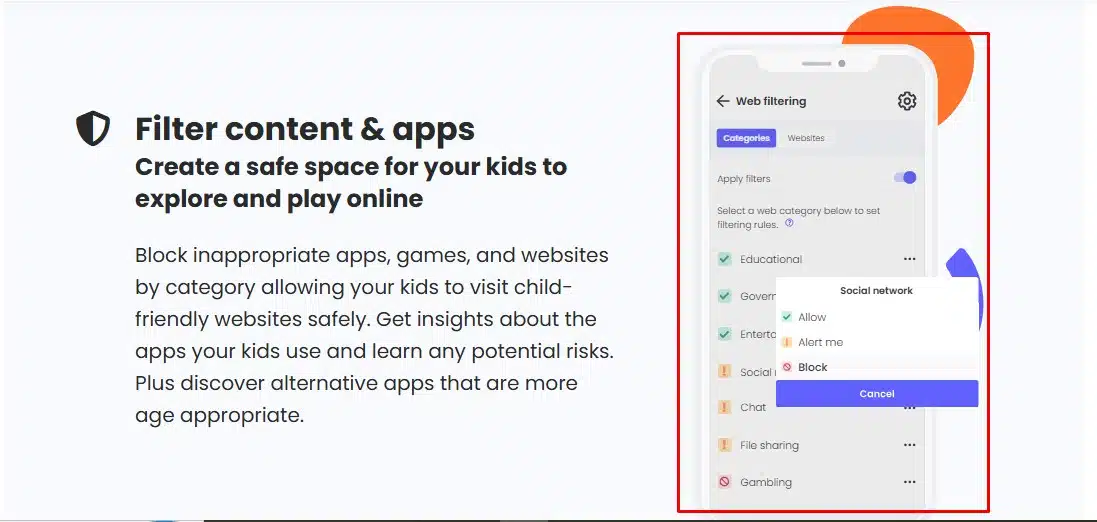
Qustodio offers the most balanced paid package for a mixed-device household. It combines daily limits, app and game restrictions, scheduled routines, internet pausing, web filtering, location tools, and activity reports.
The free version covers one device. Basic costs $59.95 annually for up to five devices, while Complete costs $104.95 for unlimited family devices and more advanced controls.
It is relatively expensive, and some monitoring features differ between iOS and Android. Families needing only basic limits should try the free version before upgrading.
2. Google Family Link: Best Free Android Option
For a child using Android or a Chromebook, I would start with Google Family Link.
Parents can set daily and individual app limits, schedule Downtime and School Time, approve downloads, lock a device remotely, and grant bonus time. Essential or educational apps can remain available after the general limit expires.
A parent can use an iPhone to manage Family Link, but the service cannot enforce screen-time limits on a child’s iPhone. Daily allowances may also apply separately to each supervised device rather than creating one combined limit.
3. Apple Screen Time: Best for Apple Families
Apple Screen Time is built into Apple devices, so there is no separate subscription.
Its current controls include Time Allowances, app-category limits, weekday and weekend schedules, instant pausing, purchase requests, website restrictions, and communication settings. Parents can manage everything through Family Sharing.
The latest controls work best when every family device has current software. Screen Time remains an Apple-only solution, but an all-Apple household should try it before paying for a third-party service.
4. OurPact: Best for Detailed Schedules
OurPact is useful when one general bedtime rule is not enough. Parents can create different routines for school, homework, meals, sleep, and weekends, while deciding which apps remain available.
Premium costs $6.99 monthly or $69.99 annually and supports up to 20 child devices.
Premium+ adds automated and on-demand screenshots. That level of monitoring may be justified in a serious safety situation, but it also creates a substantial privacy concern. Premium is sufficient for ordinary screen-time management.
5. Norton Family: Best for Windows and Study Time
Norton Family’s School Time feature allows approved educational websites while restricting common distractions. Parents can also schedule access, set daily allowances, lock devices, and review browsing, search, and video activity.
The service supports Windows, Android, and iOS child devices. Mac computers are not supported, and app supervision is more limited on iPhone.
The advertised US price is $49.99 for the first year. Parents should check the renewal price before subscribing.
6. Mobicip: Best for Many Device Types
Mobicip supports Android, iOS, Windows, Mac, Chromebook, and Kindle Fire. Depending on the plan, it provides schedules, app limits, remote locking, web filtering, location tools, and activity reports.
Paid plans cover five, 10, or 20 devices, starting at an advertised $2.99 per month when billed annually.
Its wide coverage is useful, but features are not identical across every operating system. Test it on the child’s actual devices before committing to an annual plan.
7. Microsoft Family Safety: Best for Windows and Xbox
Microsoft Family Safety makes sense for a household centered on Windows computers and Xbox consoles. Parents can set app and game limits, create schedules, review activity, and respond to requests for extra time.
Device-wide limits cover Windows and Xbox. Android receives app and game controls, but a child’s iPhone cannot be controlled.
Its web filters work through Microsoft Edge. Other browsers may need to be blocked for those restrictions to remain effective.
8. Bark: Best for Teen-Risk Alerts
Bark is stronger at identifying potential bullying, self-harm, explicit content, and unsafe contacts than at creating detailed daily time budgets.
Bark Jr costs $5 monthly or $49 annually and includes schedules, app and website blocking, location tools, and unlimited children and devices. Bark Premium adds supported message, email, and social-platform monitoring.
The app is available only in the United States, US territories, Australia, and South Africa. Deeper iPhone monitoring may also require Bark Sync hardware.
9. Kidslox: Best for Screen-Time Rewards
Kidslox provides daily limits, schedules, instant locking, app restrictions, web filtering, and location tools. Parents can also award additional screen time for chores or homework.
One account can manage up to 10 mobile devices. Paid prices vary by country.
Kidslox uses VPN and device-management permissions and requires an internet connection. Check for conflicts with school profiles, security software, or another VPN before subscribing.
10. Canopy: Best for Filtering Explicit Content
Canopy’s main strength is filtering explicit images and videos without necessarily blocking an entire webpage. It also offers scheduled internet breaks, app and website blocking, activity reports and removal protection.
It is less flexible than Qustodio or OurPact for detailed per-app time budgets.
Canopy monitors browsing and certain risky images, but it does not claim to scan text messages, emails or phone calls. Plans start at $8.33 per month when billed annually.
Screen Time Is Not Only a Number
Healthy media use cannot be defined by one number for every child. An hour spent creating, learning or talking to family is different from an hour lost to autoplay and endless scrolling.
Current pediatric guidance places greater emphasis on content, context, and what device use displaces. If screens regularly interfere with sleep, exercise, schoolwork, meals, or family interaction, the routine needs attention.
A parental control app can enforce an agreed boundary. It cannot decide what a healthy family routine should be.
The Goal Is Less Control Over Time
The best parental control apps to manage screen time should support a family’s rules without replacing trust.
Start with the free controls already available on the child’s device. Pay for another service only when the built-in option cannot manage your platforms or routines.
Most importantly, let the restrictions evolve. The long-term goal is not perfect enforcement. It is helping a child develop enough judgment that fewer controls are eventually needed.
Frequently Asked Questions on the Best Parental Control Apps to Manage Screen Time
1. What is the best free parental control app?
Google Family Link is the strongest free option for Android and Chromebook. Apple Screen Time suits Apple devices, while Microsoft Family Safety works best with Windows and Xbox.
2. Can one app control both iPhone and Android devices?
Yes. Qustodio, OurPact, Mobicip, Kidslox, and Canopy support both. However, their iOS and Android features may not be identical.
3. Can children bypass parental controls?
No parental control is completely impossible to bypass. Strong passwords, updated software, removal protection, and regular checks reduce the risk, but family communication remains necessary.
4. Do parental control apps read children’s messages?
Some can scan messages or capture screen activity. Bark, selected Qustodio features, and OurPact Premium+ provide different forms of advanced monitoring. Parents should use them only when the safety need justifies the privacy cost.
5. Is a paid parental control app worth it?
It can be worthwhile for mixed-device coverage, detailed scheduling, stronger filtering, or serious-risk alerts. Families using one Apple, Google, or Microsoft ecosystem may already have enough control for free.