You are on a train with a laptop that has no dev environment, or you are trying to check a cron job on a remote box from a phone, or you want a scratch Python console without installing anything on a locked-down work machine. The gap between “I need a shell right now” and “I have a shell right now” is where a lot of small productivity losses hide.
Most mobile terminal apps do not close that gap. They give you a pretty prompt attached to nothing, or they are just SSH clients that assume the real work happens on some server you already pay for.
Termux is the exception. It is a terminal emulator that ships with a real Linux environment underneath, and it uses the apt package manager, so the base system you get on first launch is a starting point rather than a fixed feature set. Published under the name Fredrik Fornwall, it sits in the Tools category and has become the default answer for anyone who wants a working command line on Android.
What Ships Inside Termux
The first launch downloads a small base system. From there you install what you need with apt, which is the same muscle memory as any Debian-derived distribution.
Out of that package collection you get bash and zsh, nano and vim for editing, ssh for reaching servers, and clang with make and gdb if you want to compile C. Git and Subversion are there for checking out projects. The Python console works fine as a pocket calculator, and if you want something less useful, frotz will run text adventures.
That list matters because it defines the ceiling. Termux is not a Linux VM with a desktop; it is a userland with a package repository, which is more than enough for scripting, remote administration, small builds, and text editing, and not the right tool for running a graphical IDE.
Long-pressing anywhere on the terminal opens a menu with built-in help, which is the fastest way to learn the keyboard behavior. There is also a wiki at wiki.termux.com that covers package quirks in more depth than the store listing ever could.
Why the Desktop Pull Happens
Here is the friction point. Termux itself is fine on a phone, but a touch keyboard is a bad interface for a command line. There is no physical Escape key for vim, no Ctrl, no Tab completion without hunting through an extra keys row, and long sessions turn into thumb work.
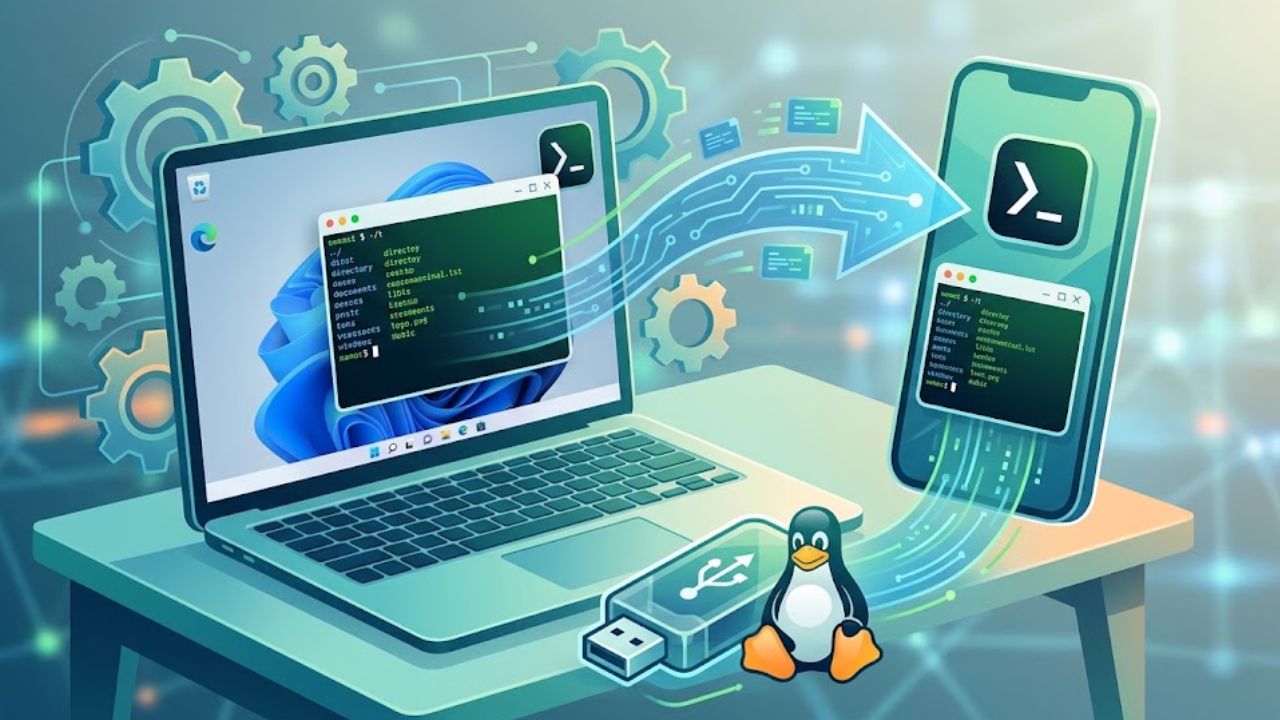
The moment that usually pushes people toward a bigger screen is a real editing session: you are in vim over ssh, fixing a config on a remote host, and every hjkl movement costs you a tap. That is typically when someone decides to download Termux for PC and finish the job with a hardware keyboard and a window big enough to read without squinting.
The other common trigger is output width. Anything that prints tables, logs, or `git diff` output wraps badly on a phone. On a monitor, the same commands become readable without piping everything through `less`.
Running Termux on a PC
Termux is an Android application, so on Windows it runs inside an Android emulator. BlueStacks handles it without much fuss and is the path of least resistance for most people. Anyone who wants more control over the Android version or window behavior tends to prefer LDPlayer instead.
Two setup details make a real difference for this specific app, and they deserve more attention than anything else in the emulator’s settings panel.
Keyboard Passthrough
The whole point of running a terminal on a desktop is the physical keyboard, so make sure the emulator is sending your keystrokes straight to the app rather than intercepting them for its own shortcuts or key-mapping layer. In practice that means:
- Disable or clear any global key-mapping profile for the Termux window
- Turn off gamepad or WASD overlays if the emulator enabled them by default
- Check that Ctrl, Alt, Tab and Escape reach the shell (test with Ctrl+C on a running `ping`)
- Reassign any emulator hotkey that collides with a shell binding you use
If Ctrl+C is closing a window instead of killing a process, that is a mapping conflict, not a Termux problem.
Storage Access
The second thing is file sharing. Termux keeps its own home directory inside the app’s private storage, which is invisible to Windows by default. Running `termux-setup-storage` grants access to the shared Android storage area, and most emulators map a Windows folder into that shared space.
Once both halves are done, you can drop a script or a repo into a Windows folder and reach it from the Termux prompt, which is what makes the desktop setup worth the effort. Without it you are typing everything by hand into an isolated sandbox.
Where this Setup Pays Off
The setup earns its keep for anything text-based and repetitive: SSH into servers, run maintenance scripts, poke at APIs with curl, keep notes in vim, manage git repositories that live in a shared folder.
It is also a low-commitment way to teach yourself a Linux shell. You are not partitioning a drive or configuring WSL permissions; you are running an app, and if you break the environment you reinstall it.
Where it stops making sense is heavy compilation, anything that needs root on the host, and workloads where the emulator layer adds latency you would not tolerate. A native Linux install or WSL beats an emulated Termux session on raw performance every time, and neither one pretends otherwise.
The people who get the most out of this are the ones already running Termux on a phone. If you have a package set, dotfiles, and a workflow built up on mobile, mirroring that same environment on a desktop keeps it consistent without forcing you into a different toolchain. Starting fresh on Windows with no Android habit at all is a different problem, and WSL is the more direct route for that.