Learning how to manage email is mostly a matter of deciding when the inbox deserves your attention, and what happens after a message arrives. The goal is not an immaculate inbox. It is a dependable one where important messages are visible, real work has a trusted place, and you can close email without worrying about what you might be missing.
Email makes this difficult because it combines requests, updates, documents, reminders, approvals, newsletters, system alerts, and other people’s priorities. Once unread messages start doubling as a task list, the inbox can shape the entire workday.
I don’t think the answer is a more elaborate folder system or a daily race toward Inbox Zero. A useful email system reduces avoidable messages, protects uninterrupted work, and makes outstanding commitments easier to find.
Why Email Takes Over the Workday
Email creates two separate problems: interruption and accumulation. A notification appears, you open the message, and part of your attention moves away from the work in front of you. You may not even reply, but you now know that a client has a question, a colleague needs approval, or a deadline may have changed.
Accumulation is quieter. Messages remain in the inbox because they require research, decisions, follow-up, or more time than you currently have. Eventually, the inbox contains several different kinds of material:
- Messages you have not read
- Messages you have read but still need to answer
- Work you have agreed to complete
- Requests waiting on someone else
- Information you may need later
- Newsletters and automated alerts
- Old conversations you are reluctant to archive
Unread status cannot represent all those conditions. A read message may contain an urgent commitment, while an unread newsletter may require nothing from you.
Research supports placing some boundaries around email, although it does not point to one perfect schedule. In a two-week experiment involving 124 adults, participants reported lower daily stress when they limited email checking to three times a day rather than checking without restriction. The researchers also found that restricting email was difficult. For many jobs, three checks would be impractical.
A separate workplace study tracking 40 information workers found that spending more time on email was associated with greater measured stress and lower perceived productivity. Because the study was correlational, it does not prove that email caused either result. It does show why spending more time inside an inbox should not be confused with managing communication well.
Workplace expectations also affect whether batching helps. A 2022 study found a temporary reduction in emotional exhaustion, particularly among people with heavy email volume who were not expected to reply immediately. The benefit faded during the two-week study. Personal habits can improve email management, but they cannot fully compensate for a culture of constant availability.
Decide What Email Is for
Email works best as an asynchronous communication channel. It gives people time to read, consider a request, and respond while leaving a searchable record.
It is useful for sharing non-urgent information, confirming decisions, sending documents, and requesting input that does not require an immediate answer.
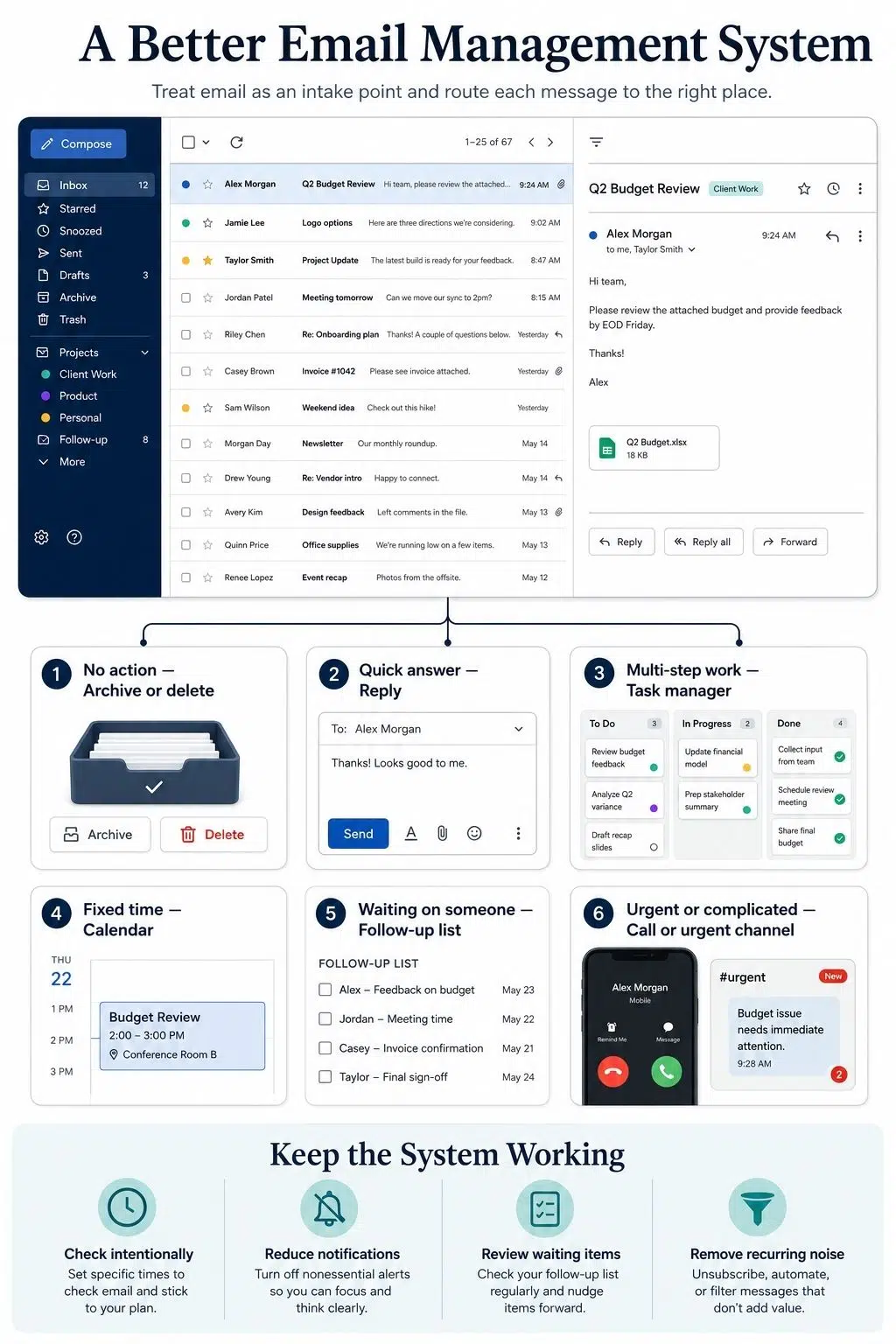
It is much less effective for emergencies, rapidly changing discussions, complex project tracking, or work that needs visible ownership. A fixed appointment belongs on a calendar. A multi-step assignment needs a task or project system. An urgent problem needs a channel that people have agreed to monitor.
I prefer to think of the inbox as an intake point. Messages arrive there, but the work created by those messages does not always need to stay there.
Suppose a manager emails you asking for a report by Friday. The email communicates the request. Preparing the report is the actual work. Leaving the message unread or flagged may remind you that something is due, but it will not reserve the time, track the steps, or show what other commitment the report will displace.
Reset an Overloaded Inbox Without Reading Everything
If your inbox contains thousands of messages, processing them from oldest to newest is rarely worthwhile. Many will have expired, been resolved elsewhere, or lost their relevance.
Deleting everything is risky. Old email may contain contracts, approvals, receipts, client instructions, project decisions, or records covered by an employer’s retention policy.
A safer reset is more selective:
- Search for current priorities: Look for recent messages from managers, clients, collaborators, financial services, and people connected to active projects.
- Handle what is still time-sensitive: Focus on unresolved approvals, payment issues, scheduled events, current deadlines, and requests that still matter.
- Move older unprocessed messages into a dated archive: A folder or label such as “Inbox Archive July 2026” keeps those messages searchable without leaving them in your immediate workspace.
- Use the new system from today onward: Reorganizing years of old messages creates a great deal of work with little practical benefit.
- Search the archive when a specific need arises: Modern email search is generally more useful than manually filing every historical conversation.
Archiving does not mean that every old message has been resolved. It simply separates current decisions from historical noise. Follow your organization’s retention and records-management policies before moving or deleting workplace email.
Reduce What Reaches You
Becoming faster at processing unnecessary email is a limited victory. Reducing the amount that arrives has a greater long-term effect.
Begin with messages you repeatedly delete without reading. Unsubscribe from newsletters that no longer justify your attention. Turn off notification emails from social networks, document tools, project platforms, stores, and other services when the same information is already available inside the app.
Where possible, replace individual alerts with a digest. Leave recurring threads and mailing lists that no longer concern your work. If an automated report arrives every morning and no one uses it, ask whether it still needs to be sent.
Some repetitive email exists because information is difficult to find elsewhere. A shared project page, dashboard, document, or knowledge base may prevent colleagues from requesting the same update again and again.
Filters and rules are useful for predictable, low-risk messages such as newsletters, receipts, system reports, calendar responses, and routine status notifications.
Apply them more cautiously to messages from clients, managers, active projects, or financial services. Check a new rule for a while before allowing it to hide messages automatically. Saving a few minutes is not worth quietly losing an important request.
Choose When Email Gets Your Attention
Constant inbox scanning creates the appearance of responsiveness while breaking up the time needed for more demanding work.
Advice to check email only twice a day sounds attractive, but it ignores how different jobs operate. Recruiters, account managers, sales teams, customer-facing professionals, and operations staff may need much shorter response cycles.
Choose a rhythm that fits the actual demands of your role. For someone whose work does not depend on rapid replies, a useful starting experiment might be:
- One morning review after checking the calendar and current priorities
- One processing session around midday
- One final review before finishing work
A faster-moving role may require hourly checks or brief reviews between scheduled work blocks. That still creates more control than opening every message the moment it appears.
Disable general email notifications when your responsibilities allow it. If a few senders or systems genuinely require immediate attention, preserve alerts for those exceptions instead of giving a promotion, newsletter, and client emergency the same power to interrupt you.
Email batching should create a workable boundary. If your schedule leads to missed responsibilities or unnecessary anxiety, change the intervals. The routine is supposed to support the work, not become another rule to obey.
Keep the Organization System Small
Email platforms offer folders, labels, categories, flags, stars, colors, rules, and several inbox views. It is easy to create a structure that takes more effort to maintain than the messages themselves.
Most people can begin with three broad conditions:
- Action: Messages that still require a response or decision
- Waiting: Requests delegated or paused until someone else responds
- Archive: Processed information retained for reference
Legal, financial, client, or compliance work may require additional folders. Add them when they support a real retrieval or records-management need, rather than giving every subject its own category.
Watch the Action folder closely. Once it contains dozens of messages, it has become a second inbox. Work requiring substantial time should move to a task manager, project system, or calendar.
If workplace policy prevents you from using another tool, keep the Action view short and attach a date or reminder to anything time-sensitive. What matters is knowing what remains open and when you will return to it.
Write Messages That Do Not Create More Email
Unclear outgoing messages generate unnecessary replies. Put the requested action near the beginning. Identify who needs to act, what you need, and when you need it. If several people receive the message, name one owner instead of hoping someone volunteers.
For example:
Nadia, please confirm the final figures in the attached table by 2 p.m. Thursday. I need them to complete Friday’s report. Everyone else is copied for visibility.
The recipient, task, deadline, and reason are immediately clear. “Please review and share your thoughts” leaves people to work out what needs reviewing, who should respond, and when their response matters.
A few other habits can shorten an exchange:
- Write a subject line that describes the action or decision.
- Ask complete questions and include the necessary context.
- Use CC for visibility, not implied responsibility.
- Avoid Reply All when most recipients do not need the answer.
- Separate unrelated requests that could easily become tangled.
- Replace a confused thread with a short conversation when email has stopped helping.
- Schedule non-urgent after-hours messages when immediate delivery could imply urgency.
The shortest email is not automatically the most efficient. A detailed message that prevents five clarification replies may save far more time than a polished two-line note.
Set Response Expectations and Protect After-Hours Time
No inbox method will last if everyone around you treats every message as urgent.
Teams need a shared understanding of normal response times. Ordinary internal email might receive a response within one business day, while customer requests may have a shorter target. Genuine emergencies should use a phone call, designated chat channel, or another agreed route.
The exact standards will depend on the work. People simply need to know that they do not have to watch email continuously in case an unstated emergency appears.
After-hours expectations need equal clarity. Research has connected work-email demands outside normal hours with poorer psychological detachment, greater work-family conflict, and emotional exhaustion. Even without an explicit demand to reply, late messages can create pressure when a workplace equates availability with commitment.
Practical boundaries may include:
- A defined channel for genuine emergencies
- Normal response-time expectations
- Automatic replies during leave
- A closing time for routine work email
- Scheduled delivery for non-urgent messages
- Removing work email from personal devices when the role allows it
Delayed sending is a courtesy, not a complete answer. People working flexible or unusual hours may need to send messages when it suits their schedule. A clear understanding that no immediate response is expected matters more than making everyone appear to work at the same time.
Inbox Zero Is Optional
Inbox Zero is frequently interpreted as keeping no messages in the inbox. That can feel satisfying, but the number itself says little about whether the work is under control.
Merlin Mann, who developed the Inbox Zero approach, has explained that the more meaningful zero concerns how much attention email occupies while you are doing something else.
That interpretation is much more useful. Someone with 150 understood or archived messages may have a healthier system than someone who clears the inbox several times a day while avoiding a difficult report.
Literal Inbox Zero can become productive-looking procrastination. Filing, labeling, and clearing messages produces a visible result. The harder work waiting outside the inbox remains untouched.
More meaningful signs of control are:
- Important messages are not routinely missed.
- Real commitments have a trusted home.
- Delegated and waiting work can be found.
- Email can remain closed during focused work.
- People know how to reach you in a genuine emergency.
- The inbox does not remain mentally active all evening.
An empty inbox is perfectly fine when it results naturally from a useful system. It does not need to become the purpose of the system.
AI Can Save Time, but It Cannot Set Priorities
AI features available in supported Gmail and Outlook accounts can summarize long threads, retrieve past information, suggest replies, and help draft routine messages. They may reduce the time spent reconstructing a conversation or writing a predictable response.
They cannot decide whether a request deserves priority, whether a meeting should happen, or which existing commitment must move when new work arrives. They also cannot repair unclear responsibilities or a workplace culture built around immediate replies.
Treat AI-generated summaries and drafts as working material. Check names, dates, deadlines, financial details, commitments, attachments, and instructions before acting or sending. A fluent summary can still miss the sentence that changes what you are expected to do.
Use only tools approved by your organization when messages contain confidential or sensitive information. Features also vary by account type, subscription, administrator settings, device, and email-platform version.
A Manageable Inbox Is Enough
Begin with a few changes. Turn off unnecessary notifications. Choose realistic times to process email. Create one place for waiting work, and move substantial commitments into a task system or calendar.
After that, pay attention to what keeps pulling you back. The cause may be unnecessary subscriptions, habitual checking, unclear responsibilities, or an expectation that every message deserves an immediate answer.
Your inbox does not have to be empty. It needs to be reliable enough that important work is not lost and quiet enough that you can concentrate elsewhere. That is a more useful measure of email management than any unread count.
Frequently Asked Questions on How to Manage Email
1. How often should you check your email?
There is no ideal schedule for every job. If your work does not depend on immediate replies, try checking email three times a day: once in the morning, around midday, and before finishing work. Customer-facing or fast-moving roles may require more frequent reviews. The important change is to check at intentional intervals instead of responding to every notification.
2. How do you manage thousands of unread emails?
Do not start reading every message from the beginning. Search first for recent emails from important senders, active clients, current projects, and financial services. Address anything still time-sensitive, then move the remaining older messages into a dated archive. This clears the working inbox while keeping potentially important records searchable. Follow workplace retention policies before deleting anything.
3. Is Inbox Zero necessary for managing email effectively?
No. Inbox Zero can feel satisfying, but an empty inbox does not automatically mean your responsibilities are under control. A better measure is whether important messages are being handled, commitments have a trusted place, and you can close email without worrying about forgotten work. If your system is dependable, the unread count matters far less.
4. Should you use your email inbox as a to-do list?
An inbox may work as a temporary reminder, but it is a poor place to manage substantial work. It does not clearly show deadlines, priorities, dependencies, or the time required for each commitment. Move multi-step assignments into a task or project-management system, and reserve calendar time for work that requires focused attention.
5. What folders do you actually need to organize email?
Most people can begin with three: Action, Waiting, and Archive. Action holds messages requiring a decision or response, Waiting tracks requests that depend on someone else, and Archive stores processed information. Additional folders may be necessary for clients, finance, legal records, or compliance, but creating a separate folder for every topic usually makes email harder to maintain.