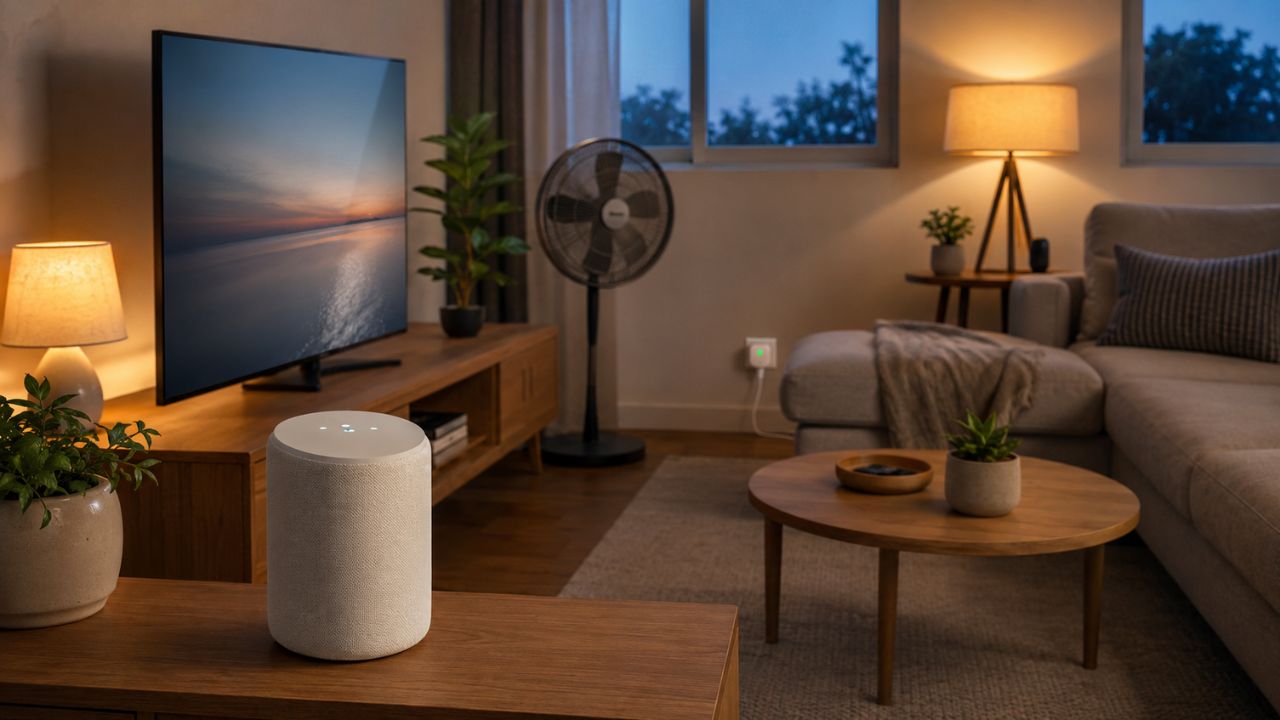
Yes. Google Home can turn on two smart devices with one command or automation. It can control more than two as well, provided each device is connected to Google Home and supports the action you request.
The phrase “at once” needs one qualification. Google Home can send a shared instruction to several devices, but they may not respond in the same fraction of a second. A locally connected light might switch on immediately while a cloud-connected plug takes another moment. For ordinary household use, that small difference rarely matters.
For most homes, the choice is straightforward. Use a direct command for a one-time request, a room for lights that normally behave alike, and an automation for a repeated setup such as “Movie time” or “Start work.”
Can Google Home Control Multiple Devices at Once?
Google Home household automations can contain several actions, so one starter can control two or more compatible devices.
That starter could be a voice phrase, a particular time, sunrise or sunset, someone arriving home, everyone leaving, a device changing state, or a sensor detecting something. The automation then carries out the actions you saved.
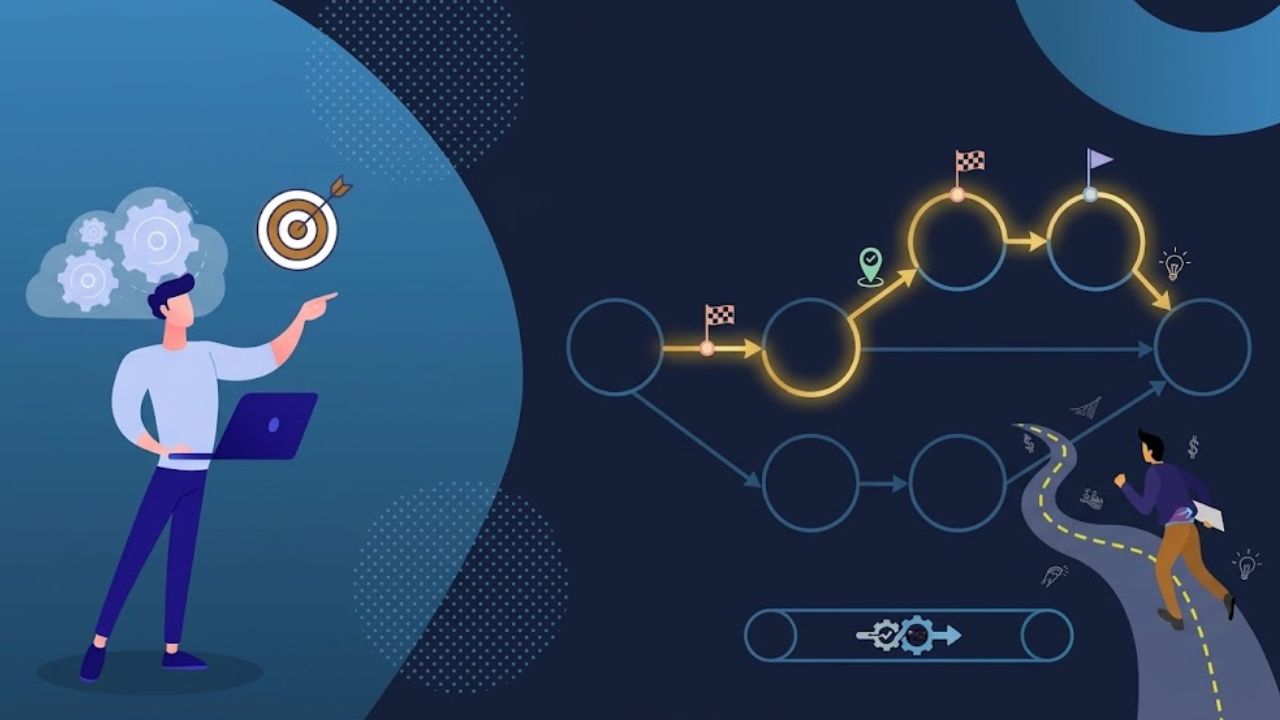
Google’s automation editor organizes the setup into three parts:
- Starters launch the automation.
- Conditions decide whether it is allowed to run.
- Actions tell the devices what to do.
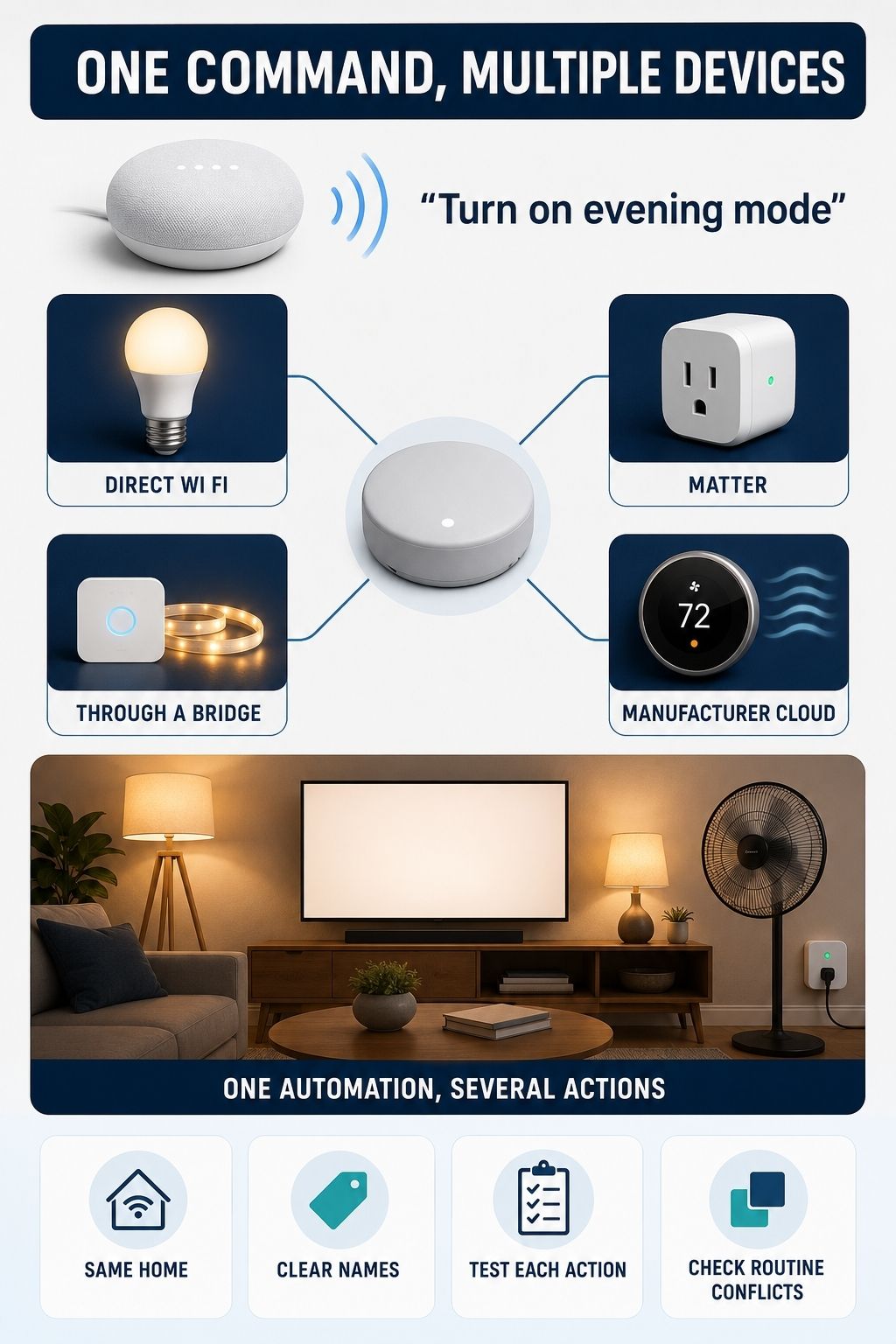
An evening automation, for example, could respond to “Hey Google, evening mode” by turning on a lamp and fan, setting the hallway light to 40%, and running only after sunset. You issue one phrase; Google Home handles the three device actions.
Four Ways to Control Two Smart Devices
The right method depends on whether the request is spontaneous or repeated, whether the devices should receive the same instruction, and how much control you need.
1. Give Gemini for Home a Combined Command
For an occasional combination, try saying exactly what each device should do:
- “Hey Google, turn on the desk lamp and the office fan.”
- “Turn on the television and dim the living-room lights.”
- “Switch off the bedroom light and turn on the hallway lamp.”
- “Turn on both bedside lamps.”
Gemini for Home can interpret more natural, multi-action smart-home requests than the older voice experience. It can also handle room-specific instructions and exclusions on supported setups.
This is the fastest option when you do not need to save the combination. There is little value in building a permanent routine for a pairing you may use once.
Availability is the main complication. Gemini for Home features continue to roll out across supported devices, accounts, countries, and languages, and some remain in early access. If a command must work the same way every evening, save the actions in an automation instead of relying on natural-language interpretation each time.
2. Use a Room for Lights That Belong Together
Room control is often the cleanest solution when all the devices are lights. Once compatible lights are assigned to the same room, you can say:
- “Turn on the bedroom lights.”
- “Dim the kitchen lights to 50%.”
- “Turn off all the downstairs lights.”
A smart plug configured with the device type Light can also respond with the other lights in its assigned room.
Two bedside bulbs do not need a special routine if they should always act together. Put them in the bedroom and control the room’s lights. An automation becomes more useful when the actions differ, such as setting one bulb to 20%, another to 70%, and starting a fan at medium speed.
3. Save Repeated Actions as a Household Automation
A household automation stores the trigger, devices, settings, and optional conditions in advance. That makes it the most reliable choice for a combination you use often.
Imagine a weekday “Start work” automation that turns on the desk lamp, powers a monitor plug, starts the air purifier, and changes the office lighting to a cooler white. The setup may include several actions, but the daily command remains short and easy to remember.
Household automations can also be used by other eligible members of the Home. Clear names matter here. “Start work” is easier to remember than a phrase that lists every device involved.
4. Use the Script Editor for More Complicated Logic
The script editor is useful when the standard app cannot express an automation cleanly. It uses YAML and supports additional starters, conditions, actions, delays, and device-state logic through Google Home for web and supported versions of the mobile app.
Google’s developer documentation shows that one on/off action can target multiple devices:
actions:
type: device.command.OnOff
devices:
– TV – Living Room
– Light A – Living Room
on: true
The script editor becomes worthwhile when you want to turn on one device, wait five minutes, and then start another, or when an automation should run only after several time, presence, and device-state conditions are met.
YAML adds work and another place for mistakes. The standard automation editor is the better tool for two bulbs or a lamp-and-fan pairing. Move to the script editor when the regular interface is genuinely holding the setup back.
How to Set Up a Two-Device Automation
The following process covers the most common setup without adding unnecessary conditions or advanced logic.
- Test both devices individually: Open Home, check All devices, and use each device tile to turn the device on. An automation will not repair an underlying connection problem.
- Check the Home assignment: Both devices should appear in the same Home where you plan to create the automation. A device listed under local devices or another Home may not appear among the available actions.
- Give the devices distinct names: Names such as Desk Fan, Reading Lamp, and Window Lamp are easier for voice control than “Bedroom light one” and “Bedroom light two.” Room assignments can provide the location context, so device names do not need to become long descriptions.
- Create a household automation: In the Google Home app, tap Add, choose Automation, and give it a recognizable name.
- Choose a starter: A custom phrase such as “Movie time,” “Start work,” or “Good evening” works well. You can also use a schedule, presence state, device event, or another supported starter.
- Add an action for each device: One action might turn on a lamp while the other changes a thermostat setting, fan speed, brightness, or color. The controls available depend on what each device exposes to Google Home.
- Add a condition only if it serves a purpose: A condition can restrict the automation to after sunset, when someone is home, or when another device is already on. Every extra condition is also another reason the automation may fail to run, so keep the logic lean.
- Save and test while you can see both devices: Confirm that the correct devices respond, the settings are right, and no other routine reverses the change a moment later.
Immediate testing saves a surprising amount of confusion. If one device fails, you know which action to inspect before the automation becomes part of a daily routine.
Can Devices From Different Brands Work Together?
Often, yes. A Philips Hue light and a compatible Kasa plug do not need to share a manufacturer to participate in the same Google Home automation. Both devices must be linked to Google Home, assigned to the relevant Home, and able to perform the requested action.
Third-party devices may connect through the manufacturer’s service, direct Google Home setup, or Matter where supported. Once connected, their compatible controls become available in Google Home.
Compatibility is rarely all or nothing. A bulb may support basic on/off control but withhold its lighting effects, certain colors, state-based triggers, or sensor data from the automation editor. Matter improves interoperability across smart-home ecosystems, but it does not guarantee access to every manufacturer-specific feature.
Before relying on a mixed-brand automation, try the exact adjustment from each device tile. If Google Home cannot change a setting manually, that setting is unlikely to become available simply because you add the device to an automation.
Will Both Devices Respond at Exactly the Same Time?
Both actions can begin from the same command or automation without finishing simultaneously.
One device may communicate locally, while another request passes through a manufacturer’s cloud service, bridge, or hub. Wi-Fi quality, firmware, device processing, integrations, and third-party service availability can all affect response time.
A small delay between ordinary household devices is normal. Precise synchronization is a different requirement, especially for coordinated lighting effects, audio, or safety-related systems. Google Home household automations are designed for household convenience rather than precision timing.
Useful Automations That Do Not Need Complicated Logic
The routines that earn a permanent place in a smart home usually solve small, repetitive annoyances:
- Start work: Turn on a desk lamp and the smart plug powering a monitor.
- Movie time: Turn on the television and dim the living-room lights.
- Reading mode: Switch on the reading lamp and turn off the ceiling light.
- Arriving home: Turn on the entry and hallway lights.
- Leaving home: Switch off selected lights and nonessential smart plugs.
- Gaming setup: Start accent lighting and power the plug used for gaming accessories.
A morning kitchen routine might combine under-cabinet lighting with a coffee-maker plug, but only if the appliance manufacturer permits that type of switching and the appliance safely resumes operation when power returns.
Keep each automation tied to a recognizable household moment. A short, clear routine is easier for everyone to use and easier to troubleshoot months later.
Why Only One Device Responds
When one device works and the other does not, the entire automation may not be broken. Start with the missing device and work outward.
- Control it manually: Open the device tile in Google Home and try the exact action. If the device is offline, check its power, Wi-Fi connection, firmware, hub or bridge, and manufacturer’s app.
- Confirm that the requested feature is supported: Some devices expose on/off control but not brightness, color, fan speed, or a manufacturer-specific operating mode.
- Check its Home and room: Move the device into the Home where the automation exists and assign it to a room.
- Remove confusing names: Short, distinct names reduce voice-control mistakes. Desk Lamp is clearer than Office Room Desk Light Number Two.
- Resync linked devices: After changing a device in its manufacturer’s app, say, “Hey Google, sync my devices.” If a large sync times out, try syncing a category such as lights.
- Make sure the automation is active: Open Automations, select the routine, and confirm that it is turned on. The Activity feed can help you see whether the routine started and what triggered it.
- Look for competing schedules: Another Google Home automation or a schedule in the manufacturer’s app may change the device moments later. For example, one routine might turn a fan on at sunset while an Away routine switches the same plug off.
- Reconnect the manufacturer’s service: A linked account can lose authorization. Reconnecting it through the Works with Google area may refresh the integration without requiring a complete setup.
Work through these checks in order. Rebuilding the automation first often hides the real problem, particularly when the missing device is offline or does not expose the requested action.
Smart-Home Safety Still Comes First
Consumer smart-home routines should not be the only safeguard for anything that could cause injury, fire, flooding, property damage, or a security failure.
Automations depend on internet access, Wi-Fi, Google services, the device itself, and sometimes a manufacturer’s cloud platform. Any part of that chain can fail. Be especially cautious with space heaters, cooking appliances, motorized doors, water valves, locks, medical equipment, and other high-powered or safety-sensitive devices.
A smart plug’s ability to supply power does not make the connected appliance safe to automate. Check the appliance manual, electrical rating, and restart behavior before adding it to a routine.
Start With the Simplest Method
Google Home can control two or more smart devices from one command, but the setup does not need to become a project of its own.
Put lights in the same room when they normally act together. Save a household automation when different devices should repeat a familiar sequence. Use a combined Gemini command for an occasional request, and reserve the script editor for logic the regular app cannot handle.
Simple automations are easier to remember, maintain, and repair. If one voice phrase reliably removes a repeated household task, the setup is already doing its job.
Frequently Asked Questions on Google Home Control Multiple Devices
1. Can Google Home Turn On More Than Two Devices?
Yes. A household automation can contain actions for several compatible devices. Google’s script documentation also allows multiple devices to be listed under a supported shared command.
2. Can One Routine Turn One Device On and Another Off?
Yes. Add separate actions and choose On for one device and Off for the other. The actions in the same routine do not need to match.
3. Do I Need a Routine to Control Two Devices?
No. A combined Gemini command may be enough for a one-time request, while room-based control works well for compatible lights. A saved household automation is more useful for a combination you expect to repeat.
4. Can Google Home Add a Delay Between Device Actions?
The advanced script editor supports delay actions between device commands. Use it when one device needs to start before another rather than at roughly the same time.
5. Can a Smart Button Start a Two-Device Automation?
Supported buttons and switches can act as automation starters when the product and its behavior appear in the current automation editor. Availability depends on what the specific device exposes to Google Home.
6. Can I Run the Automation Without Speaking?
Yes. Depending on the setup, an automation can start from the app, a schedule, presence, a device state, a sensor event, or another supported starter.