Ever open a pile of reports and still wonder why organic traffic is stuck? It is a common frustration. Publishing solid pages isn’t enough without the right insights. This Google Search Console Guide reveals the hidden clues holding back rankings.
Turn complex data into a practical workflow. Discover how to seamlessly set up domain properties, verify ownership, and master the URL Inspection tool. Learn to quickly fix robots.txt errors, boost click-through rates (CTR), and align structured data with Core Web Vitals for maximum visibility.
Plus, see exactly how platforms like Google Analytics, Looker Studio, Google Tag Manager, WordPress, and HubSpot integrate into this process. Stop guessing, and transform scattered metrics into a unified, actionable SEO strategy.
What is Google Search Console?

Google Search Console is Google’s free platform for monitoring how your site performs in google search. It shows you what Googlebot can crawl, what Google can index, which pages earn impressions and clicks, and where your search appearance can improve.
For most readers, that matters because Search Console answers the questions analytics alone cannot answer. You can see which queries trigger impressions, where your average position sits, whether a page is excluded from indexing, and whether rich results are being detected.
Search Console turns search visibility into a to-do list you can actually use.
The biggest difference between Search Console and google analytics is simple. Analytics tells you what users did after they arrived. Search Console shows what happened before the click, including impressions, CTR, average position, and search appearance.
- Performance reports show clicks, impressions, CTR, and average position.
- URL Inspection shows whether a specific page is indexed, canonicalized, and crawlable.
- Page indexing shows why pages are valid, excluded, or broken.
- Sitemaps helps you submit important URLs and spot parsing issues.
- Rich results reports show structured data problems that can block enhanced listings.
As of 2026, Search Console keeps up to 16 months of performance data, which makes it useful for trend checks, seasonal reviews, and content updates. That longer window is one reason SEO teams use it as the base layer for search analytics and content strategy.
Setting Up Google Search Console
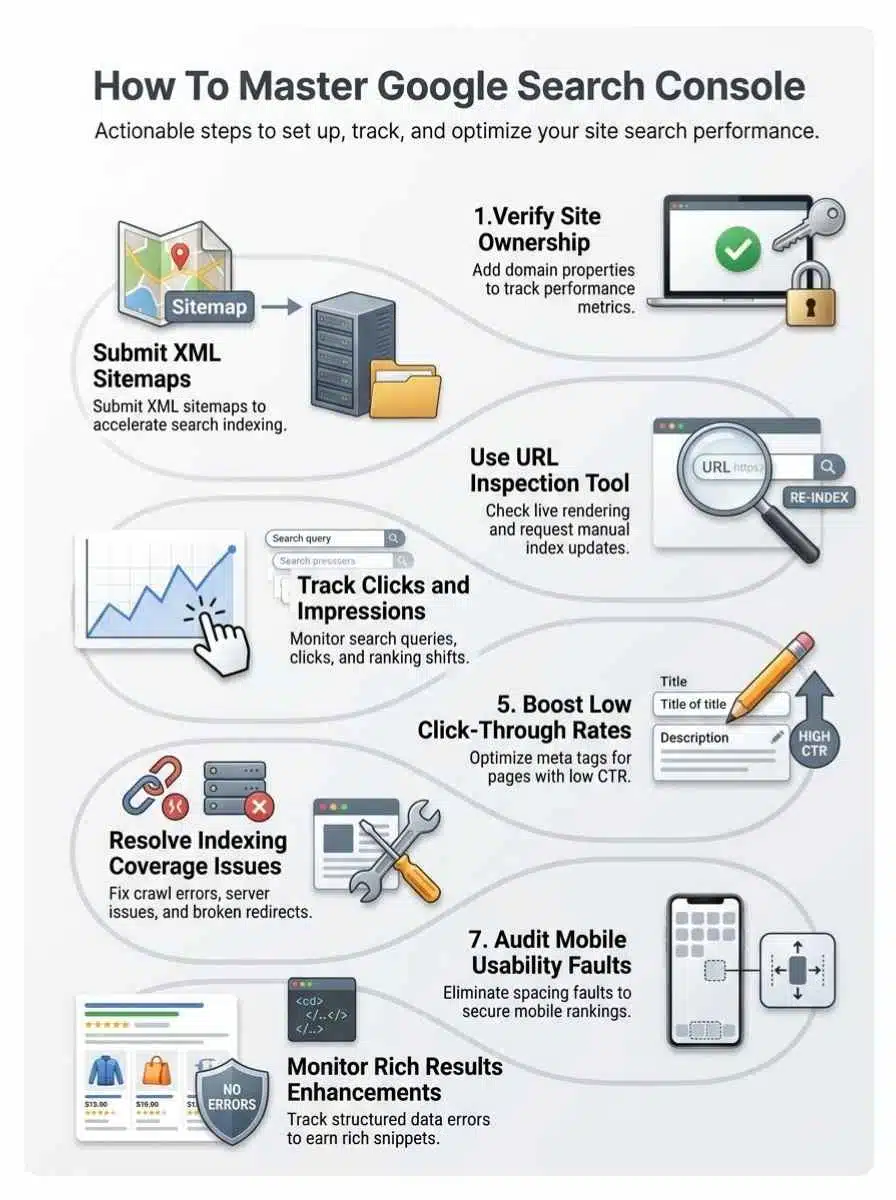
Setup is where a lot of avoidable mistakes begin. Pick the wrong property, verify the wrong version, or add the wrong users, and your reports can stay incomplete for months.
If you want the cleanest setup, start with a domain property whenever you control DNS. It covers all protocols and subdomains, so you do not split data between versions of the site.
Creating a Google account
You need a Google account to access Search Console. Use an account your team can keep long term, not a freelancer login that disappears after a project ends.
- Use a business-owned Google account with two-step verification turned on.
- Add recovery methods so you do not lose access during a handoff.
- Keep one primary admin account, then add other users by role.
- If your team already uses google tag manager, wordpress, or hubspot, use the same company-controlled account structure to keep access organized.
A small process choice here saves real cleanup later. In my experience, the most common setup mess is not technical at all, it is ownership being tied to a personal inbox nobody can recover.
Adding and verifying your website
Google offers two main property types in Search Console, and choosing the right one changes what data you can see.
| Property type | Best for | What it includes | Verification method |
|---|---|---|---|
| Domain property | Most businesses | All subdomains and protocols | DNS record only |
| URL prefix | Single site version or subfolder | Only the exact prefix you add | HTML file, HTML tag, GA, GTM, or DNS |
- Add your site in Search Console and choose domain property if you want full-site data.
- If you use a DNS TXT record, verify it at your registrar. This is required for domain properties.
- If you need speed and only track one site version, use a url prefix property with HTML file upload or tag verification.
- After verification, submit your sitemap and inspect a key URL right away so you know the property is working.
Google’s official verification guidance makes one point very clear: DNS verification is the method for domain properties. That is why agencies and in-house teams usually prefer it for long-term reporting.
If your site runs on JavaScript-heavy templates, test a few pages with live inspection after setup. You want to know early whether Googlebot can render the important content, not after traffic slips.
Configuring user permissions
Search Console has three practical permission levels for most teams: Owner, Full user, and Restricted user. Use them on purpose.
- Owner should be limited to trusted admins because owners can manage users and settings.
- Full users are a good fit for SEO leads, content managers, and developers who need to submit sitemaps and use the url inspection tool.
- Restricted users work well for leadership, writers, or clients who only need reporting access.
- Review permissions every quarter, especially after staff or agency changes.
- If you plan to use the Search Console API, the service account must be added as an owner before API-based workflows work correctly.
This is also the moment to decide how Search Console fits your wider stack. Search Console data pairs well with google analytics for landing-page behavior, Looker Studio for dashboards, and GTM for event context.
Key Features of Google Search Console
The smartest way to use Search Console is to stop treating it like one tool. It is really a group of reports that answer different questions about search engine performance, crawling, indexing, and user experience.
Performance tab
The Performance tab is where you find clicks, impressions, average CTR, and average position. You can filter by query, page, country, device, and search type, then compare date ranges to see what changed.
As of 2026, Google keeps up to 16 months of this data in Search Console. That means you can compare this spring to last spring, which is far more useful than looking at the last 28 days in isolation.
- Sort by impressions to find pages with visibility but weak CTR.
- Sort by clicks to find traffic leaders worth protecting.
- Filter by query to uncover terms sitting in positions 5 through 15, where title and snippet improvements can move the needle fast.
- Filter by country or device when a page performs well in one segment and poorly in another.
A lot of competing guides stop at “watch your metrics.” The better move is to use those metrics to decide what to rewrite first. High impressions plus low CTR usually points to a snippet problem. Falling impressions plus falling position usually points to a ranking or indexing problem.
Page indexing report
The old habit is to call this the Coverage report. In current Search Console, most readers will spend their time in the Page indexing report, which shows why pages are indexed, excluded, redirected, soft 404, blocked, or crawled but not indexed.
This report matters because indexing is not guaranteed. Google’s technical guidance still requires that pages be accessible to Googlebot, return a successful status, and contain indexable content.
- Use it to find pages blocked by robots.txt.
- Check for accidental noindex directives.
- Review redirect chains and soft 404s after migrations.
- Compare excluded URLs against your sitemap to spot pages you say are important but Google is skipping.
If you see “Crawled, currently not indexed,” treat it as a quality or prioritization signal. Improve internal links, sharpen the page intent, and make sure the page is not a thin duplicate of something stronger on the site.
URL Inspection Tool
The url inspection tool is your best page-level debugger. It shows Google’s indexed view of a URL and also lets you run a live test on the current version.
That difference matters. The indexed result tells you what Google last stored. The live test tells you whether the page is accessible right now.
| What to check | Why it matters | What to do next |
|---|---|---|
| Indexing status | Confirms whether the page can appear in search | Request indexing after a real fix |
| Google-selected canonical | Shows if Google prefers another version | Review canonicals, internal links, and duplicates |
| Crawl allowed | Flags robots.txt blocks | Remove accidental disallow rules |
| Rendered page | Helps diagnose JavaScript or resource issues | Check blocked files and delayed content rendering |
Use live inspection after fixing a page title, schema, canonicals, or blocked resources. Then request indexing if the page is important. Do not waste that step on every tiny edit. Save it for pages that affect revenue, leads, or visibility.
Sitemaps
Sitemaps help Google discover URLs you want crawled. They are most helpful for larger sites, recently launched sites, and sites with pages that are hard to reach through internal links.
Google’s sitemap help documentation says small sites with about 500 pages or fewer may not need a sitemap if Google can reach every page through links. That is useful because it keeps you from treating a sitemap as a magic fix when the real issue is weak site architecture.
- Submit only canonical, indexable URLs.
- Remove redirected, noindex, and duplicate URLs from the sitemap.
- Split large sitemaps by type if that makes errors easier to trace.
- Resubmit after major migrations, category launches, or bulk content updates.
A clean sitemap does not force indexing, but it does make your priorities clearer to Google. That is why it is a support tool for crawl efficiency, not a substitute for quality content and internal links.
Using Google Search Console for SEO
This is where Search Console starts paying you back. Once setup is clean, you can use the reports to prioritize content optimization, improve search appearance, and find the pages that deserve your attention first.
Identifying high-traffic pages
Open the Performance report, switch to the Pages tab, and sort by clicks. That gives you a short list of URLs already winning traffic from google search.
Those pages deserve protection before experimentation. If one of them drops, the effect on organic traffic can be immediate.
- Check whether the page still matches the query intent bringing in clicks.
- Review internal links pointing to the page so authority does not fade.
- Use URL Inspection to confirm the page is indexed and canonicalized correctly.
- Look for declining impressions, which often show up before a major traffic drop.
A strong page with slipping CTR usually needs a snippet update. A strong page with slipping impressions may need a deeper refresh, stronger internal links, or better alignment with current search intent.
Monitoring click-through rates (CTR)
CTR is where a lot of quick wins live. If Google already shows your page often, a better title, a clearer value promise, or valid structured data can improve clicks without waiting for a ranking jump.
| What to review | Where to find it | Why it matters | Best next step |
|---|---|---|---|
| High impressions, low CTR pages | Performance report | Shows missed click opportunity | Rewrite title tag and meta description |
| Query-level CTR | Queries tab | Shows mismatch between intent and snippet | Tighten headline wording to match the search |
| Device CTR gap | Device filter | Reveals mobile snippet weakness | Shorten titles and improve mobile page experience |
| Search appearance changes | Search appearance filter | Shows whether rich results help | Validate schema and compare before versus after |
A simple rule helps here: fix pages with strong impressions first. A page with 20,000 impressions and weak CTR deserves attention before a page with 200 impressions, even if both look disappointing.
If you add schema for recipes, products, articles, FAQs, or videos where eligible, compare the same URLs before and after in the Performance report. That is the cleanest way to judge whether richer search appearance is helping.
Tracking impressions and rankings over time
Impressions tell you how often your site showed up. Average position gives context for where it appeared. Looking at one without the other can fool you.
- Set a date range, usually 3 months or 6 months for trend clarity.
- Turn on impressions, clicks, CTR, and average position together.
- Filter one page or one topic cluster at a time.
- Compare against the previous period.
- Log major changes such as title rewrites, template updates, schema additions, or internal link changes.
If impressions rise while position stays steady, your page may be showing for more queries. If impressions rise but CTR falls, your snippet may be getting broader visibility without winning enough clicks. If both impressions and position drop, check indexing, intent match, and competitor movement.
Teams that need deeper trend work often export Search Console into Looker Studio or use the Search Console API. That is especially helpful when you want recurring dashboards by device, country, or page type.
Comparing performance across devices and countries
Device and country filters are easy to ignore, but they often uncover the clearest actions. Google uses mobile-first indexing, so a page that looks fine on desktop can still lose traction if the mobile version is weaker.
| Segment | What to look for | Likely issue | Action |
|---|---|---|---|
| Mobile vs desktop | Lower CTR or position on mobile | Poor mobile experience, slow rendering, weak snippet fit | Review Core Web Vitals, titles, and rendered content |
| Country comparison | High impressions in one market, low clicks | Unclear localization or weak relevance | Adjust copy, headings, and metadata for that audience |
| Device plus page filter | One template underperforms on phones | Template or UX issue | Test the template, not just a single page |
One important update matters here. Google retired the Search Console Mobile Usability report in December 2023, so in 2026 you should rely more on core web vitals, Lighthouse, rendered-page checks, and real mobile page reviews instead of looking for that old report.
Troubleshooting Issues with Google Search Console
When rankings or clicks fall suddenly, do not guess. Use Search Console to narrow the cause. Most issues show up in one of four places: page indexing, URL Inspection, security issues, or manual actions.
Fixing indexing errors
Start with the Page indexing report, then move to URL Inspection for the exact URL. That order gives you the big pattern first and the page-level detail second.
- Open the Page indexing report and sort by issue type.
- Check whether affected URLs are in your sitemap or meant to rank.
- Inspect a sample URL from each issue bucket.
- Look for status code problems, canonicals, robots.txt blocks, or noindex tags.
- Fix the real cause, then validate the fix or request indexing on key pages.
Google’s technical requirements still come back to three basics: Googlebot must be allowed in, the page must return a valid response, and the page must contain indexable content. If one of those breaks, the page will struggle no matter how strong the writing is.
A practical shortcut is to compare excluded URLs against pages that matter to your business. If excluded URLs are all tag pages and old filters, that may be fine. If they are service pages, category pages, or your best posts, move fast.
Identifying and resolving mobile usability issues
In current Search Console, mobile trouble is less about an old standalone report and more about how the page performs and renders for real users on phones.
- Review the rendered output in url inspection for key mobile landing pages.
- Use the Core Web Vitals report to spot slow or unstable templates based on real-world field data.
- Check whether important content loads late because of javascript or blocked resources.
- Compare mobile and desktop CTR in the Performance report to find templates that underperform on phones.
- Compress heavy images, reduce layout shifts, and simplify intrusive elements that crowd the top of the page.
The Core Web Vitals report uses real-world Chrome user data. That makes it more useful than a one-time lab check when you want to know whether users are consistently getting a poor experience.
Addressing security and manual actions
The Security issues and manual actions reports deserve more attention than they usually get. If either one lights up, your search performance can drop fast.
- Open the report and read the exact issue Google lists.
- Clean hacked files, spam pages, or harmful downloads before you do anything else.
- If the issue is manual action related, fix the cause completely, not cosmetically.
- Inspect affected URLs after cleanup so you can confirm the repaired version is accessible.
- Submit a review or reconsideration request only after the fix is thorough.
For teams, this is where permission control matters. Give the right people access early, because security reviews move much faster when SEO, development, and content owners can all see the same reports.
Best Practices for Maximizing Google Search Console

Once Search Console is set up and the core reports make sense, the next step is building a routine. The best results usually come from a simple habit, repeated every week, instead of a giant audit once a quarter.
Regularly reviewing backlinks and internal links
The Links report is useful, but it works best as a prioritization tool, not a complete link intelligence platform. Use it to see which pages attract the most external links and which important pages are weak on internal links.
- Review your top linked pages and protect them during redesigns.
- Strengthen internal links to pages that rank on page one but need a push.
- Spot orphaned or weakly linked pages that matter for revenue or leads.
- Check whether newly updated pages are receiving internal links from stronger sections of the site.
Competing guides often mention backlinks in passing. The missed opportunity is internal links. Those are the links you control, and they often help faster than waiting for new external links to arrive.
Using filters for deeper insights
Filters are where Search Console starts to feel advanced, and useful. Instead of asking “How is the site doing?” you can ask a question sharp enough to act on.
| Filter combo | What it reveals | Good use case |
|---|---|---|
| Query + page | How one page performs for one topic | Content optimization after a rewrite |
| Page + device | Template weakness by device | Mobile CTR or UX issues |
| Country + query | Geographic relevance differences | Localization and search intent refinement |
| Search appearance | Performance of eligible rich results | Schema validation and impact checks |
If you export filtered data into Looker Studio or a spreadsheet, keep the question small. One page type, one country, one device class, one date range. That is how you find patterns that do not get lost in sitewide averages.
Leveraging Enhancements for rich results
The Enhancements and rich results reports help you validate structured data that can improve search appearance. Search Console creates separate reports for supported rich result types it detects on your property.
That detail matters because the counts in those reports reflect items, not always pages. So if a product page contains multiple detected entities, the report can look larger than the page count you expected.
- Fix invalid schema before chasing optional warnings.
- Use the Rich Results reports and URL Inspection together for clearer troubleshooting.
- After a fix, compare search performance for the same URLs over the next few weeks.
- Prioritize schema on page types where richer snippets can improve CTR, such as products, recipes, articles, videos, and events.
Structured data is not a ranking shortcut. It is a visibility and clarity tool. When it works well, it can help your listing stand out and earn more clicks from the impressions you already have.
Final Thoughts
Google Search Console gets powerful once you stop checking it casually and start using it as a weekly decision tool. Use the Performance report to find pages with upside, the Page indexing report to catch crawl and indexing problems, the url inspection tool to verify fixes, and Sitemaps plus rich result reports to support cleaner crawling and better search appearance.
Keep your setup clean, review permissions, watch core web vitals, and connect Search Console with google analytics or Looker Studio if you want clearer reporting. If you work through these steps this week, you will have a much better handle on what Google sees, what users click, and what needs attention first.
Frequently Asked Questions (FAQs) About the Google Search Console Guide
1. What is generative AI for marketing?
Generative AI for marketing uses large language models to make ai generated content and marketing materials. Marketing generative AI helps teams work faster.
2. How can businesses use generative AI?
Businesses use it to create content and automate content creation, and to run marketing automation. They analyze customer data, predict consumer behavior, handle customer inquiries, and personalize customer interactions.
3. Can generative AI help with SEO and market research?
Yes. It helps with keyword research and lets businesses identify seo friendly keywords. It also helps market research by using up to date information and analyze data for trends.
4. Do I need human oversight when implementing generative AI?
Yes. While generative ai promises speed, human oversight keeps things right for your intended audience. Human edits stop mistakes when implementing generative ai.
5. Does generative AI only work on text?
No. Software developers use it to make highly realistic images and product demo videos. You can use generative ai to build other marketing materials, and to analyze data across channels.