Understanding gaming monitor specs can completely change how you look at your gaming setup. I learned that the hard way after spending years focusing mostly on the PC tower, the GPU, the cooling, the storage, and all the usual hardware upgrades. Those parts matter, of course. I am a PC guy. I love tweaking, upgrading, testing, and squeezing more life out of hardware. But the monitor is the part you stare at every single time you use the PC.
A powerful gaming PC with the wrong monitor is a wasted experience. You can have a strong GPU, good RAM, decent cooling, and a clean setup, but if your screen is too slow, too small, too blurry, or poorly matched to your system, the whole thing feels limited.
This guide breaks down the monitor specs that actually matter: resolution, refresh rate, response time, screen size, adaptive sync, HDR, ports, and GPU matching. No useless marketing worship. No “buy the biggest number” nonsense. Just the practical stuff that helps you choose a monitor that fits how you actually play.
Why Gaming Monitor Specs Matter
A gaming monitor is not just a screen. It is the final output of your entire gaming PC. Your GPU renders the frames, your CPU helps the game run, your RAM keeps things moving, but the monitor is where you actually feel the result.
That is why gaming monitor specs matter so much. They decide how sharp the image looks, how smooth the motion feels, how responsive the gameplay is, and how comfortable the setup feels during long sessions.
I have helped friends and family build PCs, and one mistake I see often is this: people spend serious money on the tower and then treat the monitor like an afterthought. That makes no sense. The monitor is not a decoration. It is part of the performance experience.
A proper PC gamer should always treat the monitor as part of the build, not something you randomly pick after buying the GPU.
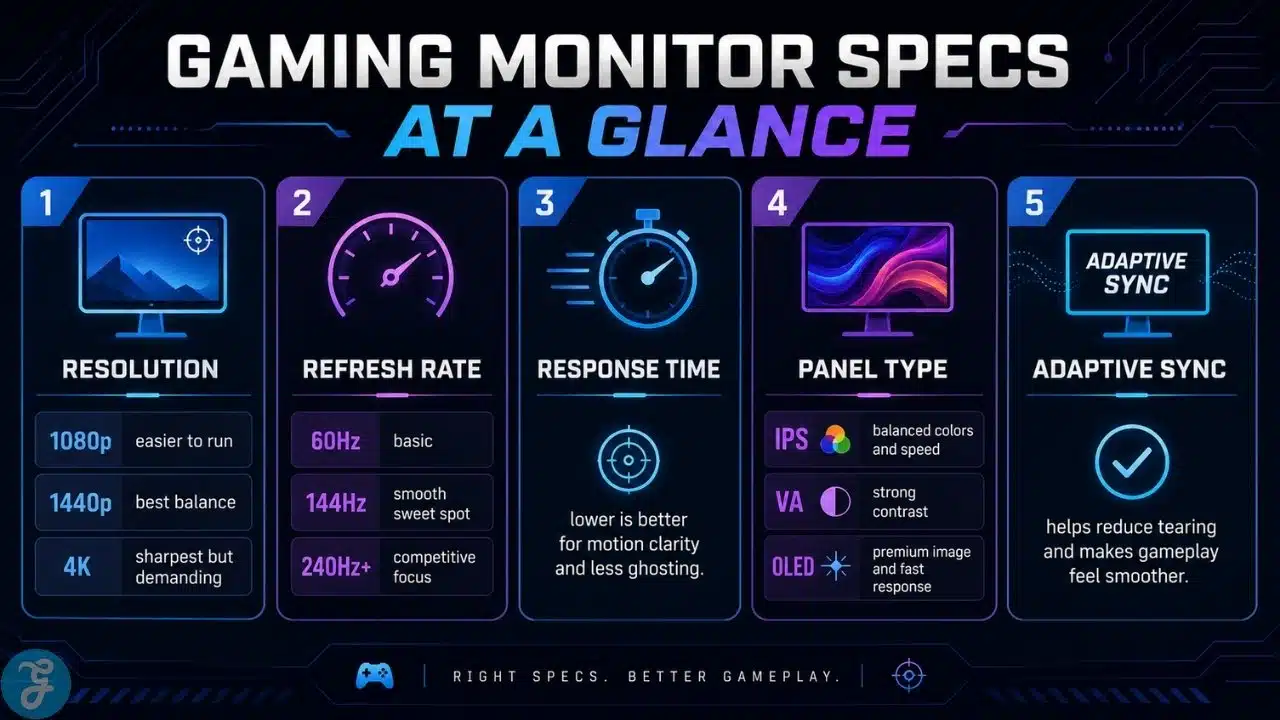
Gaming Monitor Specs At A Glance
Before going deeper, it helps to understand what each spec actually controls. Some specs affect smoothness. Some affect sharpness. Some affect comfort. Some are useful only if your PC can actually take advantage of them.
Here is the clean breakdown.
| Spec | What It Means | Why It Matters |
|---|---|---|
| Resolution | Number of pixels on the screen | Affects sharpness and GPU demand |
| Refresh Rate | How many times the screen updates per second | Affects smoothness |
| Response Time | How fast pixels change | Affects motion clarity |
| Screen Size | Physical size of the display | Affects immersion and desk comfort |
| Adaptive Sync | Matches display refresh with GPU frame output | Helps reduce tearing and stutter |
| HDR | Improves brightness, contrast, and color depth when done well | Can improve visual depth |
| Ports | Connection options and bandwidth | Affects resolution and refresh rate support |
| Stand Quality | Height, tilt, swivel, and comfort control | Affects long-term use |
Resolution: The Sharpness Of The Image
Resolution decides how many pixels your monitor shows. More pixels usually mean a sharper image, but they also demand more from your GPU.
The most common gaming resolutions are 1080p, 1440p, and 4K. Each one has its place.
1080p is still useful for budget gaming and competitive players who care more about frame rates than image sharpness. 1440p, or QHD, is the sweet spot for many PC gamers because it looks sharper than 1080p without being as demanding as 4K. 4K looks beautiful, but it needs a much stronger GPU if you want smooth performance in demanding games.
This is where a lot of buyers get confused. The sharpest option is not always the smartest option. A 4K monitor sounds impressive, but if your PC cannot drive it properly, you may end up lowering settings constantly just to make games feel smooth.
Here is the practical comparison.
| Resolution | Best For | Main Tradeoff |
|---|---|---|
| 1080p | Budget gaming and esports | Less sharp on larger screens |
| 1440p / QHD | Balanced modern gaming | Needs more GPU power than 1080p |
| 4K | Visual-heavy gaming | Expensive and very GPU-demanding |
| Ultrawide 1440p | Immersion and multitasking | Needs more desk space and GPU power |
Best Resolution For Gaming Monitor Specs
The best resolution depends on your games, your GPU, and your expectations. For many modern gamers, 1440p is the most practical balance.
That is also why I personally like QHD so much. It gives you a cleaner, sharper image than 1080p, but it does not punish your GPU the way 4K can. For mixed gaming, it makes a lot of sense.
If you mostly play competitive shooters, 1080p with a very high refresh rate can still be smart. If you mostly play cinematic single-player games, 1440p or 4K can feel better. If you play a mix of everything, QHD is usually the safer middle ground.
Refresh Rate: The Smoothness You Actually Feel
Refresh rate measures how many times your monitor updates the image per second. It is measured in hertz, or Hz.
A 60Hz monitor refreshes 60 times per second. A 144Hz monitor refreshes 144 times per second. A 165Hz monitor refreshes 165 times per second. Higher refresh rates can make motion feel smoother and more responsive.
This is one of those upgrades you actually feel. Once you get used to a high-refresh monitor, going back to a basic 60Hz screen feels rough. Everything from gaming to moving windows around can feel smoother.
For gaming, 144Hz to 165Hz is a strong sweet spot. It feels much smoother than 60Hz, but it does not require the insane FPS targets that 240Hz or 360Hz monitors demand.
Use this simple guide.
| Refresh Rate | Best For | Experience |
|---|---|---|
| 60Hz | Basic gaming and casual use | Playable but less smooth |
| 75Hz–100Hz | Budget improvement | Noticeably better than basic displays |
| 120Hz–165Hz | Most modern gamers | Smooth and practical |
| 240Hz+ | Competitive players | Very smooth but needs high FPS |
| 360Hz+ | Serious esports users | Niche and expensive |
Response Time: Motion Clarity Without The Marketing Drama
Response time describes how quickly pixels change from one shade or color to another. Lower response time can help reduce ghosting, smearing, and blur during fast motion.
But this is one area where marketing gets annoying. A lot of monitors advertise “1ms” like it automatically means perfect motion clarity. It does not. Real-world performance depends on the monitor’s tuning, overdrive settings, refresh rate, and overall panel quality.
So yes, response time matters. But do not buy a monitor only because the box screams 1ms. Look at the bigger picture. A monitor with good real-world motion performance is better than one with a flashy number and ugly ghosting.
For fast games, response time matters more. For slower story games, it is still useful, but not the only thing that defines the experience.
Screen Size: The Upgrade That Changed My Setup
Screen size affects immersion, comfort, productivity, and how much of the game world you can take in. Bigger is not always better, but the right size can completely change the experience.
This is where my own upgrade made the biggest difference. I moved from a basic $200 monitor to a 32-inch curved QHD 165Hz screen, and the first thing I noticed was the real estate. The space felt massive compared to what I had before.
Gaming changed immediately. Open-world games felt more immersive. In competitive or map-heavy games, I had better awareness because there was simply more screen space to work with. For productivity, it was also a huge upgrade. Writing, researching, multitasking, managing windows, and working for longer sessions became much easier.
That upgrade made me respect the monitor as a real part of the setup, not just something sitting in front of the PC.
Here is a simple size guide.
| Monitor Size | Good Match | Best For |
|---|---|---|
| 24-inch | 1080p | Esports, tight desks, budget setups |
| 27-inch | 1440p | Balanced gaming and daily use |
| 32-inch | 1440p or 4K | Immersion, productivity, larger desk setups |
| Ultrawide | 1440p ultrawide or higher | Immersive gaming and multitasking |
Curved Monitors: More Than Just A Fancy Shape
Curved monitors can look like a gimmick until you actually use one at the right size. On smaller screens, the curve may not matter much. On a larger screen, it can make the display feel more natural around your field of view.
For a 32-inch monitor, I personally like the curved experience. It makes the screen feel more immersive, especially in racing games, open-world games, RPGs, and cinematic titles. It also helps the large screen feel a bit more comfortable from a normal desk distance.
That does not mean everyone needs a curved monitor. Flat screens are still excellent, especially for competitive gaming, color-sensitive work, and people who prefer a traditional layout. But if you want immersion and a larger display, curved can make sense.
The key is to match the curve with screen size and desk distance. Do not buy it just because it looks cool in photos.
Aspect Ratio: Standard, Ultrawide, And Super Ultrawide
Aspect ratio describes the shape of the screen. Most gaming monitors use 16:9, which is the safest and most common format. Ultrawide monitors usually use 21:9, while super ultrawide displays go even wider.
A standard 16:9 monitor is the easiest recommendation for most people. It works well with almost every game, every setup, and every desk.
Ultrawide monitors can feel more immersive and give more workspace, but not every game supports them perfectly. Some games may show black bars, stretched menus, or awkward UI scaling.
Super ultrawide displays are impressive, but they need serious desk space, strong GPU power, and a user who actually benefits from that much width.
For most beginners, 16:9 is the safest choice. For immersion and multitasking, ultrawide can be amazing if your setup supports it properly.
Adaptive Sync: Smoother Gameplay When FPS Moves Around
Adaptive sync helps your monitor match its refresh rate with the frame rate coming from your GPU. This can reduce tearing and make gameplay feel smoother.
Screen tearing happens when the monitor shows parts of different frames at once. It can make motion look broken or uneven. Adaptive sync helps fix that without making everything feel awkward.
This matters because FPS is not always stable. Even on a strong PC, demanding games can move up and down depending on the scene. Adaptive sync helps smooth out those changes.
When comparing gaming monitor specs, adaptive sync is one of the practical features that can improve real gameplay instead of just looking nice on a product page.
HDR: Great When Done Right, Forgettable When Done Poorly
HDR stands for High Dynamic Range. In simple words, it can improve brightness, contrast, and color depth when the monitor handles it properly.
Good HDR can make bright areas pop, dark scenes feel deeper, and colors look richer. Poor HDR can look washed out or barely different from normal mode.
This is one spec where you should be careful. Many monitors advertise HDR, but not all of them deliver a strong HDR experience. A basic HDR label does not automatically mean premium image quality.
If HDR matters to you, focus on real display quality, brightness, contrast, and how the monitor performs in actual use. Do not buy just because three letters are printed on the box.
Input Lag: The Delay You Do Not Want To Feel
Input lag is the delay between your action and what appears on screen. Lower input lag makes the game feel more responsive.
This matters most in competitive games, shooters, fighting games, racing games, and anything that depends on quick reactions. If input lag is high, the game can feel slightly disconnected from your hands.
A good gaming monitor should keep input lag low, especially in gaming mode. Refresh rate and response time can help the feeling of responsiveness, but input lag is its own thing.
Do not confuse input lag with response time. Response time is about pixel changes. Input lag is about how quickly your action appears on screen.
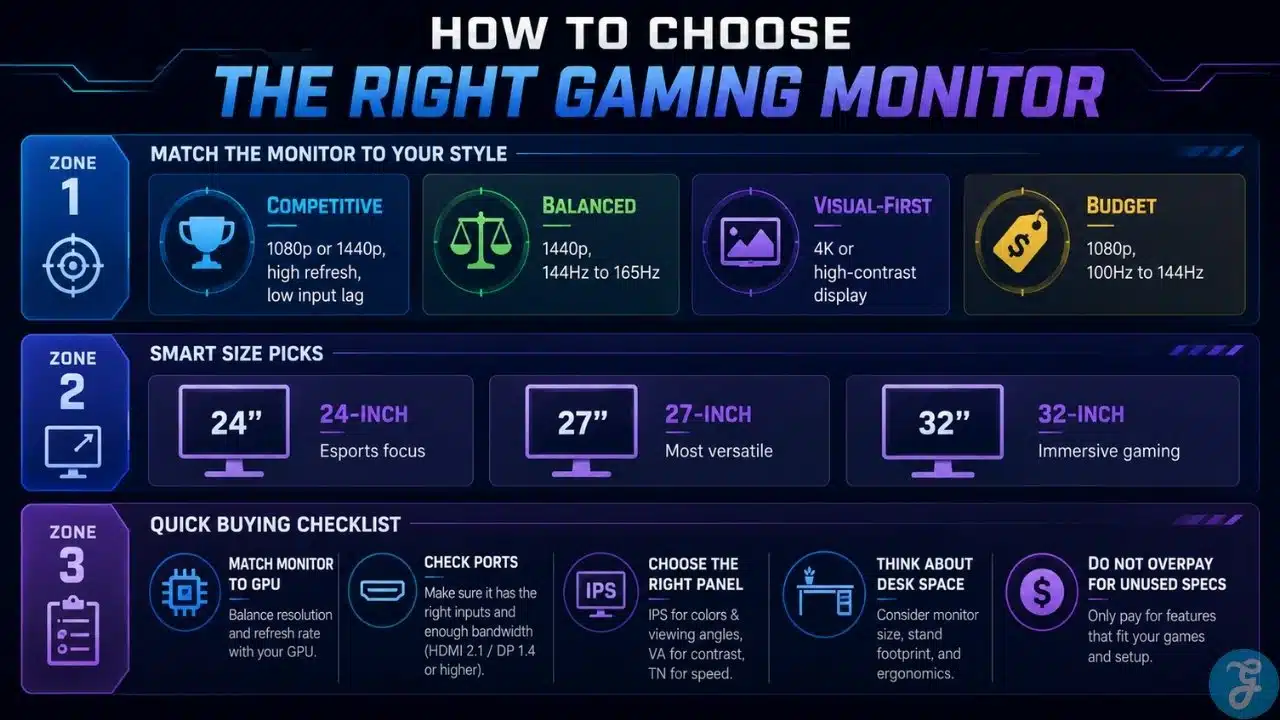
Brightness, Contrast, And Color Quality
Brightness, contrast, and color quality affect how enjoyable the screen looks every day. You do not need professional color accuracy for normal gaming, but you do want a monitor that looks clear, rich, and comfortable.
Brightness matters if your room has a lot of light. Contrast matters in darker games. Color quality matters for everything: games, movies, browsing, editing, and general use.
A monitor can have a high refresh rate and still look dull if brightness and contrast are weak. That is why specs should be judged together, not separately.
For mixed gaming, I prefer a screen that feels enjoyable across different game types instead of one that only excels at one narrow thing.
Ports And Connectivity: Boring Until They Matter
Ports sound boring, but they matter. Your monitor, GPU, and cable must all support the resolution and refresh rate you want.
Common monitor ports include HDMI, DisplayPort, USB-C, audio out, and sometimes USB hubs. For gaming PCs, DisplayPort is often the safest choice for high-refresh monitor setups. HDMI is also common, especially for consoles and newer displays.
The mistake is buying a monitor and then using a cable or port that does not support the full refresh rate. Then people wonder why their expensive monitor is stuck at a lower setting.
Before buying, check the ports. After setting it up, check your display settings. Do not assume the monitor automatically runs at its highest refresh rate out of the box.
Matching Your Monitor To Your GPU
Your monitor and GPU should be planned together. This is one of the most important parts of building a balanced setup.
A budget GPU pairs better with 1080p. A stronger mid-range or older high-end GPU can often make sense for 1440p, depending on the game and settings. A very powerful GPU is better suited for 4K or high-refresh 1440p.
I play a mix of games, so I do not treat settings like a religion. Sometimes I push visual quality. Sometimes I lower settings or resolution depending on the game. That flexibility is part of PC gaming. The goal is not always “max settings.” The goal is the best experience for that specific game.
That is why GPU selection for gaming and monitor choice should not be separate decisions. A monitor can only show what the GPU can produce.
Best Gaming Monitor Specs By Player Type
Different gamers need different screens. A competitive shooter player does not always need the same monitor as someone who mostly plays story games or works on the same PC all day.
Use this guide as a practical starting point.
| Player Type | Best Monitor Focus | Why It Matters |
|---|---|---|
| Casual Gamer | 1080p or 1440p, good colors | Balanced and affordable |
| Competitive Player | High refresh rate, low input lag | Faster and more responsive feel |
| Story-Driven Gamer | Higher resolution, strong contrast | Better immersion |
| Budget Gamer | 1080p, 100Hz–144Hz | Good value and easier to run |
| Mixed Gamer | 1440p, 144Hz–165Hz | Strong balance for many game types |
| Multitasker | 27-inch or 32-inch QHD | More space for work and gaming |
Common Gaming Monitor Buying Mistakes
The first mistake is buying based on one number. A monitor is not automatically good because it has a high refresh rate, 1ms response time, or a huge screen size.
The second mistake is ignoring the GPU. If your PC cannot push the resolution and refresh rate, the monitor will not magically fix performance.
The third mistake is buying too small or too large without thinking about desk space. A bigger screen can be amazing, but only if your desk and viewing distance make sense.
The fourth mistake is ignoring productivity. If you use your PC for work, writing, editing, research, or multitasking, screen size and resolution matter beyond gaming.
For me, the extra screen space became one of the biggest benefits of the upgrade. It changed my gaming experience and my workflow.
Gaming Monitor Specs Checklist
Before buying a gaming monitor, go through the basics. A good monitor should match your PC, your games, your desk, and your budget.
Use this checklist before making the final choice.
| Spec Area | What To Check |
|---|---|
| Resolution | Matches your GPU and sharpness needs |
| Refresh Rate | Fits your game type and FPS target |
| Response Time | Good enough for clean motion |
| Screen Size | Comfortable for your desk and viewing distance |
| Adaptive Sync | Helps reduce tearing and stutter |
| HDR | Useful only if the monitor handles it well |
| Ports | Support your target resolution and refresh rate |
| Stand Quality | Allows comfortable height and angle adjustment |
| Desk Fit | Leaves enough room for keyboard and mouse movement |
| Budget | Balanced with the rest of your gaming setup |
Choose The Screen That Fits Your Gaming Life
The smartest way to choose a monitor is to match it with your games, your GPU, your desk, and your budget. Do not buy based on one shiny spec. Look at the full experience.
For me, moving to a 32-inch QHD 165Hz curved monitor changed more than just gaming. It gave me more space, better immersion, improved map awareness, and a more productive workflow. That is the kind of upgrade that actually feels useful every day.
A good gaming monitor specs decision should make your PC feel better, not just look better on paper. Choose 1080p if you want value and speed. Choose QHD if you want balance. Choose 4K if you want maximum sharpness and have the hardware to support it.
The best monitor is not always the most expensive one. It is the one that fits the way you actually play, work, and use your PC.
Frequently Asked Questions About Gaming Monitor Specs
These answers cover the common questions people usually ask before buying a gaming display.
What Are The Most Important Gaming Monitor Specs?
The most important specs are resolution, refresh rate, response time, screen size, adaptive sync, input lag, brightness, contrast, and ports. Resolution affects sharpness, while refresh rate affects smoothness.
Is 144Hz Good For Gaming?
Yes, 144Hz is a very good refresh rate for gaming. It feels much smoother than 60Hz and is practical for many modern gaming PCs.
Is 165Hz Better Than 144Hz?
165Hz is slightly smoother than 144Hz, but the difference is not as dramatic as moving from 60Hz to 144Hz. If the price is close, 165Hz is nice to have.
Is 1440p Better Than 1080p For Gaming?
1440p is sharper than 1080p and feels like a strong balance for modern PC gaming. 1080p is still useful for budget gaming and competitive players who want higher FPS.
Do I Need A 4K Gaming Monitor?
Not necessarily. 4K looks sharp, but it demands a powerful GPU. For many gamers, 1440p with a high refresh rate is the better balance.
Does A Monitor Increase FPS?
No, a monitor does not increase FPS by itself. Your PC creates the frames. A high-refresh monitor only displays more frames if your PC can produce them.