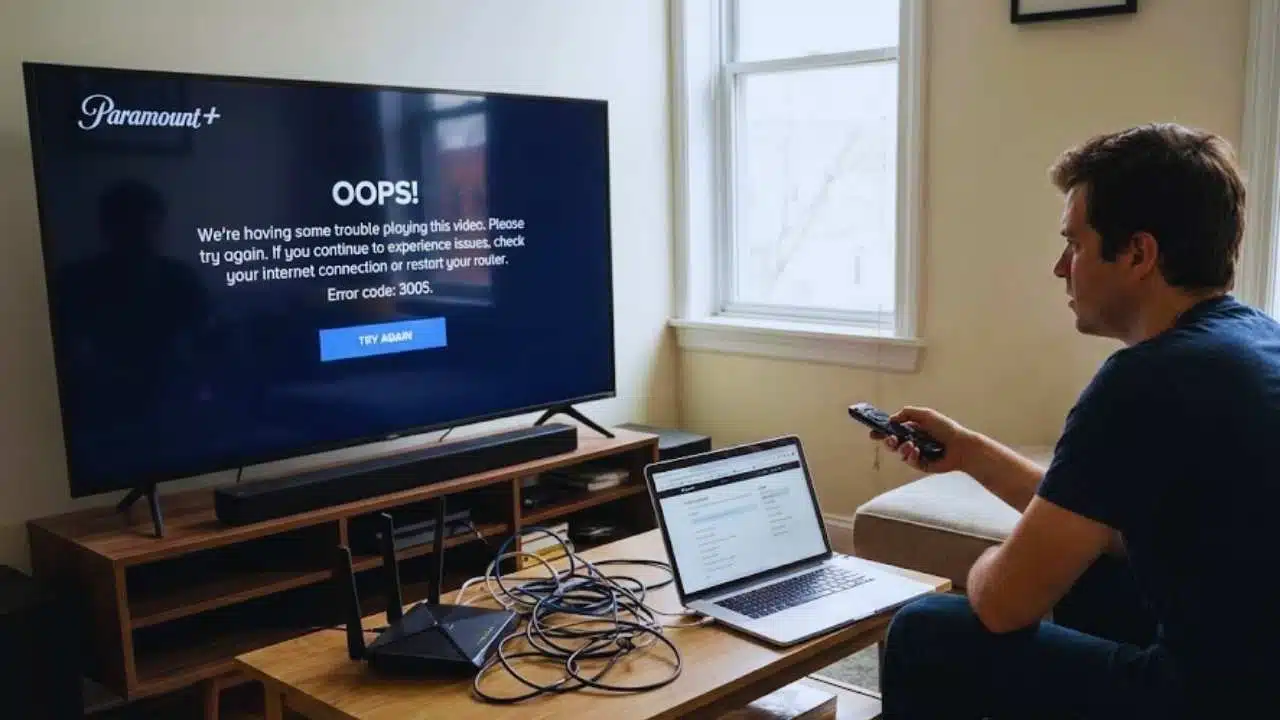
Are you trying to watch your favorite show on Paramount Plus but keep seeing error code 3005? This error can stop your streaming fun right in its tracks. Many Samsung TV users with Xfinity internet face this problem when they want to relax and enjoy their shows.
Paramount error code 3005 usually means there’s a playback failure. It happens because of network issues, stream problems, or app glitches. The good news is that you can fix this error with some simple steps.
In this guide, we’ll walk you through easy ways to solve error code 3005. You’ll learn how to restart your device, check your internet, clear app data, and more. These fixes work fast and get you back to watching in no time.
Ready for smooth streaming again?
Key Takeaways
- Paramount Error Code 3005 happens when there’s a playback failure, often due to network issues, app glitches, or stream problems.
- The most common fixes include restarting your device, checking internet speed, clearing app cache, and updating software.
- Slow internet is the top cause of Error 3005, and switching to a 5 GHz network or using an Ethernet cable often helps.
- VPNs and ad blockers can trigger Error 3005 by blocking connections to Paramount servers.
- If basic fixes don’t work, reinstalling the app or contacting Paramount Plus support are your best options.
What does Paramount Error Code 3005 mean?
Paramount Error Code 3005 shows up when your stream stops working right. This error points to network problems or app glitches that break your viewing time. Many users see this error on Samsung Smart TVs and LG TVs when trying to watch shows.
The error makes the app crash or lose connection to Paramount’s servers. Some users report that Error 3005 only happens with certain shows like “1923” but not with others. The problem isn’t tied to specific times of day, but once it starts, it tends to keep happening until fixed.
Error 3005 can pop up whether you’re using the Paramount Plus app on your TV or watching through a web browser. The main causes include poor internet speed, app cache issues, or server problems on Paramount’s end.
This error often leads to buffering, frozen screens, or the app shutting down without warning. If you see this code, it means your stream can’t stay stable enough to play your show.
Common causes of Error Code 3005
Error 3005 often pops up due to simple issues you can fix at home. Your internet speed, app data, or device settings might be the culprits behind this annoying message.
How does insufficient internet bandwidth cause Error 3005?
Insufficient internet bandwidth is the top cause of Error 3005 on Paramount Plus. Your stream needs a stable, fast connection to work right. When your internet speed drops below what Paramount needs, the app can’t get enough data to play your shows smoothly.
This causes the playback to fail and Error 3005 pops up on your screen. Many users find that switching to a 5 GHz Wi-Fi network helps fix this issue. The 5 GHz band often gives faster speeds with less traffic than the standard 2.4 GHz network.
For the most stable connection, try using an Ethernet cable instead of Wi-Fi. This wired option works great for Samsung Smart TVs that often show Error 3005. You can also test if your bandwidth is the problem by trying other streaming apps.
If they work fine but Paramount Plus doesn’t, your internet might just meet the minimum speed for basic streaming but fall short for Paramount’s needs. A quick fix many techs suggest is to power-cycle your modem and router for 60 seconds, which often clears up signal issues.
Can corrupted app cache or cookies trigger Error 3005?
Yes, corrupted app cache and cookies often cause Error 3005 on Paramount Plus. The app stores data to help it run faster, but this data can get damaged over time. Many users fix this error by clearing their app cache or browser cookies.
This problem happens more often after you change your network setup, like getting a new modem. The cache stores licenses that let you watch shows, so corruption can block specific titles like “1923” from playing.
Cache problems stop proper playback by confusing the app about what it can access. Clearing this data is usually the first fix to try before moving to other steps. If you’re watching on a web browser, try clearing your browser data or switching to a different browser.
For the app version, removing and reinstalling Paramount Plus often solves the issue by giving you a fresh start with no corrupted data.
Does outdated software or firmware lead to Error 3005?
Yes, outdated software often causes Error 3005 on Paramount+. Many Samsung and LG Smart TV users face this problem when their TV firmware isn’t current. One user with a Samsung QN65QN90B TV from December 2022 fixed this error after updating their software.
Old apps can’t work with new security measures in streaming content. This mismatch creates the error code. The problem gets worse after changing internet hardware, like installing a new Comcast modem without updating the app.
You need to update both your TV firmware and the Paramount+ app. Go to Settings > Support > Software Update > Update Now on your TV. This simple step has helped many users fix Error 3005.
Paramount Plus always tells users to keep apps and device software current to avoid streaming errors. Old software creates compatibility issues with new app updates, which leads straight to Error 3005.
How do VPNs and ad blockers interfere with Error 3005?
VPNs can block your connection to Paramount Plus servers, causing Error 3005 to pop up on your screen. When you use a VPN, it masks your real location and can stop the app from working right.
Many users see this error right after they change their network setup or install a new modem. The problem gets worse because VPNs make videos buffer or crash the app when you try to watch shows.
Ad blockers create similar issues for Paramount Plus users, mainly on web browsers and Smart TVs. These tools can stop the streaming service from loading content properly. Paramount Plus support often asks users to turn off both VPNs and ad blockers as a first step to fix Error 3005.
This simple fix helps the app connect to its servers without any blocks in the way.
How to fix Error Code 3005 step-by-step
Fixing Error Code 3005 needs a step-by-step plan that works for all devices. You can solve this error with simple actions like restarting your app or checking your internet speed.
How do I force close and restart the Paramount app?
Force closing and restarting the Paramount app often fixes Error Code 3005 quickly. This simple step refreshes licenses and clears temporary glitches that might block your streaming.
- On Smart TVs, find your TV’s app management settings to force stop the Paramount Plus app.
- Sign out of your Paramount Plus account before force closing for best results.
- After closing the app, wait about 30 seconds before opening it again.
- Power-cycle your streaming device or TV by unplugging it for one minute if a simple restart doesn’t work.
- Force closing is very helpful after you change modems or network equipment.
- Many users fixed app crashes with error 3005 just by restarting the app.
- This method works well for fixing title-specific playback issues, like problems streaming “1923.”
- Try this step before moving on to more complex troubleshooting steps.
- For complete refresh, sign back into your account after restarting the app.
- Make sure to close any other streaming apps running in the background for best results.
What is the best way to restart my modem and router?
Restarting your modem and router often fixes Paramount Error Code 3005 quickly. This simple fix refreshes your network connection and clears issues that block streaming.
- Unplug both your modem and router from the power outlet completely.
- Wait a full 60 seconds before plugging them back in, as tech support experts recommend this timing.
- Plug your modem in first and wait until all lights show normal operation.
- Connect your router to power next and allow it to fully boot up.
- Check that all connection lights turn green or show normal status.
- Test your internet connection on another device before trying Paramount again.
- For Xfinity users, unplug your box for at least 30 seconds before restarting.
- LG TV owners should restart both the TV and internet box for best results.
- Make sure to wait the full time (30-60 seconds) during the power cycle process.
- Try this step first before moving on to other fixes like clearing cache or reinstalling apps.
- This process helps clear DNS issues and refreshes network address assignments.
- Power cycling is extra important if you recently got new internet equipment like a Comcast modem.
How can I clear app cache and browser cookies to fix Error 3005?
Clearing cache and cookies often fixes Paramount Error 3005 fast. This simple fix works for many streaming problems and app crashes on different devices.
- For Samsung Smart TVs, go to Settings > Apps > Paramount+ > Clear Cache to remove stored data causing playback issues.
- On Android devices, open Settings, find Apps, select Paramount+, then tap Storage and Clear Cache.
- iPhone and iPad users should delete the app and reinstall it since iOS doesn’t allow direct cache clearing.
- For web browsers like Chrome, click the three dots menu, select Settings, then Privacy and Security, and choose Clear browsing data.
- Make sure to check both “Cookies” and “Cached images and files” boxes when clearing browser data.
- Sign out of your Paramount+ account before clearing cache to prevent cached license issues that block specific shows like “1923.”
- Clear cache right after changing your internet modem to stop connection conflicts with the app.
- Try a different browser if clearing cache doesn’t work, as some browsers handle streaming better than others.
- Clearing cache should be your first step before trying a full app reinstallation, which takes more time.
- The app might need to download some data again after clearing cache, so connect to good WiFi before streaming.
How do I update the app and device software?
Outdated software often causes Error 3005 on Paramount+. Keeping your apps and devices updated fixes bugs and improves compatibility for smooth streaming.
- Check for Paramount+ app updates in your device’s app store (Google Play Store, Apple App Store, or Amazon App Store).
- Open your TV’s settings menu to find software updates for Samsung TVs, go to Settings > Support > Software Update > Update Now.
- Wait for the update to download and install, which may take several minutes depending on your internet speed.
- Restart your device after updates complete to make sure all changes take effect properly.
- Update your TV firmware regularly as part of error 3005 troubleshooting, just like the customer with a Samsung QN65QN90B TV was told to do.
- Install all pending updates after hardware changes, such as getting a new Comcast modem, to prevent streaming errors.
- Look for the “Check for Updates” option in your streaming device settings menu (Roku, Fire TV, Apple TV).
- Set your devices to update automatically when possible to avoid missing important bug fixes.
- Clear the app cache before updating if you’ve had ongoing issues with Error 3005.
- Contact Paramount+ support if updates don’t fix the error, as they might need to check your account settings.
How do I disable VPN and ad blockers to resolve Error 3005?
VPNs and ad blockers often clash with Paramount Plus streaming services. These tools can block the normal connection paths needed for smooth streaming, causing Error 3005 to appear on your screen.
- Close the Paramount Plus app completely before making any changes to your network settings.
- Find your VPN app on your device and tap the disconnect button or toggle switch to turn it off.
- Check your device settings for any built-in VPN options that might be turned on without a separate app.
- Open your web browser and look for ad blocker extensions in the toolbar area.
- Click on each ad blocker icon and select “pause” or “disable” from the dropdown menu.
- Visit your browser’s extension page to find hidden ad blockers that don’t show in the toolbar.
- Restart your streaming device after turning off these services to clear any cached settings.
- Launch Paramount Plus again and try to play your content to see if Error 3005 is gone.
- Try a different browser without any extensions if you’re streaming on a computer.
- Contact your internet service provider if errors continue, as they might be blocking streaming traffic.
When should I reinstall the Paramount app?
Reinstalling the Paramount app can fix stubborn errors that won’t go away with basic fixes. Many users have solved Error Code 3005 by completely removing and reinstalling the app on their devices.
- Try reinstalling if you’ve cleared the cache and signed out/in without success.
- Tech support often suggests app reinstallation as a key step for fixing persistent streaming issues.
- Removing the app helps clear corrupted data and cached licenses that might cause Error 3005.
- LG and Samsung TV users report that reinstalling fixed their Error 3005 problems.
- The app needs reinstallation if it crashes or fails to load specific shows like “1923.”
- Reinstall after major network changes, such as getting a new modem from your internet provider.
- Consider reinstallation if other streaming apps work fine but Paramount Plus doesn’t.
- Use this as your last step before contacting Paramount Plus customer support for more help.
- App reinstallation can resolve issues with app performance after system updates.
- The process clears corrupted data that might block your streaming experience.
What is Paramount Error Code 3205 and how is it related?
Paramount Error Code 3205 is a close cousin to Error 3005. Both errors stop your shows from playing due to connection problems or server issues. You might see Error 3205 pop up on your Smart TV, web browser, or streaming device when your stream cuts out.
The fixes for both errors match up nicely. You’ll want to restart your devices, update your software, and check your internet speed. Many viewers find that both errors happen for the same reasons, like slow internet, app problems, or outdated software.
If you use a VPN or ad blocker, try turning them off to fix either error. Most people report Error 3005 more often than 3205, but the steps to fix them work the same way. If nothing helps after trying all the basic fixes, reaching out to Paramount Plus support is your best next step.
When should I contact Paramount Plus support for Error 3005?
If your own fixes don’t work for Error 3005, it’s time to ask for help. Contact Paramount Plus support when you’ve tried all the steps and still can’t watch your shows. The support team has tools to check your account and fix problems you can’t see.
They might need to reset something on their end or give you special steps for your device. Reach out through their website, app, or phone for fast help with your streaming troubles.
Takeaways
Fixing Paramount Error Code 3005 doesn’t have to be hard. You now have all the tools to tackle this pesky error when it pops up during your streaming time. From checking your internet speed to clearing cache and restarting devices, these simple fixes can get you back to watching your shows fast.
Most users solve this problem without calling support by following the steps we covered. Next time you see Error 3005, stay calm and try these fixes one by one until your streaming works again.
For a thorough understanding of the related Paramount Error Code 3205 and its implications, visit our detailed guide on error 3205.
FAQs
1. What causes Paramount Error Code 3005?
Paramount Error Code 3005 usually happens because of internet connection problems. Your device might have weak Wi-Fi signals or network congestion. Sometimes, outdated app versions or device software can also trigger this error.
2. How can I fix Error Code 3005 on Paramount?
First, check your internet connection and try restarting your router. Clear the app cache and data from your device settings. If that doesn’t work, try uninstalling and reinstalling the Paramount app. These simple fixes solve most streaming issues quickly.
3. Does Paramount Error 3005 affect all devices?
No, this error doesn’t always show up on all devices. Smart TVs, mobile phones, and streaming sticks may each show different error patterns. Your device type and its operating system can influence how the error appears.
4. Will updating the Paramount app remove Error Code 3005?
Updating the app often fixes the error. Paramount releases patches to fix known bugs in their streaming service. Go to your app store, find Paramount, and tap update if available. Regular updates help prevent many common streaming problems.