
Snapchat videos stuck on loading can really dampen your social media fun. Unexpected glitches like this are more common than you might think, even with the latest updates installed.
Lucky for you, our guide is packed with easy fixes to get those snaps playing smoothly again. Keep reading; better video vibes are just ahead!
Common Snapchat Video Issues
Videos on Snapchat sometimes just won’t load or they keep freezing. Other times, the app might crash when you try to play a video. Some users also report seeing a black screen instead of the video or hearing sound with no image.
These glitches can happen on both iPhone and Android phones.
Your friends might send you a snap, but it’s blurry or won’t open at all. You could also face trouble recording videos; either they stop recording too soon or your phone hangs up completely.
Plus, after updates, new bugs can pop up that affect how videos play on the Snapchat app.
Solutions to Snapchat Videos Not Loading or Playing

Snapchat wont play videos can be a real buzzkill, but don’t toss your phone aside just yet! We’ve got some nifty tricks up our sleeve that can coax those pesky clips into action—let’s dive in and give them a whirl.
Checking Your Internet Connection
Make sure your internet connection is strong and fast. This is the key to watching Snapchat videos smoothly. If the video won’t load, try turning off your wifi and switching it back on.
You can also move closer to your router or modem to get a better signal. Sometimes, other devices use up bandwidth; if so, turn them off while using Snapchat.
If problems continue, test your internet speed online. Your smartphone needs good mobile data or wifi to play videos without issues. Slow speeds can cause videos to freeze or not load at all.
For this reason, always check that you’re connected to the internet before trying other fixes.
Force Closing and Restarting the Snapchat App
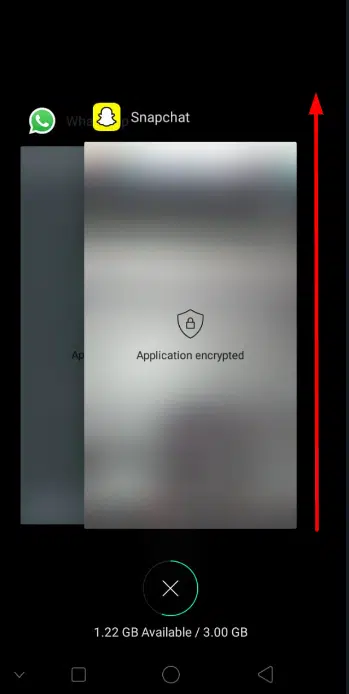
Snapchat videos sometimes get stuck. Force closing and restarting the app can kick things back into gear. Here’s how to do it:
- Find your phone’s app manager. On most phones, you’ll find this by hitting the square icon for Android or double-clicking the home button for iPhones.
- Swipe Snapchat away to close it. This tells your device that you want to shut down the app completely.
- Wait a few seconds. Give your phone a moment before you try to open Snapchat again.
- Tap on the Snapchat icon on your home screen. This will start up the app as if you are using it for the first time after turning on your phone.
- Check if videos play now. Usually, this simple trick gets those stubborn videos moving again.
Clearing Cache and Data
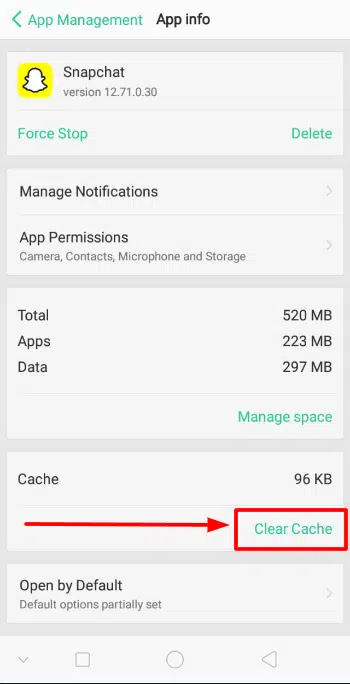
Clearing cache and data can fix Snapchat videos that won’t load. This step often solves the problem quickly and easily.
- Open your phone’s settings. Look for “Apps” or “Application Manager.”
- Scroll down to find Snapchat. Tap on it to open the app’s info.
- Hit “Storage.” You’ll see two options: Clear Data and Clear Cache.
- Tap “Clear Cache.” This removes temporary files without affecting your account.
- Next, choose “Clear Data” for a deeper clean. Be aware that this will log you out.
- Confirm your action if prompted. Your phone may ask if you’re sure about clearing everything.
- Log back into Snapchat after clearing. Check if videos play now.
- Repeat these steps regularly to keep Snapchat running smoothly.
Updating or Reinstalling Snapchat
Updating or reinstalling Snapchat can solve many video issues. Here are the steps you need to follow:
- Head over to your phone’s app store, whether it’s the Google Play Store or the Apple App Store.
- Search for “Snapchat” in your app store. You will find the official Snapchat app there.
- If an update is available, tap ‘Update’. Wait for the app to download and install the newest version.
- Open Snapchat after updating. Check if videos play without problems now.
- If updating didn’t help, go back to your app store. Press ‘Uninstall’ to remove Snapchat from your device.
- Once uninstalled, restart your phone. This helps clear temporary files that might cause problems.
- Go back to the app store and reinstall Snapchat on your device. Tap ‘Install’ and wait for it to finish.
- After installing, log into your account. Try watching a video to see if it works better.
Restarting Your Phone or Updating Phone Firmware
Snapchat videos might not work right if your phone is having trouble. A quick restart or a firmware update can often fix this.
- Restarting your phone:
- Close all open apps before you turn off your phone.
- Hold down the power button until the shutdown options appear.
- Select “Restart” if available, or turn off the phone and then turn it back on.
- Wait for the device to power up fully, then open Snapchat to see if videos play.
- Updating your phone’s firmware:
- Make sure your phone is connected to Wi-Fi, as updates can be large files.
- Go to your phone’s settings menu and look for a system update option.
- If an update is available, tap it and follow the on-screen instructions to install it.
- Your phone may restart several times during the update process; this is normal.
- Once updated, check Snapchat again to see if video issues are resolved.
Disabling Battery Saver/Power Saving Mode
Turning off your phone’s battery saver mode can fix Snapchat video issues. This mode often stops apps from working correctly to save power.
- Go to your phone’s settings.
- Look for “Battery” or “Power Saving Mode.”
- Tap on it and turn the feature off.
- If you’re using an iPhone, find “Battery” and switch off “Low Power Mode.”
- Android users should search for “Battery Saver” and make sure it’s turned off.
- Check if Snapchat videos play after changing this setting.
- Give Snapchat all the permissions it needs in your phone settings.
- Make sure background data isn’t restricted to Snapchat.
- Open the app and try watching a video again.
Granting Snapchat Access to the Necessary Features
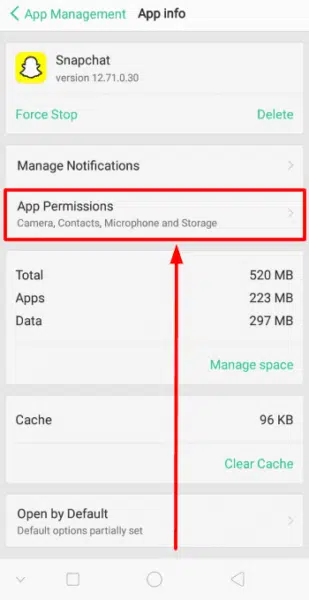
Snapchat needs permission to work on your phone. Without these permissions, videos might not load or play.
- Open Snapchat and tap the Profile icon: Start by going to your profile in the app.
- Check for permission alerts: Look for any messages that ask you to allow access.
- Go to your phone’s settings: Jump into the settings area of your device.
- Find Snapchat in the app list: Scroll until you see Snapchat, and tap it.
- Tap ‘Permissions’: This shows you what features Snapchat can use.
- Enable Camera Access: Make sure Snapchat can use your camera to take videos.
- Allow Microphone Use: Let Snapchat record sound by turning on the microphone option.
- Grant Location Services: If needed, let Snapchat know where you are so location-based filters work.
- Check Storage Permissions: Ensure Snapchat can save videos to your phone’s storage.
- Review Contacts Access: Giving access helps find friends but is not required for video playback.
Freeing Up Storage Space
Your phone’s storage can get full, making it hard for Snapchat videos to load. Clear out old photos, apps you don’t use anymore, and large files. This gives your phone more room to work with.
Cleaning up also speeds things up! Get rid of app cache in Snapchat to fix video issues. Just go into your phone settings and clear the cache for a fresh start.
Try deleting some unused apps too. By removing them, you free up space quickly. Your Snapdragon videos may start playing smoothly after this cleanup!
Trying a Different Device Entirely
Sometimes, the problem is with your phone and not Snapchat. If you’ve tried all the other fixes and nothing works, grab a different smartphone or tablet. Make sure it’s one that can run Snapchat.
Download the app and log in to see if videos play on this new device.
If they do, your old phone might have an issue. It could be about its operating system, hardware, or another app causing trouble. But if videos still won’t play, the problem could be bigger—like something wrong with your Snapchat account itself.
That’s when reaching out to Snapchat support will help you find answers.
Contacting Snapchat Support

If your Snapchat videos won’t load or play, it’s time to get help from the experts. Reach out to Snapchat Support for guidance. They can offer solutions specific to your problem. Go to their official website and look for the ‘Contact Us’ page.
Fill out the form with details about your trouble with videos.
Snapchat has a team ready to fix such issues. Explain what’s happening in clear terms when you message them. Describe any error messages you see and any steps you’ve already taken to solve the problem.
This information will help them understand better and speed up finding a fix for you. Keep an eye on your email after you reach out; that’s how they’ll send instructions or ask for more information.
How to Repair a Corrupt Snapchat Video
Sometimes Snapchat videos get corrupted. Here’s how to fix them:
- Check the video on another device to make sure the problem is not with your phone.
- Use a video repair tool like Stellar Video Repair to fix corrupted files.
- Open Stellar and upload your Snapchat video.
- Click on the ‘Repair’ button and wait until the process finishes.
- Preview the repaired video within Stellar before saving it.
- Save the fixed video to a safe location on your computer or phone.
- If the first attempt doesn’t work, try the advanced repair feature in Stellar.
- Upload a sample video made with the same app for reference during advanced repair.
- Run advanced repair and wait for the software to reconstruct your video.
How to Prevent “Snapchat Videos Freezes”
Clearing the cache often keeps Snapchat running smoothly. It removes old data that might slow down your app. Make sure you’ve got the latest version of Snapchat, too. App updates come with bug fixes that can stop videos from freezing.
Keep your phone’s operating system updated as well for the best performance.
Power saver mode might interfere with Snapchat video playback. Turn it off when using the app to avoid freezing. Also, be certain that Snapchat has permission to use your camera and microphone; these settings are crucial for a seamless experience.
Free up space on your device regularly; if your phone runs low on memory, apps like Snapchat can’t work properly. If problems continue, try using Snapchat on a different device to see if there’s an issue with your phone.