
Every workday leaks time in tiny pieces. You stop typing, reach for the mouse, locate a button, click it, and then return to the keyboard. Each interruption lasts only a few seconds, but repeated actions eventually add up.
The most useful keyboard shortcuts that save time handle ordinary tasks: correcting text, finding information, inserting links, switching applications, and managing browser tabs.
Saving an hour is a realistic target for frequent computer users, not a guarantee. Saving five seconds on 144 daily actions adds up to 60 minutes across a five-day week. The more often you perform an action, the more valuable its shortcut becomes.
Windows generally uses the Control key, while macOS often uses Command. Important exceptions are noted below.
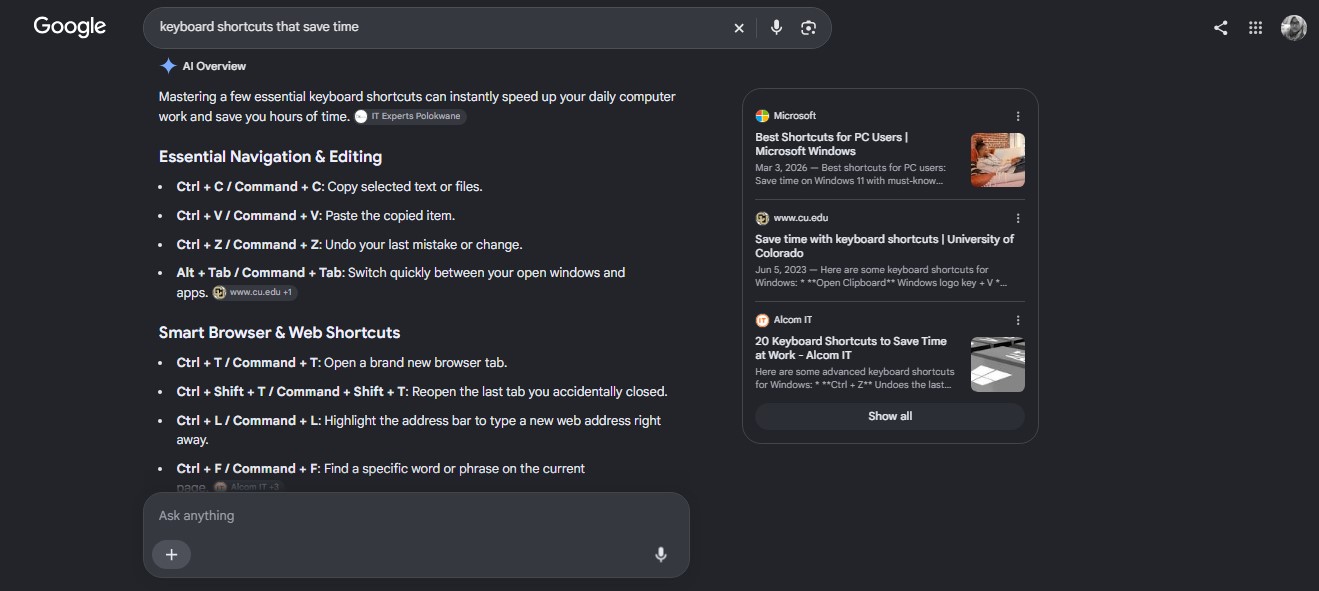
1. Paste Without Unwanted Formatting
Windows: Ctrl + Shift + V
Mac: Command + Shift + V in Google Docs and many web apps
Text copied from a website may carry unwanted fonts, colors, sizes, and links. Pasting without formatting keeps the words while matching the destination document’s style. It eliminates the need to clean up every pasted section manually.
Many native Mac applications instead use Option + Shift + Command + V for “Paste and Match Style.”
2. Undo and Redo an Action
Windows: Ctrl + Z to undo; Ctrl + Y to redo in Word and many Windows apps
Mac: Command + Z to undo; Shift + Command + Z to redo
Undo can reverse deleted text, accidental formatting, misplaced images, and other unwanted changes. Redo restores an action when you undo one step too far.
Google Docs uses Ctrl + Shift + Z for redo on Windows, so check the command used by your primary application.
3. Find a Word Without Scrolling
Windows: Ctrl + F
Mac: Command + F
Find can locate a name in an article, a figure in a report, a setting on a webpage, or a phrase inside a PDF. Enter a distinctive word or phrase rather than scanning multiple screens manually.
This shortcut becomes especially valuable when reviewing long documents or checking whether a particular term appears in a draft.
4. Find and Replace Repeated Text
Windows: Ctrl + H in Microsoft Word and Google Docs
Mac: Command + Shift + H in Google Docs
Find and Replace can correct a repeated typo, update a changed name, or make terminology consistent throughout a document.
Review matches before choosing “Replace all,” particularly when a term may appear inside another word. Commands vary between Mac applications, while Ctrl + H may open browser history when used outside an editor.
5. Select Everything in the Active Area
Windows: Ctrl + A
Mac: Command + A
This command can select all text in a document, every file in an open folder, or all content inside an active field. It is useful when copying a complete draft, applying consistent formatting, or moving groups of files.
The result depends on where the cursor is. Inside a table cell or text box, it may select only that area.
6. Insert or Edit a Link
Windows: Ctrl + K
Mac: Command + K
In Word, Google Docs, email editors, and many content management systems, select the anchor text and press this shortcut to open the link box. It is quicker than searching the toolbar for an insert-link button.
Outside an editor, the same command may focus a browser’s search or address field.
7. Delete an Entire Word
Windows: Ctrl + Backspace
Mac: Option + Delete
Deleting a word character by character interrupts the rhythm of writing. This shortcut removes the previous word in one action, making it useful for rewriting sentences, correcting names, and clearing search terms.
Editors may handle punctuation and spaces differently, so use it carefully near text you want to keep.
8. Move or Select Text Word by Word
Windows: Ctrl + Left/Right Arrow; add Shift to select
Mac: Option + Left/Right Arrow; add Shift to select
Ordinary arrow keys move the cursor one character at a time. Adding Control or Option makes it jump by whole words. Adding Shift selects those words as the cursor moves.
For writers and editors, this is often more useful than a flashy shortcut because it speeds up precise revisions throughout the day.
9. Switch Between Open Applications
Windows: Alt + Tab
Mac: Command + Tab
Use the app switcher to move between a browser, document, spreadsheet, messaging app, and reference file. Hold the modifier key and continue pressing Tab until the required application appears.
On a Mac, Command + Tab switches applications. Command + grave accent, using the key above Tab, moves between windows belonging to the same application.
10. Jump to the Browser Address Bar
Windows: Ctrl + L
Mac: Command + L
This shortcut selects the current address immediately. Type a website address or search phrase and press Enter.
It is particularly useful when the current tab has served its purpose and can be reused for the next search. There is no need to open another tab or carefully position the pointer.
11. Open a New Browser Tab
Windows: Ctrl + T
Mac: Command + T
Research, comparison, and fact-checking often require several pages at once. This shortcut opens a new tab and lets you begin typing immediately.
The saving per use is small, but browser-heavy workers may open dozens of tabs each day. Frequency is what makes it valuable.
12. Close the Current Browser Tab
Windows: Ctrl + W
Mac: Command + W
Close completed searches, duplicate pages, and temporary references without targeting the small close button on a tab. Removing finished tabs also makes the remaining ones easier to navigate.
Be careful when completing online forms. Some websites warn about unsaved information, but that protection is not universal.
13. Reopen a Closed Tab
Windows: Ctrl + Shift + T
Mac: Command + Shift + T
An accidentally closed tab does not require a search through browser history. This shortcut restores it immediately.
In Chrome, pressing the command repeatedly reopens previously closed tabs in reverse order. It may not be used every day, but it can save considerable time when an important page disappears.
14. Move Between Browser Tabs
Windows: Ctrl + Tab for the next tab; Ctrl + Shift + Tab for the previous tab
Mac in Chrome: Command + Option + Right/Left Arrow
Cycling through tabs is easier than aiming at increasingly narrow tab labels. Chrome also lets Windows users press Ctrl + 1 through Ctrl + 8 and Mac users press Command + 1 through Command + 8 to jump directly to a numbered tab.
Mac commands can vary slightly between browsers.
15. Capture a Selected Part of the Screen
Windows: Windows + Shift + S
Mac: Shift + Command + 4
Capturing only the required area avoids taking a full-screen image and cropping it afterward. Use it to save an error message, share part of a dashboard, or capture a visual reference.
Windows copies the selection to the clipboard and displays screenshot options. A Mac saves it as a file by default. Add Control to the Mac command when you want the capture copied to the clipboard.
Small Shortcuts, Meaningful Time
No single command gives you an hour back. The saving comes from removing tiny delays that happen all day: searching menus, correcting text letter by letter, clicking between tabs, and repairing pasted formatting.
Choose shortcuts that match your routine. Once a few become instinctive, the computer stops interrupting your pace and starts keeping up with it.
Frequently Asked Questions on Keyboard Shortcuts that Save Time
1. Are keyboard shortcuts always faster than a mouse?
They are generally faster for familiar, repeated actions. A mouse may still be more practical for visual work, unfamiliar software, or commands used only occasionally.
2. Do Windows shortcuts work on a Mac?
Many shortcuts replace Control with Command, but not all. Text navigation, screenshots, redo commands, and paste-without-formatting commands have important differences.
3. Why does Ctrl + Shift + V not work in some programs?
Paste without formatting is not supported consistently across every application. Check the Edit menu for “Paste as plain text” or “Paste and Match Style” to find the correct command.
4. Which shortcuts save the most time?
It depends on your work. Writers benefit most from plain-text pasting, Find, and word navigation. Browser-heavy users gain more from address-bar, tab-switching, and closed-tab commands.
5. What is the easiest way to learn keyboard shortcuts?
Learn them in small groups connected to real tasks. Keep a brief reminder beside your screen and practice each group until the movements become automatic.