
If your household’s screen-time rule only works when you’re standing over someone’s shoulder, you don’t actually have a family technology rules you have a temporary pause button. That’s exactly where countless American families get stuck. You tell your kid to get off their screen, but their math assignment is locked inside Google Classroom.
A middle schooler claims they need their Chromebook for a social studies project, yet somehow ends up with three unrelated browser tabs open. A high schooler checks grades on Canvas or Schoology while a group chat keeps blowing up in the corner of their display. And let’s be honest: half the time, the parent who just declared the dinner table “device-free” is sneakily checking a Slack notification or work email between bites.
The problem isn’t that parents are lazy or careless. The real issue is that the phrase “screen time” now covers way too much territory. Algebra homework, FaceTime chats with grandparents, Minecraft builds, YouTube tutorials, digital textbooks, and late-night scrolling all happen on glass rectangles that look completely identical from five feet away.
When rules are vague, they inevitably fall apart. Effective technology boundaries don’t start with a blanket war on digital devices; they start by identifying the exact pressure points in your home:
- Is device use pushing bedtime past midnight?
- Are school laptops quietly doubling as portable gaming consoles?
- Are kids downloading unapproved apps with sketchy privacy settings?
- Do family dinners feel like everyone is staring at a separate wall?
- Does every gaming session end in an explosive meltdown?
When you target the actual source of friction instead of declaring generic rules against “technology,” your household finally gets boundaries everyone can follow without a daily courtroom debate.
Build Rules That Can Survive a Chaotic Tuesday Evening
Families usually draft their screen rules right after a massive blowup. Someone stayed up until 2:00 AM scrolling, lied about unfinished homework, or racked up charges on a free gaming app. Frustrated and exhausted, a parent drops the hammer with dramatic ultimatums:
- “No more screens during the school week!”
- “Gaming is canceled indefinitely.”
- “You need to start acting responsible online.”
While sweeping ultimatums feel satisfying in the heat of the moment, they almost never survive the reality of a normal Tuesday night. When you’re exhausted from work, dinner is running late, the laundry is piling up, and your kid legitimately needs a computer to study for a quiz, grand promises collapse.
A sustainable rule needs to be simple enough to enforce without giving a 15-minute lecture, and clear enough that a child knows immediately whether they’re breaking it.
Vague Complaints vs. Concrete Boundaries
| The Vague Complaint (Invites Arguments) | The Concrete Boundary (Clear & Enforceable) |
| “You need to use your phone way less.” | “On school nights, entertainment apps stop at 8:30 PM and phones charge on the kitchen counter.” |
| “Stop wasting your whole afternoon online.” | “Homework comes first. Once your assigned reading and chores are done, you get 45 minutes of gaming.” |
| “Pay attention to what you’re doing for school.” | “During study time, only school tabs stay open. If extra tabs pop up, laptop time moves to the dining table for the rest of the week.” |
Stop Putting Every Screen in the Same Bucket
Treating all digital activity as identical is the fastest way to confuse your kids and create unnecessary pushback. An elementary student reading an assigned book on Epic isn’t engaging their brain the same way they do when mindlessly swiping through short-form video feeds. A high schooler editing a video for media class isn’t doing the same thing as scrolling Snapchat at 1:00 AM.
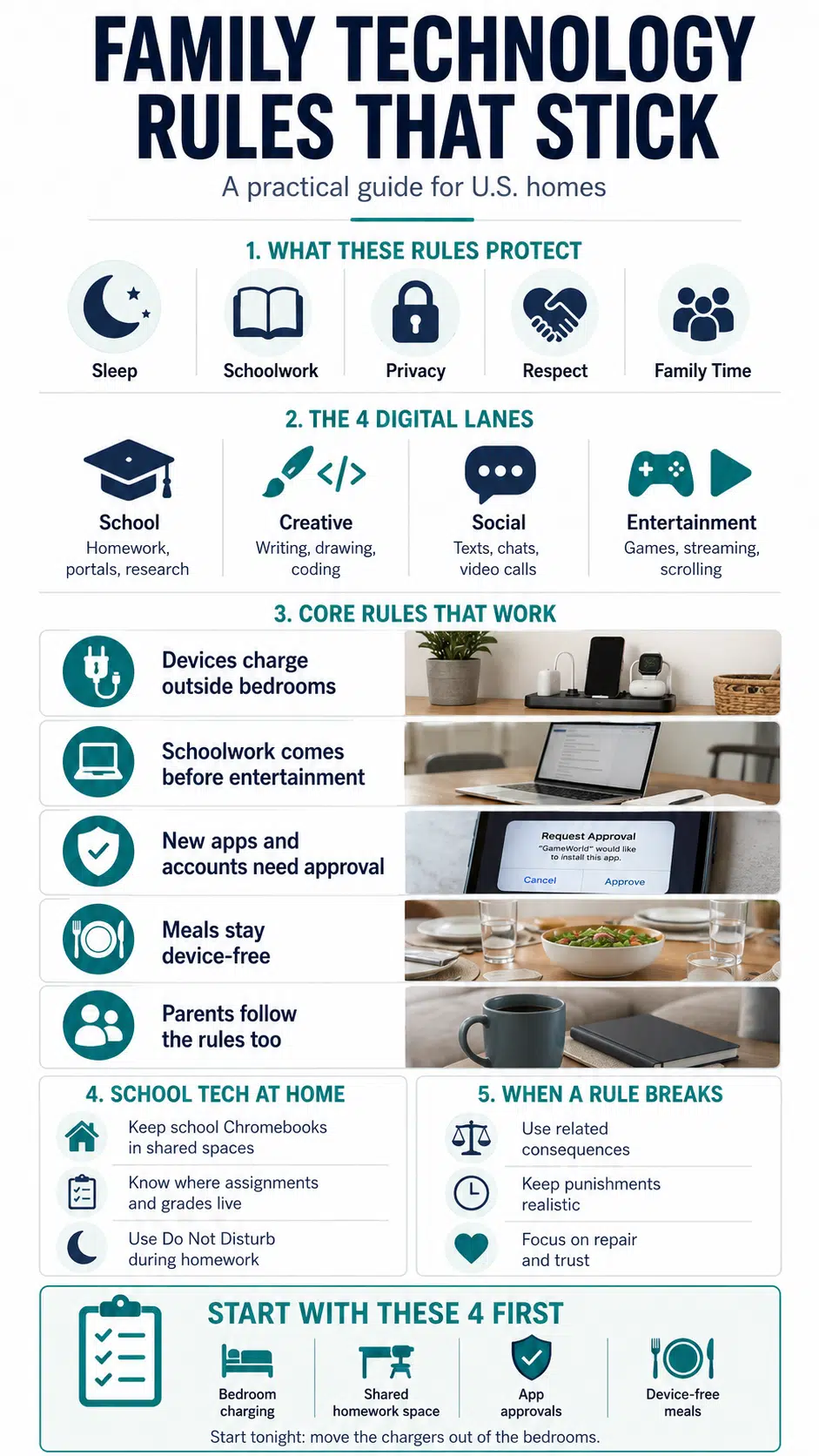
To bring sanity back to your routines, divide household device use into four distinct lanes:
| Digital Lane | Common Platforms & Activities |
| 1. School Use | Google Classroom, Canvas, Clever, digital textbooks |
| 2. Creative Use | Coding, drawing, video editing, music production |
| 3. Social Use | Texting, Discord, FaceTime, group chats |
| 4. Entertainment | Streaming, YouTube, mobile/console gaming |
Categorizing technology doesn’t mean school laptops get an unlimited free pass. Kids easily wander from a shared class document into a YouTube rabbit hole. But breaking devices down by purpose helps you ask targeted questions instead of just yelling at them to shut the lid:
- Which portal does your teacher use for this assignment?
- What specific tabs do you need open right now?
- Why do you need your phone beside the computer for this project?
For younger kids, learning screens should generally stay in a public, shared room. Older teens can handle study time in their bedrooms, but only as long as their grades stay steady and their sleep schedule remains intact.
American public and private schools run on digital infrastructure. Students don’t just use personal laptops; they navigate district-issued Chromebooks, iPads, and a spinning wheel of learning management systems—from Seesaw and Google Classroom to Schoology, PowerSchool, and Clever.
This creates a massive oversight challenge for parents. When your child insists they have to be online for three hours every evening just to track down grades and teacher messages across four different web portals, they might actually be telling the truth. Or, they might be using that confusing web of school apps to mask forty minutes of group chats and tab-hopping.
How to Set Up a Practical School-Tech Routine
- Take a 5-minute semester tour: At the start of the school term, sit down and ask your child to walk you through their portals. Know exactly where homework assignments, teacher announcements, and missing grades live so you aren’t guessing in the dark.
- Establish a “No 9:45 PM Emergencies” rule: Make it clear that if a login stops working, a charger goes missing, or an assignment prompt is confusing, they have to speak up right after school, not ten minutes before bedtime.
- Create a dedicated homework hub: Keep laptop chargers anchored in a central location so devices aren’t constantly wandering under bedroom blankets.
Anchor Your Rules to Existing Daily Routines
Abstract limits like “don’t spend more than two hours on screens today” force you to act as a full-time clock watcher. Rules stick significantly better when you attach them to daily physical routines that already happen automatically.
Key Transition Cues for U.S. Homes
- The Morning Rush: Zero entertainment scrolling before school until the baseline tasks are 100% finished, shoes on, backpack packed, breakfast eaten, teeth brushed.
- The Homework Block: Non-school app notifications get switched to “Do Not Disturb” until study goals are met.
- The Dinner Table: Meals are strictly device-free zones so the family can actually talk to each other.
- The Bedtime Wind-Down: All glowing entertainment screens power off 45 minutes before sleep routines begin.
- The Weekend Shift: Loosen up! A three-hour Saturday gaming block after cleaning their room is completely different from sneaking mobile games under the covers on a Wednesday night.
Prioritize Sleep Above Everything Else
If your household feels completely chaotic and you only have the bandwidth to enforce one rule right now, make it the overnight charging boundary.
Late-night device use is a silent wrecking ball for sleep architecture. A teenager opens a phone to reply to one quick group chat message, gets caught in a loop of short videos, and suddenly loses an hour of deep sleep. Algorithms are explicitly engineered to make stopping feel uncomfortable, and overtired kids struggle much harder with emotional regulation the next day.
The Non-Negotiable Kitchen Counter Rule
Every personal phone, tablet, portable gaming console, and laptop belongs at a central charging dock outside the bedrooms overnight, whether that’s a kitchen counter, a hallway desk, or your own nightstand.
When older teens push back with the classic, “But I need my phone because it’s my alarm clock,” don’t get dragged into an argument. Spend eight dollars on a basic, standalone digital alarm clock from a local store. Unless a teenager needs an overnight phone beside their bed for a critical medical monitor, physical separation is the single most effective parenting tool you have.
U.S. Privacy Laws Help, But They Won’t Parent the Phone
Navigating the American digital landscape means hearing plenty of legal acronyms thrown around by school boards and app developers. Understanding what these laws actually do, and what they don’t do, prevents false security:
- COPPA (Children’s Online Privacy Protection Act): This federal law restricts apps and websites from knowingly collecting personal data from kids under 13 without parental consent. It’s the main reason most social media platforms set their minimum age requirement to 13. The reality check: If your 11-year-old enters a fake birth year to download TikTok or Instagram, COPPA’s protections vanish instantly.
- FERPA (Family Educational Rights and Privacy Act): This law safeguards student education records. When school districts adopt software apps or online grading books, FERPA mandates that those vendors cannot legally mine or sell your child’s academic data to advertisers.
- CIPA (Children’s Internet Protection Act): Schools and libraries receiving federal tech funding must install network filtering measures to block obscene or harmful visual content.
The Key Takeaway: Federal regulations protect your child on district-owned networks and hardware, but they won’t stop your kid from oversharing private family details or chatting with strangers on a personal device over home Wi-Fi.
Pair Ecosystem Controls With Open Conversations
Parental control software is fantastic for setting hard boundaries, but relying on settings alone is a trap. Most U.S. homes juggle a mix of hardware platforms that don’t talk to each other cleanly:
- Apple Screen Time: Great for locking down app limits, setting communication limits, and requiring parent approval for App Store downloads.
- Google Family Link: Essential for Android devices and Chromebooks; allows you to set rigid daily screen caps and enforce scheduled downtime.
- Microsoft Family Safety / Nintendo Switch App: Vital for capping weekend console gaming without having to pull the physical power plug.
The problem? You might cap YouTube on an iPad, only to discover your kid opened it on a smart TV or a web browser on their school Chromebook.
Instead of quietly blocking apps in the background like a secret agent, explain the why behind your choices out loud: “We require parental approval for new downloads because lots of ‘free’ games sneak in unmonitored group chats, location trackers, or expensive micro-transactions. We check the app out together first, then decide.” Open dialogue builds long-term trust much faster than stealth monitoring.
Teach the Art of the Transition
Countless screen-time blowups happen in the last three minutes of a session. You shout across the house that dinner is ready, and your child erupts in frustration.
Why? Because from an adult perspective, 6:00 PM is just a time on the clock. From a kid’s perspective deep inside a multiplayer game or a creative digital drawing project, an abrupt shutdown feels like someone turning off the highway lights while they’re driving 60 miles an hour.
- Give structured countdowns: Offer clear 10-minute and 5-minute verbal heads-ups, or set a physical visual timer on the desk for younger elementary kids.
- Speak the language of the activity: Instead of demanding an instant power-down, set completion boundaries before they start: “You have time for two matches,” or “Once you finish this specific level, save the game and turn off the console.” Letting them reach a natural stopping point eliminates most transition tantrums.
Stop Using Screens as the Ultimate Household Currency
When parents constantly use device access as their primary reward and punishment system, they accidentally make screens the most powerful thing in the house:
- “If you finish your broccoli, you get your tablet.”
- “Stop bickering or you lose your phone for a week!”
Relying on digital currency teaches kids that screen access is the ultimate prize for good behavior. When rules break, keep your consequences logical, short-term, and directly related to the specific mistake:
- Sneaking a phone past bedtime? The overnight charging cutoff moves an hour earlier for the next week.
- Tab-hopping during study hours? Laptop homework moves out of the bedroom and onto the dining room table for three days.
- Cyberbullying or toxic group chat behavior? Social apps get temporarily disabled until they make explicit personal amends.
Expand their world with offline rewards, like picking out the weekend movie, taking a bike ride together, baking, or hosting a friend, so screens stop running the emotional economy of your home.
Adults Have to Follow the Rules Too
Kids are professional hypocrite detectors. If you establish a firm “no phones at the dinner table” policy but constantly check your own email between courses, the rule loses all respect. If you lecture them about late-night scrolling while staring at your smartphone in bed, they internalize the real message: rules are just for kids.
Adults obviously have legitimate, real-world digital responsibilities, work emergencies, online banking, family navigation, and logistics coordination. The trick is to name your exceptions out loud:
“I’m putting my phone face down on the counter during dinner. I am waiting on one urgent text from my coworker about tomorrow’s schedule, so if it buzzes, I’ll check it quickly and put it right back away.”
When you make a mistake and spend an hour doomscrolling instead of being present, model accountability: “I spent way too much time staring at my screen tonight. I’m putting it away now.” That quick admission earns far more respect than another lecture on digital balance.

What I Would Fix First: The 4-Step Emergency Plan
If your household currently feels overwhelmed by screen conflicts, don’t try to overhaul your entire digital philosophy in a single weekend. Start by locking in these four core guardrails:
Step 1: Clear out the bedrooms overnight
Move all chargers to the kitchen counter. This instantly protects sleep quality and eliminates the hardest-to-supervise device usage.
Step 2: Separate homework from entertainment
Require schoolwork to happen in open, shared spaces so study laptops don’t silently turn into gaming consoles.
Step 3: Lock down app downloads
Require explicit parental permission before any family member downloads a new app or creates an account.
Step 4: Reclaim the dinner table
Make family meals completely device-free for both kids and adults to carve out guaranteed eye contact every day.
Final Thoughts
The most effective family technology rules aren’t the strictest ones, they are the ones you can consistently explain, enforce, and live by without turning every evening into a battlefield. By tailoring boundaries to natural daily routines, prioritizing physical sleep habits, and taking the time to understand the digital platforms your children actually use, you turn technology back into a helpful tool rather than a household divider.
Frequently Asked Questions About Family Technology Rules
1. What are the most important family technology rules to start with?
Start by protecting sleep and family connection: enforce an overnight device charging station outside bedrooms, require parental approval for new app downloads, and establish device-free dining tables. Once those three foundations become habit, you can fine-tune rules for homework routines and social media.
2. Should school-issued Chromebooks follow home screen rules?
Yes. While school devices are governed by district acceptable use policies, parents still dictate how and when those devices operate inside the house. Keep school Chromebooks in shared family rooms during homework hours so they don’t become private, unmonitored entertainment screens after hours.
3. Are native parental controls enough to keep kids safe online?
No. Software guardrails like Apple Screen Time and Google Family Link are invaluable tools for setting usage limits and blocking accidental purchases, but they can’t replace active parenting. Kids still need direct, ongoing conversations about digital privacy, cyberbullying, and how to handle uncomfortable situations online.
4. What should parents do if a child repeatedly breaks screen rules?
Rely on immediate, logical consequences rather than massive, long-term bans. If a child sneaks a device past bedtime, move their evening charging cutoff an hour earlier for the next week. If they struggle with tab-hopping during study hours, move their computer to the kitchen table until they demonstrate reliable focus.