


AI Spreadsheet Tools for Explaining Formula Errors are most useful when they show why a calculation failed, which inputs caused the problem, and what a proposed change would do. A replacement formula alone is not enough. You need to know whether it fixes a broken reference, corrects a data mismatch, or simply hides the warning.
The eight tools below approach that job differently. Some work inside an open workbook; others explain a formula you paste into a separate interface. That difference matters when a formula refers to several tabs, uses a named range, or depends on a business rule that is not written anywhere in the file.
For an Excel team, start by comparing Copilot and Claude for Excel. For a specific formula that needs translating into plain English, GPTExcel, Ajelix, and AI Excel Bot offer more focused starting points. Gemini fits Google Sheets, while Better Analyst and Quadratic deserve a look when you also need to inspect the surrounding data.
How These Tools Were Selected
This is a research-led comparison, checked on November 21, 2026. Inclusion required official documentation or a current product page describing formula explanation, debugging, or error analysis. Selection favors a clear connection to diagnosing formulas rather than general chart generation. The order groups useful starting points; it is not a measured accuracy ranking.
The screenshots document public help pages inspected for this article. They show the published workflow and settings, not completed workbook tests. No paid-plan benchmark or named author’s hands-on testing is claimed. The example later in this guide is a proposed acceptance test you can run on a disposable workbook.
Compare AI Spreadsheet Tools for Explaining Formula Errors
| Tool | Useful starting point | Context to supply | Important boundary |
|---|---|---|---|
| Microsoft Copilot in Excel | Explain a formula in an existing Excel workbook | Selected cell, related ranges, intended calculation | Availability depends on your account and Excel environment |
| Claude for Excel | Trace a problem across workbook tabs | Workbook, failing cell, expected result | Supported Excel build and eligible Claude plan required |
| GPTExcel | Explain syntax with explicit platform and version settings | Formula alone, or an uploaded workbook in Chat | Explanation and workbook validation are different workflows |
| Gemini in Google Sheets | Investigate an error from the affected cell | Relevant Sheets data and desired behavior | Eligible plan and feature availability matter |
| Ajelix | Break down a difficult Excel formula | Pasted formula plus contextual information | An explanation cannot establish missing business rules |
| AI Excel Bot | Get a focused Excel or Sheets formula explanation | Formula, platform, sample inputs | Do not assume a whole-workbook audit |
| Better Analyst | Discuss formulas alongside uploaded spreadsheet data | File, cell references, expected output | Account, file limits, and usage limits apply |
| Quadratic | Debug formulas in an AI-enabled spreadsheet workspace | Data and formulas in its spreadsheet | Check compatibility before moving an established workbook |
1. Microsoft Copilot in Excel
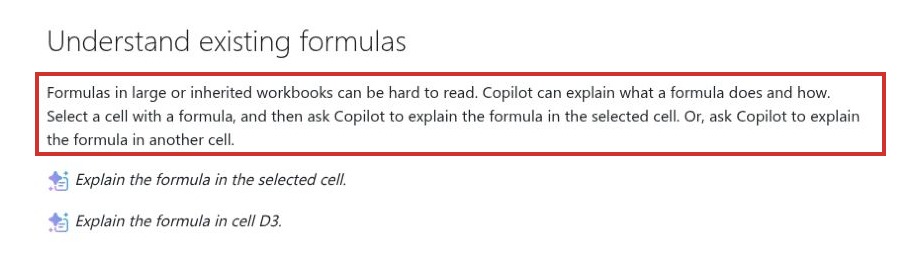
Copilot is a practical first stop when the workbook already lives in Excel. Microsoft’s documentation describes selecting a formula cell and asking for an explanation, or naming another cell directly. You can keep the discussion tied to the worksheet instead of repeatedly copying fragments into another service.
That is useful for inherited workbooks. Suppose a margin column contains several nested conditions. Ask what each branch means, which referenced cells feed it, and what happens when revenue is zero. Then ask for the smallest change that addresses the identified failure. A broad instruction to “fix this spreadsheet” leaves too much room for unrelated edits.
The attraction is continuity with your existing file, not a guarantee of correctness. Microsoft’s guidance explicitly calls for reviewing generated work. Confirm that your account exposes the needed Copilot features, work on a copy, and inspect the actual changed cells. If the explanation assumes a column contains numbers, check that assumption against several source rows before accepting the proposed formula.
2. Claude for Excel
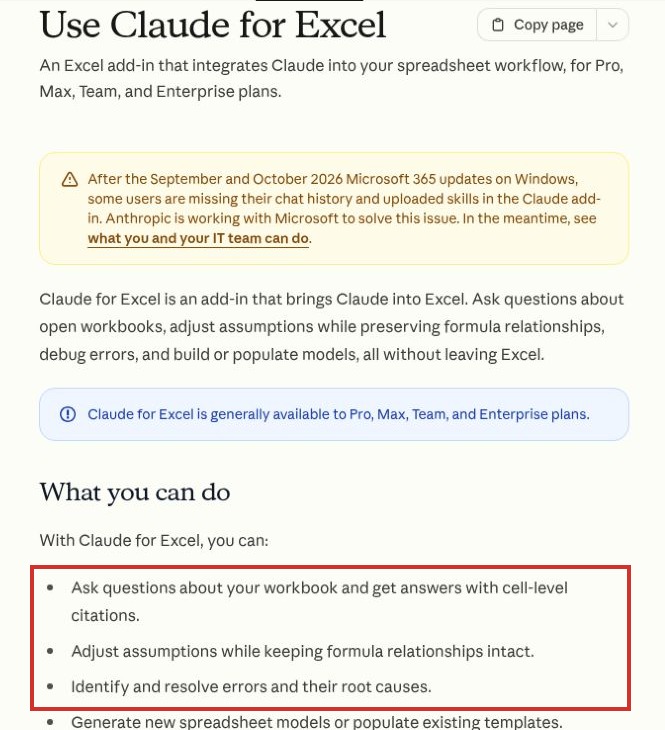
Claude for Excel is worth evaluating when the error crosses worksheet boundaries. Anthropic documents workbook questions with cell-level citations, multi-tab work, and identifying root causes. Those references can make an explanation easier to inspect: you can return to the cited cells rather than accepting a general description of what the model thinks happened.
Use that capability to separate the location of the symptom from the location of the mistake. A dashboard might show an error because an upstream assumption is missing; rewriting the dashboard formula may be the wrong intervention. Ask Claude to trace the dependency chain and distinguish a broken formula from an absent input before proposing edits.
The add-in requires an eligible Claude plan and a supported Excel version. Anthropic also lists unsupported capabilities, including macros and VBA operations. A workbook that depends on those features needs additional review. Keep the requested edit scope narrow, and do not treat a convincing cell citation as proof that the underlying business assumption is correct.
3. GPTExcel
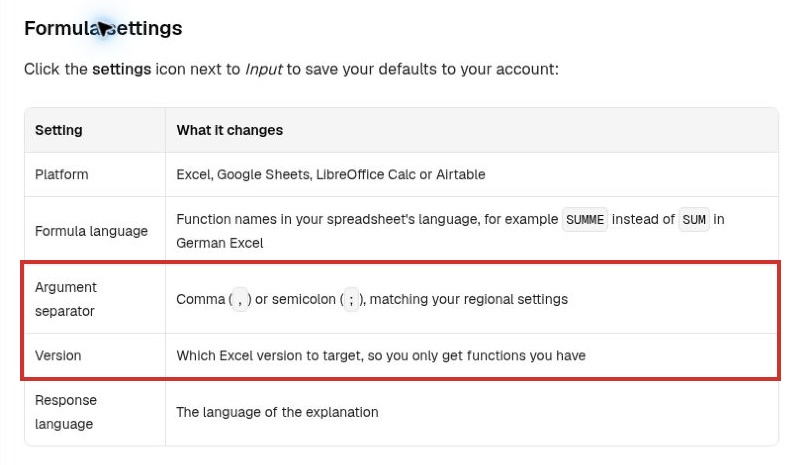
GPTExcel makes a useful distinction between a formula on its own and a formula inside an uploaded workbook. Its dedicated Formulas tool has Generate, Explain, and Optimize modes. The settings include spreadsheet platform, function language, argument separator, Excel version, and explanation language.
Those settings are more consequential than they may look. A suggested function can be perfectly understandable yet unavailable in the recipient’s Excel version. A separator mismatch can make a copied formula fail before it performs any calculation. Set the environment first, then ask for an explanation.
For problems that depend on actual data, GPTExcel’s Chat workflow accepts workbook context. Its documentation describes a validator that recalculates formulas and checks for errors before download. That is a vendor-described capability, not a benchmark result from this comparison. Reopen the output in your target spreadsheet application and compare expected results yourself.
Choose the standalone explainer for syntax questions. Use workbook context when the answer depends on sheet names, data types, or what an error handler is concealing.
4. Gemini in Google Sheets
Gemini offers a particularly direct starting point for a visible Sheets error. Google’s help page describes hovering over the affected cell and selecting Fix, after which Gemini reviews the formula and analyzes the issue. The broader side-panel workflow also supports formula requests that refer to spreadsheet data.
For a team already collaborating in Sheets, that reduces the need to reconstruct the problem elsewhere. You can identify the failing cell and explain the intended outcome in the same working environment. Start with a specific question: is the lookup key missing, is its data type different, or is the lookup range wrong?
Check eligibility and feature availability in your account before planning around the Fix control. A personal account and an organization-managed account may not expose the same features. Also keep the selected context deliberate; a similarly named archive tab can be the wrong source. After a proposed repair, test a matching row and an intentionally missing key. The second test reveals whether the new formula handles absence in the way your process requires.
5. Ajelix
Ajelix’s Excel Formula Explainer is aimed at turning a pasted formula into a detailed explanation. Its product page also describes helping identify formula problems and suggest solutions. This makes it a reasonable candidate when the immediate obstacle is understanding unfamiliar syntax rather than analyzing an entire workbook.
Consider a formula built from several nested IF statements. Before asking for a rewrite, ask for a plain-language decision tree: which condition is checked first, what each branch returns, and which values reach the final fallback. That explanation gives you something to compare with the rule the spreadsheet was supposed to implement.
Ajelix can help articulate the logic, but the missing context is still your responsibility. A formula alone does not reveal whether an empty cell means “not submitted,” “not applicable,” or zero. Supply a small, anonymized example and the expected outcome for each case. If the proposed repair changes those meanings, it needs revision even if it produces no visible error.
6. AI Excel Bot
AI Excel Bot offers formula generation and explanations for Excel and Google Sheets. Its public page demonstrates a VLOOKUP explanation that identifies the lookup value, search range, return column, and exact-match argument. That narrow approach can be useful when you want to understand what an existing formula is asking the spreadsheet to do.
The strongest fit is occasional, focused help. Paste the formula and describe the relevant columns, then compare the explanation with the actual layout. If a lookup returns the wrong column after someone inserts a new field, an explanation of the column-index argument can help expose the mismatch.
Do not assume that a formula explanation also checks every row or follows every dependency in the file. Those are separate capabilities that need verification. The public pricing page lists a limited free allowance and paid access; confirm the current allowance and billing terms before committing. Avoid evaluating the tool solely on how quickly it produces an answer. A useful answer should identify what it cannot determine from the supplied formula.
7. Better Analyst, Formerly Formula Bot
Formula Bot now redirects to Better Analyst, so these should be treated as one product rather than two list entries. Its current Excel AI page describes uploading spreadsheet files, asking questions about the data, and pasting formulas for explanation or correction. The workspace requires an account, with file and usage limits depending on the plan.
This is a candidate when a formula problem is tangled up with the data around it. A total may exclude imported values stored as text, for example. In that situation, ask for a data-type check alongside the explanation, and require the response to distinguish changes to inputs from changes to the calculation.
File choice matters. A CSV export carries tabular values, not the full structure and formula relationships of an Excel workbook. If the task is to diagnose an existing formula, provide the actual formula and suitable workbook context rather than assuming a CSV contains it. Keep an original copy and compare both the repaired sample rows and an independent control total before using the returned file.
8. Quadratic
Quadratic combines a spreadsheet workspace with AI assistance and support for formulas and code. Its formula documentation explicitly describes help with writing, understanding, and debugging formulas. It is most interesting when you are open to investigating the problem in a different spreadsheet environment.
The benefit is having the data and the explanation close together. Instead of describing an abstract error, you can ask about the calculation in the working grid and inspect its inputs. For a repeatable analysis workflow, that may be more useful than maintaining a separate conversation full of pasted formulas.
The tradeoff is migration and compatibility work. Do not assume that every Excel-specific behavior, external dependency, or complex workbook feature will behave identically elsewhere. Start with a small representative copy, check the functions it uses, and compare known outputs. If the file must remain in Excel for other colleagues, include the return journey in your evaluation. A diagnosis is less helpful if the proposed solution cannot be reproduced in the team’s normal application.
A Small Acceptance Test Before You Trust a Repair
Try a disposable worksheet before connecting an important file. The following is an illustrative test design, not a reported result from any of the eight products. Put Revenue in column A, Orders in column B, and Revenue per order in column C. Use =A2/B2 for the first calculation.
| Case | Revenue | Orders | What a useful explanation should establish |
|---|---|---|---|
| Normal input | 120 | 4 | The result should be 30 |
| Zero denominator | 120 | 0 | Division is undefined; the intended reporting rule must be decided |
| Missing input | 120 | Blank | Explain how this application treats the blank and whether it means missing data |
| Invalid input | 120 | pending | Identify the nonnumeric input rather than silently turning it into zero |
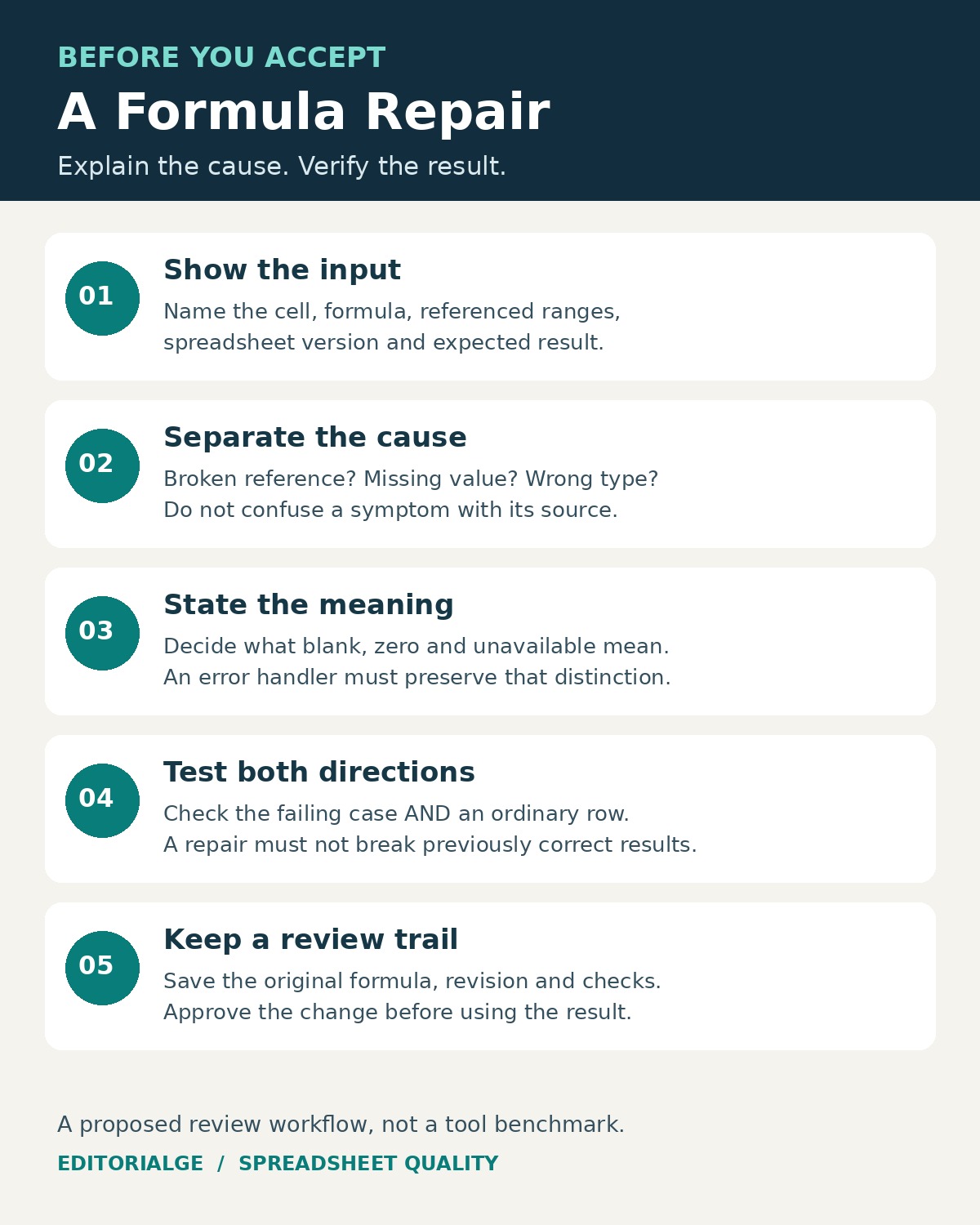
Ask the tool to explain each case without changing the cells. Then ask for a proposed repair and a list of assumptions. A response that wraps everything in IFERROR and returns zero may remove the warning while changing the meaning of the report. Zero revenue per order and an unavailable calculation are different statements.
Only after choosing the reporting rule should you request a formula change. Test the ordinary case again, along with the exceptional rows, and save the original formula beside the revision. This exposes a common weakness in demonstrations: fixing one conspicuous error while breaking rows that already worked.
What to Check Before Choosing a Tool
When comparing AI Spreadsheet Tools for Explaining Formula Errors, first establish what the tool can actually see. A pasted formula, a screenshot, a CSV, and a multi-tab workbook provide very different evidence. Ask it to name the cells and ranges behind its explanation. If it cannot see an input, it should identify that gap rather than infer a value.
Second, ask for a diagnosis before a replacement. You want the cause, the smallest proposed change, and a way to verify it. This is especially important for spreadsheet mistakes that produce plausible results without an error message. A clean-looking cell is not sufficient evidence of a correct calculation.
Third, evaluate the complete workflow. Check account eligibility, usage allowances, file limits, supported versions, data handling, and whether your organization permits the upload. A free formula helper may be enough for a sanitized example; a recurring workbook process may justify a native integration. Compare the time needed to inspect and approve the answer, not just the time needed to generate it. That distinction is central to assessing AI features that create additional review work.
For organization-wide adoption, the NIST AI Risk Management Framework provides a broader structure for evaluating trustworthiness and managing AI risks. It does not certify any tool in this list. Your spreadsheet acceptance criteria still need to reflect the consequences of an incorrect result.
Questions Readers Often Ask
Can an AI tool fix a formula without seeing the workbook?
It can explain syntax and suggest likely corrections from a pasted formula. It cannot reliably establish the contents of unseen cells, missing named ranges, or an unwritten business rule. Include a minimal example with expected results, or use an approved workflow that can access the relevant workbook context.
Is a formula explainer the same as a spreadsheet auditor?
No. Explaining a selected calculation is a narrower task than checking every dependency, input, external link, and output. Ask what was examined and what was excluded. A product’s ability to generate formulas does not establish that it can audit a complex workbook.
Should you accept a repair that removes the error?
Only after checking the result against the intended rule. Error suppression can conceal missing data or an invalid operation. Verify both the troublesome row and several previously correct rows, and keep a reversible record of the change.
Choose the Explanation You Can Verify
The right AI Spreadsheet Tools for Explaining Formula Errors should make a calculation easier to inspect. Start with Copilot or Claude for workbook-centered Excel questions, Gemini for Sheets, or a focused explainer for a self-contained formula. Consider Better Analyst or Quadratic when the surrounding data is part of the investigation.
Whichever route you choose, keep the same standard: show the inputs, explain the failure, state the assumptions, and test the proposed change. An understandable diagnosis is worth more than a replacement formula you cannot defend.