

Tools for surveying learners are most useful when the feedback points to something you can fix. A low score for an entire course tells you little about which explanation failed. Asking immediately after each training module gives learners a smaller, fresher experience to describe—and gives your training team a clearer place to start.
What We Checked
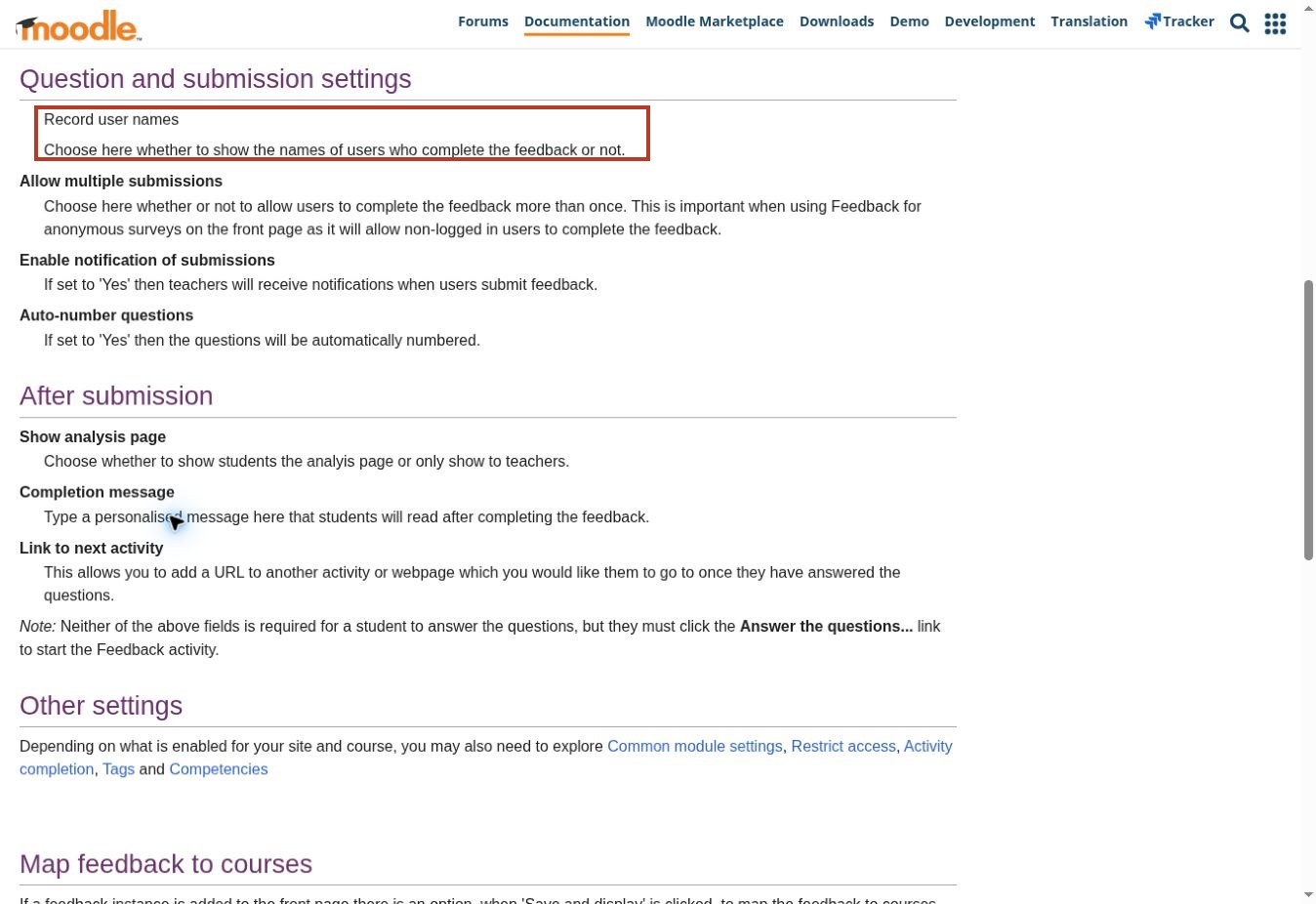
On November 20, 2026, we reviewed official documentation for seven tools, concentrating on module identification, survey delivery, follow-up questions, and response handling. We also inspected the public Moodle, TalentLMS, and Typeform documentation in a browser and captured the relevant settings guidance below. These are documentation checks, not authenticated learner trials. We did not measure completion rates, test an LMS integration, or verify a paid account’s entitlements.
The shortlist includes two learning platforms with built-in feedback activities and five standalone form tools. That distinction matters: a form can collect an answer without updating a learner’s training record. The recommendations below explain where you need a separate connection or manual reconciliation.
Choosing Tools for Surveying Learners: A Quick Comparison
| Tool | Strongest fit | Module-level approach | Main check before rollout |
|---|---|---|---|
| Moodle Feedback | Courses already hosted in Moodle | Place a Feedback activity after the relevant section | Name recording, activity access, and completion rules |
| TalentLMS | Keeping feedback inside the course sequence | Add a Survey unit after the learning unit | Cloned surveys need maintenance; they are not linked units |
| Google Forms | A straightforward pilot with a small team | Use a module-specific form or prefilled module field | Sign-in requirements and visibility of response summaries |
| Microsoft Forms | Teams already using Microsoft’s form workflow | Use a module field and branch to a relevant follow-up | Branch order and who is allowed to respond |
| Typeform | Reusing one survey across several modules | Pass a non-sensitive module identifier in the URL | Parameter naming and response allowance |
| SurveyMonkey | Comparing feedback across modules and cohorts | Attach custom variables to a Web Link collector | Export access and how variable values enter each link |
| Jotform | Asking different follow-ups for different problems | Show relevant fields based on a learner’s answer | Every conditional route and submission allowance |
This is a fit comparison, not a ranking by measured performance. Before buying, check your account’s response allowance, export access, and permissions. Seven modules can produce seven submissions per learner; a plan sized for one end-of-course survey may not cover that workload.
1. Moodle Feedback: Keep the Survey Beside the Lesson
If your course already runs in Moodle, start with its Feedback activity. Putting it immediately after a module keeps the question tied to the learning context. Give each activity a specific name, such as “Returns workflow—module feedback,” rather than scattering several identical “Survey” links through the course.
Moodle’s documented settings include whether to record user names, allow repeat submissions, notify teachers, and show the analysis page to learners. The post-submission link can point toward the next activity. Those choices let you shape both the feedback experience and what happens afterward.
Check the site configuration before promising anonymity. Hiding names in feedback is not a blanket statement about every record your learning platform keeps. Separately inspect activity completion and access restrictions with your administrator. A learner should understand whether the survey is optional, whether completion is tracked, and who can read the answers.
2. TalentLMS: Add Feedback as a Course Unit
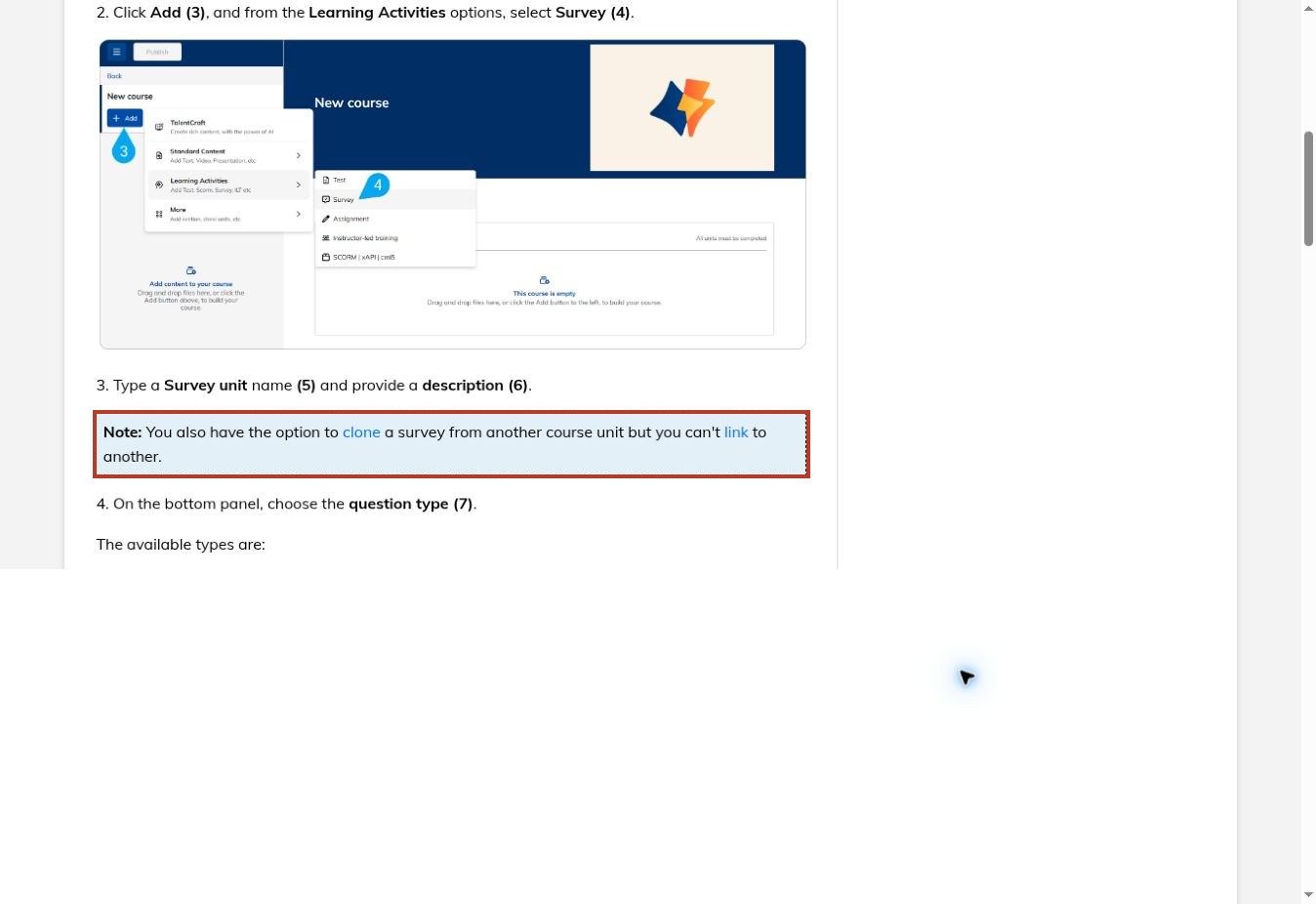
TalentLMS is a practical option when you want the survey to sit inside the course outline. Administrators and instructors can add a Survey learning activity, using multiple-choice, free-text, or Likert-scale questions. A short unit after the lesson can collect a rating and one explanation without sending learners to a separate service.
The maintenance detail deserves attention: TalentLMS documents that a survey can be cloned from another unit but cannot be linked to another. Plan how you will update recurring questions across modules. Otherwise, one module may ask about clarity on a five-point scale while another still uses an older wording.
Survey options also control whether answers are visible after completion and whether an answer is required before advancing to the next question. Use required questions sparingly. Requiring a thoughtful comment after every short lesson can turn a useful feedback loop into an obstacle learners rush through.
3. Google Forms: Start Small, With a Clear Module Label
Google Forms suits a pilot where the immediate problem is collecting consistent feedback, not building a full learning analytics system. A separate form per module makes the context obvious. Alternatively, a prefilled field can identify the module when you reuse a common form; check that the submitted value remains correct.
Pay close attention to response settings. Google documents that limiting a form to one response requires a Google sign-in, although usernames are not recorded unless email collection is enabled. That requirement can add friction for external learners. A shared survey with a one-response limit also needs careful design if the same person must respond after several modules.
Leave the response-summary option off unless learners should see the submitted material. Google’s help page warns that summaries can include full text answers and are visible to people who can respond. A course-improvement comment should not accidentally become something every participant can read.
4. Microsoft Forms: Ask a Follow-Up Only When It Helps
Microsoft Forms can keep a module survey short by branching from a learner’s answer. Someone who says the practice task was difficult can see a question about the difficult step. Someone who found it straightforward can move toward submission.
Build all the questions first, then check the routes. Microsoft’s guidance says branching should move to a later question or the end of the form, not back to an earlier question. Place your diagnostic follow-up after the question that triggers it. This is a small design constraint with a large practical effect: a badly ordered branch can skip the very feedback you wanted.
For each module, use an unmistakable title or module field. Also verify the responder setting with an account outside your organization if external learners are involved. A survey that works for its creator may still be inaccessible to the people taking the training. Treat that as a required pilot check, not a reason to assume the platform is unsuitable.
5. Typeform: Preserve Module Context in a Reusable Survey
Typeform’s URL parameters can carry information into a response without adding another question. For module feedback, a neutral identifier such as module_id and a revision value can distinguish answers collected through the same survey.
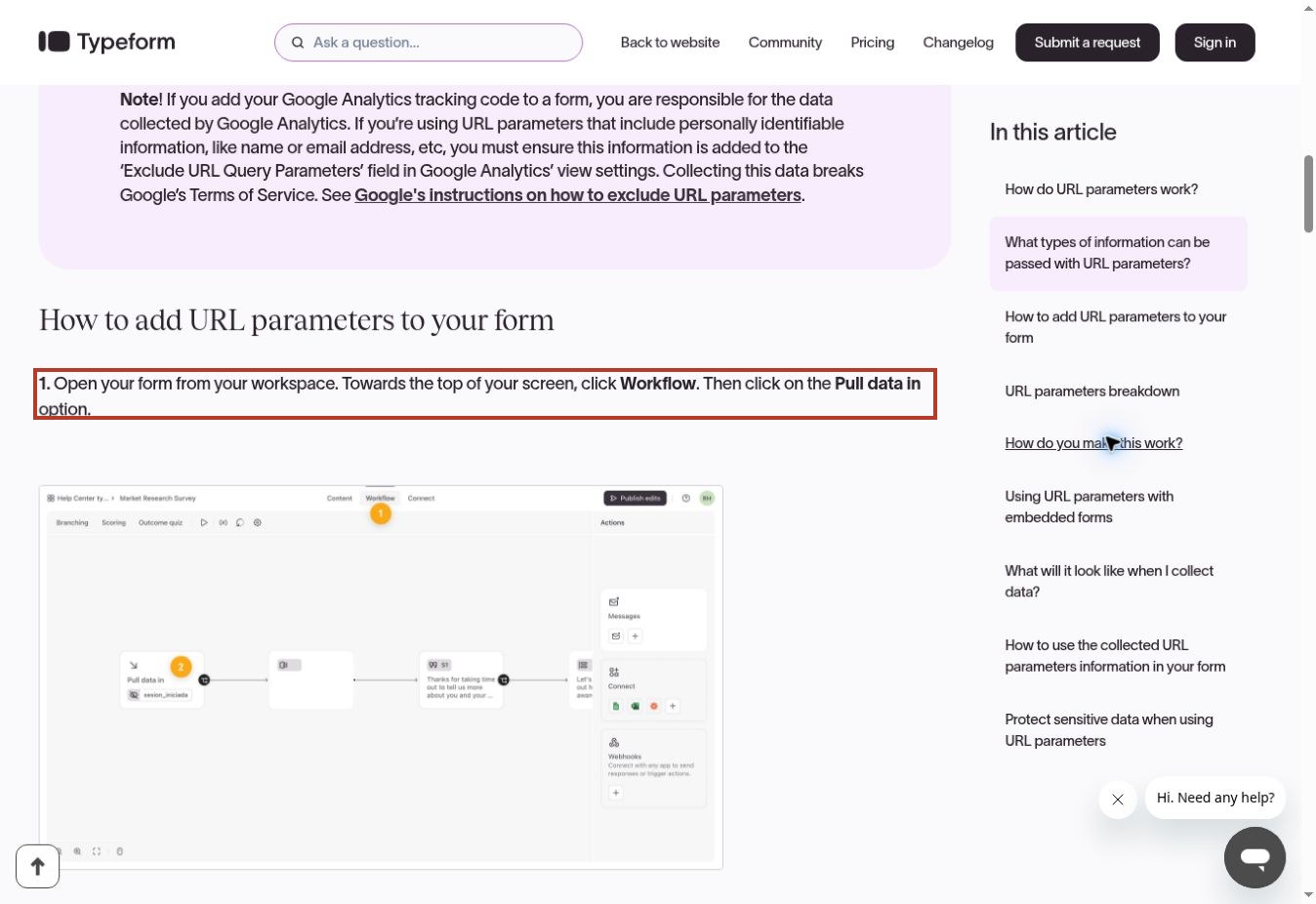
Its documentation places parameter setup under Workflow and Pull data in. It also shows parameter values appearing alongside individual responses. That makes it a reasonable candidate when you want one consistent set of questions across a course, while keeping the results separable by module.
Decide your parameter names before collecting responses. Typeform warns that renaming a parameter that already holds responses can delete the previously collected parameter data. Keep sensitive information out of the URL, and do not treat a hidden field as a security boundary. For this task, the module’s identifier is usually more useful than a learner’s name in the link.
6. SurveyMonkey: Keep Module Data Attached to the Export
SurveyMonkey’s custom variables work with a Web Link collector to pass information from the survey link into the results. That is useful when your reporting team wants to group feedback by module and cohort while keeping the questions consistent.
The documentation supports filtering by custom variables and including them in All Responses Data XLS or SPSS exports. Design the fields around the comparisons you actually need. “Module 3, revision B” is much more actionable than a single combined course score after the lesson has changed.
The link-building step is not automatic within SurveyMonkey’s custom-variable workflow. Its guide says values must be inserted manually or through a process outside the product. Verify the variables and export entitlement in your account before rolling out dozens of module links. A well-designed survey still produces messy evidence when every link carries the same module value.
7. Jotform: Diagnose the Problem Without Lengthening Every Survey
Jotform’s Show/Hide Field conditions let you expose follow-up fields only when a response makes them relevant. A learner reporting an access problem could see questions about the affected lesson resource, while someone reporting an unclear example could be asked which step needs another explanation.
This is particularly useful when feedback needs to reach different owners. Your form design can distinguish a broken video from a confusing instruction before somebody manually reads and sorts every comment. The conditions themselves do not prove that a support ticket or LMS update has happened; verify any additional automation separately.
Keep a stable core question across modules, then add conditional detail where it earns its place. Test each route, including changing an earlier answer, and check the final stored submission. For a short module, an elaborate branching form can demand more effort than the lesson it evaluates.
A Three-Question Survey You Can Actually Act On
Start with the decision you will make after reading the answers. If you cannot explain how a question could change the module, remove it from the first version. The following is a suggested design, not a survey we deployed or a validated measurement instrument.
- “How clear was the explanation of [specific task]?” Use a consistent labeled scale, with an option for learners who could not access the material.
- “Which part, if any, needs another example?” Offer the module’s main steps and an “other” option.
- “What would make this module easier to use?” Make the comment optional and ask learners to avoid private customer or employee information.
Keep a knowledge check separate. The CDC’s guidance on evaluating training effectiveness explains that satisfaction alone does not establish training effectiveness. A favorable response can coexist with a wrong answer on the task. Equally, a demanding but useful exercise may receive a lower comfort rating.
For short lessons, consider the balance between microlearning’s benefits and limitations. You do not need a long evaluation after every tiny content block. Group closely related steps into a meaningful module, then ask for feedback where the answer can inform a specific revision.
Turn the Responses Into a Revision Decision
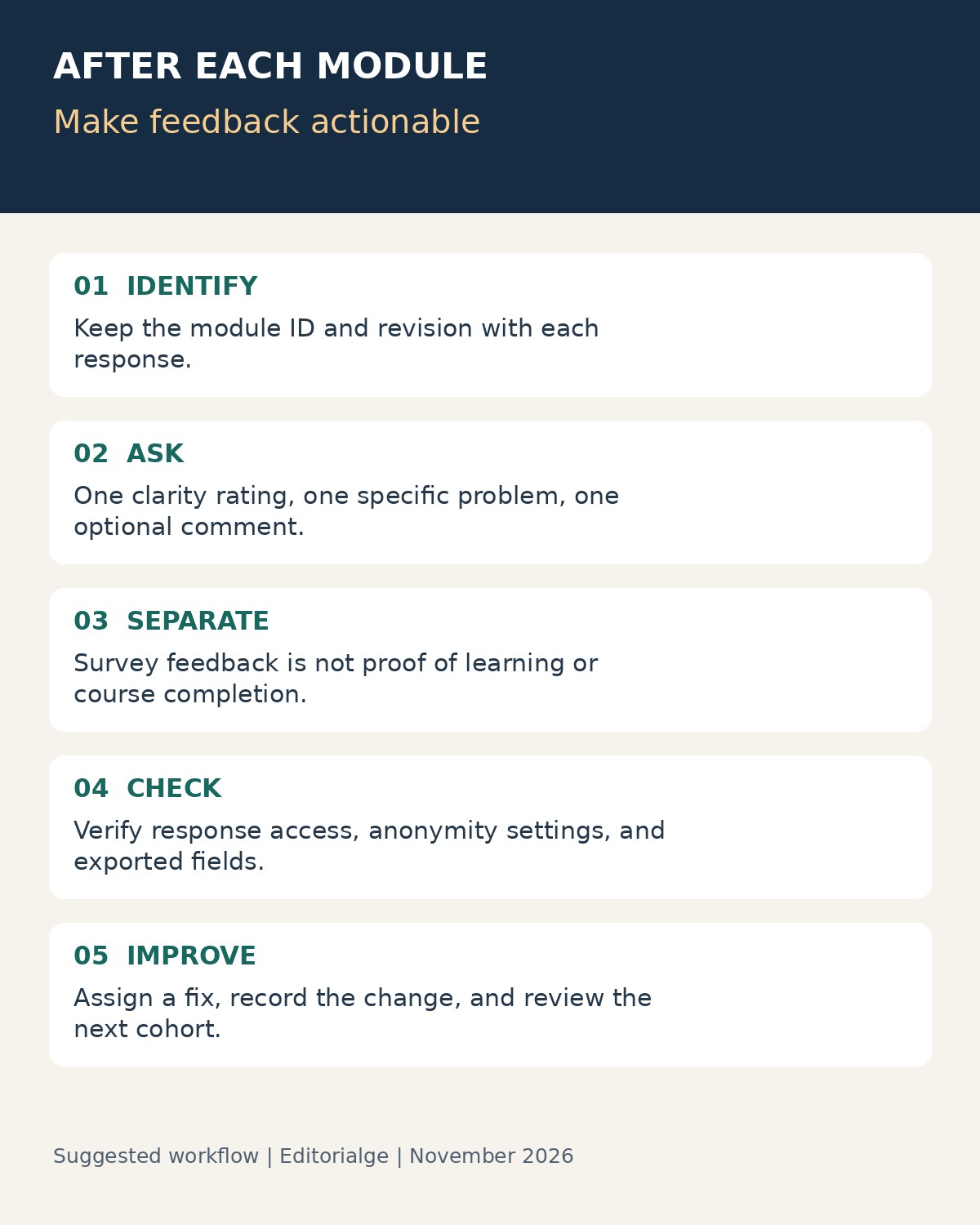
Imagine a training module teaching a returns procedure. Several learners identify the same exception step as unclear. Your first response should be to inspect that example, not replace the entire course platform. Add a worked exception, record the revision, and compare the next cohort’s comments with the earlier version.
That comparison needs context. Keep the module identifier, content revision, survey version, and collection period together. If you change both the lesson and the scale wording at once, a better score is harder to interpret. Preserve the old results rather than folding everything into a single average.
Also report the denominator. “Twelve responses from 60 eligible learners” conveys something different from “12 positive responses.” Distinguish people who reached the module from those merely enrolled in the course. A form tool may not know that number; you may need the learning platform’s record to calculate it.
Assign each actionable theme to an owner and a next step. Content clarity belongs with the instructional owner; inaccessible media may need technical support. Close the loop with learners by describing the improvement without exposing individual comments. Feedback becomes useful when it changes the learning experience, not when it adds another dashboard.
Questions to Settle Before You Choose
Should the survey be anonymous?
Use anonymity when you need candid course feedback and do not need individual follow-up. If a learner requests help, offer a clearly separate way to provide contact details. Check the whole configuration: question wording, URL fields, collected identifiers, exports, and the size of the group. Removing a name field does not make every response unidentifiable.
Can survey submission count as module completion?
Only if you deliberately configure and verify that relationship. An embedded or linked external form does not automatically update an LMS record. Keep “finished the learning activity,” “submitted feedback,” and “demonstrated the skill” as separate outcomes unless you have a specific reason to combine them.
How do you avoid survey fatigue?
Ask fewer questions, make comments optional, and reuse a clear scale. Do not request the same background details after every lesson. Check whether the survey is proportionate to the module, then show learners that their earlier feedback led to a concrete improvement.
Choose the Smallest Workflow That Closes the Loop
The right tools for surveying learners depend on where training already happens. Start with Moodle Feedback or TalentLMS when keeping feedback within the course matters most. Consider Google Forms or Microsoft Forms for a focused pilot, Typeform or SurveyMonkey for reusable surveys with module context, and Jotform when conditional questions help diagnose different problems.
Before expanding, run a small pilot using non-sensitive sample responses. Confirm the module label, response access, export, and route back to training. Then make one visible improvement from the feedback. That is a stronger reason to keep a survey than any long list of features.