
Your phone knows more about you than any other device. It holds your messages, photos, contacts, emails, saved passwords, location history, and often your banking access. That makes it valuable to advertisers, data brokers, and criminals in different ways. Some threats are obvious, like scam links and fake apps. Others are quiet, like trackers hidden inside normal apps that build a profile of your behavior.
This guide explains the best mobile security apps for privacy in a simple, practical way. You’ll see what each app is best at, what it cannot do, and how to combine tools without slowing your phone down. You’ll also get a realistic view of Android vs iPhone security, because both platforms work differently.
What this article helps you do
| Goal | What you’ll learn | Why it matters |
| Reduce privacy risk | Tracking, phishing, risky permissions | Most privacy loss comes from small daily actions |
| Avoid common mobile attacks | Scam links, fake logins, malicious apps | Attackers target phones because they’re always on |
| Protect accounts | Passwords, 2FA, recovery habits | Account takeover can be worse than malware |
| Pick the right tools | What to install vs skip | More apps doesn’t always mean more safety |
Best mobile security apps for privacy: Quick answer and top 8 list

Most people don’t need a complicated setup. You need a small, smart set of tools that cover the most common ways privacy gets damaged. The goal is not to install “everything.” The goal is to reduce risk without turning your phone into a slow, noisy mess of alerts.
A good privacy-focused setup usually includes three layers. First, a security suite or mobile security app that warns you about risky links and unsafe browsing. Second, a password manager to prevent account takeovers. Third, a privacy add-on like tracker blocking, private messaging, or a VPN for public Wi-Fi.
Here are the eight picks in this guide:
- Bitdefender Mobile Security
- Norton 360 for Mobile
- Malwarebytes Mobile Security
- DuckDuckGo Privacy (App Tracking Protection + browser tools)
- Proton VPN
- Bitwarden (password manager)
- Signal (private messaging)
- AdGuard (tracker blocking + safer browsing)
At-a-glance comparison
| App | Best for | Privacy strength | Works best on | Complexity |
| Bitdefender | All-around protection | Web safety + threat defense | Android | Low |
| Norton 360 | All-in-one bundle | VPN + Wi-Fi + web protection | Android/iOS | Medium |
| Malwarebytes | Scam defense | Anti-phishing + scam focus | Android/iOS | Low |
| DuckDuckGo Privacy | Tracker blocking | Reduces app tracking | Android | Low |
| Proton VPN | Public Wi-Fi privacy | Encrypts network traffic | Android/iOS | Low |
| Bitwarden | Account security | Encrypted passwords, strong logins | Android/iOS | Medium |
| Signal | Private chats | End-to-end encrypted messages | Android/iOS | Low |
| AdGuard | Cleaner browsing | Tracker and malicious domain blocking | Android | Medium |
Why mobile security matters for privacy in 2026
Privacy threats on mobile are not only “viruses.” Many modern attacks don’t look like attacks at all. A message that says “Your package is delayed” can push you to a fake login page. A “free flashlight” app can request permissions it never needs. A public Wi-Fi network can tempt you when your data plan is weak. Small decisions can leak a surprising amount of personal information.
Another major issue is tracking. Many apps include analytics and advertising systems that collect device details, approximate location, usage habits, and browsing behavior. You may not notice it, but it can shape what ads you see, how you’re profiled, and how your data gets shared. If privacy is your goal, you should treat tracking reduction as part of security.
A final point: protecting privacy is not only about blocking threats. It’s also about control. That means controlling what apps can access, controlling how you authenticate, and controlling how you communicate. The best results come from combining good tools with a few smart habits.
Common privacy threats and what helps
| Threat | What it looks like | Best defense |
| Phishing | Fake bank/social login links | Web protection + caution + password manager |
| Scam calls/texts | “Urgent” messages pushing actions | Scam filters + verification habits |
| Risky apps | Excess permissions, hidden trackers | Permission review + app advisor tools |
| Unsafe Wi-Fi | Open networks in public places | VPN + avoid sensitive logins |
| Account takeover | Reused passwords, weak passwords | Password manager + 2FA |
What “mobile privacy” really means in daily life
Mobile privacy is not a single switch you turn on. It’s a set of protections that reduce how much data you leak over time. It includes how your phone connects to the internet, how apps behave in the background, and how you log in to accounts. It also includes how easily someone can access your device if it’s lost or stolen. Most people lose privacy through normal routines, not through dramatic hacking scenes.
A practical privacy mindset asks simple questions. Do I know what permissions this app needs? Would I notice if a fake login page stole my password? Am I using the same password in multiple places? Am I chatting about sensitive information in apps that collect lots of metadata? These questions help you choose the right tools instead of buying features you don’t need.
Mobile privacy also changes by platform. Android gives apps more freedom and gives security apps more ability to scan and monitor. iPhone limits what security apps can do, but provides strong system-level protections and strict app store controls. Your best strategy depends on your device and your habits.
Why privacy and security overlap (and why it matters)
Security protects you from harm. Privacy protects you from exposure. In the real world, they overlap constantly. A phishing attack is a security problem that becomes a privacy disaster when your email or banking gets taken over. Tracking is a privacy problem that becomes a security problem when it reveals patterns criminals can exploit. A weak lock screen is a security issue that turns into a privacy leak if your phone is stolen.
That’s why the best mobile security apps for privacy are not only antivirus-style tools. They include password managers, secure messengers, and tracker blockers. These tools help reduce the ways your information can be collected, copied, or abused. Even if you never get “infected,” you can still lose privacy through poor account hygiene or excessive app tracking.
The good news is that a few strong choices can dramatically reduce risk. You don’t need to be technical. You need a simple plan and tools that match that plan.
How we chose and ranked these apps (unbiased method)
This list is built around usefulness, not hype. Many apps claim to “protect everything,” but real protection depends on platform limits and user behavior. So the best approach is to rank apps by how much they improve real-world privacy and safety for typical users.
We focused on clarity and practicality. That means picking apps that explain what they do, provide actionable warnings, and offer privacy value without overloading the phone. We also favored apps that are widely recognized, consistently updated, and designed for mobile-first threats like phishing, scam links, and unsafe networks.
We also considered performance. A security app that drains battery or spams alerts is not sustainable. People uninstall it, then they’re worse off than before. The best tools stay quiet until they matter.
Evaluation criteria we used
| Criteria | What it means | Why it matters |
| Privacy value | Tracking reduction, encryption, safer browsing | Privacy loss often happens silently |
| Threat protection | Phishing blocks, scam defense, malware checks | Most mobile attacks start with links |
| Usability | Clear alerts, easy setup | Confusing tools get ignored |
| Platform support | Android vs iOS differences | Some features simply won’t exist on iPhone |
| Performance | Battery and speed impact | If it’s heavy, users quit |
Android vs iPhone security differences you should know
Android and iPhone are both secure in different ways. Android allows more flexibility, which is great for customization, but also creates more ways for risky apps to get installed or misused. Because Android is more open, security apps can scan apps and monitor certain behaviors more deeply. That can provide meaningful protection, especially for people who install many apps.
iPhone is more locked down. That reduces some categories of threats because apps are more restricted and the ecosystem is tightly controlled. At the same time, that restriction means traditional “antivirus scanning” is not the same on iPhone. Many iOS security apps focus on web protection, identity features, VPN tools, and safer browsing rather than deep device scanning.
The result is simple: your ideal toolset depends on your platform. Android users often benefit more from a full security suite. iPhone users often benefit more from strong account protection, secure browsing habits, and a VPN when using public networks.
What you should expect from a “mobile security app”
A realistic mobile security app helps you avoid bad links, suspicious websites, and risky networks. It can warn you before you submit passwords into phishing pages. It can also help you spot apps that behave oddly or request unnecessary permissions. On Android, it may offer more scanning and monitoring features. On iPhone, it will likely focus on the network and browser layer.
You should not expect any app to guarantee perfect privacy. No app can stop you from voluntarily sharing information, and no app can make a weak password strong. Good apps reduce mistakes and reduce exposure. They act like seat belts: they don’t prevent every accident, but they reduce damage when something goes wrong.
If an app promises “100% protection,” treat that as a red flag. Honest security products describe what they can do, what they can’t do, and what the user still must manage.
Bitdefender Mobile Security (Android)
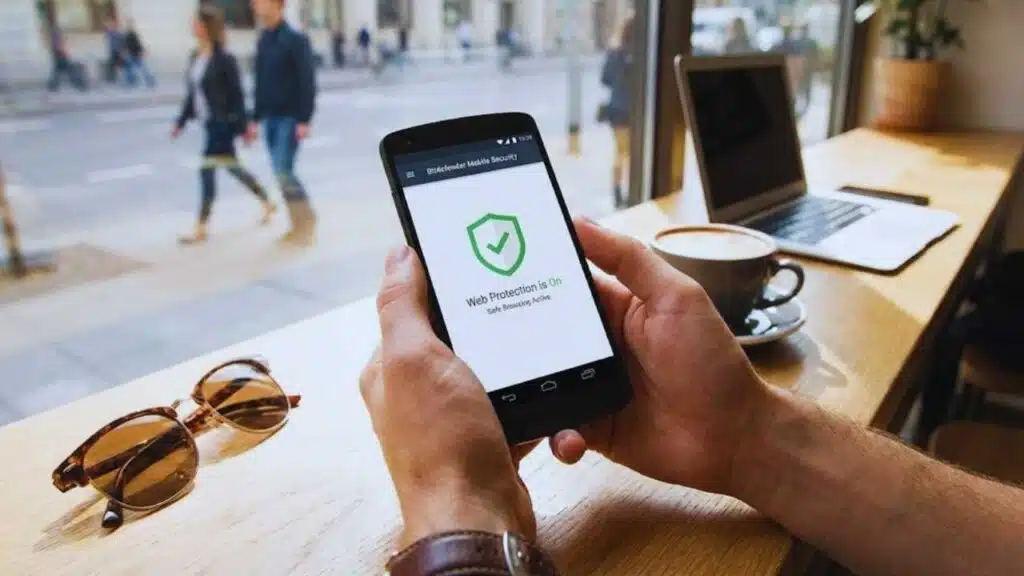
Bitdefender is a strong pick if you want balanced protection with minimal hassle. It’s built for daily browsing, daily clicking, and daily app usage, which is where most real threats begin. Many users don’t get attacked through complex hacking; they get attacked through a bad link, a fake login, or a risky download. Bitdefender’s approach fits that reality.
This is a good option for Android users who want protection that runs quietly in the background. It typically focuses on blocking malicious sites, warning about suspicious pages, and adding protective layers without demanding constant attention. It also tends to work well for people who are not technical and want “set-and-forget” safety.
Bitdefender is not a privacy-only tool like a tracker blocker. It’s a security tool that also improves privacy by reducing exposure to phishing, unsafe browsing, and data theft. For many people, that overlap is exactly what they need.
Bitdefender key points
| Area | Summary |
| Best for | Android users who want all-around protection |
| Privacy value | Safer browsing reduces credential theft and data loss |
| Strength | Quiet background protection |
| Watch-out | Some features may depend on plan level |
Key privacy and security features (what matters most)
Bitdefender is most useful at the moment you click something risky. That’s the point where privacy is often lost. It can help block known malicious domains and warn you about suspicious websites. This is crucial because phishing pages often look real, especially on mobile screens where the full URL is hard to see.
It can also help you avoid “permission traps.” Some Android tools include features that highlight risky apps or unusual behavior. While no system is perfect, this kind of warning can stop the worst mistakes, like installing apps from unknown sources or granting sensitive permissions without thinking.
The best way to use it is simple. Install it, turn on web protection features, and let it run quietly. Then combine it with a password manager so that even if you face a phishing attempt, your accounts are still harder to break.
Pros, cons, and who should choose it
Bitdefender is a good choice if you want reliable daily protection without a complicated interface. It suits users who browse widely, tap links from messages, and install new apps occasionally. It’s also helpful for people who manage multiple online accounts and want fewer chances of password theft.
The main downside is that some advanced options may require a paid plan. Also, people who want privacy-only tools might prefer tracker blockers, but those don’t replace threat protection. Bitdefender is best seen as your “front door lock,” not your entire privacy plan.
If you are an Android user and you want one app to cover the basics, this is a strong starting point.
Norton 360 for Mobile (Android and iOS)
Norton 360 for Mobile is designed for people who want an all-in-one bundle. Instead of juggling separate apps for web safety, Wi-Fi safety, and VPN privacy, many users prefer a single subscription. Norton aims to fill that role by bundling multiple protections in one place.
This type of product is useful when convenience is the top priority. It’s also popular for families or people managing several devices. The more people you protect, the more valuable a “one dashboard” approach becomes. It can reduce the chance that someone forgets to set up basic protections.
For privacy, the biggest value is often the combination of web protection and VPN features. Web protection reduces phishing risks. VPN can help on shared networks. Together, they cover two common privacy failure points: unsafe links and unsafe networks.
Norton 360 key points
| Area | Summary |
| Best for | Users who want a bundle: VPN + web protection |
| Privacy value | Safer browsing and safer network usage |
| Strength | Convenience and wide feature coverage |
| Watch-out | Pricing may be higher than single-purpose apps |
Key privacy features and daily use
Norton-style bundles typically focus on protecting the moments when you are most exposed. That includes browsing, searching, and using public Wi-Fi. These are high-risk moments because they involve data in transit and frequent clicks. If you ever log into email or banking while traveling, VPN can be a practical layer.
Another privacy advantage is fewer “tool gaps.” When people use separate apps, they sometimes forget to turn one on or maintain settings. A single suite can simplify the process. The best use is to enable web protection features, set VPN to activate on unknown networks, and keep the app updated.
Remember that VPN is not the same as tracker blocking. VPN encrypts traffic. It does not stop apps from tracking you internally. If tracking is a major concern, consider pairing Norton with a tracker reduction tool.
Pros, cons, and who should choose it
Norton 360 for Mobile is best for users who want convenience and broad coverage. It’s also good for people who don’t want to research multiple apps. If you’re protecting family members who click suspicious links, a suite can reduce risk with fewer steps.
The downside is that bundles can include features you don’t need. Some users will pay for tools they rarely use. Also, the best plan for one person may not be the best plan for another, so you should choose based on your habits.
If you want a “one subscription” approach on Android or iPhone, Norton is worth considering.
Malwarebytes Mobile Security (Android and iOS)
Malwarebytes is known for focusing on threats that feel “real.” That means scams, phishing, misleading pages, and suspicious downloads that target normal users. This focus matters because modern mobile threats are often social attacks, not technical exploits. They trick you into giving up data.
This app can be a strong pick if you or someone you help is often targeted by scam texts, weird pop-ups, or suspicious links. It’s also useful for people who install apps frequently and want an extra layer of checking. While no mobile tool can catch everything, the right warnings at the right time can prevent the worst outcomes.
For privacy, Malwarebytes helps by reducing the chance of credential theft. If your email, social media, or banking gets taken over, your privacy is damaged immediately. Preventing that is one of the fastest wins.
Malwarebytes key points
| Area | Summary |
| Best for | Scam and phishing defense |
| Privacy value | Stops many credential-stealing attempts |
| Strength | Practical, everyday threat focus |
| Watch-out | Features can vary by platform/plan |
How it helps against phishing and scam links
Most mobile phishing attempts rely on speed. They want you to tap before you think. A scam might claim your account is locked or a payment failed. On a small screen, a fake login page can look identical to the real thing. If a security app can warn you before you enter details, it prevents the most damaging step.
Malwarebytes-style protection can help reduce those moments of risk. It’s especially useful if you receive a lot of SMS links, social DMs, or emails on your phone. It can also help when websites load suspicious scripts or redirect you to fake support pages.
The best practice is to treat warnings seriously. If the app flags a page, don’t try to “push through.” Instead, open your browser and manually type the official website address, or use a bookmark you trust.
Pros, cons, and who should choose it
Malwarebytes fits users who want scam-focused protection without a complicated interface. It’s also helpful for families where one person does most of the “tech support.” Installing a tool like this can reduce emergency situations, like “My phone says I won a prize” or “I clicked a bank link.”
The downside is that no single app can stop every scam. You still need basic habits: verify messages, avoid unknown downloads, and use strong passwords. Also, depending on device and plan, some features may differ.
If scams are your biggest concern, this is a practical option.
DuckDuckGo Privacy (App Tracking Protection + Privacy Browser tools)
DuckDuckGo Privacy tools are not classic antivirus. They’re built for people who want less tracking, fewer creepy ads, and less data profiling. Many users feel safe from “hackers” but still dislike how much data apps collect. If that’s your main concern, this is a valuable addition.
On Android, tracker blocking can reduce how often apps send data to third parties. That means fewer advertising profiles and fewer silent background connections. It also helps you understand what’s happening on your device. Once you see how many trackers try to load, you often become more careful about app choices.
This tool is best when used alongside a security suite. Tracker blocking reduces privacy loss. A security suite reduces threat exposure. Together, they cover two different problems.
DuckDuckGo Privacy key points
| Area | Summary |
| Best for | Reducing app tracking (Android) |
| Privacy value | Blocks many third-party trackers |
| Strength | Simple, visible privacy improvements |
| Watch-out | Not a replacement for malware scanning |
What tracker blocking changes (and what it doesn’t)
Tracker blocking can reduce invisible data flow. It may reduce targeted ads and reduce the number of third parties collecting your behavior. It can also reduce the “data footprint” you leave across apps. For privacy-minded users, that’s a direct improvement.
But tracker blocking does not “hide you from the internet.” Apps can still collect data directly if they choose to. Also, some apps break or behave oddly when trackers are blocked. In most cases, you can adjust settings, whitelist an app, or switch to a more privacy-friendly alternative.
The real win is awareness. Once you use tracker blocking, you start choosing apps that respect privacy, which creates long-term benefits beyond the tool itself.
Pros, cons, and who should choose it
Choose DuckDuckGo Privacy tools if tracking is your main issue and you use Android. It’s also great for people who want a privacy-first browser experience without learning complex settings.
The downside is that it does not protect you from every threat type. You can still get phished. You can still enter passwords on fake sites. That’s why pairing with a security suite and password manager is smart.
If you want to reduce profiling and tracking, this is one of the easiest starts.
Proton VPN (Android and iOS)
A VPN helps in specific situations. It encrypts your internet traffic between your phone and the VPN server, which can reduce what local networks can see. That makes it useful on public Wi-Fi, shared networks, and travel environments. It also helps when you want to reduce exposure to network snooping.
Proton VPN is often recommended in privacy circles because it emphasizes privacy posture and transparency. But even the best VPN is not a complete privacy solution. It does not stop app-level tracking by itself. It does not protect you if you type a password into a phishing page.
The best way to think about VPN is like a secure tunnel for your connection. It’s one layer. It’s not the whole plan.
Proton VPN key points
| Area | Summary |
| Best for | Public Wi-Fi privacy and encrypted browsing |
| Privacy value | Protects traffic from local network snooping |
| Strength | Easy “on when needed” layer |
| Watch-out | Doesn’t replace tracker blocking or scam protection |
When you should use a VPN (real examples)
Use a VPN when you connect to networks you don’t control. That includes airports, hotels, cafes, coworking spaces, and any “free Wi-Fi” that doesn’t require a secure login. It’s also useful when traveling because you often connect through unknown routers and repeaters.
A VPN can also help when you need to access sensitive accounts away from home. For example, logging into email, banking, or work tools on a public network is safer with VPN enabled. It reduces the chance of interception and makes your traffic harder to observe.
You don’t have to leave it on all day. A practical approach is “auto on for unknown networks” or “turn on when traveling.”
Pros, cons, and who should choose it
Choose Proton VPN if you travel often, use public Wi-Fi, or want an extra privacy layer for network connections. It’s also good for people who want a reputable VPN brand and predictable behavior.
The downside is speed variation. VPNs can slow connections depending on server distance and network quality. Also, some users mistakenly expect VPN to block tracking, which is not always true. If tracking is your issue, pair VPN with a tracker blocker.
If you want safer browsing outside your home network, VPN is a strong add-on.
Bitwarden (Password Manager)
A password manager is one of the strongest privacy tools you can install because it protects your accounts. Many privacy disasters start when someone loses control of email. Once attackers access your email, they can reset passwords for many services. That can quickly expose private photos, conversations, documents, and financial data.
Bitwarden helps by storing strong, unique passwords in an encrypted vault. Instead of remembering dozens of passwords, you remember one strong master password and use the manager to generate the rest. This reduces “domino breaches,” where one leaked password unlocks many accounts.
If you do only one thing after reading this guide, install a password manager and change your most important passwords first.
Bitwarden key points
| Area | Summary |
| Best for | Preventing account takeover |
| Privacy value | Limits credential reuse and leakage |
| Strength | Strong passwords made easy |
| Watch-out | Master password and 2FA must be protected |
How to set it up for maximum privacy
Start with the master password. Use a long passphrase you can remember but others can’t guess. Then enable 2FA for the password manager itself. This matters because the vault is your “keys to the kingdom.”
Next, update your most important accounts first: email, banking, cloud storage, and social media. Replace weak or reused passwords with generated ones. Then turn on 2FA for those services too. If passkeys are available, consider using them where you trust the setup.
Finally, add a recovery plan. Store recovery codes safely. Don’t leave them in your photo gallery. Keep them offline or in a secure location.
Pros, cons, and who should choose it
Bitwarden is for everyone. It’s not only for “security people.” If you have more than ten online accounts, you benefit. If you reuse passwords, you need it. If you manage business accounts, it becomes essential.
The only real downside is the initial setup effort. It can take an hour to move your most important accounts. But once it’s done, daily life becomes easier and safer. You’ll also stop wasting time on “forgot password” loops.
For privacy protection, this is one of the highest-impact choices.
Signal (Private Messaging)
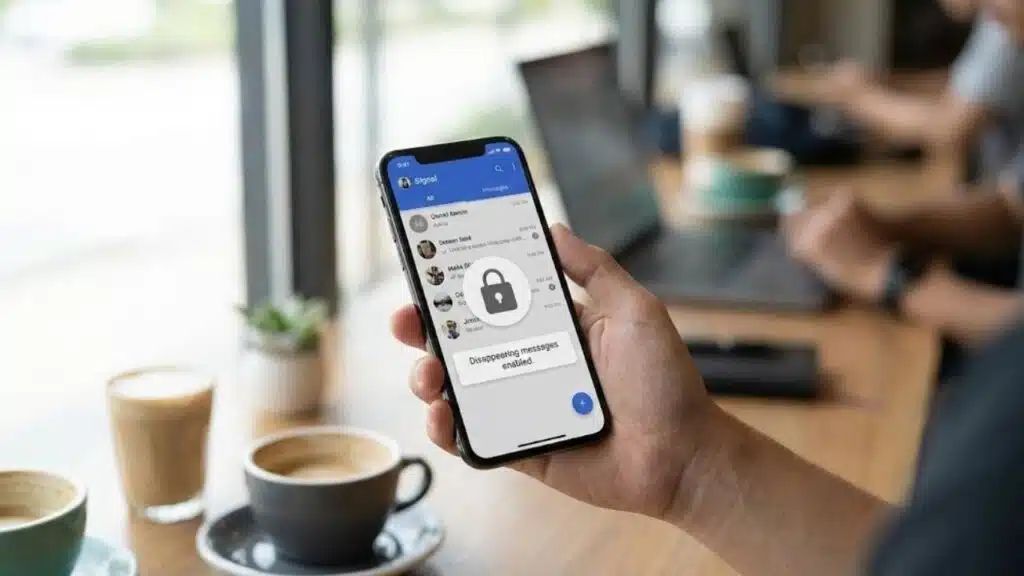
Many people protect their phone but forget about messaging privacy. If your messages and calls matter, Signal is one of the simplest upgrades you can make. It uses end-to-end encryption by default, which means the content of your chats is protected in transit.
Signal is useful for sensitive conversations, personal topics, business discussions, and private planning. It’s also a good choice if you dislike data-hungry messaging platforms. Even if you use other apps for convenience, having Signal for your most private conversations is a strong move.
Privacy also includes habits. Signal helps, but you should still lock your phone, manage notifications, and avoid leaving sensitive previews visible on your screen.
Signal key points
| Area | Summary |
| Best for | Private chats and calls |
| Privacy value | End-to-end encryption by default |
| Strength | Simple and reliable for daily use |
| Watch-out | Device security still matters |
Practical privacy features you should actually use
Start with disappearing messages if you often discuss sensitive topics. That reduces the amount of sensitive content stored long-term. Use screen lock settings and consider hiding message previews on your lock screen.
Use verification features if you’re worried about impersonation. In high-stakes situations, confirm identities in person or through a second channel. Also, keep your app updated to benefit from security improvements.
Most importantly, use it consistently. Privacy tools only help when you actually use them for the conversations that matter.
Pros, cons, and who should choose it
Choose Signal if privacy matters in your communication. It’s also great for journalists, business owners, activists, and anyone who wants a safer default for sensitive topics.
The downside is social friction. Not everyone uses Signal. You may need to invite contacts. The best approach is to start with close contacts and gradually expand.
For message privacy, Signal is a high-value, low-effort tool.
AdGuard (Android-focused tracker blocking and safer browsing)
AdGuard is a strong option if you want to reduce tracking, ads, and malicious domains at a broader level. It often works through DNS-based and filtering approaches, which can reduce the number of unwanted connections your phone makes. That means fewer trackers, fewer annoying pop-ups, and sometimes fewer “scammy” redirects.
This is especially valuable for browsing privacy. Many threats start with malicious ads, redirect chains, and fake warnings that trick users into installing junk. If you can block those pages earlier, you reduce exposure and reduce temptation.
AdGuard can require more setup than simple apps, but the payoff can be a cleaner, safer experience for Android users.
AdGuard key points
| Area | Summary |
| Best for | Cleaner browsing and tracking reduction |
| Privacy value | Reduces tracker connections and risky domains |
| Strength | Strong filtering options on Android |
| Watch-out | Setup and configuration may take time |
How it supports privacy beyond “blocking ads”
Ad blocking is not only about comfort. Many ads are powered by tracking systems that record behavior across sites. Blocking them can reduce profiling. It can also reduce the chance of clicking on deceptive ads that lead to phishing or fake tech support pages.
Domain blocking can also help by preventing your phone from contacting known bad endpoints. That’s not perfect, but it reduces common attack paths. If you browse widely, this layer can be very helpful.
For best results, use it carefully. Avoid breaking important services. If something doesn’t work, adjust settings rather than disabling protection entirely.
Pros, cons, and who should choose it
Choose AdGuard if you want stronger tracking reduction and cleaner browsing on Android. It’s also good for users who want control and are willing to spend a bit of time on setup.
The downside is complexity. Some people prefer “install and forget.” AdGuard can be tuned, and tuning can confuse beginners. If you prefer simplicity, DuckDuckGo privacy tools may feel easier.
If you want maximum tracking reduction with browsing benefits, AdGuard is worth it.
How to choose the best mobile security apps for privacy for your needs
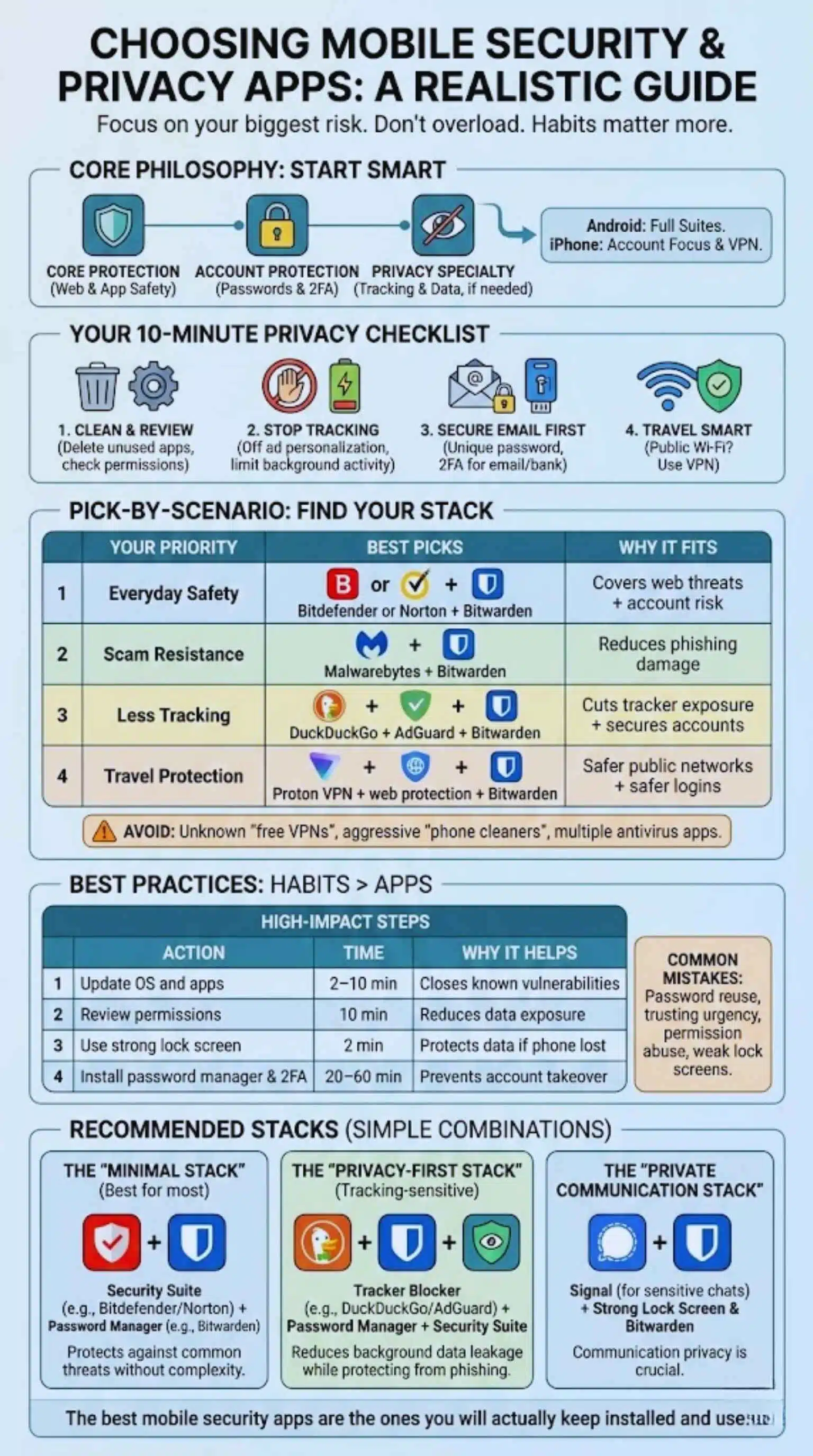
Choosing tools is easier when you start with your biggest risk. Are you worried about scams? Are you annoyed by tracking? Do you travel and use public Wi-Fi? Do you manage business accounts? Your answer changes what you should install first.
A smart approach is to pick one “core protection” app and one “account protection” app. Then add one privacy specialty tool if needed. This avoids overload and keeps performance smooth.
Also consider your platform. Android users get more value from full security suites. iPhone users should prioritize account security, secure browsing habits, and VPN usage when on untrusted networks.
The best mobile security apps for privacy are the ones you will actually keep installed and use. A perfect tool you uninstall is worse than a good tool you keep.
Pick-by-scenario guide
| Your priority | Best picks | Why it fits |
| Easy all-around safety | Bitdefender or Norton + Bitwarden | Covers web threats + account risk |
| Scam resistance | Malwarebytes + Bitwarden | Reduces phishing damage |
| Less tracking | DuckDuckGo + AdGuard + Bitwarden | Cuts tracker exposure + secures accounts |
| Travel protection | Proton VPN + web protection + Bitwarden | Safer public networks + safer logins |
Minimal setup for most people (fast and effective)
If you want a simple plan, do this. Install one reputable security suite (Bitdefender, Norton, or Malwarebytes depending on your preference). Then install Bitwarden and update your email password first. After that, enable 2FA on your email and banking.
Next, review app permissions. Remove apps you don’t use. Deny location access to apps that don’t need it. Turn off microphone access for apps that have no reason to record audio.
Finally, add one privacy tool if tracking bothers you. DuckDuckGo Privacy tools are a simple start. If you want deeper filtering, consider AdGuard on Android.
What to avoid when choosing mobile security tools
Avoid unknown “free VPN” apps with vague ownership, aggressive ads, or unclear policies. Avoid “phone cleaner” apps that demand deep permissions and promise huge performance boosts. Avoid apps that flood you with warnings and try to scare you into upgrades every day.
Also avoid installing multiple antivirus apps at once. They can conflict, slow performance, and cause false alarms. One good security app is usually enough.
If you’re unsure, choose brands with a long history and consistent updates. Then pair that with strong account protection and safe habits.
Best practices that boost privacy beyond apps
Apps help, but settings and habits often matter more. A phone with updated software, strong lock screen protection, and clean permissions is hard to compromise. A phone with weak passwords and risky installs is vulnerable even with “security apps” installed.
Start with updates. Keep your operating system and apps current. Many attacks target old vulnerabilities. Updates close those gaps. Then look at permissions. You don’t need every app to know your location or contact list.
Next, protect your lock screen. Use a strong PIN or passcode. Avoid easy patterns. Turn on biometric unlock if you like it, but keep a strong PIN as backup. Also turn on “find my device” tools so you can locate or wipe a lost phone.
High-impact privacy steps
| Action | Time | Why it helps |
| Update OS and apps | 2–10 min | Closes known vulnerabilities |
| Review permissions | 10 min | Reduces data exposure |
| Use strong lock screen | 2 min | Protects data if phone is lost |
| Install password manager | 20–60 min | Prevents account takeover |
| Enable 2FA | 10–30 min | Blocks many login attacks |
10-minute privacy checklist you can do today
Go through installed apps and delete anything you don’t use. Then open app permissions and remove unnecessary access. Pay attention to location, contacts, microphone, camera, and SMS. Many apps request these permissions “just in case,” not because they need them.
Turn off ad personalization where possible. Disable background activity for apps that don’t need it. Reduce notification previews on your lock screen if you receive sensitive messages.
Switch your most important accounts to unique passwords. Start with email. If you protect email, you protect password resets for other services.
Finally, decide your “travel rule.” If you connect to public Wi-Fi, use a VPN. If you don’t need public Wi-Fi, avoid it.
Common mistakes that quietly destroy privacy
The biggest mistake is password reuse. It’s responsible for countless account takeovers. Another common mistake is trusting messages that create urgency. Scammers use pressure because pressure makes people click.
People also forget that permission abuse is a privacy problem. A harmless app can become invasive if it has access to location and contacts. Another mistake is leaving phones unlocked or using weak lock screens. Physical access can defeat many protections.
The fix is simple: use strong logins, keep permissions tight, and slow down before you click.
Recommended privacy stacks (simple combinations that work)
You don’t need all eight apps running on every phone. The best approach is a small “stack” based on your lifestyle. A stack is a set of tools that cover different risks without overlap.
One tool protects browsing and links. One tool protects accounts. One tool reduces tracking or protects communication. This gives you depth without clutter.
Also, remember performance. Too many tools can drain battery and cause confusion. Build small. Expand only if you have a real reason.
Best stacks by goal
| Goal | Stack | Best on |
| Everyday safety | Bitdefender or Norton + Bitwarden | Android/iOS |
| Scam resistance | Malwarebytes + Bitwarden | Android/iOS |
| Tracking reduction | DuckDuckGo + AdGuard + Bitwarden | Android |
| Travel and public Wi-Fi | Proton VPN + web protection + Bitwarden | Android/iOS |
| Private communication | Signal + strong lock screen + Bitwarden | Android/iOS |
The “minimal stack” (best for most readers)
Install one security suite and one password manager. That’s it. Turn on web protection features in the suite. Use Bitwarden to generate and store passwords. Enable 2FA for your email and bank.
Then do a permission cleanup. This stack is small, easy, and powerful. It protects against the most common threats without adding complexity.
If you want one extra tool, add Signal for private messaging or DuckDuckGo for tracker reduction.
The “privacy-first stack” (for tracking-sensitive users)
Start with tracker reduction. Use DuckDuckGo Privacy tools to block third-party tracking. Add AdGuard if you want deeper filtering and are comfortable with setup.
Then secure your accounts with Bitwarden and 2FA. Add a security suite if you install many apps or browse widely. This stack aims to reduce background data leakage while still protecting you from phishing.
Finally, use Signal for sensitive conversations. Communication privacy is often overlooked, but it’s a major part of real-life privacy.
Final Thoughts
Privacy is easiest when you keep it simple. Start with the highest-impact steps: protect accounts and reduce risky clicks. A good security app can block many phishing pages and scam attempts. A password manager can stop account takeover and prevent one leak from spreading everywhere. If tracking bothers you, add a tracker blocker. If you travel, add a VPN.
The best plan is one you can stick with. Choose one security suite, choose one password manager, and build from there. When you do that, you get real protection without turning your phone into a complicated project.
FAQs
Do iPhones need antivirus apps?
iPhone security apps usually focus on safer browsing, network protection, and identity features rather than deep antivirus scanning. iOS limits the ways apps can inspect other apps. A smart iPhone setup is strong passwords, 2FA, safe browsing habits, and VPN usage on public Wi-Fi.
Are free mobile security apps safe?
Some are safe if they come from reputable providers and have clear features. Be cautious with unknown free VPNs and “cleaner/booster” apps that ask for excessive permissions. Free can be fine, but only when the app’s purpose and business model are clear.
What’s the difference between a mobile security app and a VPN?
A mobile security app focuses on threats like phishing pages, scam links, and risky apps. A VPN encrypts your network traffic and is most useful on untrusted networks. They solve different problems and can work well together.
Can these apps stop spyware or stalkerware?
They can help, but spyware-like threats often hide behind permissions and deceptive installs. The best defense is careful app installs, tight permissions, OS updates, and removing anything suspicious. If you suspect spyware, consider a full device reset after backing up important data safely.
What should I do if my phone is already compromised?
Change your email password from a clean device, enable 2FA, and review login sessions. Remove unknown apps, update your OS, and run scans on Android. If suspicious behavior continues, back up essential items and factory reset the phone.
What is the fastest first step for privacy?
Install a password manager and stop reusing passwords. Then turn on 2FA for your most important accounts. This often reduces real-world risk more than anything else.