Shared calendar apps for families should make it easier to answer a simple question: What is happening this week, and who needs to be there? Yet a shared schedule can still fail when one person misses a reminder, a changed pickup time goes unnoticed, or someone edits an event they were only meant to see.
If you want a quick starting point, Google Calendar works well for families using both iPhone and Android. Apple Calendar is simpler when everyone uses iCloud. Cozi brings the calendar together with household lists, while Family Tools and Teamup deserve a closer look when you need more control over who can change events.
The right choice depends on the details behind those recommendations. I compared ten options by their reminders, editing permissions, and cross-platform behavior so you can choose a calendar your family will actually keep using.
Use this overview to identify the apps that fit your devices and access needs. The sections below explain the limitations that need more context.
| App | Where Families Can Use It | Reminders and Editing | Outside Calendar Limitation |
| Google Calendar | iPhone, Android, web | Event reminders; permission choices on a separately shared calendar | The automatic Family calendar gives members broad editing access |
| Cozi | iPhone, Android, web | One free reminder per attendee; more reminders and change alerts with Gold | Google, Apple, and Outlook connections use read-only feeds |
| TimeTree | iPhone, Android, web | Event reminders and shared-calendar activity alerts; members can edit | Imported events in a shared calendar do not update automatically |
| FamilyWall | iPhone, Android, web | Event and daily reminders; administrator, member, and child roles | Google and Outlook connections require Premium; added calendars need separate sharing |
| Outlook Calendar | iPhone, Android, web | Event notifications; view or edit access on an individually shared calendar | Microsoft’s family group calendar appears in Outlook.com and Outlook mobile |
| Apple Calendar | Apple devices and iCloud on the web | Event alerts; invitees can be given viewing or editing access | No native Apple Calendar app for Android |
| Family Tools | iPhone, Android, web | One free event reminder; child permission presets | Exports a read-only calendar feed but does not import outside calendars |
| Looping | iPhone and Android | Advanced reminders and group change alerts; group members can edit | Outside-calendar import has limits and should not be assumed to be live two-way sync |
| FamCal | iPhone and Android | Local and shared notifications; family members can add and edit shared events | It states local-calendar sync should be checked on the devices you use |
| Teamup | iPhone, Android, web | Email event reminders; detailed access levels | Outside calendar feeds are read-only |
Some of these shared calendar apps for families are simple calendars. Others are broader family organizers. The strongest choice is the one that matches how your household already plans its week.
1. Google Calendar
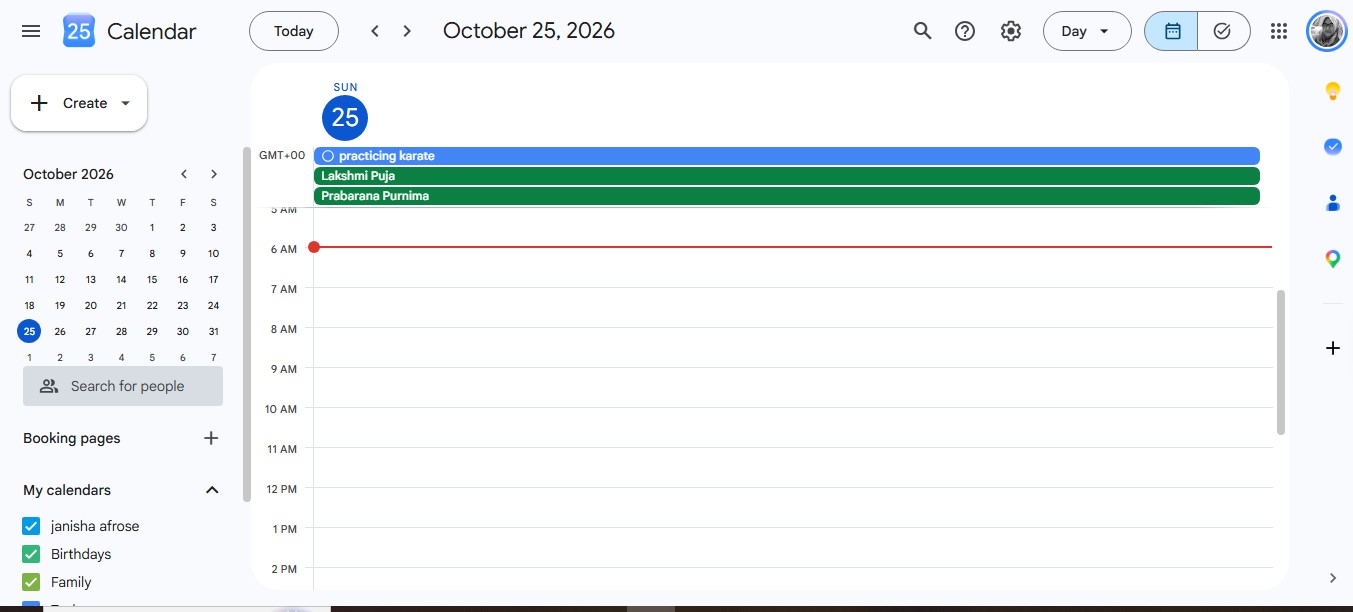
Google Calendar is an easy place to start when family members use different phones. A shared calendar appears in the Google Calendar app on iPhone and Android, as well as on the web. Each person can manage their own event notifications.
Pay attention to which kind of shared calendar you create. Google automatically creates a Family calendar for a Google family group. Members can change its events and manage its sharing. That may be fine when all members are adults, but it gives more access than some parents expect.
If a child or relative should only view the schedule, create a separate calendar and share it with that person at a suitable permission level. Also, do not expect an alert every time someone edits the automatic Family calendar. Upcoming-event reminders are available, but notifications about newly created, changed, or deleted family events are not sent by default.
2. Cozi
Cozi suits families who want their calendar, shopping lists, to-dos, and recipes in one place. Assigning family members to an appointment makes it easier to see who is involved instead of filling a calendar with separate copies of the same event.
The free version allows one reminder per attendee for an appointment. Cozi Gold allows up to three and adds alerts when an event changes. That upgrade may matter if your family frequently moves practice times, appointments, or pickup plans.
Cozi’s family account gives members broad access to shared information, so I would look elsewhere if strict individual editing permissions are a priority. It can also show calendars from Google, Apple, and Outlook, but those connections are read-only. Seeing a work event in Cozi does not mean you can change it there.
3. TimeTree
TimeTree works well when scheduling often leads to a conversation. Family members can comment on shared events to settle details such as who is driving or what to bring. Event reminders and notifications help keep those plans visible.
Its shared calendars are collaborative by design. Members have similar editing access, while the calendar creator has the additional ability to remove members. That is straightforward for a family of adults, though it offers less control if a younger member should see events without changing them.
The external-calendar setup needs care. Events from another calendar can update automatically in a person’s private TimeTree Home view. When you import outside events into a shared TimeTree calendar for the family, that import does not automatically keep up with later changes. If your work or school calendar changes often, check the shared version before relying on it.
Learn more about managing your personal calendar like a pro here.
4. FamilyWall
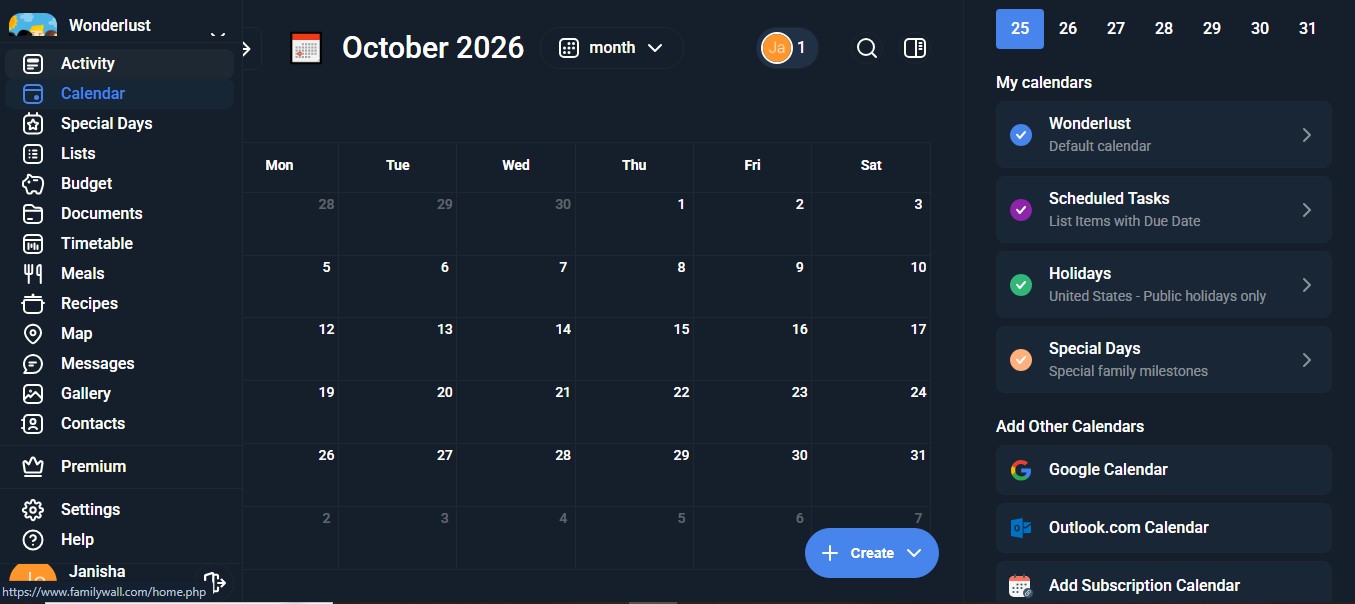
FamilyWall offers more than a calendar. It also brings together lists, meal planning, messages, and other tools for running a household. Its calendar supports event reminders, including an option for a daily reminder of that day’s appointments.
The app distinguishes between administrator, member, and child roles. Review each person’s access when you invite them, especially if several adults will manage the family space.
Connecting a Google or Outlook calendar requires FamilyWall Premium. An outside calendar added to your FamilyWall account is not automatically shared with every family member; you choose who can see it. Directly linked iPhone calendars have different sharing limitations within FamilyWall. I would check the result on another member’s device before assuming a connected calendar has become part of the family schedule.
5. Outlook Calendar
Outlook makes sense when family members already use Microsoft accounts. You can share an individual Outlook.com calendar and give someone permission to view or edit it.
Microsoft also provides a family group calendar when you set up a family group. Members can add events, and the calendar appears in Outlook.com and the Outlook mobile app. Its reach is narrower than the general Outlook name might suggest: Microsoft says this family group calendar does not appear in other calendar applications.
There is another practical detail. Adding an event to the family group calendar does not automatically send each family member a meeting invitation. If someone must accept, decline, or receive an invitation, add them as an invitee. Decide whether you want a separately shared Outlook calendar or the family group calendar before moving your household’s appointments into it.
6. Apple Calendar
When everyone uses Apple devices, an iCloud calendar can keep the family schedule inside an app they already know. You can invite people privately and decide whether each person may edit the calendar or only view it. Event alerts and shared-calendar update options help people follow changes.
That editing switch is useful for families with older children. A child can check the week’s plans without receiving the same control as the adults arranging them. Private invitees need Apple Accounts and iCloud.
An Android user changes the equation. Apple does not provide a native Apple Calendar app for Android. A published calendar can give people in other shared calendar apps for families a view-only feed, but that is not the same as everyone editing one shared iCloud calendar.
7. Family Tools
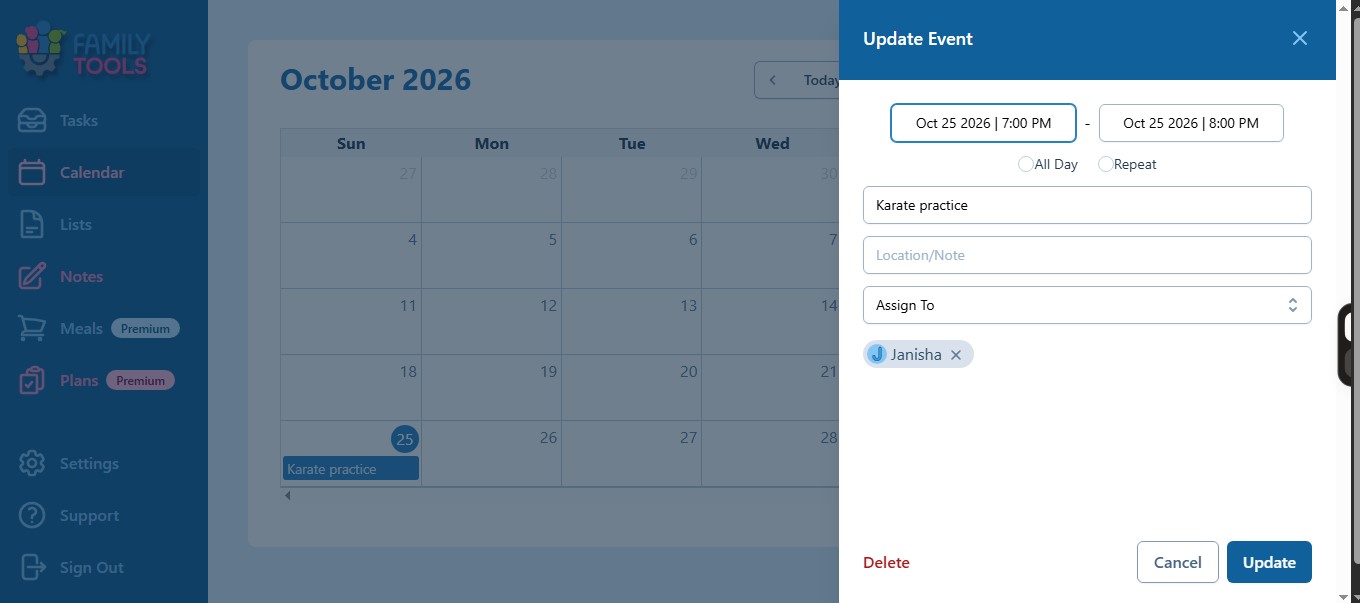
Family Tools is built around household roles as well as the calendar itself. It’s one of my personal favourites. It offers Parent, Teenager, Child, and Young Child permission presets. Premium lets you adjust individual permissions more precisely, which can help when children need different levels of independence.
The free version includes one notification per calendar event. Premium increases that to as many as ten. Notifications work on one mobile device per user profile, so check where a reminder will arrive if someone uses multiple devices.
You can export the Family Tools calendar as a URL for a read-only view in an outside calendar. You cannot edit those events from the outside app, and Family Tools does not import existing calendars into its own schedule. It works better as your family’s main calendar than as a place to combine several calendars you already use.
8. Looping
Looping organizes appointments around shared groups. Members can see and edit their group’s events, share lists, and receive notifications when appointments are added or changed. Advance reminders can be set from five minutes to seven days before an event.
That arrangement can be helpful when several people actively plan together on iPhone and Android. It is less suitable when some group members should have viewing access without the ability to edit appointments.
Looping can import events from an outside calendar, with a documented limit of 12 months or 200 appointments per import. I would not treat that import as a confirmed, continuous two-way connection. If an existing Google or Apple calendar is central to your family’s routine, check what happens after you edit an imported event.
9. FamCal
FamCal combines a shared family calendar with lists, tasks, and notes. Events can be color-coded by family member. It offers local reminders and notifications to other people in the family, and children can be added without their own email addresses.
Adults can sign in with their own email addresses, but the family setup uses a shared password. Consider whether that arrangement fits your household, particularly if you want clearly separate credentials or tightly defined editing roles.
FamCal’s iPhone app listing describes two-way sync between FamCal shared events and a local calendar. That is a specific feature claim, not a promise that every Google, Apple, or Outlook setup will behave identically across devices. Test the connection you intend to use before making it the only place you track important appointments.
10. Teamup
Teamup provides more control than many shared calendar apps for families. You can divide a schedule into sub-calendars and assign different access to each one. Its permission levels include viewing with or without event details and several kinds of editing access.
That flexibility could help a family coordinate parents, children, grandparents, and caregivers. For example, a caregiver could see the appointments relevant to them without seeing every private family event. The free plan currently includes five users and five sub-calendars.
Know how its alerts work before choosing it. Upcoming-event reminders arrive by email, while notifications about calendar changes can arrive by email or push notification. Teamup can also bring in and publish outside calendar feeds, but those feeds are read-only and refresh periodically. It is a powerful option when your family needs its controls and is willing to spend time setting them up.
Which Free Family Calendar Works on Both iPhone and Android?
Google Calendar is a practical starting point. Cozi and TimeTree also offer shared calendars across both phone platforms. Compare their permissions and reminder limits before choosing: the app with the most household extras may not give you the access controls you need.
Can My Child View Events Without Being Able to Change Them?
Yes, in some shared calendar apps for families. A separately shared Google calendar can provide viewing access. Apple Calendar lets you turn off editing for an invitee. Family Tools has child permission presets, and Teamup offers detailed access levels. Check the setup rather than assuming every calendar labeled “Family” limits children’s editing.
Why Can Someone See an Event but Receive No Reminder?
Visibility and notifications are separate. The person may need to enable phone notifications, follow the correct calendar, or set a reminder for that event. Also check whether you expected an alert before the event or an alert when somebody changed it. Apps may offer one without offering the other in the same plan.
Can Google Calendar and Apple Calendar Edit the Same Family Events?
Sometimes a connection between them only displays a read-only feed. The person viewing that feed must return to the original calendar to make changes. If editing from both apps is essential, test the exact accounts and devices your family uses instead of relying on a general claim that the calendars “sync.”
No. Sharing an event’s visibility does not necessarily send people a meeting invitation or ask for a response. Outlook’s family group calendar, for example, does not automatically invite all members when you add an event. Add individual invitees when you need them to accept or decline.
Can a Young Child Appear on the Calendar Without an Email Address?
Family Tools supports child profiles, and FamCal allows child family members without email addresses. You can still assign a child to activities without handing them a device. If they will later use the app themselves, check what permissions their profile will have.
Give Your Family One Schedule They Can Trust
The right shared calendar apps for families will not fix a schedule that nobody knows how to use. Agree on where family events belong, who can change them, and which reminders each person needs. Then check those settings together during a normal week.
Among shared calendar apps for families, Google and Apple are sensible starting points when their existing accounts fit your household. Cozi and FamilyWall add broader household organization. TimeTree and Looping make shared planning more conversational. Family Tools and Teamup offer more thoughtful access options when children or caregivers are involved. Choose the smallest setup that reliably gets the right information to the right people.