
I rely on cloud sync in my daily digital work. It keeps drafts available across devices, simplifies collaboration, and saves me from sending files back and forth. But experience has taught me not to confuse that convenience with a complete backup.
The difference between cloud sync vs backup becomes clear when something goes wrong. If I delete a synced folder, overwrite an important document, or allow an encrypted file to replace the original, the sync service may copy that change everywhere.
The service has not failed. It has done exactly what it was designed to do. A backup has a different purpose. It should preserve a separate, recoverable version of my data so I can return to a safe point after deletion, corruption, hardware failure, ransomware, or an account problem.
Seeing the same file on a laptop, phone, and cloud account may look like three copies. However, if one action can change or delete all three, they are not three independent backups.
Cloud Sync vs Backup: The Difference That Matters
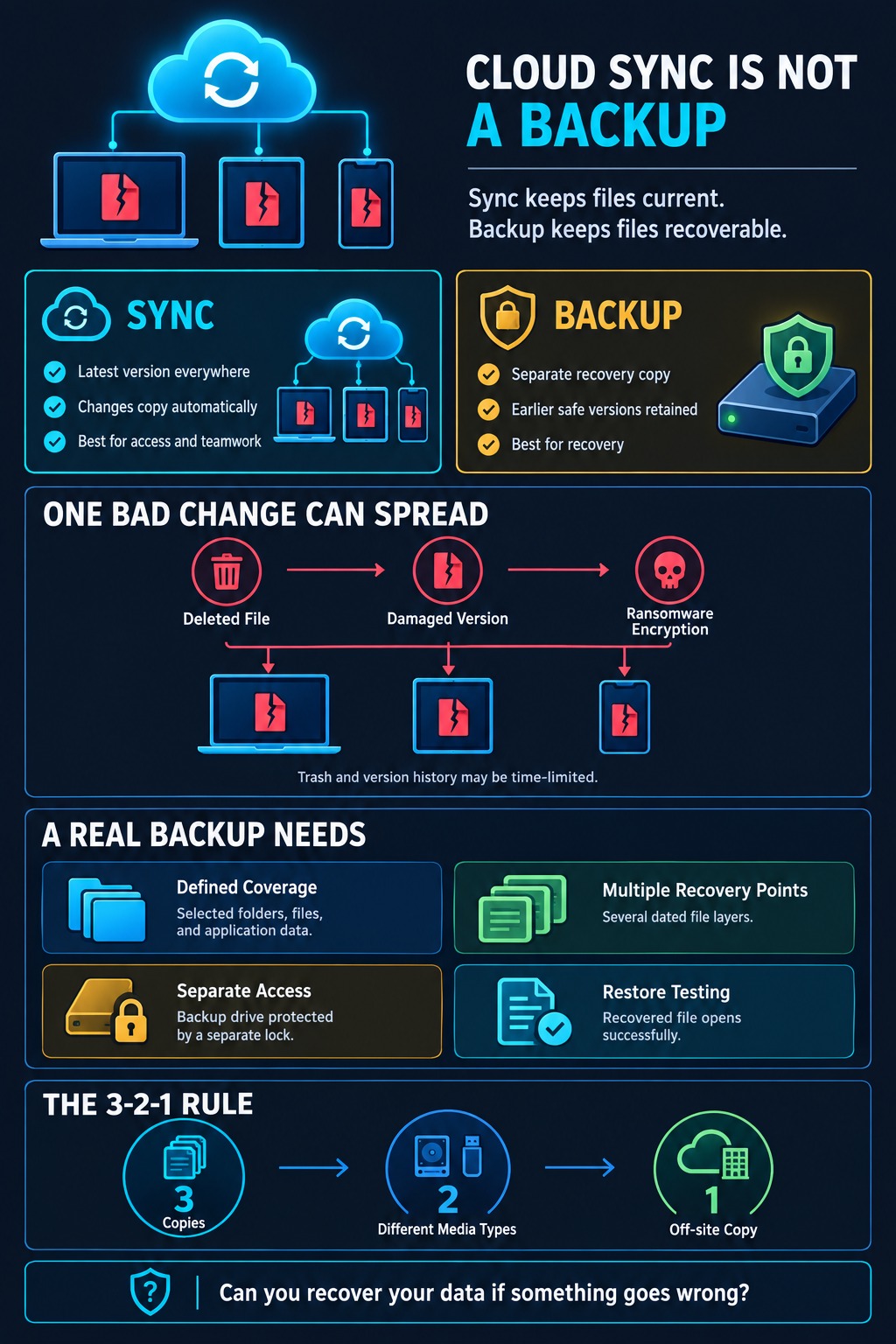
I think of sync as a system for keeping the latest version available. I think of backup as a system for recovering an earlier safe version.
Cloud storage is a location. Sync is a behavior. Backup is a recovery process.
| Question | Cloud sync | Backup |
| Primary purpose | Keep files current across devices and users | Preserve copies for recovery |
| After an edit | Distributes the latest version | Creates or updates a recovery point while retaining older versions |
| After a deletion | May distribute the deletion | Should preserve a recoverable copy |
| Historical versions | May be limited by time, plan, or file type | Retention is a central part of the system |
| Typical coverage | Selected folders and cloud files | Defined files, devices, applications, or systems |
| Main benefit | Access and collaboration | Recovery and continuity |
The two categories can overlap. Many sync services offer deleted-file recovery, version history, account rewind, or ransomware detection. Some backup services also make files accessible from multiple devices.
That overlap does not make the terms interchangeable. I judge a service by what it can restore, how far back it can recover, and whether the recovery copy can survive the same event that damaged the live data.
Why Synced Files Feel Safer Than They Are
The confusion is understandable. A sync service copies files away from one device. If my laptop fails or is stolen, I may be able to sign in elsewhere and continue working. That is real protection against a single-device failure.
However, device failure is only one type of data loss.
Cloud sync becomes less reliable as a recovery plan when the unwanted change happens inside the synced data. It may reproduce a deletion, damaging edit, encrypted file, or incorrect folder structure just as efficiently as it reproduces useful work.
Scope is another concern. A sync service protects only the files and folders included in it. Documents stored elsewhere, local application databases, browser profiles, email archives, configuration files, and recovery keys may never reach the cloud.
A green checkmark beside one folder does not confirm that everything important on the device is protected.
This is why I do not count several synchronized devices as several backups. They may contain multiple physical copies, but they can still share the same deletion command, account controls, and failure path.
The Mistakes Sync Can Copy Everywhere
Sync is built to make changes consistent. Unfortunately, it cannot always determine whether a change was intentional.
Accidental deletion
Suppose I remove a project folder from a synced desktop because I believe it is only a local copy. A two-way sync service may treat that action as an instruction to delete the folder from the cloud and every connected device.
Most platforms provide a trash or recently deleted area. That can rescue a recent mistake, but it is a temporary recovery window. The file may disappear when the retention period expires. A user may also empty the trash manually.
Shared folders create another risk. A colleague with editing permission may move, rename, overwrite, or delete content. The sync service then distributes that action to the rest of the team.
Incorrect edits and overwritten files
Saving the wrong version of a document can be as damaging as deleting it. Sync normally uploads the changed file because keeping the latest version current is its job.
Version history may help, but only if the correct earlier version still exists and remains within the service’s retention window. Recovering one document is also much easier than reversing thousands of unwanted changes.
Corruption and ransomware
If a file becomes corrupted, the damaged version may replace the healthy version across the synced environment.
Ransomware creates a more serious version of the same problem. It can encrypt files on a computer, making their normal contents inaccessible. If those encrypted files sit inside a synced folder, the sync client may upload them and replace the good current versions.
Some cloud services can detect suspicious activity, pause syncing, or restore earlier versions. These controls improve the chance of recovery, but they do not guarantee it. Detection may not catch every incident, and recovery may be limited by time, plan, file type, or account access.
For important data, I want at least one copy that cannot be immediately rewritten through the normal sync connection.
Version History Is a Safety Net, Not a Complete Plan
Version history is one of the most valuable features offered by cloud platforms. I use it as a safety net when a file is overwritten, changed incorrectly, or damaged.
However, I never assume that version history is unlimited. A 30-day history may solve a mistake discovered the next morning. It may not help if quiet corruption remains unnoticed for several months.
A service may also make individual file recovery easy while offering limited options for restoring a large shared workspace. That difference becomes important after ransomware, account compromise, or a large accidental deletion.
I treat version history as one recovery layer. I do not treat it as the only layer for irreplaceable personal files or business-critical data.
One Account Can Become One Point of Failure
Cloud providers normally protect their infrastructure against hardware problems. That does not mean every user action or account-level problem is automatically reversible.
If the live files, deleted-file history, and recovery controls all sit behind the same account, losing control of that account can affect every layer. An attacker may delete files, empty trash, change settings, remove users, or interfere with recovery.
An authorized employee with excessive permissions may cause similar damage accidentally.
For business data, I prefer a recovery arrangement with separate administration. That may include a dedicated backup account, multifactor authentication, restricted deletion rights, alerts for significant changes, and an emergency account that is not used for routine work.
Access to working data should not automatically provide unrestricted authority to destroy every recovery copy.
Online-Only Files Can Create False Confidence
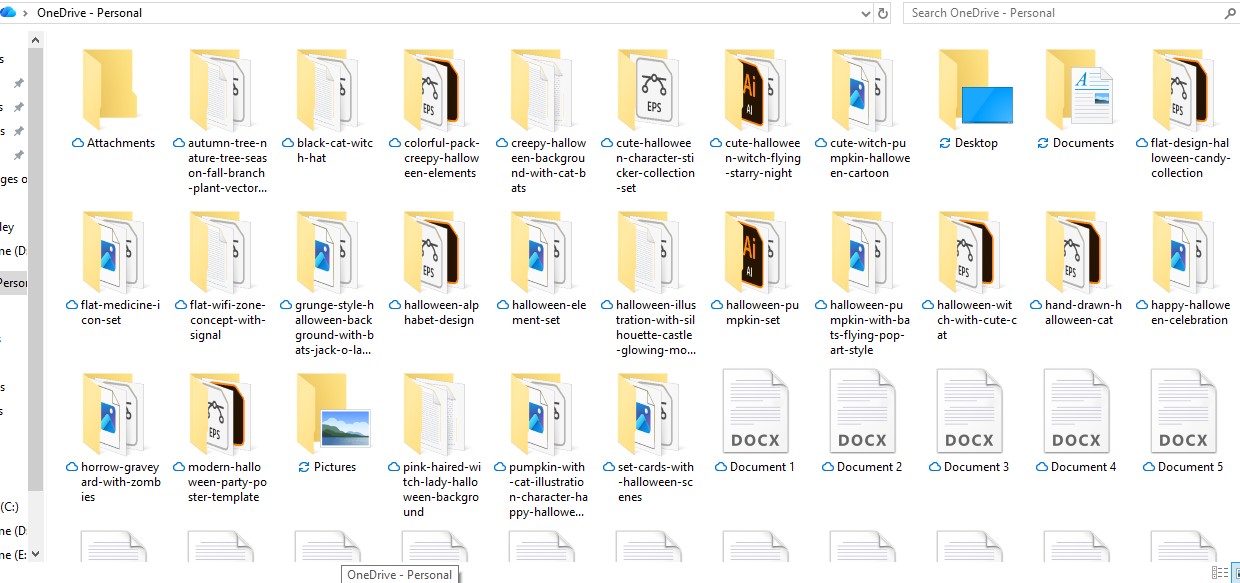
Modern cloud applications often display files that are not fully stored on the device. The name and icon appear in File Explorer or Finder, but the content is downloaded only when someone opens it.
This saves disk space, but it changes what counts as a local copy.
If a file is online-only, another local backup tool may see a placeholder rather than the complete file. A user may believe an external drive contains the cloud folder even though some files were never downloaded.
Before trusting a local backup of cloud-synced data, I confirm whether the files are actually available offline. I also check whether the backup software supports the cloud provider’s placeholder system.
Most importantly, I restore several files and open them. I do not rely only on the number of items that the software claims to have backed up.
The cloud sync vs backup question is not simply about whether files appear in two locations. The real issue is whether both locations contain usable data and whether one copy can survive damage to the other.
What Major Cloud Services Actually Recover
Major platforms provide valuable recovery features, but their rules are different. The following details were checked in October 2026. Plans and policies can change.
Microsoft OneDrive
OneDrive synchronizes additions, changes, and deletions between the OneDrive folder, the web account, and connected devices. Deleting an online-only file from a device can therefore delete it online and from other devices.
Personal accounts normally keep deleted items in the OneDrive recycle bin for 30 days. Work and school accounts normally use a 93-day period unless an administrator changes the setting.
Microsoft 365 subscribers can also restore an entire OneDrive to an earlier point within the previous 30 days. That can help after mass deletion, corruption, or malware-related changes.
These are useful recovery controls. I still would not make them the only protection for critical data when longer retention, separate administration, or recovery outside the Microsoft account is required.
Google Drive
When Google Drive for desktop mirrors or streams files, placing a synced file in the trash places it in the trash across the synced environment. Files in Google Drive trash are normally deleted permanently after 30 days.
Version handling depends on the file type. For uploaded files such as PDFs and images, an older version may be removed after 30 days or after 100 newer versions, unless it is marked to be kept.
Google also offers a bulk file-version restoration tool. As of October 2026, it is described as a beta feature and keeps the last 25 days of revisions.
Google-native Docs, Sheets, and Slides have their own version-history behavior. I would check each data type instead of assuming that one rule covers the entire account.
Apple iCloud
iCloud Drive keeps files current across devices signed in to the same Apple Account. Deleting a file from iCloud Drive also deletes it from devices that have iCloud Drive enabled.
Deleted files are generally recoverable for 30 days unless they are permanently removed sooner.
iCloud Photos follows the same synchronization principle. Deleting a photo on one connected device deletes it from the other devices using iCloud Photos.
Apple also distinguishes synced iCloud data from device backup. Photos already stored through iCloud Photos are not duplicated inside iCloud Backup.
For me, this is one of the clearest examples of why “stored in iCloud” and “independently backed up” do not mean the same thing.
Dropbox
Dropbox provides deleted-file recovery, version history, and Rewind on eligible plans. The available recovery period depends on the subscription.
As of October 2026:
- Basic, Plus, and Family plans provide 30 days of version history.
- Professional, Essentials, Business, and Standard provide 180 days.
- Business Plus, Advanced, and Enterprise provide 365 days.
Once an item is permanently deleted, it cannot be restored through the normal Dropbox recovery process.
Longer version history makes Dropbox more resilient than a basic live mirror. I still need to understand the plan, retention period, permanent-deletion rules, and whether the recovery controls are suitable for the value of the data.
What I Expect From a Real Backup
I do not judge a backup only by whether it ran successfully. I judge it by whether it can return usable data after a realistic failure.
Clearly defined coverage
The backup should identify exactly what it protects. This may include documents, photographs, databases, application data, website files, configurations, messages, and recovery keys.
Anything outside the scope should be documented rather than assumed.
Multiple recovery points
One continuously updated copy may preserve the latest corruption. Multiple recovery points allow me to return to a time before the problem began.
Suitable retention
Retention should reflect how long a problem might remain unnoticed. Frequently changed business files may need daily, weekly, and longer monthly recovery points rather than one short rolling history.
Separation from the live environment
At least one backup should be protected from normal edits and deletions. For higher-risk data, I prefer an offline or immutable copy that cannot be immediately changed through the production account.
Secure access
Backup accounts need strong, unique credentials and multifactor authentication. Administrative access should be limited.
Encryption is also important, but the necessary recovery keys must remain available. An encrypted backup that nobody can unlock is not useful during recovery.
Monitoring
Backups can stop because of expired credentials, full storage, disconnected drives, changed permissions, or software errors.
I want alerts for failed jobs, unusual deletion activity, retention changes, and storage problems. Silent failure is one of the easiest ways for a backup plan to become unreliable.
Tested restoration
A successful status message proves that a process completed. It does not prove that the files are complete, readable, or usable.
Only a restoration test provides that evidence.
How I Apply the 3-2-1 Backup Rule
The 3-2-1 rule remains a useful baseline:
- Keep three copies of important data, including the working copy.
- Store those copies on two different types of storage.
- Keep one copy off-site.
For modern ransomware risks, I also want one copy to be offline, immutable, or otherwise isolated from the live environment.
For personal work, a practical setup can include the working files, a versioned backup on an encrypted external drive, and another copy in a dedicated off-site backup service. I would disconnect the external drive when the backup finishes instead of leaving it permanently connected to the computer.
For a small business, I would treat the shared cloud workspace as the live environment. I would then back it up to an independently managed service with defined retention and bulk recovery. The most important data would also have an isolated copy and documented restoration steps.
The products matter less than the separation between them. Three folders inside one cloud account do not create a meaningful 3-2-1 backup if the same compromised credentials can delete all three.
How I Audit a Cloud Setup Before Trusting It
I begin with one irreplaceable file and trace what would happen after a mistake.
- Find the authoritative copy: I identify where the working file actually lives.
- Check the sync direction: I confirm whether changes move one way or both ways.
- Test deletion safely: I use a disposable file to see where it disappears and where it can be recovered.
- Read the current retention rules: I check the trash, version history, and account-restore limits for the specific plan.
- Inspect the coverage: I confirm that important folders, cloud-native documents, databases, and settings are included.
- Look for independence: I ask whether the recovery copy can be changed or deleted using the same everyday credentials.
- Understand the restore options: I determine whether recovery works per file, per folder, across the account, or for the entire system.
- Perform a real restore: I recover a sample to a different location and open it.
This audit often reveals the real gap. The service may be syncing perfectly while the backup covers only part of the data, or has never been tested.
Frequently Asked Questions about Cloud Sync vs Backup
Is cloud sync a backup if version history is enabled?
Version history gives a sync service backup-like recovery capabilities, but that does not automatically make it a complete backup. I would still examine retention, permanent-deletion rules, file coverage, bulk restoration, and whether the recovery history is protected from the live account.
Do OneDrive, Google Drive, iCloud, and Dropbox count as backups?
All four services offer useful recovery features and can form part of a broader backup strategy. Ordinary two-way syncing alone is not enough for my critical data because deletions and damaging changes can propagate, retention is limited, and one account may control both the live files and their recovery history.
How often should important files be backed up?
The schedule should match how much work can reasonably be lost. If losing one day of changes would create a serious problem, a weekly backup is not frequent enough. I set the frequency according to the acceptable amount of lost work, then keep older recovery points long enough to catch problems that may not be noticed immediately.
Is an external hard drive sufficient?
An external drive is useful, but I would not make it the only backup. A permanently connected drive can be affected by ransomware, power problems, theft, or physical damage. It works better as part of a 3-2-1 strategy, especially when it is disconnected or isolated after backup.
Should cloud-native documents also be backed up?
If the documents are important, I believe they should have an independent recovery path. Provider version history may be enough for ordinary work, but business-critical documents may require a separate backup service or scheduled export. The method should preserve the content and any permissions or metadata needed for recovery.
Keep Sync for Convenience and Backup for Recovery
I do not see cloud sync vs backup as a choice between competing technologies. I use them for different jobs.
Sync keeps current work accessible. It supports collaboration and protects me from losing the only copy on one device. Backup gives me somewhere to return when the current state is no longer trustworthy.
The question I ask is not, “Can I see this file in the cloud?” I ask, “Can I recover the right version if this file, device, or account fails?”
If I cannot answer with a specific recovery point and a tested restoration process, I do not yet have a dependable backup. I only have confidence in the sync.