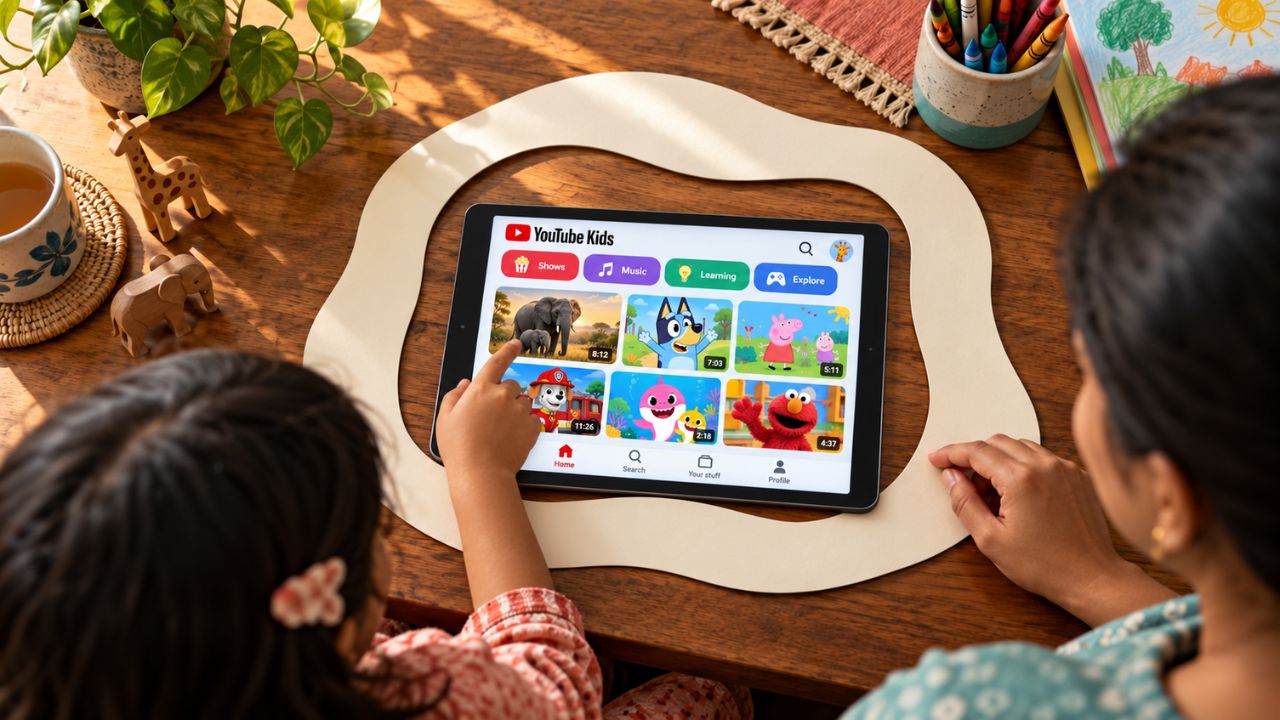
When we set parental controls on my nephew’s YouTube Kids account, choosing an age range felt like the obvious first step. But I also wanted to know what he could watch after that first video. Could he search for something else? Would another video start automatically? What could he open on the same device?
YouTube Kids parental controls work best when you answer those questions together. For the tightest control, use Approve content yourself to select what your child can watch. If you want them to explore a wider selection, consider turning Search off. Then disable autoplay, set a viewing limit, protect the settings, and check any TV or shared device they use.
YouTube Kids offers a smaller, filtered selection than regular YouTube. It is still possible for a child to encounter a video you would not have chosen. The aim is to narrow that possibility and make sure your child knows they can come to you when something feels wrong.
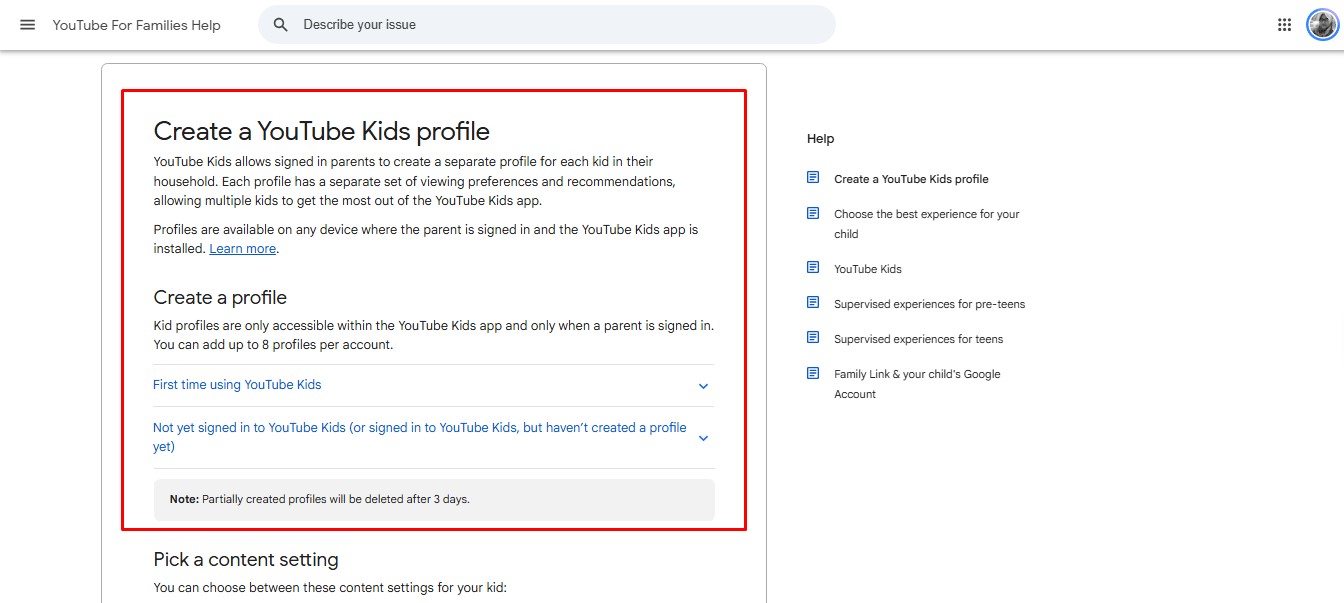
Start with the right YouTube Kids profile
YouTube Kids has three age-based content settings: Preschool for ages 4 and under, Younger for ages 5–8, and Older for ages 9–12. These settings change the range of videos a child can find. They are useful starting points, but an age label cannot account for every child’s interests or sensitivities.
Check which profile is open before changing its settings. If siblings share a device, set up a separate profile for each child. YouTube Kids allows profile switching, so it is also worth looking at the profile selection screen from your child’s side. An older sibling’s profile may offer access to videos you did not intend for the younger one.
To change a profile in the YouTube Kids app, tap Settings and complete the parent challenge or enter your custom passcode. Select your child’s profile, enter the parent account password if asked, and open EDIT SETTINGS. The wording or position of a menu may vary slightly by device.
Choose between a filtered catalogue and videos you approve
This is the most important choice in the setup. The three age settings filter a broader selection of YouTube Kids videos. Two additional controls let you narrow that experience:
| Choice | What your child can do |
| Search off | Watch videos available through the Kids experience, but cannot search for new ones. Recommendations may still appear. |
| Approve content yourself | Watch videos, channels, and collections you select. Search is unavailable. |
If you want to decide exactly which videos are available, approve individual videos. Approving an entire channel or collection is broader: it gives your child access to more than the one video that first caught your eye.
To turn on Approve content yourself, open Settings in the YouTube Kids app, enter the parent area, choose the child’s profile, and go to EDIT SETTINGS → Approve content yourself. Follow the prompts to select content, then preview what the child’s profile will show. You can return to manage the approved list as their interests change.
Check the Shared section as well. A parent using a linked account can share a video from regular YouTube into YouTube Kids. Some shared videos would not otherwise appear in the Kids selection, and they remain available until you remove or block them. Treat a shared video as another approval decision, even if it came from someone in the family.
Turn Search off if your child needs a smaller selection
An approved-only list will not suit every family. If your child is ready for more choice but you do not want open searching, turn Search off in their YouTube Kids profile settings.
This prevents searches within YouTube Kids. It does not mean your child will see only videos you personally selected. They can still find content through the available catalogue and recommendations. That difference is easy to miss, so check the home screen after you make the change.
Before switching Search off, review anything you want to see in Watch it again. YouTube Kids clears the profile’s watch and search history when Search is turned off, and its recommendations and recently watched section are reset.
Stop autoplay and set an end to the session
It is easier to choose a stopping point before a child presses Play. Turning off autoplay also keeps the next video from starting simply because the current one ended.
From the linked parent account in the regular YouTube app, go to You → Settings → Family Center, select your child’s profile, and switch Disable autoplay on. While that parent setting is active, the child cannot turn autoplay back on.
The YouTube Kids app also has a session timer. Open Settings → Set Timer, choose a duration, and start it. When time runs out, the app displays a message and locks until a parent unlocks it. This is a control for that app session; the YouTube Kids website does not have the same built-in timer.
Choose a limit that fits your family’s routine rather than searching for one perfect number. Sleep, play, reading, meals, and time together still need room in the day. With my nephew, I see a clear end to viewing as part of the safety setup, not just a way to count minutes.
Put a passcode on the parent settings
YouTube Kids uses a multiplication challenge to open its parent controls. You can replace it with a four-digit custom passcode by opening Settings, completing the challenge, and tapping Create passcode.
Keep the code private. It protects access to YouTube Kids settings, but it does not lock the whole phone or tablet. YouTube also says a forgotten app passcode can be reset by uninstalling and reinstalling the app. Check the device’s own controls if you need to manage app installation or access to other video services.
On a managed Android device or Chromebook, Family Link can help set app and device time limits. On an iPhone or iPad, Apple’s parental controls can manage apps, websites, and screen time. These controls serve a different purpose from the settings inside YouTube Kids.
Check the TV and any other route to regular YouTube
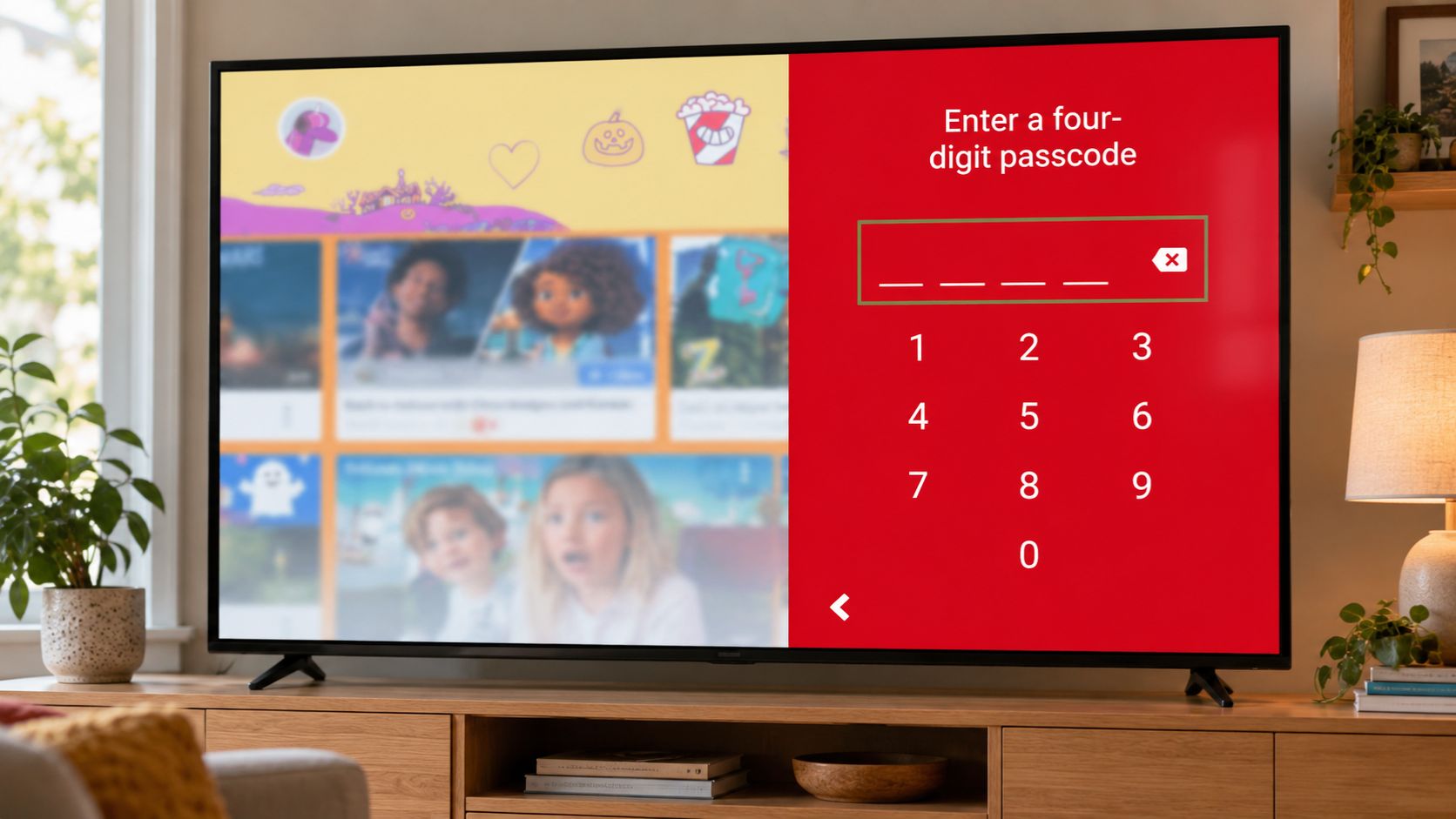
A carefully configured child profile will help only when that is the profile your child actually uses. On many TVs, YouTube Kids opens through the regular YouTube app. Look at the account selection screen and check whether an adult account or signed-out YouTube session is easy to open.
In the YouTube TV app, Settings → Parent code lets you create a separate four-digit code. It helps prevent signed-out viewing and access to accounts meant for older household members on that TV. The TV code does not apply to the child’s phone or tablet.
Make the same practical check on a shared mobile device. Can your child leave YouTube Kids and open regular YouTube or a browser? A timer or passcode inside YouTube Kids does not control those routes. Device-level restrictions may be needed if your child uses the device independently.
Review what they watched without turning it into an interrogation
On a phone or tablet, Your stuff → Watch it again shows videos recently viewed in YouTube Kids on that device. A quick look can reveal a new interest, a channel you want to review, or something you would rather remove.
There are limits to that view. It is not a complete record across every device. Videos watched while watch history is paused will not appear there, and clearing history removes that recent-viewing reference. Decide which history settings fit your privacy preferences and how you plan to keep an eye on content.
If you find a video you do not want your child to watch, open its More menu and block the video or the entire channel. Blocking a channel does not block copies uploaded by someone else. Content blocked while you are signed in can also become available in a signed-out session.
If a video seems unsuitable for YouTube Kids generally, use More → Report from its watch page and choose a reason. When you report while signed in, that video is also blocked in your YouTube Kids experience.
Most of all, ask your child what they saw. If something frightened or confused them, stop the video and listen first. A child who expects help is more likely to speak up the next time.
Do not mistake “for kids” for “ad-free”
The free version of YouTube Kids can show paid ads before videos. They are labelled and subject to YouTube’s rules for the app. YouTube Premium removes those paid ads in YouTube Kids, but it does not mean every video will be free of products, brands, or commercial appeal.
Watch some of the content your child enjoys. Does the video tell a story, teach something clearly, or encourage play and curiosity? Or does it mainly keep drawing attention to products? Talking about that difference is useful even with a young child.
YouTube Kids also differs from a supervised account on regular YouTube. Regular YouTube has a much larger selection. Depending on the supervised account’s content setting, a child may be able to read comments there. YouTube Kids itself has no public comments or private messaging. Check which experience is open instead of assuming that every child profile works the same way.
Keep checking as your child grows
The controls we set for my nephew are a starting point. A child’s interests change, new videos appear, and the devices they use can change too. I would revisit the approved list, glance at the home screen, and check the TV and shared devices whenever the family’s viewing routine changes.
Give your child one rule they can remember without finding a settings menu: if a video feels strange, scary, or uncomfortable, stop watching and tell an adult. That habit matters when a filter misses something, and it keeps the conversation open.
Common questions about YouTube Kids parental controls
Is YouTube Kids completely safe?
No filter can guarantee that every video will suit every child. YouTube Kids narrows the selection, while approved content, device controls, and an involved parent provide more protection together.
Is turning off Search the same as approving videos?
No. Search off prevents searching within YouTube Kids, but your child can still see videos from its available selection and recommendations. Approve content yourself is the option for choosing what is available.
Can I block a whole channel?
Yes. From a video’s More menu, you can block that video or its channel. Similar videos and copies on other channels may still appear.
Does the YouTube Kids timer also stop regular YouTube?
No. It ends a session in the YouTube Kids app. Use device-level controls to manage other apps and websites your child can open.
Can I remove all ads with YouTube Premium?
Premium removes paid ads from YouTube Kids. You should still review videos for product-focused or promotional content that may not appear as a labelled paid ad.