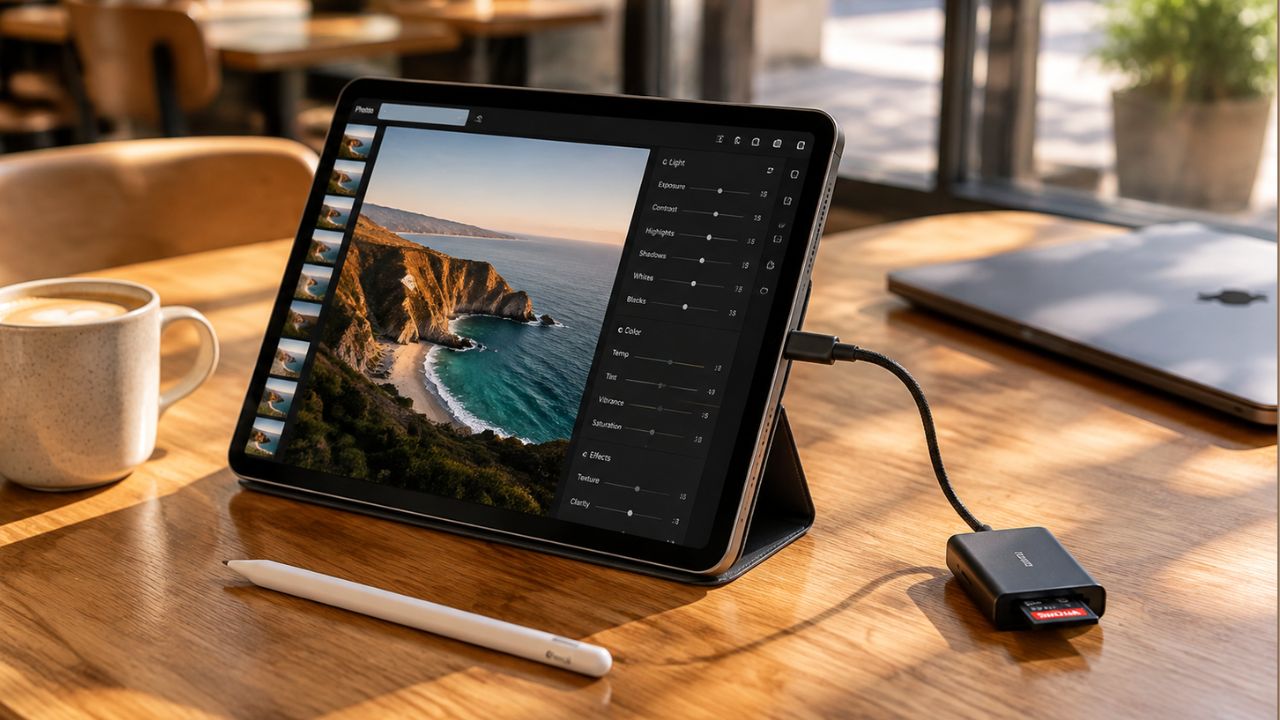
30 days was the test I set for myself. Could I replace my Laptop with an iPad and Digital Pencil for Daily Media Management and keep my routine going? I shut the MacBook and reached for the tablet instead. No more dragging a heavy laptop to client meetings or to the coffee shop where I handle half my photo work.
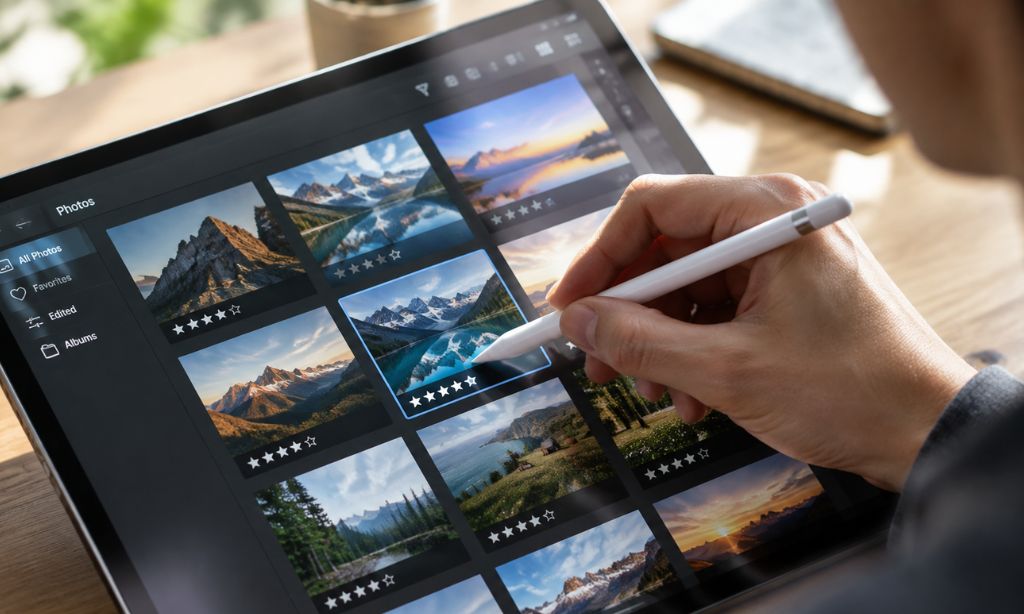
Sorting photos felt quick and satisfying, and the pencil beat my trackpad for star ratings. Basic edits and cloud backups went off without a hitch. Curating on the move turned out to be intuitive, thanks to that tactile feel.
The limits showed up fast. Complex batch file operations stopped me cold, and anything command-line sent me straight back to the MacBook. When layered client requests arrived at once, the rigid multitasking pushed back hard.
Week One: The Setup That Almost Made Me Quit
A weekend shoot on day one burned two minutes on the MacBook. On the iPad, the same import turned into a lesson in patience.
What I Needed Before Day One
Here’s what the month actually required:
- iPad Pro with an M4 chip
- Apple Pencil and Magic Keyboard
- 200GB of iCloud storage
- Lightroom for iPad
- Apple Photos and the Files app
- A digital planner to track my workflow
Sitting between the base model and the Pro, the iPad Air with Apple’s M-series chips lands in the middle, and I nearly went that route. The M4 performance claims for the Pro pulled me up a tier, and I figured 200GB would stretch far enough for a month of photos. Plenty of people reach for their iPad all day just to plan.
Hardware caused me no trouble. Software did. Whether an iPad can replace a laptop comes down to this: some people, some tasks, significant compromises. Which category I fell into was still an open question.
The First Roadblocks: Files, Importing, and Photo Dumping
I plugged in the SD card reader and waited. The import itself was fine — Photos handled everything without complaint. Then came the sorting, and dragging batches around the way I do on macOS simply didn’t work.
The Files app has come a long way, but it still treats many external drives as read-only. My workaround meant importing into Photos first and moving files from there, which added steps I never had on the laptop. By day two I was asking myself whether the portability was worth the workflow tax.
How I Adjusted the Workflow by Day Seven
Something clicked about a week in. Instead of forcing the iPad to behave like macOS, I worked inside its own logic. Photos replaced Finder as my main sorting tool. The Pencil turned into a culling weapon, letting me tap through shots faster than any trackpad ever did. Manual backups at night disappeared, since iCloud synced on its own.
Apple Notes with the Pencil handled quick to-dos and stray ideas. Handwriting on a screen gave me digital organization without losing the pen-on-paper feel. Reaching that point cost about three hours in the first week alone.
What Works When Replacing a Laptop with an iPad and Digital Pencil for Daily Media Management?
Speed didn’t come on its own. Touch input takes practice before it beats a mouse, and my first few days went into re-learning moves I’d done on autopilot for years. Real speed only arrived once I settled into the DigitIpad for Daily Media Management workflow.
| Media Task | iPad Performance | Laptop Performance |
|---|---|---|
| Sorting, Culling & Rating Photos | Faster than a trackpad with the Apple Pencil; more accurate; one motion for zooming and marking shots | Slower and less accurate with a mouse or trackpad |
| Quick Edits & Touch-Ups | Handles daily adjustments well; the M4 processes raw files without lag; fine for quick turnaround edits | Better for precision masking, layer-based work and deeper retouching |
| Backups, Cloud Sync & Client Deliveries | Automatic iCloud syncing works quietly; cloud shares work fine; batch renaming is hard and slows me down | Batch operations fast (seconds); easy folder packing and file renaming |
Sorting, Culling, and Rating Photos with the Pencil
Hundreds of images went past my thumb in one sitting. I flagged, rejected and rated them in Apple Photos without lifting my hand off the screen. The Apple Pencil gave me the precision to keep up. It has improved every year since its 2015 debut with the original iPad Pro. During a large cull, the stylus felt faster and more accurate than any mouse.
Zooming in and marking a shot took a single motion, with no tool switching in between. Touching the photos directly felt more natural than pointing at them through an interface. That direct contact made sorting a huge shoot much less tiring.
Quick Edits and Touch-Ups Without a Laptop
Lightroom for iPad covers my daily adjustments well. Raw files process without lag on the M4 chip, and exposure fixes or spot removal are easy. A year-long test of the 13-inch iPad Pro M4 showed the same steady performance I saw in my own 30 days.
Detailed retouching quickly exposed the operating system’s limits. Precision masking and layer-based work are where it falls short, and Lightroom on iPadOS lacks certain desktop features. Jumping between separate editing apps wasted time. Quick turnaround edits for same-day delivery went fine, but deeper retouching made me miss my desk setup.
Backups, Cloud Sync, and Client Deliveries
Direct file management got hard at client handoff. Cloud storage ran quietly in the background, with automatic iCloud syncing and Google Drive as a safety net.
Email and cloud shares caused no trouble on iPadOS. Batching was the headache. On macOS I can pack folders and rename dozens of files in seconds; the iPad resisted simple batch renaming. I renamed files in the Photos app before export to bridge the gap, which added extra steps.
Where the iPad Still Falls Short
Some jobs run into software walls long before the hardware has anything left to give. The iPad Pro M4 can match or beat plenty of premium laptops on raw speed, so the edges that show up come from iPadOS and its apps rather than from the chip inside.
The Tasks That Sent Me Back to a Laptop
Within those 30 days, a handful of jobs pushed me back to macOS. One editor wanted a rigid folder hierarchy with custom file names, and the Files app simply could not match the quick batch tools in Finder.
Working side by side showed the same kind of strain. An email thread sitting next to a photo gallery in Lightroom felt cramped, because iPadOS split-screen gives you less breathing room than laptop windows do. You can park a third app on top of the two, but the layout still cannot match freely arranged floating windows.
Coding and command-line utilities are an absolute barrier. If a media workflow touches simple web publishing scripts or terminal commands, it still belongs on a full computer.
Multitasking, Storage, and Peripheral Limitations
Heavy production routines expose the multitasking limits right away. Stage Manager helps with app switching, and two active windows feel comfortable. Three or more turn clumsy fast.
Local drive space caused headaches all through the test. My 256GB model filled up quickly, and one weekend of raw photo shooting ate into it. A second event that month would have maxed it out. External solid-state drives connect fine, though iPadOS handles external volumes differently than macOS and moves files at slower speeds.
Accessory support stays uneven. A standard card reader and an external monitor ran without incident, but dedicated color-calibration pucks will not run at all, because their calibration software does not exist on iPadOS.
Who Should Skip This Experiment Entirely
If you edit complex video projects, this switch is probably not for you. Tablet video software handles quick cuts with ease but lacks the depth of desktop suites like Premiere or DaVinci Resolve.
Stay with a traditional computer if your work relies on terminal access and strict file export rules. For daily media management, the tablet suits visual creators whose storage lives entirely in the cloud.
People call the iPad “a must-have” for visual and creative work, especially handwritten notes or studying visual subjects. That label fits tactile creative tasks better than it fits the technical demands of final production.
Can an iPad Replace a Laptop for Remote Work?
Email and video calls hold up fine on the iPad, and document editing works just as well. Cloud tools act the same as they do on any other device, so the basic remote-work stack runs without changes.
The limits show up when you need desktop-class software or try to run a terminal. Juggling many windows at once still fights you.
How to Use iPad as Laptop Replacement
Start with an iPad Pro or iPad Air that runs an M-series chip, then add a keyboard. An Apple Pencil earns its place too. Install the iPad versions of your core apps and move your files to cloud storage.
Then spend time learning the iPadOS file system and the multitasking gestures before you commit. Run it as your main machine for one week and see what breaks.
Can the New iPad Replace a Laptop?
The M4 chip has narrowed a gap that software keeps open. Hardware is no longer the problem. iPadOS is, because it still blocks some desktop-class workflows.
Your work decides the answer, and if your tasks fit inside what iPadOS allows, they will run beautifully. Faster chips cannot fix what the system will not allow.
What Actually Works on iPadOS for Media Tasks?
Photo sorting works well here, and basic edits are smooth. Cloud backups happen quietly in the background, and client deliveries go out through web links without fuss. The Apple Pencil adds a kind of precision in culling and retouching that a trackpad simply cannot match.
Batch file operations do not work, and terminal tools are out entirely. Running multiple full desktop apps side by side remains impossible.
What to Do Next
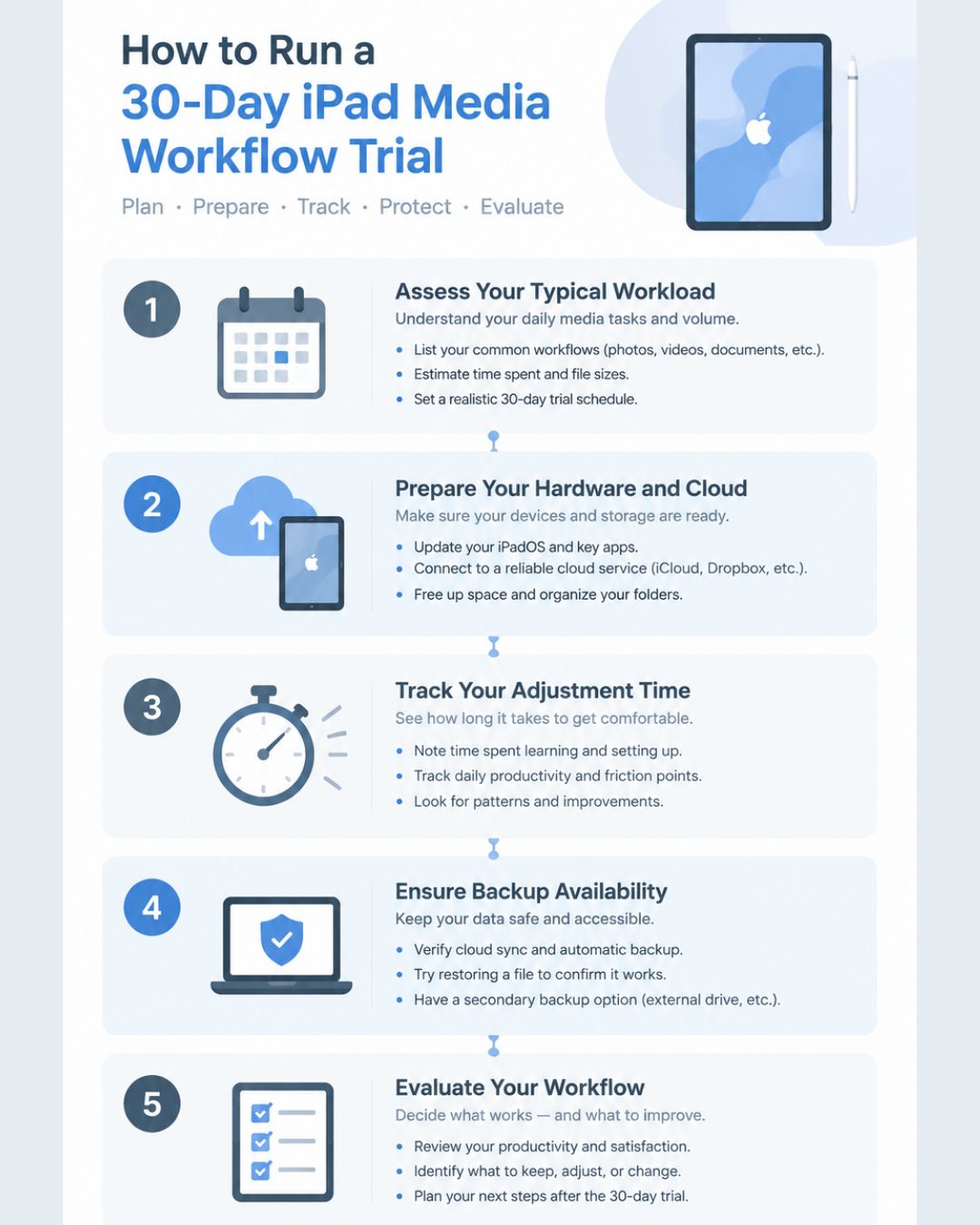
Run a 30-day trial of your own before you decide anything. Pick a month when your workload is typical, not your busiest season, and get the hardware and software in place first. Set up cloud storage before day one.
Track the hours you spend adjusting how you work, because week one will cost you. If your work is photo-forward and cloud-based, the iPad will likely feel faster for sorting and culling, and good enough for quick edits. The laptop stays within reach for what iPadOS cannot do.
Frequently Asked Questions
Can an iPad replace my laptop for photo editing and media management?
Sorting sessions start on the tablet now. The M4 processor works through raw camera files without slowing down, and culling an intake album feels quick.
Batch file management still sends me back to a desktop. Layered video on a heavy timeline hits the ceiling of what tablet software can manage. You get speed on the go, and you give up some desktop freedom.
What iPad do I need to replace a laptop?
An M-series iPad Pro or iPad Air with a keyboard carries enough power to match premium notebooks. Before you switch, load your key tablet apps and link your cloud drives early.
How long does it take to adjust to working on an iPad instead of a laptop?
The first three days felt awkward. Week one brought plenty of backtracking and dead ends, maybe an afternoon of wasted effort or more. Progress came only once I stopped copying desktop habits and worked the way the tablet wants you to work.
What tasks still require a laptop instead of an iPad?
If your job runs on a terminal, plan on keeping a laptop at your desk. Command-line tools won’t run on iPadOS, and a full desktop operating system is the only option. Custom code builds need a traditional machine, too.
Monitor calibration for color-accurate work also needs a laptop or desktop setup, and so does handling exact file export structures. Renaming dozens of assets at once, or spreading overlapping windows across a few screens, turns into a fight on tablet software.