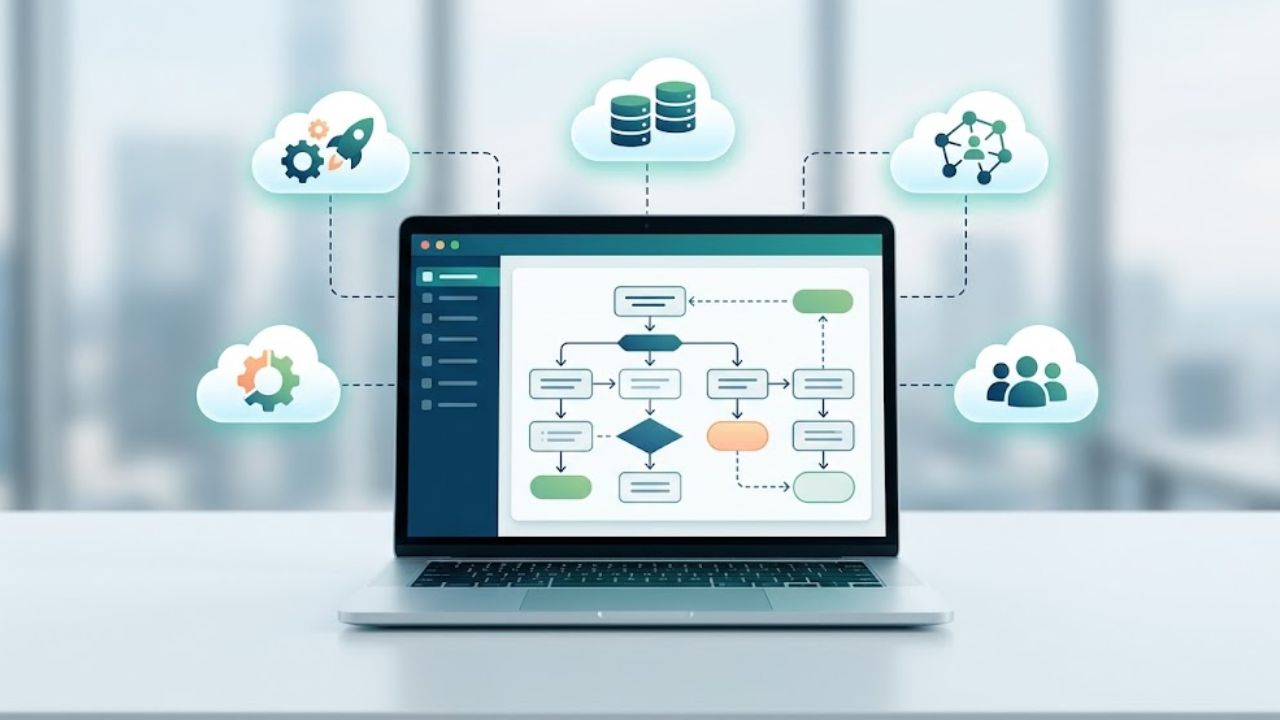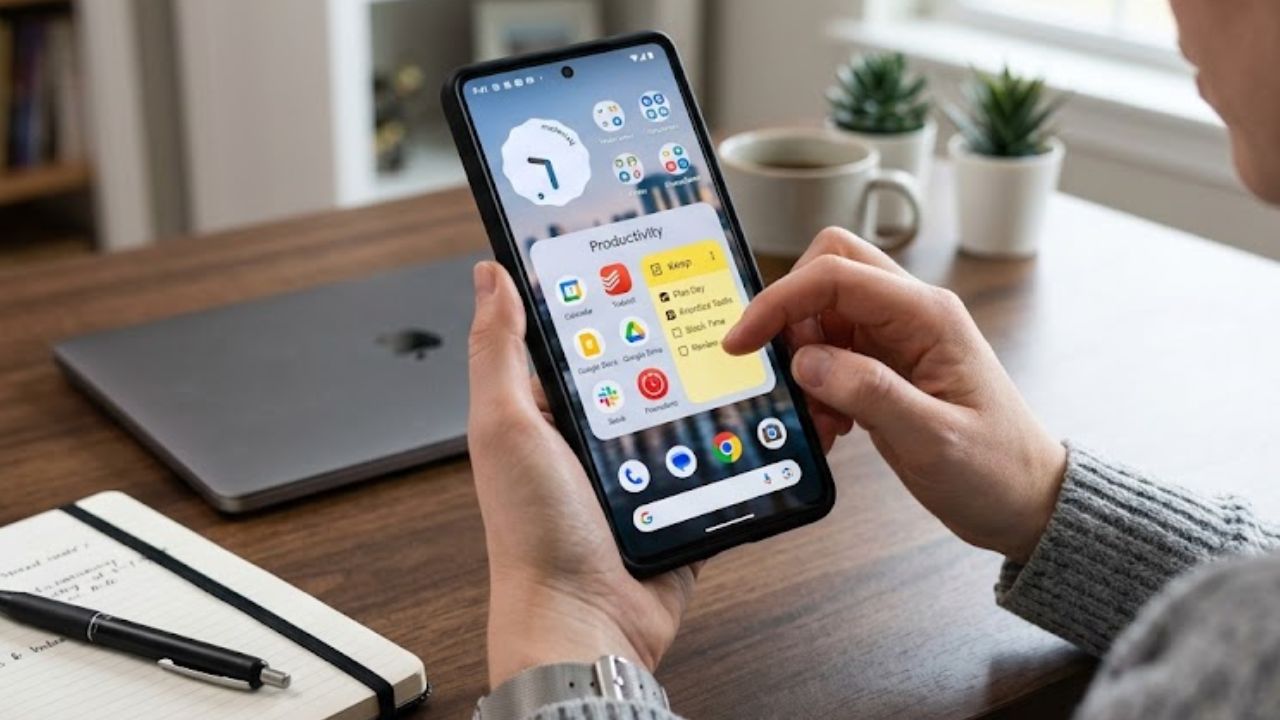
A productivity stack on Android is a connected set of apps for managing tasks, calendars, notes, files, communication, focus, and automation. The best setup gives each type of information one trusted home, so an email becomes a task, a deadline appears on the calendar, and a document stays easy to find.
You do not need dozens of apps. Start with one task manager, one calendar, one notes app, and one file service, then add focus controls or automation when they solve a repeated problem. This guide explains the eight components that make the system practical, secure, and easier to maintain.
Before Building a Productivity Stack on Android
Start with the accounts already in use. Google’s apps are usually the lower-friction choice for someone working in Gmail. In a Microsoft 365 workplace, a separate Google workflow may create duplicate calendars, task lists, and file stores.
Before installing anything, settle four decisions:
- One place for actionable tasks
- One calendar that reflects real commitments
- One home for notes and reference material
- One service holding the main copy of important files
All-in-one apps are often overrated for beginners. Familiar tools are easier to maintain. Add a specialist app only when a repeated limitation is clear enough to name.
8 Parts of a Productivity Stack on Android
1. One Task Manager
For any productivity stack on Android, the task manager is the control point. Follow-ups, assignments, errands, and project actions should land there even when they begin in email, chat, or a meeting note.
Google Tasks is a practical default for Gmail and Google Calendar users. It syncs across devices, supports details and subtasks, and works within several Google products. Administrators can control access on work and school accounts, so a missing Tasks panel may be a policy issue.
Keep the structure modest. An inbox plus Work, Personal, and Waiting lists will serve many users. Advanced tools become worthwhile when shared ownership, filters, or project views solve a real problem. More labels alone rarely improve follow-through.
2. One Main Calendar
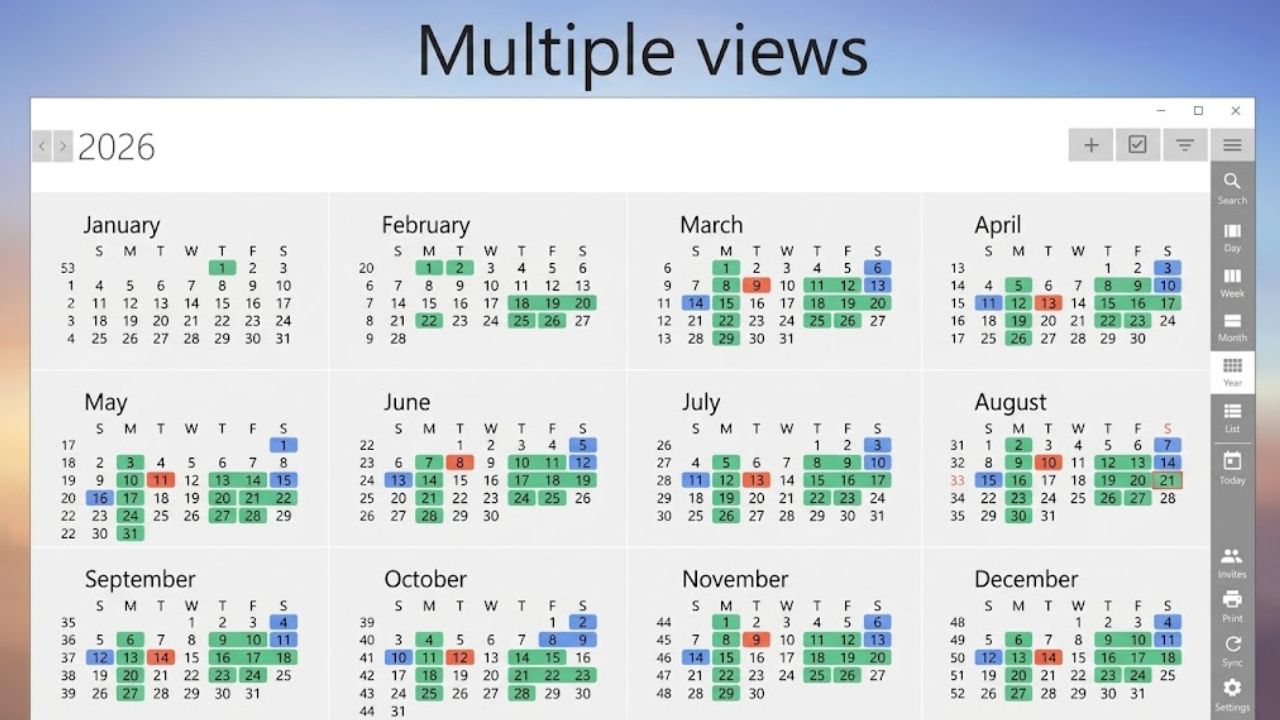
A task list records what needs attention. A calendar shows what can fit into Tuesday afternoon. Use events for appointments, travel, meetings, and blocks of work that need protection. “Dentist at 3:00” belongs on the calendar. “Research new accounting software” can stay in the task manager until time is reserved for it.
Google Calendar can create and manage Google Tasks on Android, but a task needs a date before it appears on the calendar. Avoid scheduling every small action. A day divided into tiny blocks becomes unreliable after one delayed call.
3. Notes and Quick Capture
Notes should hold information, not become a second task list. Meeting records, ideas, checklists, and project background belong here. Move any hidden action to the task manager.
Google Keep supports labels, colors, and pinned notes, making it useful for quick capture. Its reminder behavior has changed: reminders moved into Google Tasks, and Keep no longer delivers their notifications. Calendar or Tasks must be installed with notifications allowed. Location-based Keep reminders are also unavailable.
Use Keep for the note and Tasks for the obligation. Review captured notes, then delete, archive, organize, or turn them into actions. Otherwise, the capture inbox becomes another forgotten archive.
4. File Storage and Offline Access
The file layer of a productivity stack on Android needs one default home: Google Drive, OneDrive, Dropbox, or an employer-approved service. Treat device storage as a temporary landing place, not the only copy of important work.
Avoid a maze of folders. A shallow structure for active work, reference material, and archives is easier to search. 2026-09 client proposal is more useful than final new 2.
Google Drive on Android can make selected files, including Docs, Sheets, and Slides, available offline. Mark essential documents before travel, class, or a presentation. Quick Share can move files between nearby Android and Windows devices, but it is a transfer tool—not synchronization or backup. Check its current Windows requirements and country availability before relying on it regularly.
5. Communication Boundaries
Employers, clients, and classmates often decide which communication apps must be used. Adding another rarely improves matters. Process messages instead. Reply when a short answer is enough. If a message creates later work, make a task with enough context to recover the conversation. Starred emails and unread chats are poor task systems because new messages continually push them out of view.
Android can control notifications by app and, when supported, by category. Keep alerts for direct messages, calls, calendar changes, and urgent work. Silence reactions, promotions, and routine channel traffic. Menu names vary by phone and Android version.
6. Focus and Notifications
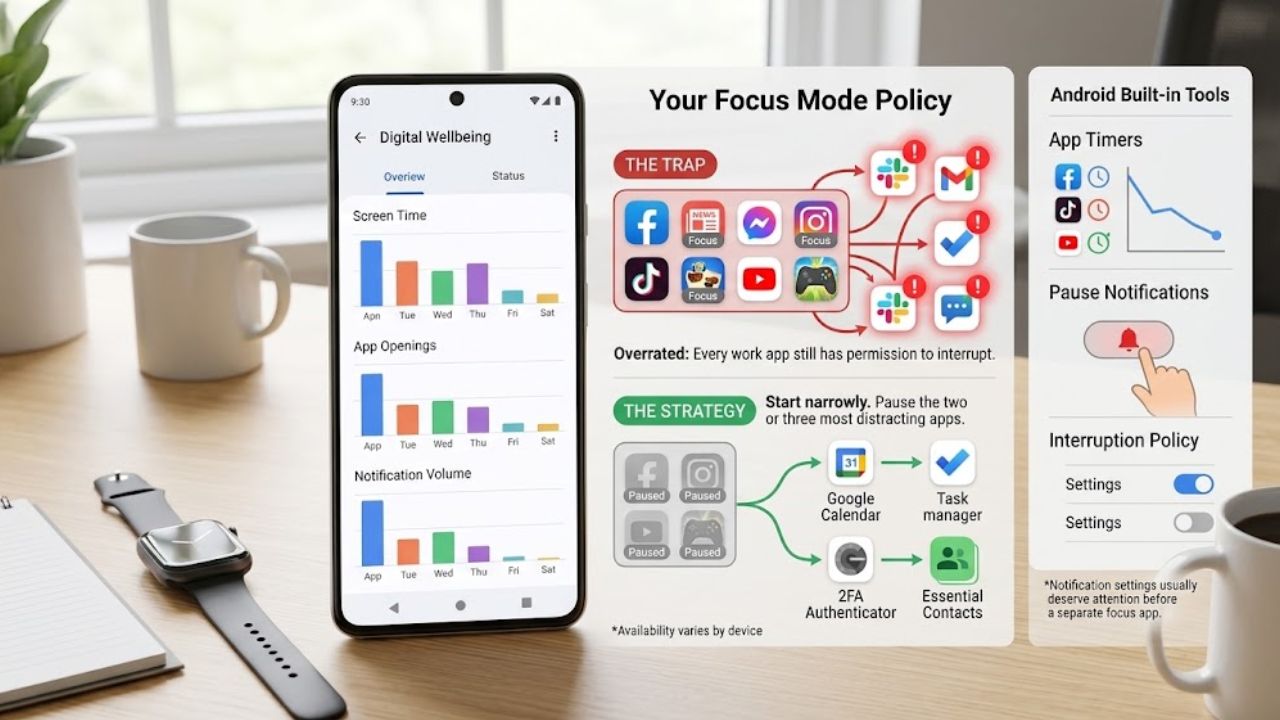
A productivity stack on Android also needs an interruption policy. Digital Wellbeing can show screen time, app openings, and notification volume on supported devices. Focus mode pauses selected apps and their notifications, while app timers limit daily use.
Start narrowly. Pause the two or three apps that repeatedly pull attention away, but leave the calendar, task manager, authenticator, and essential contacts available. A focus app is overrated if every work app still has permission to interrupt.
Availability varies by device, and some work or school accounts may not work with app timers. Notification settings usually deserve attention before a separate focus app does.
7. Useful Automation
Automation should remove a repeated step from a workflow that already makes sense. It cannot rescue a disorganized system. On supported Galaxy devices, Samsung Modes and Routines can trigger actions such as changing interruption settings or restricting apps. Availability varies by device and software version. MacroDroid and Tasker suit people willing to maintain detailed workflows; most readers should start with their phone’s existing controls.
Two sensible first automations are:
- Enable work or study focus at a fixed time.
- Reduce interruptions and screen brightness at bedtime.
Review every requested permission. Contacts, files, location, calendar, and notifications expose different information. A routine that cannot be explained clearly is probably too complicated to trust or maintain.
8. Backup and Security
A well-organized system is fragile if losing the phone means losing the work. Turn on Android backup, confirm the receiving account, and inspect the details. Not every app can back up or restore all settings and data.
Standard Google device backup is unavailable in some work-profile, work-only, and company-owned setups. Business users should follow their organization’s approved recovery process.
Use a strong screen lock, keep recovery information somewhere other than the phone, and review app permissions. Check that critical notes and files can be reached from another device. Synchronization does not guarantee recovery from deletion or file damage.
Final Thoughts
Build a productivity stack on Android one decision at a time. Choose the task inbox and main file location first, then use the system for a week before adding anything else. A useful stack should make the next action easier to find. If maintaining the setup becomes a project of its own, it is too complicated.
Frequently Asked Questions (FAQs)
How many apps should a productivity stack on Android include?
There is no useful fixed number. Start with one tool each for tasks, calendar, notes, and files. Keep the communication apps already required, and use built-in focus controls before installing more software. One app may cover two roles, which is fine as long as each type of information still has a clear home.
Should Android users choose Google or Microsoft apps?
Choose the ecosystem used by the people and computers involved in the work. When switching, set a cutoff date and move outstanding tasks or files rather than keeping two systems active indefinitely. A short transition is less confusing than permanent duplication.
When should the setup be reviewed?
Review it after the first couple of weeks, then every few months or after a major change in work or study. Look for tasks captured twice, files saved in competing locations, notifications routinely ignored, and apps that have no clear job. Those are better reasons to simplify than an impressive feature list is to add something new.