Ever tried explaining a tricky software trick to a friend over the phone, only to end up frustrated because words just don’t cut it? You’re not alone. Many folks, from teachers to marketers, hit this wall when creating tutorials or demos.
They struggle to show steps clearly, leading to confusion and wasted time. Imagine fumbling through a demo, like trying to describe a dance move without showing it, yeah, that never ends well.
Did you know screen recording tools support multiple input sources, including screen capture, webcam footage, and audio narration, for full video content creation?
This post breaks down the best options, like OBS Studio, Loom, Camtasia, and more, with their features, pros, and cons to match your needs. We’ll cover tools for Windows, Mac, Linux, even Chrome extensions, to boost your video tutorials and product demos.
Ready to level up your content game?
Why Use Screen Recording Tools for Tutorials and Demos
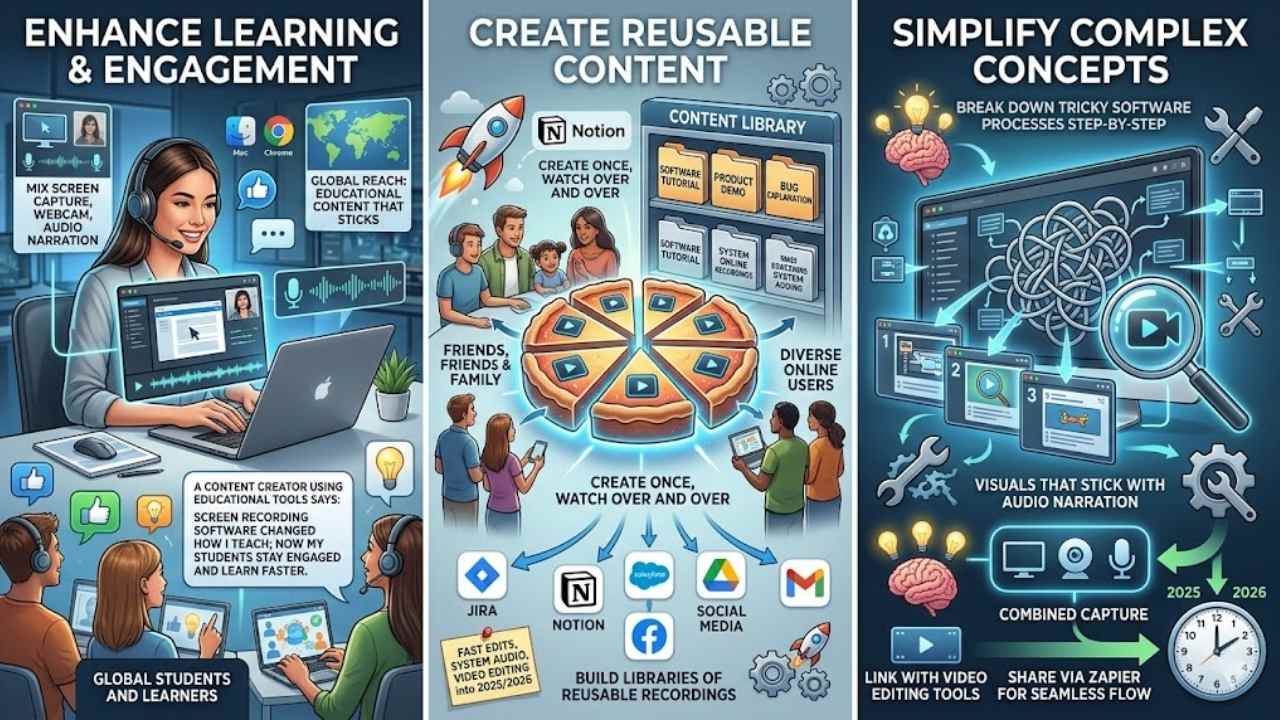
Imagine trying to explain a tricky software trick over the phone, yeah, it’s like herding cats without a video to show every step. Screen recorders turn those head-scratchers into clear tutorial videos that folks can watch again and again, boosting their grasp and keeping them hooked, so why not grab one and make your demos pop?
Enhance learning and engagement
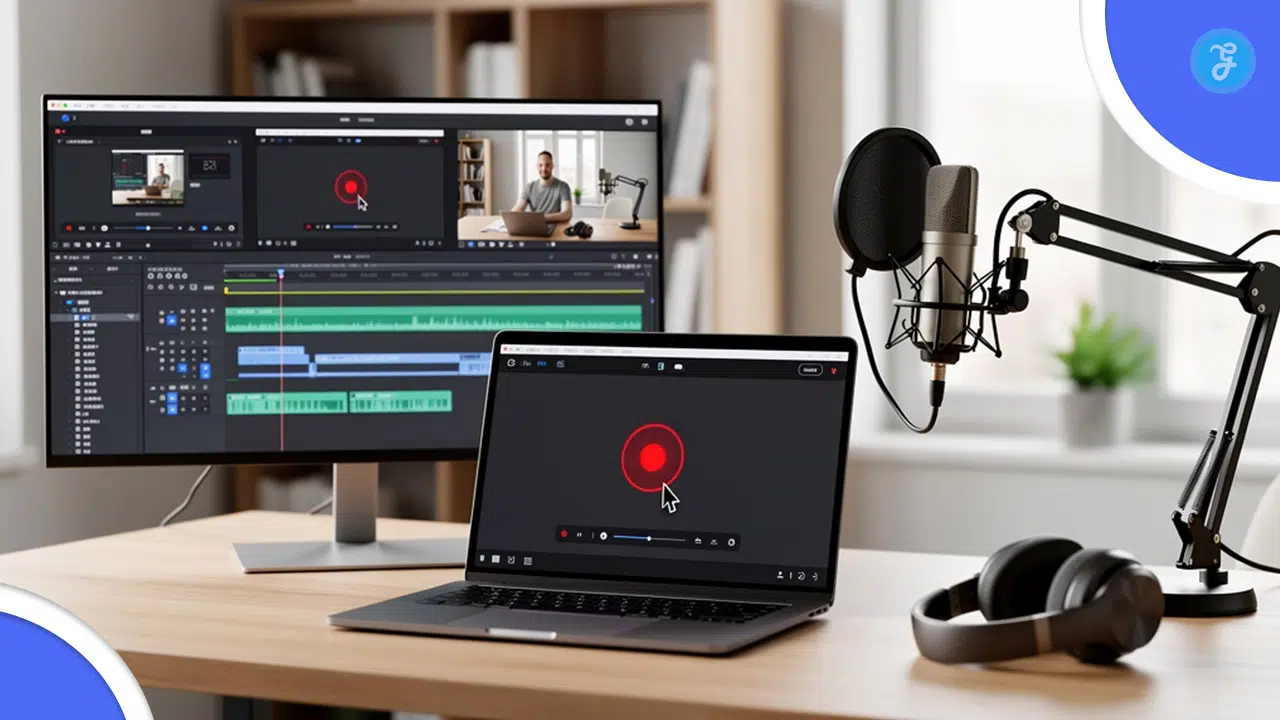
Screen recording tools boost learning by making tough ideas easy to grasp. Content creators use them to mix screen capture, webcam footage, and audio narration for full video content.
This setup draws viewers in, like a teacher who points and explains right on screen. Online screen recorders help people worldwide craft tutorial videos and educational content that sticks.
They act as must-have aids for high-quality demos, keeping audiences hooked with clear steps.
Tella stands out as a modern pick with its Mac app and Chrome extension for smooth work. Tools like these evolve fast, bringing fresh options into 2025 and 2026. Creators add voice comments and webcam shots in apps such as DemoAir, a cloud-based choice for quick captures.
Screencastify grabs screen, webcam, and audio at once for sales chats or lessons. These user-friendly interfaces turn complex topics into fun, engaging sessions.
Screen recording software changed how I teach; now my students stay engaged and learn faster, says a content creator using educational tools like Loom.
Create reusable content
You make tutorials once, and people watch them over and over. Think of it like baking a pie that never runs out; share it with friends, family, or even strangers online. Content creators love this trick because screen recording tools let you capture screen activity, add voice commentary, and mix in webcam footage for that personal touch.
Tools like Tella, with its Mac app and Chrome extension, streamline the process, making videos feel fresh every time. DemoAir, a cloud-based Chrome extension, helps you grab those moments quickly.
Online screen recorders, used by folks worldwide, turn complex ideas into simple, shareable clips.
Screencastify captures screen, webcam, and audio all at once, perfect for video messaging or sales pitches. Imagine explaining software bugs in Jira or sharing tips via Gmail; these recordings stick around in Notion or Salesforce for teams to revisit.
The best options, researched deeply, include features like intuitive interfaces and keyboard shortcuts for fast edits. As tools evolve into 2025 and 2026, they support system audio and video editing, boosting user experience.
Productivity soars when you build libraries of reusable screen recordings, ready for social media or Google Drive.
Simplify complex concepts
Screen recording tools turn tough ideas into easy bites. Imagine breaking down a tricky software process, step by step, with visuals that stick. Content creators grab screen capture, add webcam footage, and layer in audio narration for clear guides.
Tools like DemoAir, a cloud-based Chrome extension, let you mix voice commentary with recordings, making concepts pop. This setup boosts learning, as folks worldwide use online screen recorders for tutorials.
Picture a demo where complex tech feels like a walk in the park. Screen recording software, a must-have for creators, optimizes educational content through 2025 and beyond. Grab options like Screencastify for simultaneous screen, webcam recording, and audio capture.
Pair it with video editing tools or share via Zapier for seamless flow. Educators simplify knots with these, turning demos into reusable gems that engage everyone.
Best Screen Recording Tools for Tutorials and Demos
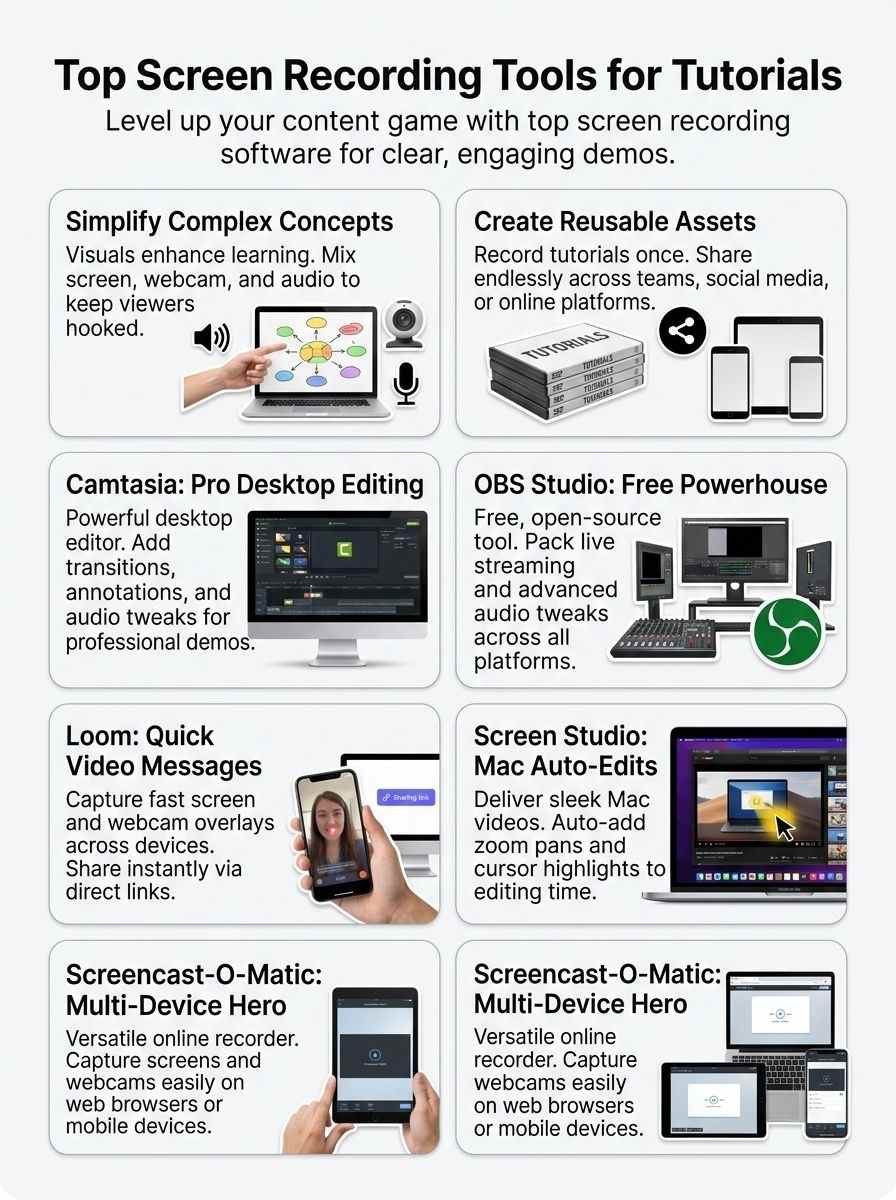
Content creators need top tools to make tutorials pop. They grab screen capture, webcam footage, and audio narration for full videos. Online screen recorders help people worldwide build essential content.
Think of them as your secret weapon for high-quality demos. Tools like Tella shine with a Mac app and Chrome extension that keep things smooth and easy. DemoAir acts as a cloud-based option, a Chrome extension that captures screen activity fast.
Add voice commentary and webcam footage with DemoAir to boost those recordings. Experts have researched the best screen recording software, checking features, strengths, and uses in detail.
These tools optimize for tutorial videos and educational stuff. The field keeps changing, with fresh tools popping up through 2025 and 2026.
Screencastify grabs screen, webcam, and audio at once for sales and chats. Every creator grabs screen recording software to craft demos that stick. Tools support multiple inputs for complete creation.
Try Screen Studio on macOS for crisp results, or Hippo Video for sharing vibes. Productivity tools like QuickTime Player offer basic screen recording features. Screenpal and Wondershare DemoCreator fit video editor needs.
Vidyard and Zight handle video sharing well. Debut Video Capture from NCH Software suits video capture tasks. Panopto and Screenapp.io boost video conferencing. Descript edits with ease.
Zappy works on iPad, while CloudApp and Dropbox Capture simplify shares. Vimeo Record integrates with Slack and Calendly. ShareX covers basics on Windows.
Camtasia (Windows, Mac)
4. Camtasia (Windows, Mac): Imagine turning your screen into a movie set where you direct tutorials with ease, thanks to this video editor that packs in transitions, annotations, and audio tweaks for pro-level demos on your PC or laptop—stick around to catch its full features, pros, and cons.
Features & Description (Camtasia)
Camtasia stands out as a powerful tool for screen recording on Windows and Mac. It lets you capture your screen with ease, add voice commentary, and include webcam footage for that personal touch.
Creators love how it simplifies complex concepts into clear tutorials. Think of it like a trusty sidekick that turns your ideas into engaging demos. This software supports multiple input sources, such as screen capture, audio narration, and video from your camera.
People use tools like Wondershare DemoAir for similar cloud-based captures, but Camtasia offers strong editing right on your desktop. It changes with the landscape of screen recording software, staying fresh through 2025 and 2026.
Content creators find it essential for high-quality work.
Folks across the world rely on online screen recorders like ScreenApp.io for quick shares, yet Camtasia goes deeper with its features. You get thorough research behind its key strengths, making it ideal for educational content.
It enhances learning by creating reusable videos that boost engagement. Tools such as Tella bring modern flair with their Mac app and Chrome extension, while Camtasia focuses on comprehensive analysis for best uses.
Screencastify captures screen, webcam, and audio for sales videos, much like how Camtasia optimizes for tutorials. Imagine explaining a tricky process; Camtasia makes it feel like chatting with a friend.
These options serve as must-have aids for every creator.
Pros & Cons (Camtasia)
You know, picking the right screen recording tool like Camtasia can make or break your tutorial game, especially when you want to mix in voice commentary, webcam footage, and audio narration for that full, engaging experience.
| Pros | Cons |
|---|---|
| – Packs powerful editing features that simplify complex concepts, much like how Tella streamlines things with its Mac app and Chrome extension for modern, user-friendly recording.
– Supports multiple input sources, including screen capture, webcam footage, and audio narration, helping you create reusable content that boosts learning and engagement worldwide. – Stands out as a must-have for content creators, with thorough research showing its strengths in producing high-quality tutorials and demos, evolving right through 2025 and 2026. – Lets you add voice commentary and webcam footage easily, similar to DemoAir’s cloud-based approach or Screencastify’s video sales and communication setup for capturing screen, webcam, and audio at once. – Optimizes for educational content, making it essential like other online screen recorders used by folks everywhere to enhance videos with narration.
|
– Comes with a higher price tag, which might sting if you’re just starting out and eyeing free options like OBS Studio.
– Involves a learning curve for its advanced tools, unlike the straightforward vibe of Loom or Screencast-O-Matic on various platforms. – Limits to Windows and Mac only, so Linux users miss out, while tools like OBS Studio cover more ground. – Requires more setup time for complex edits, compared to quick Chrome extensions like DemoAir or Tella that keep things simple and fast. – Focuses heavily on pro-level features, which could overwhelm beginners who prefer the easy, cloud-based flow of global favorites for tutorials.
|
OBS Studio (Windows, Mac, Linux)
Imagine you’re crafting killer tutorials or demos with a free, open-source powerhouse that captures every pixel on your display like a pro videographer, packing in goodies like live streaming and audio tweaks, all while running smoothly across Windows, Mac, and Linux—curious about how it stacks up against options like screenapp.io? Stick around for the juicy details on its features, pros, and cons.
Features & Description (OBS Studio)
OBS Studio stands out as a free, open-source tool for screen recording on Windows, Mac, and Linux. You get powerful options to capture your screen, add webcam footage, and include audio narration all at once.
This software lets creators build scenes with multiple input sources, like overlays and transitions, for pro-level tutorials and demos. People around the world use tools like this to make high-quality content, and OBS evolves with new features through 2025 and 2026.
Imagine explaining a tricky app step-by-step; OBS handles it smoothly, mixing video and voice for clear results. Content creators call it a must-have, much like how screenapp.io offers cloud-based captures for quick shares.
Folks love how OBS supports voice commentary and webcam adds to boost engagement in educational videos. It works well for tutorials, optimizing every part for learning. Compare it to modern picks like Tella’s Mac app or DemoAir’s Chrome extension for online recording.
Screencastify grabs screen, webcam, and audio too, but OBS gives you more control without extra costs. Users enhance recordings with these elements, simplifying complex ideas into reusable clips.
Think of it as your digital stage, where you direct the show for viewers worldwide.
Pros & Cons (OBS Studio)
Let’s talk about the upsides and downsides of this free, open-source powerhouse that content creators love for its flexibility in capturing screen, webcam, and audio all at once.
| Pros | Con |
|---|---|
| – Costs nothing to use, making it ideal for beginners on a budget.
– Works on Windows, Mac, and Linux, so you pick your setup without hassle. – Packs advanced features like scene switching and custom overlays, perfect for pro-level tutorials. – Supports multiple inputs, including screen capture, webcam footage, and audio narration, for rich video content. – Stands as a must-have tool for every content creator aiming for high-quality demos. – Gets regular updates, with the landscape evolving through 2025 and 2026, keeping it fresh. |
– Comes with a steep learning curve, which might frustrate new users at first.
– Lacks built-in editing tools, so you edit videos elsewhere after recording. – Can feel overwhelming with all those settings, like juggling too many balls in the air. – Requires some tech know-how to tweak for best performance on older machines. – Misses cloud-based ease, unlike some online screen recorders used worldwide. – Demands setup time, even though researchers have reviewed its key strengths for tutorials. |
Loom (Windows, Mac, Chrome, iOS, Android)
Loom makes screen capture a breeze across devices like Windows, Mac, Chrome, iOS, and Android, letting you record quick video messages with webcam overlays that turn dry tutorials into lively demos, almost like sharing a secret over lunch with a pal—oh, and if you crave even more choices, peek at screenapp.io, then stick around for the full scoop on its features, pros, and cons.
Features & Description (Loom)
Loom stands out as a versatile screen recording tool that works on Windows, Mac, Chrome, iOS, and Android. You get quick captures of your screen, plus options to add webcam footage and audio narration.
This setup helps you create clear tutorials and demos with ease. Think of it like chatting with a friend over video, where you show exactly what you mean. Folks around the world use tools like this to make engaging content, and Loom fits right in with its simple interface.
Add voice commentary to spice up your recordings, much like how DemoAir lets users boost their videos. Loom supports multiple inputs for full video creation, perfect for educators and creators.
The field keeps growing, with fresh options popping up through 2025 and 2026. If you need something cloud-based, check out screenapp.io for similar easy recording. Content makers see these as key tools for high-quality work.
Pros & Cons (Loom)
You want the scoop on Loom’s upsides and downsides, right? Check out this table that breaks it down for content creators making tutorials and demos.
| Pros | Cons |
|---|---|
| Loom runs on Windows, Mac, Chrome, iOS, and Android, so you grab it anywhere. | Free version limits recording time, pushing you to pay for more. |
| This tool lets you add voice commentary and webcam footage, just like folks do with similar apps such as DemoAir. | Editing options feel basic compared to heavy hitters in the screen recording software world. |
| People across the globe use online screen recorders like this one for quick shares. | Cloud storage fills up fast if you make lots of videos. |
| It captures screen, webcam, and audio all at once, much like Screencastify does for sales and chats. | Some users miss advanced features that evolve in tools through 2025 and 2026. |
| Content creators find it a must-have for high-quality tutorials, with streamlined functionality in its Chrome extension. | Offline access gets tricky without a strong internet link. |
| Research shows it’s user-friendly, optimized for educational content and reusable demos. | Privacy settings need careful tweaks to avoid sharing mishaps. |
| Multiple input sources make videos comprehensive, enhancing learning and engagement. | Export formats stay limited, so you juggle conversions sometimes. |
Screen Studio (Mac)
Mac owners, you know the struggle of making tutorials that grab attention. Screen Studio steps in like a clever sidekick. It captures your screen in high quality. The app then auto-edits with zoom pans, cursor highlights, and fluid shifts.
You end up with videos that feel sleek, almost like a pro film crew handled them. Imagine recording a demo on software updates, and boom, it adds effects that spotlight key spots. People love how it cuts editing time from hours to minutes.
This tool shines for teachers or marketers who need quick, sharp content. On the plus side, the interface feels simple, you pick it up fast, and exports come out crisp in formats like MP4 or GIF.
Drawbacks hit when you need cross-platform use, since it sticks to Mac, and the full version asks for a subscription after a free trial. Folks often say it boosts viewer engagement, turning boring screens into stories that stick.
If web-based recording calls to you, screenapp.io delivers fast captures without installs. Keep reading for the next tool that might fit your setup.
Features & Description (Screen Studio)
Screen Studio shines as a Mac-only app that captures crisp screen activity for tutorials. It lets you mix in webcam footage and audio narration, turning simple demos into engaging lessons.
Content creators worldwide grab this tool to simplify tough ideas, just like with modern options such as Tella’s streamlined Mac app and Chrome extension. Think of it as your go-to for reusable content that boosts learning, much as online recorders like screenapp.io help folks everywhere.
Tools like Screen Studio evolve fast, with updates rolling out through 2025 and 2026 for better features. They support multiple inputs, including voice commentary, to craft high-quality videos.
Imagine a cloud-based buddy like DemoAir, but customized for Mac ease. Screencastify adds similar webcam and audio capture, yet Screen Studio keeps things optimized for educational vibes.
Pros & Cons (Screen Studio)
Screen Studio shines as a Mac-only tool that delivers polished recordings with ease. You get automatic zooms, smooth animations, and quick edits right out of the box. Creators love how it turns raw footage into pro-level tutorials without much fuss. Think of it like a trusty sidekick that handles the heavy lifting, so you focus on your content. It supports multiple inputs like screen capture, webcam footage, and audio narration for full videos. Tools evolve fast, with updates coming through 2025 and 2026 to keep things fresh. Pair it with options like screenapp.io for even more flexibility in your setup.
On the flip side, its Mac exclusivity leaves Windows users out in the cold. The price tag might sting for beginners just dipping their toes in. Editing features feel limited if you crave deep customization, unlike broader apps. You face occasional glitches during long sessions, which can disrupt your flow. Despite that, it stays user-friendly for quick demos, much like Tella with its streamlined Mac app approach. Content creators still call it a must-have for high-quality work, optimized for educational videos across the board.
Screencast-O-Matic (Web, Windows, Mac, iOS, Android)
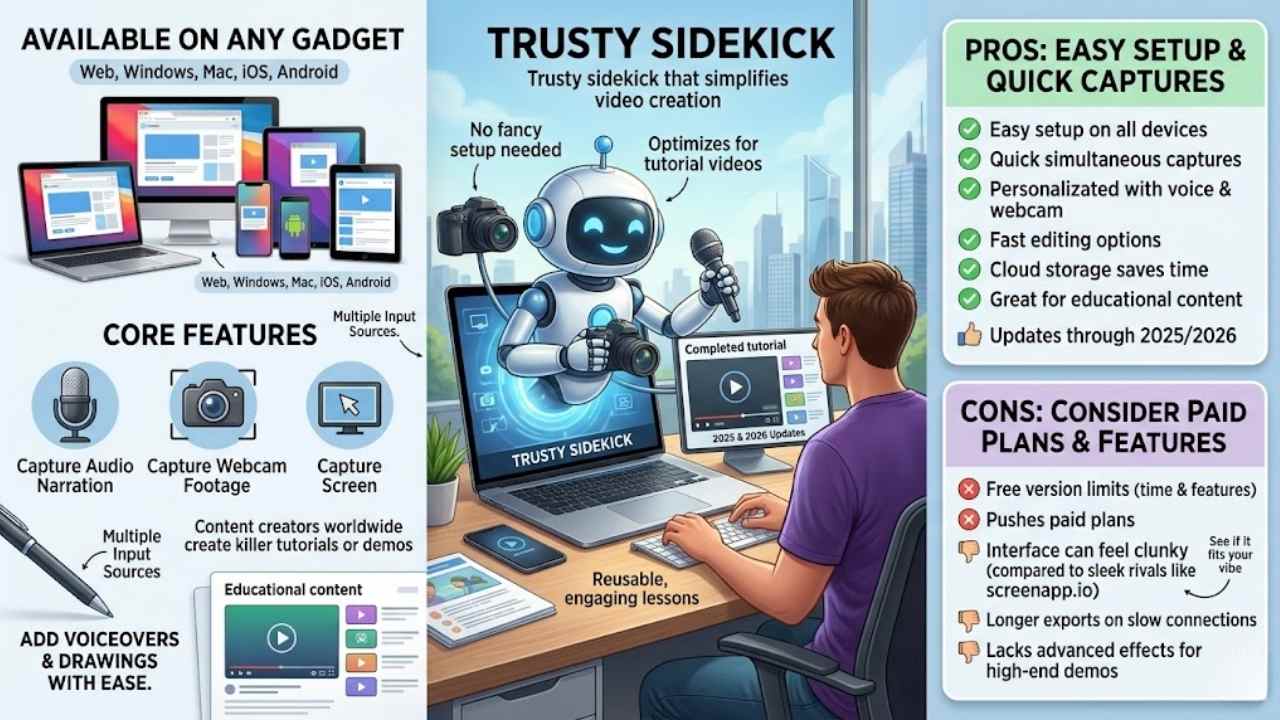
You grab quick videos of your screen on any gadget, add voiceovers and drawings with ease, then share them fast for killer tutorials or demos that wow your crowd—explore its perks, drawbacks, and why it rivals options like screenapp.io to see if it fits your vibe.
Features & Description (Screencast-O-Matic)
Screencast-O-Matic works as a versatile online screen recorder. You can use it on web browsers, Windows, Mac, iOS, and Android devices. This tool captures your screen, webcam footage, and audio narration all at once.
Content creators love it for making high-quality tutorials and demos. People around the world rely on these online recorders as essential gear. Think of it like a trusty sidekick that simplifies video creation, no fancy setup needed.
It supports multiple input sources for full video content. New tools keep popping up through 2025 and 2026, but this one stays user-friendly.
Folks turn to Screencast-O-Matic to craft educational content with ease. It optimizes for tutorial videos that grab attention. Every content creator needs software like this to produce top-notch demonstrations.
You add voice commentary and webcam clips, just like with tools such as DemoAir or screenapp.io. The scene for screen recording software evolves fast. Capture screen activity in the cloud, quick and simple.
Imagine explaining a tricky app step-by-step, your face on camera for that personal touch. Creators worldwide use these for reusable, engaging lessons.
Pros & Cons (Screencast-O-Matic)
This tool shines with its easy setup on web, Windows, Mac, iOS, and Android. You get quick captures of screen, webcam, and audio all at once, like a one-stop shop for tutorials. Content creators love how it supports voice commentary and webcam footage, making demos feel personal and clear. Pros include fast editing options and cloud storage, which save time for busy folks. It works great for educational content, evolving with updates through 2025 and 2026. Imagine whipping up a tutorial in minutes, no hassle.
On the flip side, free versions limit recording time and features, pushing you toward paid plans. Some users find the interface a bit clunky compared to sleek options like screenapp.io. Exports can take longer on slower connections, frustrating if you’re in a rush. It lacks advanced effects that rivals offer for high-end demos. Still, as a must-have for creators worldwide, it delivers solid basics without overwhelming you.
Final Thoughts
You’ve seen how tools like Camtasia, OBS Studio, Loom, Screen Studio, and Screencast-O-Matic make tutorials pop with easy edits, free options, and quick shares. Pick one that fits your setup, and you’ll crank out pro-level demos without the hassle, saving time like a pro thief in the night.
These recorders boost your teaching game, turning tough ideas into simple wins that stick with viewers long-term. Check out screenapp.io for more gems, or try Tella’s sleek Mac app and Chrome extension to level up your skills.
Go grab your favorite tool today, and watch your content light up the world.
Frequently Asked Questions (FAQs) About Screen Recording Tools
1. What’s the top screen recording tool for making tutorials?
Screenapp.io stands out as a real gem for beginners, you know, like finding a needle in a haystack but way easier. It lets you capture your screen smoothly, and edit demos without a hitch, keeping things simple and fun.
2. Can screenapp.io handle both audio and video for demos?
Absolutely, screenapp.io nails it by syncing audio with your screen grabs, making your tutorials pop like fireworks on the Fourth of July.
3. Why pick screenapp.io over other tools for tutorials?
Picture this, you’re juggling chainsaws trying to record a demo, but screenapp.io makes it feel like a walk in the park with its easy interface. It offers quick sharing options that save you time, and hey, who doesn’t love avoiding tech headaches? Plus, its cloud storage keeps everything organized, so you can focus on wowing your audience instead of fumbling files.
4. Is screenapp.io free to try for creating product demos?
You bet, screenapp.io gives you a free tier to dip your toes in, perfect for testing the waters on tutorials. It packs enough features to get you started without breaking the bank, though premium perks await if you dive deeper.