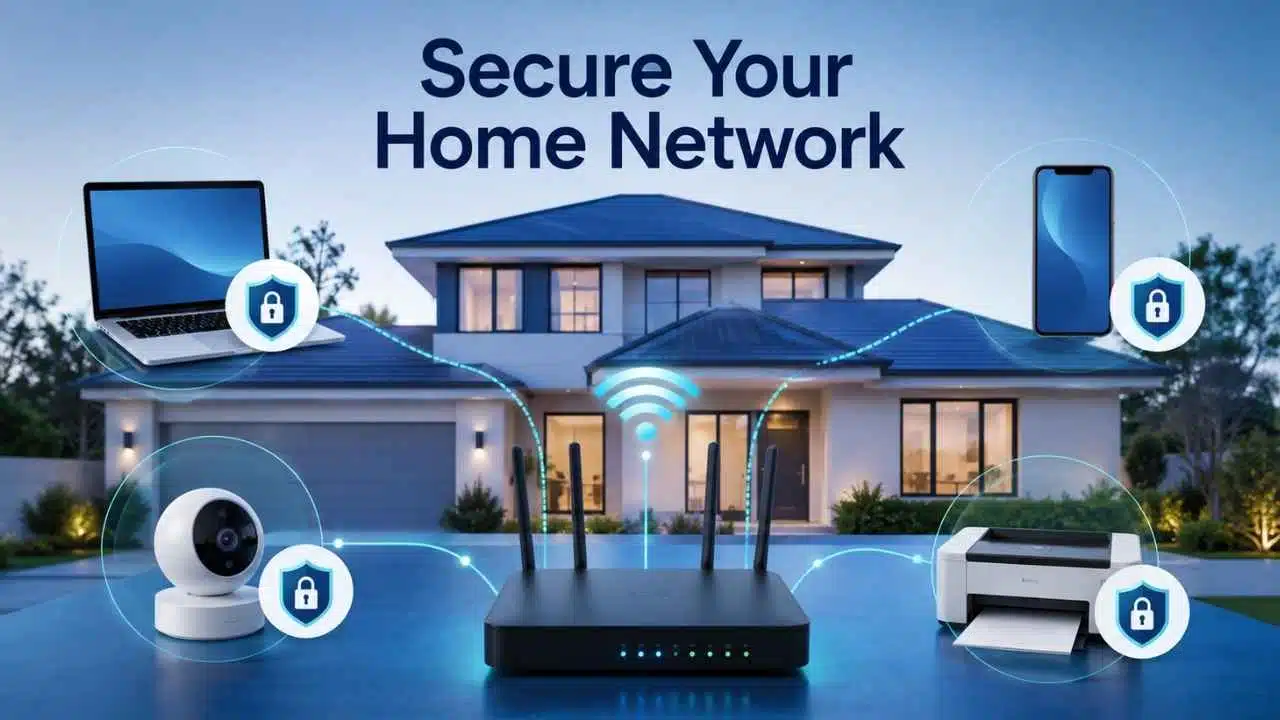
To secure your home network, you don’t need expensive enterprise equipment or complex technical skills—a single afternoon is enough to eliminate your biggest security vulnerabilities. Most home Wi-Fi networks quietly accumulate dozens of connected devices, from smartphones to smart thermostats, while the central router goes completely unmanaged.
Protecting your network comes down to four high-impact actions: changing default router admin passwords, upgrading Wi-Fi encryption (WPA2/WPA3), isolating smart home devices on a guest network, and updating router firmware. Addressing these core settings immediately hardens your home Wi-Fi against unauthorized access and cyber threats, giving you complete visibility and control over every connected device in your household.
Start With the Router, Not Every Device in the House
Begin with the device everything else depends on.
Find the router’s:
- manufacturer and model;
- administration page or official app;
- current Wi-Fi network name;
- connected-device list;
- firmware or software update section.
If your internet provider supplied the router, some settings may be managed by the provider. Firmware updates, for example, may happen automatically without a visible update button.
Router menus also vary considerably. A feature called Remote Administration on one model might appear as Web Access from WAN on another. An IoT network might be labeled Smart Home Network, while another router offers only a guest network.
Use documentation for the exact model when a setting is unclear. Do not spend the afternoon changing every option simply because it sounds technical. A small number of well-understood changes will do more good than an elaborate setup you cannot maintain.
First Hour: Update the Router
Firmware is the first thing worth checking. Router updates can fix security vulnerabilities as well as ordinary bugs. Current FTC and NSA guidance both emphasize keeping routing equipment updated, and automatic updates are usually the simplest option when the router supports them.
Look for settings such as:
- Firmware Update
- Software Update
- System Update
- Automatic Updates
If the router belongs to your ISP, confirm whether the provider handles updates. Then check something less obvious: is the router still supported at all?
A router can continue delivering fast, reliable Wi-Fi long after its manufacturer stops issuing security fixes. NSA home-network guidance recommends replacing routing equipment when it reaches end of support because newly discovered vulnerabilities can no longer be patched.
That matters more than the age printed on the box. A five-year-old router that still receives security updates may be acceptable. A newer model abandoned by its manufacturer is a harder one to defend.
Recent government warnings about compromised small-office and home-office routers reinforce the same point: update supported equipment, replace unsupported hardware, remove default credentials, and avoid exposing management interfaces directly to the internet.
For most households, replacing an end-of-support router is a more useful security purchase than adding another security subscription around it.
Change the Router Administrator Password
The Wi-Fi password and router administrator password are different credentials. The Wi-Fi password lets a device join the network. The administrator password lets someone change the router itself.
The second credential is easy to overlook because it may be used only once during setup. Change any default administrator password and make the replacement unique. Do not reuse the password from your email, banking account, shopping account, or another service.
Someone with router administration access may be able to change DNS settings, Wi-Fi passwords, firewall rules, port forwarding, or remote-management options. If the router is managed through an online account and that account offers multi-factor authentication, enable it.
Then store the administrator credentials somewhere you can actually find them later. A password manager is more practical than relying on memory or a piece of paper hidden near the router. Log out of the router interface when you finish changing settings.
Secure Your Home Network With WPA3 or WPA2
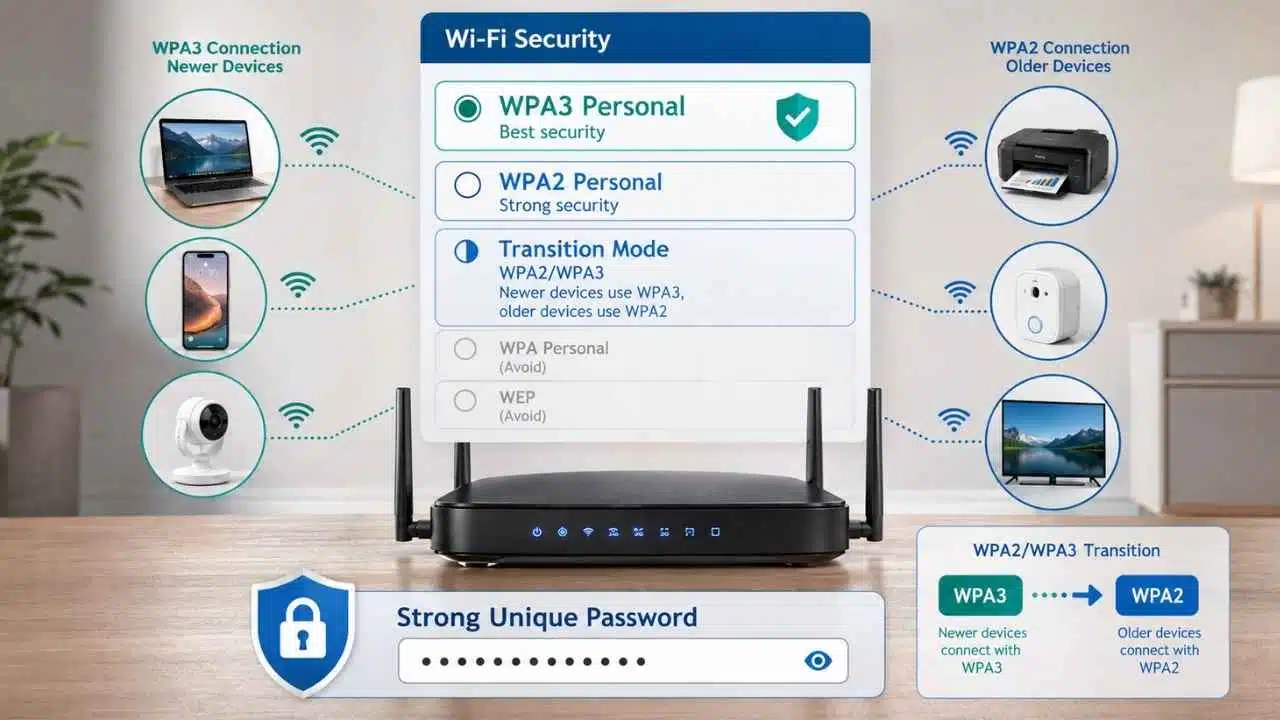
Next, check the Wi-Fi security mode. Use WPA3 Personal where your router and devices support it. WPA2 Personal remains the practical fallback for devices that cannot use WPA3.
Avoid old WPA and WEP modes. The real complication is compatibility. A household may have a modern laptop and phone alongside a much older printer, smart plug, camera, or television. Switching directly to WPA3-only mode can disconnect equipment that was never designed for it.
Many routers solve this with a WPA2/WPA3 transition or compatibility mode. Devices that support WPA3 can use it while older equipment continues connecting with WPA2.
That is usually preferable to weakening the entire network for one ageing device. If something only works with obsolete Wi-Fi security and cannot be updated, replacing that device deserves consideration.
The Wi-Fi password matters just as much as the encryption mode. Use a strong, unique passphrase rather than an address, surname, phone number, router model, or other predictable information. Modern encryption paired with an obvious password is still poor security.
Turn Off Remote Management, WPS, and UPnP When You Do Not Need Them
These features exist for convenience, but many households leave them enabled without ever using them.
Remote management
Remote administration can allow the router’s management interface to be reached from outside the home network. Most households have no reason to expose that interface to the internet. Disable internet-facing remote management unless you genuinely need it and understand how it is secured.
Do not assume that using the router manufacturer’s mobile app automatically means the same thing. Some apps connect through a vendor service without exposing the ordinary management interface directly. Check the model’s documentation before changing the wrong setting.
WPS
Wi-Fi Protected Setup was designed to simplify device pairing. If you never use it, switch it off. Most modern devices can be connected normally using the Wi-Fi password, so leaving an unused setup mechanism enabled offers little benefit.
UPnP
Universal Plug and Play allows devices and applications to request certain network changes automatically. That can be convenient for game consoles, media servers, peer-to-peer applications, and similar software.
It is also unnecessary in many homes. If you do not rely on it, disable UPnP. If a console or application stops working properly afterward, check what it actually needs before immediately re-enabling the feature.
This is one of those settings where convenience and security genuinely trade places. The right answer is not always “off forever,” but it should not remain enabled simply because it was there by default.
Check the Router Firewall
Most consumer routers include a built-in firewall. Confirm that it is active. For an ordinary household, there is little benefit in turning this into an advanced firewall-rule project. The better use of time is reviewing exceptions that may have accumulated over the years.
Look for:
- port-forwarding rules;
- DMZ settings;
- remote desktop exposure;
- old NAS access;
- game-server ports;
- camera or home-server rules.
A port that was opened for a project three years ago can remain long after the device itself has disappeared. Remove rules you clearly recognize as obsolete. If you do not know what an existing rule does, research it before deleting it. Breaking a legitimate service does not make the network safer.
Give Guests Their Own Wi-Fi
A guest network is useful even if you rarely have overnight visitors. It lets you share internet access without giving everyone the password used by your laptops, cameras, televisions, and other household devices. A well-configured guest network should also prevent guests from freely reaching equipment on the main network.
Check the settings.
Some routers include an option such as:
Allow guests to access local network
or:
Access intranet
Leave that disabled unless guests genuinely need to reach a printer, storage device, or another local service. Guest-network isolation varies between manufacturers, so do not assume that a network called “Guest” automatically provides every form of separation.
There is also a mundane benefit: when the guest password has been shared too widely, you can change it without reconnecting every device in the house.
Put Smart Devices on a Separate Network Where Practical
Smart-home devices are good candidates for separation because many remain connected for years and rarely need direct access to your personal computers.
NSA guidance recommends separating primary devices, guest devices, and IoT equipment where the network supports it. FTC guidance makes a similar recommendation for internet-connected cameras.
If your router provides a dedicated IoT network, consider using it for:
- cameras;
- smart doorbells;
- smart plugs;
- connected appliances;
- voice assistants;
- older smart TVs;
- home-automation devices.
You do not need to learn VLAN configuration for a basic household cleanup. Use the isolation features already built into the router if they are straightforward and understandable.
Moving devices to another network can interfere with local discovery. A phone may stop seeing a speaker, printer, casting device, or smart-home hub if the router completely isolates the networks.
That does not mean segmentation was a bad idea. It means the particular device depends on local communication. Check whether the router offers controlled device discovery or another supported way of allowing the required traffic.
Spend 20 Minutes on the Connected-Device List
Now open the router’s connected-device list. Do not panic if some names look unfamiliar. A television or smart-home module may appear as a manufacturer name, model code, or random-looking identifier. Phones can also use private or randomized MAC addresses, which may make them appear less recognizable.
Work through the list instead of guessing.
Identify your:
- phones;
- computers;
- tablets;
- televisions;
- consoles;
- printers;
- cameras;
- speakers;
- smart-home hubs;
- work equipment;
- connected appliances.
Remove devices that are no longer used. For devices you are keeping, check whether updates are available. Enable automatic updates where the product provides them and the update system is reliable.
Then check the account behind the device. A camera can sit on an excellent Wi-Fi network and still be exposed because its cloud account uses a password that was reused elsewhere.
Use unique passwords for important smart-device accounts and enable multi-factor authentication where available. Network security and account security are separate layers. Both matter.
Remote Workers Should Keep Employer Security Controls Intact
A hardened home router does not replace workplace security controls. If your employer provides a managed laptop, VPN, endpoint-security software, hardware security key, or a specific remote-access method, continue using it.
Do not disable company security tools because your Wi-Fi is now better configured. For a work computer, the trusted primary network usually makes more sense than the same segment used for inexpensive smart-home devices. If the employer has specific network requirements, follow those rather than building a more complicated home setup based on generic advice. The home router protects one part of the connection. Workplace controls protect another.
Do Not Turn the Afternoon Into a Security Hobby
It is possible to spend days optimizing a home router. Most households do not need to.
A practical afternoon checklist is enough:
- Update the router firmware.
- Confirm the router is still supported.
- Replace default administrator credentials.
- Use WPA3 Personal, WPA2/WPA3 transition mode, or WPA2 Personal as appropriate.
- Set a strong, unique Wi-Fi password.
- Disable unnecessary remote management, WPS, and UPnP.
- Confirm the firewall is enabled and review old port-forwarding rules.
- Create an isolated guest network.
- Separate IoT devices where practical.
- Update connected devices and remove unused ones.
- Protect important device accounts with unique passwords and MFA where available.
That list is intentionally ordinary. A simple configuration you understand and maintain is safer than a sophisticated one you forget how to manage six months later. If the router cannot support these basics or no longer receives security updates, replacement should move to the top of the list.
Final Thoughts
You can secure your home network substantially in one afternoon without rebuilding it from scratch. Start with the router because every connected device depends on it. Update the firmware, check whether the hardware is still supported, protect the administrator account, and use modern Wi-Fi encryption.
Then reduce unnecessary access. Turn off remote features you do not use, review old firewall exceptions, separate guests and smart devices where practical, and remove equipment that should no longer be connected.
After that, maintenance matters more than another round of tweaking. Leave reliable automatic updates enabled. Use unique account passwords. Revisit the connected-device list occasionally, particularly after replacing phones, smart-home devices, or computers.
A secure home network is not the one with the longest list of advanced settings. It is the one where the equipment is still supported, important controls are understood, and unnecessary access does not quietly remain open for years.