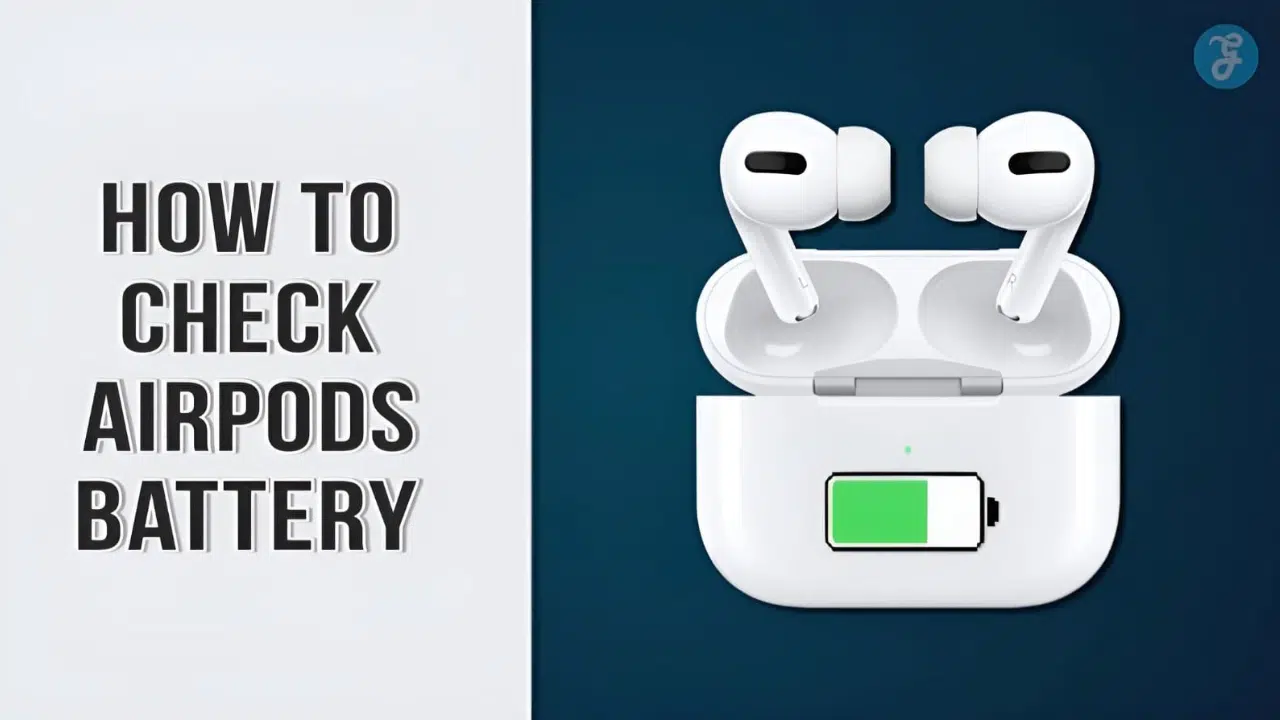
Are you looking for how to check AirPods battery on different devices? And in different situations so you know when it’s time to get a new pair.
Again, you’re out for a walk when you start to wonder if the battery on your AirPods will last for the next few miles. Is it even worth starting that Billie Eilish song or that next podcast if you’re going to lose power halfway through?
Minute by minute, you can feel the battery dying, but you don’t know how to check the battery status. This feeling can turn into frustration if you have to worry about your AirPods battery every time you use them. Especially if you are always on the phone. What a nightmare it would be if your AirPods died in the middle of a very important work call!
Don’t worry, we’ll help you! We’ll show you how to check AirPods battery on different devices and in different situations. Plus, learn how to tell if the battery in your AirPods is healthy or needs to be replaced. Let’s get rid of it!
How to Charge Your AirPods?

A Qi-certified charging mat can be used to charge your MagSafe Charging Case or Wireless Charging Case. Make sure to put your case on the charger with the lid closed and the status light facing up. The charge level should be shown for 8 seconds by the status light. If you have AirPods Pro or AirPods (3rd generation), you can tap the case while it’s on the charging mat to see if your headphones are charging (amber light) or fully charged (green light).
Learn About Battery Life
When the charge on your AirPods is getting low, your iPhone or iPad will show you a message. You’ll get a message when the charge is at 20, 10, and 5% left.
When one or both AirPods’ batteries are low, you can also hear a tone. When the battery is at 10%, you hear the tone once, and then again right before the AirPods turn off.
If you think your AirPod’s battery is broken, find out how to service and fix it.
How to Check AirPods Battery Level?
It’s important to know how long your AirPods battery will last, whether you’re about to go for a run or are in the middle of work. You can quickly see how much power your AirPods have left on your iPhone, iPad, or Mac. There’s even a new widget for the iPhone home screen that will always show you how much power each of your AirPods has left. Here’s how to check AirPods battery, with or without the case.
How to Check AirPods Battery Level on an iPhone or iPad?

First, make sure Bluetooth is turned on on your iPhone or iPad. Then, you can check the battery level of your AirPods. Then put your AirPods in the case, close it, and move it close to your device. Lastly, open your case and the battery level of your AirPods will pop up.
- Enable Bluetooth on your iPhone or iPad. Go to Settings > Bluetooth and make sure the slider at the top of the screen is in the green position. If your AirPods aren’t connected, you should also connect them.
- Then put your AirPods in the case and close the top.
- Next, move the case near your iPhone or iPad. For the best results, move the case of your AirPods as close as you can to your device. Also, your iPhone or iPad needs to be on and awake.
- Then open the case and wait for a few seconds.
- Finally, you can check your AirPods battery level on your screen. This will show you how much power your AirPods and their case have left. If you want to see how much power each AirPod has, take one out of its case and wait a few seconds.
If your AirPods’ battery level doesn’t show up, close the case and open it again a few seconds later. You might also want to try again from your device’s home screen since some apps might not show your battery level.
If you still can’t see how full your AirPods’ batteries are, try unplugging them from any other device they might be connected to. Also, they won’t show up if the batteries are completely dead, so try charging your AirPods and the case for a few minutes before trying again. Lastly, if nothing else works, you can open the case and press the setup button on the back of the case.
Using the Battery Widget
Since the automatic pop-up feature only works when the AirPods are in the case, we suggest setting up the battery widget instead. This keeps you from having to carry around your AirPods’ charging case just to check how much power they have left.
This two-minute setup is well worth it because it is the easiest way for most people to use. Here is how to check the AirPods battery widget on an iOS device:
- Tap and hold your finger on an empty part of your home screen until your app icons start to shake.
- Tap the “+” button in the top left corner of your screen.
- Scroll through the widgets until you find the one that says “Batteries.” Tap it.
- Swipe right and left to find the widget you like best, then tap “+ Add Widget.”
- Move the widget to where you want it, then tap “Done.”
In the future, you’ll be able to go back to where you put the widget and instantly see what percentage of your battery life is left. The widget will even show you how much power is left in your AirPods when they are not in their case.
The only thing that would be easier than checking the widget would be to ask someone, like Siri.
Using Siri
If you’ve been using Apple products for a while, it probably won’t surprise you that Siri can tell you how much battery is left on your iPhone or iPad. The only bad thing about this method is that you have to talk out loud to Siri unless you have “Type to Siri” turned on.
Since Siri’s user interface is based on natural language, you don’t have to be too specific in your command to get the answer you want. For example, you can ask the helpful assistant either “How long will my AirPods’ battery last?” or “What is the AirPods’ battery level?” and get the same answer. If you’re interested also read on – how to hit a cart without a battery.
How to Check AirPods Battery Life on Your Mac?
It is also easy to check the battery level of your AirPods with a Mac. This time, it doesn’t matter as much if the earbuds are in their case or not. Besides that, the steps are simple:
- Open the case’s lid or pull the AirPods out of the case.
- Click the icon in the upper right corner of the Menu Bar that looks like a gear. It looks like two sliders that are moving in different directions.
- In the Control Center menu, click on the Bluetooth icon.
- If you move the mouse pointer over the name of your AirPods, you’ll see how much battery life is left.
Check your AirPods Case Battery Without an iOS Device
Even though it’s not as accurate as the other ways on this list, you can get a rough idea of how to check AirPods battery by looking at the status light on the case.
Step 1: Take your AirPods out of their case. Then feel free to open the lid.
Step 2: Look at the charging case’s status light, which is inside or on the front of the case (depending on the model of AirPods you own). If the charging case’s status light is green, it means it is fully charged. If the indicator is showing amber, it means that your case only has enough power to charge your AirPods once.
Read more: Benefits of using AirPod case.
How Long Do AirPods Battery Last?
When listening to music, the battery life of the first- and second-generation AirPods usually lasts 5 hours, and when talking on the phone, it lasts 3 hours. While AirPods Pro’s battery life lets you listen for 4.5 hours and talk for 3.5 hours on a single charge.
You only need 15 minutes to charge your AirPods so that you can use them for 3 hours of listening or talking. After 5 minutes of charging in their case, AirPods Pro will give you an extra hour of talking or listening time. If you charge your AirPods or AirPods Pro in the case throughout the day, you can listen for up to 24 hours and talk for up to 18 hours.
Check out our step-by-step guide on how to find your AirPods if you lose them now that you know how to check AirPods battery and AirPods Pro. Additionally, you can also read, how long it takes to charge a new laptop.
How Do I Preserve My AirPod Battery?
There are a few things and AirPod hacks you can do to keep and extend the battery life of your AirPods:
- Return them to the charging case immediately after use: When you plug your AirPod case into an outlet, you charge the case, which then charges the AirPods inside. When you put your AirPods back in the case, you use the case’s battery to charge them.
- Keep them out of extreme temperatures: Putting your AirPods and their case in temperatures that are too hot or too cold can drain the battery much faster. Don’t leave them out in the sun, and put them somewhere where the temperature isn’t too hot or too cold.
- Disable Siri: Siri can be a helpful friend, but if it’s always listening for commands, it can drain your battery a bit more. Go to Settings > Siri & Search > Off to turn off Siri. Stop Siri from listening for “Hey Siri.”
- Avoid opening the case unnecessarily: When you open the case, your AirPods use power to find nearby devices. When you don’t need to, opening and closing the case all the time can drain the battery.
- Use one AirPod at a time: Even though this may seem strange at first, you can make your AirPods last longer if you only use one earbud at a time and keep the other in the case. This can help if you are on a long phone call and can’t get to a charger.
- Disconnect from your phone when not in use: Even if your phone is in its case and still connected to your AirPods via Bluetooth, it can still drain the battery.
What to Look Forward to With AirPods (3rd Generation)?
- If you charge your phone more than once, you can listen to music for up to 30 hours or talk for up to 20 hours.
- On a single charge, your AirPods (3rd generation) can play music for up to 6 hours (up to 5 hours with spatial audio turned on) or let you talk for up to 4 hours.
- If you put your AirPods (3rd generation) in their case for 5 minutes, you can listen to music for about an hour or talk for about an hour.
What You Can Expect With AirPods Pro
- If you have more than one charge, you can listen for more than 24 hours or talk for more than 18 hours.
- You can listen to your AirPods Pro for up to 4.5 hours or talk for up to 3.5 hours on a single charge.
- If you put your AirPods Pro in their case to charge for 5 minutes, you can listen or talk for about an hour.
Frequently Asked Questions (FAQs)
Below we’re adding some queries on – how to check AirPods battery
How long does it take for AirPods to charge?
When you put the AirPods back in their case, they can be fully charged in as little as 15 minutes. With a fully charged case, you can charge your AirPods three or four times.
What if my AirPods are not charging?
If your AirPods won’t charge, make sure the cable is plugged incorrectly. Use your phone or another device to check the battery’s status and see if charging is happening. A lightning bolt symbol should be there to show that it is charging. Check to see if your charging ports are dirty and if they still won’t charge. If nothing works, you may need to reset your AirPods through the Settings app or take them to the Apple Store for technical support.
How can I improve the battery life of my AirPods?
Make sure you charge your AirPods the right way. As described above, and try not to use them in temperatures that are too hot or too cold. Also, putting your AirPods away when they have more than 40 percent charge but aren’t being used help. If you’re worried that you’ll lose one or both of your AirPods, you can put them in an empty mints case or a small pouch with a drawstring.
Why can’t I see my AirPods battery?
If your AirPods’ battery level doesn’t show up, close the case and open it again a few seconds later. You might also want to try again from your device’s home screen. Since some apps might not show your battery level.
How do I bring up the AirPod Menu?
Open the top of your AirPods case and keep it open while you hold the case and your device close together. After a few seconds, a screen will appear that shows how charged your AirPods and charging case are.
How do I show my battery percentage?
Open the app for setting up your phone. Under “Battery,” you can see how much charge is left and for how long. For details, tap Battery.
Conclusion
Your batteries are all charged up and seem to be in good shape. You’re completely absorbed in the walk and sure that you won’t run out of power on your AirPods before you’re done. If you’re the type who always wants to check. You even have a widget so you don’t have to mess with the case every time you want to see how much power you have. It’s great!
Or is it? Maybe the way you check your batteries is the worst thing ever! You might still need help after going through the steps above. Or maybe you really did get through it like a real Apple Genius.