

You finish correcting the captions on a video, click Download SRT, and discover that the file requires a paid plan. Or the captions are free, but the finished video carries a watermark. These details matter as much as the tool’s ability to recognize speech.
When I compare caption and transcript tools for videos, I start with the final deliverable. Do I need words permanently visible on the video, a separate subtitle file, or a transcript someone can read? I then check the spoken language, the free allowance, and how easily I can correct mistakes.
The ten tools below cover those different jobs. I have compared their features and plan limits below; their transcription accuracy has not been ranked through a shared audio test. Remember, before you publish, watch the video with captions on and fix any words or timing the tool got wrong.
The 10 Caption and Transcript Tools for Videos at a Glance
The free limits use different units. Some reset daily or monthly. Kapwing’s free credits are a lifetime allowance. An SRT file may also have a different plan requirement from a captioned video export.
| Tool | Spoken-language support | Free allowance | Separate subtitle file on free plan |
| YouTube Studio | Broad published list, including Bengali, English, and Hindi | No separate monthly caption-minute quota published; requires a YouTube upload | Downloadable caption track |
| Microsoft Clipchamp | Many languages; one selected language per video | Free watermark-free exports up to 1080p; no published monthly autocaption-minute figure | SRT available |
| CapCut | Choose from languages available in your app | No reliable universal free-minute figure; features vary by version and region | Availability varies by platform and version |
| Descript | 25 spoken transcription languages | 60 processed media minutes per editor each month; watermarked 720p video export | SRT/VTT supported; free-plan entitlement is not clearly stated |
| VEED | Advertises 125+ languages and accents | Free for short clips; no clear current numerical free-minute allowance; watermarked export | Paid plan required |
| Kapwing | Spoken-language total is not clearly specified; translates captions into 60+ languages | 10 lifetime credits, enough for up to 10 minutes of auto-subtitling if used only for that task | Paid plan required |
| Riverside | 100+ spoken languages | Unlimited files through its free standalone transcriber | SRT available |
| TurboScribe | 98+ spoken languages | Three files daily, up to 30 minutes each | SRT and VTT available |
| Adobe Premiere desktop | Published speech-to-text language list; includes English, Hindi, Japanese, and Spanish | Seven-day trial; subscription required afterward | Available during trial |
| Subtitle Edit | Depends on the speech engine and model you choose | Free software; local transcription uses your computer | SRT and other subtitle formats available |
1. YouTube Studio: For Videos Going on YouTube
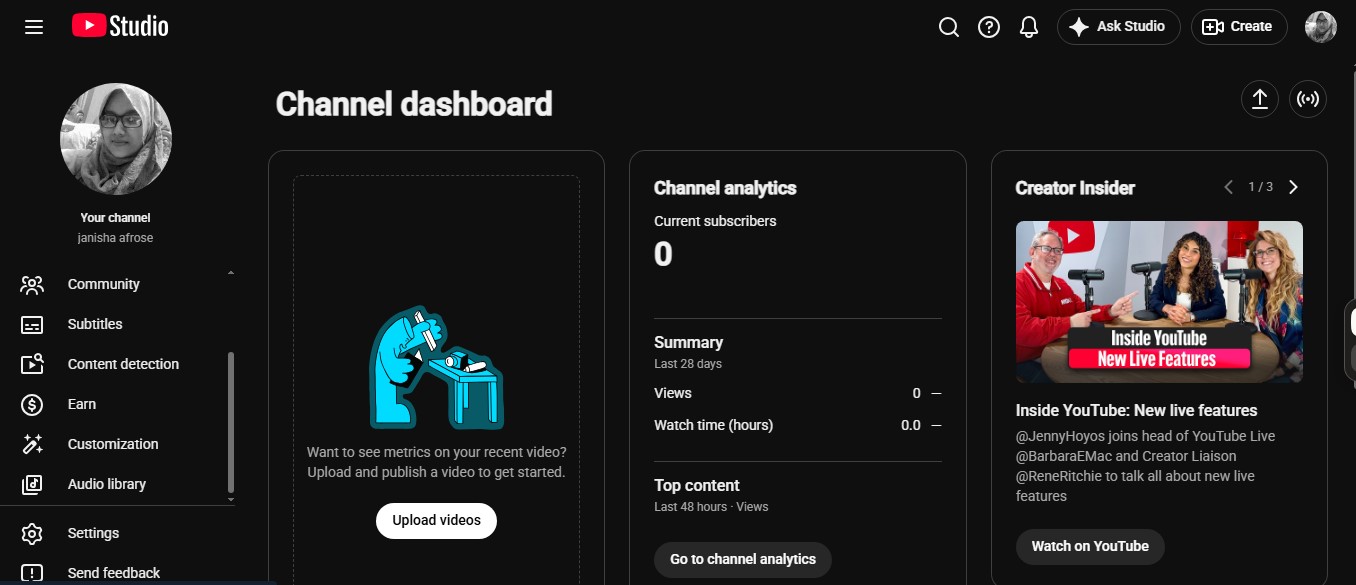
YouTube Studio is the easiest place to begin when the video is already destined for your channel. YouTube can generate automatic captions for long-form videos and Shorts in a broad range of languages. You can correct the words and timestamps, then download the caption track.
There is no separate monthly caption-minute allowance to track. The limitation is the workflow: the video must be uploaded to YouTube, and automatic captions are not guaranteed to appear immediately or for every recording.
Check the results closely when speakers overlap, switch languages, or speak over background sound. YouTube itself warns that accents and poor audio can change what its system hears.
Choose it if: Your main goal is an accurate, editable caption track for a YouTube video.
2. Microsoft Clipchamp: For Free Video Editing and an SRT File
Clipchamp combines automatic captions with a straightforward video editor. It displays an editable, timestamped transcript and lets you download the captions as an SRT file. For a personal account, the free plan supports watermark-free video exports up to 1080p.
You select one transcription language per video. That works for a single-language tutorial or interview but is less convenient when speakers regularly switch languages. Microsoft does not publish a clear monthly autocaption-minute allowance, so I would avoid describing the feature as unlimited.
Choose it if: You want to edit the video and take away a separate SRT file without paying for an export upgrade.
3. CapCut: For Captions Styled for Short Videos
CapCut is a useful fit when the captions are part of the visual design. Its auto-caption feature works across web, desktop, and mobile, with options to correct the words, adjust timing, and change the appearance.
The free experience depends on the platform, version, region, and elements used in your project. Some advanced caption features or styles can trigger a Pro requirement at export. SRT availability also differs across versions, and CapCut does not provide one dependable free-minute allowance that applies to everyone.
For a longer project, I first make a short sample using the exact caption style I intend to publish and check whether it exports on the free plan.
Choose it if: You primarily need visible captions for a Reel, Short, or other social video.
4. Descript: For Editing Video Through Its Transcript
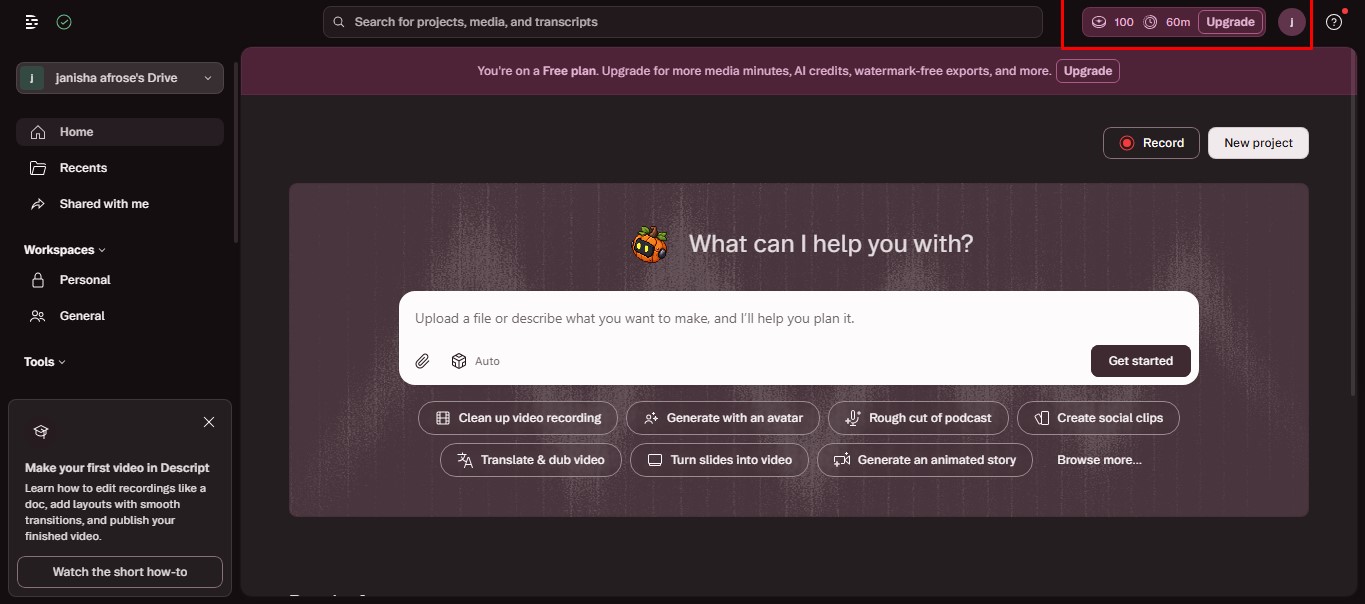
Descript makes the transcript central to the edit. It is particularly useful for an interview or explanation where you need to work through spoken material and create captions from the corrected text.
Descript lists 25 languages for transcription from speech. It separately lists 61 languages for caption translation. Those figures describe different tasks: support for translating a caption does not mean Descript can transcribe original speech in that language.
The free plan includes 60 media minutes per editor each month. These are minutes of imported or recorded media processed in Descript, rather than an allowance based only on finished video length. Free local video exports are limited to 720p and carry a watermark. Descript supports SRT and VTT exports, although its public plan comparison does not clearly establish the free tier’s entitlement to those files.
Choose it if: You want transcript correction and video editing in one workspace.
5. VEED: For Browser-Based Caption Styling
VEED lets you generate captions in a browser, correct the text, and change how it looks on screen. The company advertises recognition across more than 125 languages and accents, making its language selector worth checking for a specific project.
VEED is free to try on short clips, and free users can export a video with captions burned in. That export carries a watermark. Downloading the captions separately as an SRT, VTT, or TXT file requires a paid plan. Its current public pricing information does not give a clear numerical free transcription allowance.
That distinction should guide the choice: a captioned video and a reusable subtitle file have different costs here.
Choose it if: You want to style a short captioned video online and can work within the free export limits.
6. Kapwing: For Short Clips Within a Small Credit Allowance
Kapwing offers an online video editor with automatic subtitles, text corrections, styling, and caption translation. Its free plan gives you 10 credits for the lifetime of the account. Subtitle transcription uses one credit per minute, so those credits can cover up to 10 minutes of auto-subtitling if you spend them on nothing else.
Free video exports have a watermark and are limited to 720p. A separate SRT, VTT, or TXT download requires a paid plan. Kapwing says it can translate captions into more than 60 languages; that number should not be presented as its confirmed count of languages recognized directly from speech.
One export detail needs checking before you start a longer clip. Kapwing’s live pricing page advertises free video exports up to four minutes, while a help article still says one minute. Confirm the limit shown in your workspace before editing toward it.
Choose it if: You need a short captioned clip and understand that the free transcription credits will not renew.
7. Riverside: For a Free Interview Transcript or SRT
Riverside’s standalone transcriber accepts audio and video files and offers TXT and SRT downloads. It advertises support for more than 100 spoken languages and allows unlimited files through that free tool without signup.
For interviews, there is an important catch: the free standalone tool assigns the text from a multi-speaker upload to one speaker. Riverside’s fuller recording and editing products offer more speaker-aware features, but they should not be confused with the standalone transcriber.
If I needed to deliver an interview transcript, I would use the free result as a draft and add the correct speaker names while checking it against the recording.
Choose it if: You need a reusable transcript or SRT and can correct speaker attribution yourself.
8. TurboScribe: For Regular Free SRT and Transcript Jobs
TurboScribe is focused on turning audio and video files into text. It supports more than 98 spoken languages, and its free caption tools offer SRT and VTT output.
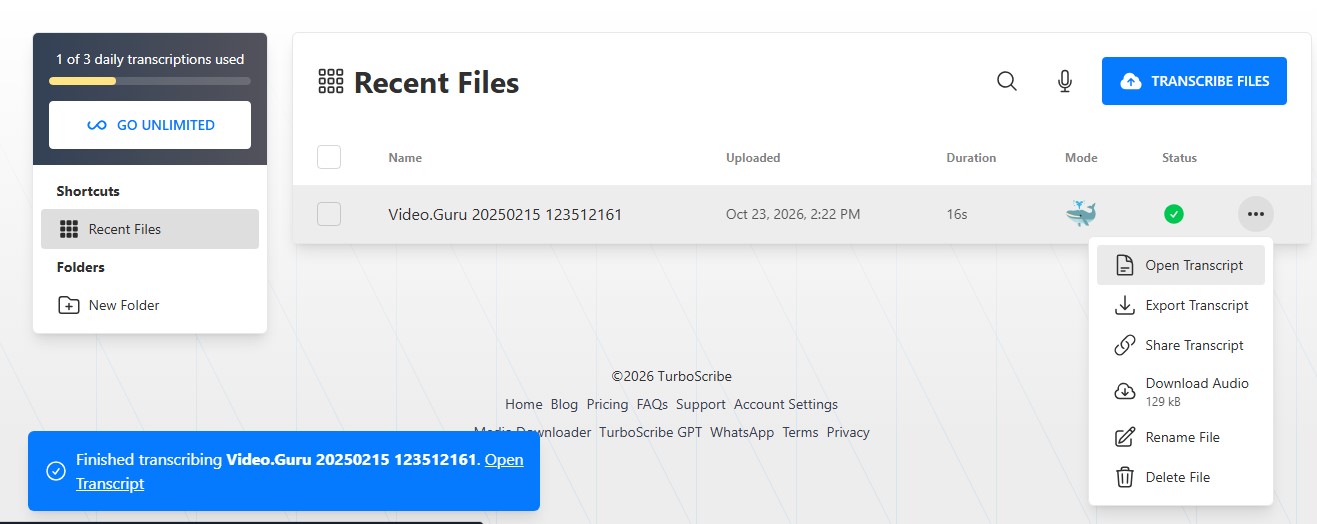
Its main free-plan rules are clear: three files per day, each up to 30 minutes long. Free users upload one file at a time and receive lower processing priority. This makes it useful for several short recordings, though it will not process a single hour-long file under that free allowance.
TurboScribe also advertises translation into more than 134 languages, but that broader translation feature is listed with its paid offering. Keep it separate from the free transcription and subtitle-file access. You will also need another editor if your goal is a finished video with animated captions on screen.
Choose it if: You regularly need text or subtitle files from recordings under 30 minutes.
9. Adobe Premiere: For Captions Inside a Professional Edit
Adobe Premiere, formerly known as Premiere Pro, can transcribe speech, build a caption track on the video timeline, and let you correct and style it there. It can export captions burned into the finished video or as a separate SRT file.
Adobe publishes a speech-to-text language list that includes English, Hindi, Japanese, and Spanish. Its advertised 27 caption-translation languages are a separate feature, not a count of source languages recognized from audio.
The desktop editor offers a seven-day free trial. After that, continued desktop use requires a subscription. Adobe’s separate free mobile app should not be mistaken for an ongoing free plan for this desktop workflow.
Choose it if: You already finish your videos in Premiere and want the captions in the same timeline.
10. Subtitle Edit: For Careful Subtitle Correction
Subtitle Edit is free, open-source software available for Windows, macOS, and Linux. It offers detailed control over caption wording, line breaks, timing, and subtitle-file formats.
For automatic transcription, you select a compatible speech engine and model. Some can run locally after you download them; others connect to online services that may have their own charges. Language support and transcription quality therefore depend on the engine and model rather than one fixed Subtitle Edit language count.
A local setup has no subscription-minute allowance, but it requires installation time and computing resources. In return, you get a strong workspace for correcting a subtitle file against the video.
Choose it if: Timing and file quality matter more to you than fast social-video styling.
How Much Should You Trust Automatic Caption Accuracy?
I would not choose one of these tools because it advertises a high accuracy percentage. Vendor figures are not a fair head-to-head comparison when the tools have not processed the same audio, in the same languages, under the same scoring rules.
Before publishing, play the video while reading the captions. Pay particular attention to:
- Names and specialist terms that the tool may replace with familiar words.
- Numbers, dates, and short words such as “not,” which can change the meaning of a sentence.
- Speaker changes, especially in interviews.
- Timing and line breaks that make otherwise correct text hard to follow.
- Relevant sounds such as an alarm or a door slam when the captions need to convey more than dialogue.
If you want to compare accuracy for your own work, prepare one short test clip with names, numbers, two speakers, and a little background noise. Run that same clip through your shortlisted tools and record what you had to fix. That result will be more useful than competing marketing percentages.
Explore AI study tools for research, revision, and practice quizzes.
Spoken Languages and Translation Languages Are Different
A language figure can sound impressive while answering the wrong question. Speech transcription recognizes the language spoken in the recording. Caption translation takes existing text and converts it into another language.
Descript’s 25 transcription languages and 61 caption-translation languages are an example. Kapwing’s 60-plus translation figure does not establish how many original spoken languages it can recognize. TurboScribe’s paid translation options should not be folded into its free transcription allowance.
If your recording is in Bengali, Hindi, or another language you specifically need, check the source-audio language selector before uploading the full file. Then check the translation feature separately if you need a second-language caption track.
Which Free Limit Matters Most?
A “free caption tool” can place its limit at several different points. You may be allowed to generate captions but unable to download an SRT. You may get a subtitle file but no edited video. A free video export may also have a watermark or length restriction.
For an occasional YouTube upload, YouTube Studio may be enough. For a reusable free SRT, start with Clipchamp, Riverside, TurboScribe, or Subtitle Edit, according to how much editing you need. For captions styled into a social video, CapCut, VEED, and Kapwing are more relevant, but check the final export before committing to a full project.
When a client asks for “captions,” I would clarify the deliverable first: a captioned video, a switchable subtitle file, or a readable transcript. That one question prevents most free-plan surprises.
Frequently Asked Questions about Caption and Transcript Tools for Videos
Can I download an SRT file without paying?
Yes. Clipchamp offers an SRT download, Riverside’s free standalone transcriber offers SRT, and TurboScribe provides free SRT output within its daily file limits. Subtitle Edit can also create and export SRT files. VEED and Kapwing require payment for separate subtitle-file downloads.
Is a transcript the same as a caption file?
No. An SRT caption file pairs short lines of text with timestamps for video playback. A readable transcript usually groups speech into paragraphs and may need speaker names and important visual information added.
Can these tools caption a video with two languages?
It depends on the tool and how the speakers use the languages. Clipchamp asks you to select one transcription language per video. YouTube warns that simultaneous languages and overlapping speakers can interfere with automatic captions. For a bilingual recording, test a short excerpt in your chosen tool before processing the whole video.
Can I caption a long video for free?
Check the type of limit first. Descript counts processed media minutes each month; TurboScribe limits each free file to 30 minutes; Kapwing has 10 lifetime credits and a separate video-export limit. Riverside advertises unlimited files in its standalone transcriber, but its free speaker attribution is limited. A long transcript and a long finished captioned video may call for different tools.
Choose the Output Before the Tool
The right caption and transcript tool for a video is the one that delivers the file you need, in the language you need, within a limit you understand. Start there. Then use automatic transcription to save time and a careful human review to make the result dependable.