
You land, turn off roaming, and try to find your hotel. The map opens, but it will not give you a walking route. Then you point a translation app at a station sign and discover its camera needs an internet connection.
That is the problem with the word offline. It can mean a saved map, driving directions, typed translation, or something more useful. The answer depends on the app, the destination, and what you downloaded before leaving.
I looked at these offline map and translation apps with that distinction in mind. Five help you find your way; five help you understand or communicate in another language. You do not need all ten. You need the right combination for your trip, set up and tested while you still have a connection.
The 10 Offline Map and Translation Apps at a Glance
| App | Best offline use | Check before you leave |
| Google Maps | Driving within a downloaded area | Walking, cycling, and transit directions need a connection |
| Apple Maps | Several route types on iPhone | Offline maps are limited to supported areas |
| Organic Maps | Walking, cycling, driving, and trails | Download the destination’s map |
| OsmAnd | Detailed routes and outdoor navigation | Free downloads are limited |
| HERE WeGo | Navigation with downloaded regional maps | Offline maps are unavailable in some countries |
| Google Translate | Text and supported camera translation | Download the languages you need |
| Apple Translate | Text, speech, and supported conversations | Download both languages |
| Naver Papago | Text and voice for four offline languages | Device requirements and language limits apply |
| iTranslate | Text, selected voice languages, and phrasebooks | Offline mode requires Pro |
| Yandex Translate | Typed-text translation for supported pairs | Voice, dialogue, and photos need internet |
Five Offline Map Apps for Travel
An offline map is only useful if it covers the places you will visit and supports the way you plan to get around. A saved city map, for example, does not necessarily provide walking directions.
1. Google Maps: A Familiar Backup for Driving
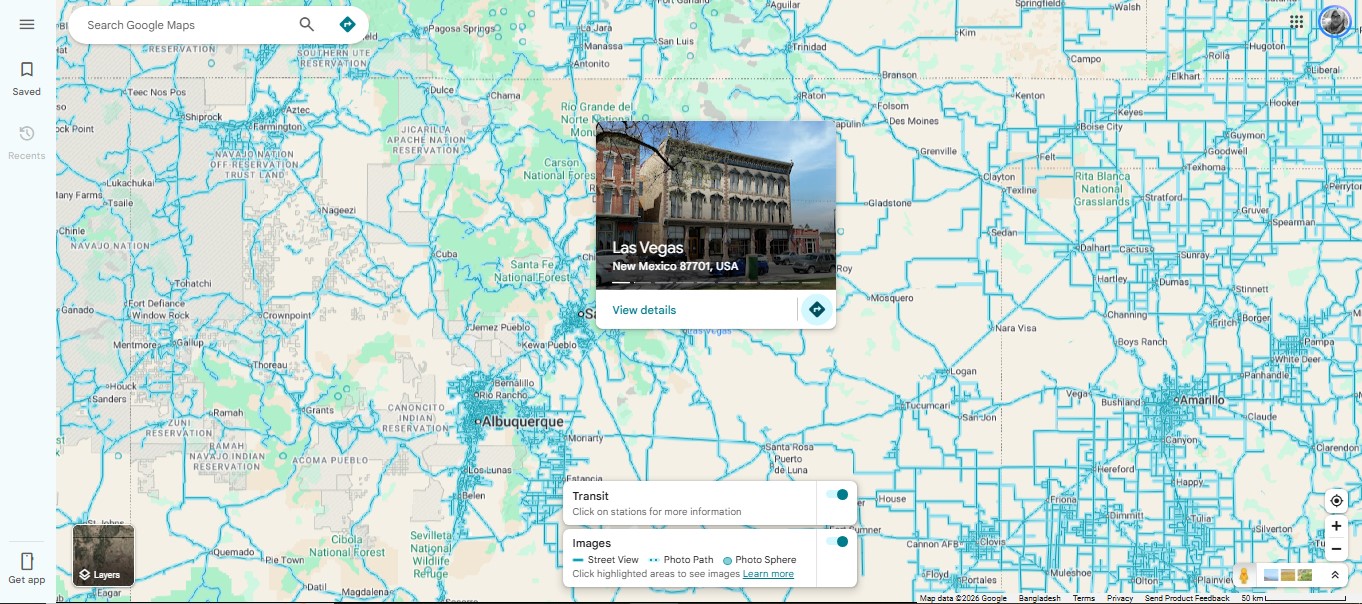
Google Maps lets you download an area before your trip. Once it is saved, you can view the map and get driving directions without mobile data, provided the entire route stays inside the downloaded area.
That last condition is easy to miss. If you save the city center but your airport is outside the boundary, the airport-to-hotel drive may not work offline. Check the full route when selecting the area.
Google Maps does not offer offline walking, cycling, or public transport directions. Drivers also lose live traffic information and alternative routes. Downloaded maps need updating before they expire, and some countries or regions do not permit downloads.
I would treat Google Maps as a strong driving backup, while checking another option if the trip depends on walking or public transport.
2. Apple Maps: More Offline Route Options for iPhone Users
On iPhones running iOS 17 or later, Apple Maps can download an area for use without Wi-Fi or mobile data. In supported areas, the saved map includes place information and turn-by-turn directions for driving, walking, cycling, and public transport.
That range makes it particularly useful when a trip involves more than driving. You can also inspect an offline map’s size before downloading it, which helps when phone storage is tight.
Coverage remains the deciding factor. Offline maps are available only in selected areas, and a map downloaded on one device does not automatically appear on another. Apple’s storage optimization setting may remove maps you have not used for a while. Check that your destination is available and still downloaded shortly before departure.
Offline public transport directions should not be mistaken for live arrival or disruption updates.
3. Organic Maps: A Practical Choice for Walking and Trails
Organic Maps is built around downloaded maps. It supports offline search and turn-by-turn directions for walking, cycling, and driving. It also shows hiking trails, walking paths, and cycling routes drawn from OpenStreetMap data.
For a traveler who expects to explore on foot, this can be more useful than a map saved solely as a driving backup. The app is free and open source, and its core navigation features are designed to work without an active connection once the maps are downloaded.
Download the relevant region before you go. As with any map built from contributed data, the detail available for a particular trail, address, or business can vary by place. Do not rely on it for live traffic or current transit times.
4. OsmAnd: Detailed Offline Routes for Travelers Who Like to Plan
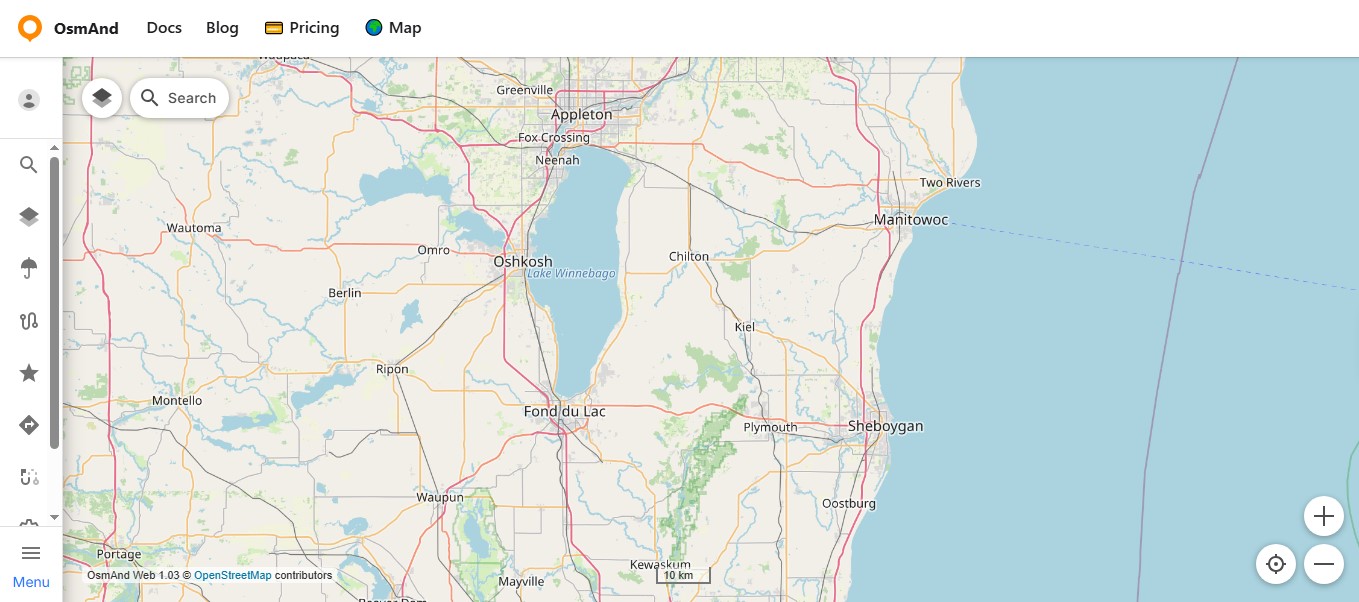
OsmAnd also uses downloaded maps, but offers more route controls. It supports offline navigation for driving, walking, cycling, and other activities. If you plan hikes, cycle rides, or routes with several stops, it is worth exploring before your trip.
Its setup deserves a little time. Download the correct maps, choose the travel profile you intend to use, and build a sample route before leaving home. Some additional map features require payment.
The free version has a download allowance: five on iOS and seven on Android. Map updates, voice packs, and other downloaded items can count toward it. Removing a download does not give that allowance back. Check what you need before downloading every available map.
HERE WeGo allows travelers to download maps by region and navigate offline. It is worth considering for a trip that crosses a large area, provided the maps for the destination are available.
Its setup is more than tapping Download. HERE’s instructions say to switch on Use app offline before offline navigation and to update saved maps regularly. Test a route with mobile data and Wi-Fi turned off so you know the app is using the map stored on your phone.
Coverage is the main caution. HERE lists exemptions to offline map availability, including Japan, Korea, and China. Check your destination in the app before making it your only navigation plan.
Five Translation Apps to Prepare Before Traveling
Translation apps have a similar trap: offline text translation does not guarantee offline camera or conversation translation. If reading signs matters most, test the camera. If you need to speak with someone, test speech in both directions.
6. Google Translate: A Flexible Choice for Text and Signs
Google Translate lets you save available languages to your phone and translate without an internet connection. It also supports offline camera translation for supported languages when the required language downloads are in place.
That makes it a useful first choice for short phrases, menus, and signs. Still, check the language you need: if there is no download button beside it, it cannot be saved for offline use. Camera results and other modes can differ by language pair.
Before leaving, download the languages on Wi-Fi. Then turn off data and try a typed phrase and a real sign or menu with the camera. Do not assume that a successful text translation proves every voice feature will work offline.
7. Apple Translate: A Built-In Option for iPhone Conversations
Apple Translate supports on-device translation for downloaded languages. You can type or speak a phrase, and supported in-person conversations can work without an internet connection.
Download both the language you will speak and the language you want to understand. On iPhone, the downloads are available under Settings → Apps → Translate → Languages. The app’s on-device setting lets you choose to use downloaded languages for translation.
This is convenient for an iPhone user whose language pair is supported. Check that pair before relying on it, and try a conversation with data turned off. Translation quality may differ from the online result.
Explore the Best Free Apps for Learning Language Effectively (iOS and Android) here.
Papago’s offline packs support text and voice translation among Korean, English, Japanese, and Simplified Chinese. Those four languages make it a useful option for the right trip, but its larger online language list should not be confused with its offline coverage.
There are two further limits to check. Offline image and conversation modes are not supported, even though offline voice translation is available. On Android, voice also requires an additional download and a device with at least 4GB of RAM running Android 14 or later. Papago lists a 4GB RAM requirement for offline text on Android and offline text and voice on iOS.
If you want to scan menus, pair Papago with a camera translator you have tested offline.
9. iTranslate: Offline Features Behind a Pro Plan
iTranslate offers offline text translation, phrasebook access, and voice translation for a smaller selection of languages. Its offline mode is part of iTranslate Pro, so check the subscription terms before downloading it for a short trip.
It may appeal to someone who wants to prepare phrases in advance and knows their required offline language pair is available. Download what you need and test both text and voice before departure; the offline voice selection is narrower than the text selection.
One distinction matters here: iTranslate lists camera translation and offline mode as Pro features, but that does not mean every camera translation works without internet. Test the camera separately if that is why you want the app.
10. Yandex Translate: A Typed-Text Backup for the Right Pair
Yandex Translate can translate text you type using offline dictionaries. English and Russian dictionaries are available by default; other supported languages require downloads. Depending on the translation, you may need dictionaries for both sides of the pair.
Its listed offline language coverage is narrower than its online coverage, and descriptions of available pairs differ across its support material and app listings. The practical answer is to check the pair inside the app, download its dictionaries, and test it without data.
Yandex is best treated as a typed-text backup. Voice input and dialogue require a connection, and photo translation should not be part of an offline plan.
How to Make Sure Your Downloads Will Actually Work
I would not finish trip preparation when the download bar reaches 100%. The useful check is whether each app completes the task you will need abroad.
- Cover the whole journey. Save the airport, hotel, day-trip areas, and the roads between them. This is especially important for Google Maps driving routes.
- Download the right languages. Check both directions of a conversation, not just the language you expect to see on signs.
- Check storage and updates. Maps and language packs take space. Update saved content before leaving, particularly if it was downloaded weeks ago.
- Turn off Wi-Fi and mobile data. Search for your hotel and start a route using the travel mode you will actually use.
- Test translation modes separately. Type a sentence, scan printed text, and try speech if you expect to use it. Note which actions succeed.
- Save a simple backup. Keep your hotel’s name and address in the local language somewhere you can open without internet.
Testing this way takes a few minutes at home. It is harder to troubleshoot an unavailable map or missing voice pack at a busy station.
Which Apps Should You Download?
For most trips, one primary map, one backup map, and one translation app are enough.
- Mostly driving: Start with Google Maps or HERE WeGo, after confirming the route and destination can be downloaded. Add Google Translate for language needs.
- Walking around a city: Check Apple Maps on iPhone where offline coverage exists, or use Organic Maps on Android or iPhone. Add a translator with a tested offline camera mode if you expect to read signs and menus.
- Hiking or cycling: Compare Organic Maps and OsmAnd for the routes you plan to take. Download the region and inspect the trail or cycle path before leaving.
- Using Korean, Japanese, or Simplified Chinese: Papago may be a useful text-and-voice companion. Keep a separately tested option for camera translation.
These are starting combinations, not universal winners. The best offline map and translation apps for your trip are the ones that cover your destination, language pair, and travel mode.
Common Questions About Offline Map and Translation Apps
Can GPS work without mobile data?
A phone with suitable location hardware can determine its position without mobile data. You still need location services enabled and the map downloaded. Positioning may be less reliable indoors or where the device cannot get a good signal.
Will Google Maps give me walking directions offline?
No. Google Maps’ downloaded areas support offline driving directions when the whole route is covered, but not offline walking, cycling, or public transport directions. Apple Maps offers more offline route modes in supported areas.
Can I translate a sign with my camera without internet?
Sometimes. Google Translate documents offline camera translation for supported downloaded languages. Do not assume the same of another app because it offers both camera translation and an offline mode. Test the exact language pair with data off.
Do I have to pay for offline access?
It depends on the app. Organic Maps is free; OsmAnd offers a limited number of free downloads; iTranslate requires Pro for offline mode. Check the current plan or download screen before subscribing, since offers can change.
Download for the Trip You Are Taking
There is little value in filling your phone with ten apps if none has the map or language pack you need. Choose a navigation app for your actual route, choose a translator for the task you expect to perform, and test both without data.
That final test is what turns an offline feature on a product page into a travel tool you can count on.