Whenever I look at educational technology, I start with a simple question: what part of the lesson does this tool improve? The digital learning tools teachers keep recommending are not always the newest or the most heavily promoted. They are usually the ones that solve a familiar classroom problem without creating three new ones.
That distinction matters because schools do not have a shortage of software. Instructure’s Canvas-based 2026 report found that the average district had access to about 3,000 education technology products. Inside Canvas, however, teachers and students used an average of only four LTI tools.
I do not see that as a failure to embrace technology. It suggests that teachers eventually settle on a small group of platforms that fit into their actual routines.
The ten tools below are not ranked from best to worst. Google Classroom and Book Creator do entirely different jobs. Kahoot!, Wayground, and Nearpod may all make lessons interactive, but they are not interchangeable.
I looked for active platforms with a clear classroom purpose, continued educator use, accessible entry options, and enough practical value to justify another student login.
Plan details and free-account limits were verified in October 2026. They can change by region, account type, or school agreement.
The 10 Tools at a Glance
| Tool | Strongest classroom role |
| Google Classroom | Organizing assignments and classwork |
| Canva Education | Creating visual materials and student projects |
| Kahoot! | Short live retrieval activities |
| Wayground | Live and self-paced formative assessment |
| Nearpod | Delivering complete interactive lessons |
| Edpuzzle | Adding questions and accountability to video |
| Padlet | Collecting ideas and collaborative responses |
| Seesaw | Elementary portfolios and family communication |
| Book Creator | Multimodal student publishing |
| Khan Academy | Targeted practice and skill reinforcement |
The table also explains why no teacher needs all ten. A central platform and two or three well-chosen supporting tools will usually be more useful than a crowded collection of apps.
1. Google Classroom: The Quiet Backbone
Google Classroom is not the most inventive platform here. Its strength is that it handles the routine work teachers and students must do every day.
Teachers can distribute files, schedule assignments, organize materials by topic, use rubrics, return work, and provide feedback. Students have one place to check instructions, deadlines, and submitted work instead of searching through email threads and shared folders.
For qualifying institutions, Google Workspace for Education Fundamentals is available without charge. Google also says its core education services are ad-free and that student information in those services is not used for advertising.
The limitation is equally important. Google Classroom organizes teaching, but it does not provide a curriculum or automatically make an assignment meaningful. Schools already using Canvas, Moodle, or Microsoft Teams should consider whether another class hub would reduce confusion or add to it.
2. Canva Education: When Students Need to Show an Idea
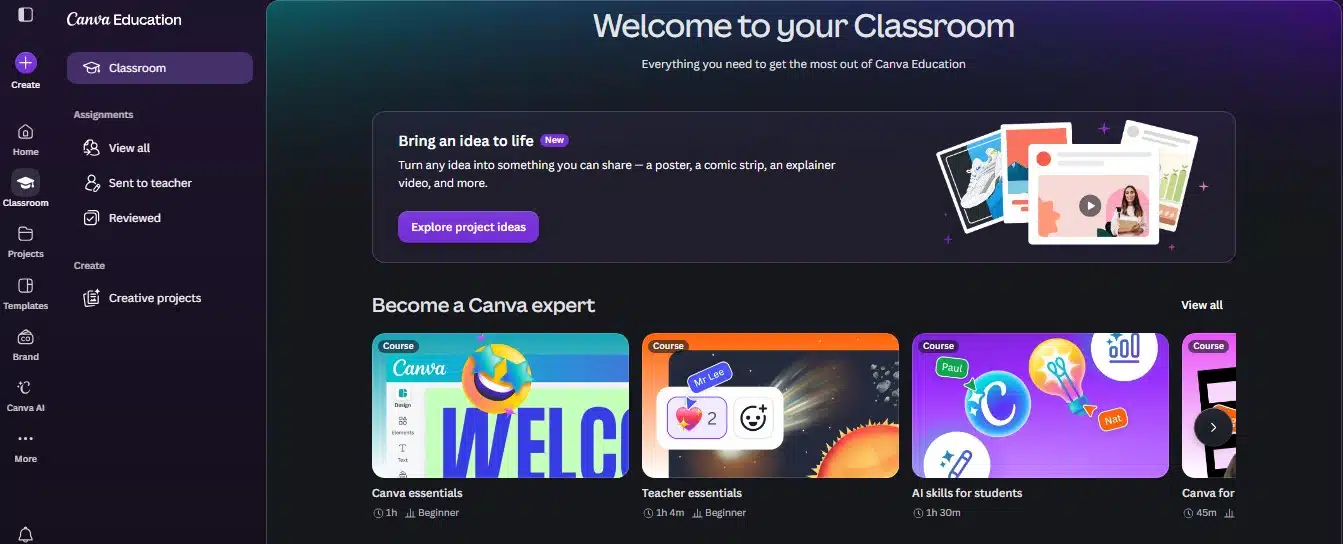
Canva is often described as a presentation and design platform. In a classroom, it can become a much broader creation space.
Teachers can use it for diagrams, worksheets, presentation slides, timelines, short videos, and visual instructions. Students can create infographics, book trailers, posters, explainers, and multimedia reports.
Instead of copying the stages of the water cycle, for example, students could build a visual explanation showing how one stage leads to the next. The design is not the learning objective. It gives students another way to organize and communicate what they understand.
Canva Education is free for eligible K–12 teachers, students, and schools. However, the offer does not automatically cover higher education, private tutors, daycare providers, or every homeschooling arrangement.
The practical risk is obvious once students begin designing. Font choices and animations can consume more attention than the content. A good rubric should reward accuracy, reasoning, source use, and communication—not visual polish alone. Teachers should also review AI-generated text and images before allowing them into a finished project.
Transparency note: I use ImagineLab Art, an AI visual-creation platform developed in-house by Editorialge Media LLC, in my own visual-content workflow. I have not included it among these ten tools because this article focuses on platforms with broader, independently documented classroom adoption. I am mentioning the connection for transparency, not presenting ImagineLab Art as a widely recommended teaching platform.
3. Kahoot!: Best Used in Short Bursts
Kahoot! works best when it occupies five or ten useful minutes rather than taking over the entire lesson.
A short activity at the beginning of class can show what students remember from yesterday. Another at the end can reveal which idea needs to be explained again. Because everyone responds, the teacher receives information from more than the two or three students who normally raise their hands.
The free K–12 offering supports up to 40 participants in live or assigned activities. Kahoot! also provides an Accuracy mode that rewards correct answers rather than response speed.
That option matters. Fast leaderboards can energize some students, but they can also reward quick guessing and disadvantage learners who need more processing time.
I would treat Kahoot! as a low-stakes retrieval and feedback tool. A strong score may show that a student remembers the answer. It does not necessarily prove that the student can explain or apply the concept.
4. Wayground: More Flexible Practice and Assessment
Many teachers will still recognize Wayground by its former name, Quizizz. The platform officially changed its name in 2025, while existing accounts, classes, and resources continued.
Wayground overlaps with Kahoot!, but it is particularly useful for self-paced practice and asynchronous assignments. Teachers can create assessments, lessons, passages, flashcards, and interactive activities that students complete during class or independently.
It also offers accommodations such as read-aloud support, translation, extended time, and dyslexia-friendly display options. These can help teachers adjust access without creating an entirely separate activity for every learner.
The free Starter plan supports up to 100 participants and allows 20 stored resources, although availability and limits can vary by region.
The storage limit may become restrictive for regular users. Teachers should also inspect every AI-generated question. A question can look polished while still containing an unclear prompt, weak answer choices, or a factual mistake.
5. Nearpod: A Complete Interactive Lesson Path
Nearpod is most useful when a teacher wants to connect several parts of a lesson in one guided sequence.
A session might begin with a prediction poll, move into a short explanation, include a video or image, ask students to annotate something, and finish with an open response. The teacher can see answers as they arrive and adjust the lesson when confusion appears.
Nearpod Silver is free and supports up to 40 student joins per lesson. It includes live participation, student-paced delivery, interactive activities, and basic reporting. Students can join with a code without installing a dedicated app.
Nearpod becomes less effective when interactivity is added simply because the option exists. If students must vote, drag, draw, or click on every slide, participation starts to feel mechanical. I would include an interaction only when the response tells the teacher something useful about student thinking.
6. Edpuzzle: Making Video Less Passive
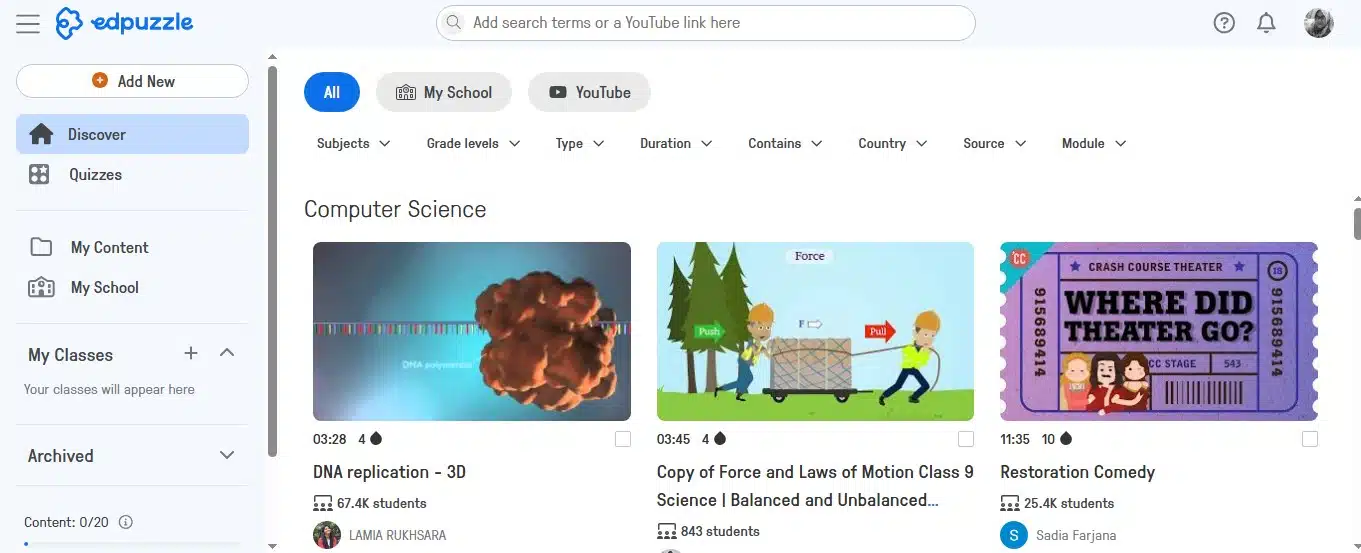
Showing a video is easy. Knowing whether students followed the explanation is harder.
Edpuzzle lets teachers place questions, notes, and prompts inside a video. Playback can pause at selected points, giving students time to respond before continuing. The teacher can then review completion data and identify questions that caused difficulty.
The free Basic plan allows a teacher to store up to 20 activities. Edpuzzle also connects with platforms including Google Classroom, Canvas, Schoology, Moodle, and Microsoft Teams.
More questions do not necessarily produce better learning. An eight-minute video with three carefully selected prompts may reveal more than a heavily interrupted video containing ten obvious questions.
Completion data also needs context. Finishing a video is not proof of comprehension. Captions, audio quality, video length, source reliability, and the quality of the embedded questions still determine whether the activity is useful.
Padlet gives a class a flexible digital space for collecting and organizing contributions.
A teacher might create separate columns for “What I know,” “What I am unsure about,” and “What I want to investigate.” Students can contribute text, images, links, audio, or video. The same platform can support collaborative timelines, resource collections, class galleries, and exit tickets.
The free Neon plan includes three customizable padlets, several layout options, and unlimited posts and contributors. Attachment and recording limits still apply.
Three boards may be enough for a teacher who reuses them strategically. They will feel restrictive to someone trying to maintain a separate board for every unit.
Padlet also needs visible boundaries. Without a focused prompt, posting rule, naming convention, and moderation plan, a collaborative board can quickly become unreadable. Visibility and contributor permissions should always be checked before students begin posting.
8. Seesaw: When Typing Is Not the Best Evidence
Younger students cannot always show what they understand through a typed paragraph. Seesaw gives them other options.
A child can photograph physical work, record an explanation, draw over an image, or submit a short video. A student might build a pattern with blocks, take a photograph, and explain the rule in their own voice. The teacher sees both the finished work and the child’s reasoning.
Selected work can also be shared with families, creating a clearer view of classroom progress than a report card alone can provide.
Seesaw Starter supports one active class, one teacher, up to 35 students, and up to 35 teacher-created activities. Family access is free.
The free plan is restrictive for teachers responsible for several classes. Younger children will also need initial guidance on recording clearly, selecting the correct work, and posting in the right place. Without that structure, a learning portfolio can gradually turn into little more than a stream of classroom photographs.
9. Book Creator: More Than a Digital Poster
Book Creator allows students to combine writing, visuals, audio, video, and page structure in one finished project.
Students can make digital books, comics, portfolios, lab journals, reports, and reflection projects. A local-history assignment, for example, could combine written research with maps, archival photographs, recorded narration, and a short interview clip.
This flexibility can help students who understand a topic but struggle to communicate everything through a conventional essay. It should extend writing rather than replace it.
The free teacher account includes one library containing up to 40 books.
Teachers should establish the content requirements before students start choosing layouts and colors. Publication settings also need careful control when projects contain student names, faces, voices, locations, or personal information.
10. Khan Academy: Targeted Practice, Not Digital Babysitting
Khan Academy differs from most tools on this list because it provides instructional content and practice rather than simply helping teachers deliver their own materials.
Its clearest use is targeted reinforcement. If an exit ticket shows that several students are struggling with equivalent fractions, a teacher can assign relevant practice while providing additional explanation in a small group. Progress information can help identify who is ready to move forward.
The core Khan Academy platform remains free for students, teachers, and families. It includes lessons, videos, exercises, quizzes, and progress tools across mathematics, science, computing, reading, and other subjects.
Khanmigo, its AI-supported tutor and teaching assistant, should be considered separately. Student access is not automatically included with every free Khan Academy account and is often provided through participating schools or districts.
Khan Academy works better when students receive a specific assignment for a specific reason. Sending an entire class into a large content library without direction can produce plenty of screen activity without enough teaching.
A Digital Tool Is Not a Teaching Strategy
Popularity does not prove effectiveness.
UNESCO has warned that independent evidence about education technology remains limited and mixed. The Education Endowment Foundation makes a similar distinction: technology becomes useful when it strengthens teaching practices such as explanation, feedback, assessment, and purposeful practice.
That is why I would avoid sweeping claims that Kahoot! improves achievement, Canva increases creativity, or video automatically raises engagement. Those outcomes depend on the task, the teacher, the students, and the wider learning environment.
The more useful question is: What will students do differently because this tool is present? If the answer is only “look at another screen,” the tool may not be adding much.
The Best Tool Should Disappear Into the Lesson
The digital learning tools teachers keep recommending tend to survive because they support a recognizable part of teaching.
Google Classroom organizes the work. Canva and Book Creator help students communicate ideas. Kahoot! and Wayground provide different forms of practice. Nearpod structures a lesson. Edpuzzle makes video more accountable. Padlet gathers shared thinking. Seesaw captures learning that younger students may struggle to type. Khan Academy supports focused reinforcement.
None of these platforms can rescue a lesson with no clear objective. Nor should a teacher adopt one simply because another school is using it.
The best tool is often the one students stop noticing—the one that quietly makes the instructions clearer, reveals a misconception, or gives learners a better way to show what they understand.
Frequently Asked Questions on Digital Learning Tools Teachers Keep Recommending
1. Which digital learning tool is best overall?
There is no single best tool because the platforms solve different problems. Google Classroom is useful for organization, Nearpod for guided interactive lessons, Seesaw for elementary portfolios, and Khan Academy for targeted practice. The right choice depends on the job that needs to be done.
2. Which of these tools are genuinely free?
All ten offer free access in some form, but the conditions differ. Google Classroom and Canva Education have institutional or eligibility requirements. Kahoot!, Wayground, Nearpod, Edpuzzle, Padlet, Seesaw, and Book Creator limit participants, classes, activities, boards, resources, or storage. Khan Academy’s core platform is free, while Khanmigo access is separate.
3. Should I choose Kahoot!, Wayground, or Nearpod?
Choose Kahoot! for a short, energetic live knowledge check. Choose Wayground for repeatable live or self-paced practice with more differentiation options. Choose Nearpod when you want to deliver a complete lesson containing presentation, participation, and formative assessment.
4. Which tools are most suitable for elementary students?
Seesaw and Book Creator are particularly useful because children can respond through photographs, drawings, audio, and video. Canva Education, Khan Academy, Padlet, and teacher-guided quiz activities can also work when the instructions and interface demands match the children’s ages.
5. How many digital tools should a teacher use?
There is no ideal number. A practical setup might include one central class platform, one assessment tool, and one creation or collaboration tool. Another platform should be added only when it solves a problem the existing combination cannot handle.