A group assignment can lose time before anyone starts writing: the draft is in one person’s account, sources are buried in chat, and no one knows who owns the next task. The best free tools for student group projects make those responsibilities easier to see and shared work easier to find.
This list covers writing, storage, planning, communication, meetings, design, and research. It is ordered by how often a tool can help with ordinary coursework, with more specialized options later. Free plans change, so confirm current limits before you build your whole workflow around one.
For a short assignment, one shared document, a folder, and a group chat may be enough. A longer project might need a task board or a reference manager. Agree on where the current draft lives, where decisions are recorded, and who updates the task list. The best free tools for student group projects cannot help if every teammate is following a different version.
1. Google Docs: Draft Together
Google Docs is the easiest starting point for many reports, proposals, and scripts. Teammates can edit a shared document, leave comments, and review earlier versions. Personal accounts can use Docs for free.
Set up headings and assign sections before everyone starts writing. Ask people to comment when they question a passage instead of silently overwriting it. Docs makes a group draft easier to manage; it does not make separate writing styles sound consistent, so leave time for one person to edit the whole piece.
2. Google Drive: Keep Files in One Place
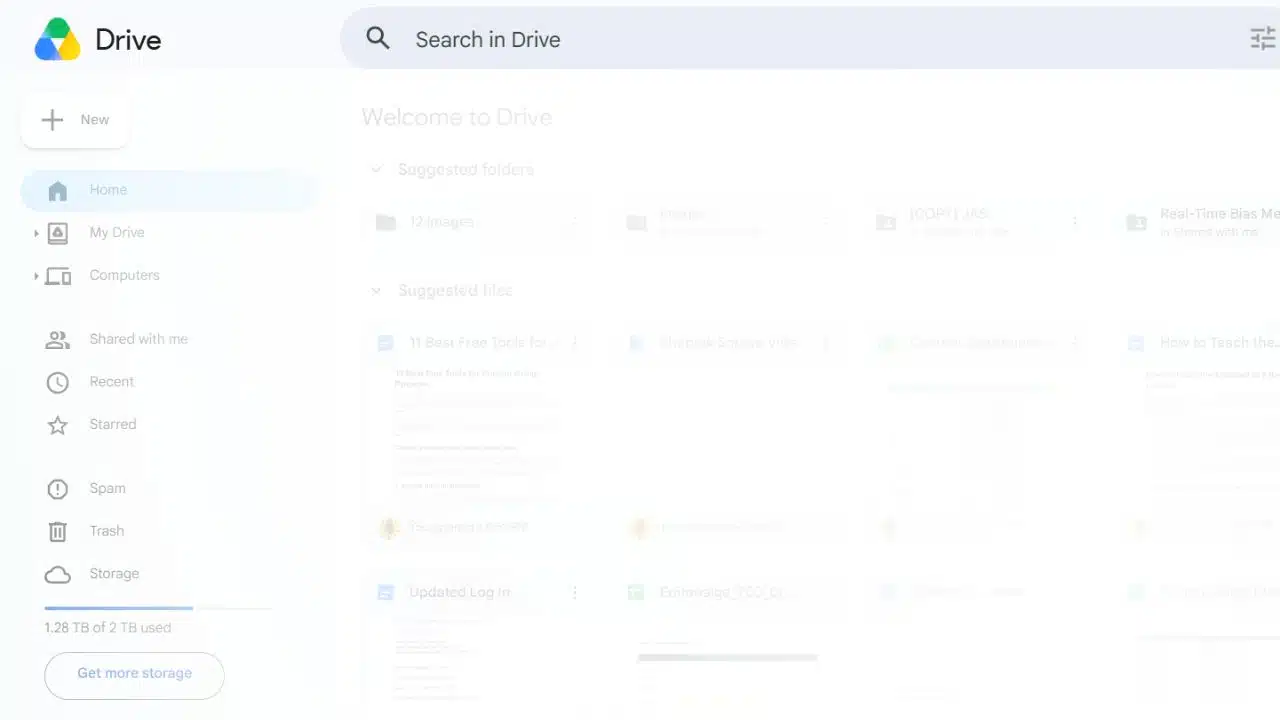
Reports rarely travel alone. Groups may share PDFs, images, charts, recordings, or presentation drafts. Drive stores and shares files, but a personal Google Account’s 15 GB is shared across Drive, Gmail, and Photos.
Create one folder for the assignment and a few subfolders, such as “Research” and “Final.” Check permissions before sending a link; “anyone with the link” is broader access than many groups intend. Keep one clearly named approved copy so the team does not submit “final-final-new.”
3. Trello: Make Task Ownership Visible
Trello’s cards and columns are useful when a project has several moving parts. A simple “To do,” “Doing,” and “Done” board can show who is handling each task. Atlassian’s Free plan allows up to 10 collaborators per Workspace.
Write specific cards such as “Check citations in section two” or “Rehearse slides.” “Work on report” is too vague to help anyone plan. Trello is worth setting up when tasks keep slipping; for a two-person, one-week assignment, a checklist may be faster.
4. Notion: Keep Notes and Plans Together
Notion can hold an assignment brief, task list, meeting notes, and links to project files on one page. It is free for individual use, but multi-owner free workspaces have block limits. Check the current plan before making it the team’s main workspace.
Start with a plain page: deadline, deliverables, decisions, and next actions. Elaborate dashboards look organized, but they can become a separate project the group has to maintain.
5. Slack: Separate Project Conversations
Slack channels can divide announcements, questions, and different workstreams. It may help a group that already uses Slack or has several parallel tasks.
The free plan only provides access to the most recent 90 days of message and file history, and data older than one year is subject to deletion. Keep important decisions in the shared document or task board. For a small class group, Slack may be more setup than the project needs.
6. Microsoft Teams: A Fit for Microsoft-based Groups
Teams makes sense when the group already uses Microsoft accounts and tools. Microsoft currently advertises free meetings of up to 60 minutes, with screen sharing and live captions; availability can vary by account and location.
Send an agenda before the call and have someone capture the decisions. If the group uses Google Drive and only needs an occasional conversation, adding Teams may create another place everyone has to check.
7. Google Meet: For Quick Remote Check-ins
Meet is a straightforward option for groups using Google accounts. Video and screen sharing can help when the team needs to review a draft or rehearse a presentation together.
A call works best when the document is already shared, and the group has specific questions to resolve. Close by noting who will do what next. Meet’s features and limits depend on the account, so check them if the project needs longer sessions.
8. Canva: Design the Presentation or Poster
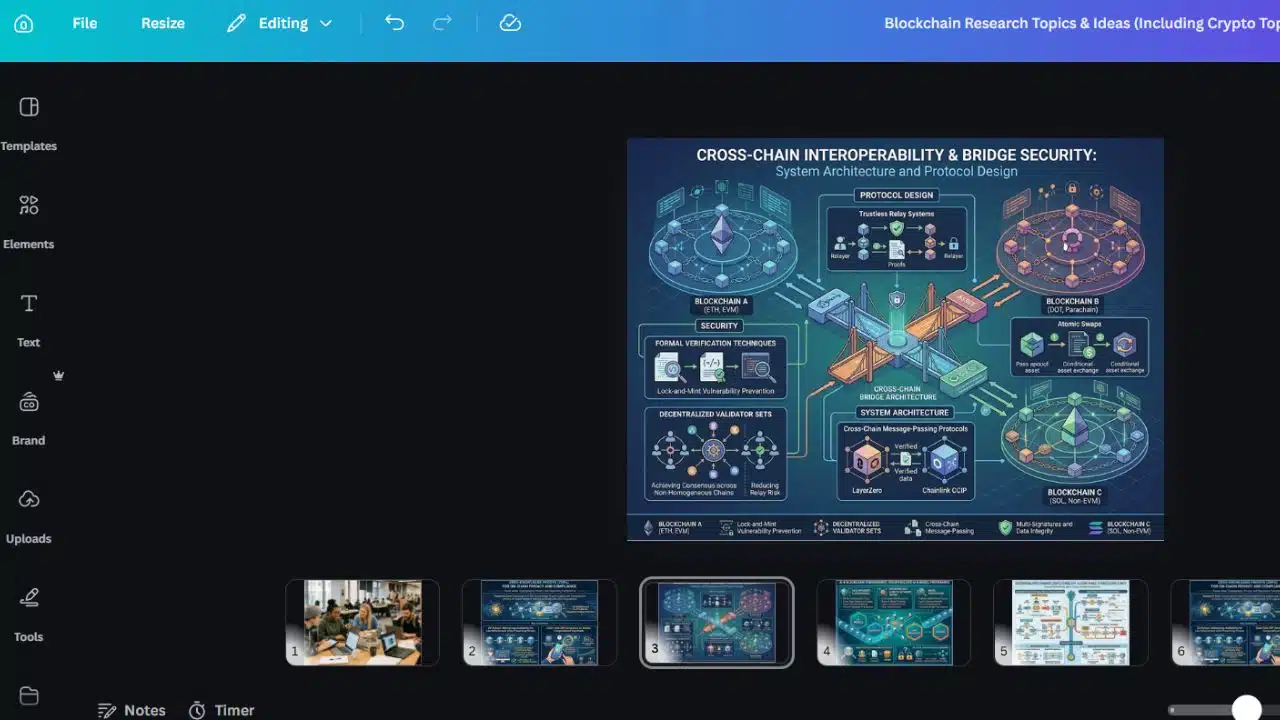
Canva helps groups create presentations, posters, and other visual work without starting from a blank page. College and university students can use Canva Free. Canva Education is for eligible K–12 students and educators, often through a teacher or school; it is not a blanket free upgrade for university students. Some templates and assets may also require payment.
Before choosing a template, make sure every teammate can edit it and access the elements it uses. Keep research and citations in a document where they are easier to check than on a crowded slide.
9. Miro: Sort Ideas on a Visual Board
Miro’s whiteboard can help a team group ideas, map themes, or plan how sections fit together. It is most helpful early in the assignment, before the report outline is settled.
The free plan allows three editable boards. Use one for the project’s central planning, then move decisions into the report or task list. If the group wants separate boards for every meeting, check the limit first.
10. Zotero: Organize Research Sources
Zotero helps students collect, organize, cite, and share sources. A group library can keep everyone’s references together, which is useful when teammates research different sections.
Free attachment storage is 300 MB, so a group saving many PDFs should plan around the cap. Add a short note to each source explaining what it may support. Citation software can format a reference, but students still need to check the source itself and confirm it supports the claim.
11. Zoom: Keep a Remote Meeting Focused
Zoom is another option for a planning call or presentation rehearsal. Its current free-meeting information lists a 40-minute limit and up to 100 participants, so it suits a planned session better than an open-ended work call.
Share materials beforehand and set an end time. If the group already uses Meet or Teams, Zoom’s main advantage may simply be that teammates know how to join it.
Final Thoughts
The best free tools for student group projects are usually the fewest tools that cover the work. Start with Docs and Drive for writing and files. Add Trello or Notion only when ownership or decisions are getting lost; bring in Canva, Miro, or Zotero when the assignment needs design, visual planning, or shared research.
Before the next meeting ends, choose one home for the approved draft and assign the next task to a person, not just “the group.” That is a useful first step toward making the best free tools for student group projects work for the team.
Frequently Asked Questions (FAQs)
What is a simple setup for a small group?
Use one shared document, one file folder, and a chat your teammates already check. The best free tools for student group projects should reduce confusion; adding apps without a clear purpose can do the opposite.
Can university students use Canva Education?
University and college students can use Canva Free. Canva Education is aimed at eligible K–12 students and educators, with school or teacher access commonly involved.
Where should the final project file go?
Put it in the shared folder or school platform the whole group can access. Name it clearly, and keep one approved final copy to avoid submitting an outdated draft.