Blocking Instagram on your laptop means little if the feed stays open on your phone beside you. Conversely, overly aggressive software can ruin a workflow by locking down essential cloud storage, login pages, or client channels. The best distraction blocker apps hit the sweet spot between these extremes.
By combining cross-device synchronization, granular site rules, and strict lockout modes, top focus tools help eliminate digital friction without breaking your actual work. The definitive ranking prioritizes cross-platform support, reliable enforcement, robust free options, and straightforward setup—led by multi-device apps and followed by specialized browser extensions. Note that pricing varies by region and platform, so verify costs before subscribing.
Best Distraction Blocker Apps at a Glance
| App or Extension | Strongest Use | Platforms |
| Freedom | Cross-device blocking | Windows, macOS, iOS, Android, Chromebook |
| Cold Turkey Blocker | Strict desktop enforcement | Windows, macOS |
| Opal | Polished phone control | iPhone, Android, macOS |
| ScreenZen | Free screen-time friction | iOS, Android, macOS, Windows |
| FocusMe | Advanced rules | Windows, macOS, Linux, Android |
| one sec | Interrupting automatic app opening | iOS, Android, macOS, major browsers |
| RescueTime | Blocking tied to time analysis | Windows, macOS, iOS, Android |
| LeechBlock NG | Free browser scheduling | Firefox and Chromium browsers |
| StayFocusd | Basic Chrome limits | Google Chrome |
Coverage matters, but so do the source of the distraction and the required strictness.
1. Freedom: Best Overall for Multiple Devices
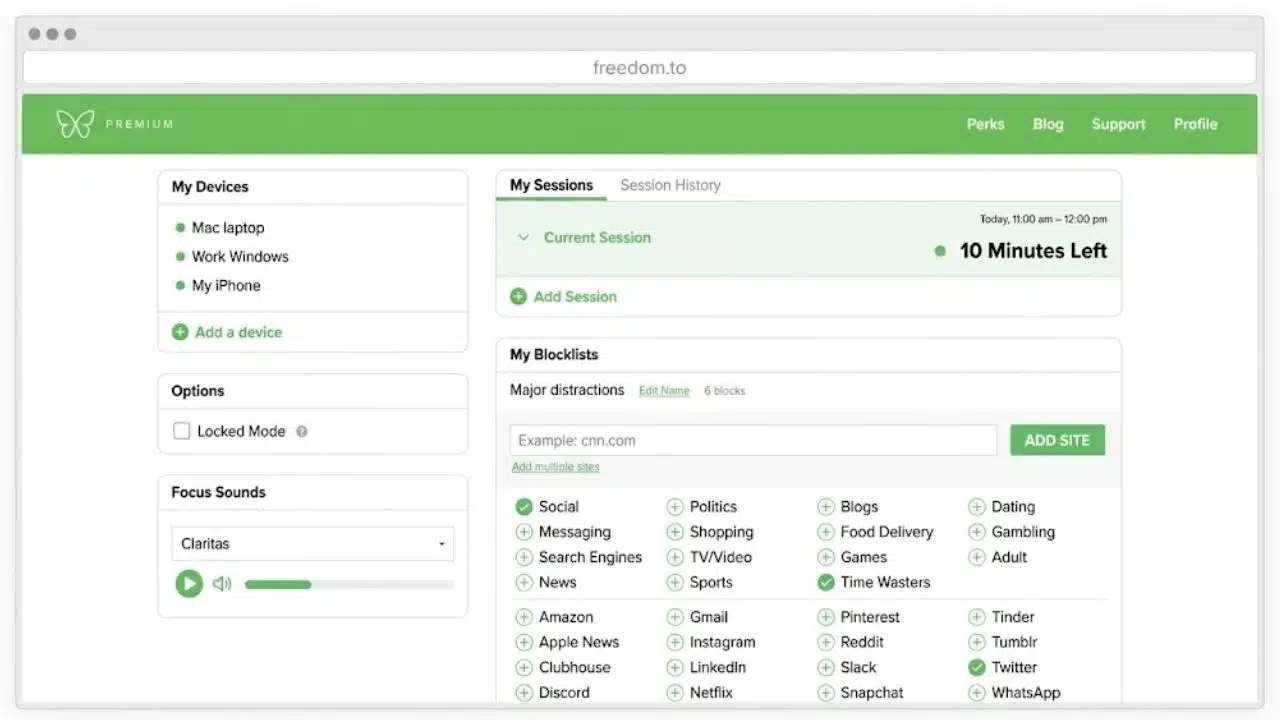
Freedom ranks first because one session can cover a phone, tablet, and computer, closing the detour from a blocked desktop site to its mobile app.
Its free plan includes unlimited devices, custom blocklists, desktop app blocking, and on-demand sessions capped at two hours. Recurring schedules, longer sessions, and Locked Mode require Premium, currently $39.99 annually or $8.99 monthly on the web. Website exceptions are limited to Mac and Windows.
That combination makes Freedom the most practical starting point for people who mix operating systems. For one browser on one computer, it is more service than necessary.
2. Cold Turkey Blocker: Best for Strict Desktop Blocking
Test a Cold Turkey blocklist before locking it. Timers, delays, passwords, and text challenges can make a session difficult to reverse.
On Windows and macOS, Cold Turkey can block websites, programs, games, the internet, or the computer itself. The free version handles timed website blocks. Pro adds application blocking, repeating schedules, allowances, breaks, and stronger locks through a lifetime license.
That severity suits exams and fixed deadlines, but not unpredictable work. There is no mobile or Linux version, so it cannot protect a nearby phone.
3. Opal: Best Polished Option for Phone Distraction
Opal combines app blocking with open limits, time limits, focus timers, and screen-time history. It suits someone trying to change everyday phone habits rather than survive one deadline.
Opal’s current pricing and help pages give different descriptions of the free rule allowance. Confirm the limit inside the app. Pro adds unlimited rules, harder blocking, allow-only controls, and longer-term history. Its annual web plan is $99.99, and the US App Store requires iOS 18 or later.
The price is hard to justify for basic scheduling. Its stronger case is polished mobile control and progress feedback.
4. ScreenZen: Best Free Choice for Doomscrolling
ScreenZen targets the reflex to open Reddit, Instagram, or another feed. It can delay an opening, limit launches, interrupt scrolling, or block access after an allowance is used.
The app is free and donation-supported across iOS, Android, macOS, and Windows, although controls differ by platform. Schedules, strict blocks, and settings locks add useful depth. Start with one restriction; stacking every control immediately makes it harder to learn what helped.
5. FocusMe: Best for Advanced Rules
FocusMe is the power-user option. Its plans can block or allow sites and programs, apply usage budgets, restrict launch counts, run Pomodoro cycles, and enforce screen breaks. Protection can involve passwords, random-character challenges, stop delays, or Enforced Mode.
It supports Windows, macOS, Linux, and Android, but not iOS. A 14-day trial needs no credit card; the lifetime plan is currently $249. The flexibility suits complex schedules and shared computers, but is excessive for one lunchtime block.
6. one sec: Best for Breaking the Opening Reflex
one sec inserts a brief intervention before a selected app or website opens, creating time to reconsider an automatic check.
The free version targets one app. Pro adds multiple targets, repeated interventions, schedules, and block sessions. It supports iOS, a native Mac app, and major browsers. On Android, some devices need extra permissions while others appear as unsupported on the developer’s list.
This approach is underrated for habit change. For a deadline that cannot tolerate exceptions, Cold Turkey or FocusMe is the safer choice.
7. RescueTime: Best for Finding the Distraction First
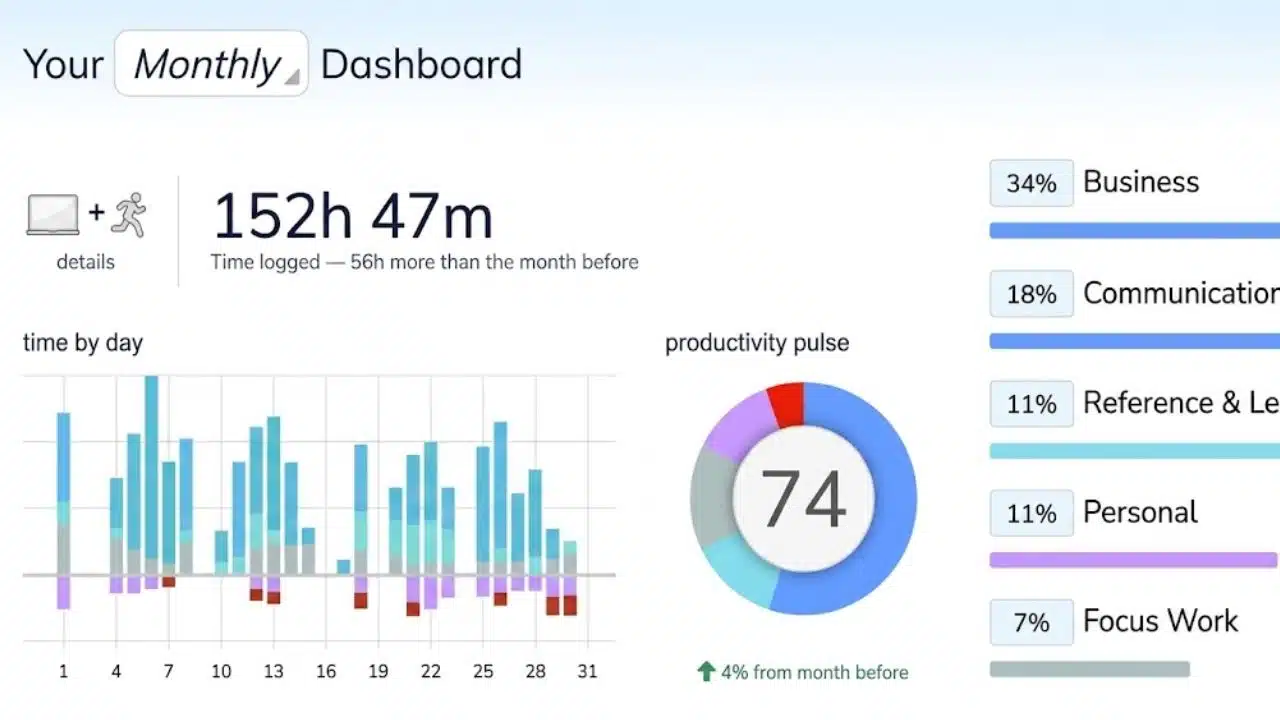
RescueTime tracks activity, categorizes apps and websites, and uses those categories during Focus Sessions. Stricter sessions can include communication tools when email and chat are the real interruptions.
Sessions can run across connected devices or start from calendar events. Solo Focus is $7 per month when billed annually, following a 14-day trial.
The trade-off is data collection. RescueTime says it identifies active apps and sites without recording keystrokes, form entries, screenshots, or page content. Readers who do not want behavioral reporting should choose a simpler local blocker.
8. LeechBlock NG: Best Free Browser Extension for Tinkerers
LeechBlock NG is free, flexible, and visually plain. It handles separate site sets, schedules, allowances, access delays, immediate Lockdowns, and protected settings.
It supports Firefox and major Chromium browsers but cannot touch native apps. An unprotected browser remains an escape route. Install it everywhere used for work or treat it as a speed bump.
9. StayFocusd: Best for Basic Chrome Limits
StayFocusd limits distracting Chrome pages, including specific paths or page elements. Its Nuclear Option creates a stricter timed block, while a challenge discourages casual settings changes.
It cannot independently control desktop programs or phones; mobile pairing uses the separate StayFree app. That keeps it ninth, but it remains sensible where system software cannot be installed.
Before Choosing Any Blocker
The boring setup checks prevent the worst mistakes:
- Test a block for 20 to 30 minutes before making it recurring or difficult to cancel.
- Confirm that sign-ins, video calls, cloud files, and client communication still work.
- Protect every realistic escape route, including a second browser or the mobile version of the same service.
Match strictness to the task. A writing sprint can tolerate a harder block than an on-call shift.
Final Thoughts
For most people comparing the best distraction blocker apps, Freedom offers the strongest balance of coverage and access. ScreenZen is better for reflexive phone checking, while Cold Turkey suits a desktop deadline requiring firm enforcement.
Begin with one repeatable focus period and two or three genuine distractions. A good blocker removes a handful of bad decisions from the day. It should not become another productivity system that demands constant attention.
Frequently Asked Questions
Are built-in screen-time controls enough?
Yes, for simple limits on one device. A separate blocker becomes useful when rules must cross platforms, follow detailed schedules, or resist easy overrides.
Can a blocker stop notifications as well as app access?
Not in every case. Pair it with Focus or Do Not Disturb settings and allow essential calls or messages.
Should distracting sites be blocked all day?
Usually not. A defined work window is easier to maintain. Professional users may need messages or publishing tools even while feeds and short-form video are blocked.