Many apps begin with a useful idea and expand until they become another system to manage. A note-taking tool adds databases and project planning. A to-do list grows a calendar, habit tracker, chat function, and AI assistant. The software meant to remove friction creates more of it.
The best minimalist apps take a narrower approach. They solve a specific problem, require little setup, and stay quiet when they are not needed. Their supporting features serve the same purpose instead of pulling the product in several directions.
The apps below cover different jobs, from transferring files to controlling YouTube distractions. They are not ranked against one another because comparing a break reminder with a clipboard manager would be meaningless. Each one earns its place by handling a recurring task without asking you to reorganize everything else around it.
What Makes a Minimalist App Worth Keeping?
A clean interface is not enough. Notion, TickTick, Raycast, and other broad productivity platforms can look restrained, but their value comes from managing several parts of work. They may be useful products, but they do not fit a list about software that does one thing well.
For this list, an app needed a purpose that could be explained in one sentence. It had to become useful without templates, lengthy onboarding, or a new productivity method. I also considered the details that app roundups often overlook: platform limits, accounts, sensitive permissions, pricing boundaries, data storage, and whether users can export their information.
Features, availability, privacy statements, and plan information were checked against official product pages, documentation, and current storefront listings in August 2026. Prices and operating-system requirements can change, so confirm them before paying or installing.
10 Best Minimalist Apps for Focused, Everyday Tasks
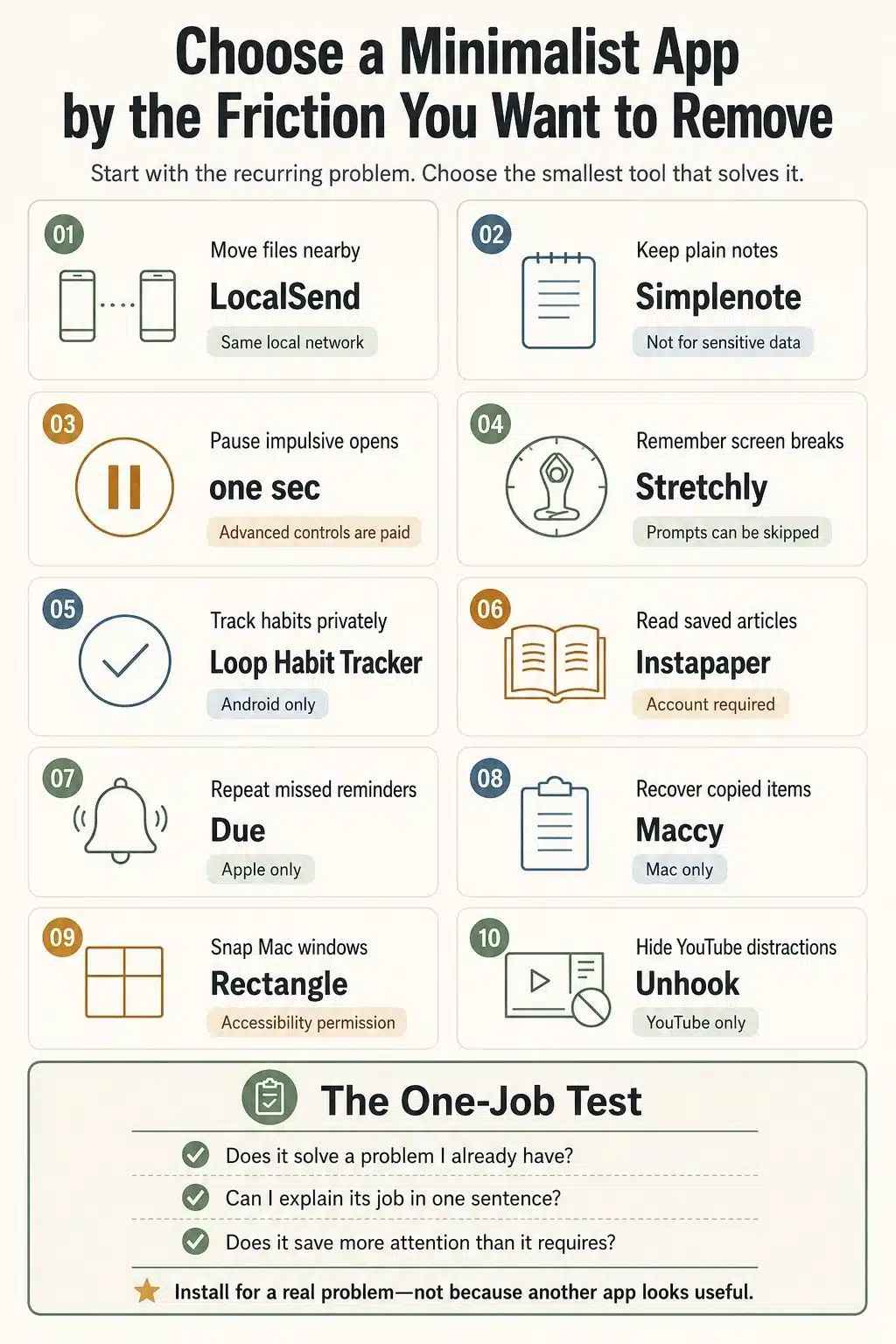
These ten best minimalist apps address ten different points of friction. The right choice is not the app with the fewest buttons; it is the one that completes a useful job with less effort than your current approach.
1. LocalSend: Transfer Files Without the Cloud
Best for: Moving files between nearby devices
Platforms: Windows, macOS, Linux, Android, and iOS
Cost: Free and open source
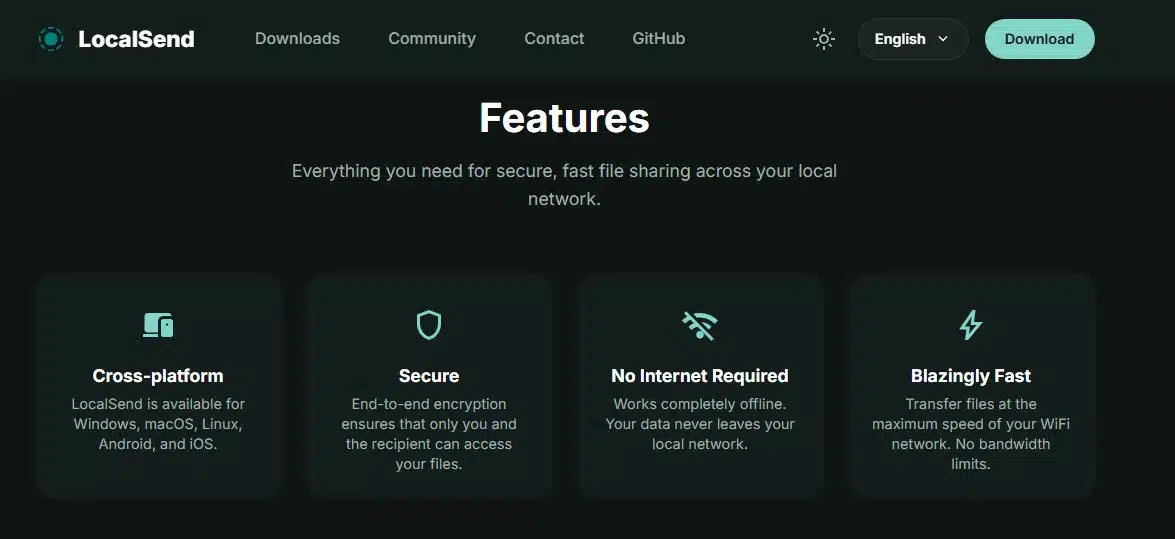
LocalSend sends files to another device on the same local network. There is no account, storage plan, upload link, or requirement to use devices from one manufacturer.
That makes it valuable in mixed-device households and workplaces. An Android phone can send a photo to a Mac, while an iPhone can transfer a PDF to a Windows computer. Transfers remain on the local network rather than passing through LocalSend’s servers. The project says they use HTTPS encryption, with optional PIN verification available to confirm the recipient. It also has no ads or trackers.
Both devices must be visible on the same network. Guest Wi-Fi, office restrictions, firewalls, or VPN settings can interfere with discovery. LocalSend is excellent for nearby transfers, but it cannot create remote download links or replace cloud storage.
2. Simplenote: Keep Plain Notes Plain
Best for: Lightweight notes that sync across devices
Platforms: Web, Windows, macOS, Linux, Android, and iOS
Cost: Free
Simplenote is designed for writing and retrieving text without building a knowledge base first. Notes synchronize automatically, while tags, search, version history, and optional Markdown provide enough structure for everyday use. Import and export options also make the service easier to leave.
Its simplicity comes with a serious privacy boundary. Simplenote’s security documentation says notes are encrypted while synchronizing but are not encrypted at rest on its servers. The company advises against storing particularly sensitive information. Passwords, recovery codes, banking details, and confidential client material belong elsewhere.
Choose Simplenote for ideas, lists, and ordinary text notes. It is less suitable for attachments, visual canvases, databases, or end-to-end encrypted writing.
3. one sec: Pause Before Opening a Distracting App
Best for: Interrupting automatic social media and website use
Platforms: iOS, Android, and desktop browsers
Cost: Free basic functions; paid Pro options
Most screen-time tools either block an app or report how long you used it afterward. one sec intervenes earlier. When you try to open a selected app or website, it inserts a short pause before letting you continue.
That delay can interrupt the muscle memory behind opening Instagram, TikTok, YouTube, shopping apps, or news sites without banning them. The idea has been examined in peer-reviewed research on self-nudging and smartphone use, although individual results will vary.
one sec says its intervention logic runs locally and that it does not sell or profile usage data. On Android, it uses Accessibility Service access to detect selected app openings. That permission is necessary for the intervention, but users should still understand its reach before enabling it.
The free version covers the basic idea. Broader app coverage and advanced controls require Pro, with prices varying by region. Anyone needing a strict blocker that is difficult to bypass may find one sec too negotiable. Its purpose is to create a conscious choice, not remove the choice entirely.
4. Stretchly: Remember to Leave the Screen
Best for: Computer break reminders
Platforms: Windows, macOS, and Linux
Cost: Free and open source
Stretchly runs in the background and reminds you to take short and longer breaks. It does not add projects, wellness scores, or another dashboard. It waits until the scheduled time and presents a prompt.
The schedule can be adjusted, and reminders may be postponed or skipped. That flexibility is also the app’s main weakness. Stretchly cannot make someone stop working, and it should not be treated as a medical tool or protection against strain.
Mac installation is less polished than it could be. The developer says the macOS build is unsigned, so Gatekeeper may block the first launch. The official page explains how to approve it through Privacy & Security settings. Some Linux configurations may also require extra setup.
5. Loop Habit Tracker: Record Habits Privately
Best for: Offline habit tracking
Platforms: Android and compatible Chromebooks
Cost: Free, ad-free, and open source
Loop Habit Tracker treats habit tracking as record-keeping rather than a social activity. You define a recurring behavior, mark when it happens, and review its progress through scores, streaks, and charts.
It supports flexible schedules, reminders, widgets, and exports to CSV or SQLite. Loop works without an account or internet connection. Its current Google Play data-safety declaration says no data is collected or shared with third parties, and the developer states that habit information stays on the phone. The source code is public.
There is no built-in account-based synchronization, and Loop is not available as a native iPhone, Mac, Windows, or web app. Those limits rule it out for users who need live access across devices or group accountability. For an Android user who wants a private record, the local-only design is a strength.
6. Instapaper: Save Articles for Cleaner Reading
Best for: Uncluttered reading later, including offline
Platforms: Web, iPhone, iPad, Mac, and Android
Cost: Free core service; optional Premium subscription
Instapaper saves web articles and reformats them for reading. It removes much of the surrounding page clutter and makes saved items available offline on supported devices. Fonts, spacing, themes, highlights, notes, folders, and text-to-speech all support that central purpose.
The free service covers saving and reading. Its US App Store listing currently prices Premium at $5.99 per month or $59.99 per year, adding full-text search, unlimited highlights and notes, and text-to-speech playlists. Local prices may differ.
Instapaper requires an account and stores saved content and related activity in the cloud. Readers using it for personal research should review its privacy policy.
It also cannot solve the human problem behind an unread queue. Instapaper works best when you regularly read, archive, and delete instead of saving everything that looks potentially useful.
7. Due: Keep Important Reminders Visible
Best for: Reminders that are easy to overlook
Platforms: iPhone, iPad, Apple Watch companion, and Mac
Cost: Paid; iOS and Mac editions are sold separately
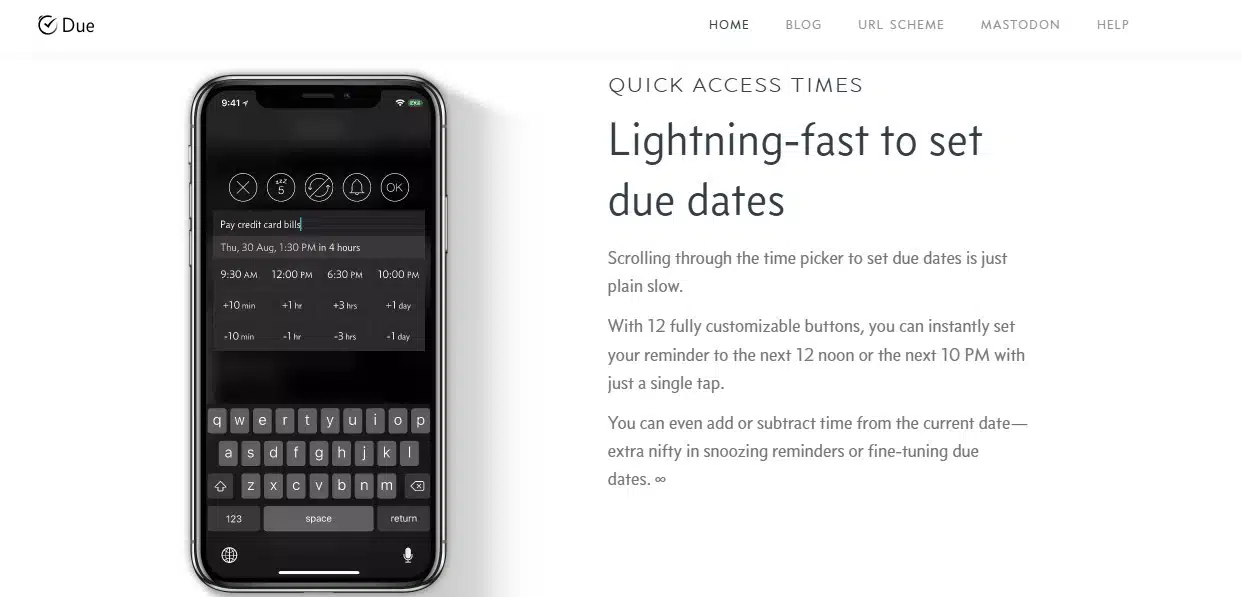
Due addresses a common failure: a reminder appears once, gets buried under other notifications, and is forgotten. Its Auto Snooze feature keeps notifying you about an overdue item until you complete it, reschedule it, or stop the repetition.
Quick-access time buttons make reminders faster to set, and they can be completed or postponed from the notification. Due also includes reusable countdown timers, but persistence is the main reason to choose it over a conventional task manager.
According to Due’s privacy policy, reminders and timers are stored locally rather than on the developer’s servers. Optional iCloud or Dropbox sync sends the data to the chosen provider. No Due account is required.
Due is limited to Apple devices. The iOS purchase includes iPhone, iPad, and an Apple Watch companion, but the Mac app is separate. An optional Upgrade Pass covers newly released features; previously purchased functionality remains available if the pass ends.
8. Maccy: Retrieve What You Copied Earlier
Best for: Searchable clipboard history on a Mac
Platforms: macOS 14 or later
Cost: Free and open source
Maccy keeps a searchable history of the Mac clipboard. Press its shortcut, type part of an earlier item, select it, and paste it again. For anyone moving links, commands, images, or text snippets between applications, that can remove a surprising amount of backtracking.
Maccy is keyboard-focused and stores its history on the computer. It can also follow clipboard-clearing instructions from compatible password managers.
Local storage does not make clipboard history harmless. It may retain passwords, authentication codes, private messages, client information, or payment details. Users handling sensitive material should review Maccy’s storage and exclusion settings. The current version also requires macOS Sonoma 14 or later and does not provide cross-platform synchronization.
9. Rectangle: Put Mac Windows Where They Belong
Best for: Keyboard window management and screen-edge snapping
Platforms: macOS 10.15 or later
Cost: Free and open source; optional Pro version
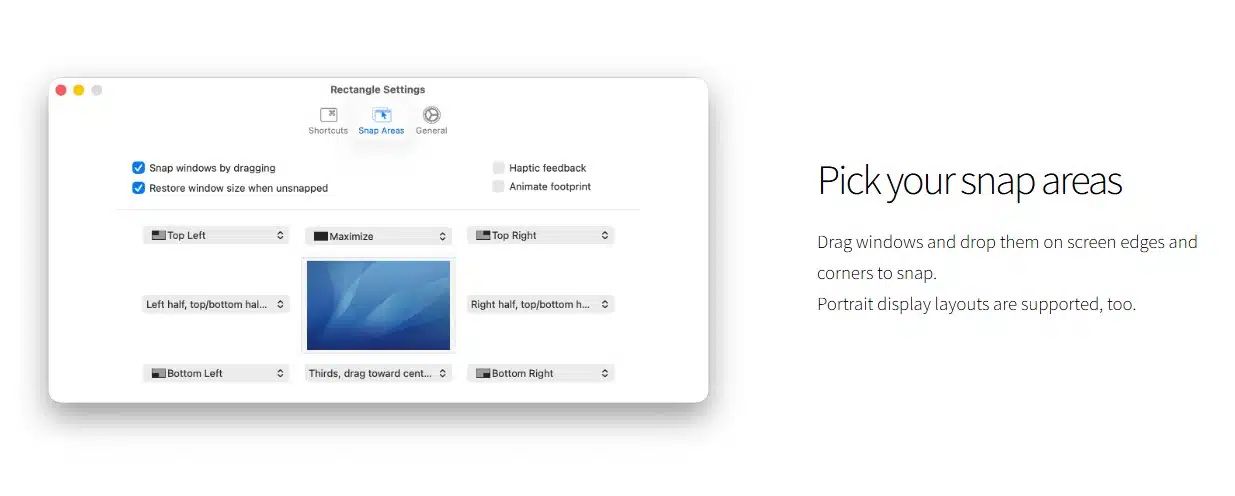
Rectangle moves and resizes Mac windows through keyboard shortcuts or snap areas. Drag a window to an edge or corner, or use a shortcut instead of adjusting its borders manually.
The free version covers common placements such as halves and corners and supports Intel and Apple Silicon Macs. Rectangle Pro adds more advanced arrangements, but the free app remains useful on its own.
Rectangle needs macOS Accessibility permission because it controls windows belonging to other applications. The permission sounds broad, but it has a clear functional purpose here. The developer’s privacy policy states that Rectangle gathers no user data.
This is primarily a Mac solution. Windows includes native snapping, while Linux desktop environments offer their own approaches.
10. Unhook: Remove the Distracting Parts of YouTube
Best for: Watching chosen YouTube videos without recommendation loops
Platforms: Chrome, Edge, and Firefox; mobile YouTube through Firefox on Android
Cost: Free
Unhook fits the awkward middle ground where YouTube is useful and distracting at the same time. A complete blocker also removes tutorials, lectures, reviews, and deliberately chosen entertainment. Leaving the site unchanged means dealing with feeds and recommendations designed to encourage another click.
Unhook can hide the homepage feed, recommendations, Shorts, comments, trending sections, end-screen suggestions, and autoplay. You choose which elements disappear.
The extension is available for Chrome, Edge, and Firefox. Firefox on Android can apply it to the mobile YouTube website. Its Chrome listing says the developer does not collect or use user data, although that declaration is not an independent security audit.
Because Unhook modifies a third-party website, YouTube interface changes can temporarily disrupt individual functions. It also affects YouTube only. A full-device blocker or enforceable parental-control tool serves a different need.
Keep the App Stack Smaller Than the Problem
Installing all ten would miss the point. A minimalist app is useful when it responds to friction that already exists.
Start with the problem, not the product. If moving a photo between your phone and computer regularly wastes time, LocalSend has a clear role. If you have never wanted clipboard history, installing Maccy because it looks useful only creates another application to maintain.
Avoid overlapping tools. Two read-later services or three distraction blockers introduce decisions about where information belongs. The better setup is usually the smallest one that handles the work reliably.
Review the choice after a few weeks. A focused app should reduce steps, not introduce a new ritual of dashboards, notifications, and configuration. If maintaining it takes more attention than the original problem, remove it.
The Best Minimalist Apps Remove One Point of Friction
The best minimalist apps do not try to become the center of your digital life. LocalSend moves a file. Due keeps a reminder visible. Rectangle positions a window. Unhook removes the parts of YouTube you did not go there to see.
That restraint matters more than minimal design by itself. Choose the app that removes a recurring irritation, and leave the rest uninstalled until they solve a problem you actually have.
Frequently Asked Questions on the Best Minimalist Apps
1. What makes an app minimalist?
A minimalist app has a clear primary purpose, low setup burden, and understandable limits. A clean interface can improve the experience, but appearance alone does not make a feature-heavy platform minimalist.
2. Are minimalist apps always free?
No. A focused paid utility may demand less attention and collect less information than an ad-supported free product. Price should be considered alongside privacy, maintenance, platform support, and long-term usefulness.
3. Are open-source apps automatically private?
No. Public source code makes inspection possible, but privacy also depends on permissions, network activity, storage choices, defaults, and project maintenance. Open source is useful evidence, not a complete guarantee.
4. Should I replace one all-in-one platform with several smaller apps?
Only when the smaller tools solve clear problems with less overhead. Replacing one large platform with several overlapping utilities can create another form of clutter.