You want to edit videos, but the choices overwhelm you. Maybe you’re a beginner staring at a blank screen, unsure where to start with clips and effects. Or perhaps you’re a pro hunting for tools that match your skills without breaking the bank.
This confusion hits everyone, from YouTube creators to hobbyists. It feels like searching for a needle in a haystack, right?
Key features matter a lot when picking video editing software, like user-friendly interfaces and support for various video formats. In this post, we’ll guide you through top picks for beginners and pros, including free options like DaVinci Resolve and CapCut.
We’ll cover ease of use, advanced tools, and even AI features for better video production.
Get ready to find your perfect fit.
How to Choose the Best Video Editing Software
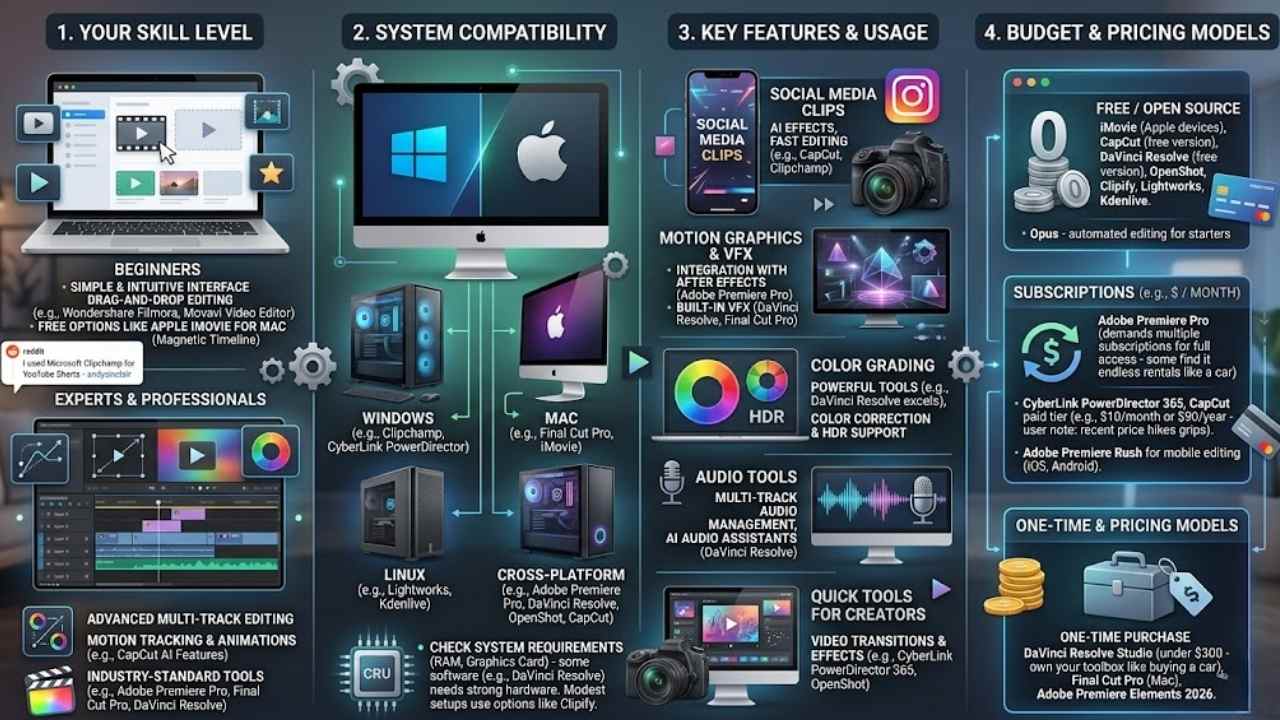
Picking video editing software feels like hunting for treasure, you know, that perfect tool that fits your style without the hassle. Consider your skill level first, say, drag-and-drop interfaces for newbies or motion tracking for experts, and match it to your computer’s setup, like Windows or Mac systems, to keep things smooth.
Ease of use for beginners
Ease of use matters a lot when you start video editing. Beginners often feel overwhelmed by complex tools. Pick software with an intuitive interface to make things simple. Wondershare Filmora shines here, with its user-friendly drag-and-drop editing.
Movavi Video Editor offers quick tools for new editors too. Apple iMovie, free for Mac users, gives you about 80% of what you need. It uses basic drag and drop plus a magnetic timeline to speed up your video projects.
I used Microsoft Clipchamp to create YouTube Shorts quickly, says Reddit user andysinclair.
CapCut stands out for social media clips. It packs AI features that handle motion tracking and animations with ease. Microsoft Clipchamp keeps it simple on Windows. Opus beats DaVinci Resolve for starters, thanks to its automated editing tools.
Free options like these build your editing experience without the hassle.
Advanced tools for professionals
Professionals need software packed with advanced tools to handle complex projects. Adobe Premiere Pro stands out as the industry standard. It offers a vast array of editing features and smooth integration with Adobe After Effects for motion graphics.
You get powerful color grading options and support for HDR workflows. Final Cut Pro delivers high performance on Macs. This tool shines with its speed and efficiency, optimized for quick edits on operating systems like macOS.
DaVinci Resolve from Blackmagic Design excels in color correction tools. It includes comprehensive editing, audio, and visual effects features. Professionals love its multi-track audio management and AI audio assistant for fast setups.
CyberLink PowerDirector balances power with ease of use. Content creators and hobbyists prefer it for video transitions and effects.
Imagine tackling a big video project like a pro. You explore DaVinci Resolve’s free version for advanced color grading. Or, you pick Adobe Premiere Pro for its professional video editing prowess.
It links seamlessly with tools like Adobe Premiere Rush for mobile video editing on iOS and Android. Final Cut Pro speeds through tasks on your Mac. CyberLink PowerDirector 365 adds fun with NewBlue effects and Corel integrations.
These options support Windows 11, Linux, and more. They handle everything from video effects to complex workflows. TechRadar and PCMag often praise them for user interface and system compatibility.
System requirements and compatibility
Check your computer’s power before picking video editing software. DaVinci Resolve demands a strong machine to work well, especially its free version that chews up resources more than easy tools like iMovie.
That free video editing software runs smooth on older Apple devices, but only for Mac fans. CapCut fits both Windows and Mac setups, with desktop and mobile options that keep things light.
OpenShot, an open-source choice, stays beginner-friendly and easy on your system’s specs, unlike heavier picks.
Clipify shines as an effective editor that asks for less hardware than DaVinci Resolve, making it a smart pick for modest setups. Software like CyberLink PowerDirector 365 needs Win 11 compatibility to shine, so match your OS first.
Lightworks and Kdenlive handle various systems without big demands, while Adobe Premiere Elements 2026 works on modern Windows or Mac. Think about your gear, folks, like avoiding a clunker for pro tasks; it’s like fitting the right key in a lock to avoid jams.
Budget and pricing models
Money matters a lot when you pick video editing software, so let’s break down the costs and models that fit different wallets.
| Software | Pricing Model | Details and User Notes |
|---|---|---|
| iMovie | Free | Comes already installed on many Apple devices. You pay nothing to start editing right away. |
| CapCut | Free version available; paid at $10 per month or $90 per year | Offers strong features in the free tier. A user named Any-Vegetable1587 griped about recent price hikes on tools that used to cost zero, like a frog jumping into a pricier pond. |
| DaVinci Resolve | Free version; paid Studio version with one-time payment under $300 | Gives powerful tools for no cost at first. Pros love the one-time buy that skips ongoing fees, much like owning your toolbox forever. |
| Adobe Premiere Pro | Subscription at about $60 per month | Delivers top features but demands multiple subscriptions for full access. Some folks avoid this setup, preferring a single payment like buying a car outright instead of endless rentals. |
Best Video Editing Software for Beginners
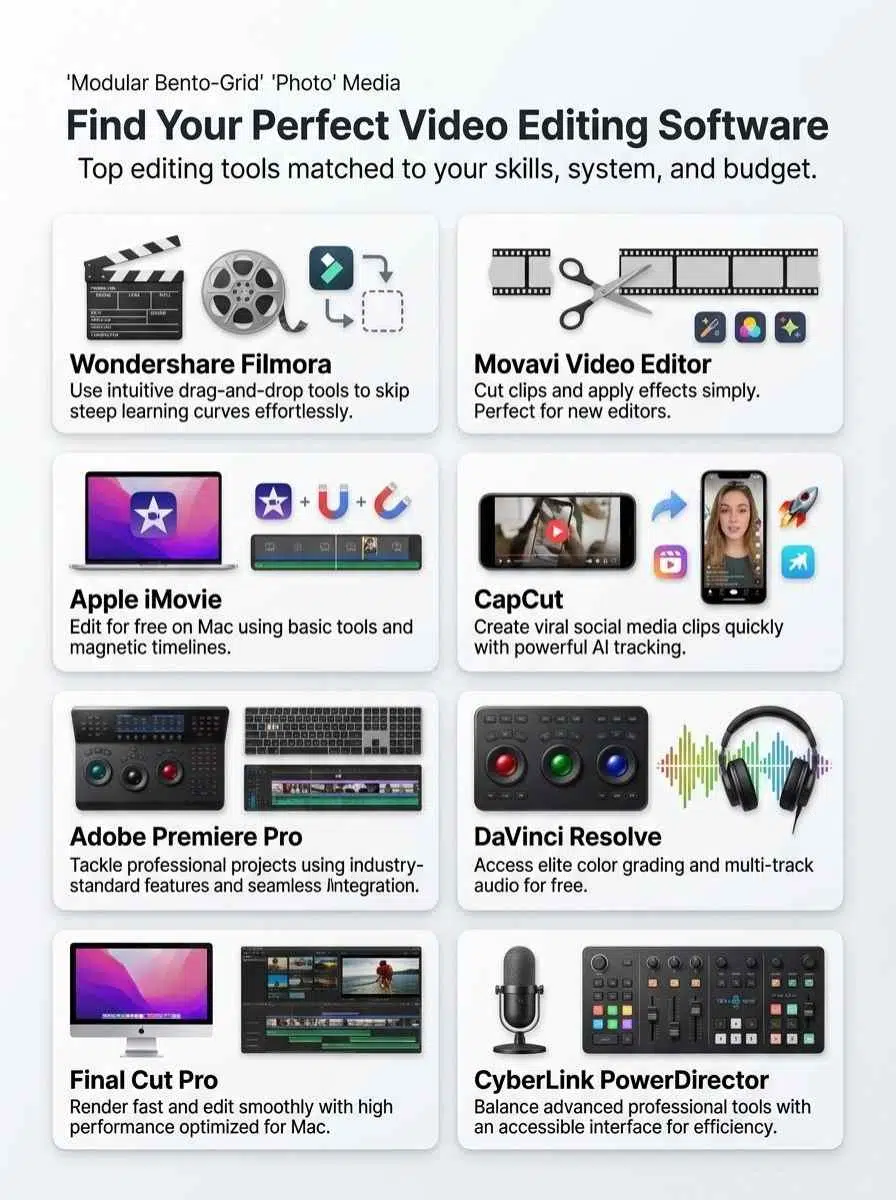
3. Best Video Editing Software for Beginners: Jumping into video editing as a newbie can feel like taming a wild horse, but hey, tools like clip cutters and timeline trimmers in apps such as Wondershare Filmora make it a breeze with their drag-and-drop magic, and if you’re curious about more picks that fit your style, stick around for the details.
Wondershare Filmora shines with its user-friendly interface. You drag and drop clips to edit fast. Beginners love this setup. It skips the steep learning curve. Filmora balances simple tools and cool features.
Think intuitive layouts that feel like a breeze. You get a rich library of effects and transitions. These add flair to your videos without hassle.
Filmora fits YouTube creators and short-form content fans. They craft quick clips for social media. Pair it with tools like CapCut or Movavi for easy starts. Mac users might grab Apple iMovie too.
Filmora’s pricing works for tight budgets. You access pro perks on the cheap. Folks compare it to CyberLink PowerDirector 365 for power, but Filmora keeps things light. Michael Muchmore praises such picks in reviews.
Ben Moore notes future trends favor accessible apps like this. Even Pinnacle Studio 26 users switch for drag-and-drop ease. Magix Video Pro X offers more, yet Filmora stays beginner gold.
Ashampoo Movie Studio Pro 3 competes, but Filmora’s library wins. Zapier integrates it smoothly for workflows. Acdsee Luxea adds photo twists, though Filmora focuses on video magic.
Movavi Video Editor: Simple tools for new editors
Movavi Video Editor stands out for its accessible, straightforward tools that suit new editors perfectly. You get simple features that let you cut clips, add music, and apply effects without feeling lost.
People often cite it as a top pick for those just starting out, right next to Filmora and iMovie. Imagine jumping into editing like dipping your toes in a calm pool, no big waves to knock you over.
It keeps things basic so you build skills step by step.
This software shines as an affordable option when stacked against professional-grade tools like CyberLink PowerDirector 2026/365. Beginners love how Movavi recommends simplicity in your workflow, avoiding overload with fancy bells and whistles.
Its feature set handles everyday tasks, such as trimming videos or adding text, all while staying user-friendly. Folks include it in lists of must-try beginner software for good reason, it just clicks for fresh faces in editing.
Apple iMovie: Free and intuitive for Mac users
Apple iMovie stands out as a free tool exclusive to Apple users. It comes already installed on many Apple devices, so you skip the hassle of downloads. This software runs smoothly even on older Apple gear, making it ideal for beginners who crave simplicity.
Imagine: you drag and drop clips with ease, and the magnetic timeline snaps them together like puzzle pieces. That user-friendly interface delivers sufficient features for basic editing needs, covering about 80% of what a newbie might want.
One editor, departing_to_mars, shared how they used iMovie on a MacBook Air M2 for quick, simple cuts; it just works without fuss.
Sure, iMovie sticks to Apple devices only, which limits some folks. It skips advanced tricks like detailed color grading, but hey, that’s fine for starters. We recommend it for anyone looking for a free, entry-level editor on Mac.
If you outgrow it and need more power across platforms, check out CyberLink PowerDirector 2026/365 for that balance of ease and pro tools.
CapCut shines for social media fans and short-form video creators. It works on both Windows and Mac computers. People call it “iMovie on steroids” for good reason. You get an intuitive drag-and-drop interface that makes editing a breeze.
Try background removal to cut out distractions fast. Facial enhancements, like teeth whitening and skin tone adjustments, add that polished look. AI tools handle tough jobs, such as tracking objects or adding animations, without the hassle.
One editor boosted viewer retention to 97% in the first 30 seconds of a video using these features.
CapCut offers desktop and mobile versions, so you edit on the go. The free version packs a punch with tons of tools. Upgrade to paid for $10 a month or $90 a year if you need more.
TikTok owns it, though, and U.S. politics might affect its future here. Some users gripe about recent price hikes on features that used to be free. Still, it beats tools like CyberLink PowerDirector 2026 / 365 for quick social clips.
Creators love how it turns ideas into viral hits.
Best Video Editing Software for Professionals
Pros tackle tough projects with tools that pack a punch, like seamless timelines and pro-level effects that turn raw footage into gold. Imagine slicing through clips with precision, adding layers of sound design and visual flair that make your videos pop on the big screen, drawing viewers in like a magnet.
Adobe Premiere Pro: Industry-standard with advanced features
Adobe Premiere Pro stands out as the industry standard in professional video production. Editors love its vast array of tools, like precise cuts and effects. It integrates smoothly with Adobe After Effects for even more power.
Pros favor it for extensive features and strong plugin support. This makes it ideal for those deep in the Adobe ecosystem.
The software costs about $60 a month, which sparks frustration for some users over the subscription model. Adobe demands multiple subscriptions to unlock all features, a stark contrast to DaVinci Resolve’s all-in-one setup.
Still, it delivers top-notch, professional-grade editing that pros swear by, like a trusty sidekick in a high-stakes film shoot.
DaVinci Resolve: Best for color grading and professional workflows
DaVinci Resolve shines in professional editing and color correction. Pros love its free and paid versions for top-notch work. This software packs editing, color grading, audio tweaks, and visual effects all in one spot.
It handles multi-track audio with ease and throws in an AI audio helper for fast setups. You get nearly every pro feature in the free edition. The paid one costs a one-time fee under $300.
Blackmagic Design built it to demand a strong machine for smooth runs. One Reddit user paused before loading it on a MacBook Air M2, but folks said it works great. Boost its AI powers with add-ons like Cutsio.com.
Think of it as your all-in-one workshop, turning raw clips into polished gems without switching tools.
Final Cut Pro: High performance for Mac users
Final Cut Pro shines as advanced software for Mac users. It delivers speed, efficiency, and high performance that pros love. This tool optimizes for Mac hardware, so you get fast rendering and smooth workflows.
Folks often compare it to other big names in professional forums. Users pick it for high-performance needs in Mac-focused setups.
You find advanced editing features here that go way beyond basic options like iMovie. It stands tall among top choices for video pros. The software caters to those who want robust performance and smart toolsets.
Imagine zipping through edits like a pro racer on a clear track, that’s the vibe.
CyberLink PowerDirector: Balances power and ease of use
CyberLink PowerDirector stands out as a powerful editor that balances advanced features with ease of use, making it a go-to for many. Hobbyists and content creators often prefer it, you know, because it delivers professional-level tools without that steep learning curve that can feel like climbing a mountain.
This software packs a wide range of editing options, perfect for advanced users who crave depth, and ambitious beginners eager to level up their skills. Folks cite it as a top choice among pro options, especially if you want a strong feature set but skip the heavy complexity of tools like DaVinci Resolve or Adobe Premiere Pro.
Imagine jumping into a project where power meets simplicity, like having a Swiss Army knife that’s easy to handle. CyberLink PowerDirector gets included in lists of best professional software for its smart mix of might and accessibility, drawing in editors who need robust capabilities without the hassle.
Content creators, take note, it suits your workflow whether you’re crafting quick clips or detailed videos. This balance keeps things fun and efficient, turning potential headaches into smooth sailing.
Best Free Video Editing Options
You love editing videos but hate spending cash, right? Jump into these no-cost programs that pack real punch, from basic cuts to fancy effects, and see how they fit your creative flow.
DaVinci Resolve: Powerful free version for advanced users
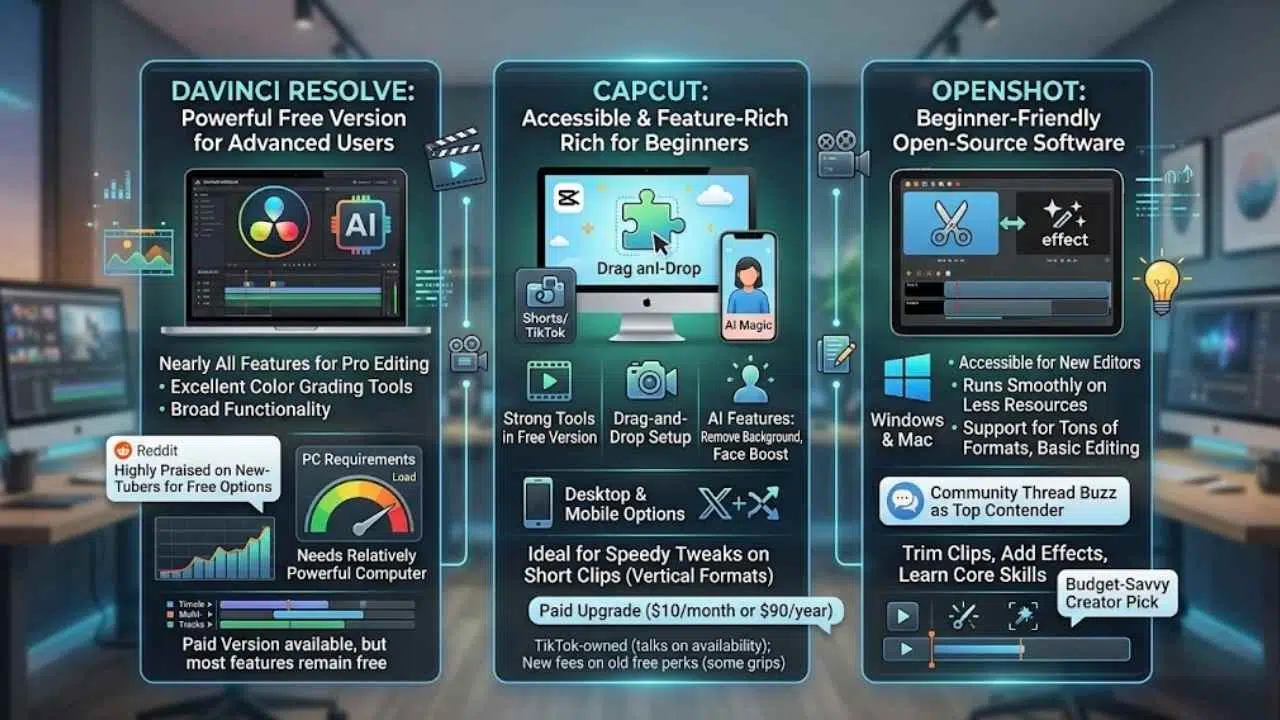
DaVinci Resolve stands out with its powerful free version that packs nearly all features for professional editing. Editors love how it delivers excellent color grading tools, AI features, and broad functionality right out of the gate.
This software gets high praise on the NewTubers subreddit for free editing options. Pair it with AI tools like Cutsio.com, and you boost your capabilities even more.
Many beginners and advanced users regard the free version highly. It shines as the best general free software for advanced users. Keep in mind, it needs a relatively powerful computer to run smoothly.
The paid version calls for a one-time payment, but most features stay free anyway.
CapCut: Accessible and feature-rich for beginners
CapCut shines as a top pick for beginners getting into video editing. You get a free version packed with strong tools, plus a paid upgrade for just $10 a month or $90 a year. This app works on Windows and Mac, with handy desktop and mobile options too.
Creators love its drag-and-drop setup, which feels like piecing together a puzzle without the hassle. Add in AI magic for tasks like wiping out backgrounds or boosting faces, and you see why it’s a hit.
Folks on Reddit often rave about CapCut in chats on free editing apps. Beginners flock to it for speedy tweaks on short clips, like YouTube Shorts or TikTok posts. It excels at vertical formats that pack a punch.
Sure, its TikTok owners spark talks about U.S. availability down the road, and some gripe over new fees on old free perks. Still, it draws short-form fans who crave easy, powerful edits.
OpenShot: Beginner-friendly open-source software
OpenShot stands out as a free, open-source video editor that welcomes beginners with open arms. Folks on Reddit often praise it for being so accessible, especially if you’re just dipping your toes into editing.
This software runs smoothly on both Windows and Mac, and it demands less from your computer’s resources than those heavy-duty pro tools. You get support for tons of video formats, plus basic editing features that help you build core skills without the overwhelm.
Budget-savvy creators love OpenShot as a solid pick for open-source vibes, like finding a hidden gem in a thrift store. Community threads buzz about it as a real contender against pricey options.
Jump in to trim clips, add effects, or learn the ropes; it’s all straightforward and fun.
Final Thoughts
We’ve covered top picks like Filmora for easy starts, Premiere Pro for pro-level cuts, and free gems like DaVinci Resolve that pack a punch without the price tag. These tools make jumping into editing simple, with drag-and-drop features that save time and headaches, no matter your skill level.
Picking the right software boosts your videos from meh to wow, helping creators hook viewers fast, like CapCut’s trick of keeping folks watching those first crucial seconds. Check out online forums and free tutorials to level up your game, they’re gold for tips from fellow editors.
Go ahead, grab one today and turn your raw clips into stories that stick, because everyone’s got a tale worth sharing.
Frequently Asked Questions (FAQs) About Video Editing Software
1. What’s the top video editing software for total newbies?
Hey, if you’re just starting out, try CapCut; it’s free, super easy to use, and packs fun effects that make editing feel like a breeze.
2. Which video editing tool do the pros swear by?
Pros often pick Adobe Premiere Pro for its powerful features and seamless workflow. It handles complex projects like a champ, and integrates well with other creative apps.
3. How do free and paid video editing options stack up for beginners and experts?
Free ones like DaVinci Resolve offer pro-level color grading without costing a dime, perfect for dipping your toes in. Paid versions, say Final Cut Pro, add speed and polish that pros love for tight deadlines. Remember, it’s like choosing between a bike and a car; both get you there, but one feels fancier.
4. What key features make the best video editing software stand out?
Look for intuitive timelines, real-time previews, and strong audio tools to keep things smooth.