

Android phones are powerful, but they don’t always feel that way after months of updates, app installs, and background syncing. The good news is you don’t need a new phone to get a smoother experience. You often just need to adjust the right settings that most people never touch.
This guide focuses on hidden Android settings to speed up your phone without “cleaner” apps, risky hacks, or complicated tools. You’ll learn what to change, where to find it, and how to test it so you can keep the improvements that actually work for your device.
Some tweaks make your phone feel faster instantly, like animation changes. Others improve long-term performance by reducing background load, heat, and battery drain. You can do all of this in under an hour, and you can undo every change if you don’t like it.
Before you start: a 3-minute baseline check
Before you change anything, take a quick baseline snapshot of your phone’s current condition. It helps you avoid guessing later. It also prevents you from “fixing” something that isn’t actually the problem.
Many performance complaints come from a few root causes: low storage, overheating, too many background apps, or heavy visual settings. When you identify the real cause first, the right settings changes feel obvious. You’ll also notice improvements faster because you know what to watch for.
Spend a minute on each item below. Then start the tweaks with more confidence. This small step makes the rest of the guide more effective.
| Check | What to do | Why it matters |
| Free storage | Settings → Storage → check available space | Very low storage can slow updates, caching, and app behavior |
| Heat | If your phone feels hot, let it cool | Heat can cause throttling and stutter |
| Your main pain point | Decide: scrolling, gaming, camera, or multitasking | Helps you pick the highest-impact settings first |
| One change at a time | Change one setting and test | Makes it easier to spot what helped or hurt |
What “performance” means on Android
Performance is not just “speed.” It’s how fast the phone reacts to your touch. It’s how smooth scrolling feels. It’s whether apps stay open or reload constantly.
It also includes stability. A phone that is fast for five minutes but then overheats is not truly performing well. A phone that kills apps in the background might feel “clean,” but it can ruin notifications and multitasking.
That’s why this guide balances speed, smoothness, battery, and reliability. The goal is a phone that feels quick all day, not just right after a reboot.
| Performance type | What you notice | What usually affects it |
| Responsiveness | Touch feels instant | Animations, background load, heat |
| Smoothness | Scrolling doesn’t stutter | Refresh rate, GPU effects, RAM pressure |
| App speed | Apps open quickly | Storage, caching, app bloat |
| Consistency | Phone stays fast all day | Battery controls, background behavior |
A safety promise before you tweak anything
Every setting here is reversible. You can return to defaults at any time. You don’t need root access. You don’t need hidden apps or questionable downloads.
A few areas deserve caution, especially inside Developer Options. Don’t change random debugging features you don’t understand. Stick to the settings described here, and you’ll stay on the safe side.
If a change feels worse, roll it back. The point of optimization is comfort and stability, not proving you can “tweak” everything.
| Safety rule | Why it matters |
| Avoid random Developer Options toggles | Some features can affect stability |
| Make small changes first | Easier to measure and undo |
| Test for a full day | Some issues show up later (notifications, heat) |
| Keep notes | Helps you compare before vs after |
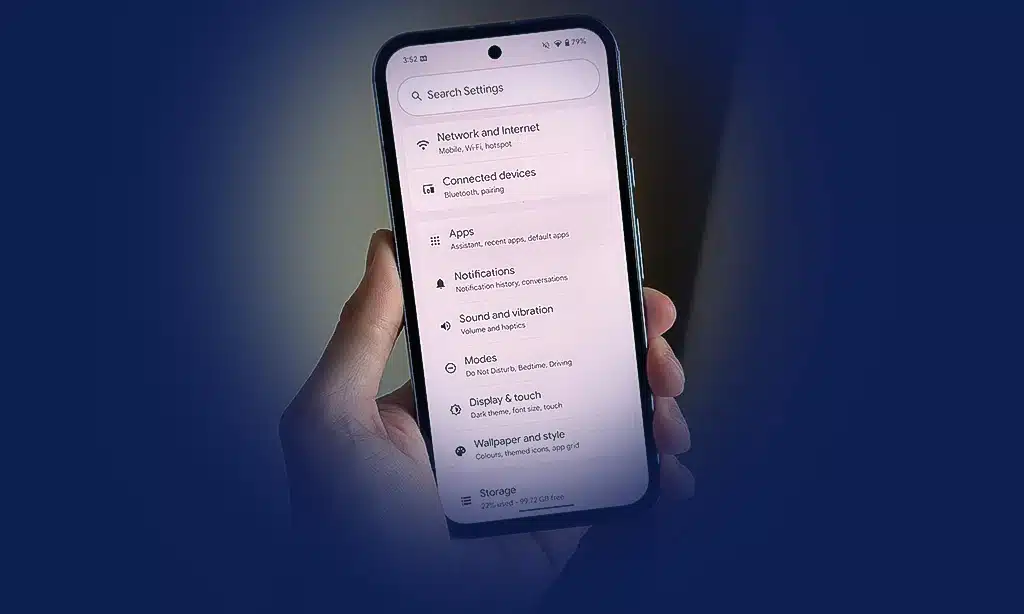
Android menus vary across brands. Samsung, Pixel, Xiaomi, OnePlus, Realme, Oppo, and Vivo all label things differently. The fastest method is using the Settings search bar instead of digging through menus.
Search also helps you discover features your phone supports. Some phones have virtual RAM options. Others have advanced battery controls. Some offer refresh rate controls with “Adaptive” modes. The search bar brings them to you instantly.
Try searching the keywords below and tapping the closest match. If the exact wording differs, pick the option that sounds most similar. Most of these settings are found within Battery, Display, System, or Developer Options.
| Search term | What you’ll usually find | Why it helps |
| Developer options | Animation scales, background limits | Big “feel faster” wins |
| Animation | Window/transition speeds | Reduces perceived lag |
| Refresh rate | Smooth display settings | Improves scrolling and motion |
| RAM Plus / Memory extension | Virtual RAM toggle | Can help or hurt performance |
| Data Saver | Background data controls | Reduces background work |
| Wi-Fi scanning | Location scanning toggle | Lowers background activity |
How to enable Developer Options (one-time setup)
Developer Options are hidden by default on most Android phones. Turning them on doesn’t harm your phone. It just unlocks extra settings for testing and tuning.
The common method is tapping the Build number multiple times. After it unlocks, you can open Developer Options and adjust specific performance-related items like animations.
If your phone asks for your screen lock PIN, enter it. That’s normal. Once enabled, Developer Options stays available until you disable it.
| Step | What to do |
| 1 | Settings → About phone |
| 2 | Find Build number (sometimes inside “Software information”) |
| 3 | Tap Build number 7 times |
| 4 | Go back → open Developer options (often under System) |
Hidden Android settings to speed up your phone
This section gives you the 10 practical tweaks. Each one includes the “why,” the steps, and the tradeoffs. You don’t have to use all 10. Most people get strong results from 3 to 5 settings.
Start with the changes you can feel immediately. Then apply the ones that improve long-term stability. If your phone is older, focus on background load and storage. If your phone is new but feels “laggy,” focus on animations and refresh rate.
Your best setup is the one that matches how you use your phone. A gamer needs different settings than someone who mainly uses messaging and browsing. Use the tables and test approach to make smart choices.
| Best starting point | Who it’s best for |
| Animation scales | Anyone who wants instant “snappier” feel |
| Storage cleanup | Anyone who is nearly full or installs many apps |
| Background app controls | People with heat, lag, or poor battery |
| Refresh rate tuning | People who want smoother scrolling |
1. Reduce animation scales (Developer Options)
Animations make Android look polished. But they also add time between your tap and what you see next. That delay can feel like “slowness,” even on a powerful phone.
Reducing animation scales is one of the most noticeable quick changes. It doesn’t change the phone’s hardware power, but it reduces wait time. The interface feels more responsive and less “floaty.”
Most people like 0.5x because it feels faster while still looking smooth. Turning animations completely off can feel too sharp for some users, and it can make the UI feel jumpy.
Try 0.5x first. Use the phone for a few hours. If it feels better, keep it. If it feels weird, go back to 1x.
| Setting | Recommended test value | What it affects |
| Window animation scale | 0.5x | Pop-ups, small UI animations |
| Transition animation scale | 0.5x | Screen-to-screen transitions |
| Animator duration scale | 0.5x | General animation timing |
Where to find it and how to set it
Open Developer Options and look for the “Drawing” section. You’ll see three animation scale settings. Tap each one and choose 0.5x.
If you can’t find “Drawing,” use Settings search for “animation scale.” Brands sometimes place it differently, but it’s usually inside Developer Options.
After changing it, open and close a few apps. Swipe between screens. You’ll likely notice the difference instantly.
| Step | Action |
| 1 | Settings → Developer options |
| 2 | Find Window/Transition/Animator scales |
| 3 | Set each to 0.5x |
| 4 | Test: app switching + scrolling |
Tradeoffs to understand
This change improves perceived speed more than raw speed. It won’t reduce heavy game lag or fix a slow network. But it can make daily navigation feel dramatically better.
If you rely on visual cues, very fast animations might feel disorienting. Some people prefer 0.75x if available. If your phone offers only Off/1x, choose what feels most comfortable.
| Benefit | Tradeoff |
| Faster feel immediately | Not a true hardware “boost” |
| Snappier app switching | Can feel abrupt if set too low |
2. Limit background processes carefully (Developer Options)
Background processes are apps that keep running when you’re not actively using them. Android manages these processes intelligently most of the time. But on older phones or low-RAM devices, too many background apps can cause stutter, lag, and overheating.
The Background Process Limit setting can reduce memory pressure. It can help phones that constantly freeze or reload. But it can also backfire if you set it too aggressively.
If you limit background processes too much, Android may reload apps more often. That makes app switching slower, not faster. It can also affect notifications for some apps.
The safe approach is testing a mild limit. If it helps, keep it. If multitasking gets worse, revert.
| Setting option | What it does | Good for | Risk |
| Standard limit | Normal Android behavior | Most users | None |
| Mild limit | Keeps fewer apps cached | Low-RAM phones | More reloads |
| No background processes | Very aggressive | Rare cases | Notifications and multitasking suffer |
How to use this setting without breaking your phone
Start by leaving it on Standard. If your phone is older and struggles, try a mild limit for a day. Don’t jump straight to “No background processes.”
After changing it, test the way you normally use your phone. Open a few apps, then return to them later. If they reload constantly, your limit is too strict.
If notifications arrive late, revert and instead restrict specific apps in battery settings. That targeted method is usually better.
| Step | Action |
| 1 | Developer options → Background process limit |
| 2 | Choose a mild limit (not “none”) |
| 3 | Test for 24 hours |
| 4 | Revert if app reloads get worse |
3. Turn on Adaptive Battery and smart app management
Adaptive Battery helps Android learn your patterns. It reduces background activity for apps you rarely use. That means fewer surprise wakeups, less background CPU use, and better consistency.
Even if you care more about speed than battery, this matters. Background activity uses resources. It can also increase heat. Heat can slow your phone later in the day.
Adaptive Battery is a “quiet” performance upgrade. You may not feel it in 60 seconds, but you often feel it over a week. Your phone stays smooth longer and drains less during idle time.
The best part is it’s low-risk. It rarely causes issues, and you can always exclude important apps.
| Setting | Where | What it improves |
| Adaptive Battery | Settings → Battery | Consistency, background efficiency |
| App battery management | App info → Battery | Controls per-app behavior |
How to set it up the smart way
Turn Adaptive Battery on. Then check a few key apps: messaging, work email, and anything you need instantly. If you notice delayed notifications later, you can exclude only those apps.
Avoid excluding too many apps. The more you exclude, the less Android can optimize. Most apps do not need instant background access.
Think of it like managing a noisy room. You don’t kick everyone out. You just quiet the loudest people.
| Action | Best practice |
| Enable Adaptive Battery | Keep it on for most users |
| Exempt critical apps | Messaging, alarms, authentication |
| Keep the rest optimized | Better stability and less heat |
4. Restrict background activity for the worst offender apps
Some apps are “background heavy.” They sync constantly. They track location. They refresh feeds. They check for deals, news, or trends every few minutes.
Even one poorly behaved app can make your phone feel slower. It can keep the CPU active. It can cause more heat. It can drain the battery, which can trigger power-saving behavior that reduces performance.
This is where targeted restriction shines. You don’t need to limit all apps. You only restrict the worst offenders. That keeps your phone smooth without breaking notifications everywhere.
Start by checking battery usage by app. Look for high background use from apps you barely use. Those are prime candidates.
| What to check | What it suggests | What to do |
| High background use | App runs too often | Restrict or optimize |
| High battery drain | App is heavy | Reduce permissions or uninstall |
| Frequent wakeups | App refreshes constantly | Disable background activity |
A simple step-by-step method
Open Battery usage and sort by apps. Tap the top few apps. Check if the usage makes sense. If a rarely used app is near the top, it’s likely doing too much.
Then go to App info → Battery and select “Optimized” or “Restricted.” Wording varies by brand, but the idea is the same. You can always undo it.
Test your important notifications afterward. If the restricted app must notify you instantly, switch it back to Optimized.
| Step | Action |
| 1 | Settings → Battery → Battery usage |
| 2 | Identify 1–3 suspicious apps |
| 3 | App info → Battery → set to Restricted/Optimized |
| 4 | Test notifications and performance |
5. Set refresh rate wisely for smoothness without overheating
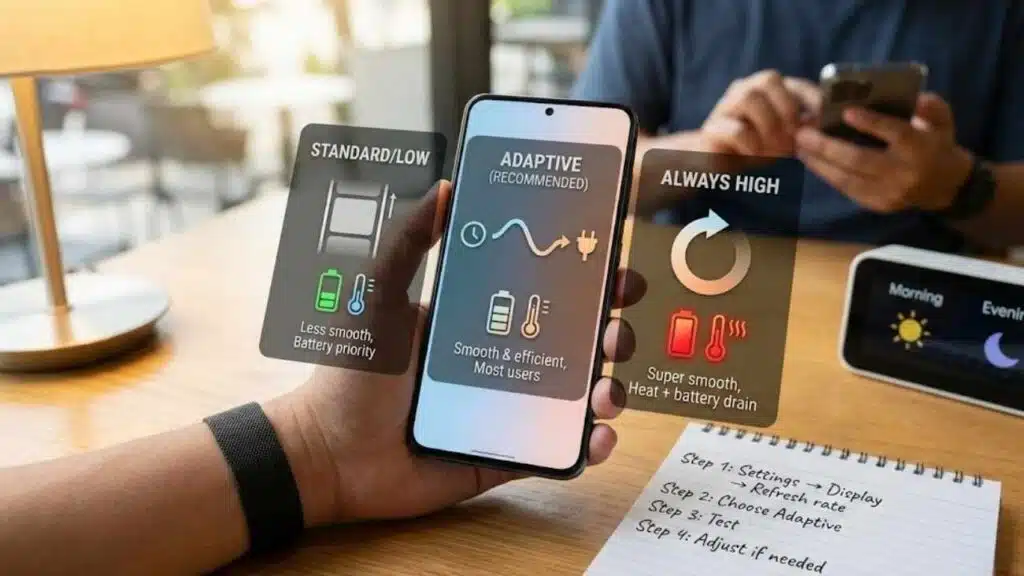
Refresh rate controls how many times the screen updates per second. Higher refresh rates can look smoother. But they can also use more power. More power can mean more heat.
Heat matters because it can reduce performance. Many phones slow down when warm to protect the battery and internal parts. That slowdown feels like stutter and lag.
The goal is balance. Adaptive refresh rate usually gives you smoothness when you need it and efficiency when you don’t. Forcing maximum refresh rate can be great for scrolling lovers, but it may reduce battery and increase heat.
If your phone feels fast in the morning and slow in the evening, refresh rate and heat are worth checking.
| Refresh rate mode | Feel | Best for | Watch out for |
| Adaptive | Smooth and efficient | Most users | None |
| Always high | Super smooth | Scrolling fans | Heat + battery drain |
| Standard/low | Less smooth | Battery priority | Less “buttery” UI |
How to choose the best refresh rate
If your phone has an “Adaptive” mode, try it first. If it’s already on, keep it and move to other settings. If you forced high refresh rate and your phone heats up, switch to Adaptive and test again.
If your phone has a “standard” mode, test it if you care about battery and heat more than ultra-smooth scrolling. Many people are surprised how stable the phone feels with less heat.
There is no universal best. It depends on your phone’s chip, screen, and cooling.
| Step | Action |
| 1 | Settings → Display → Refresh rate |
| 2 | Choose Adaptive (recommended) |
| 3 | Test for heat and smoothness |
| 4 | Adjust if battery/heat becomes an issue |
6. Toggle virtual RAM (RAM Plus / Memory Extension) based on your real results
Virtual RAM uses storage as “extra memory.” It can help keep more apps open on phones with low RAM. But storage is slower than true RAM, so it may also increase pauses on some devices.
This setting is popular because it sounds like free performance. In reality, it’s a trade. Some phones feel smoother with it on. Others feel better with it off.
If your phone’s storage is nearly full, virtual RAM may feel worse because storage is already busy. If your phone has plenty of fast storage and low RAM, it might help.
The only reliable answer is testing. Pick one setting, use it for a day, and compare.
| Virtual RAM status | May help when | May hurt when |
| On | Low RAM, heavy app switching | Slower storage or near-full storage |
| Off | Fast storage is not enough to help | You need more apps staying open |
How to test it properly
Find the setting: RAM Plus, Memory Extension, Virtual RAM, or something similar. Toggle it and follow any reboot prompt. Rebooting is normal because it changes how memory is allocated.
Then use your phone normally. Pay attention to app switching, camera launch, and scrolling. Also note if the phone feels warmer.
After a day, choose the mode that feels more stable and responsive.
| Step | Action |
| 1 | Settings search → “RAM Plus” / “Memory extension” |
| 2 | Toggle ON or OFF |
| 3 | Reboot if required |
| 4 | Test: app switching + camera + heat |
7. Turn off Wi-Fi and Bluetooth scanning if you don’t need it
Wi-Fi and Bluetooth scanning can run in the background to support location accuracy and nearby device discovery. Even when Wi-Fi or Bluetooth looks “off,” scanning can still happen in some setups.
This isn’t usually a huge performance drain by itself. But it adds background work. On older phones, many small background tasks can stack up and contribute to lag and battery drain.
If you don’t rely on precise location features, it’s worth turning these scanning options off. If you do rely on them, keep them on and focus on other settings.
This is a “small wins” tweak that supports overall stability.
| Setting | Where | Why turn it off | Tradeoff |
| Wi-Fi scanning | Location services | Less background scanning | Slightly weaker location assist |
| Bluetooth scanning | Location services | Less background work | Slower nearby device detection |
When to keep scanning on
If you use smart home devices, car unlock features, or location automations, scanning may help. If you travel often and rely on fast location accuracy, scanning can be useful.
If you mainly use your phone for browsing and messaging, turning it off may simplify background behavior. You can always turn it back on later.
Try it for a few days. If nothing breaks and the phone feels steadier, keep it off.
| Step | Action |
| 1 | Settings → Location → Location services |
| 2 | Find Wi-Fi scanning / Bluetooth scanning |
| 3 | Toggle off and test |
| 4 | Re-enable if needed |
8. Use Data Saver or reduce background data for noisy apps
Apps don’t just use data. They also use CPU time, memory, and battery to sync and refresh. When many apps sync in the background, your phone can feel busier than it needs to be.
Data Saver is helpful because it reduces background data usage for most apps while still allowing active apps to work normally. You can also whitelist important apps so they keep syncing.
Even if you have unlimited data, the performance benefit can still matter. Less background syncing often means less background processing. That helps weaker phones feel smoother.
This is a great tweak for people with many apps installed or lots of social and shopping apps.
| Option | What it does | Best for |
| Data Saver | Limits background mobile data | Many apps, daily stability |
| Per-app data limits | Stops specific apps from syncing | Targeting 1–3 offenders |
How to set it up without missing important updates
Turn on Data Saver, then add exceptions for apps that must work in real time. Common exceptions are messaging apps, work tools, and navigation apps.
If you miss updates from a non-essential app, that’s not a problem. That’s the point. Your phone doesn’t need to refresh everything instantly.
If you prefer finer control, leave Data Saver off and restrict background data per app instead. That takes longer but gives precise results.
| Step | Action |
| 1 | Settings → Network & Internet → Data Saver |
| 2 | Turn it on |
| 3 | Add exceptions for critical apps |
| 4 | Test for 24 hours |
9. Reduce heavy visual effects and “always moving” features
Many phones include extra visual polish: blur effects, fancy transitions, motion effects, live wallpapers, and animated themes. They look nice, but they can increase GPU work.
On a strong phone, you may not notice. On a midrange or older phone, those effects can create micro-stutters. They can also add heat over time because the device keeps rendering more complex visuals.
If you want the smoothest experience, choose simplicity. You don’t need to make your phone ugly. You just need to reduce the most demanding effects.
This tweak pairs well with animation scale changes. Together, they often make the interface feel lighter.
| Visual feature | Why it can hurt performance | Easy alternative |
| Live wallpaper | Constant animation rendering | Use a static wallpaper |
| Heavy blur effects | More GPU work | Use a simpler theme |
| Motion effects | Extra transitions | Reduce or disable where available |
Where to find these options
Look in Display settings, Wallpaper settings, and Accessibility settings. Some brands place “Reduce motion” under Accessibility. Others place “Effects” under Display.
If you can’t find a dedicated toggle, start with the easy win: switch off live wallpapers and animated lock screens. Those are common background visual loads.
Then keep your UI simple: fewer widgets, fewer animated themes, and fewer always-on visual extras.
| Step | Action |
| 1 | Switch to a static wallpaper |
| 2 | Disable extra motion effects if available |
| 3 | Reduce blur/transparency if the option exists |
| 4 | Test for smoother scrolling |
10. Free up storage the Android way (without cleaner apps)
Storage is one of the most underrated performance factors. When storage gets too full, your phone has less room to cache files, update apps, and manage system tasks smoothly.
Many people try “cleaner” apps, but those often add more background load. A simpler approach is better: delete what you don’t need and keep a reasonable amount of free space.
You don’t need half your storage empty. But you also don’t want to live at 95% full. A few gigabytes of breathing room often improves stability.
This tweak helps app installs, updates, camera performance, and overall responsiveness.
| Storage target | Why it helps |
| Keep some free space | Helps caching and system tasks |
| Remove large files | Quick wins with minimal effort |
| Uninstall unused apps | Less background load + more storage |
The fastest cleanup plan that actually works
Start with large videos and downloads. They are usually the biggest space hogs. Next, remove apps you haven’t used in months. If you’re unsure, start by removing one or two and see if you miss them.
Then look for duplicate apps. Many phones come with multiple browsers, galleries, or email apps. Keeping one is usually enough.
Finally, clear cache only for apps that are truly huge. Don’t obsess over cache, because some cache helps performance. Clean the obvious offenders and move on.
| Step | Action |
| 1 | Settings → Storage → view largest items |
| 2 | Delete or move large videos/downloads |
| 3 | Uninstall unused apps |
| 4 | Reboot once after cleanup (optional) |
Quick 5-minute “instant boost” checklist
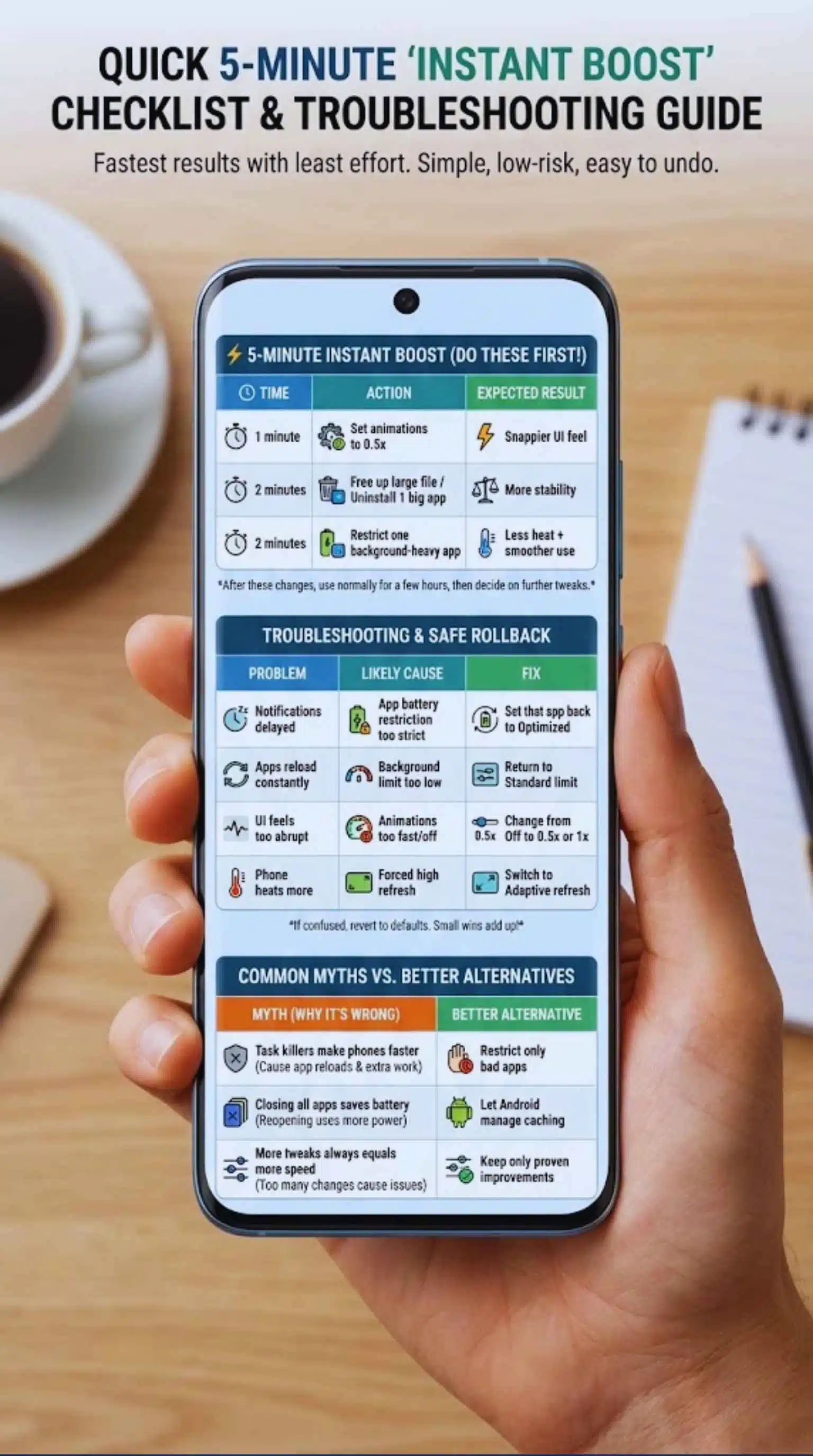
If you want the fastest results with the least effort, do these first. They cover the most common causes of sluggish feel.
This checklist is also useful if you’re helping a friend or family member. It’s simple, low-risk, and easy to undo. Most people notice improvements quickly.
After these changes, use the phone normally for a few hours. Then decide if you want to continue with the remaining tweaks.
| Time | Action | Expected result |
| 1 minute | Set animations to 0.5x | Snappier UI feel |
| 2 minutes | Free up a large file or uninstall 1 big app | More stability |
| 2 minutes | Restrict one background-heavy app | Less heat + smoother use |
Troubleshooting and safe rollback
If a tweak causes problems, it doesn’t mean your phone is broken. It simply means that specific setting doesn’t fit your usage. Roll it back and try a different approach.
Performance tuning is personal. Someone who needs instant notifications should be careful with aggressive background restrictions. Someone who never multitasks can set stricter background limits safely.
If you feel confused, revert to defaults and only keep the changes that clearly helped. Small wins add up.
| Problem | Likely cause | Fix |
| Notifications delayed | App battery restriction too strict | Set that app back to Optimized |
| Apps reload constantly | Background limit too low | Return to Standard limit |
| UI feels too abrupt | Animations too fast/off | Change from Off to 0.5x or 1x |
| Phone heats more | Forced high refresh | Switch to Adaptive refresh |
Common myths that make Android slower
Performance myths waste time and sometimes worsen the problem. Many people chase “RAM cleaning” instead of addressing heat, background activity, and storage.
A phone can have free RAM and still feel laggy if it’s overheating. It can have “cleaned” apps and still be slow if storage is full. The real fixes are usually less dramatic, but more effective.
Ignore tricks that sound magical. Focus on practical settings and repeatable tests.
| Myth | Why it’s wrong | Better alternative |
| Task killers make phones faster | They cause app reloads and extra work | Restrict only bad apps |
| Closing all apps saves battery | Reopening apps can use more power | Let Android manage caching |
| More tweaks always equals more speed | Too many changes can cause issues | Keep only proven improvements |
Final thoughts
If your phone feels slow, you don’t need to panic or download risky apps. In most cases, you just need the right settings. The best improvements often come from reducing animation time, controlling background activity, and keeping storage from getting too tight.
These hidden Android settings to speed up your phone work because they reduce wasted work. Less background noise means more resources for what you’re doing right now. Less heat means your phone stays fast longer. More storage breathing room means smoother updates and everyday tasks.
Start with the top three: 0.5x animations, background app control, and storage cleanup. Then test refresh rate and virtual RAM based on your phone’s behavior. Keep what works, undo what doesn’t, and you’ll end up with a faster-feeling phone that stays smooth day after day.
FAQs
Do Developer Options really make Android faster?
Developer Options can make your phone feel faster, especially with animation scales. They don’t upgrade hardware, but they change how Android behaves. The right changes improve responsiveness and reduce perceived lag.
Is it safe to change animation scales?
Yes, it’s safe. If you don’t like the feel, change it back to 1x. Most people prefer 0.5x because it stays smooth while feeling quick.
Will limiting background processes break apps?
It can if you set it too aggressively. That’s why mild testing is best. If you rely on instant notifications, focus on per-app battery settings instead of strict global limits.
Should I keep virtual RAM on or off?
It depends on your phone. Virtual RAM can help multitasking on some devices and add lag on others. Test each mode for a day and keep whichever feels more stable.
What’s the easiest way to improve performance without changing many settings?
Do three things: reduce animations to 0.5x, restrict one or two heavy background apps, and free up storage by deleting large files or unused apps.
Why does my phone feel fast after reboot, then slow later?
A reboot temporarily clears background buildup. Later, background sync, heat, and heavy apps return. Background controls, refresh rate balance, and storage breathing room help maintain speed all day.