

Hey there, are you stuck on a JavaScript bug that just won’t budge? Did you know that over 63% of web developers use this popular programming language every day? Well, I’ve got your back with this guide on spotting and fixing 7 common logic errors in JavaScript.
Keep reading to solve those pesky issues!
Key Takeaways
- Over 63% of web developers use JavaScript daily, making logic errors a common challenge.
- Off-by-one errors often happen in loops and arrays, missing or grabbing extra items.
- Using == instead of === in comparisons can cause bugs by ignoring data types.
- Infinite loops can freeze browsers if conditions or counters aren’t set right.
- Boolean logic mistakes with AND, OR, and NOT operators need clear grouping to avoid errors.
Off-by-One Errors
Hey there, ever run into a pesky glitch where your loop misses the last item, or maybe grabs one too many? Let’s chat about those sneaky off-by-one mistakes in JavaScript loops, and why they love to trip us up!
Description of the error
Let’s talk about off-by-one errors in JavaScript, folks. This common logic error happens when you miscalculate the start or end of a loop or array index by just one spot. Picture yourself counting fence posts but forgetting the last one, and boom, your code skips or oversteps data.
These mistakes often sneak into loops or array handling in web development. Say you’re running a `for` loop and set it to stop at the array’s length instead of length minus one; you’ll hit an undefined spot.
It’s a tiny slip, but it can mess up your whole script with bugs.
Common scenarios where it occurs
Hey there, readers, let’s chat about a sneaky bug in JavaScript called off-by-one errors. These little glitches can trip you up, so let’s spot where they often pop up.
- First, think about loops in your code. These off-by-one errors love to mess with you by looping one time too many or, gosh, one time too few. Imagine you’re counting apples in a basket, and you either skip the last one or count an extra ghost apple. It happens a lot with for loops when you set the wrong limit, like starting at 0 but forgetting to stop before the array’s length.
- Next up, watch out when accessing array elements. Incorrectly grabbing data can lead to this error, especially if you’re off by just one spot. Picture pulling a book from a shelf but grabbing the one next door instead. This often strikes when you mix up array indices, say, using ‘length’ instead of ‘length minus 1’ in JavaScript language.
- Another hotspot is slicing or splitting data sets. You might cut your array wrong and miss or add an extra piece. Think of slicing a pizza and ending up with an odd sliver nobody wants. It’s a common JavaScript error when you’re handling data types and mess up the range in methods like slice or splice.
- Also, keep an eye on nested loops or foreach loops. These can hide off-by-one mistakes when you’re juggling multiple counters. It’s like dancing with two left feet, stepping on toes without noticing. A tiny slip in counting can throw off your whole rhythm in web development tasks.
- Finally, don’t overlook simple math in conditional statements. A small misstep in adding or subtracting can push you off by one. Imagine miscounting steps on a staircase and tripping at the top. This often bites when you’re checking conditions with if statements or setting loop boundaries in scripts.
How to detect and fix it
Let’s tackle those pesky logic errors in JavaScript together. Spotting and fixing them can save you a heap of headaches, so let’s roll up our sleeves!
- First off, grab a close look at loop boundaries to catch off-by-one errors. These sneaky bugs often hide in for loops or while loops when you miscount the start or end points. Use debugging tools to step through each loop iteration, watching the counter like a hawk. If it skips a value or runs too long, tweak the condition to match the exact range you need.
- Next up, spot incorrect comparisons by double-checking your equality operators. Mixing up == with === can trip you up since one ignores type and the other doesn’t. Test your code with console.log() to see if values match as expected, and always opt for === to keep things strict and safe in web development.
- For infinite loops, keep an eye out for code that never stops spinning. These often pop up from a condition that never turns false. Step through iterations using browser developer tools, and if it’s stuck, adjust the logic or add a clear exit point to break free.
- When Boolean logic goes haywire with AND, OR, or NOT operators, test each part of your conditional statements. Print results with console.log() to see where the flaw hides. Break complex conditions into smaller bits, then fix the operator or value causing the mix-up.
- Misusing array or object methods can mess up your data flow, so watch for odd outputs. If a loop over an array skips items or an object method fails, check the syntax with developer tools. Correct the method call, like using map instead of forEach, to get the right result.
- Arithmetic slip-ups, like mixing plus and minus signs, can throw off calculations big time. Scan your code for weird numbers in the output via debugging tools. Trace the math step by step, then fix the operator or parenthesis to straighten things out.
- Scope issues with global, function, or block scope can make variables vanish or clash. If a value isn’t what you expect, use console.log() to track variable scope. Declare variables in the right spot, like using let for block scope, to keep things tidy and avoid runtime errors.
Incorrect Comparisons

Hey there, ever mix up your equality signs in JavaScript? Let’s chat about how using == instead of === can trip you up, and nudge you to keep reading for some quick fixes!
Misuse of equality operators (== vs ===)
Let’s chat about a sneaky trap in JavaScript, the mix-up between `==` and `===`. You might think they both check if things match, but nope, they’re not the same. The double equals (`==`) plays a tricky game by changing types, like turning a string into a number before comparing.
This type coercion can lead to weird results, messing up your logic in web development.
Stick with the triple equals (`===`), folks. It’s the stricter sibling that checks both value and type, no funny business. Imagine `==` as a friend who guesses what you mean, while `===` asks for exact details.
By using strict equality in your conditional statements, you dodge those odd bugs in your code. Keep this in mind while debugging with tools like `console.log()` in browser developer tools!
Examples of incorrect comparisons
Hey there, let’s chat about some tricky mistakes in JavaScript. Incorrect comparisons can trip you up, so pay attention!
- First off, a big slip-up happens with the double equals sign, or “==”, in JavaScript comparisons. This operator doesn’t check the type of data, just the value. So, guess what? Typing “10” == 10 gives you a true result, even though one is a string and the other a number. This can mess up your conditional statements if you’re not careful. Watch out for this in your web development projects; it’s a sneaky logic error.
- Next up, ignoring the triple equals, or “===” , is another common JavaScript error. Unlike its cousin, this operator checks both value and type. So, “10” === 10 comes back as false, which is correct since they aren’t the same kind of data. Missing this in your code can lead to bugs, especially when handling user input on the client side. Always use strict equality to keep your error handling tight.
- Another trap is comparing objects or arrays without digging into their contents. Say you have two arrays that look identical; using “==” or “===” won’t check what’s inside them. They just see if both point to the same spot in memory. This can cause headaches in coding challenges when you expect a match but get a fail. Use methods like JSON.stringify() or loop through elements to avoid this pitfall.
- Then, there’s the mix-up with null and undefined in comparisons. Using “==” might say they’re equal, which sounds right at first. But in reality, they’re different beasts in the JavaScript syntax world. This error pops up often when dealing with the DOM or async functions. Double-check with “===” to steer clear of unexpected results in your scripts.
- Lastly, watch for sneaky falsy values messing with your logic. Values like 0, empty strings, or false can act weird in loose comparisons with “==”. You might think they won’t match other falsy stuff, but they sometimes do. This can break your event handling or calculations on web-based apps. Stick to strict checks or use clear conditions to dodge these errors.
Spotting and correcting comparison issues
Let’s tackle a sneaky problem in JavaScript coding. Comparison issues can trip you up, but I’ve got your back with some handy tips.
- Know the difference between == and ===. In JavaScript, using == for comparisons only checks if values are equal, ignoring their data types. But ===, known as the strict equality operator, checks both value and type. Swap out == with === to avoid weird bugs, like “5” being seen as equal to 5. This small change boosts reliability in your web development projects.
- Test with console.log() to catch type mismatches. When your code acts odd, pop in a console.log() to peek at variable types. This trick helps you spot when a string sneaks in where a number should be. Seeing the issue in black and white through developer tools makes fixing comparison errors a breeze.
- Look out for unexpected results in conditional statements. Sometimes, a loose comparison with == can pass when you don’t expect it to. Imagine checking if user input matches a number, but a string slips through. Scrutinize those if-else blocks to make sure logic errors don’t mess up your flow.
- Practice spotting errors in simple examples. Take a line like if (input == 0) and think about what could go wrong. A string input of “0” will still return true with ==, which might not be what you want. Switch to === in such cases, and watch your JavaScript errors shrink.
- Use browser developer tools for deeper checks. Open up tools in Google Chrome or Mozilla Firefox to debug comparison issues. Set breakpoints where comparisons happen, and inspect the values step by step. This hands-on approach sharpens your skills in error handling.
- Keep an eye on asynchronous code comparisons. When dealing with async/await or callbacks, comparison bugs can hide in the chaos. Make sure the data you’re comparing, maybe from an AJAX call, is the type you expect. A quick console.log() can save you from a headache here.
- Double-check your logic in loops or functions. Inside a loop or an arrow function, a wrong comparison can spiral into bigger issues. If you’re checking a condition with ==, you might miss a type mismatch. Tighten up with === to keep your variable scope and logic clean.
Infinite Loops
Hey there, ever get stuck in a loop that just won’t quit in your JavaScript code? Stick around to spot the sneaky causes of infinite loops and learn quick fixes to break free!
Causes of infinite loops in JavaScript
Let’s talk about a pesky problem in JavaScript coding. Infinite loops can trip you up, so let’s break down why they happen.
- First, a big cause is incorrect loop conditions. Sometimes, coders set up a loop with a condition that never turns false. For example, if you write a “while” loop that checks a variable but forget to update it inside the loop, you’re stuck forever. This ties right into variables not being updated within the loop, a key issue that keeps the condition unchanged.
- Next, watch out for errors in conditional statements. If your “if” or “else” logic inside a loop is off, it might skip the part where the loop should end. Say you’re counting up but mess up the logic; the loop just keeps spinning with no way out.
- Another trap comes with misused counters in “for” loops. You might set a counter to increase, but if the end point is wrong or missing, the loop won’t stop. This often happens in web development when handling arrays or DOM API elements.
- Also, asynchronous code can sneakily cause endless loops. If you’re using async/await or callbacks and don’t handle the flow right, like in a bad callback hell setup, your loop might never resolve. It just waits and waits, eating up resources.
- Finally, logic errors in the loop’s body can be a culprit. If your code inside the loop doesn’t move toward an exit, perhaps due to wrong arithmetic or skipped updates, you’re in trouble. Tools like console.log() in browser developer tools can help spot where variables aren’t changing as expected.
How to identify them during debugging
Spotting infinite loops in JavaScript can save your project from disaster. After all, a tiny mistake might cause browser freezing or crashing, and nobody wants that headache.
- First, watch for browser slowdowns or total crashes. If your page stops responding, an infinite loop might be the sneaky culprit. This happens when loop statements run continuously without termination. Check your code for loops that lack a proper exit condition, and you’ll catch this issue fast.
- Next, use console.log() to track loop progress. Pop this little helper into your loop to see if it’s running wild. Seeing the same message over and over? That’s a red flag for trouble. It’s like a broken record that just won’t stop spinning.
- Third, keep an eye on your developer tools. Open your browser’s debugging panel to monitor performance. If CPU usage spikes like a rocket, an infinite loop could be hogging resources. These tools are your trusty sidekick in web development.
- Also, set breakpoints in your code. Pause execution at key spots using the debugger statement. This lets you step through loops line by line. If you’re stuck in the same spot, you’ve likely found the glitch causing endless runs.
- Finally, test small chunks of your code. Isolate loops and run them solo to spot issues early. This trick helps avoid full-on browser freezing before it’s too late. Think of it as checking the tires before a long road trip.
Techniques to prevent infinite loops
Hey there, readers, let’s tackle a pesky problem in JavaScript coding. Infinite loops can trap your code, but I’ve got some solid tricks to help you dodge this mess.
- Set clear exit conditions for every loop you write. Before you even start coding a loop, think about how it should end. Maybe it’s a counter hitting a specific number or a condition turning false. Make sure that endpoint is crystal clear in your logic, or you’re begging for trouble.
- Always update loop variables inside the loop. This is a must, folks. If your counter or condition variable doesn’t change, your loop will just keep spinning like a hamster on a wheel. Double-check that you’re tweaking those values with each pass to avoid a never-ending cycle.
- Test loops with small data sets first. Don’t jump into huge arrays or giant inputs right away. Start small to see if your loop behaves as expected. This way, if it’s stuck, you’ll catch it fast without crashing your entire web development project.
- Add a safety net with a maximum iteration limit. Think of this as a backup plan. Hard-code a cap on how many times a loop can run, say 1000 cycles, and break out if it hits that mark. It’s a lifesaver when your primary exit condition fails in JavaScript errors.
- Use debugging tools like console.log() to track loop progress. Pop a quick log inside your loop to print out the counter or key values. Watching these in real-time with browser developer tools helps you spot if things aren’t moving forward as planned.
- Keep conditional statements simple and logical. Overcomplicating your loop’s logic with messy if-else blocks can hide flaws. Stick to straightforward conditions, and test them outside the loop first to make sure they work in your coding challenges.
- Review your logic for async functions or asynchronous code. Loops mixed with async/await can sneakily turn infinite if promises don’t resolve. Always double-check that your callbacks or awaits have a proper endgame to stop the loop from hanging.
Misusing Boolean Logic
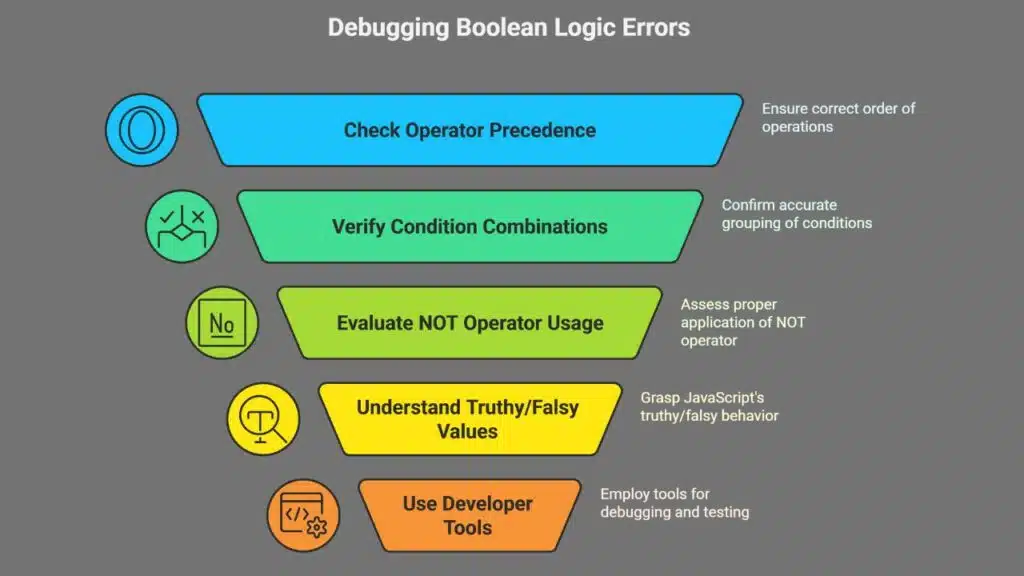
Hey there, got a minute to chat about a sneaky trap in JavaScript? Misusing Boolean logic, like messing up AND, OR, or NOT operators, can trip up your code faster than a banana peel on the floor!
Logical errors with AND, OR, and NOT operators
Let’s talk about logic errors in JavaScript. These sneaky bugs with AND, OR, and NOT operators can trip you up, so let’s spot them together!
- First off, messing up the precedence of logical operators is a common trap in web development. You might think AND (&&) always runs before OR (||), but that’s not true. JavaScript has rules for which comes first, and misinterpreting this order can flip your conditional statements upside down. Imagine coding a login check; if you mix up the order, a user might sneak through with wrong credentials. Always use brackets to group conditions clearly and avoid this headache.
- Next, incorrectly combining conditions can create flawed logic in your code. Say you’re checking if a user is logged in AND over 18 OR an admin. Without clear grouping, JavaScript might read it wrong, letting in the wrong folks. This happens a lot in complex conditional statements, so double-check your logic. Break it into smaller bits if needed to keep things straight.
- Also, watch out for overusing NOT (!) without thinking it through. It’s easy to slap a NOT in front of a condition and assume it works, but this can twist your intent. For instance, coding ! (x && y) might not mean what you expect without proper parentheses. Test these snippets with console.log() to see the real output before they mess up your app.
- Another pitfall is assuming AND and OR always behave like plain English. In JavaScript, && and || can return unexpected values based on truthy or falsy data, not just true or false. Picture checking if a user’s name exists OR a default is set; you might get a weird result if you’re not careful. Study the logical data type behavior to dodge this error.
- Finally, debugging these logic errors often needs developer tools to save the day. If your conditions act funky in asynchronous code or callbacks, use browser tools to step through each line. Set breakpoints to pause and peek at variable values. This hands-on approach catches mistakes with AND, OR, and NOT operators before they ruin your day.
Examples of flawed conditions
Hey there, readers, let’s talk about logic errors in JavaScript. Flawed conditions can catch you off guard, so I’ve got some clear examples to help you identify them.
- First off, consider a condition like (true && false || true). You might think this is false, but no, it returns true due to how JavaScript processes logical operators. This occurs because the OR operator takes the first truthy value it encounters. When writing conditional statements, always verify the order with parentheses to prevent such logic errors in web development.
- Next up, misplaced parentheses can seriously disrupt your logic. Say you write true && (false || true) versus (true && false) || true; they seem similar, but the second one evaluates to true. It’s a subtle pitfall in coding challenges. Always test your conditions with console.log() to spot these mistakes early.
- Another frequent error is overlooking variable scope in conditions. If you use a global scope variable inside a function scope without verifying its value, your condition might not work. Think of it as misplacing your keys; they’re around, but not where you thought. Debug with developer tools to monitor scoping issues.
- Then, there’s the error of using loose equality with == in conditions. Writing if (0 == ‘0’) evaluates to true, even though types are different, leading to surprising results in asynchronous code. Use strict === to keep your logic precise and error-free.
- Lastly, be cautious of conditions that neglect proper error handling. If you don’t consider null values in conditional statements, like assuming a variable always exists, your code will fail. Imagine it as crossing a narrow bridge without a safety rail. Use the nullish coalescing operator to define default values and protect your code.
Debugging and resolving Boolean logic mistakes
Let’s tackle Boolean logic mistakes together. These errors can trip up your JavaScript code, but I’m here to help you spot and fix them with ease.
- First, know that Boolean logic errors often hide in conditional statements with AND, OR, and NOT operators. They sneak in when you mix up how these operators work, like assuming ‘&&’ (AND) will return true if just one condition is met. It won’t; both must be true. So, double-check your logic when crafting these rules in your code.
- Next up, watch for flipped conditions that mess with your intent. Say you write ‘if (!x || y)’ thinking it means one thing, but it might not match what you expect due to operator precedence. Break it down, test each part with console.log(), and see the real results to catch the slip.
- Also, keep an eye on nested conditions that tangle your logic. A complex ‘if’ with multiple ANDs and ORs can twist your brain like a pretzel. Simplify it by splitting into smaller chunks or using extra variables to hold temporary results for clarity.
- Don’t miss out on testing edge cases in your JavaScript errors hunt. If your condition checks a variable for truthiness, try zero, empty strings, or null. These can flip your Boolean logic upside down if you’re not careful, so log them with console.log() to peek at the outcome.
- Another trap is forgetting how JavaScript handles truthy and falsy values in asynchronous code. A condition like ‘if (someVar)’ might pass when you didn’t expect it to, just because ‘someVar’ isn’t strictly false. Nail this down by using strict equality ‘===’ to avoid loose guesses in your logic.
- Be cautious with NOT operator overuse in your web development tasks. Slapping ‘!’ everywhere, as in ‘if (!(!condition))’, is like a double negative in speech; it confuses everyone. Rewrite it in a cleaner way, maybe drop the extras, and test it step by step to confirm.
- Finally, lean on developer tools to debug these logic errors fast. Pop open your browser’s console, sprinkle some console.log() statements around your conditional statements, and watch the values flow. This trick helps you see where your Boolean logic took a wrong turn in the execution context.
Misusing Arrays and Object Methods
Hey, ever mess up with arrays or objects in JavaScript and scratch your head wondering why things went south? Let’s chat about common slip-ups with methods like forEach or Object.keys, and figure out how to spot those pesky bugs before they bite!
Errors from misusing array iteration methods
Let’s chat about a sneaky trap in JavaScript coding. Misusing array iteration methods can trip you up, so let’s spot these logic errors together.
- First off, messing up with forEach is super common among coders. You might assume it returns a value, but nope, it just loops through the array. If you try to store a result from forEach, you’ll end up with nothing. Always check if you’re using it just for side effects, like logging to the console with console.log(). Stick to this method when you don’t need a new array back.
- Next up, confusing map with other methods can sting. Unlike forEach, map creates a fresh array from your results. But, if you forget to return a value inside map, you get an array full of undefined junk. Double-check your code to make sure each step produces something useful for web development tasks.
- Then, there’s the slip-up with filter that can catch you off guard. This method is awesome for picking out items that match a condition. Yet, if your logic in the callback is off, you might filter out everything or nothing at all. Test your conditional statements to avoid such blunders in your scripts.
- Also, watch out for changing an array with push() while iterating over it. This can mess up your loop, causing endless headaches or weird bugs. Instead, use concat() to build a new array without touching the original. It keeps your data safe and avoids nasty surprises in your JavaScript errors.
- Lastly, misunderstanding the purpose of these methods leads to chaos. Each one, like map, filter, or forEach, has a specific job in handling arrays. Mixing up their roles can break your app’s flow. Explore the docs or use developer tools to see how they behave with your code on the web.
Common mistakes with object methods
Hey there, Readers, let’s talk about some common errors in JavaScript. Mistakes with object methods can catch you off guard, so let’s identify them together.
- First off, incorrectly accessing object properties is a major issue. You might try to retrieve a value with the wrong key, like typing user.name when the key is actually user.fullName. This confusion in web development can disrupt your code. Verify your keys in the JavaScript object notation before you encounter error messages.
- Next up, modifying an object directly instead of creating a copy is a subtle pitfall. Say you’ve got an object for a user profile, and you change user.age without duplicating it first. Suddenly, you’ve altered the original data. Always use methods like Object.assign() or the spread operator to create a copy in your coding tasks.
- Another issue is using the wrong method for the job. You might call Object.keys() when you need Object.values(), resulting in logic errors. Imagine this as picking up a spoon for soup instead of a fork for salad. Confirm the method’s purpose with developer tools to prevent this confusion.
- Also, be cautious about misapplying methods on objects that don’t support them. Trying Array.map() on a plain object won’t function, folks. It’s like putting diesel in a gas car, simply incompatible. Check your variable scope and type with console.log() to spot these type errors early.
- Lastly, overlooking the context of this in object methods can create problems. If you bind a method incorrectly, this might not reference anything useful, disrupting your logic. Consider it like losing your spot in a book. Use .bind() or arrow functions to keep everything aligned in your JavaScript frameworks.
Identifying and addressing these issues
Let’s address some troublesome bugs in JavaScript together. Identifying and resolving logic errors, particularly with arrays and objects, can prevent a lot of frustration.
- To start, master your array methods thoroughly. Choosing the incorrect one, like ‘forEach’ instead of ‘map’, can disrupt your data. Always verify whether you’re transforming or simply looping. Using the right array methods for specific tasks is essential, as they maintain clarity in web development.
- Next, be cautious of subtle errors in array iteration. Imagine it as overlooking a step on a staircase; you could miss an item or encounter a failure. Test your loops with small data sets and use console.log() to inspect the outcomes.
- Then, confirm object property access every time. It’s akin to ensuring the door is secured before you leave. Attempting to access a nonexistent property could cause your app to falter significantly with type errors.
- Also, examine frequent errors with object methods. You might invoke a method on the wrong object and end up with incorrect results. Stay attentive to the context, and utilize browser developer tools to monitor what ‘this’ refers to.
- Lastly, detect problems quickly by debugging effectively. Open those developer tools, set breakpoints, and monitor variable scope closely. Whether it’s global scope or lexical scope, a confusion can spoil your progress in coding challenges.
Incorrect Arithmetic Operations
Hey, ever mix up a plus sign with a minus in your JavaScript math? It’s a sneaky slip that can mess up your whole calculation, so keep your eyes peeled for these tiny traps, and stick around to catch more tips on dodging this error!
Confusion between arithmetic signs
Let’s chat about a sneaky trap in JavaScript, folks. Mixing up arithmetic signs can mess with your code big time. Think about the plus sign, which looks innocent but acts tricky. If you write `”10″ + 3`, you won’t get 13.
Nope, you end up with “103” because JavaScript glues them together as strings. This string concatenation catches many coders off guard in web development.
Ever typed a quick calculation and got nonsense? That’s often due to misusing the `+` sign with strings instead of numbers. Spot these logic errors by checking your error messages in the console.
Use `console.log()` to peek at your variables before adding them. If one’s a string, convert it with `Number()` to dodge this snag. Keep your eyes peeled, and your math will stay sharp.
Examples of logic errors in calculations
Hey there, readers, let’s chat about messing up numbers in JavaScript. These logic errors in calculations can trip you up, so pay close attention!
- First off, incorrectly subtracting numbers is a sneaky mistake. You might think 5 minus 3 is 1 if you mix up your signs. I’ve done this before, trust me, it’s a headache. Double-check your math to catch this early. It’s a common JavaScript error that pops up in web development.
- Next, watch out for multiplying when you meant to divide. Say you’re coding a price calculator, and you multiply instead of divide for a discount. Suddenly, $10 becomes $100. Yikes, what a blunder! Always review your operators to avoid such type errors.
- Then, there’s dividing with the wrong logic in mind. Imagine splitting a bill, but you divide by zero by accident. Your code crashes faster than a house of cards. Test your conditional statements to spot this before it’s too late.
- Also, floating-point precision errors can bite you hard. JavaScript struggles with decimals, like 0.1 plus 0.2 not equaling 0.3 exactly. It’s a weird quirk, almost like a bad magic trick. Use rounding methods or libraries to fix this in your calculations.
- Finally, mixing up addition with other operations is a trap. You might add instead of subtract in a loop, piling up wrong totals. I’ve seen this in my own code, and it’s like stepping on a rake. Debug with console.log() to track your numbers and save your sanity.
Spotting and fixing arithmetic mistakes
Arithmetic slips in JavaScript can trip you up. Let’s spot and fix these logic errors together with some handy tips.
- First, watch for mixed-up signs like using plus instead of minus. It’s a sneaky mistake, especially in big calculations for web development. Check your code line by line with console.log() to catch these errors. Log each step, and you’ll see where numbers go wrong.
- Next, tackle type errors from strings acting like numbers. If you add “5” and 5, you get “55”, not 10. Use parseInt() or parseFloat() to turn strings into proper numbers. This trick keeps your math on track every time.
- Also, double-check your order of operations. Without parentheses, JavaScript might multiply before adding, messing up results. Test your logic with small values via console.log() to confirm the outcome. It’s like a quick math quiz for your code.
- Pay attention to floating-point quirks too. Numbers like 0.1 plus 0.2 might not equal 0.3 exactly due to how computers store decimals. Log these results to spot oddities in your conditional statements. A tiny mismatch can break your app’s flow.
- Finally, debug arithmetic in loops to avoid snowballing mistakes. A wrong increment can skew every value after it, especially in mobile applications. Use browser developer tools to step through each cycle. You’ll catch the glitch before it spreads like wildfire.
Scope-Related Issues
Hey, ever get tripped up by where your variables live in JavaScript? Let’s chat about scope troubles, like mixing up global and block areas, and dig into fixing those sneaky bugs.
Misunderstanding variable scope (global, function, block)
Scope issues in JavaScript can trip you up, my friends. Imagine setting a trap for yourself without even knowing it, kinda like leaving a rake on the ground and stepping on it later.
Variable scope, whether it’s global, function, or block, decides where your variables live and who can access them. Mess this up, and your code might act like a confused puppy, not knowing where to go.
Now, here’s the deal with declarations. Use ‘var’, and your variable sticks to function scope, meaning it’s only alive inside that function. Go with ‘let’ or ‘const’, though, and you’ve got block scope, locking that variable inside curly braces like a secret club.
Miss this difference, and boom, you’ve got logic errors sneaking into your web development project. So, keep a sharp eye on variable scope, and use tools like console.log() in developer tools to track where things go haywire.
Hey there, readers, let’s talk about a subtle issue in JavaScript. Scope-related logic errors can stump even experienced coders, so let’s unpack them.
- First off, accessing a variable outside its scope is a common mistake. Imagine you declare a variable inside a function, assuming it’s available everywhere. Nope, it’s confined to that function’s space. If you try to use it outside, JavaScript throws an error or returns undefined. This often happens with block scope in loops or if statements, especially with ‘let’ and ‘const’. Keep track of your variables’ limits, or you’ll be puzzled by strange error messages.
- Next up, variables being overwritten in different scopes can create chaos. Visualize this: you’ve got a global variable, and then, whoops, you reuse the same name inside a function. The inner one overshadows the outer, and your data gets messed up. This logic error in web development often lurks unnoticed until your app behaves oddly. Be cautious of variable names conflicting across global scope and function levels, and choose distinct names to avoid this pitfall.
- Another issue is misjudging how closures interact with variable scope. You might assume a variable remains static in a callback, but it changes with each loop if you’re not cautious. This stings in asynchronous code with setTimeout or event listeners. Suddenly, your logic errors surface, and your output is completely off. Verify your scopes in async functions, or use ‘let’ to secure values per iteration.
- Also, overlooking hoisting can cause scope confusion. Declare a variable with ‘var’ midway through your code, and JavaScript pulls it to the top of the scope. You might try to use it before assigning a value, ending up with undefined instead of what you anticipated. This is a subtle type error ready to strike. Opt for ‘let’ or ‘const’ to keep things organized and sidestep coding issues from outdated hoisting.
- Lastly, nested functions can spark scope troubles if you’re not alert. A variable inside an inner function might feel accessible outside, but it’s out of reach. Attempting to access it brings frustration and flawed conditional statements. It’s like trying to grab a cookie jar that’s just beyond your grasp. Plan your scopes before coding, and use console.log() in developer tools to see what’s actually happening.
Debugging and resolving scope issues
Scope issues in JavaScript can trip you up fast. Let’s fix them together with some handy tricks.
- First off, know that variable scope, like global scope, decides where your variables live and work in your code. Messing this up can cause logic errors, making your app behave oddly. If you declare a variable without care, it might sneak into the global scope, clashing with other parts of your program. Always watch where you place your variables to keep things tidy.
- Check your declarations closely, using let or const for block scope. This keeps variables locked inside loops or functions, avoiding spills into unintended areas. Sloppy use of var can lead to leaks, so stick to modern ways for safer coding in web development.
- Use console.log() to trace variable values at different spots. Pop this little helper into your code to peek at what’s happening with your variables. It’s like a flashlight in a dark room, showing you if a value is sneaking out of its proper place.
- Spot errors by testing small chunks of your script. If a variable isn’t acting right, break things down and see where it’s going wrong. This method catches scope mix-ups early, saving you a headache during error handling.
- Keep an eye on nested functions, as they can mess with variable access. Inner functions might grab a value from an outer layer by mistake, causing chaos. Double-check your setup to stop these sneaky bugs from biting.
- Debug with browser developer tools for a clear view of scope issues. These tools let you step through code and watch variables live. It’s like having X-ray vision for your JavaScript errors, making fixes a breeze.
- Practice tight control over where variables are set in conditional statements. A variable defined inside an if block shouldn’t escape unless you mean it to. Sloppy habits here can lead to major logic errors down the road.
- Stay sharp with asynchronous code, as scope can get tricky with async/await. Variables might not be where you expect when delays happen. Test these parts often to keep your app running smooth and user-friendly.
Debugging Tools and Techniques
Hey there, wanna catch those sneaky bugs in your JavaScript code? Let’s chat about some handy ways to track them down and squash them for good!
Using `console.log()` effectively
Let’s talk about debugging in JavaScript. One tool stands out as super handy: console.log().
- First off, console.log() is your best friend for tracking variable values. It lets you print data to the browser’s developer tools. This helps you see what’s happening with your code in real time. If a number isn’t adding up, just log it and check the output. It’s like having a peek inside your program’s brain.
- Next up, use it to follow the flow of execution. Drop a log statement at key spots in your script. This shows you which parts of your code run and in what order. It’s a simple way to spot if your conditional statements are skipping or looping wrong.
- Also, pair console.log() with error handling for better insights. Log error messages when something crashes in your app. This trick pinpoints where logic errors or type errors sneak in. You’ll save tons of time chasing bugs with this approach.
- Don’t forget to label your logs for clarity. Add a small text tag before the value, like console.log(“Counter:”, count). This keeps your console tidy, especially in big projects with lots of output. It’s like leaving breadcrumbs in a forest of code.
- Finally, use it to debug asynchronous code like async/await or callbacks. Log values before and after async functions run. This helps you catch issues in callback hell or race conditions. It’s a quick fix to see if your data arrives when expected.
Leveraging browser developer tools
Hey there, readers, let’s chat about a game-changer in debugging! Browser developer tools can save you from countless headaches in web development.
- First off, these tools, like Chrome DevTools and Firefox Developer Tools, let you peek under the hood of your JavaScript code. You can inspect elements, check for errors, and see what’s happening in real-time. Got a pesky bug? Open up Chrome DevTools, straight from Google’s own resource at developers.google.com, and start hunting. It’s like having x-ray vision for your website.
- Next, use the console tab to spot logic errors with ease. Wanna see what’s up with a variable? Just toss in a quick console.log() and watch the magic unfold. Firefox Developer Tools, detailed over at developer.mozilla.org, also offers this feature. It’s a fast way to catch type errors or weird behavior in your conditional statements.
- Another perk is checking network activity for issues like cross-origin resource sharing problems. These tools show if your asynchronous code or async/await calls are tripping up. You can see every request, every response. It’s like being a detective on the trail of a sneaky glitch in your web server setup.
- Also, don’t sleep on the performance tab in these developer tools. It helps you find bottlenecks in your code, especially with heavy loops or callback hell. Run a quick test and see where your app slows down. Fixing this can make your site feel snappy, almost like greasing a rusty bike chain.
- Finally, play around with the sources panel to debug variable scope issues. Set breakpoints right in Chrome DevTools or Firefox Developer Tools to pause your script. Step through each line, watch global scope mess-ups, or spot errors in async functions. Think of it as hitting the slow-motion button on a chaotic action scene.
Utilizing breakpoints and the `debugger` statement
Let’s talk about fixing bugs in JavaScript. Finding logic errors can feel like hunting for a needle in a haystack, but with the right tools, it’s a breeze!
- Breakpoints are your best pals when debugging code. They let you pause execution right at a specific line in your script. This means you can peek at variable values or check conditions mid-run. Set breakpoints in browser developer tools by clicking next to the line number in the code editor. It’s like putting a stop sign for your code to halt and chat with you!
- The debugger statement is another neat trick up your sleeve. Add it anywhere in your JavaScript, and execution stops dead in its tracks when hit. This gives you a chance to inspect everything using developer tools. Think of it as a quick whistle to freeze the game and see what’s going on.
- Use breakpoints to catch sneaky logic errors in conditional statements. Pausing at key spots lets you see if your if or else is behaving as expected. It’s a lifesaver when your code seems to take a wrong turn.
- Combining the debugger statement with console.log() boosts your error handling game. Stop the code, then log values to spot where things go haywire. It’s like having a magnifying glass to zoom in on tiny glitches.
- Browser developer tools make setting breakpoints super easy. Open the tools, find the Sources tab, and click to pause your web development project. You can step through each line, watching for type errors or scope issues. Imagine playing detective with your own code!
- Don’t skip testing breakpoints with asynchronous code like async/await functions. Pause right before a promise resolves to check if data flows correctly. This helps avoid messes like callback hell in your app.
- Keep breakpoints handy during unit tests to verify logic. Stop at critical points to make sure your variable scope isn’t causing trouble. It’s like double-checking your math before turning in a test.
Takeaways
Hey there, readers, let’s conclude with a brief shout-out to your JavaScript adventure! You’ve just conquered seven challenging logic errors, from subtle off-by-one mistakes to frustrating scope confusions.
Keep those browser developer tools, like the reliable console.log(), handy for identifying issues quickly. Keep in mind, if a bug puzzles you for more than 20 minutes, connect with coding friends online for a new perspective.
Stay persistent, and soon you’ll debug with expertise!
FAQs
1. What are some common JavaScript errors I might bump into while coding?
Hey, diving into web development, you’ll likely stumble over logic errors, syntax errors, and type errors in JavaScript. These pesky bugs, like a sneaky fox in the henhouse, can mess up your conditional statements or variable scope. Keep an eye out using developer tools to catch them quick.
2. How do I spot syntax errors in my JavaScript code?
Listen up, syntax errors are like misspelled words in a love letter; they’re easy to miss but ruin everything. Just use syntax highlighting in your editor to see those mistakes pop out before they crash your HTML document.
3. Why does my asynchronous code keep tripping me up with callback hell?
Oh buddy, callback hell in asynchronous code is like getting stuck in a maze with no exit. It often happens with XMLHttpRequest or async functions when you nest too many callbacks. Switch to async/await for a cleaner path, and watch your code flow like a calm river.
4. How can console.log() help me debug JavaScript errors?
Trust me, console.log() is your best pal in sniffing out logic errors or error messages. Pop it into your code to peek at variable values or check global scope issues right in the browser’s developer tools.
5. What’s the deal with variable scope causing bugs in my scripts?
Well, variable scope, especially global scope or static scope, can be a real trickster in web development. Mess it up, and your variables might clash like cats and dogs, leading to unexpected results. Double-check your declarations to keep things tidy with npm scripts or unit testing.
6. How does unit testing help dodge coding challenges in JavaScript?
Hey there, unit testing, especially with unit testing frameworks, is like having a safety net under your tightrope walk. It catches logic errors or type errors before they blow up on web servers like IIS or Internet Information Services. Plus, pairing it with test-driven development or behavior-driven development keeps your primitive data types and assignment operator use in check across cross-platform projects.