
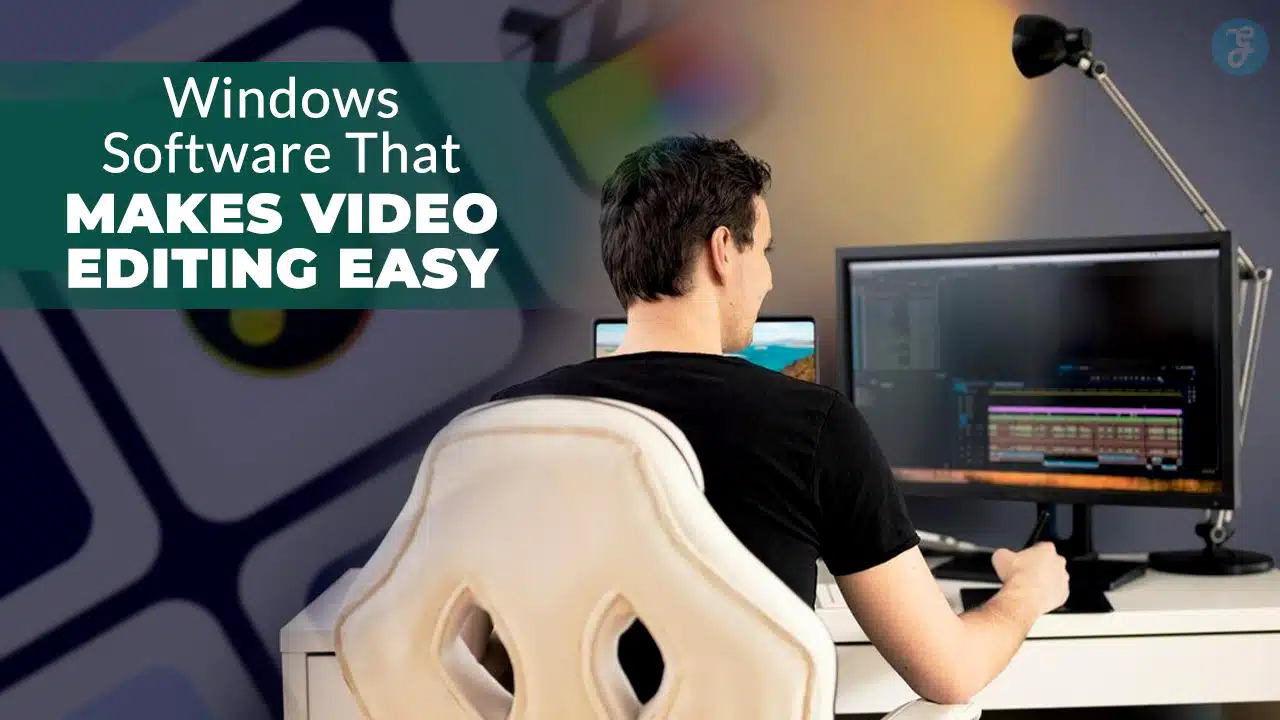
Video editing used to be a nightmare for most Windows users. Complex software scared away beginners, while expensive programs drained wallets. Many people gave up on creating videos because the tools felt too hard to use.
Microsoft Clipchamp now comes preinstalled on Windows 11 devices, making video editing more accessible than ever before. This shift shows how video editing software has become simpler and more user-friendly.
Free options like DaVinci Resolve and OpenShot offer professional features without the hefty price tags.
This guide covers ten Windows video editing programs that make creating videos feel like a breeze. You’ll discover free and paid options that work great for beginners and experts alike.
Each program offers different strengths, from basic trimming to advanced color grading and motion graphics.
Ready to turn your raw footage into amazing videos?
Key Takeaways
- Microsoft Clipchamp comes preinstalled on Windows 11 devices, making video editing more accessible than ever before.
- DaVinci Resolve offers Hollywood-grade color grading and motion graphics tools completely free for Windows users.
- Adobe Premiere Elements provides guided edits that teach complex tasks like motion tracking and color grading step-by-step.
- Wondershare Filmora features AI-powered auto reframing that automatically adjusts videos for different social media platform formats.
- These ten Windows programs range from basic drag-and-drop editors to professional multicam editing and motion graphics software.
Overview of Microsoft Clipchamp
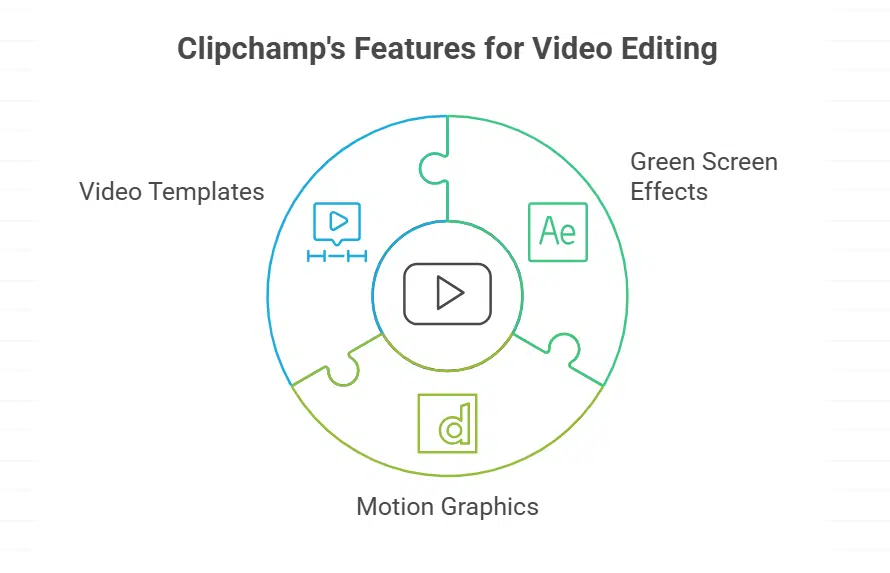
Microsoft Clipchamp stands as Windows’ built-in video editor, making it a go-to choice for beginners who want to create polished content without breaking the bank. This software brings professional-grade features like green screen effects, motion graphics, and video templates right to your desktop, turning amateur footage into social media gold.
Key Features of Microsoft Clipchamp
Clipchamp stands out as a powerful video editor built right into Windows 10 and newer systems. This beginner-friendly video editor brings professional tools to your desktop without the steep learning curve.
- User-friendly interface makes video editing simple for newcomers and experienced creators alike. The clean layout puts all essential tools within easy reach.
- Video templates speed up your workflow with pre-made designs for social media, presentations, and marketing content. Choose from hundreds of ready-to-use formats.
- Intelligent shortcuts automate common editing tasks like trimming clips and adjusting audio levels. These smart features save hours of manual work.
- Special effects and transitions transform basic footage into polished videos with professional-grade visual elements. Apply filters, animations, and smooth scene changes with one click.
- Music library provides royalty-free tracks and sound effects for any project type. Add background music that matches your video’s mood perfectly.
- Screen recording captures your desktop activity directly within the app. Record tutorials, presentations, or gameplay without switching between programs.
- Green screen editing removes backgrounds and replaces them with custom images or videos. Create professional-looking content with chroma keying technology.
- AI voiceovers generate natural-sounding narration in multiple languages and voices. Skip expensive voice talent and create audio tracks instantly.
- Overlays and graphics add text, logos, and visual elements to enhance your storytelling. Customize fonts, colors, and animations to match your brand.
Pros and Cons of Microsoft Clipchamp
Microsoft Clipchamp brings both advantages and drawbacks to Windows users looking to edit videos quickly.
| Pros | Disadvantages |
|---|---|
| Preinstalled on Windows 11 systems | Requires Microsoft account sign-in |
| User-friendly interface perfect for beginners | Limited advanced editing tools |
| Versatile features for basic video projects | Export quality depends on subscription tier |
| Cloud-based processing saves computer resources | Internet connection required for most functions |
| Built-in stock footage and music library | Watermark appears on free version exports |
| Quick rendering speeds for simple edits | File size limitations on free accounts |
| Drag-and-drop functionality simplifies workflow | Fewer customization options than competitors |
| Regular updates from Microsoft team | Premium features locked behind paywall |
| Multiple export formats available | Browser-based editor can feel sluggish |
| Auto-save prevents work loss | Limited timeline tracks for complex projects |
Understanding CyberLink PowerDirector
CyberLink PowerDirector stands out as a powerful video editing software that brings professional-grade tools to your Windows computer. This program offers a perfect balance between advanced features and user-friendly design, making it a top choice for both beginners and experienced video creators.
Essential Features of CyberLink PowerDirector
PowerDirector stands out as a powerful video editing software packed with professional tools. This program offers advanced editing capabilities that make complex projects manageable for creators at all skill levels.
- Multi-track timeline editing – Work with multiple video and audio tracks simultaneously. Drag and drop clips easily across different layers. This feature gives you complete control over your project structure.
- 360-degree video editing support – Edit immersive 360-degree footage with specialized tools. Preview your content in VR mode before publishing. Social media platforms love this format for engaging content.
- Motion tracking technology – Track objects automatically as they move across your screen. Add text, graphics, or effects that follow the motion perfectly. This advanced feature saves hours of manual work.
- Keyframe control system – Create smooth animations and transitions with precise timing. Adjust opacity, position, and scale at specific points. Professional animators rely on this level of control.
- Color grading tools – Enhance your footage with professional color correction. Apply LUTs (lookup tables) for cinematic looks instantly. Transform ordinary clips into stunning visual stories.
- Chroma keying capabilities – Remove green screen backgrounds with precision. Replace backgrounds with any image or video seamlessly. Content creators use this for professional-looking productions.
- Video stabilization feature – Fix shaky footage automatically with smart algorithms. Smooth out camera movements from handheld shots. Your videos will look professionally shot every time.
- Direct YouTube upload – Export and upload your finished videos straight to YouTube. Skip the extra steps and share content faster. Built-in templates optimize your videos for different platforms.
Advantages and Disadvantages of CyberLink PowerDirector
CyberLink PowerDirector brings both strengths and challenges to video editing enthusiasts, making it essential to weigh these factors before diving in.
| Advantages | Disadvantages |
|---|---|
| Comprehensive tools cover basic cuts to advanced effects | Can be resource-intensive on older computers |
| Suitable for all skill levels from beginners to pros | May have a learning curve for first-time users |
| Affordable premium pricing compared to competitors | Interface can feel cluttered with many options |
| Fast rendering speeds save precious time | Some advanced features require subscription |
| Built-in stock footage library simplifies projects | Occasional stability issues during heavy editing |
| Multi-track timeline supports complex edits | Limited color grading tools compared to professional software |
| Regular updates add fresh features monthly | Export options can confuse new users |
| Motion tracking works smoothly for most clips | Customer support response times vary |
| AI-powered tools automate tedious tasks | File format support excludes some newer codecs |
| Mobile app syncs projects across devices | Watermarks appear on free version exports |
Features of Adobe Premiere Elements
Adobe Premiere Elements brings professional video editing tools to everyday users, making complex tasks feel simple. This software packs powerful features like motion tracking, color grading, and video effects into a package that won’t break your brain.
Detailed Features of Adobe Premiere Elements
Adobe Premiere Elements packs professional-grade tools into a beginner-friendly video editor. This software bridges the gap between basic movie maker apps and complex programs like Premiere Pro.
- Guided Edits walk you through complex tasks step by step. These built-in tutorials teach motion tracking, color grading, and chroma keying without overwhelming new users.
- Auto Creations feature builds complete videos from your clips automatically. The software analyzes your footage and creates polished movies with transitions, effects, and music in minutes.
- Face detection technology tracks people throughout your video clips. This smart feature makes multicam editing easier by automatically switching between camera angles based on who’s speaking.
- Quick editing mode offers drag-and-drop simplicity for fast projects. You can trim clips, add transitions, and apply video effects without learning complex timelines or advanced tools.
- Expert mode unlocks professional features like multi-track editing and advanced color correction. This workspace gives you precise control over every aspect of your video production process.
- Motion graphics templates let you add professional titles and animations instantly. Choose from dozens of pre-made designs or customize text, colors, and movement to match your style.
- Audio enhancement tools automatically fix common sound problems in your recordings. The software reduces background noise, balances volume levels, and synchronizes audio with video tracks seamlessly.
- Direct social media sharing exports your videos in the perfect format for each platform. Upload finished projects to YouTube, Facebook, or Instagram without worrying about aspect ratios or file sizes.
- Video stabilization removes camera shake from handheld footage automatically. This feature works especially well with smartphone recordings and action camera clips from GoPro devices.
Strengths and Weaknesses of Adobe Premiere Elements
Adobe Premiere Elements brings both powerful capabilities and certain limitations to the video editing table.
| Strengths | Weaknesses |
|---|---|
| User-friendly interface makes it perfect for beginners | Lacks advanced features found in professional software like Premiere Pro |
| Guided edits provide step-by-step assistance for editing tasks | Slower rendering times compared to other options affect workflow efficiency |
| Automated features streamline the editing process | Limited color grading tools for professional work |
| Efficient media management organizes files for easy access | Fewer export format options than competitors |
| Compatible with both Windows and Mac systems | No multi-cam editing support |
| Advanced editing tools available for experienced users | Subscription model can become expensive over time |
| One-time purchase option provides flexible pricing | Limited third-party plugin support |
| Built-in effects library saves time and effort | Crashes may occur with large project files |
| Audio editing capabilities handle basic sound tasks | Steep learning curve for complex features |
| Motion graphics templates speed up creative work | Preview quality drops with multiple effects applied |
Wondershare Filmora strikes the perfect balance between power and simplicity, making it a go-to choice for creators who want professional results without the steep learning curve. This video editor packs impressive features like motion graphics, chroma keying, and color grading into an interface that feels as comfortable as your favorite pair of jeans.
Wondershare Filmora stands out as a beginner-friendly video editor that packs professional tools into an easy-to-use interface. This video editing software offers AI-powered features that make complex tasks simple for new users.
- Drag-and-Drop Interface: The software uses a simple drag-and-drop system that makes video editing feel like child’s play. Users can move clips, effects, and transitions with just a few clicks.
- AI-Powered Auto Reframing: Smart technology automatically adjusts video frames for different social media formats. This feature saves hours of manual work when creating content for Instagram, TikTok, or YouTube.
- Built-in Screen Recording: Record your computer screen directly within the video editor without switching between apps. Perfect for creating tutorials, gaming videos, or software demonstrations.
- Royalty-Free Music Library: Access thousands of music tracks and sound effects without worrying about copyright issues. The library includes various genres to match any video style or mood.
- Motion Tracking Technology: Track moving objects in your videos and attach text, graphics, or effects that follow the movement. This advanced feature usually costs extra in other video editing apps.
- Chroma Keying (Green Screen): Remove backgrounds and replace them with any image or video using the green screen feature. Create professional-looking videos without expensive studio equipment.
- Video Templates Collection: Choose from hundreds of pre-made templates for quick video creation. These templates work great for social media marketing, presentations, and personal projects.
- Direct Platform Upload: Upload finished videos straight to YouTube, Vimeo, or other platforms without leaving the software. This streamlined process cuts down editing time significantly.
- Color Grading Tools: Adjust colors, brightness, and contrast with professional-grade tools that rival expensive software. The color correction features help make ordinary footage look cinematic.
Wondershare Filmora shines as a beginner-friendly video editor that puts simplicity first. This video editing software offers built-in templates and effects that make quick projects a breeze. Users can edit 4K video with ease, bringing high-resolution footage to life. The software includes a library of royalty-free music that enhances any project’s audio experience. Filmora’s affordable price tag makes it accessible to creators on tight budgets. The interface stays clean and intuitive, helping new users jump right into editing without feeling lost.
Filmora’s limitations become clear for users seeking advanced features. The software lacks extensive professional tools that experienced editors often need. Complex motion graphics and detailed color grading options remain limited compared to premiere pro or davinci resolve. Some advanced video effects and multicam editing capabilities fall short of expectations. Users working on demanding projects may find the software’s functionality too basic. The program works best for simple edits and social media content rather than complex film production.
Exploring Movavi Video Editor Plus
Movavi Video Editor Plus sits comfortably in the middle ground between basic editing tools and professional software. This video editor brings solid features without the steep learning curve that scares away beginners.
Core Features of Movavi Video Editor Plus
Movavi Video Editor Plus delivers powerful editing tools wrapped in a beginner-friendly video editor interface. This video editor combines professional features with simple controls that make video editing accessible to everyone.
- Timeline Interface with Precision Controls – The software provides a detailed timeline where you can trim, split, and merge video clips with frame-accurate precision. Audio tracks sync perfectly with video content for seamless editing results.
- Built-in Video Effects and Filters Library – Access hundreds of video effects, transitions, and color filters to enhance your footage. The software includes motion graphics templates and customizable text overlays for professional-looking videos.
- 4K Video Export Support – Export your projects in high-resolution formats including 4K quality for crisp, clear results. The software handles various video formats and compression settings to match your specific needs.
- Chroma Keying and Green Screen Tools – Remove backgrounds easily with advanced chroma keying technology that works with green screens. Replace backgrounds with images, videos, or solid colors for creative video projects.
- Motion Tracking Capabilities – Track moving objects in your footage and attach text, graphics, or effects that follow the movement. This feature adds professional polish to your video editing projects.
- Video Stabilization Technology – Fix shaky footage automatically with built-in stabilization tools that smooth out camera movements. Your handheld recordings transform into steady, professional-looking content.
- Screen Recording Integration – Capture your computer screen directly within the video editor for tutorials, presentations, or gaming content. The tool records system audio and microphone input simultaneously.
- Color Grading and Correction Tools – Adjust brightness, contrast, saturation, and apply professional color grading to your footage. The software includes preset LUTs (lookup tables) for quick color enhancement.
- Multi-track Audio Editing – Layer multiple audio tracks, adjust volume levels, and apply noise reduction to improve sound quality. Background music, voiceovers, and sound effects blend seamlessly together.
Benefits and Limitations of Movavi Video Editor Plus
Movavi Video Editor Plus brings solid benefits for casual creators. The software offers an extensive library of effects and transitions for visual enhancement. Users get drag-and-drop simplicity that makes video editing feel like child’s play. The interface won’t leave you scratching your head, unlike some complex programs. Templates help speed up projects when time is tight. The program supports many video formats, so you can work with footage from different cameras. Screen recording features let you capture desktop content easily. Basic color grading tools help improve your footage’s look.
The limitations tell a different story though. This video editor lacks the advanced editing features that pros need. Motion tracking stays out of reach with this software. The program doesn’t offer direct social media upload options, which means extra steps for sharing. Professional settings rarely see this tool in action compared to premiere pro or final cut pro. The steep learning curve hits harder than expected for some beginners. Template variety falls short compared to other beginner-friendly video editor options. Export speeds can drag when working with large files.
Capabilities of DaVinci Resolve
DaVinci Resolve stands as a powerhouse that brings Hollywood-grade color grading and motion graphics to your desktop without costing a penny. This free video editing software packs professional features like multicam editing, noise reduction, and video stabilization that rival expensive alternatives like Final Cut Pro and Premiere Pro.
Features Overview of DaVinci Resolve
DaVinci Resolve stands as a powerhouse in the video editing world. This free video editing software packs professional-grade tools that rival expensive alternatives.
- Advanced Color Grading Tools – Professional colorists rely on DaVinci Resolve’s industry-standard color correction features. The software offers precise control over shadows, highlights, and midtones with intuitive color wheels.
- Multi-User Collaboration System – Teams can work on the same project simultaneously without conflicts. Each editor handles different aspects like cutting, color grading, or audio mixing in real-time.
- Professional Audio Editing Suite – Built-in Fairlight audio tools provide studio-quality sound editing capabilities. Users get access to advanced mixing, noise reduction, and audio effects without extra software.
- High-End Visual Effects Engine – Fusion compositor creates Hollywood-level motion graphics and visual effects. The node-based system handles complex compositing tasks with precision and speed.
- Multicam Editing Support – Edit footage from multiple cameras with automatic sync features. The timeline displays all camera angles for seamless switching between shots.
- Motion Graphics Creation – Built-in templates and animation tools speed up graphics production. Text animations, lower thirds, and transitions come ready to customize.
- High Dynamic Range Processing – Native HDR support handles modern camera formats like Apple ProRes 422. Color accuracy remains intact throughout the editing process.
- Free and Open-Source Access – Download the full version without subscription fees or watermarks. Professional features stay accessible to beginners and experts alike.
- GPU Acceleration Support – NVIDIA GeForce and other graphics processors boost rendering speeds significantly. Complex projects export faster with proper hardware acceleration.
Pros and Cons of DaVinci Resolve
DaVinci Resolve stands out as a powerhouse in the video editing world. This free video editing software packs professional-grade features that rival expensive alternatives. Color grading tools shine brightest here, giving editors cinema-quality results. Motion graphics capabilities impress both beginners and pros alike. The software handles multicam editing with ease, making complex projects manageable. Video effects library runs deep, offering countless creative options. Text-based editing speeds up workflow for many users. Best part? The free version available gives you access to most features without spending a dime.
Learning this video editor takes time and patience, though. High learning curve challenges newcomers who want quick results. System requirements run steep, demanding powerful hardware to run smoothly. Premium version is expensive, which might strain tight budgets. Interface complexity can overwhelm users switching from simpler programs. Rendering times stretch longer than some competitors, testing your patience. Bug fixes come regularly, but they sometimes introduce new issues. The software works best on high-end machines with plenty of RAM and processing power.
Insights into OpenShot
OpenShot stands out as a free video editing software that runs smoothly on Windows computers, offering drag-and-drop simplicity that makes video editing feel like child’s play. This open-source video editor packs powerful features like chroma keying, motion graphics, and video effects into a beginner-friendly interface that won’t leave you scratching your head.
Primary Features of OpenShot
OpenShot is a powerful free video editing software that runs smoothly on Windows systems. This beginner-friendly video editor combines professional-grade tools with an easy-to-use interface.
- Drag-and-drop functionality makes importing media files simple for new users. You can quickly add videos, photos, and audio tracks to your timeline without complex menus.
- Unlimited layers allow you to stack multiple video clips, images, and effects on top of each other. This feature gives you complete creative control over your projects.
- Video transitions help you create smooth connections between different clips in your timeline. The software includes dozens of built-in transition effects to choose from.
- 3D animations enhance your titles and graphics with eye-catching movement effects. You can animate text, logos, and other elements with professional results.
- Title templates offer ready-made designs for your video text and graphics. These templates save time and help create polished-looking titles quickly.
- Audio editing tools allow you to adjust sound levels, remove background noise, and sync audio with video. You can also add music tracks and sound effects to enhance your projects.
- Visual effects include color correction, brightness adjustments, and artistic filters for your footage. These tools help improve the overall look of your videos.
- Video stabilization corrects shaky camera footage and creates smoother playback. This feature works well for handheld recordings and action shots.
- Chroma keying eliminates green screen backgrounds and replaces them with custom images or videos. This technique opens up creative possibilities for your video projects.
- Motion graphics capabilities enable you to create animated logos, lower thirds, and other professional elements. The software supports keyframe animation for precise control.
- Cross-platform compatibility ensures your projects work on different operating systems without conversion issues. You can share project files with users on other platforms easily.
Advantages and Challenges of OpenShot
This free video editing software brings serious value to creators on tight budgets. OpenShot runs smoothly on Windows systems and delivers professional-grade tools without the hefty price tag. The interface feels intuitive, making it perfect for beginners who want to jump into video editing without a steep learning curve. Cross-platform compatibility means you can work on projects across different operating systems. The software supports unlimited tracks, which gives editors plenty of room for complex projects. Basic video effects, transitions, and audio editing tools come built-in, covering most standard editing needs.
Some limitations can frustrate users during intensive projects. The software occasionally crashes when handling large video files or complex timelines. Advanced features like motion tracking and sophisticated color grading remain absent from the toolkit. Performance can lag on older computers, especially when working with high-resolution footage. Export times tend to stretch longer compared to paid alternatives. The community-driven development model means bug fixes and updates arrive less predictably than commercial software. Despite these drawbacks, OpenShot remains completely free and open-source, making it an attractive option for budget-conscious video editors.
Review of Shotcut
Shotcut stands out as a powerful free video editing software that runs smoothly on Windows systems. This open-source video editor packs professional-grade features like chroma keying, motion graphics, and color grading into a user-friendly package that won’t cost you a dime.
Main Features of Shotcut
This free video editing software packs professional tools into a simple interface. Users get access to advanced timeline editing and multi-track capabilities without spending a dime.
- Wide format support – This video editor handles almost any file type you throw at it. You can import footage from smartphones, camcorders, or any recording device without conversion headaches.
- Advanced timeline with multi-track editing – The timeline lets you layer multiple video and audio tracks with precision. Drag and drop clips, trim footage, and arrange sequences like a pro editor.
- Visual effects and color grading tools – Built-in effects transform ordinary footage into cinematic masterpieces. Color correction tools help you match clips and create professional-looking videos.
- Audio filters and noise reduction – Clean up messy audio with powerful filters that remove background noise. Audio tools include equalizers, compressors, and volume controls for crystal-clear sound.
- Smooth transitions between clips – Professional transitions make your cuts look seamless and polished. Choose from fades, wipes, and dozens of other transition effects.
- Motion graphics and text overlays – Add animated titles, lower thirds, and text effects to your videos. Motion graphics tools create professional-looking graphics without external software.
- Chroma keying for green screen effects – Remove backgrounds and replace them with any image or video. This feature works great for creating special effects or professional presentations.
- Video stabilization technology – Shaky footage gets smoothed out with built-in stabilization tools. Your handheld clips will look like they were shot with expensive camera equipment.
- Cross-platform compatibility – This software runs on Windows, Mac, and Linux systems without issues. You can edit projects on different computers and operating systems seamlessly.
Strengths and Drawbacks of Shotcut
Shotcut shines as a free video editing software that packs serious punch. The video editor supports high-resolution formats and gives users flexible editing options. Cross-platform compatibility means it runs smoothly on Windows, Mac, and Linux systems. Professional features like color grading, video effects, and chroma keying come at no cost. The interface follows a traditional timeline approach that many editors find familiar.
Shotcut’s steeper learning curve can frustrate newcomers to video editing. The interface feels overwhelming at first glance, with numerous panels and options scattered across the screen. Beginners might struggle to find basic tools quickly. Performance can lag when working with large video files or complex projects. Some users report crashes during intensive editing sessions, though updates continue to improve stability.
Introduction to VSDC Free Video Editor
VSDC Free Video Editor packs professional features into a completely free package, making it a hidden gem for Windows users who want advanced editing without spending a dime. This software handles everything from basic cuts to complex motion graphics, color grading, and chroma keying with surprising ease.
Features and Functions of VSDC Free Video Editor
VSDC Free Video Editor packs professional tools into a free video editing software package. This beginner-friendly video editor runs smoothly on Windows 7 and newer systems.
- Non-linear editing timeline – Edit multiple video tracks at once with drag-and-drop simplicity. Cut, trim, and arrange clips without losing quality or starting over from scratch.
- Color grading tools – Adjust brightness, contrast, and saturation to make your videos pop. Apply color correction filters that transform dull footage into vibrant, professional-looking content.
- Video effects library – Access hundreds of visual effects including transitions, filters, and overlays. Transform ordinary clips with motion graphics that add polish to any project.
- Audio editing capabilities – Mix multiple audio tracks, reduce background noise, and add sound effects. Fine-tune volume levels and apply audio filters for crystal-clear sound quality.
- Motion tracking technology – Track moving objects and attach text or graphics that follow the movement. This advanced feature works great for highlighting products or adding dynamic captions.
- 4K and HD resolution support – Export videos in high-definition formats including 4K resolution. Your finished projects maintain crisp quality whether viewed on phones or large screens.
- Chroma keying function – Remove green screen backgrounds and replace them with any image or video. Create professional-looking scenes without expensive studio equipment or complex setups.
- Video stabilization feature – Fix shaky camera footage with built-in stabilization tools. Smooth out bumpy recordings to create steady, watchable videos that look professionally shot.
- Screen recording capability – Capture your computer screen for tutorials, gaming videos, or presentations. Record system audio and microphone input simultaneously for complete screen capture sessions.
Pros and Cons of VSDC Free Video Editor
VSDC Free Video Editor brings impressive capabilities to Windows users without costing a penny. This free video editing software supports high resolutions and packs features that rival paid alternatives. Users can apply video effects, perform chroma keying, and work with multiple video formats. The software handles motion graphics well and offers decent color grading tools. Free software foundation principles drive this editor, making advanced video editing accessible to everyone.
Complex interface design creates challenges for newcomers to video editing. The learning curve feels steep compared to beginner-friendly video editor options like Wondershare Filmora or Adobe’s simpler tools. Advanced features remain limited when compared to professional software like DaVinci Resolve or Premiere Pro. Some users report stability issues during intensive editing sessions. The software lacks the polish and streamlined workflow found in paid alternatives from the creative cloud ecosystem.
Analyzing Lightworks
Lightworks stands as a professional-grade video editor that Hollywood studios have trusted for decades. This powerful software brings cinema-quality tools to your desktop, making complex editing tasks feel like child’s play.
Key Features of Lightworks
This professional video editor brings Hollywood-level tools to your desktop. Lightworks packs serious power for creators who want cinema-quality results.
- Professional timeline editing delivers frame-accurate control with multi-track support for complex projects that demand precision cutting and seamless transitions.
- Real-time effects processing lets you apply filters, transitions, and color corrections instantly without waiting for lengthy render times during editing sessions.
- Multi-camera editing capabilities sync footage from different cameras automatically, making it simple to cut between angles for interviews and events.
- Export to 4K resolution maintains crystal-clear quality for modern displays while offering various format options for different platforms and devices.
- Advanced audio tools include professional mixing, noise reduction, and multi-channel support for broadcast-quality sound that matches your visuals perfectly.
- LUTs support applies cinematic color grading with lookup tables, giving your footage that polished, film-like appearance professionals expect.
- Social media templates provide pre-configured export settings for YouTube, Instagram, and other platforms, saving time on technical specifications.
- Cross-platform compatibility works seamlessly across Windows, Mac, and Linux systems, making collaboration easier for diverse production teams.
- Free version availability offers core editing features without cost, though advanced export options require a paid subscription for full functionality.
Advantages and Disadvantages of Lightworks
Lightworks delivers professional-level features that rival expensive software packages. This video editor offers flexible pricing options, making it accessible to creators with different budgets. Professional editors love its advanced color grading tools and multicam editing capabilities. The software handles complex projects with ease, supporting various video formats including XAVC. Users can create stunning motion graphics and apply sophisticated video effects without breaking the bank.
The free version comes with significant limitations that frustrate many users. New editors often find Lightworks complex and intimidating compared to beginner-friendly video editor options like Wondershare Filmora. The learning curve is steep, requiring time and patience to master its interface. Export options in the free version are restricted, forcing users to upgrade for full functionality. Some creators struggle with the software’s workflow, which differs from other popular video editing apps.
Takeaway
Video editing doesn’t have to feel like rocket science anymore. These ten Windows software options prove that creating stunning videos can be as simple as drag and drop. From Microsoft Clipchamp’s smart templates to DaVinci Resolve’s professional color grading tools, each program brings something special to your creative toolkit.
Whether you’re a complete beginner or someone ready to tackle multicam editing and motion graphics, there’s a perfect match waiting for you. Start with one that catches your eye today, and watch your video stories come to life faster than you ever imagined possible.
FAQs on Beginner-Friendly Windows Software for Video Editing
1. What makes Windows video editing software beginner-friendly?
Most beginner-friendly video editor options come with simple drag-and-drop features. Windows Video Editor and Wondershare Filmora offer templates that make the process smooth as butter. You don’t need a computer science degree to start creating videos.
2. Can I get quality free video editing software for Windows?
DaVinci Resolve stands out as top-notch free video editing software with professional color grading tools. It’s like getting a Ferrari for the price of a bicycle. The software runs under GNU General Public License, making it completely free.
3. Which video editing apps work best with motion tracking and video effects?
Adobe Premiere Pro excels at motion tracking and offers tons of video effects. CyberLink PowerDirector also handles motion graphics well, plus it supports chroma keying for green screen work. Both programs let you add LUTs (lookup tables) for that cinematic look.
4. Do I need special hardware like GeForce RTX or NVMe SSD for video editing?
Modern video editing benefits from GeForce RTX cards and fast NVMe SSD storage. However, basic editing works fine on regular computers. Think of fancy hardware as the cherry on top, not the whole sundae.
5. Can Windows video editor handle multicam editing and screen recording?
Windows Video Editor covers basic needs but lacks multicam editing features. For serious multicam work, you’ll want Premiere Pro or DaVinci Resolve. Many apps now include built-in screen recording, saving you from hunting down separate software.
6. Where can I download these video editing programs?
You can grab most programs from the Microsoft Store or directly from company websites. Some mobile video editing apps appear in the Google Play Store too. Always download from official sources to avoid nasty surprises.