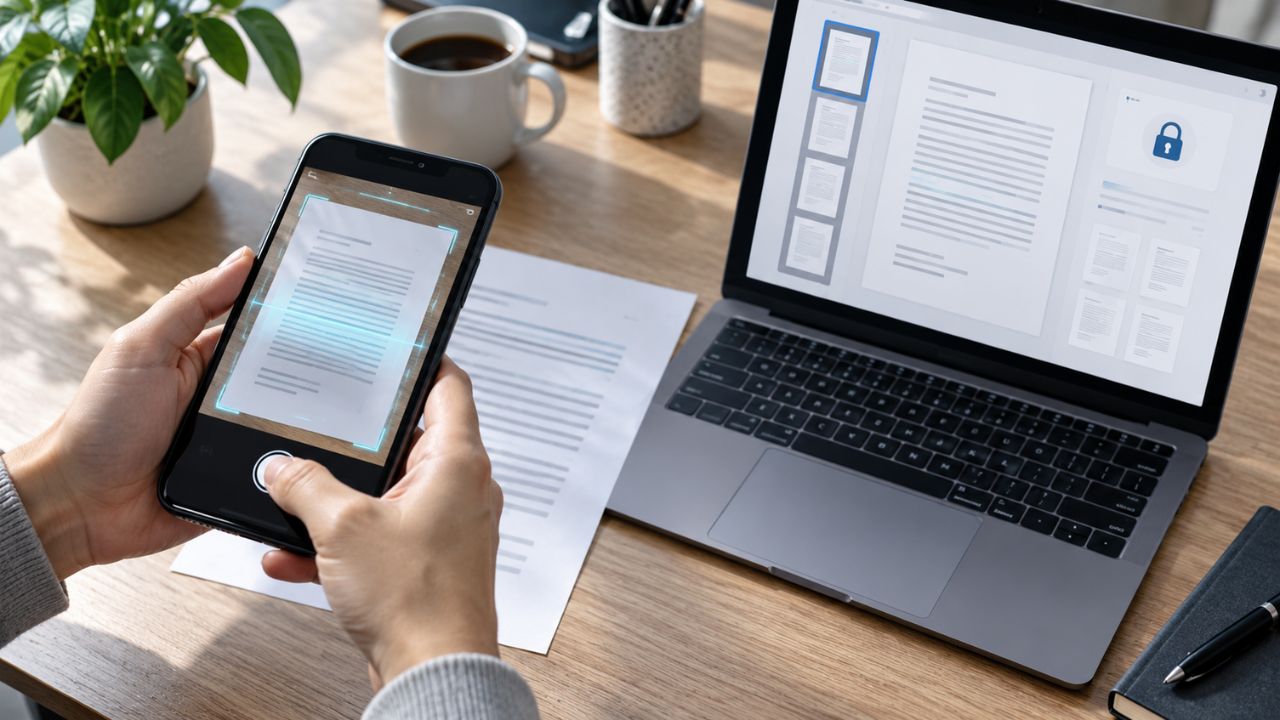
Scanning a page with your phone takes seconds. Creating a reliable digital document is harder. A clean-looking scan can still misread a price, date, or account number. It may also create a searchable PDF by sending the page to a cloud server.
That is why I compared these document scanner apps on OCR, export options, storage, privacy, free-plan limits, and paid restrictions instead of image quality alone.
I have personally used Adobe Scan, Google Drive, OneDrive, and CamScanner. My comments on their everyday workflows reflect that familiarity. I have not personally tested the other six apps, so those assessments rely on current documentation, privacy disclosures, and independent testing. This is not a laboratory benchmark, and I have avoided unsupported accuracy percentages.
Adobe Scan is my general pick if cloud processing is acceptable. Genius Scan has the clearest privacy-first workflow, Tiny Scanner is worth testing when OCR matters most, and vFlat is the specialist choice for books. Google Drive and OneDrive are most useful when the scan already belongs in those storage systems.
Quick Comparison of the 10 Document Scanner Apps
A searchable PDF contains a text layer that lets you find or copy words. It does not guarantee perfect recognition, and it is not the same as an editable Word or Excel file.
| App | Platform | Best for | OCR and export | Privacy position | Main limitation |
| Adobe Scan | iOS, Android | Best overall | Searchable PDF, PDF, JPEG, paid Word export | OCR and storage use Adobe’s cloud | Several advanced tools require payment |
| Genius Scan | iOS, Android | Privacy-conscious users | On-device OCR, PDF, PDF/A, JPEG, text | Local by default unless an optional export or cloud feature is enabled | OCR requires the Ultra plan |
| Tiny Scanner | iOS, Android | OCR-focused users | PDF, images, Word, Excel, OCR tools | Uses advertising, analytics, hosting, and cloud services | OCR is paid, and processing routes are not explained as clearly as some rivals |
| Scanner Pro | iOS, iPadOS | Apple users | On-device OCR, PDF, JPEG, Word, PowerPoint, text | Scans stay local unless sync or upload is enabled | No Android version |
| ABBYY FineReader PDF | iOS, iPadOS | Languages and editable formats | Searchable PDF, Word, Excel, text, and specialist formats | Local plain-text OCR or server-based formatted OCR | No current Android version |
| SwiftScan | iOS, Android | Automated filing | On-device OCR, PDF, JPEG, automatic cloud uploads | Core OCR is local; selected exports leave the device | OCR and useful automation tools are paid |
| vFlat Scan | iOS, Android | Books and curved pages | OCR in 100+ languages, PDF, JPG, TXT, Word | Capture tools run locally; OCR uses a server | Small free OCR and PDF quotas |
| Google Drive | iOS, Android | Free cloud scanning | Searchable PDF; Android also supports JPG | Scans are stored in Google Drive | Limited editing and no local-first workflow |
| OneDrive | iOS, Android | Microsoft users | PDF scanning and mobile text recognition | Scans are stored in OneDrive; Personal Vault is available | No direct local saving for scans |
| CamScanner | iOS, Android | Feature variety | Searchable PDF, OCR, Word and Excel conversion, editing | OCR and cloud features can upload documents | Ads, retention, and cloud settings require attention |
1. Adobe Scan: Best Overall for Searchable PDFs
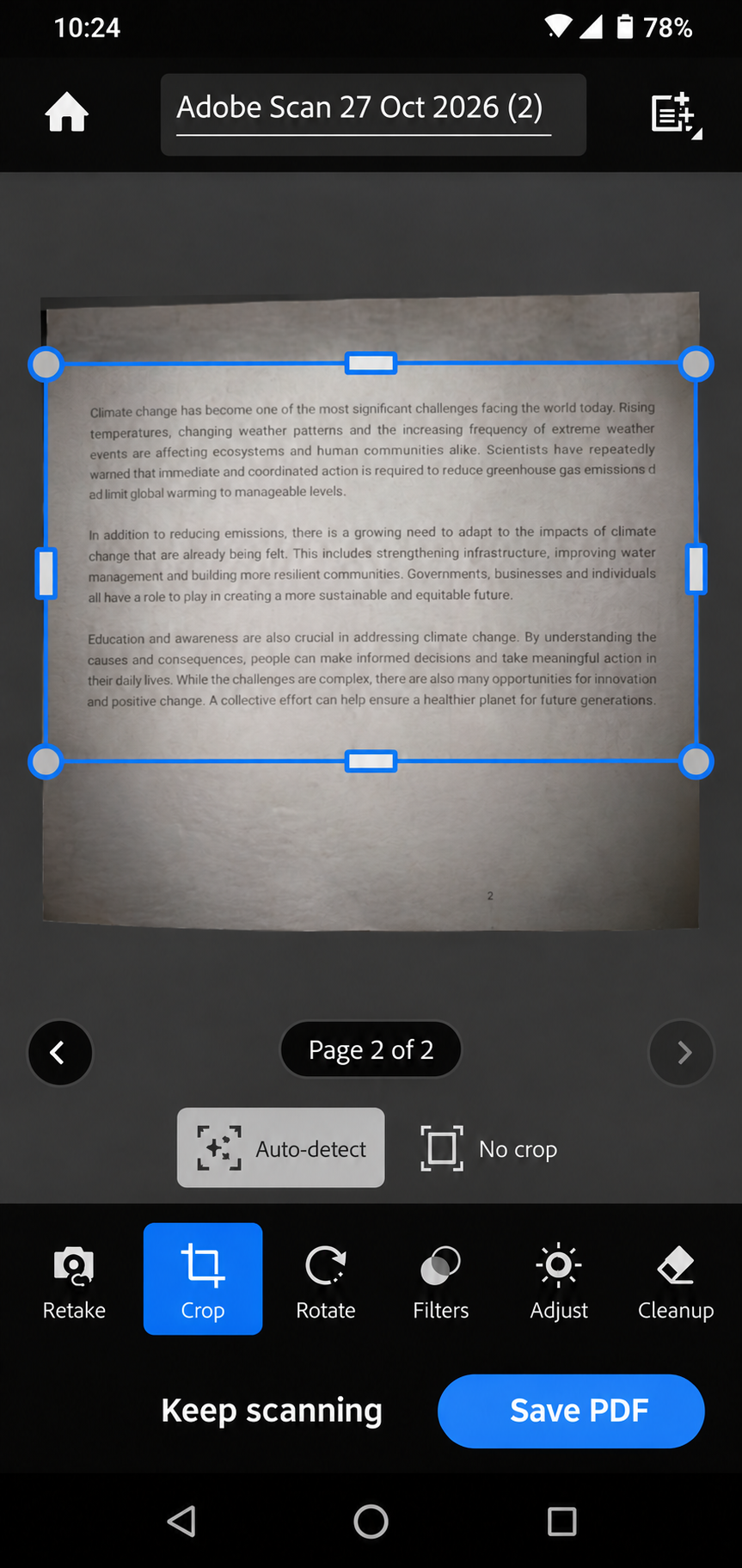
I have used Adobe Scan and am familiar with its basic capture-to-PDF workflow: photograph the page, adjust the borders, apply cleanup, and save.
OCR runs automatically and adds searchable text. Adobe also corrects perspective and can reduce shadows or glare. Standard users can apply OCR to scans of up to 25 pages, while a paid plan raises the limit to 100 pages.
The free app covers scanning, cleanup, OCR, and PDF creation. Word export, password protection, compression, advanced editing, and higher OCR limits require payment. Some tasks also move the user into Adobe Acrobat.
The tradeoff is privacy. Adobe Scan needs an internet connection for OCR and saves scans in Adobe’s cloud. Adobe encrypts files in transit and at rest, but this is not a local-only workflow.
Adobe Scan is the safest general recommendation for routine paperwork. Skip it when sensitive documents must remain local.
2. Genius Scan: Best for Privacy-Conscious Users
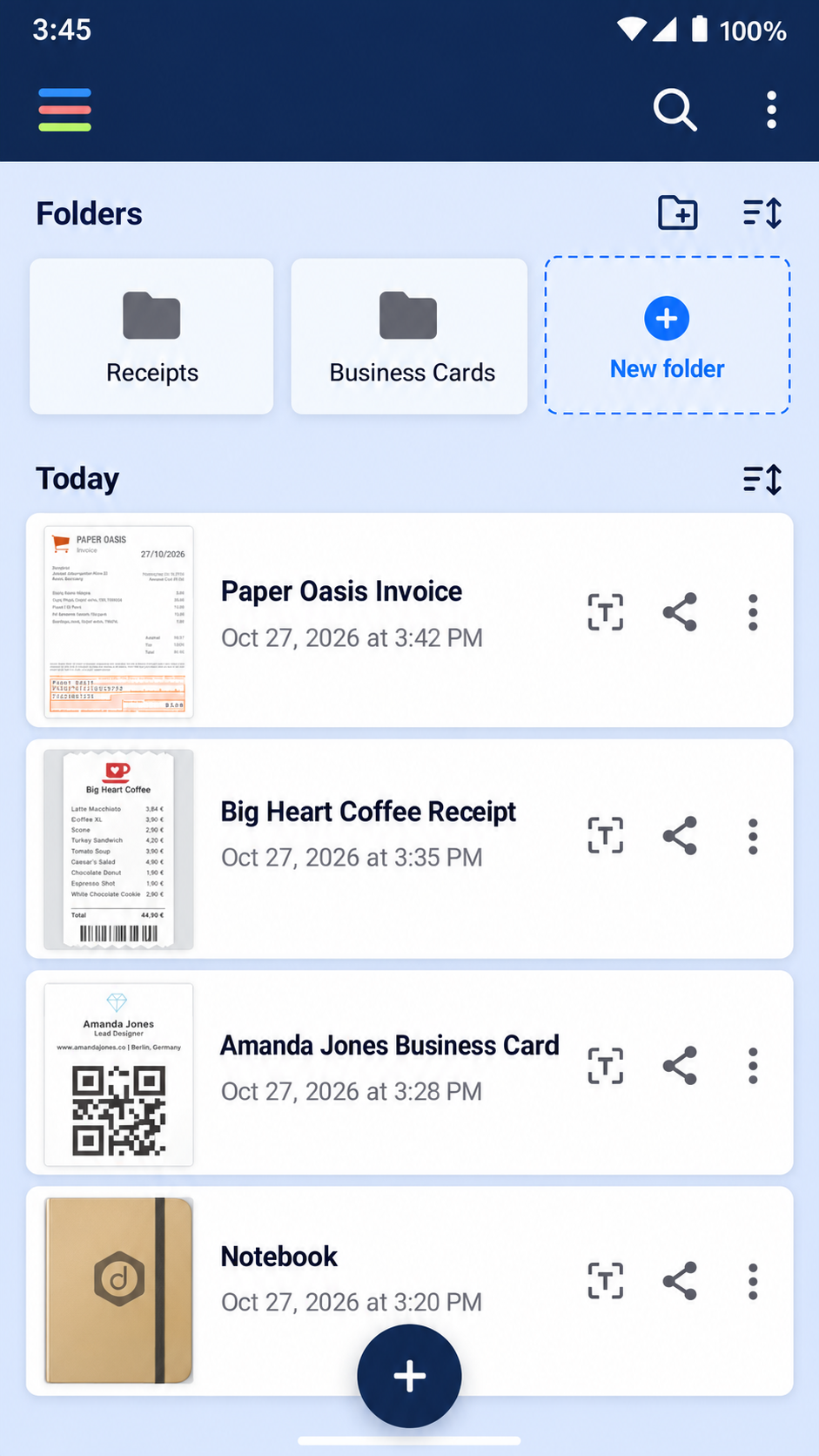
Genius Scan starts with a local-first design. Its free plan includes high-resolution scanning, page detection, multipage PDFs, and manual export without a watermark.
Paid OCR runs on the device and adds searchable text without uploading the page for recognition. Export options include PDF, archival PDF/A, JPEG, and recognized text. Without an account, documents stay on the phone until the user chooses an export destination. Genius Cloud backup is optional.
One feature changes that privacy picture. Intelligent file renaming can send text from the first page to OpenAI, which may retain it for up to 30 days for abuse monitoring. Anyone who wants a strictly local workflow can leave that optional feature disabled.
Genius Scan is the strongest fit here when document privacy matters more than having every advanced feature for free. The main catch is simple: OCR and several security and cloud tools require the Ultra plan.
3. Tiny Scanner: Strong OCR With Less Privacy Clarity
Tiny Scanner is worth considering when text recognition matters more than a generous free plan. I would still test it with the exact receipts, forms, or layouts you scan most often.
The app creates PDFs and images and can convert files to Word or Excel. It also includes signatures, annotations, compression, PDF passwords, splitting, and merging.
OCR is a paid feature, and subscription offers can vary by region or promotion. Check the price shown in your app store before starting a trial.
The larger concern is transparency. Tiny Scanner’s privacy policy covers analytics, advertising identifiers, hosting, accounts, and cloud backup, but it does not explain every scan and OCR processing route as clearly as the leading local-first apps. That does not prove poor handling. It simply leaves users with more questions when the document is sensitive.
4. Scanner Pro: Best Dedicated Scanner for iPhone
Scanner Pro is built for iPhone and iPad. It detects borders, corrects perspective, reduces shadows, and combines multiple pages. It also supports annotations, signatures, full-text search, and automated cloud workflows.
Its biggest privacy advantage is on-device OCR. Readdle says recognized text remains on the device, and scans stay inside the app unless the user exports them or enables cloud sync.
The free version can export PDF and JPEG files, although free output may carry a watermark. Searchable PDFs, OCR, automatic uploads, password protection, and Word, PowerPoint, or text conversion require Scanner Pro Plus.
On-device OCR does not mean the entire app is tracking-free. Its App Store disclosure says identifiers may be used for tracking, and usage or diagnostic data may be collected. Document processing and app analytics are separate privacy questions.
For Apple users who want a polished dedicated scanner, Scanner Pro is an easy shortlist choice. Android users must look elsewhere.
5. ABBYY FineReader PDF: Best for Languages and Editable Formats
ABBYY FineReader PDF offers one of the broadest sets of recognition languages and export formats in this group. Its mobile app is currently limited to iPhone and iPad because the Android version reached end of life in 2023.
The app provides two OCR routes. Plain-text recognition runs on the device but does not preserve the original formatting. The layout-preserving option sends the document to ABBYY’s server and can produce a more structured file.
Exports include searchable PDF and PDF/A, Word, Excel, text, RTF, ODT, PowerPoint, EPUB, FB2, JPG, and image-only PDF. That range is useful when the goal is to reuse a long document, edit a table, or move recognized text into another format.
ABBYY has a strong name in OCR, but brand reputation does not guarantee perfect results on every page. Complex layouts can still produce errors. Choose it for language and format flexibility, not because you expect flawless recognition.
6. SwiftScan: Best for Automatic Filing
SwiftScan is built for people who repeatedly send scans to the same destination. It detects edges, corrects the page, captures at 200 dpi or higher, and saves PDF or JPEG files. Paid tools add OCR, smart naming, PDF protection, and automatic uploads.
It connects with services such as iCloud, Google Drive, Dropbox, OneDrive, Box, WebDAV, FTP, and SFTP. If every receipt needs to enter one accounting folder, that automation can be more valuable than another editing tool.
SwiftScan says recognition occurs on the device and document data goes only to a cloud provider the user selects. Its App Store disclosure also lists identifiers and usage data that may be used for tracking. Document handling and app analytics are separate privacy questions.
SwiftScan is a workflow choice. Occasional users may not gain enough from the paid tools, while frequent scanners can save real filing time.
7. vFlat Scan: Best for Books and Curved Pages
Most document scanner apps expect a flat sheet. vFlat is designed for open books. It can flatten curved pages, split a two-page spread, remove visible fingertips, and organize pages captured in sequence.
OCR supports more than 100 languages. Export options include PDF, JPG, plain text, and Word. Text-to-speech can also read recognized text aloud.
At the time of this review, the free plan includes 10 OCR pages and 10 PDF-export pages each month. Premium removes most scanning limits and allows up to 3,000 OCR pages monthly.
The privacy model is hybrid. Edge detection, page flattening, and finger removal happen on the phone. OCR and Send to PC use a server. vFlat says transmitted images are encrypted, deleted within 24 hours, and not used to train its models.
For books, manuals, and bound notes, vFlat solves a problem the general scanners do not handle as well. Its small free quotas make it less attractive for frequent unpaid use.
8. Google Drive: Best Free Choice for Google Users
I have used Google Drive’s scanner. Its main appeal is convenience: a finished scan lands in a familiar Drive folder, ready to rename, organize, or share.
The Android and iOS apps support automatic capture, edge adjustment, filters, cleanup, and multipage scanning. Both can create searchable PDFs. Android also supports JPG output, while Google’s iPhone workflow centers on PDF.
Google processes Drive content for functions such as search and security. Files are encrypted in transit and at rest, and Google says Drive content is not used for advertising. The workflow is still cloud-based rather than local-first.
Google Drive works well for occasional receipts, forms, and letters. It is a weaker choice for Word conversion, advanced PDF editing, controlled local storage, or book scanning. Android users who want a local searchable PDF can consider the scanner in Files by Google instead.
9. OneDrive: The Microsoft Lens Replacement
I have also used OneDrive. Its advantage is keeping scans beside Office files and existing Microsoft folders instead of creating another storage system.
Microsoft Lens should no longer appear on a current list of recommended scanner apps. Microsoft removed it from app stores in February 2026 and stopped new scanning on March 9, 2026. Microsoft now directs Lens users to OneDrive.
OneDrive scans documents, whiteboards, photos, and business cards, saves them as PDFs, and supports up to 30 pages. Mobile OCR for selecting and copying text from scanned PDFs may depend on the app version or account.
The main limitation is storage control. Scans cannot be saved directly to local device storage. Personal Vault adds authentication and automatic locking, but the file still lives in Microsoft’s cloud.
Choose OneDrive when Microsoft storage is already part of your workflow. Do not choose it when local-only saving is a requirement.
Check out the best business card scanners here.
10. CamScanner: Best for Feature Variety
I have used CamScanner, and its toolkit goes well beyond basic capture. It includes OCR, searchable PDFs, signatures, annotations, cloud sync, book and ID modes, translation, and several conversion formats.
The free plan supports basic scanning and limited OCR. Ads, watermarks, higher-quality output, larger OCR allowances, and several conversion tools require Premium. Its OCR supports dozens of languages, including Bengali, but important text still needs page-by-page checking.
CamScanner requires the most privacy context. Documents used for OCR, conversion, editing, or sync may be uploaded and retained until the user deletes the file or account. The app also collects advertising identifiers.
There is relevant history as well. In 2019, researchers found a malicious component inside a third-party advertising library used in an Android release. CamScanner removed the library, and Google restored the app. That incident does not prove the current version contains the same problem, but readers deserve to know about it.
CamScanner suits users who prioritize features. For passports, financial records, or confidential work, review its storage settings first or choose a clearer local-first workflow.
Which Scanner App Has the Best OCR Accuracy?
There is no permanent OCR winner. Results change with the document, camera, language, and light, so a strong result on one test set may not carry over to your own paperwork.
The best choice also depends on the page:
- Routine searchable PDFs: Adobe Scan
- Local-first OCR: Genius Scan or Scanner Pro
- Books and curved pages: vFlat Scan
- Many languages and editable formats: ABBYY FineReader PDF
- A large conversion toolkit: CamScanner
OCR often struggles with faded receipts, small numbers, tables, complex layouts, handwriting, mixed languages, glare, and curved pages. Always verify names, dates, totals, invoice numbers, and account details.
Which Document Scanner Apps Offer Better Privacy?
The clearest way to judge privacy is to follow the document. Genius Scan, Scanner Pro, and SwiftScan say core OCR runs on the device. ABBYY offers local plain-text recognition, while formatted OCR uses a server. vFlat cleans pages locally but uses a server for OCR.
Adobe Scan, Google Drive, and OneDrive depend on company clouds for important parts of the workflow. CamScanner may upload documents for OCR, conversion, editing, or sync. Tiny Scanner offers document locks and PDF encryption, but its public information is less specific about individual processing routes.
Encryption protects a document during transfer and storage; it does not make cloud processing local. Backups, automatic uploads, AI naming, and third-party storage can also change the privacy picture.
How to Get Better OCR Results
A cleaner photo gives every OCR engine a better chance:
- Place the page flat against a contrasting background.
- Use bright, even light and avoid glare.
- Keep the phone parallel to the page.
- Include every edge before cropping.
- Choose the correct OCR language when the app allows it.
- Use a book mode for curved pages.
- Search the exported PDF and compare one copied paragraph with the original.
- Check every important name, date, total, and identifying number manually.
Avoid heavy compression until you have checked the text. A smaller file may be easier to send, but fine print and punctuation can become harder to recognize.
How to Scan Sensitive Documents More Safely
Passports, tax forms, medical reports, contracts, and identity cards need more care than ordinary receipts.
- Prefer on-device OCR when cloud collaboration is unnecessary.
- Disable automatic uploads until you know the destination folder and account.
- Check whether optional AI features send document text to another provider.
- Lock the device and app, and password-protect the exported PDF when appropriate.
- Share with named recipients instead of using a public link.
- Delete unneeded copies from the scanning app, cloud trash, gallery, and Downloads folder.
- Follow workplace rules for client, patient, student, legal, or financial records.
No consumer scanner app should replace an organization’s approved document-handling process.
Commonly Asked Questions about Document Scanner Apps
Which document scanner app has the most accurate OCR?
Tiny Scanner led one small 2026 comparison, but no app wins every document; test your usual receipts, forms, or book pages before committing.
What is the best free document scanner app?
Google Drive is a convenient free choice for searchable PDFs if cloud storage is acceptable, while Files by Google is better for local PDF scanning on Android.
Are document scanner apps safe for confidential files?
They can be, but check whether OCR happens on the device or a server, disable unwanted uploads, protect the export, and follow any workplace data rules.
What is the difference between a searchable PDF and an editable file?
A searchable PDF keeps the page image and adds a text layer; Word or Excel conversion tries to rebuild the content and layout, which creates more chances for errors.
What replaced Microsoft Lens?
Microsoft replaced Lens scanning with OneDrive after Lens stopped creating new scans on March 9, 2026.
Can scanner apps read handwriting?
They may recognize clear block letters, but cursive, equations, and faint ink remain unreliable and should be treated as draft text.
Choose the App Around the Document
The best document scanner apps solve different problems. Adobe Scan is the strongest general option, Genius Scan offers more local control, and Tiny Scanner is worth testing when OCR is the priority. Scanner Pro suits Apple users, vFlat handles books, and Google Drive or OneDrive keeps scanning inside an existing cloud workflow.
Before paying, scan one realistic page. Export it, search the PDF, copy a paragraph, inspect the important numbers, and confirm where the file was stored. That five-minute check will tell you more than a long feature list.