How can you tell if a kids’ app is safe? Start by looking for warning signs a kids’ app isn’t safe beyond its age rating. Check what information it collects, what content it can show, who can contact your child, and whether a child can reach ads or purchases without your help.
A cheerful icon and a promise to teach letters or numbers can make an app look reassuring. They cannot tell you what happens after the third level, when an ad appears, or when a child taps “more games.”
I would not decide whether a child can use an app from its store page alone. I want to know what happens inside it: what information it asks for, what content it can show, whom a child can contact, and where a tap can take them. These ten warning signs offer a practical way to check.
What should a kid-safe app get right?
A suitable kid’s learning app should offer content that fits the child’s age, handle personal information responsibly, and give adults control over spending and contact with others. It should also make it possible for a child to finish an activity without being pushed into the next one.
A 4+ age rating does not answer every one of those questions. It is also different from an app’s placement in Apple’s Kids category, which has additional requirements. Privacy labels help, but they are based on information developers provide. Parents still need to compare the label with the policy and the app itself.
None of the signs below proves, on its own, that an app is dangerous or unlawful. Each gives you a reason to look closer, ask the developer a question, or choose another app.
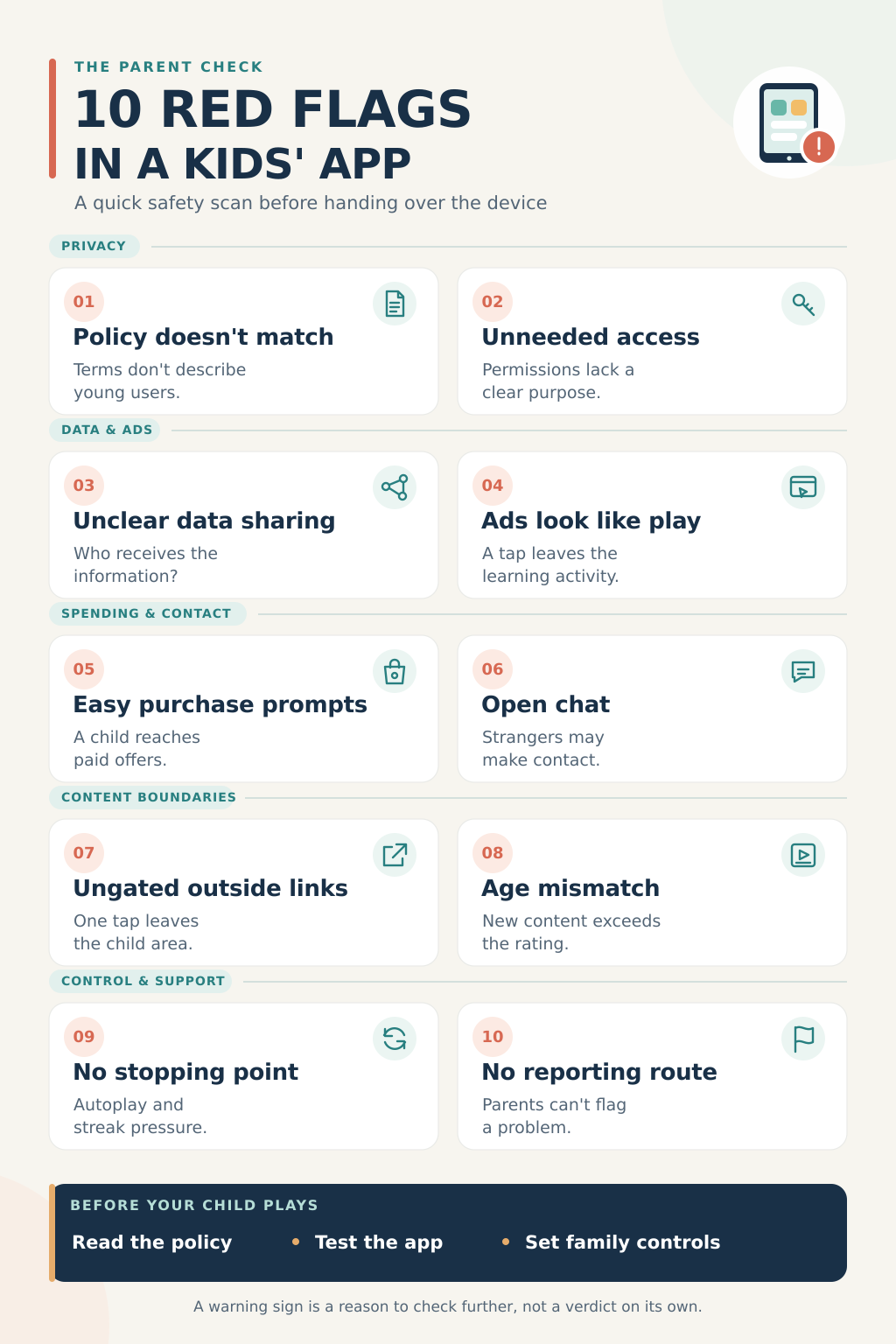
1. Its privacy policy is missing or does not describe the app
Open the privacy policy linked on the app’s store page. Can you tell who runs the app, what information it collects, why it collects it, whether it shares that information, and how a parent can request deletion?
Pay attention to contradictions. An app may be marketed to preschoolers while its policy says the service is not intended for children under 13. Or its store listing may give a different account of data collection from the policy. Those differences do not reveal what the app actually does, but they leave parents without a dependable explanation.
A policy does not have to be short to be useful. It does need to describe the product your child will use. If it reads like a generic document for an unrelated service, pause and seek clarification.
2. It requests access the activity does not appear to need
If a letter-tracing game asks for precise location or contacts, ask why. A counting game that requests microphone access should make clear which activity uses it.
There are legitimate reasons for some permissions. An app may use the camera to place a drawing over a photo or the microphone for a recording activity. The request should appear when you reach that feature, come with a clear explanation, and allow you to decline if the feature is optional.
Review permissions in the device’s settings after installation, too. A store privacy label and a device permission list show different parts of an app’s behavior. If you cannot understand why access is necessary, do not grant it merely to get past a setup screen.
3. Its data collection or sharing is hard to understand
A child does not have to enter a name for an app to collect information. Device identifiers, usage details, location, images, or recordings may all matter, depending on how an app uses them.
Compare the store’s Data safety or App Privacy section with the developer’s policy. Look for answers to four questions: What is collected? Who receives it? How long is it kept? How can a parent ask for its deletion? A listing that says data cannot be deleted deserves particular attention if the app also collects identifiers or its policy promises deletion requests.
Not every use of an identifier serves the same purpose. An app may use limited information to operate a feature or maintain security. Recognizing a child across services for targeted advertising is a different matter. In the United States, COPPA sets rules for covered online services directed to children under 13, including parental rights over their personal information. It does not serve as a certificate that an app’s content is safe.
For me, the practical question is whether a parent can find a clear, consistent account of what happens to the child’s information. If that answer remains uncertain, I would hold off.
4. Ads are difficult to tell apart from the game
A young child may see a bright button and assume it starts the next puzzle. If that button is actually an ad, a single tap can lead to another app, a website, or a purchase offer.
Play through several activities yourself. Watch for ads positioned where the child is about to tap, close buttons that behave unexpectedly, and promotions that do not suit the app’s age rating. Check the destination when an ad opens.
Ads alone do not settle whether an app is appropriate. Their content, placement, frequency, and effect on play are what matter. An ad that is clearly separate from the activity is different from one designed to look like a reward or a game control.
5. A child repeatedly encounters purchase prompts
An app can be free to download and still charge for more levels, characters, a subscription, or the removal of ads. That model can be clear and manageable when the decision is presented to an adult.
Test a locked activity. Does it explain the cost and require an adult step, or does it keep urging the child to unlock a reward? Can the child reach a store or payment screen by following the normal path through the game?
Turn on purchase approval or authentication in your device’s family settings. This helps prevent unwanted spending. It does not remove the distraction or pressure of repeated sales prompts aimed at a child.
6. Chat or sharing can expose a child to strangers
A game with messaging, public groups, uploaded pictures, or visible profiles raises questions that a closed puzzle app may not. Other users can affect what your child sees and whom they meet.
Check whether chat is off by default. Find out who can send a message, whether an adult can limit contacts, and whether blocking and reporting tools work. Look at what other people can see on your child’s profile, including any shared location or images.
For a preschooler, open or anonymous chat is a strong reason to choose a different activity. With an older child, contact settings still need your attention. Agree on a simple rule: if someone in a game asks to move a conversation elsewhere or requests personal details, the child should stop and tell a trusted adult.
7. One tap takes a child outside the child area
The main lesson may be suitable while a nearby “more games” button opens a browser, social page, or unrelated app. Sharing and photo-upload buttons can create other routes out.
During a parent-led trial, explore more than the first activity. Tap settings, rewards, help screens, ads, and links to other products. Can your child reach outside content or send something without involving you?
Apps intended for young children may use a parental gate, an adult-level step before a link or purchase. An app with no external links, uploads, or purchases has less need for one. A parental gate is also distinct from any parental consent required for collecting personal information.
8. The content does not match what the age rating led you to expect
Store screenshots show selected moments. They cannot show every video in a changing feed, every post another user might upload, or every reply an AI character might produce.
Move past the opening screen. See what the app recommends after a few activities. Check whether your child can search freely, whether new material is reviewed, and how you can report unsuitable content. Consider the language, themes, and difficulty for your child, even when the stated age range includes them.
A fixed collection of puzzles is easier to inspect than an endless stream of new material. Recheck an app after a major update, especially if it adds chat, user uploads, recommendations, or AI features.
9. The app makes it hard to stop
A lesson ends, but the next video starts automatically. A game warns that a streak will be lost. Notifications repeatedly call the child back. None of these features tell the whole story, but together they can make a short session difficult to end.
Watch what happens at a natural stopping point. Can your child finish and leave? Can you switch off autoplay and unnecessary notifications? Does the app reward learning an activity, or mainly reward returning and staying longer?
The American Academy of Pediatrics encourages families to consider the quality of children’s media and what it may crowd out, including sleep, play, and time with others. A satisfying end to an activity is a useful feature in its own right.
10. There is no practical way to report a safety problem
An unsuitable ad, broken link, or troubling interaction can appear after you first check an app. Parents need a way to flag the problem and reach someone responsible for addressing it.
Look for a working support contact on the store page or inside the app. If children can chat or view user-created content, check whether you can report a specific message or post and block the account behind it. A simple offline puzzle may only need a reliable support address; an app with changing social content needs more accessible controls.
What should you do when you find a warning sign?
First, work out whether the feature has a clear purpose and whether you can control it. You might allow microphone access only while using a recording activity. You may decide that an unexplained location request or open chat has no place in the app your child uses.
If the explanation is missing, contact the developer or choose another app. If your child has already used it, review its permissions and account settings. Uninstalling can stop future use of the app, but it does not necessarily remove information already sent to a developer; ask about deletion where relevant. Report troubling ads, content, or contact through the app or app store.
Give children a rule they can remember: if a game asks for money, a photo, personal information, or a conversation with someone they do not know, stop and show an adult.
Warning Signs a Kids’ App Isn’t Safe: Choose the app you can understand and manage
The most useful question is not simply whether an app says it is for children. Ask what your child can actually see and do once it opens.
When the app explains its data use, keeps content suitable, puts contact and spending under adult control, and allows a natural stopping point, you have a better basis for deciding whether it fits your child. If those answers are hard to find, it is reasonable to keep looking.
Frequently asked questions on Warning Signs a Kids’ App Isn’t Safe
Does a 4+ or Everyone rating mean an app is safe?
No. A rating helps describe the content age group. It does not replace checking privacy practices, ads, purchases, chat, external links, and content that may change over time.
Are ads or in-app purchases always a reason to avoid a kids’ app?
No. Look at how they work. Ads should be recognizable and appropriate for the audience. Spending should be clear to an adult. Ads disguised as gameplay or repeated pressure on a child to buy something are warning signs.
Can I trust a “no data collected” label?
Use it as one piece of information. Compare it with the privacy policy and the features you encounter. Store privacy labels are supplied by developers, and an app’s practices can differ by platform, version, age, or region.
Can parental controls make any app safe?
Controls can restrict spending, contact, content, and time. They cannot correct misleading disclosures or remove every unsuitable ad or interaction. They work best alongside an app you have checked and ongoing conversations with your child.