Managing a household’s digital life has become a logistical mountain. Between shared Netflix logins, school portals, Wi-Fi passwords, and mom’s bank account, the “write it on a sticky note” method isn’t just messy—it’s a massive security risk.
A dedicated family password managers does more than just store credentials. It provides a “safety net” for your loved ones, allowing you to share access to the mortgage portal without compromising your private emails, and ensuring you can recover a child’s account if they forget their master password.
Quick Answer: Best Picks by Use Case
If you’re in a hurry to get your family secured, here are our top recommendations for the most common household needs:
- Best Overall: 1Password Families – The gold standard for its “Secret Key” security and incredibly intuitive vault-sharing system.
- Best for Large Families: Dashlane Friends & Family – Rare in the industry, this plan covers up to 10 members under one subscription.
- Best Budget Value: Bitwarden Families – Open-source, transparent, and significantly cheaper than competitors while remaining highly secure.
- Best Privacy-First: Proton Pass Family – Built by the Swiss-based Proton team; ideal if you want encrypted aliases to hide your family’s real emails.
- Best for Kids & Seniors: Keeper Family – Features a very straightforward UI and the best “Emergency Access” features for non-tech-savvy relatives.
Total Target Length Note: This guide provides a deep dive into 10 industry leaders, helping you navigate the technical jargon to find the right fit for your home.
Fast Scan
| Provider | Family Plan Name | Members / Seats | Shared Vaults | Emergency Access | Starting Price* | Best For |
| 1Password | Families | 5 (Add more for fee) | Yes (Unlimited) | Family Organizer | ~$4.99/mo | Best Overall |
| Dashlane | Friends & Family | 10 | Yes | No (Legacy) | ~$7.49/mo | Big Families |
| Bitwarden | Families | 6 | Yes | Yes | ~$3.33/mo | Budget/Pro-users |
| NordPass | Family | 6 | Yes | Yes | ~$3.99/mo | Ease of Use |
| Keeper | Family | 5 | Yes | Yes | ~$6.25/mo | Kids/Parents |
| RoboForm | Family | 5 | Yes | Yes | ~$3.30/mo | Legacy Apps |
| Proton Pass | Family | 6 | Yes | Yes | ~$4.99/mo | Privacy Buffs |
| LastPass | Families | 6 | Yes | Yes | ~$4.00/mo | Easy Onboarding |
| Total Password | Total Security | Up to 7 | Yes | Yes | ~$2.50/mo | Security Bundles |
| Aura | Family | Unlimited (per household) | Yes | No | ~$20/mo (Suite) | All-in-one Protection |
Prices are billed annually. Always check current pricing on the provider’s website as promotions change frequently.
Ranking Methodology: How We Scored These
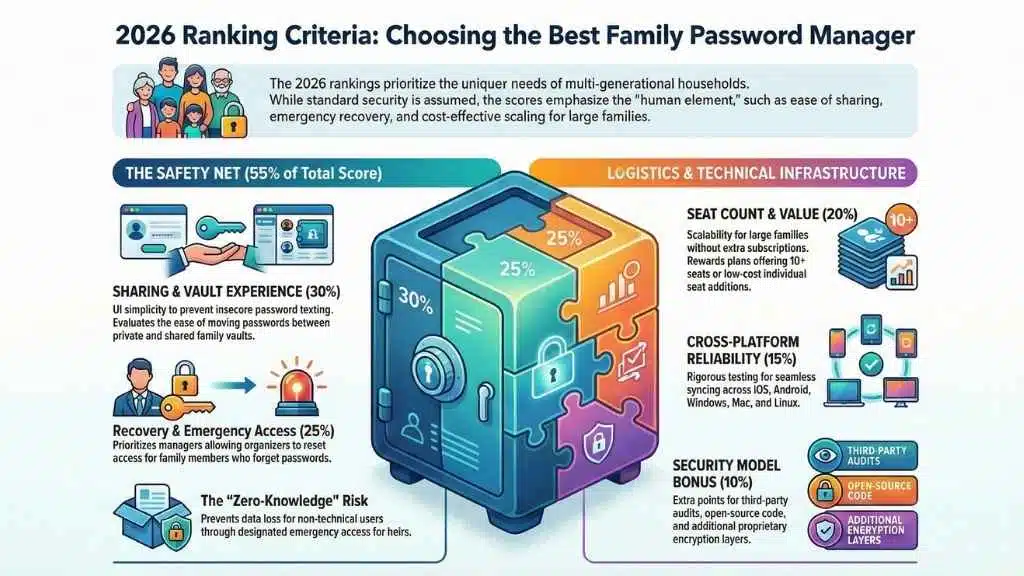
Choosing a password manager for yourself is easy; choosing one for a 12-year-old and a 70-year-old is a different beast. We weighted our 2026 rankings based on the following Family-Specific Criteria:
1. The Sharing & Vault Experience (30%)
We looked at how easy it is to move a password from a “Private” vault to a “Shared Family” vault. If the UI makes sharing difficult, family members will go back to texting passwords to each other—a major security “no-no.”
2. Recovery & Emergency Access (25%)
In a family setting, “Zero-Knowledge” security can be a double-edged sword. If Dad forgets his master password, is his data gone forever? We prioritized managers that allow a Family Organizer to reset a member’s access or allow “Emergency Access” for designated heirs.
3. Seat Count & Value (20%)
Most plans offer 5 or 6 seats. We gave higher scores to those offering 10 (Dashlane) or those that allow you to add extra seats for a small nominal fee (1Password) rather than forcing you into a second subscription.
4. Cross-Platform Reliability (15%)
Families are mixed-device households. We tested for seamless syncing across iOS, Android, Windows, Mac, and Linux. If the Chrome extension is buggy, the whole system fails.
5. Security Model (10%)
All 10 picks use AES-256 encryption. However, we gave bonus points for independent third-party audits, open-source code (Bitwarden), and additional layers like 1Password’s Secret Key.
10 Top-Rated Password Managers With Family Plans (Ranked)
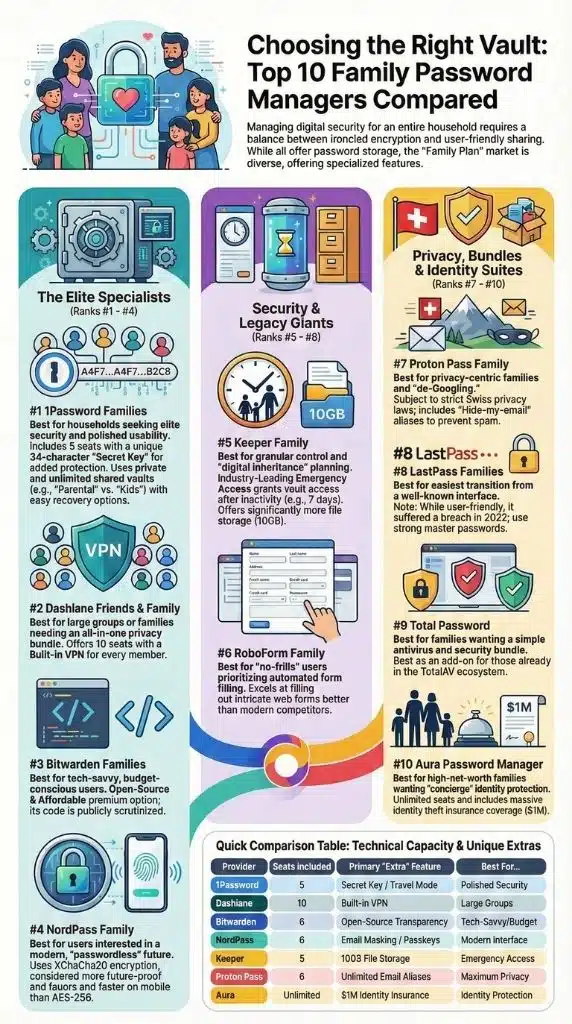
1. 1Password Families
Best For: Households that want the perfect balance of elite security and “it just works” usability.
Family Plan Snapshot
- Seats included: 5 (can add more for about $1/person).
- How sharing works: Uses a “Vault” system. You have a private vault and can create unlimited shared vaults for specific people (e.g., “Parental Vault” vs. “Kids Vault”).
- Recovery: Family Organizers can restore access for any member who forgets their password.
- Extras: “Watchtower” alerts for breached passwords and “Travel Mode” to remove sensitive data when crossing borders.
Security & Privacy Notes
1Password is unique because it uses a Secret Key—a 34-character code generated locally that never leaves your device. Even if someone steals your Master Password, they can’t get in without that key. It has a proven track record of zero breaches and frequent public audits.
- Pros: Incredible UI; easiest sharing for non-techies; “Secret Key” adds massive protection.
- Cons: No “free” version (only a trial); the Secret Key can be a hurdle for the very forgetful.
Who Should Choose It: Families who want the most polished, secure experience and don’t mind paying a premium for it.
2. Dashlane Friends & Family
Best For: Large families or groups of friends who need more than the standard 5 seats.
Family Plan Snapshot
- Seats included: 10 separate accounts.
- How sharing works: Each user has their own vault. Sharing is done via folders with varying permission levels (Read-only or Full Rights).
- Recovery: Users can designate an emergency contact, though their account recovery model has shifted toward a “recovery key” system recently.
- Extras: Includes a Family Dashboard and a built-in VPN for all 10 members.
Security & Privacy Notes
Dashlane uses a standard zero-knowledge architecture. They are famous for their “Password Changer” tech, which can update weak passwords on hundreds of sites automatically.
- Pros: 10 seats is the best value for large groups; included VPN is a great perk; very modern mobile apps.
- Cons: More expensive than competitors; the interface can occasionally feel “cluttered” with upsells.
Who Should Choose It: Large households or those who also need a VPN for everyone.
3. Bitwarden Families
Best For: Tech-savvy families and budget-conscious users who value open-source transparency.
Family Plan Snapshot
- Seats included: 6 users.
- How sharing works: Based on “Organizations” and “Collections.” You create a family organization and share specific collections of passwords.
- Recovery: Admin users can reset passwords for other members.
- Extras: Bitwarden Send for securely sharing text or files with people outside your family plan.
Security & Privacy Notes
As an open-source tool, Bitwarden’s code is constantly scrutinized by the global security community. This transparency makes it a favorite for those who don’t trust “black box” proprietary software.
- Pros: Most affordable premium family plan; open-source; works on every imaginable platform (even Command Line).
- Cons: The UI is more functional than “beautiful”; setting up “Collections” for sharing is slightly more complex than 1Password’s vaults.
Who Should Choose It: Families with at least one “tech lead” who can handle a slightly steeper learning curve in exchange for transparency and price.
4. NordPass Family
Best For: Users who want a modern, “passwordless” future with heavy emphasis on passkeys.
Family Plan Snapshot
- Seats included: 6 accounts.
- How sharing works: Simple sharing of items or folders with other NordPass users.
- Recovery: Uses a “Recovery Code” system that must be saved during setup.
- Extras: Email masking (to prevent spam) and a Data Breach Scanner that monitors the web for your family’s info.
Security & Privacy Notes
Created by the security experts at NordVPN, NordPass uses the XChaCha20 encryption algorithm, which is often considered more future-proof and faster on mobile devices than the standard AES-256.
- Pros: Very sleek, modern interface; great passkey support; developed by a reputable security firm.
- Cons: Sharing features are a bit more basic than 1Password; browser extension can be resource-heavy.
Who Should Choose It: Fans of the Nord ecosystem who want a simple, high-security manager.
5. Keeper Family
Best For: Families with children or elderly parents who need granular control and a “safety net.”
Family Plan Snapshot
- Seats included: 5 members.
- How sharing works: Each person gets a private vault, and you can create shared folders with specific permissions.
- Recovery: Keeper’s Emergency Access is industry-leading—you can grant access to your vault to a family member after a “wait period” (e.g., 7 days of inactivity).
- Extras: 10GB of secure file storage is included (most competitors give 1GB).
Security & Privacy Notes
Keeper is a “fortress.” They hold more security certifications (SOC2, ISO 27001) than almost any other consumer manager.
- Pros: Best emergency access system; massive file storage; very granular permission settings.
- Cons: The UI feels a bit “corporate” and dated; many features (like dark web monitoring) are paid add-ons.
Who Should Choose It: Families who prioritize long-term “inheritance” planning and deep security.
6. RoboForm Family
Best For: Households that need a reliable, “no-frills” manager that has worked for decades.
Family Plan Snapshot
- Seats included: 5 Premium accounts.
- How sharing works: Simple shared folders that sync across the 5 accounts.
- Recovery: Allows for an emergency contact to be assigned.
- Extras: Exceptional at “form filling”—it handles complex web forms (address, credit cards, custom fields) better than most.
Security & Privacy Notes
RoboForm is one of the oldest names in the game. While they aren’t the trendiest, their zero-knowledge architecture is solid and has been vetted over 20+ years.
- Pros: Excellent value; the best at filling out complex forms; very stable.
- Cons: The interface feels like a Windows 95 app at times; mobile experience is behind 1Password and Dashlane.
Who Should Choose It: Users who want a set-it-and-forget-it tool and don’t care about flashy design.
7. Proton Pass Family
Best For: Privacy-centric households who want to keep their email addresses private.
Family Plan Snapshot
- Seats included: 6 users.
- How sharing works: Create shared vaults for the whole family or just specific members.
- Recovery: Built into the broader Proton recovery system (Recovery phrase/file).
- Extras: Hide-my-email aliases. This allows you to create a fake email for every site, so if one site is breached, your real email remains hidden.
Security & Privacy Notes
Based in Switzerland, Proton is subject to some of the world’s strictest privacy laws. Their entire ecosystem (Mail, Drive, VPN) is built on end-to-end encryption.
- Pros: Best-in-class privacy; unlimited aliases are amazing for kids’ accounts; Swiss jurisdiction.
- Cons: Still a newer product, so it lacks some of the legacy features of Keeper or 1Password; best value is found when bundling with Proton Unlimited.
Who Should Choose It: Families already using Proton Mail or those who are serious about “de-Googling” their lives.
8. LastPass Families
Best For: Families looking for a simple transition from the most well-known free manager.
Family Plan Snapshot
- Seats included: 6 users.
- How sharing works: Shared folders allow the family manager to distribute logins to the rest of the group.
- Recovery: A robust account recovery system including mobile biometric recovery.
- Extras: Dashboard for the family manager to see the “Security Score” of all members.
Security & Privacy Notes
Note on Trust: LastPass suffered a significant data breach in 2022. While they have since overhauled their security protocols and separated from LogMeIn, we recommend ensuring you use a strong, unique Master Password and a high iteration count if you choose this provider.
- Pros: Very easy to use; large user base makes finding tutorials easy; good family dashboard.
- Cons: Tainted security reputation; the free version is now very limited.
Who Should Choose It: Those who are already familiar with the LastPass interface and want the easiest “upgrade” path for their family.
9. Total Password (via Total Security)
Best For: Families looking for a “one-stop-shop” antivirus and password manager bundle.
Family Plan Snapshot
- Seats included: Usually part of a 7-device or 7-user “Total Security” bundle.
- How sharing works: More basic sharing compared to 1Password; functions best as individual vaults under one billing umbrella.
- Recovery: Standard recovery key.
- Extras: Often bundled with Antivirus, Ad Block, and Web Shield.
Security & Privacy Notes
Total Password is newer to the standalone market, often used as an “add-on” to the TotalAV ecosystem. It uses standard AES-256 encryption.
- Pros: Great if you already need antivirus; simple interface; often has very deep “first-year” discounts.
- Cons: Lacks the “deep” password features (like passkey management or travel mode) found in specialists like 1Password.
Who Should Choose It: Families who want to buy one subscription for all their cybersecurity needs (AV + VPN + Password Manager).
10. Aura Password Manager
Best For: High-net-worth families who want “concierge” security and identity theft protection.
Family Plan Snapshot
- Seats included: Unlimited members in one household (on their Family plan).
- How sharing works: Sharing is part of the broader Aura dashboard, which includes financial monitoring and family alerts.
- Recovery: Managed through the Aura account recovery system.
- Extras: $1M Identity Theft Insurance, parental controls, and financial transaction monitoring.
Security & Privacy Notes
Aura is less a “password manager” and more a “digital life protection suite.” The password manager is a core component, but it’s backed by proactive identity monitoring.
- Pros: Best protection for identity and finances; unlimited seats; one-call support if you get hacked.
- Cons: Very expensive compared to standalone managers; password manager features are basic.
Who Should Choose It: Families who want the ultimate “safety blanket” and are willing to pay for identity insurance and active monitoring.
Buying Guide — How To Choose a Family Password Manager
When picking a manager for your household, don’t just look at the price. Look at how your family actually lives online.
Non-Negotiables
- Zero-Knowledge Architecture: This means the company cannot see your passwords. Even if the company is hacked, your data remains encrypted.
- Two-Factor Authentication (2FA): Any manager you choose must support 2FA (like an app or a physical key).
- Individual Vaults: A family plan should never mean everyone sees everything. Everyone needs a private space, with a shared space for the “House” logins.
Family-Focused Features That Matter
- Shared Vaults/Folders: Can you share the Netflix password with your teen but hide the Bank of America login? Look for “granular permissions.”
- Emergency Access: This is vital. If a parent passes away or is incapacitated, can the other parent legally and technically access the accounts?
- Guest Access: Does the plan allow you to share a vault with a babysitter or a house guest for a limited time?
- Autofill Reliability: If the app doesn’t accurately fill in passwords on a phone, your family members will get frustrated and stop using it.
Red Flags
- No Export Path: If a company makes it impossible to download your data to move to a different manager, they are “holding you hostage.”
- Weak Recovery: If there is no way for a family admin to help a child who forgot their password, that’s a support nightmare waiting to happen.
- Confusing UI: If it looks like a spreadsheet from 1998, your kids won’t use it.
Setup Guide — How To Roll This Out to Your Family (Fast)

Getting a family to adopt a password manager is 10% technology and 90% psychology. Here is how to do it without a mutiny.
Step 1 — Pick a Plan Based on Household Size
If you have 4 people, 1Password or NordPass are great. If you have a huge family or are sharing with cousins/grandparents, Dashlane’s 10-seat plan is the clear choice.
Step 2 — Create Accounts + Turn On 2FA
The “Family Organizer” should set up their account first. Crucial: Turn on 2FA (using an app like Google Authenticator or a hardware key like YubiKey) for the admin account immediately.
Step 3 — Import Passwords
Don’t start from scratch. Most managers can “suck in” passwords from Chrome, Safari, or your old manager (like LastPass) in about 30 seconds.
Create a vault named “Family / Shared”. Move the Wi-Fi password, streaming services, and utility logins there. This shows your family the immediate value of the tool.
Step 5 — Set Up Recovery / Emergency Access
Assign a second “Family Organizer” (usually a spouse). Test the recovery process once to make sure it works. This is your “Break Glass in Case of Emergency” plan.
Step 6 — Teach the 3 Rules
Sit the family down and explain:
- One Master Password: Make it a long phrase (e.g., the-blue-dog-walks-at-midnight).
- No More Re-using Passwords: If the manager says a password is “Weak” or “Re-used,” change it.
- If It’s Not in the Manager, It Doesn’t Exist: Encourage them to save every new account they create.
Alternatives — Can You Use Google Password Manager for a Family?
Many people ask: “Can’t I just use the free password manager in Chrome or iCloud?”
While Google and Apple have improved their “Family Sharing” features, they still fall short of dedicated managers for three reasons:
- Platform Locking: Google’s manager works great on Android/Chrome, but it’s a pain on an iPhone or a Windows app. Dedicated managers work everywhere.
- Security Depth: Dedicated managers offer “Secret Keys” (1Password) or “XChaCha20” (NordPass) which are generally more robust than browser-based storage.
- Permissions: Chrome doesn’t let you easily manage “Read-only” vs. “Edit” permissions for a shared folder of bank logins.
Final Thoughts: Securing Your Family’s Digital Future
Choosing a family password manager in 2026 is no longer just about convenience; it’s about creating a resilient digital safety net. As our lives become increasingly decentralized—spanning dozens of streaming apps, educational portals, and financial platforms—the risk of a single weak link compromising the entire household is higher than ever. By moving your family into a unified, encrypted ecosystem, you aren’t just organized—you’re protected.
The “best” choice ultimately depends on your household’s unique tech stack. If you want the most polished and intuitive experience, 1Password remains the industry gold standard. For larger households of up to 10 members, Dashlane offers unmatched value, while Bitwarden remains the champion for those who prioritize open-source transparency.
Regardless of which provider you choose, the most critical step is starting the conversation. Transitioning a family to a password manager takes a bit of initial patience, but the long-term payoff—never hearing “Mom, what’s the Netflix password?” again—is well worth the effort. Set up your master account today, designate an emergency contact, and take the first step toward a simpler, more secure digital life for the people you care about most.