Is your WordPress homepage slow to load? Visitors click away in seconds. You lose traffic and hurt your google search ranking. A sluggish site feels like wading through molasses.
Key Takeaways
- Use HostPapa or SiteGround for HTTP/2 and HTTPS, or go with Bluehost or Kinsta for tuned WordPress servers.
- Pick a lean theme like Astra (0.5 s, 50 KB), GeneratePress (0.4 s, 45 KB), Neve (0.3 s, 60 KB), or Kadence (0.6 s, 80 KB).
- Use TinyPNG or ShortPixel to shrink images, switch to WebP for 34 percent smaller files, and enable loading=”lazy” to defer offscreen media.
- Add W3 Total Cache or WP Rocket for caching; use GZIP to serve static files and speed pages by 2 to 5 times.
- Run WP-Optimize or WP-Sweep weekly to clear post revisions, spam comments, and transients and keep your database lean.
How do I choose a fast and reliable hosting provider?
A solid host cuts page loading speed drastically. Cheap shared web hosting can choke under sudden traffic swings. You can try HostPapa or SiteGround to avoid that. These plans use HTTP2 and require HTTPS to speed up HTTP requests.
A quick audit with Google PageSpeed Insights flags slow server response times.
Managed wordpress hosting from Bluehost or Kinsta covers security, updates, and backups. They tune servers for wordpress speed and higher search engine rankings. WPEngine and that hosting giant offer similar setups.
Fast hosting uplifts user experience and boosts crawling.
What are the best lightweight and speed-optimized WordPress themes?
Here is a lineup of lean themes to trim page size and speed up load times, no sweat.
| Theme | Load Time | File Size | Builder Support | Update Frequency | Notes |
|---|---|---|---|---|---|
| Astra | 0.5s | 50 KB | native editor, drag and drop builder | monthly | small footprint, active updates, minified CSS, works with CDN, test via PageSpeed Insights |
| GeneratePress | 0.4s | 45 KB | native editor | weekly | minimal code, no bloat, sync with speed test tool, backup before update |
| Neve | 0.3s | 60 KB | drag and drop tool | monthly | simple design, mobile first CSS, check Pingdom |
| Kadence | 0.6s | 80 KB | block builder | weekly | prebuilt kits, ideal for caching, use with CDN |
Image Optimization Techniques for Faster Loading
Squash your PNGs with TinyPNG, convert them to WebP in Photoshop or GIMP, and flip on lazy loading to blaze through load times—read on to learn more.
How can I compress images before uploading?
Compress images before you upload to cut page size. That action boosts WordPress speed.
- Run a tool like Smush plugin to handle image optimization for png images, cutting out hidden metadata and boosting web performance.
- Hit an online compressor to shrink uncompressed JPEG and png files, so pages load fast on mobile browsers.
- Adjust dimensions in a photo editor to match theme layout and avoid large file loads that drag down page loading speed.
- Choose WebP over raw png image when possible, for better image compression that aligns with modern image formats.
- Set quality around 70 percent in Photoshop or a similar program to trim bytes while keeping crisp visuals.
- Batch process multiple shots with ShortPixel compressor, to save time and keep user experience smooth.
- Check performance in google pagespeed insights to verify each image cut boosts score and aids technical SEO.
- Keep file weights under 200 KB for most graphics to limit http requests and maintain a fast site.
Why use next-gen image formats like WebP?
WebP cuts image files by 34 percent when you compare it to JPEG or PNG. This trim lifts page loading speed. Major web browsers support WebP. Visitors get sharp visuals fast. Lighter files shrink HTTP requests.
They ease server load and raise google pagespeed insights scores.
Smaller assets make image optimization and lazy loading more effective. A content delivery network (cdn) streams WebP images worldwide. Google PageSpeed Insights loves this format.
You trade bulky bytes for lean carriers. WordPress performance grows, and crawlers spot your site faster in google search console.
How do I implement lazy loading for images and videos?
Lazy loading cuts load size by delaying offscreen media. WordPress supports native and extension-based lazy loading.
- Place loading=”lazy” on image and iframe tags to delay offscreen media and cut data use. This tweak boosts WordPress speed and lifts user experience.
- Add a3 Lazy Load extension or Lazy Load by WP Rocket to your plugin list. They handle both compressed image optimization and video embeds.
- Tweak Intersection Observer API settings in your theme’s functions.php or the extension dashboard. This check holds media until it nears the viewport.
- Open Chrome DevTools and run google pagespeed insights on a page. Look for dropped http requests and faster time to first meaningful paint.
- Pick AVIF or WebP after lossless compression in a photo editing utility. Include width and height in your style sheet to prevent layout shifts.
- Check server-side caches with w3 total cache or WP Rocket after you implement lazy loading. Watch bandwidth use on tablets and mobile in your web analytics, even if you use a content delivery network (cdn).
Benefits and Recommendations for Caching Plugins
Fast cache cuts server load and shrinks HTTP requests, so pages pop up faster in Chrome and Firefox. Plugins such as W3 Total Cache or WP Rocket store static assets and boost scores in Google PageSpeed Insights.
How does caching improve website speed?
Caching holds your site’s static files in memory. It cuts down http requests and halts dynamic page builds. Return visitors see pages load instantly.
Proper caching can boost WordPress speed by two to five times. Google PageSpeed Insights flags slow cache setups in reports. Plugins like W3 Total Cache or WP Super Cache serve cached content instantly.
User experience jumps when pages load under one second.
What are the top caching plugins for WordPress?
Fast pages keep readers happy. They also boost WordPress performance in Google PageSpeed Insights.
- W3 Total Cache speeds up sites with page, object and browser caching. It adds GZIP compression, and it links with a content delivery network (CDN) to cut HTTP requests.
- WP Rocket runs right out of the box and needs no code hacks. The plugin creates browser caching, preloads key assets, and uses GZIP compression for faster load times.
- Autoptimize trims CSS and JavaScript into one file, it cuts down on HTTP requests. It also defers unused scripts and improves Google PageSpeed Insights scores.
- WP Super Cache offers simple page caching with no setup hurdles. It serves static files to most users. It updates often to stay in sync with core and PHP.
How can I minify and combine CSS and JavaScript files?
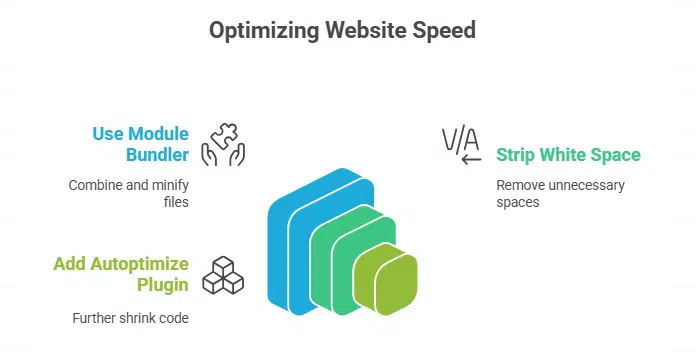
Use a module bundler or a task runner to strip out white space and merge your CSS and JavaScript, cutting file size and HTTP requests. Add a plugin like Autoptimize to shrink your code in seconds and watch your site speed jump.
How does minifying reduce file sizes?
Minifying strips CSS and JavaScript code of spaces, comments, and line breaks. Developers strip away clutter like extra tools in a jammed toolbox. Asset sizes drop by up to 70 percent, cutting bandwidth use.
Google PageSpeed Insights flags unminified code in reports.
Smaller files load faster in Google Chrome, Safari, or any browser. Servers send less data, speeding up page loading speed and boosting user experience. Faster delivery boosts WordPress performance and technical SEO.
Frontend tools like the WP-Optimize plugin or w3 total cache serve only minified assets.
Why combine files to reduce HTTP requests?
Combining CSS and JavaScript into fewer files cuts HTTP requests. Each browser call adds delay, and mobile users on slow networks face bigger lags. Google PageSpeed Insights reports that fewer requests speed up initial render.
A plugin like WP-Optimize or W3 Total Cache can merge files, apply GZIP compression, and boost WordPress performance in one click.
Servers thank you for a lighter load. Too many loose scripts can still drag load times, even after minification. Serving three combined bundles beats dozens of loose scripts. This lifts site optimization and speeds up page loading.
Using a Content Delivery Network (CDN) to Speed Up WordPress
A CDN pushes your site closer to readers, slashing load times like a turbo boost for your homepage, and lifts WordPress speed to new heights. Tools such as Crystal Shield and Apricot Frontier spread your images, scripts, and styles across edge servers, so each bit pops up faster, even on the far side of the globe.
How do CDNs speed up asset delivery?
CDNs split static content across edge network nodes worldwide. They cut latency by using local servers close to a user’s location. Each file lives on multiple servers, so the browser makes fewer HTTP requests over long distances.
This offloads bandwidth from the origin server and slashes time to first byte. Services like AWS edge network spread files to dozens of edge nodes. The result shines in Google PageSpeed Insights, and it boosts wordpress speed for visitors far and wide.
Edge servers act like a relay race for files, passing snapshots near each visitor. This setup handles most of the load, so the origin can breathe during traffic spikes. Content caching on these servers refreshes fast, and dynamic content still pulls from the main host.
It firms up uptime, smooths page loading speed, improves wordpress performance, and leaves users smiling.
What are the best CDN services for WordPress?
Top CDN services cut load time and boost WordPress performance. They tap global servers to cut HTTP requests and speed page loading.
- Cloudflare leads content delivery network (cdn) services with a free tier and paid plans that show clear pricing. It uses over 200 cities in 100 countries to cut latency. It links to W3 Total Cache and boosts WordPress performance. It supports HTTP2 and HTTPS to secure files. It shows live analytics for traffic and pageviews.
- Amazon CloudFront sends files via 410 edge locations around the globe. It integrates AWS Shield for extra protection from cyber threats. It uses gzip compression to shrink assets and cut http requests. It works with Google Analytics to track user behavior. It pairs with Yoast SEO to boost search engine results.
- StackPath offers a user-friendly console with real time stats. It covers over 45 PoPs in North America, Europe, and Asia. It links to WP-Optimize plugin to clean the WordPress database. It supports HTTP2, HTTPS, and IPv6. It holds a 100 percent uptime record since 2016.
- KeyCDN has transparent pricing and simple billing. It uses 40 plus POPs across five continents. It links to W3 Total Cache and Asset Clean Up for faster page loading speed. It provides instant purge and real time logs. It boosts image optimization with WebP and lazy loading.
- BunnyCDN blends fast servers with low cost plans. It uses 50 plus sites in Europe, North America, Asia, and Australia. It offers a WordPress plugin for one-click setup. It uses Brotli and gzip compression to cut file sizes. It handles responsive design assets for all devices.
- Fastly uses a real time compute layer to run custom rules. It spans over 60 edge nodes worldwide. It links to Google Pagespeed Insights to lift mobile scores. It integrates with Content Delivery Manager and Google Analytics. It offers log streaming and detailed metrics for uptime and performance.
How do I optimize my WordPress database?
Try a cleanup plugin to clear old post revisions, spam comments, and transient data fast. Use your admin panel or a SQL server tool to repair tables and schedule regular cleanups.
How can I clean up unnecessary data?
Cleaning your WordPress database keeps your site nimble. It cuts waste and speeds up page loading.
- Open WP-Optimize cleanup plugin, select Post Revisions, and click Clean to shrink your database and boost query speed.
- Run WP-Sweep cleanup tool to remove spam comments, trashed items, and orphaned metadata for a leaner site.
- Empty the Trash folder in WordPress after each cleanup to free up space and cut bloat.
- Schedule weekly cleanups in WP-Optimize so you get ongoing database optimization without extra work.
- Review tables in the database admin panel to spot unused entries, then delete them if you know how.
- Avoid manual database commands unless you back up first, to prevent data loss and hiccups.
- Monitor your database size in the hosting dashboard to see how cleanups lower server load.
Why schedule regular database optimizations?
A cluttered WordPress database can drag down page loading speed and harm user experience. Scheduling database optimization clears spam comments, expired transients, and post revisions before they bloat tables.
Automating cleanups with the WP-Optimize plugin cuts the risk of missed maintenance. Scheduled jobs keep performance steady, even during high traffic peaks.
Frequent database tweaks help google pagespeed insights report faster load times and boost search engine rankings. It reduces error risk and prevents sudden slowdowns at busy times.
You can set weekly cron jobs via a database management tool or use a plugin scheduler. This habit protects both homepage and full-site speed.
How do I identify and remove unused plugins?
Scan your site with a page speed audit tool to spot plugins that hog resources and slow page loading speed. Then delete them with a database cleaner plugin to cut HTTP requests and speed up the user experience.
Which plugins should I remove to reduce bloat?
Your site can get slow if you keep too many plugins. Some plugins pack too much extra code.
- Idle contact form plugins have extra code that runs on every page, they bloat page loading speed and harm user experience.
- Cookie consent extensions push scripts and cookies, they add needless http requests on your webpages.
- Duplicate SEO modules pile on metadata, they damage search engine optimization and cause conflicts in google search console.
- Outdated backup tools log endless post revisions, they expand your wordpress database and slow database optimization.
- Social share add-ons load extra css styles and icons, they increase cascading style sheet size and drag down wordpress speed.
- Extra lazy loading helpers overlap with content delivery network (cdn) features and built-in image optimization steps.
- Performance plugins that fail google pagespeed insights leave behind unused scripts that hog CPU and memory.
- Unsupported anti-malware modules risk security, they can inject malware and load hidden routines while hurting wordpress performance.
- Redundant caching helpers clash with the WP-Optimize plugin or a common caching plugin used for gzip compression.
- Profiling extensions that rarely update can bloat your dashboard, use a performance profiling tool and back up before you delete them.
What are good lightweight plugin alternatives?
Swapping bulky plugins for slim options can boost site load. Lean tools cut down http requests and ease maintenance.
- Autoptimize: merges and minifies CSS and JS. It cuts http requests and trims code. It boosts Google PageSpeed Insights score.
- W3 Total Cache: adds gzip compression and content delivery network (CDN) rules. It stores pages as static files. It stays lean compared to bulky cache plugins.
- Lazy Load by WP Rocket: defers offscreen images and videos from a video hosting service. It shrinks initial payload with lazy loading. It demands no extra scripts.
- reSmush.it: compresses JPG and PNG using free API calls. It respects image file format guidelines. It avoids bloat from manual tools.
- WP-Optimize plugin: removes post revisions and cleans tables. It runs database optimization in one click. It updates weekly to match new WordPress versions.
- Flying Scripts: delays third party JavaScript until user interaction. It stops unused plugins from loading early. It keeps user experience smooth.
Takeaways
Cut load times with GZIP compression and a lean theme. Pick SiteGround or WP Engine to handle traffic spikes. Add Cloudflare to deliver assets from nearby servers. Compress images to WebP and use lazy loading for a smooth scroll.
Run WP Super Cache or W3 Total Cache and clean your database with WP-Optimize to ditch unused plugins. Watch your PageSpeed Insights score climb fast.
FAQs on Ways to Optimize Your WordPress Homepage for Speed
1. How can I check my WordPress homepage speed?
Use Google PageSpeed Insights at google.com. It shows mobile and desktop scores, highlights HTTP requests, and flags slow elements. Try private browsing to get fresh, uncached results. This gives a clear view of your wordpress performance.
2. How do I optimize images on my website?
Use an image compression tool to shrink JPGs and PNGs. Add lazy loading so images load only when you scroll. Use a content delivery network CDN, like a pizza chain with many shops, to cut download time. This boosts page loading speed and improves user experience.
3. What plugins cut my page loading speed?
Install a cache plugin, like W3 Total Cache or the WP-Optimize plugin. They add gzip compression and slash HTTP requests. This makes your wordpress speed climb, and it adds ease of use for site admins.
4. Can database bloat slow my homepage?
Yes, a bloated wordpress database can drag down performance. Run database optimization to clean post revisions, clear auto drafts, and remove data from unused plugins. This trims queries and speeds up your site. It’s a solid web development habit.
5. Does hosting choice impact homepage speed?
Absolutely. Slow servers will hold your site back. Pick fast wordpress hosting, like WP Engine, with strong nameservers. Good hosting cuts network lag, boosts performance, and smooths out the customer journey.
6. How do I boost mobile page speed?
Check Google Search Console for mobile issues. Enable Accelerated Mobile Pages. Add lazy loading for images and videos. Review HTTP_referer logs to spot slow scripts. This amps up mobile user experience and helps rank higher in search engines.