
Are you tired of waiting for your WordPress pages to load? Slow pages scare off visitors. Fifty-three percent of mobile users leave if a page takes more than three seconds.
This post will show ten performance tweaks for caching mechanisms, lazy loading, image optimization, and minifying style sheets. We will use WP Rocket, a content delivery network, and PageSpeed Insights to cut load times.
Keep reading.
Key Takeaways
- 53% of mobile users leave if a page takes more than three seconds; aim for under two seconds with these tweaks.
- Use caching plugins like WP Rocket or WP Super Cache; caching can cut load times up to five times and boost PageSpeed scores.
- Add a CDN (Cloudflare, Bunny CDN) to serve files from edge servers; this can reduce load times by 30–50% and cut DNS lookups.
- Minify CSS, JavaScript, and HTML and optimize images (convert to WebP, enable lazy loading) to shrink file sizes and cut HTTP requests.
- Clean your database (limit post revisions, remove expired transients) and upgrade hosting (SSD drives, PHP 8.3) to speed queries and back-end tasks.
Optimize Caching
Set up browser caching for images, scripts, and CSS files to cut repeated requests and lighten server load. Pair this with WP Super Cache to serve saved pages in a flash.
What are the best caching plugins for WordPress?
Caching can boost site speed. It can cut load time by up to five times.
- WP Rocket, a premium plugin, adds page caching on your web server with one click. It shrinks CSS and JavaScript into minified files. It turns on lazy loading for images and iframes. It trims old post revisions and database queries via scheduled cleanup. It enables brotli compression and HTTP2 server push. It costs about $49 per year for one site. It lifts Google PageSpeed Insights scores fast.
- WP Super Cache, a free tool, writes static HTML pages for visitors. It supports disk and in-memory caching. It links smoothly with content delivery network (cdn) setups. It works over HTTP/1.1 or HTTP2 with etags and time to live rules. It offers step-by-step setup guides and live cache stats. It fits sites that run query monitor or use a staging site.
- SG Optimizer, for SiteGround hosts only, runs cache on edge servers and origin nodes. It converts images to WebP or next-gen image formats for better image compression. It minifies stylesheets and scripts with CSS minification and JS minification. It applies GZIP compression and TLS1.3 secure handshakes. It cleans database entries via crontab. It taps NVMe storage and boosts first contentful paint and largest contentful paint.
How do I enable browser caching for my site?
You can speed up your site by saving assets locally on a user’s browser. This method cuts server load and boosts repeat visits.
- Choose WP Rocket or WP Super Cache in your WP Admin to handle caching, CSS minification and GZIP compression.
- Open plugin settings and turn on cache-control rules to store images, scripts and styles in a user’s browser for a set time.
- Set HTTP headers in .htaccess or Nginx to extend asset lifetimes and speed up content delivery across TLS 1.3 connections.
- Add SG Optimizer from SiteGround to activate browser caching, GZIP compression and CSS minification with one click.
- Run a speed audit tool to check for missing cache-control headers and correct expiry dates.
- Pair caching with a content delivery network to slash DNS resolution times and shrink HTTP requests.
- Combine minification, a CDN and GZIP compression for best WordPress performance.
How can a CDN improve my WordPress site speed?
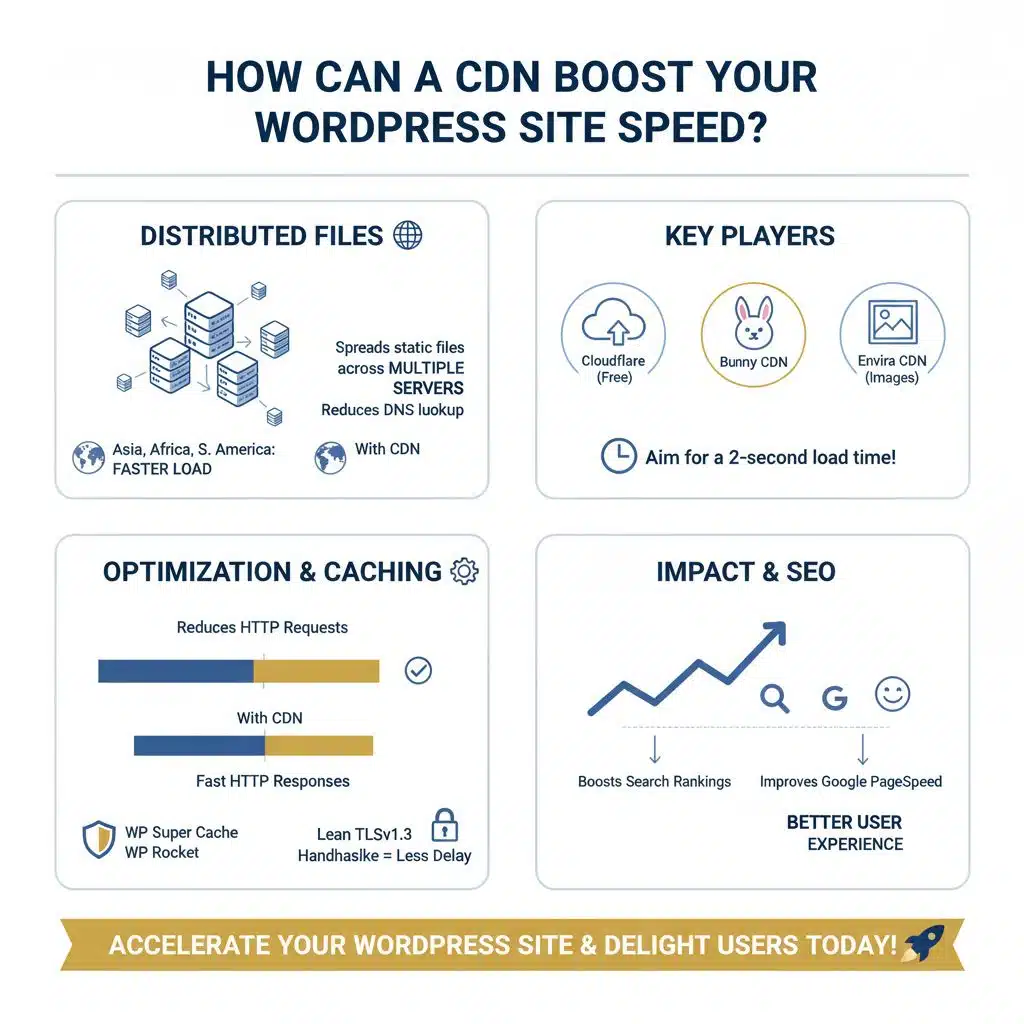
A content delivery network (cdn) spreads your static files across multiple servers. It cuts down dns lookup and shrinks load time for users in Asia, Africa, or South America. Cloudflare’s free plan, Bunny CDN, and Envira CDN for images let you meet a 2-second load time goal.
Integrate it with a caching plugin like WP Super Cache or WP Rocket for fast hypertext transfer protocol responses.
A CDN reduces http requests and offloads work from your origin web server. It serves JavaScript, CSS, HTML, and image files close to each visitor. GTMetrix tests often show a 30 to 50 percent speed gain after setup.
A lean tlsv1.3 handshake also cuts delay. Faster pages boost search engine rankings, improve google pagespeed insights scores, and drive better user experience.
How do I minify CSS, JavaScript, and HTML files?
Minification trims extra code from CSS, JavaScript, and HTML. This cuts file sizes and speeds loads.
- WP Rocket runs HTML, CSS, and JavaScript minification by stripping white space, comments, and line breaks to speed up your pages.
- SiteGround optimizer plugin offers CSS minification that cuts file sizes and frees server resources on SiteGround hosting.
- Autoptimize trims scripts and style sheets on any host as an open source minify option.
- Combine minification with a caching plugin and a CDN for compounded speed benefits.
- Test minified builds on a staging site before you push to live servers.
- Track file size reductions and load times in Google PageSpeed Insights or GTMetrix to confirm real gains.
Optimize Images
I crunch images with a compression plugin, swap to a next-gen photo format, and flip on lazy loading to speed pages—keep reading to see how.
What tools can I use to compress images effectively?
Image compression cuts load times and boosts user experience. It can shrink files by up to 5x with the right tools.
- SG Optimizer plugin uses built-in image compression and WebP conversion on your web servers, auto-saving uploads in the best image file format.
- JPEG and PNG formats handle different needs; JPEG offers compressed, smaller files for photos with many colors, while PNG stays uncompressed for transparency or simple graphics.
- WP Rocket’s premium features include image optimization, letting you compress files and convert images to WebP during site staging or on live servers.
- Envira CDN delivers images via a content delivery network (cdn), cutting dns requests and HTTP protocol delays for faster page loads.
- BlogVault backs up optimized images in real time, keeping your compressed media safe and ready for instant restore without adding swap space.
- GTMetrix runs performance testing and Google PageSpeed Insights checks on your compressed images, showing clear speed gains and actionable results.
How do I enable lazy loading on my WordPress site?
Lazy loading cuts initial page weight, it delays offscreen images and videos to load only on demand. Mobile users drop out fast, 53% leave if a site takes more than three seconds to load.
- Activate a plugin like WP Rocket or Optimole in your admin panel. Turn on lazy loading for images and videos and save your settings.
- Check SG Optimizer or another host tool if you run a staging site on SiteGround. Flip its lazy load switch in screen options to offload offscreen media.
- Add loading=”lazy” to your theme’s img and video tags in functions.php or a php script. Modern browsers honor this attribute without extra code.
- Use Google PageSpeed Insights and Query Monitor on a staging site for speed tests. Compare scores and initial payload before and after enabling lazy loading.
- Pair lazy loading with image compression via TinyPNG or ShortPixel right after photo editing. This mix multiplies speed gains and cuts page weight.
- Monitor user experience with Google Analytics or Google Search Console. Track bounce rates, search results ranking, and click paths to see wordpress performance improvements.
Clean and Optimize Your Database
Run WP-Optimize or Query Monitor to clear old drafts, trim your MySQL tables, flush expired transients, and speed up queries—read on for more.
How do I remove unnecessary data and post revisions?
Cleaning up your database cuts wasted space. It shrinks MySQL tables fast.
- Add define(‘WP_POST_REVISIONS’,4) to wp-config.php to cap rows at four.
- Use WP-Sweep plugin to wipe out old edits, orphaned metadata and spam comments.
- Deploy the WP-Optimize extension to clean expired transients and free wasted rows.
- Launch Query Monitor to spot heavy MySQL queries and drop unused tables left by outdated plugins.
- Remove leftover tables in phpMyAdmin to cut buffer pool churn and reduce LRU cache misses.
- Test cleanup steps on a staging site to guard live dynamic content and user data.
- Check Google PageSpeed Insights to confirm speed gains in wordpress performance and core web vitals.
What’s the best way to schedule regular database cleanups?
Site speed suffers if you let your database fill with junk. You can cut that load with timed cleanups.
- Use WP-Optimize to set up automated cleanups in its schedule settings. Set runs to fire after large content edits or theme and plugin swaps.
- Choose late night or early dawn slots on weekdays or low-traffic weekends. That timing avoids busy periods and cuts impact on visitors.
- Pair cleanup jobs with a backup service link. This integration protects data if you trim needed records by mistake.
- Run queries in a staging site or check logs in a monitoring plugin first. That step helps catch errors before you touch the live database.
- Watch cleanup effects in Google PageSpeed Insights reports. Use the tool to spot query string delays and slow fetch times.
- Mix cleanup jobs with WP Rocket, CSS minification, lazy loading, image compression, and CDN sync. This blend lifts WordPress performance and boosts user experience.
How can I reduce HTTP requests on my WordPress site?
Too many external scripts, ads, font loaders, and style sheets trigger dozens of HTTP requests that slow mobile and desktop load times. Check request counts with GTMetrix or a performance testing tool, then merge CSS and JavaScript into single bundles.
Consolidate or disable needless plugins, since each tool can add its own HTTP call. Well coded themes and plugins send fewer requests, cut hotlinking, and boost user experience while helping search engines rank you higher.
Move fonts and scripts to a content delivery network (cdn) or host them locally, so you slash external calls. Run a report in Query Monitor, or grab google pagespeed insights to spot extra fonts or adverts that slow you down.
Cutting external scripts also stops third-party service timeouts from dragging your page load. That tweak forms one of ten top wordpress speed optimization tips.
Why should I choose lightweight themes and plugins?
Choose a lean WordPress theme. It sifts out bulky scripts and heavy styles. Themes from aThemes, Themify, CSSIgniter, or Astra hit high scores on Google PageSpeed Insights. SeedProd offers fast landing page templates.
Simple well coded designs pair with lazy loading and image optimization.
Pick only well coded plugins. Install WP Rocket or WP Super Cache to clear cache and use a CDN. Test each tool on a staging site with Query Monitor. This mix boosts user experience, cuts get requests, and lifts WordPress performance.
Disable Unnecessary Features
Switch off the admin bar to cut extra code and boost your score in Google PageSpeed Insights. Hide idle widgets in Screen Options to clear clutter and free up memory for real users.
How do I turn off the WordPress admin toolbar?
Your backend can feel heavy with that extra toolbar overhead. Turning off the admin toolbar can lighten resource loads.
- Open Users, then select Profile. Uncheck Show Toolbar when viewing site. Save changes. This core feature is enabled by default in WordPress. It helps non-admin users who do not need backend controls. This non-destructive tweak you can reverse anytime. Removing it cuts backend resource usage slightly.
- Try Adminimize plugin in your web-based admin. It offers toolbar settings by role. You can hide the bar for any user level. This declutters the interface, and it aids wordpress speed optimization. Some addons let you finesse the toolbar without code.
- Toggle Dashboard View Controls at the top. Uncheck any widgets you never use. Fewer widgets mean fewer HTTP requests on admin pages. This pairs well with CSS minification and lazy loading for a smoother user experience.
- Test changes with Debug Panel. It logs database queries, page hooks, and memory use. Run it before and after hiding the bar. You might spot minor CPU and RAM savings, especially with memcached in memory caching.
- Stage edits on a sandbox site to protect production. Run google pagespeed insights on both versions. Track any score lifts in mobile and desktop reports. Pair toolbar removal with a content delivery network (cdn) for front-end polish.
How can I disable unused dashboard widgets?
Slow dashboards feel like wading in mud. You can trim your admin area and boost WordPress speed.
- Activate Query Monitor on a staging site to track slow widgets and spot which plugin parts hold up the load. This tool gives clear data on which dash parts need a cut.
- Open the Screen Options tab at the top right of your admin screen to see a list of active widgets, then uncheck any you never use. Doing this step trims render time and cleans clutter.
- Turn off extra widgets per user so each author sees only needed tools, this reduces admin clutter and speeds up page rendering. Multi-author blogs see the biggest benefit.
- Run Google PageSpeed Insights on your dashboard before and after to measure how much you cut load time by disabling widgets. This test shows real gains for WordPress speed optimization.
- Return to the options panel after each plugin or theme update to catch any new items that appear. A monthly check on a staging site helps keep your dashboard lean.
- Watch dashboard metrics in Query Monitor and log render times and database calls to fine-tune your backend performance. Readers will enjoy a smoother user experience.
Upgrade Hosting and Server Resources
Move to a host with a solid-state drive and plenty of RAM to slash load times and keep your pages humming. Run WordPress on a modern PHP build, point it at a fast relational database, and fire up TLS v1.2 for a safer, snappier site.
What should I look for in a high-performance hosting provider?
A fast host makes a big difference. It can cut load times from six seconds to under two seconds.
- Managed hosting with optimized configurations, automatic backups and security features, like SiteGround’s SG Optimizer plugin, speeds up frontend and backend tasks.
- Integrated caching solutions, such as WP Rocket or WP Super Cache, cut query load and employ least recently used cache replacement algorithms to shave milliseconds off each page.
- Content delivery network (CDN) providers with TLSv1.2 support deliver assets like png image or image/svg+xml closer to users, boosting global load times.
- PHP version 8.3 support makes WordPress speed optimization shine under Google PageSpeed Insights and AMP tests, compared to older runtimes.
- Built-in staging environments, such as InstaWP, support safe version control, plugin trials and theme tweaks without impacting the live site.
- Scalable CPU and RAM options let a site handle traffic spikes without swapping tasks to slower storage.
- Servers running on SATA SSD or NVMe drives speed up SQL Server queries and database operations under heavy load.
- Regular updates from the host, including WordPress core patches, plugin fixes, CDN integration and security tweaks, protect sites and improve user experience.
How do I use the latest PHP version for better performance?
Upgrading PHP can cut page load time and boost site security. WordPress admins gain a faster backend with PHP 8.3.
- Use the Version Info plugin to check the PHP version on your WordPress site.
- Set up a staging site and run Query Monitor to test all themes and plugins before you switch PHP.
- Contact your host if your site runs PHP below version 7 and request an upgrade.
- Switch to PHP 8.3 for a 42 percent faster load time, tighter ssl/tls protocols, and smoother user experience.
- Clear caches in WP Rocket or WP Super Cache to avoid old code in your web application.
- Run Google Pagespeed Insights and Google Search Console scans to track WordPress performance.
How often should I update WordPress, themes, and plugins?
Site admins should scan for WordPress core, theme, and plugin updates every month. Busy blogs and ecommerce shops need weekly checks to grab critical patches. These updates bring new features and seal security holes.
Outdated tools can slow pages and spark compatibility errors. Remove plugins or themes that haven’t seen a vendor update in a year. Test each change on a staging site to keep the live site safe.
Use Query Monitor or Google PageSpeed Insights to watch for slowdowns after updates. Purge your CDN cache to clear old files and refresh content. Save change notes and query logs to spot troublemakers and tune cache eviction policies.
A regular update habit keeps your site nimble and secure.
How do I perform a speed test and monitor site performance?
Measure page load time in seconds. Find weak links fast.
- Install InstaWP to spin up a staging site and test page load without risk.
- Run a site speed checker like IsItWP and grab initial load time and a user experience grade.
- Open Google PageSpeed Insights and note desktop and mobile scores.
- Call up an audit tool such as GTMetrix and review the waterfall chart for slow assets.
- Add WP Rocket or WP Super Cache on your staging build and test again.
- Toggle your content delivery network (cdn) and measure the speed change.
- Monitor database calls with Query Monitor and flag any slow queries.
- Check HTTP/2 and TLS status in network headers for security and speed.
- Compare accelerated mobile pages and standard pages for load difference.
- Log each result in a goal-setting sheet to track trends over weeks. You can aim to keep pages under two seconds for a smooth user experience.
Takeaways
Your WordPress site can fly like a cheetah on caffeine. Caching with rocket plugin or super-cache plugin cuts load delays. A cdn network brings content closer to readers across the globe.
Minify CSS, JavaScript and HTML, squeeze images and clear old data to trim HTTP calls. Check metrics in speed audit tool and query checker, tweak PHP settings and host plans. Watch load times shrink and user smiles grow.
FAQs on Performance Tweaks For Every WordPress Admin
1. What is lazy loading and how does it help with WordPress speed optimization?
Lazy loading works like a buffet, serving images only when you scroll down, it cuts load time, boosts google pagespeed insights scores, and lifts user experience.
2. How do I use image compression and image optimization to improve WordPress performance?
Pick a tool or plugin that squeezes file size without losing clarity, it speeds up page loads, it helps cdns push files quickly across the web.
3. When should I choose WP Rocket over WP Super Cache on my staging site?
WP Rocket comes loaded with extra tweaks like CSS minification, while WP Super Cache stays simple and free. Test both on a staging site, see which gives you the fastest results.
4. How do I set up a content delivery network (CDN) for my WordPress themes?
Sign up with a CDN service, install its plugin, enter your details, it spreads your files around the web so they load fast for every visitor.
5. What tools help me track performance and check security?
Use Query Monitor to spot slow database calls, flip on Screen Options for more metrics, watch Google Search Console for errors, and confirm Transport Layer Security is active on your site.