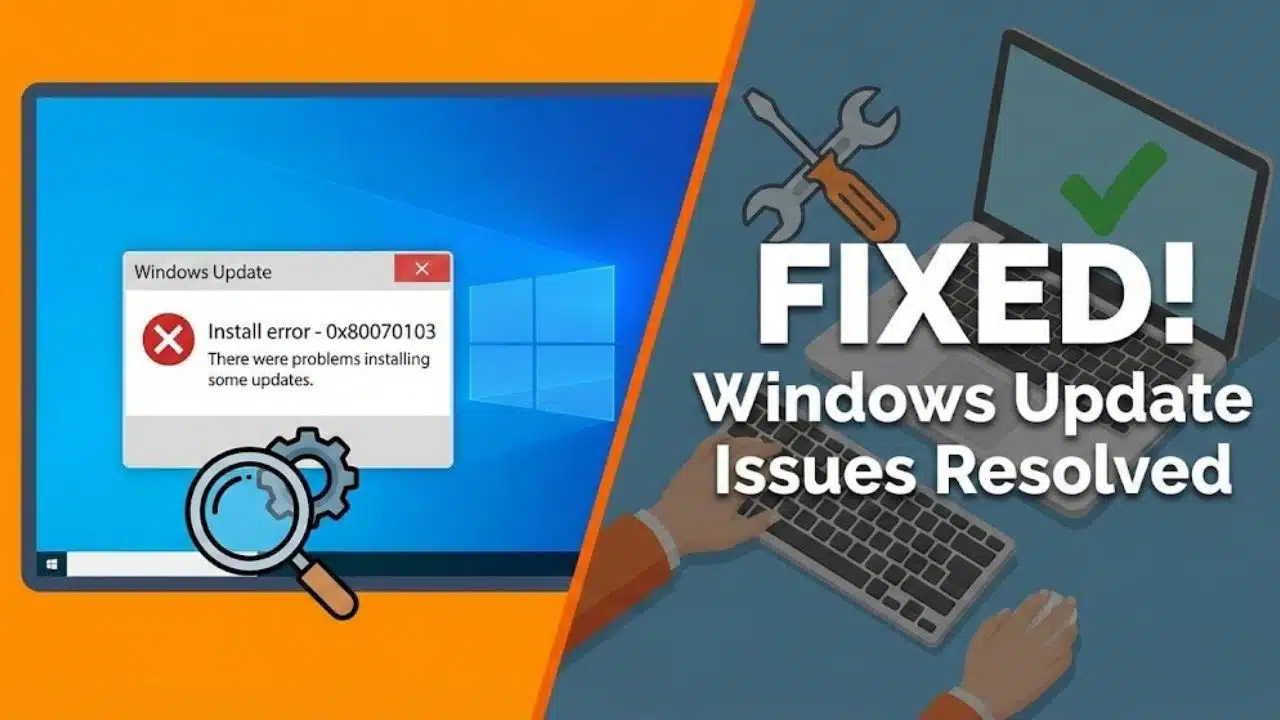
Seeing install error 0x80070103 in Windows 11 and wondering why the same update keeps failing? In most cases, Windows Update is trying to install a driver you already have, or it’s pushing a “new” driver that isn’t actually a better match for your PC.
I’ll show you the fastest fixes first (the ones that usually work in minutes), then the deeper repairs if your windows update components are truly stuck.
Key Takeaways
- Start with the simplest win: run the Windows Update troubleshooter, then reboot before you retry the update.
- If a driver keeps coming back (common with older vendor drivers like HEWLETT-PACKARD USB entries), pause updates briefly, then resume so Windows can refresh the offer list.
- When the same driver offer repeats, hide or block the specific driver update (or exclude driver updates entirely on managed PCs), so Windows Update can move on.
- If the problem persists, repair the update stack and system files (DISM, SFC), check the disk (CHKDSK), then install the correct driver manually from the manufacturer.
What Causes Install Error – 0x80070103?
The 0x80070103 error is most common when Windows Update tries to install a driver that your PC already has, or when the “offered” driver isn’t actually a better match than what’s installed.
In a well-known Windows Update incident discussed by Microsoft community staff in March 2023, Windows Update began re-offering duplicate drivers on February 15, 2023. People attempted to install them and hit install error 0x80070103 in Windows, even though nothing was truly “broken” on the device.
This is why you’ll sometimes see extremely old-looking driver metadata in your update history. One example that appeared in community reports was a Hewlett-Packard USB driver dated February 10, 2017, offered again and again even when systems already had a working driver.
The most common triggers (and what they mean for you)
- Duplicate driver offer: Windows Update thinks it has something “new,” but it’s effectively the same driver, so the install fails and loops.
- Version mismatch in reporting: Your device reports one version, the update catalog shows another, and Windows tries to “upgrade” even if the installed driver is fine.
- Incompatible or unnecessary driver: The offered driver doesn’t apply cleanly to your exact hardware revision, or you don’t need it at all.
- Update cache corruption: A corrupted download or metadata in the update cache can keep a failed driver stuck in retry mode.
- Disk or system file issues: If the disk has file system errors, or Windows system files are corrupted, updates may fail for reasons that look like a driver problem.
If your hardware is working normally and the “failed” item is a driver update, you often don’t need to force-install it. Your goal is to stop the repeat offer so Windows Update can finish everything else.
Quick Fixes for Error – 0x80070103
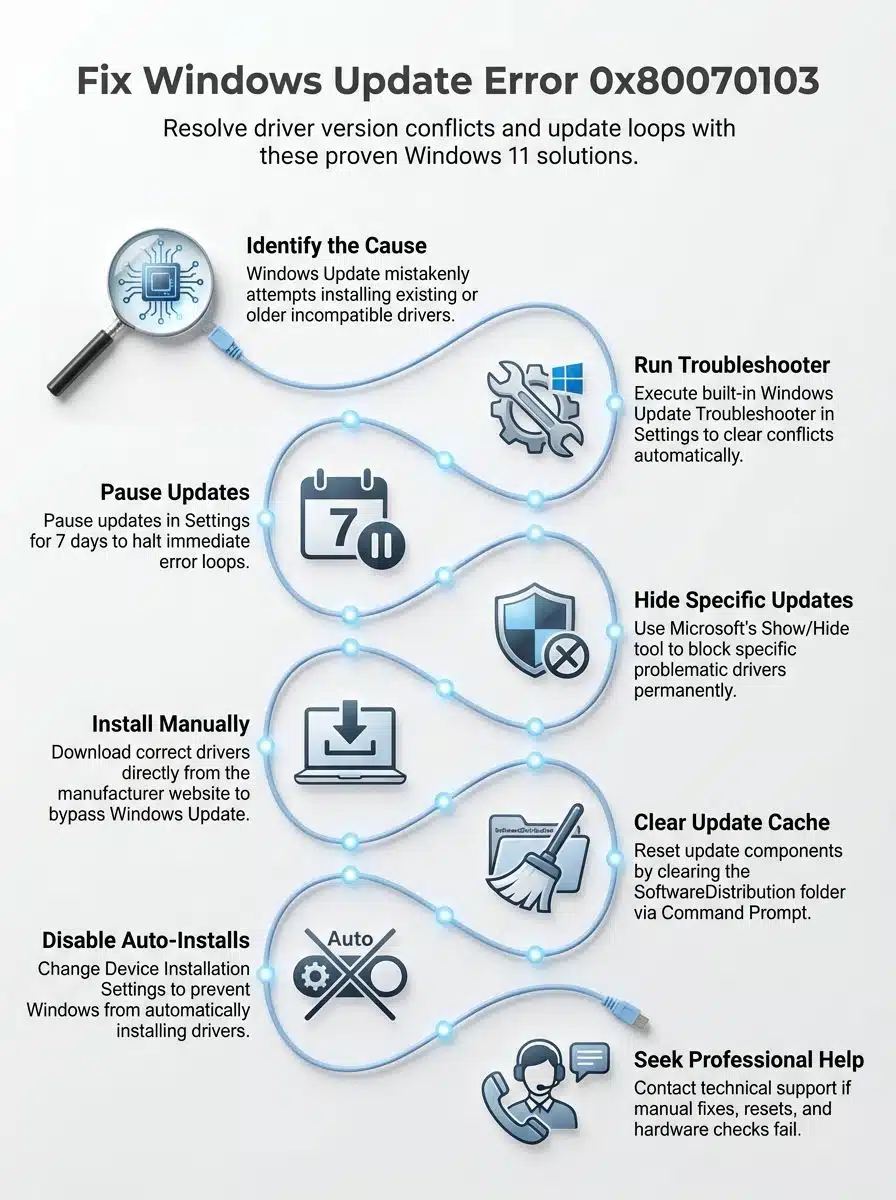
If you want to fix the install error 0x80070103 fast, work top to bottom. These steps are low-risk, and they solve the majority of repeat driver offers on Windows 11.
A quick pick list (choose the closest match)
| Quick fix | Best when | What you’re trying to accomplish |
|---|---|---|
| Run Windows Update troubleshooter | Windows Update looks “stuck” or keeps retrying | Reset common update components without manual commands |
| Pause updates, then resume | The same driver fails repeatedly | Force Windows to refresh the update offer |
| Skip or block the specific driver update | Everything works, but Windows Update won’t stop offering a driver | Stop the loop so other updates can install |
| Install the driver manually | The device is actually misbehaving (USB, audio, Wi-Fi, graphics) | Put the correct driver in place so Windows stops trying |
How Do You Run the Windows Update Troubleshooter?
Microsoft’s current guidance for Windows 11 is to start with the built-in Windows Update troubleshooter, and then restart the PC before trying the update again.
- Open Settings > System > Troubleshoot > Other troubleshooters.
- Find Windows Update, then select Run.
- Follow the prompts, then reboot even if it says it fixed things.
- Go back to Settings > Windows Update and retry.
If you want to confirm what changed, Windows 11 also keeps a troubleshooting record under Recommended troubleshooting history in the Troubleshoot settings.
How Can You Pause and Resume Windows Updates?
Pausing updates is a simple way to stop the retry loop while you get control of the driver offer, then you can resume and let Windows Update continue normally.
- Go to Settings > Windows Update.
- Select Pause updates, then wait a moment so Windows fully stops the current attempt.
- After you pause, select Resume updates and let Windows check again.
- If the driver offer still returns immediately, pause again, reboot once, then resume.
One practical “insider” tip from Windows 11 community threads is to pause, then wait briefly before resuming, because it can help Windows refresh the update offer list instead of instantly retrying the same package.
How Do You Hide or Block a Problem Driver Update?
If Windows Update keeps offering the same driver, the cleanest win is to block that specific driver update so your other updates can install.
Option 1: Use Optional updates first (fastest check)
- Open Settings > Windows Update.
- Select Advanced options, then look for Optional updates.
- If the driver shows there, don’t install it unless you actually need it for a device problem.
Option 2: Use the “Show or Hide Updates” troubleshooter (legacy tool)
Many Windows support threads still reference Microsoft’s “Show or Hide Updates” troubleshooter to hide a specific driver update. Keep in mind that Windows troubleshooting tools have been transitioning away from older diagnostic platforms, so this tool may not be available or effective on every Windows 11 build.
- Run the Show or Hide Updates troubleshooter.
- Select Hide updates.
- Choose the driver update that keeps failing (for example, a repeated HEWLETT-PACKARD USB entry), then confirm.
- Reboot and re-check Windows Update.
Advanced Fixes for Persistent Issues
If you still see install error 0x80070103 after quick fixes, you’re usually dealing with either a stubborn driver state or a Windows Update component issue. This is where manual driver control and repair tools help.
Step 1: Confirm your Windows build (important context)
Before you do anything time-consuming, check your Windows version and OS build by running winver.
If you’re seeing OS Build 22621.1265, that specific Windows 11 version 22H2 build was released on February 14, 2023 (per Microsoft’s update history). If your PC is still on that build today, start by getting fully current on monthly updates first, because newer servicing fixes may reduce update loops.
How Do You Manually Install Drivers from the Manufacturer’s Website?
Manual install is the best move when the device is actually acting up (USB dropouts, Wi-Fi issues, audio missing), or when Windows Update keeps pushing the wrong driver.
- Identify the exact device: open Device Manager, right-click the problem device, select Properties, then check the Driver tab for the provider, date, and version.
- Download the correct driver from your PC or device manufacturer, matching your exact model and Windows 11 version.
- Install it using the vendor installer if available. If you only have driver files, use Device Manager > Update driver > Browse my computer for drivers.
- Reboot, then check Windows Update again.
Manufacturer tools that can simplify driver installs
- HP Support Assistant: can automate HP driver and firmware updates on supported HP PCs.
- Dell Command | Update: updates Dell drivers, BIOS, and firmware (especially helpful on business systems).
- Intel Driver & Support Assistant: can scan Intel components and suggest Intel driver updates.
How Can You Clear the Windows Update Cache?
Clearing the update cache helps when a corrupted download or stuck metadata keeps causing the same windows update error to reappear.
Do this from an elevated terminal (run as administrator):
- Stop update services:
net stop wuauserv
net stop cryptSvc
net stop bits - Rename the cache folders (safer than deleting because it’s reversible):
ren C:\Windows\SoftwareDistribution SoftwareDistribution.old
ren C:\Windows\System32\catroot2 Catroot2.old - Start the services again:
net start wuauserv
net start cryptSvc
net start bits - Reboot, then retry Windows Update.
If Windows Update works afterward, you can leave the “.old” folders alone for a few days, then delete them later if you need disk space.
Repair System Files (DISM and SFC)
If your update components or system files are damaged, repairs can stop repeat failures and help you fix the windows update stack.
Microsoft’s support steps recommend running DISM before SFC:
- Open an elevated Command Prompt or Windows Terminal.
- Run:
DISM.exe /Online /Cleanup-Image /RestoreHealth - Then run:
sfc /scannow - Restart when finished, then retry the update.
Run CHKDSK if You Suspect Disk Errors
Disk issues can break installs mid-stream, especially on older HDDs or drives that have had power interruptions.
- For a quick online scan, run:
chkdsk C: /scan - If Windows reports it needs repairs, plan for downtime and run a repair pass (it may require a restart):
chkdsk C: /f - If you suspect physical bad sectors, use the deeper scan (this can take a long time):
chkdsk C: /r
After CHKDSK, retry Windows Update. If CHKDSK finds repeated errors, prioritize backing up important files.
How Do You Disable Driver Updates via Group Policy?
If you manage a work PC (or you just want stability), you can stop Windows Update from delivering drivers. Microsoft documents a Group Policy named Do not include drivers with Windows Updates that sets the ExcludeWUDriversInQualityUpdate policy value.
- On Windows 11 Pro, open the Local Group Policy Editor.
- Go to: Computer Configuration > Administrative Templates > Windows Components > Windows Update.
- Open Do not include drivers with Windows Updates, set it to Enabled.
- Reboot, then retry Windows Update (now without driver packages being bundled into quality updates).
If you later want driver updates again, you can set the policy back to Not Configured.
How Can You Prevent Windows Update Errors?
You can’t prevent every update install error, but you can reduce the odds of getting stuck in a loop like 0x80070103 on Windows 11.
A simple prevention checklist that actually helps

- Keep enough free space: Microsoft notes that feature upgrades may require at least 20 GB of free space on 64-bit systems, so low storage can turn small issues into repeated failures.
- Install drivers intentionally: if your PC is stable, you can skip optional driver updates. Use vendor tools (HP Support Assistant, Dell Command | Update, Intel DSA) when you need a specific fix.
- Watch the “Optional updates” area: drivers often land there. If you don’t need the driver, don’t install it.
- Keep update components healthy: if updates start failing repeatedly, reset the update cache early instead of letting failures pile up.
A newer safety net for boot-breaking updates: Quick machine recovery
If you’re on Windows 11 24H2 and newer, Microsoft lists quick machine recovery as a recovery feature that can download a remediation through Windows Update during serious boot failures. As of late 2025 documentation, it’s available on Windows 11 24H2 build 26100.4700 or later, and you can manage it in Settings > System > Recovery > Quick machine recovery.
When Should You Seek Professional Help for Update Errors?
If error code 0x80070103 keeps returning after you’ve blocked the driver update, repaired system files, and reset the update cache, it’s time to stop burning hours and bring in help.
Good reasons to call a pro
- CHKDSK reports repeat file system repairs, or the PC slows down badly during disk access.
- Windows Update services won’t start, or updates fail with multiple error codes.
- Your device is unstable (random reboots, USB devices constantly disconnecting, network drops) and driver reinstall attempts don’t help.
- You’re worried about data loss, and you need a safe backup and recovery plan before deeper repairs.
If the drive is failing, focus on protecting your data first. A reputable repair shop can help you clone the drive and avoid “trial-and-error” fixes that make recovery harder.
Takeaways
Install error 0x80070103 usually shows up because Windows Update is trying to install a driver that’s already installed, not because your PC is broken.
Start with the Windows Update troubleshooter, then pause and resume updates, or block the repeat driver so Windows can finish the rest of your updates. If Windows Update still won’t behave, reset the update cache and run DISM, SFC, and CHKDSK.
If disk checks show trouble, back up your files and get professional help before the problem turns into data loss.
FAQs on Troubleshooting Install Error – 0x80070103
1. What is install error 0x80070103, and why does it happen?
Error 0x80070103 happens when Windows Update tries to install a driver that is the wrong version, or one that is already on your PC. It can also show up if the update can not match your device, which is annoying, and old updates may keep popping up.
2. How do I fix Windows Update error 0x80070103?
Open Device Manager, find the device, then roll back or uninstall the driver, restart the PC. If that does not work, download the correct driver from the device maker, install it, and rerun Windows Update.
3. Should I ignore the driver update when I see 0x80070103?
You can hide the update to stop repeated attempts, if the device works fine. This is a quick way to fix Windows Update Issues without breaking things.
4. Where can I get the right driver, and how do I install it safely?
Get drivers from the device maker site or the update catalog, do not use random download sites. Use Device Manager to point to the downloaded driver, install it, then check update history to confirm the install.