Web developers juggle many tasks in vs code. Writing code, hunting bugs, and fixing typos can break your flow. Jumping between docs, live reload servers, and terminals can kill focus.
You need help that makes you faster.
Visual studio code ranks as the top IDE for web development, with 73.71 percent of devs using it in 2023. This post lists ten smart tools that cut context switching and boost code quality.
You will find formatters, lint tools, path autocomplete, snippet helpers, and more. You can code faster, stop errors, and keep focus. Ready to supercharge your workflow?
Key Takeaways
- 73.71% of web developers used VS Code in 2023; this post lists 10 key extensions.
- Prettier has 40 million installs and auto-formats JavaScript, CSS, HTML, and JSON.
- Live Server gives live reloads, and Error Lens shows inline error hints instantly.
- ESLint flags code issues as you type, and Path Intellisense auto-completes file paths.
- GitLens has over 10 million users for commit history insights, and Tabnine uses AI to suggest code.
Prettier – Automatically format your code for consistency

Prettier ranks among the most used VS Code extensions, boasting over 40 million installs. This tool hooks into the format on save feature of Visual Studio Code to tidy up JavaScript, TypeScript, JSON, CSS and HTML files automatically.
Teams gain consistent coding style across projects, which streamlines pull request reviews and cuts down on unneeded diffs in open-source repositories. The extension supports a wide range of languages and file types, from front end scripts to JSON and CSS.
Developers save time in a Git repository or version control system, skip manual tweaks, and keep commit logs focused on logic changes.
Live Server – Launch a local server with live reload capabilities
Live Server pumps up local traffic in a flash. It spins up a web host inside Visual Studio Code, serving HTML, CSS, and JavaScript out of the box. You just hit Go and a browser tab pops open.
That process cuts down on time spent copying files to test servers. Most front-end pros pair it with VS Code for quick trial runs.
The extension watches every file path, be it hypertext, style sheet, or script. It alerts the browser to reload the page on each save. You see your tweaks right away, like magic. No more frantic manual refresh.
This add-on slots into the VS Code UI. It speeds up web development work and eases iteration.
ESLint – Get real-time feedback on code quality and errors
ESLint gives live feedback on JavaScript and TypeScript code quality in your development environment inside Visual Studio Code. It checks each line as you type, catching missing semicolons, unused variables, and style errors.
You control rules in a config file, so it matches project needs.
ESLint plugs into the problems panel in VS Code, so you spot errors in seconds. The tool automates linting, cutting manual review time. Teams and large codebases benefit from its consistent checks during web development.
Auto Rename Tag updates paired HyperText Markup Language and Extensible Markup Language tags instantly. It runs in VS Code as an extension. You change an opening tag, it edits the closing one.
That cuts typing errors and speeds web development tasks.
It joins other productivity tools in the integrated developer environment. Some renaming features now live inside VS Code, but developers still favor this extension for heavy markup work.
It frees you from manual edits, boosting developer productivity.
Path Intellisense – Autocomplete file paths for faster linking
Path Intellisense scans your file explorer in Visual Studio Code and shows file path suggestions as you type. It offers intelligent file path auto-completion to cut errors. Suggestions list valid asset, package, or resource names from your project folders.
This reduces cognitive load by removing guesswork in file referencing. It supports varied folder structures and multiple languages like JavaScript, TypeScript, and CSS.
A recommended npm extension adds alias lookups and multi-root workspace support. Developers link assets and packages faster with fewer typos. This VS Code extension fits into web development workflows and streamlines complex directory trees.
It feels like an AI coding assistant for file entry. It boosts developer productivity and works alongside other vs code extensions for code autocompletion.
GitLens – Enhance Git integration and track code changes
GitLens plugs into Visual Studio Code and makes Git history shine. This tool adds blame annotation beside each line, so you see code ownership in real time. You get commit logs and file history in one place.
Branch comparisons and repository insights display right inside the editor. An interactive commit graph panel pops up on demand.
An interactive rebase editor helps you fix hotfixes and squash commits. A heatmap reveals who wrote each line, with dates and contributor stats. Over ten million developers use this extension.
A vibrant open source community rolls out updates often. It fits seamlessly into version control workflows, boosting developer productivity.
CSS Peek – View CSS definitions directly from your HTML or JavaScript
CSS Peek runs inside VS Code and lets you jump from HTML or JavaScript files to linked CSS rules. You hover over class names or IDs and peek at style definitions in any file across your workspace.
Front-end developers cut down context switching and save time. This extension fits into modern web development workflows.
That tool supports large codebases and complex style sheets in React, Angular, or plain HTML projects. Hover features give instant access to style rules, boosting developer productivity and speeding style debugging.
It works well alongside syntax highlighting, code completion, and live server for quick feedback. This vs code extension makes style maintenance a breeze.
JavaScript (ES6) Code Snippets – Speed up coding with reusable snippets
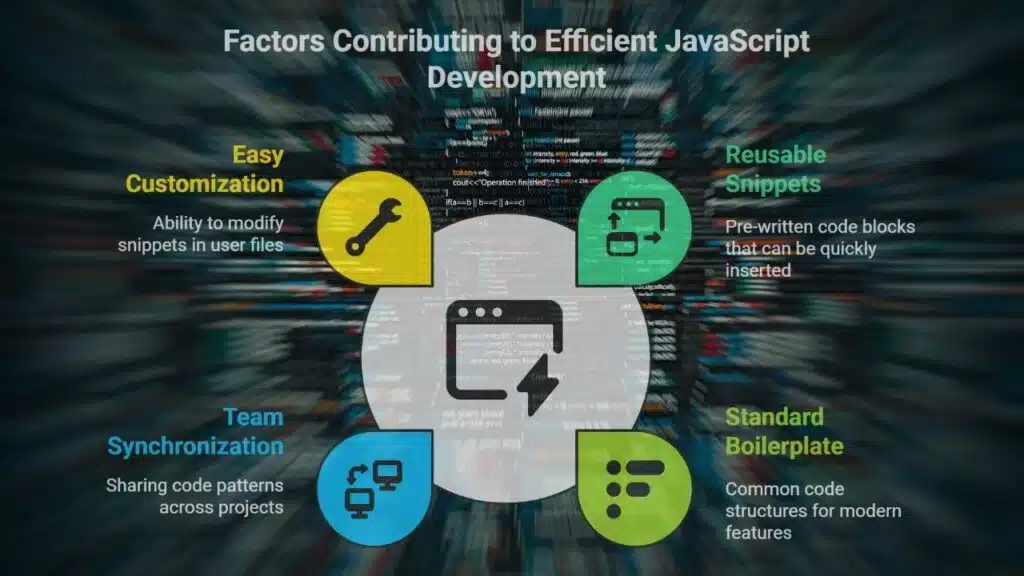
Visual Studio Code includes a snippet system, but this extension loads a library of common ES6 blocks. You type a shortcut like fn or imp and hit tab. VS Code drops in an arrow method, a class import, or an async function.
Developers gain standard boilerplate for modern features, like destructuring, template strings, default parameters. It melts away repetitive typing and cuts down mistakes.
Teams sync these code pieces across React and Redux projects. New members learn patterns fast, with no extra setup. You tweak each snippet right in your JSON user file. This tool speeds web development in Node, front end apps, or full stack builds.
Coding feels smooth, and you stay in flow.
Better Comments – Add color-coded highlighting to improve comment clarity
Good code comments guide squads, but plain notes can blend into code. The Better Comments extension uses color coded tags in VS Code. It marks alerts in red, queries in orange, highlights in green, info in blue.
Commented out lines appear in dark gray. Developers spot important notes within seconds.
Integration with Visual Studio Code brings support for alerts and TODOs. The tool raises codebase maintainability and boosts code readability. Teams locate tasks faster and talk in clear messages.
It improves communication among collaborators on web development projects and boosts developer productivity.
TODO Highlight – Highlight and track tasks directly in your code
TODO Highlight tags code comments marked with TODO, FIXME, and NOTE. It runs inside VS Code, you can see colorful markers in JavaScript, Python, C++, and other files. This tool boosts developer productivity, and it trims down the risk of missed tasks.
Some teams even use it with Live Share for smoother pair reviews.
You can tweak highlight colors in the settings panel, to match team taste. The tool plugs into the file panel so you get a task map of your workspace, you see tasks next to code snippets and comments.
It works with agile sprints, and it ties into commit logs or file history in version control. This simple productivity tool helps web dev teams stay on track.
Error Lens – Display inline error messages for faster debugging
Error Lens shows error hints right in your code inside Visual Studio Code. It highlights issues with colored markers and inline notes. You get instant feedback on mistakes, no more hunting through lists in the Problems Panel.
It handles JavaScript, TypeScript, Python and other popular stacks. You can tweak the look, picking colors and message styles that match your theme.
This VS Code extension cuts wasted search time. Teams and beginners spot breaks fast. You avoid stalls and bug hunts. It ties into Visual Studio Code’s Problems Panel and error reporting tools.
You catch issues while you type, not after a big build. Your web development workflow speeds up. Developer productivity climbs.
Tabnine – Leverage AI for smarter code suggestions
Tabnine plugs into VS Code and jumps into action. It runs on artificial intelligence and machine learning, feeding real-time code completions. This free ai coding assistant trains on open-source projects, and mirrors your style while keeping data private.
You can swap GitHub Copilot for Tabnine, and get smarter suggestions for HTML, JavaScript, Python, and more.
Developers shave hours off boilerplate work using Tabnine for code snippets and patterns. The tool predicts functions, CSS rules, and React components in a flash. Future chat features will let you ask Tabnine for refactors or document code.
Pair it with ESLint, Live Server, Path Intellisense, and Git history tools to push web development productivity to new heights.
Bracket Pair Colorizer – Easily identify matching brackets with color coding
Bracket Pair Colorizer tints matching brackets in your code running in Visual Studio Code. It uses four distinct colors to boost code comprehension and cuts syntax errors. Many developers find it handy for nested YAML and Python files.
VS Code now shows bracket colors by default, but this extension adds handy adjustments. You tweak hue choices in settings and spot missing pairs for faster debugging. This tool helps you navigate deeply nested structures in indentation dependent files.
Project Manager – Quickly switch between projects with ease
The Project Manager extension tags your codebases in the Visual Studio Code sidebar and sorts them by custom labels. It feels like a desk with labeled drawers, each holding a separate repo.
A click swaps workspaces in under a second. It cuts setup time from minutes to a few seconds. Developers who juggle ten or more codebases will smile at that speed.
VS Code shows your projects side by side, each marked with color tags. You add metadata like repo type, file paths, or version control info. Teams onboard new members faster on GitHub or Azure DevOps.
It links to commit logs and file history in the workspace menu. It fits right among your go-to productivity tools, and boosts developer productivity.
Peacock – Customize the color of your VS Code workspace for better visual organization
Peacock paints your Visual Studio Code window in bold hues, it boosts clarity when you switch tasks across microservices or monorepos. It offers preset and custom color options for labels, tabs, and title bars.
That tweak keeps you from mixing up project folders on GitHub or in your local path intellisense.
Your color choice sticks in workspace settings so you reload a folder and get the same look. Teams love that cue when they shift gears from backend to front end work. This VS Code extension lifts developer productivity by giving each project its own neon banner.
CodeSnap lets you grab code screenshots inside Visual Studio Code or VS Code using keyboard shortcuts or a right-click menu. It makes eye-catching images of code snippets for web development blogs, slides, and chat threads.
It adds syntax highlighting so each part of your code stands out in vibrant hues.
You can tweak backgrounds, fonts, and borders to match your brand or blog theme. The tool saves your shots as PNG, JPEG, or SVG files. You stay in your editor, avoiding context switching when you work on code comments, documentation, or social media posts.
Takeaways
These add-ons turn VS Code into a faster, smoother editor. The formatter and live reloader keep code neat and fresh. A lint tool and AI helper catch errors and offer smart suggestions.
Pillars of code clarity, like comment highlights and bracket highlighters, help you spot key parts. This mix of features lifts your workflow and speeds your builds.
FAQs
1. What are the best VS Code extensions for web dev productivity?
Install code snippets and code screenshots for fast reuse. Add a path helper to auto complete file paths. Use a bracket highlighter and colorful indent guides. It feels like a power tool kit in your editor.
2. How can I catch spelling errors in my code?
Turn on the code spell checker. It flags spelling errors in code comments, prompts, and todo highlight items. You catch mistakes before they bite you.
3. How do I test and run code fast in VS Code?
Use code runner to execute snippets inline. Live server shows changes in the browser right away. Debugger for chrome lets you step through code. An AI coding assistant gives tips as you type.
4. How can I track file changes and versions?
VS Code has source control built in. You get commit logs and a version control view. Check file history to roll back or compare past edits. GitHub Copilot can suggest fixes too.
5. How do I work with teammates in real time?
Live share connects you instantly. You can code side by side, chat, and follow cursors. Better comments keep notes clear. Todo highlight flags open tasks for everyone.
6. How do I handle different file types and environments?
Open excel files with a spreadsheet opener, and edit csv on the fly. Use interpreters for Ruby on Rails code. Pull in Bootstrap snippets. Manage builds in docker containers on your cross platform setup.