
Android is fun because it lets you shape your phone around how you actually live. With the right tweaks, you can make your device faster to navigate, quieter when you need focus, and easier to use with one hand. The best part is that most of these upgrades take minutes, not hours.
In this guide, you’ll get practical Android customization tips that work across many brands and Android versions. You’ll learn what to change, why it matters, and how to undo it if you don’t like the result. We’ll keep it simple, but still power-user level.
Android customization tips: Quick snapshot of what you’ll change
Most powerful changes do not require root. You can get a “new phone” feeling just by improving navigation and reducing noise. The goal is to remove taps, reduce clutter, and make the phone predictable. Start with your home screen and Quick Settings. Then fix notifications and build one or two automations. Finally, try a few safe Developer Options adjustments. If you do these in layers, your phone stays stable. It also becomes easier to maintain after updates. That is the core power-user approach.
| Area | What you’ll improve | Best payoff |
| Home screen | Launcher, grid, widgets | Faster access, cleaner layout |
| Controls | Quick Settings, gestures | Fewer taps per task |
| Notifications | Channels, priority, DND | Less distraction |
| Automation | Routines and triggers | Your phone adapts to context |
| System tweaks | Developer Options basics | Snappier feel |
| Advanced (optional) | Root/ROM | Maximum control, higher risk |
Before you start: a 2-minute checklist
Small prep steps prevent big frustration. They also make it easy to revert changes. Treat customization like a mini project, not random tinkering.
Do these quick moves before you begin. You’ll thank yourself later. Keep it simple and reversible.
- Update Android and your key apps if updates are available.
- Screenshot your current Quick Settings and home screen layout.
- Decide your priority: speed, minimalism, privacy, or productivity.
- Set a time limit so you don’t over-tweak in one sitting.
| Checklist item | Action | Why it matters |
| Update | Install system/app updates | Fewer bugs, better stability |
| Screenshot | Save current layout | Easier to restore |
| Goal | Pick one main goal | Avoids messy changes |
| Time limit | Stop after 30–45 min | Prevents over-customizing |
The ground rules of safe customization
Customization should make life easier, not complicated. The best power-user setups feel invisible in daily use. You only notice them when they save time. A good rule is “change one thing, test it, then move on.” That keeps troubleshooting simple. It also helps you understand which tweak actually improved your experience. Privacy matters too. Many customization tools ask for deep permissions. If a tool demands access that doesn’t match its purpose, skip it. These Android customization tips work best when you value stability. You can still go advanced later, but start safe.
| Rule | What to do | What to avoid |
| Reversible first | Prefer settings you can undo fast | Permanent hacks early |
| Minimal permissions | Use apps with clear permission needs | Apps demanding everything |
| Battery-aware | Add widgets and automations slowly | Always-on heavy features |
| One change at a time | Test each tweak for a day | Doing 20 tweaks at once |
Permission reality check (fast but important)
Permissions are not just technical details. They decide what an app can see and do. Power users stay picky here. Accessibility access can enable very useful shortcuts. It can also expose sensitive behavior if misused. Use it only for trusted apps with clear value. Overlays can be useful for floating controls. They can also be annoying and confusing. Turn them off if they cause mis-taps.
| Permission type | Common use | Safe practice |
| Accessibility | Gesture remap, automation triggers | Use trusted apps only |
| Overlay | Floating buttons, quick panels | Disable if intrusive |
| Notifications | Smart filtering | Allow only what you need |
| Usage access | App-based routines | Grant only for automation tools |
Home screen and visual personalization
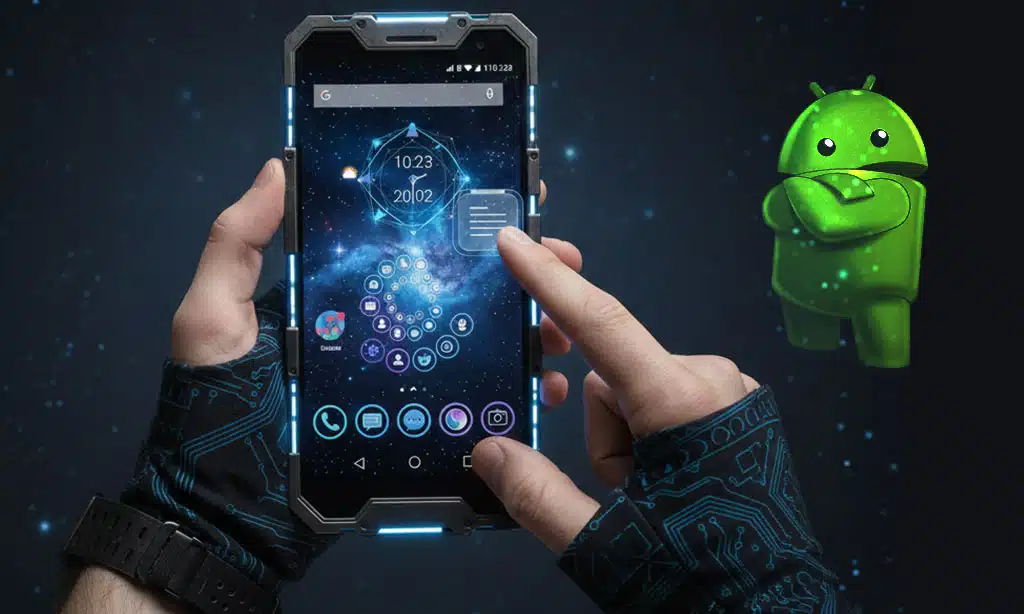
Your home screen is your control center. If it’s cluttered, your phone feels slow. If it’s clean, everything feels faster. Visual customization is also motivating. A good layout makes you want to use your phone intentionally. It reduces the “scroll and search” habit. Start with structure first. Then add style. A beautiful layout that wastes time is not a win. Keep your main screen limited to essentials. Put everything else in the app drawer or a second page.
| Home screen goal | Simple strategy | Result |
| Faster access | Fewer icons, better folders | Less searching |
| Cleaner look | Consistent icons and spacing | Less visual noise |
| Better info | A few useful widgets | Fewer app opens |
| One-hand use | Bottom-heavy layout | Easier reach |
Trick 1: Use a power launcher and tune the grid
A launcher controls your home screen behavior. It can change grid size, gestures, icon layout, and app drawer style. It can also back up your layout. Power users often choose a tighter grid. More columns means fewer pages. It also keeps key apps closer. Set up gestures you will actually use. A swipe down for search is a great start. A double-tap to lock is another practical win. Once your layout feels right, back it up. That makes future changes less stressful.
| Step | What to change | Best setting idea |
| Grid | Rows/columns | 5×6 or 6×6 (try both) |
| Dock | App count | 5–7 apps max |
| Gestures | Swipe actions | Swipe down = search |
| Backup | Save layout | After you finish setup |
Trick 2: Build widgets that save time (one widget per purpose)
Widgets work best when they replace actions. A calendar widget replaces opening the calendar. A weather widget replaces checking a weather app. Avoid stacking too many live widgets on one screen. Some widgets refresh often, which can cost battery. Keep the “always visible” widgets limited. Use a “one widget per purpose” rule. Each widget should answer one question fast. If it doesn’t, remove it. Good widget categories include time, schedule, music, and smart home controls. Put the most-used widget where your thumb can reach.
| Widget type | What it replaces | Good placement |
| Calendar | Opening schedule app | Top half of main screen |
| Weather | Daily forecast checks | Near clock/time area |
| Music controls | Opening player | Bottom half for quick reach |
| Notes/tasks | Repeated reminder checks | Second screen if needed |
Trick 3: Make dynamic theming look clean and readable
Dynamic theming changes system colors based on wallpaper. It can make Android feel cohesive. It also makes your device feel personal. The key is readability. Some wallpaper colors create low contrast. That can make icons and text harder to see. Pick a wallpaper with one clear dominant color. Avoid extremely busy patterns if you want a clean theme. Use dark mode at night to reduce glare. If you change wallpaper often, your theme will change often too. That can be fun, but it can also feel inconsistent. Choose what fits your personality.
| Tip | What to do | Why it helps |
| Contrast | Test light and dark mode | Better readability |
| Wallpaper choice | Use simple patterns | Cleaner look |
| Icon clarity | Avoid low-contrast palettes | Less eye strain |
| Consistency | Change wallpaper less often | Stable visual identity |
Trick 4: Fix icon chaos with a consistency system
Icon packs can make Android look premium. The problem is mismatch. One odd icon can ruin the whole vibe. Choose one style and stick to it. Decide if you want colorful icons or monochrome. Decide if you want rounded or sharp shapes. If an app icon doesn’t match, don’t panic. Hide the label, place it in a folder, or keep it off the main screen. Power users optimize for calm, not perfection. Also consider text labels. Removing labels can make the screen cleaner. But if you share your phone with others, labels may help.
| Choice | Option | Best for |
| Style | Monochrome icons | Minimal look |
| Style | Colorful icons | Playful look |
| Labels | Off | Clean aesthetic |
| Labels | On | Faster recognition |
Trick 5: Improve your lock screen for speed and privacy
The lock screen should help you act fast. It should also protect your privacy. Balance both. Start by controlling what shows on the lock screen. Hide sensitive notifications if you’re often around other people. Show only what you need. Add one or two shortcuts you truly use. Camera is a common shortcut. Flashlight is another useful one. Avoid turning the lock screen into a dashboard. Too much information can be distracting. Keep it simple and purposeful.
| Lock screen element | Recommended approach | Benefit |
| Notifications | Hide sensitive content | Better privacy |
| Shortcuts | 1–2 max | Faster actions |
| Clock style | Clear, readable | Better glance value |
| Widgets (if available) | Minimal | Less clutter |
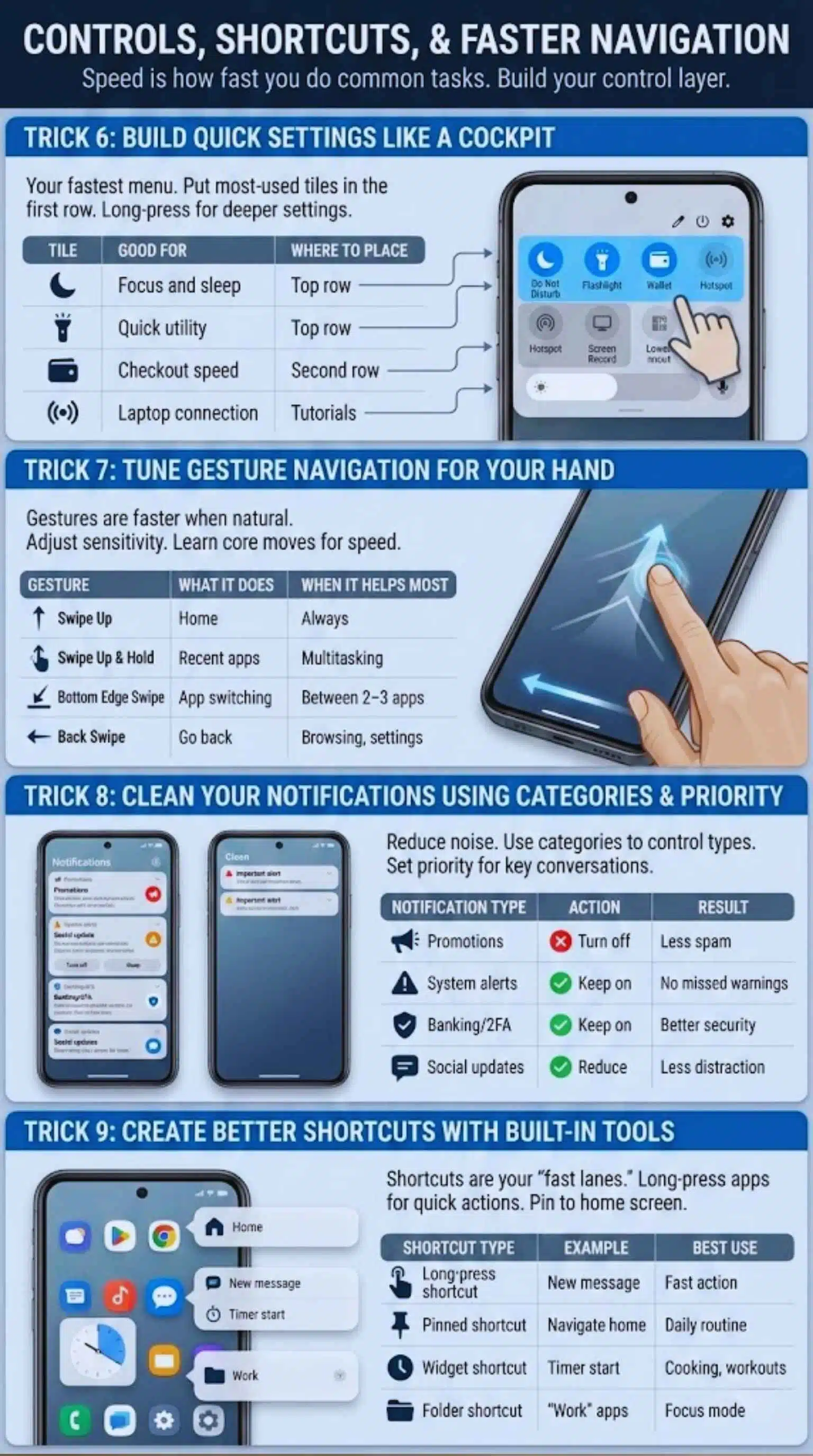
Speed is not just CPU power. It’s how fast you can do common tasks. Navigation improvements can cut your daily taps in half. Power users build a “control layer.” This includes Quick Settings, gestures, and smart shortcuts. It also includes turning off distractions that steal attention. Start with Quick Settings. It’s the easiest win. Then tune gestures for your hands and your case. Finally, attack notification noise. A calm phone feels faster because it doesn’t interrupt you.
| Control layer | What to customize | Payoff |
| Quick Settings | Tile order and selection | One-swipe actions |
| Gestures | Sensitivity and habits | Faster switching |
| Shortcuts | App actions and widgets | Fewer menus |
| Notifications | Channels and priority | Less interruption |
Trick 6: Build Quick Settings like a cockpit
Quick Settings is your fastest menu. It should match your daily habits. If you never use a tile, remove it. Put your most-used tiles in the first row. That’s the row you can reach quickly. Think flashlight, DND, hotspot, wallet, and scanner. Keep rare tiles lower. Things like “invert colors” or “screen record” can be useful, but not top-row material for most people. Also learn the difference between tapping a tile and long-pressing it. Long-press often opens deeper settings. That saves time.
| Tile | Good for | Where to place |
| Do Not Disturb | Focus and sleep | Top row |
| Flashlight | Quick utility | Top row |
| Wallet/Pay | Checkout speed | Top row |
| Hotspot | Laptop connection | Second row |
| Screen record | Tutorials | Lower row |
Gestures are faster when they feel natural. If your back gesture triggers by accident, raise sensitivity control carefully. If it fails often, increase it. Learn the two core moves for speed. Swipe up and hold to see recent apps. Swipe along the bottom edge to jump between apps. If you use a big phone, one-handed navigation matters. Place key apps lower on the screen. Use a one-hand mode if your device offers it. Also consider keyboard reach. A floating keyboard or one-handed keyboard can reduce strain. Small comfort changes add up.
| Gesture | What it does | When it helps most |
| Swipe up | Home | Always |
| Swipe up and hold | Recent apps | Multitasking |
| Bottom edge swipe | App switching | Between 2–3 apps |
| Back swipe | Go back | Browsing, settings |
Trick 8: Clean your notifications using categories and priority
Most apps send multiple types of notifications. Promotions and “recommendations” create noise. Important alerts should survive. Use notification categories to control types. Turn off marketing alerts while keeping critical ones. This is one of the highest-impact changes you can make. Then set priority for key conversations. Make your messaging app show important chats first. Reduce everything else. Also decide what appears on the lock screen. Some people prefer privacy. Others prefer quick information. Your setup should reflect your reality.
| Notification type | Action | Result |
| Promotions | Turn off | Less spam |
| System alerts | Keep on | No missed warnings |
| Banking/2FA | Keep on | Better security |
| Social updates | Reduce | Less distraction |
Trick 9: Create better shortcuts with built-in tools
Shortcuts are your “fast lanes.” Android has app shortcuts that appear when you long-press an app icon. Many apps offer quick actions there. Use these shortcuts to avoid opening menus. For example, jump straight to a specific chat, start navigation home, or create a note instantly. You can also pin a shortcut to your home screen. That gives you one-tap access to a specific action. Don’t overdo it. Too many shortcuts become clutter. Keep only the ones you use weekly.
| Shortcut type | Example | Best use |
| Long-press shortcut | New message | Fast action |
| Pinned shortcut | Navigate home | Daily routine |
| Widget shortcut | Timer start | Cooking, workouts |
| Folder shortcut | “Work” apps | Focus mode |
Automation that feels like magic
Automation is where your phone starts working for you. The best automations reduce decisions. You stop thinking about toggles and settings. Keep automation simple at first. Simple rules are reliable. Complex rules break more often after updates or app changes. Start with time-based routines. Then add location or Wi-Fi triggers. Bluetooth triggers are also great for car routines. These Android customization tips become powerful when automation supports your real routine. Build around your day, not around features.
| Automation style | Trigger | Best result |
| Time-based | Night schedule | Better sleep and focus |
| Wi-Fi-based | Work network | Quiet work mode |
| Bluetooth-based | Car audio | Safer driving habits |
| App-based | Open a specific app | Auto-adjust settings |
Trick 10: Make three core routines (sleep, work, commute)
A “sleep” routine should reduce stimulation. Dim the screen, enable DND, and lower notifications. Keep alarms and critical calls allowed if needed. A “work” routine should remove distractions. Pause social apps. Keep essential tools and messages allowed. A “commute” routine can set media volume, enable Bluetooth, and surface navigation. It can also turn off noisy notifications. You do not need 20 routines. Three good ones beat ten messy ones. Build them, then test for a week.
| Routine | Trigger idea | Actions to include |
| Sleep | Time | DND, dim, grayscale |
| Work | Wi-Fi/location | Focus Mode, quiet alerts |
| Commute | Bluetooth | Maps shortcut, media volume |
Trick 11: Use Focus Mode and scheduled downtime
Focus Mode pauses selected apps. It helps when you want your phone nearby but not distracting. It’s different from DND because it targets specific apps. Schedule Focus Mode for work blocks. Use it during study time. Turn it on during deep creative work. Pair it with notification category cleanup. If Focus Mode pauses social apps but notifications still spam you, you still lose focus. Do both. Also set a realistic “downtime” window at night. Even 60–90 minutes without scrolling can improve sleep. Your phone should support your goals.
| Tool | What it does | Best use |
| Focus Mode | Pauses chosen apps | Work blocks |
| DND | Limits interruptions | Meetings, sleep |
| App timers | Limits daily use | Habit control |
| Bedtime mode | Reduces stimulation | Night routine |
Trick 12: Advanced automation with triggers and “if-this-then-that” logic
Advanced automation apps can do deeper actions. They can combine multiple triggers. They can also run sequences. Use advanced automation for tasks you repeat. Examples include toggling settings when you enter a place. Another example is adjusting sound profiles for different contexts. Keep rules readable. If you can’t explain a rule in one sentence, it’s too complex. Complexity is the enemy of reliability. Test after reboot. Some automations fail after a restart. If that happens, simplify or switch triggers.
| Automation idea | Trigger | Outcome |
| Quiet office | Work Wi-Fi | DND + muted notifications |
| Car mode | Car Bluetooth | Maps + media volume |
| Battery saver | Low battery level | Reduce brightness + saver mode |
| Reading mode | Open reading app | Warm tone + DND |
Developer options and system tweaks (use with restraint)
Developer Options can change behavior that affects the whole device. You should be careful. The goal is a better feel, not random experimentation. The safest tweaks improve perceived speed. Animation scales are the classic example. They don’t increase raw performance, but they make transitions feel faster. Other tweaks depend on your device brand. Some brands offer refresh-rate controls. Others hide them in battery or display settings. Always note what you changed. If something feels off, revert. Power users change settings with intent.
| Tweak type | What it affects | Risk level |
| Animation scales | UI motion speed | Low to medium |
| Refresh rate | Smoothness vs battery | Medium |
| Background limits | App behavior | Medium to high |
| Debug options | Deep system behavior | High |
Trick 13: Speed up the feel by adjusting animation scales
Animations can be pretty, but they cost time. Many people prefer faster motion. Lowering animation scales makes the phone feel snappier. Try setting the three animation scales to 0.5x. That’s a balanced setting. It keeps animations but reduces waiting. Avoid turning animations off completely at first. Zero animations can feel abrupt. It can also make some UI transitions feel confusing. Test for a day. If you love it, keep it. If it feels too fast, go back to 1x.
| Setting | Recommended value | What you’ll notice |
| Window animation scale | 0.5x | Faster pop-ups |
| Transition animation scale | 0.5x | Faster screen changes |
| Animator duration scale | 0.5x | Faster UI effects |
Trick 14: Optimize smoothness with refresh rate strategy
High refresh rate makes scrolling feel smoother. It can also cost battery. The best setting depends on your priorities. If your phone has an adaptive refresh mode, start there. Adaptive modes balance smoothness and battery. They reduce refresh rate when not needed. If you game a lot, you may prefer high refresh always. If you travel often, you may prefer battery. There’s no single best answer. Test for two days. Watch battery and heat. Choose the setting that supports your life.
| Option | Smoothness | Battery impact |
| Adaptive refresh | High when needed | Balanced |
| High always | Highest | Higher drain |
| Standard | Normal | Best battery |
Sound, haptics, and micro quality-of-life upgrades
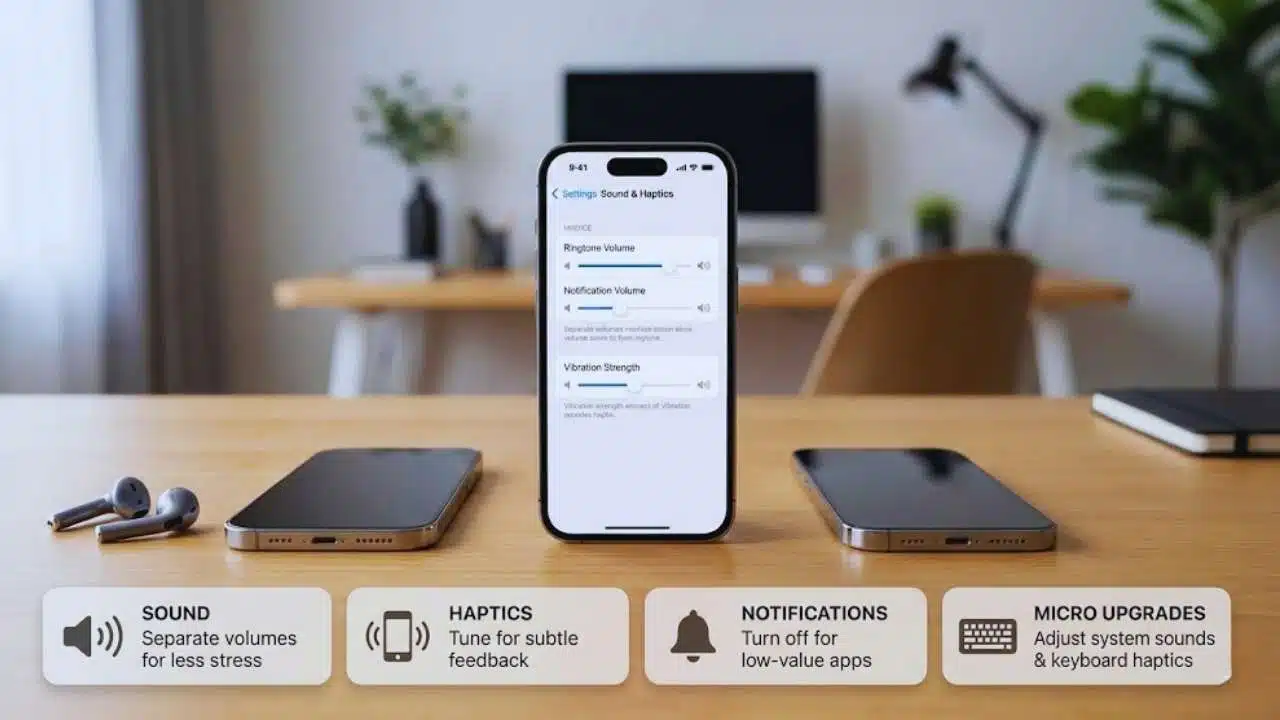
A phone can feel “premium” just from sound and vibration tuning. These settings affect you every day. They also reduce stress when notifications are less aggressive. Separate ring volume from notification volume if your device supports it. Keep notifications lower than ringtones. That reduces surprise noise. Haptics also matter. Strong vibration can be useful for calls. It can be annoying for every notification. Tune it per your preferences. Keyboard haptics can improve typing accuracy for some people. Keep it subtle so it doesn’t feel like a power tool.
| Area | Quick change | Best benefit |
| Notification volume | Lower it | Less stress |
| Ringtone volume | Keep moderate | Don’t miss calls |
| Vibration strength | Reduce for alerts | Less buzzing |
| Keyboard haptics | Subtle vibration | Better typing feel |
Trick 15: Tune sound and vibration like a pro
Start with your notification settings. Turn off sounds for low-value apps. Use silent notifications for background services. Then tune vibration patterns. Some devices allow different strengths for calls and notifications. If your phone supports this, keep calls stronger. Adjust system sounds too. Keyboard click sounds can be annoying. Touch sounds can be helpful or distracting. Choose what supports your focus. Finally, test in real life. Walk outside, put the phone in a pocket, and see if you still notice important alerts. That’s the real measure.
| Setting | Better default | Why it works |
| Notification sound | Off for most apps | Less noise |
| Call vibration | Stronger | Don’t miss calls |
| Notification vibration | Softer | Less distraction |
| Keyboard haptics | Light | Better feedback |
Advanced lane: Root, custom ROMs, and tradeoffs
Advanced customization can unlock deep control. It can also create new problems. Power users weigh the benefits against the cost. Root access can change system behavior deeply. It can also break banking apps, DRM streaming, and some security features. Updates can become harder. Custom ROMs can add features and reduce bloat. They can also require manual maintenance. You become your own support team. If you love tinkering, this lane can be fun. If you want stability, stay with no-root customization. Most people get 80% of the benefit without the risk.
| Option | Main benefit | Main drawback |
| Root | Deep system control | App compatibility issues |
| Custom ROM | New features, less bloat | Maintenance and updates |
| No-root tools | Safer, easier | Limited system access |
Safer alternatives before going full advanced
If you want more control, try “advanced but safe” steps first. Use a launcher and good widgets. Clean notifications. Build routines. Some brands offer deep customization in their own tools. Explore your device’s settings. You may find themes, gestures, and layout tools built-in. Also consider “per-app” settings. Many apps let you customize layout and behavior inside the app itself. That’s often more stable than system hacks. Give yourself a two-week rule. If you still want root after two weeks of smart no-root customization, then research carefully. Don’t jump in on a bad day.
| Alternative | What it gives you | Risk level |
| Launcher + icon pack | Deep visual control | Low |
| Routines/Modes | Smart behavior shifts | Low to medium |
| Per-app customization | App-level efficiency | Low |
| Brand tools | Extra features | Low |
Recommended toolkit (keep it practical, not bloated)
A toolkit is not a shopping list. It’s a small set of tools that stay reliable. Power users prefer fewer tools that work well. Start with one launcher and one widget approach. Add one automation tool only if you truly need it. Avoid stacking multiple tools that do the same job. Choose tools with clear settings and good support. If a tool hasn’t been updated in a long time, be cautious. Outdated tools can break on newer Android versions. Also prioritize privacy. Avoid tools that demand excessive access. You can get great results without giving away control.
| Need | Tool type | Selection rule |
| Layout control | Launcher | Must support backup/restore |
| Better widgets | Widget provider | Must be stable and light |
| Automation | Routines or automation app | Must handle reboots well |
| Cleanup | Notification control | Must support categories |
Troubleshooting plan (when customization goes wrong)
Even great setups can break after an update. Don’t panic. Most issues are reversible. First, identify the last change you made. Undo it. If you made many changes, revert one per hour, not all at once. If a launcher misbehaves, switch back to the system launcher temporarily. If an automation misfires, disable triggers first. If notifications explode, reset categories for the worst apps. Keep calm and use a checklist. Power users debug like engineers, not like gamblers.
| Problem | Quick fix | Longer fix |
| Battery drain | Remove widgets, pause automation | Rebuild in smaller steps |
| Random popups | Disable overlays | Uninstall the culprit app |
| Missed alerts | Review DND rules | Whitelist important apps |
| Lag | Reduce animations or heavy widgets | Test for 24 hours |
Final thoughts and next steps
The best Android customization tips are the ones you feel every day. They save time, reduce distractions, and keep your phone predictable. You don’t need extreme tweaks to get a powerful result. Start with the basics: a clean home screen, smart Quick Settings, and strict notification controls. Then add simple automation that matches your routine. If you want a faster feel, try safe animation adjustments.
Most importantly, keep your setup maintainable. Customization should support your life, not become a hobby that steals your time. When done well, Android becomes your tool, not your distraction.
FAQs
What are the easiest Android customization tips for beginners?
Start with the home screen. Use a cleaner grid and fewer icons. Then fix Quick Settings so your top actions are one swipe away. Next, clean notifications. Turn off promotions and low-value alerts. Finally, add one simple routine like Sleep mode. These changes are easy and reversible. They also give the biggest daily payoff.
Can customization slow down my phone?
It can, but it doesn’t have to. Heavy live wallpapers, too many refreshing widgets, and complex automation can increase battery use and background activity. Start with simple changes first. Add one widget at a time. Add one automation at a time. Monitor battery for a day. If performance drops, remove the last change. That’s the quickest way to find the cause.
How do I keep customization private and safe?
Be picky with permissions. Avoid apps that demand access they don’t need. Prefer tools that work without Accessibility access when possible. Review app permissions monthly. Remove unused apps. Keep your phone updated. Also be careful with “overlay” features. They can be useful, but they can also hide what you’re tapping. Disable overlays if you feel unsure.
What are the safest Developer Options tweaks?
Animation scales are the most common safe tweak. Set them to 0.5x for a snappier feel. Keep note of the default so you can revert. Avoid deep debugging toggles unless you understand them. Avoid changing background process limits if you rely on notifications. If you are unsure, don’t change it. Power users are careful with global switches.
Do I need root to fully customize Android?
You don’t need root for most meaningful improvements. Launchers, widgets, gestures, Quick Settings, routines, and notification controls can transform the experience. Root can unlock deeper system control. But it adds complexity and risk. Many people try it, then return to stable setups. If your goal is speed and usability, no-root customization is enough. If your goal is deep system experiments, root may be worth it, but only with careful research.