Losing files is rarely just a technical problem. It usually happens when you are cleaning up folders too quickly, moving media from an external drive, formatting the wrong partition, or emptying the Recycle Bin before you realize something important is gone. In those moments, most people do not need a highly specialized forensic platform. They need a recovery tool that is clear, practical, and usable under pressure.
That is why this review looks at Recoverit Data Recovery as a practical option for lost files. Instead of treating any recovery app like a guaranteed fix, this article focuses on a more useful question: when does Recoverit make sense, what does it do well, and what should users realistically expect from it?
The short answer is that Recoverit is a good fit for many common data loss situations, including accidental deletion, emptied Recycle Bin, formatted storage, and missing files from external hard drives, USB drives, and memory cards. It is especially relevant for users who want a guided workflow instead of a technical interface filled with advanced recovery terms. At the same time, it is important to stay realistic. No recovery software can promise success in every case. Overwritten data, TRIM-enabled SSD behavior, and physical drive damage can all reduce recovery chances.
Who Is Recoverit Best For?
Recoverit is most useful for people who need a balance between accessibility and broad recovery coverage. In practical terms, that includes:
- home users who accidentally deleted photos, videos, or documents
- students who emptied the Recycle Bin before checking important project files
- creators trying to restore files from external hard drives, USB drives, or memory cards
- office users dealing with missing files after formatting or partition issues
- beginners who want to preview files before recovery instead of using command-heavy tools
This matters because many users search for a recovery tool only after something has already gone wrong. At that stage, the best solution is not always the one with the most technical depth. It is often the one that helps people follow the correct steps quickly and avoid making the situation worse.
What Makes Recoverit a Practical Choice?
1. The workflow is easy to understand
One of the biggest strengths of Recoverit is that it follows a straightforward recovery path: choose the location, scan for lost files, preview the results, and recover to a safe destination. For users who are stressed, this kind of structure matters more than feature overload.
2. It covers more than just recently deleted files
The phrase “lost files” can mean many things. It may refer to files deleted minutes ago, data missing after formatting, files that disappeared from an external drive, or content that is no longer accessible after a storage issue. Recoverit is practical because it is positioned around these broader real-world cases rather than only one narrow deletion scenario.
3. Preview helps users make better decisions
Preview is an underrated part of file recovery. When users can inspect a file before restoring it, they can avoid wasting time on damaged or irrelevant results. In practical recovery work, this matters because scan results can include partial files, renamed items, or content reconstructed without the original folder structure.
4. It fits everyday recovery rather than niche forensic work
Most people do not need enterprise-level forensic recovery features. They need to get back a presentation, a folder of exported videos, family photos, or accounting files. Recoverit feels more aligned with these everyday needs than with specialist lab-level recovery workflows.
Where Recoverit Is Most Useful
Recoverit tends to make the most sense in common recovery situations such as:
- accidental file deletion from a local drive
- files missing after the Recycle Bin has been emptied
- data loss on an external hard drive or USB storage device
- formatted partitions where accessible files are no longer visible
- media loss from creator storage devices that still connect normally
This is also why the topic aligns well with the hard drive recovery scenario. Users do not always search with technical accuracy. They may search for deleted file recovery, lost file recovery, external drive recovery, or hard drive recovery even when the underlying problem is similar. A practical review should meet that broader intent.
A Smarter Recovery Workflow Starts Before the Software
Before using any data recovery tool, the smartest move is to reduce further damage. This part matters whether you use Recoverit or any other recovery software.
Stop using the affected drive
If the files were deleted from a local partition, external hard drive, or USB device, avoid writing new data to that same storage location. New downloads, copied files, exports, and system operations can overwrite space where recoverable data may still exist.
Identify the original location of the lost files
Many users rush into scanning the wrong drive. If your files were lost from an external device, scan that device directly. If they were removed from the desktop but actually stored on another partition, choose the real source instead of the most obvious folder path.
Prepare another storage location for recovered files
Recovered files should be saved to a different drive whenever possible. Restoring back to the original drive can overwrite additional lost data and reduce the chance of recovering more files later.
Check whether the problem is logical or physical
Recovery software is meant for logical data loss cases. If a drive clicks, disappears repeatedly, becomes extremely slow, fails to mount, or disconnects without warning, the issue may involve physical failure. In those cases, repeated scanning is not always the safest option.
How Recoverit Works in Practice: 3-Step Guide
Although this review uses the Windows-side workflow as the practical example, the basic logic is also useful for Mac users: select the correct source, scan carefully, preview recoverable files, and restore them somewhere safe. Because the user did not specify platform in this request, this version follows the default Windows-oriented product path for the product link.
Step 1: Select the drive or location where the files were lost
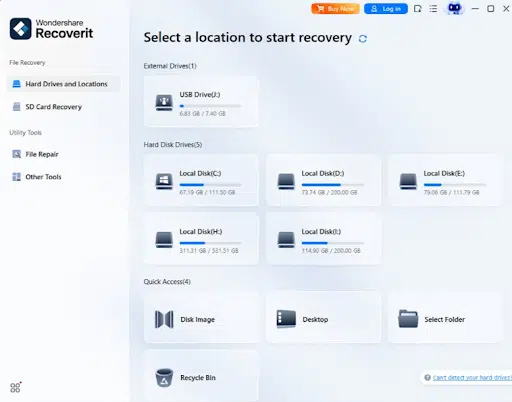
Start by choosing the correct drive, partition, Recycle Bin location, or external storage device. This sounds simple, but many recovery attempts fail because users scan the wrong place. If your missing files came from a portable HDD, scan that device itself rather than the system drive.
If you mainly need a desktop workflow on PC, the Windows Data Recovery is the most relevant product entry point. It matches the recovery path most users expect when they are trying to restore deleted or missing files from a computer-connected storage device.
Step 2: Run a scan and preview the recoverable files
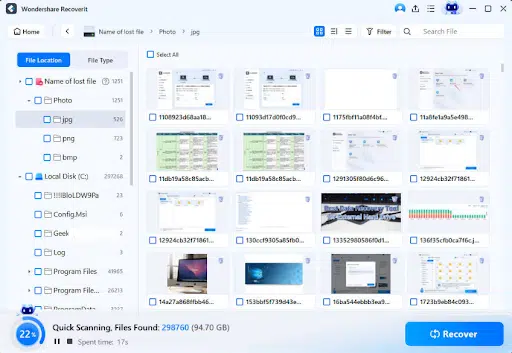
Once the source is selected, let the software scan for recoverable content. In some cases, recently deleted files may appear quickly. In other cases, especially after formatting or older data loss events, a deeper scan may be needed to surface more results. The important part is not to restore everything blindly. Use preview whenever available to check whether documents, photos, videos, and archive files are still readable or at least partially intact.
From a practical review perspective, this preview step is one of Recoverit’s strongest points. It helps users decide what is actually worth recovering and prevents the common mistake of restoring large batches of unusable data without verification.
Step 3: Recover the files to another drive
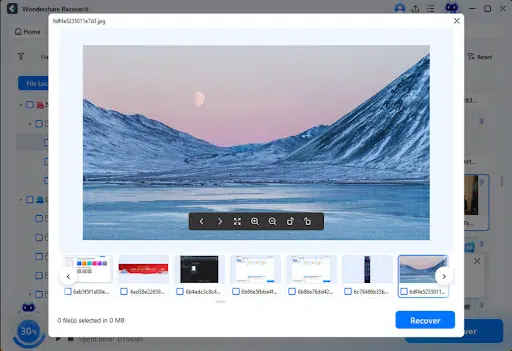
After selecting the files you want to restore, save them to a different storage location instead of the original one. This is a basic but critical recovery habit. Saving files back to the same drive can overwrite other recoverable data and reduce your options if you need to run another scan later.
For users who want a recovery tool that feels approachable rather than overly technical, recoverit keeps this process accessible. It does not remove the natural limits of data recovery, but it does make the recovery process easier to understand and execute correctly.
What I Like About Recoverit in Real-World Use
It is easier to use under pressure
Data loss creates urgency. People are often stressed, distracted, and worried about making the wrong choice. Recoverit benefits from a workflow that is simple enough to follow even when the user is not thinking clearly.
It supports common consumer and small-office scenarios
Many recovery tools talk broadly about devices and file systems, but ordinary users care about practical outcomes. Can they get back deleted presentations, project folders, exported video files, old photos, or spreadsheets from an external drive? Recoverit is strongest when used in these familiar scenarios.
It encourages safer recovery behavior
The ability to preview files and the normal recommendation to recover to another drive support a safer workflow. This is important because user behavior after the loss event can strongly influence the final outcome.
It works well as a mainstream recovery option
Some users do not want a niche utility with a steep learning curve. They want something understandable, widely applicable, and suitable for common storage devices. Recoverit fits that expectation better than tools that feel built mainly for advanced users.
Where Expectations Should Stay Realistic
Overwritten data may no longer be recoverable
If new files have already been written to the same area of the drive, the old data may be partially or fully overwritten. Recovery chances generally improve when users stop using the affected device as soon as they notice the loss.
SSD recovery can be less predictable
TRIM and garbage collection on SSDs may remove deleted data more quickly than on traditional hard drives. This is not a Recoverit-specific weakness. It is a storage behavior issue that affects many software-based recovery attempts.
Physical damage changes the situation
If the drive is making unusual sounds, disappearing from the system, overheating, or failing to stay connected, the issue may go beyond software recovery. Repeated DIY scanning in that state may not be the safest next step.
Large scans can take time
Deep scans on large drives or media-heavy external storage can be time-consuming. That is normal. Users recovering high-capacity HDDs or creator storage should expect the process to require patience.
Is Recoverit a Good Option for Windows and Mac Users?
In a general sense, yes. Accidental deletion, formatted storage, and lost files are not Windows-only problems. The core recovery logic is similar across both platforms: identify the correct source, avoid overwriting data, scan carefully, preview results, and recover to another destination.
For this specific article, I used the Windows product path as the default version because the request did not specify Windows or Mac. If the goal is a Mac-focused outreach article, the structure should stay similar but the product link and a few wording details should be adjusted for Mac search intent.
When Recoverit Makes the Most Sense
Recoverit is a practical option if:
- you need a guided recovery workflow instead of a technical utility
- you deleted files by mistake and want to try a safer recovery path
- your Recycle Bin has already been emptied
- your external hard drive, USB drive, or memory card lost accessible files
- you want to preview results before restoring everything
It is less ideal if:
- the drive shows signs of physical failure
- the data has likely been heavily overwritten
- you need highly specialized forensic workflows
- you expect guaranteed recovery regardless of device condition or storage behavior
Final Verdict
As a practical review, Recoverit makes the most sense as a usability-first recovery option for common lost file situations. It should not be judged by exaggerated promises. It should be judged by whether it helps ordinary users follow a safer workflow, avoid common mistakes, and recover files that are still realistically recoverable.
On that standard, it is a sensible option.
If you want a recovery tool that feels approachable while still covering real-world data loss cases, recoverit is worth considering. If your main need is a PC-centered recovery workflow, the Windows Data Recovery page is the most direct starting point. And if your case specifically involves missing data from a local disk or portable HDD, the hard drive recovery topic is the most relevant follow-up resource.