Creating digital art takes a massive physical toll that people rarely talk about in the creative community. You probably know the exact feeling of hunching over a desk for hours, only to stand up and face brutal neck stiffness, lower back pain, and wrist fatigue.
I know firsthand how a poor desk setup can wreck your spine over time, turning a passion into a painful chore that you want to avoid. Investing in the right tools is not just about making your desk look aesthetic for social media posts or studio tours. It is about actively preserving your long-term physical health and seriously upgrading the overall quality of your artwork. Whether you draw on an iPad Pro, a Wacom Cintiq, or a Samsung Galaxy Tab, optimizing your workspace is absolutely non-negotiable. This guide covers the best tablet accessories for digital artists available right now, giving you practical solutions to fix your posture, speed up your workflow, and keep you in the creative zone without the physical strain.
Why Ergonomics and Accessories Matter for Digital Artists?
Treating your digital art setup as a serious workspace is the very first step toward a healthier and longer creative career. Flat desks force your body into terrible positions, while bare glass screens often lack the tactile feedback needed for precise brush strokes. Adding the proper tools to your daily routine completely changes how your body feels after a long, intense illustration session. You are essentially building a custom environment that supports your spine, wrists, and creative focus all at the exact same time. The right gear bridges the gap between traditional drawing comfort and modern digital convenience.
| Benefit Type | Key Advantage | Impact on Digital Artists |
| Physical Health | Spinal alignment | Prevents text neck and chronic back pain by raising the screen. |
| Joint Support | Reduced wrist strain | Ergonomic grips and stands stop repetitive strain injuries. |
| Art Quality | Tactile feedback | Screen protectors provide drag to stop stylus slipping. |
| Productivity | Speed and efficiency | Shortcut remotes eliminate reaching for keyboard hotkeys. |
Preventing Strain and Injury
Digital artists face very specific physical threats on a daily basis, primarily carpal tunnel syndrome, repetitive strain injury, and the dreaded text neck. When you draw on a tablet that sits perfectly flat on a table, you force your neck and spine into an unnatural, downward curve. Doing this for hours every single day compresses your spinal discs and creates severe, lasting upper back tension. An adjustable drawing stand solves this immediate problem by bringing the screen up to a comfortable drafting angle. This single equipment change lifts your head, aligns your neck with your spine, and instantly reduces the physical pressure on your upper body. Additionally, holding a thin, hard plastic stylus tightly for hours causes intense hand cramping. Using ergonomic silicone grips encourages a looser, much more natural grip that saves your finger joints from premature wear and tear.
Enhancing Precision and Workflow
Transitioning from traditional paper to a digital screen often feels extremely jarring because glass is completely frictionless. When your pen slips even a fraction of an inch, your line weight suffers, and you spend more time hitting undo than actually drawing. The right accessories fix this mechanical disconnect by modifying the physical surface of your workspace. Textured screen protectors give you that missing resistance, making every single stroke feel deliberate and fully controlled. Beyond just the drawing surface, workflow speed is a huge factor for professional artists working against tight client deadlines. Reaching across your desk to hit keyboard shortcuts breaks your visual focus and pulls you out of the creative zone. By integrating smart tools like programmable remotes and smooth drawing gloves, you eliminate these tiny, frustrating distractions. You finally stop fighting your equipment and start creating at the actual speed of your imagination.
Top 5 Tablet Stands for Digital Artists
A sturdy, reliable stand is the absolute foundation of any good digital art setup regardless of your skill level. Without one, you are basically guaranteed to experience back pain within your first few years of drawing. The market right now offers everything from ultra-portable folding designs to massive, heavy-duty studio mounts. I have broken down the top options based on what kind of tablet you use and where you prefer to work. Every artist has entirely different needs, so finding the exact right match for your device and lifestyle is a crucial step.
1. Sketchboard Pro 2
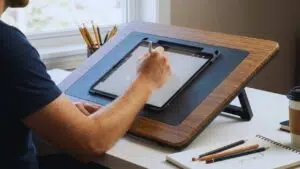
The Sketchboard Pro 2 is a total game changer if you use an iPad Pro or iPad Air as your primary workstation. It is basically a large, sturdy frame that houses your iPad in a secure magnetic cradle, creating a completely flat, flush surface all around the screen. This clever design turns a modern, slippery tablet into a traditional drafting board experience. Instead of awkwardly hanging your hand off the edge of the device, you can rest your entire arm comfortably on the board.
The pop-out legs on the back give you a perfect 20-degree drawing angle, which is a massive relief for your neck and shoulders. It even has a handy pass-through port so you can keep the tablet charging while you draw for hours. The sustainability factor is fantastic because the center cradles are fully upgradeable, meaning when you buy a new iPad years from now, you only need to swap the inner frame instead of buying a whole new board.
| Feature | Specification Details |
| Best Suited For | Apple iPad Pro and iPad Air models |
| Dimensions | 19.5 x 17 inches |
| Key Ergonomic Design | Creates a totally flat surface around the tablet |
| Adjustable Angle | 20-degree tilt via fold-out legs |
| Special Feature | Pass-through charging port and upgradeable cradles |
2. XPPen ACS05 Foldable Tablet Stand
If you are a student or a freelance illustrator who constantly moves between coffee shops, libraries, and your bedroom, you desperately need mobility. The XPPen ACS05 is built from a highly durable yet lightweight aluminum alloy that folds down entirely flat. You can easily slip it right into your backpack next to your tablet without adding any noticeable bulk to your daily carry.
Despite being light, it features thick anti-slip silicone pads that keep your device locked firmly in place, even on slick cafe tables. It offers multiple viewing angles so you can quickly adjust your setup depending on the weird height of whatever chair you are sitting in. It is simply the perfect choice for creators who refuse to compromise their posture just because they are working on the go.
| Feature | Specification Details |
| Best Suited For | Portable setups and freelance artists |
| Material | Aluminum alloy and anti-slip silicone |
| Supported Devices | 12 to 16 inch drawing displays |
| Angle Adjustability | 6 levels ranging from 18 to 45 degrees |
| Weight Limit | Supports up to 20 kg of hand pressure |
3. Wacom Foldable Stand
Studio professionals using heavy, large-scale displays like the Wacom Movink or Cintiq need gear that can handle serious weight and daily abuse. The Wacom Foldable Stand is engineered exactly for this specific, heavy-duty purpose. When you are painting aggressively or putting a lot of physical pressure into your shading, the absolute last thing you want is your screen bouncing back and forth.
This stand features a robust metal build and a highly secure locking mechanism that withstands continuous, heavy hand pressure without wobbling even a millimeter. It is definitely more of a financial investment compared to basic plastic stands. However, for high-end professional work, frame-by-frame animation, or intricate photo retouching, that rock-solid stability is completely mandatory for clean and precise drawing results.
| Feature | Specification Details |
| Best Suited For | Professional Wacom displays like the Movink 13 |
| Material | Robust aluminum construction |
| Working Angle | Locks in at a comfortable 20-degree angle |
| Portability | Folds flat and includes a protective carrying sleeve |
| Weight | Extremely lightweight at just 6.38 ounces |
4. Parblo PR100 Universal Graphic Tablet Stand
Not every digital artist uses an Apple or Wacom device, and finding a truly good stand for a Huion, Gaomon, or Samsung Galaxy Tab can sometimes feel tricky. The Parblo PR100 solves this problem as the ultimate universal solution on the market right now. It reliably supports a massive variety of devices ranging anywhere from 10 to 16 inches in screen size. What makes this stand truly special is its incredibly smooth, continuous tilt mechanism.
Instead of locking into three or four annoying preset slots like cheaper stands, the Parblo allows for micro-adjustments to the angle. You can fine-tune the exact degree of tilt from 15 to 90 degrees to perfectly match your specific desk height and sitting position. It is durable, highly adaptable, and fits perfectly into a budget-conscious setup without feeling cheap.
| Feature | Specification Details |
| Best Suited For | Universal compatibility across various tablet brands |
| Supported Devices | Tablets and monitors from 10 to 16 inches |
| Angle Adjustability | Continuous smooth adjustment from 15 to 90 degrees |
| Build Materials | Alloy and plastic with thick rubber contact points |
| Weight | 790 grams for a balance of stability and transport |
5. ElevationLab DraftTable
For artists building a permanent, high-end home studio, the ElevationLab DraftTable provides a pure, uncompromised luxury experience. This stand is incredibly heavy-duty, featuring a rock-solid polymer and steel base matched with heavy friction hinges. Once you set your preferred angle, those premium spring-loaded hinges ensure the stand remains completely immovable.
It does not matter how hard you press down or lean into your drawing, the screen stays exactly where you put it. It also uniquely includes a detached, premium silicone wrist rest. This small addition provides a crucial layer of ergonomic joint support that most other stands ignore entirely. If you want a genuine drafting table experience without actually buying a massive, full-sized wooden drafting desk, this is the stand you want on your table.
| Feature | Specification Details |
| Best Suited For | Premium studio desk setups |
| Hinge Design | Internally spring-loaded hinges that lock open and closed |
| Stability | Engineered to be rock solid at all drawing angles |
| Included Extras | Comes with a dedicated armrest and a pencil stand |
| Compatibility | Fits all sizes of iPads including the 13-inch Pro model |
Top 5 Must-Have Accessories for Digital Art
Once your posture is securely fixed with a good stand, it is time to optimize the actual physical drawing experience. The right accessories remove the annoying friction between your brain and the digital canvas in front of you. From the physical texture of the screen to the rapid speed of your keyboard shortcuts, these small additions matter. They eventually compound into a massively improved workflow that saves you time and energy. Finding the best tablet accessories for digital artists means looking closely at the tools that solve your specific, daily annoyances.
6. Paper-Feel Screen Protectors
Drawing on perfectly smooth, bare glass is inherently difficult because there is zero friction to catch your stylus tip. Your intricate lines often come out slippery, wobbly, or overextended, forcing you to redraw the same shape repeatedly. Matte, textured screen protectors, like the widely popular Paperlike brand, solve this mechanical issue beautifully. They feature tiny micro-textures built directly into the plastic that mimic the natural drag and resistance of real sketchbook paper.
This realistic tactile feedback fundamentally improves your hand-eye accuracy, allowing you to draw clean, confident line art on the first try. You should know that this added friction can wear down your plastic stylus nibs slightly faster over time. It also introduces a very mild matte haze to the screen display, but the massive improvement to your actual drawing experience is absolutely worth the visual trade-off.
| Feature | Specification Details |
| Primary Purpose | Adds friction and drag to slippery glass screens |
| Surface Texture | Micro-textured matte finish simulating real paper |
| Drawing Benefit | Improves line control and hand-eye precision |
| Potential Drawback | May slightly wear down plastic stylus nibs faster |
| Visual Impact | Reduces screen glare but introduces a mild haze |
7. Digital Art Gloves
The standard two-finger lycra drawing glove looks incredibly simple, but it is one of the most effective tools you can possibly own. Modern tablets all have excellent palm rejection software built in, meaning the screen knows to ignore your resting hand and only track the pen tip. However, that software cannot stop the natural oils, heat, and sweat on your skin from physically sticking to the glass.
A drawing glove completely eliminates that irritating skin friction in an instant. It allows the side of your hand to glide effortlessly and cleanly across the display. This smooth movement is crucial for making long, sweeping, confident strokes without your hand catching on the screen. As a fantastic bonus, it keeps your screen totally free of greasy fingerprints and smudges during a marathon drawing session.
| Feature | Specification Details |
| Primary Purpose | Stops hand friction and prevents greasy screen smudges |
| Material | Lightweight, breathable, and stretchable lycra fabric |
| Design Style | Standard two-finger design covering pinky and ring finger |
| Drawing Benefit | Allows the hand to glide smoothly for long sweeping strokes |
| Compatibility | Works on all glass displays and drawing monitors |
8. Ergonomic Stylus Grips and Advanced Pens
Your stylus is your primary weapon, and gripping it tightly for hours on end is a remarkably fast track to joint pain. While advanced styluses like the Apple Pencil Pro offer incredible new features like barrel roll detection and haptic feedback, they are still very thin pieces of hard, unyielding plastic. Sliding a simple ergonomic silicone grip over your stylus noticeably increases its overall diameter.
A thicker pen naturally requires significantly less pinch-force from your fingers to hold securely. This tiny, inexpensive modification completely relieves the tension in your knuckles, fingers, and wrist. It effectively saves you from severe hand fatigue and allows you to draw comfortably for much longer periods without taking painful physical breaks.
| Feature | Specification Details |
| Primary Purpose | Reduces hand cramping and relieves joint tension |
| Material | Soft, durable silicone or rubberized foam |
| Ergonomic Benefit | Increases pen diameter requiring less finger pinch-force |
| Drawing Benefit | Extends comfortable drawing sessions significantly |
| Compatibility | Available in specific sizes for Apple, Wacom, and Huion pens |
9. Shortcut Remotes and Keypads
Constantly dropping your pen to reach awkwardly across your desk and hit a keyboard shortcut completely ruins your mental concentration. Programmable macro keypads and shortcut remotes, like the TourBox Neo or the Xencelabs Quick Keys, fix this massive workflow bottleneck immediately. You comfortably hold the remote in your non-drawing hand while you work.
You can then map all your most used functions like undo, brush size changes, color picking, and layer swapping to a simple cluster of buttons and dials. The TourBox Neo, for example, is shaped ergonomically so you do not even have to look down at it to know what button you are pressing. Shaving just a few seconds off every single repetitive action saves you countless hours over the lifespan of a large project.
| Feature | Specification Details |
| Primary Purpose | Eliminates the need to reach for a full-sized keyboard |
| Control Methods | Features ergonomic dials, knobs, and custom buttons |
| Workflow Benefit | Keeps your eyes on the screen and maintains creative flow |
| Customization | Allows mapping of hundreds of complex macros and commands |
| Software Support | Compatible with major software like Photoshop and Clip Studio |
10. Protective Travel Cases and Sleeves

Digital art gear is incredibly expensive, and tossing an unprotected tablet carelessly into a backpack is a disaster waiting to happen. A high-quality hard-shell case or thickly padded travel sleeve is a mandatory investment for any serious artist. The best cases go far beyond just providing a basic padded pocket for the tablet itself. They include dedicated, molded internal organization slots that safely hold the device and physically lock the fragile stylus in place so it does not roll around.
They also offer secure storage for your charging cables, replacement nibs, and microfiber cleaning cloths. When you are commuting or traveling by plane, a rigid case prevents devastating drop damage and keeps your delicate screen completely safe from bending or scratching inside a crowded bag.
| Feature | Specification Details |
| Primary Purpose | Protects expensive tablets from physical drops and scratches |
| Exterior Material | Hard-shell EVA plastic or thick water-resistant fabric |
| Interior Protection | Microfiber lining and molded shock-absorbing foam |
| Organization | Dedicated slots for the stylus, cables, and extra nibs |
| Travel Benefit | Essential for safe commuting in bags and backpacks |
How to Choose the Right Stand and Accessories?
Buying every single accessory on the market all at once is highly overwhelming and usually totally unnecessary for most people. You need to build your setup strategically based on how, when, and where you actually prefer to work. A casual hobbyist sketching on a couch has vastly different requirements than a full-time professional animating at a standing desk. Taking just a few minutes to honestly audit your specific workspace needs will save you a lot of money. It also guarantees you get the right gear to solve your actual problems.
Buying Considerations Summary
| Consideration | What to Look For | Why It Matters |
| Setup Type | Device size and desk space | Ensures compatibility and prevents buying useless, oversized gear. |
| Portability | Weight and foldability metrics | Determines if you can actually commute easily with the equipment. |
| Stability | Base weight and hinge strength | Stops the screen from bouncing under heavy, aggressive drawing pressure. |
| Budget | Price versus health value | Helps prioritize ergonomic health tools over luxury workflow add-ons. |
Evaluating Your Current Setup
Take a hard, honest look at your current daily drawing habits and physical workspace. If you use a massive 24-inch pen display monitor, you absolutely need heavy-duty, permanent desk mounts that can handle the weight. If you draw on a standard 11-inch iPad while sitting cross-legged in bed, you need lap-friendly boards like the Sketchboard Pro to stabilize the device. Identify your absolute biggest creative pain points right now. If your neck hurts constantly after drawing, a height-adjustable stand is your first priority above anything else. If your line art constantly looks shaky, a paper-feel screen protector is the clear answer. Buy the specific solutions that directly fix your immediate, daily problems first.
Balancing Portability and Stability
There is always a noticeable physical trade-off between how easy a stand is to carry and how stable it feels to draw on. Ultra-portable, lightweight folding aluminum stands are incredibly convenient for train commutes and travel. However, they might exhibit a slight, annoying bounce if you press down heavily while coloring or shading. Conversely, heavy metal studio stands offer an unparalleled, rock-solid drawing experience that feels amazing. But they are far too heavy and bulky to ever put in a normal backpack. Base your final purchasing decision on where you actually spend the vast majority of your time. If you work from a home desk 80 percent of the time, always prioritize stability over portability.
Budget Considerations
Building a pro-level, perfectly customized studio setup takes time, so you should absolutely follow a smart purchasing hierarchy. Always prioritize buying items that directly impact your physical health first and foremost. A highly supportive, height-adjustable stand and an inexpensive ergonomic pen grip will do far more for your long-term career than anything else. Once your spine, neck, and wrists are properly protected, you can safely allocate your remaining budget toward other things. Then you can explore luxury workflow enhancers like the TourBox Neo remote or premium textured screen protectors. Always protect the artist first, and then spend money to upgrade the art.
Final Thoughts
Making digital art should be a seamless, highly comfortable, and deeply expressive experience, not a brutal test of your physical endurance. You simply cannot do your best, most creative work if you are constantly fighting back pain, battling a slippery screen, or repeatedly breaking your focus to hit keyboard shortcuts. By carefully selecting the best tablet accessories for digital artists, you can easily transform a basic, uncomfortable tablet into a professional, highly ergonomic studio.
Start with the absolute foundation by getting a heavy-duty stand that protects your spine. Then, refine your physical control with grips and textured screen protectors, and dramatically speed up your process with dedicated macro remotes. Taking care of your body and actively optimizing your tools ultimately frees your mind, allowing you to focus entirely on bringing your creative ideas to life.