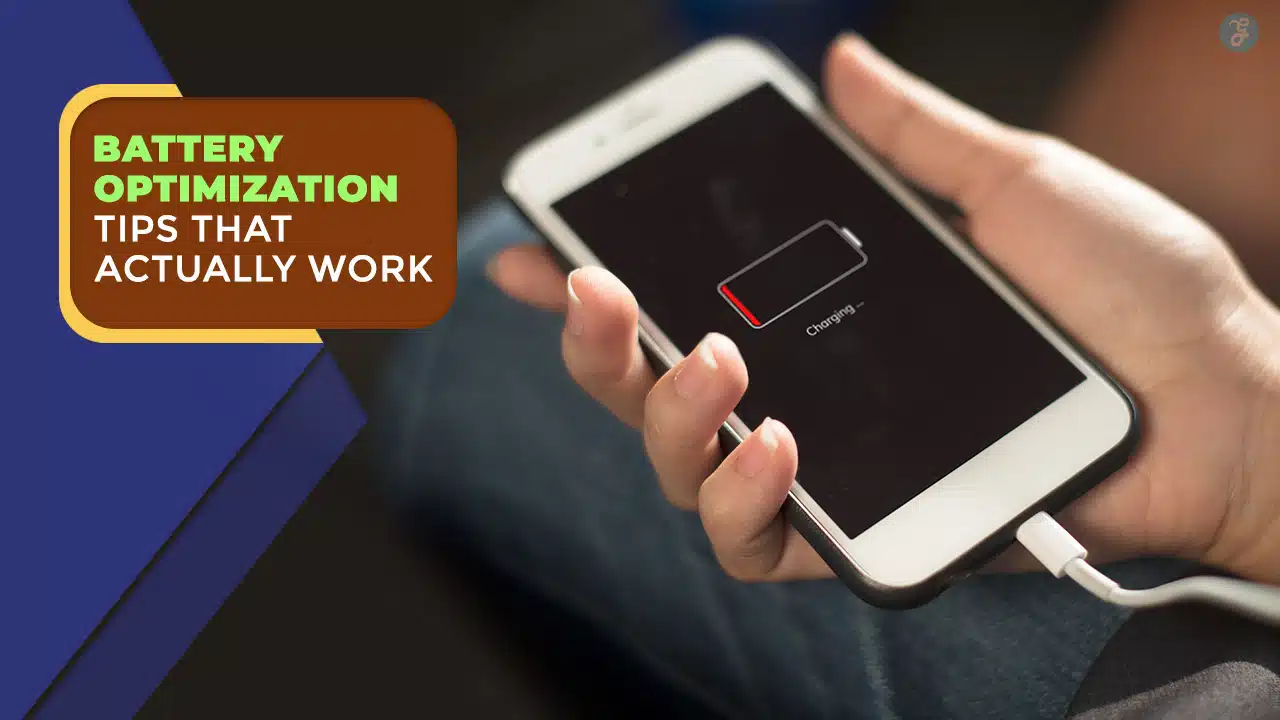
When your battery drops fast, it usually isn’t “bad luck.” It’s a handful of predictable things: a bright screen, apps running in the background, location tracking, weak signal, and heat. The good news is that you can fix most of these without installing anything.
This guide shares battery optimization tips that work across Android, iPhone, Windows, and Mac. You’ll learn what to change, why it matters, and how to verify the improvement. The goal is not extreme “phone in a cave” behavior. It’s practical changes you can live with.
You’ll also learn how to separate normal battery aging from avoidable drain. That matters because tweaking settings can’t restore an old battery, but it can stop a healthy battery from being wasted. Use the quick diagnosis first, then apply the tips that match your situation.
| What you’ll learn | Why it’s useful |
| How to find real drain sources | Stops guessing and saves time |
| 12 high-impact fixes | Works on both phones and laptops |
| Battery health vs battery drain | Helps decide if you need a replacement |
| Simple checklists | Makes the guide easy to apply and measure |
Battery saving tips: Do this 2-minute drain diagnosis first

Battery optimization works best when you treat it like a quick investigation. The battery screen on your device is a map of what’s happening. It tells you which apps use power, how long the screen is on, and whether most drain happens during use or standby.
This section helps you avoid random setting changes. You’ll identify the biggest drains in minutes. You’ll also create a simple baseline so you can prove what improved. That baseline prevents “I think it’s better” confusion.
If the drain is mostly screen-on time, your fixes will focus on display and performance. If drain happens overnight, you’ll focus on background activity and connectivity. If drain spikes in poor coverage areas, radio behavior is the target.
Do these steps:
- Open Battery usage and sort by highest drain
- Note the top 3 apps and their screen vs background usage
- Check screen-on time and standby time
- Note brightness level and whether you use 120Hz
- Feel the device temperature after 10 minutes of normal use
| What to check | What it usually means | What to do next |
| Top app drains | One or two apps are the main problem | Fix Tip 3 and Tip 12 first |
| High screen usage | Display settings are costing you hours | Fix Tip 1 and Tip 6 |
| High background usage | Standby drain while “idle” | Fix Tip 3 and Tip 4 |
| Poor signal periods | Radio searching drains power | Fix Tip 5 |
| Hot device often | Heat is increasing drain and aging | Fix Tip 9 and Tip 10 |
Baseline test so you know what actually worked
A baseline is your “before” photo. It keeps you honest, because battery life is easy to misjudge. Two different days can feel different because of weather, signal strength, meetings, navigation use, or camera use. A baseline makes improvement measurable.
Keep it simple. You are not running lab tests. You just want a repeatable routine that takes less than two minutes. The goal is to compare “same type of day” before and after changes.
Pick a typical day and record a few numbers. Then, after you apply the tips, repeat the same recording for another typical day. If one tip helps, you will see it in fewer background minutes, lower top-app drain, or longer time between charges.
Baseline checklist:
- Battery percentage at 9 AM (or your start time)
- Battery percentage at noon and 6 PM
- Top 3 draining apps at end of day
- Screen-on time at end of day
- Any unusual behavior (heat, sudden drops, weak signal areas)
Drain vs aging, so you don’t chase the wrong problem
Fast drain and battery aging can look similar, but they behave differently. Drain is usually caused by settings, apps, or environment. Aging is about a battery that simply can’t hold as much energy as it used to. You can reduce drain in both cases, but only replacement fixes aging.
Aging signs show up as “less total capacity” and more sensitivity under load. Your phone may drop from 30% to 10% during camera use. Your laptop may shut down earlier than expected. These are not always settings problems.
Drain issues often show patterns. They happen after installing an app, after a software update, or in certain locations with weak signal. They also show big background usage when you aren’t actively using the device.
Quick guide:
- If battery drains overnight: likely drain, fixable
- If battery drops fast only during heavy tasks: could be aging or heat
- If battery percentage jumps or crashes: often aging, sometimes software bugs
- If device gets hot doing light tasks: often background drain or poor signal
Tip 1: Cut screen power without ruining usability
The screen is usually the biggest battery user. That’s true for phones and laptops because displays are bright, always visible, and constantly refreshed. If you reduce screen cost, you often get the biggest daily improvement with the least effort.
The trick is to make changes you can keep. Going “too dim” makes you crank it back up later. So aim for comfortable brightness, shorter screen timeouts, and smart performance settings. These changes don’t break apps or delay messages.
If you use a high refresh rate like 120Hz, that’s also an easy lever. It makes scrolling look smoother, but it can increase power draw. You don’t need to permanently disable it. You can switch it when you need extra hours.
Start with brightness, then timeout, then refresh rate. You can usually feel the difference the same day, especially if you scroll a lot, read a lot, or use your device outdoors.
| Screen change | Why it helps | Best starting setting |
| Lower brightness | Cuts display power instantly | 35–50% indoors |
| Shorter timeout | Prevents accidental screen-on minutes | 30–60 seconds (phone) |
| Reduce refresh rate | Fewer screen refreshes per second | 60Hz when conserving |
| Reduce “wake” effects | Less animation and wake time | Disable unnecessary effects |
Brightness, auto-brightness, and the “average brightness” problem
Most people think brightness is only a manual slider. But the real issue is average brightness over the whole day. If your phone constantly sits at high brightness indoors, the battery pays for it for hours. Even a small reduction can add up.
Auto-brightness can help, but it depends on your habits. If you often use your phone near bright windows or outdoors, auto-brightness might boost too aggressively. If you watch content at night, it might still be too bright.
A better approach is to set a reasonable manual brightness and let auto-brightness make small adjustments. Then use an extra “bright boost” only when needed. This keeps the average lower while staying readable.
Practical steps:
- Reduce brightness slightly and keep it there for a day
- Use extra brightness only in direct sunlight
- If your phone has “extra dim,” try it at night
- Avoid max brightness for long video sessions on battery
Screen timeout and auto-lock: tiny change, big impact
A surprising amount of battery drain is accidental. People check a message, set the phone down, and the screen stays on. Multiply that by dozens of times a day and you lose a lot of battery for nothing.
Shorter timeouts prevent that waste. It might feel annoying at first. But most people adapt quickly. A 30-second timeout is often enough because you can tap the screen to keep it awake when needed.
On laptops, the same rule applies. A bright laptop screen staying on during a break can drain meaningful battery. Setting the display to sleep after a few minutes on battery is a clean win.
Starting points:
- Phones: 30 seconds to 1 minute
- Laptops: 2–5 minutes on battery
- Tablets: 1–2 minutes, depending on use
Refresh rate and resolution: use performance when it matters
High refresh rate is great for smooth scrolling and gaming. High resolution is great for crisp text. But both can increase power use, especially with bright screens and heavy apps. This is why some devices offer “adaptive” options.
You don’t have to live at 60Hz forever. Just treat it like a battery tool. If you’re traveling, in a long meeting, or away from charging, switching down can be a meaningful gain.
Likewise, if your device offers resolution changes, you can use lower settings temporarily. Many people won’t notice day-to-day, especially on smaller screens. The goal is to avoid paying extra power when you don’t need extra pixels.
Quick idea:
- Use adaptive refresh rate normally
- Switch to 60Hz on travel days
- Use high performance only when plugged in
Tip 2: Turn off always-on features you don’t use
Some features keep your device slightly “awake” all day. That doesn’t always destroy battery on its own. But it adds steady drain that you feel by evening. If you stack enough always-on features, your battery never truly rests.
Always-On Display is a common example. It can be useful, but many people don’t rely on it. If you mostly unlock your phone to check time anyway, you might not need it. Turning it off is a painless way to reduce constant display activity.
Live widgets, animated wallpapers, and constant “live updates” can also add background wake-ups. The more often your phone refreshes information, the more often it burns small bits of power. The fix is simple: keep only what you actually use.
If you want a balanced setup, keep one or two widgets that save you time. Remove the rest. Your home screen will look cleaner and your battery will last longer.
| Always-on feature | Typical drain style | Best action |
| Always-On Display | Constant low-level display use | Turn off if not essential |
| Live widgets | Frequent refresh/wake | Keep only 1–2 key widgets |
| Animated wallpapers | Continuous GPU work | Use static wallpaper |
| Always-listening features | Background processing | Disable if unused |
Always-On Display: convenience vs constant cost
Always-On Display seems harmless because it looks “dim.” But it’s still a display feature running continuously. On some phones, it’s efficient. On others, it’s more noticeable. Your usage and settings also matter.
If your Always-On Display shows a lot of elements, it will refresh more often. If it lights up for notifications or includes wallpapers, it can cost more. If it stays minimal, the drain is smaller.
Try it as a controlled experiment. Turn it off for two full days and compare. If you don’t miss it, keep it off. If you miss it, re-enable it but reduce what it displays.
Adjustments that help:
- Disable wallpaper on Always-On Display
- Reduce lock screen widgets
- Limit notification previews on the lock screen
Widgets, live activities, and wallpaper animations
Widgets are useful when they save taps. But a screen full of widgets that refresh every few minutes can add steady drain. Weather, stocks, news, and social widgets are common culprits because they pull data often.
Live activities can also keep your device updating more than needed. If you love them, keep them for important things like delivery tracking. If not, disable them.
Animated wallpapers look cool, but they constantly use graphics power. A static wallpaper is a simple swap that costs nothing and often improves battery consistency.
Quick cleanup list:
- Remove widgets you rarely tap
- Keep one weather widget at most
- Disable live activities you don’t need
- Switch to a static wallpaper
Tip 3: Control background app activity

Background activity is the main reason people complain that battery “drains while doing nothing.” Many apps keep running even when you stop using them. They refresh feeds, sync data, scan for updates, or hold connections open. Each action is small, but together they add up.
The solution is not to “kill everything.” It’s to limit background behavior for non-essential apps while protecting the apps you truly need, like messaging, navigation, and security features. Done correctly, you get longer battery life without breaking your day.
Start with your battery usage list. It tells you exactly which apps are running the most. Focus on the top three offenders first. Fixing one app can feel like a major upgrade.
This is also where many battery “booster” apps cause trouble. They may create more wake-ups, more notifications, and more background chaos. Use the controls built into your phone and laptop instead.
| Background lever | What it changes | Expected benefit |
| Restrict background activity | Reduces idle power use | High for standby drain |
| Limit background refresh | Stops constant updates | Medium to high |
| Reduce notifications | Less waking and screen-on time | Medium |
| Remove unused apps | Eliminates hidden drainers | Medium to high |
Find the real offenders in battery usage stats
Battery stats are blunt but useful. They won’t always explain everything, but they show patterns. If an app uses a lot of background battery, it’s a prime target. If it uses a lot of screen battery, it might be okay if you use it heavily.
Look for apps that use battery even when you barely used them. Social apps, streaming apps, shopping apps, and poorly optimized games often appear here. Some apps also misbehave after updates.
Once you find the offenders, don’t change ten settings at once. Fix one or two apps, then re-test. This keeps the process clean and helps you learn what works.
What to watch:
- High background minutes
- High “wake” behavior (device is rarely idle)
- Apps that appear in the top list every day
Background refresh and background data: limit it without breaking essentials
Some background activity is helpful. Messaging apps need it for timely messages. Email might need it if you rely on instant updates. But many apps do not need background access at all.
A good rule: if you don’t need instant updates, don’t give the app constant background power. You can still open the app and refresh manually. That saves battery and reduces distraction.
On Android, you can restrict background battery for specific apps. On iPhone, Background App Refresh can be disabled per app. On laptops, you can limit background permissions and reduce background sync behavior for apps.
Safe targets to restrict:
- Shopping apps
- Social apps you don’t use often
- News apps (unless critical)
- Games that don’t need background access
Notifications: fewer pings, less battery, less stress
Notifications cost battery in two ways. First, they wake the screen. Second, they wake radios and background processes to fetch the notification content. If you get dozens per hour, you’re paying battery for constant interruptions.
You don’t need to turn off all notifications. Just cut the low-value ones. Keep calls, messages, calendar alerts, and anything truly important. Disable marketing, “suggestions,” and noisy updates.
This change often feels like a lifestyle upgrade. Your phone lasts longer and your brain gets fewer interruptions. It’s one of the most underrated battery improvements.
Quick plan:
- Turn off non-essential push notifications
- Disable “wake screen” for low-priority apps
- Group notifications so your phone wakes less often
Tip 4: Fix location settings
Location is one of the most powerful features on modern devices. It’s also one of the easiest ways to waste battery. Many apps request location when they don’t truly need it, and some request precise location or always-on access.
The fix is permission discipline. Give apps location only when they need it and only in the way they need it. Most apps work fine with “While using the app.” Many apps do not need precise location. Some apps do not need any location at all.
Location drain also interacts with other settings. If you are in a weak signal area, your device works harder to maintain connections, and location services can add more work. Reducing background location can help stabilize battery.
If you use navigation heavily, you can still optimize. You can limit location for non-navigation apps and keep it for maps. That keeps your daily battery stronger while preserving the features you actually depend on.
| Location change | Why it helps | Recommended default |
| While-using permissions | Stops background GPS use | Best for most apps |
| Disable precise location | Less sensor intensity | Off unless needed |
| Remove always-on access | Cuts constant tracking | Avoid unless critical |
| Turn off location temporarily | Maximum savings | Use on travel days if needed |
App permissions: switch to “While using” for most apps
“Always allow” should be rare. Most apps don’t need it. Weather can update when you open it. Social apps don’t need your location all day. Even some shopping apps request location for marketing reasons.
When you change permission to “While using,” you stop silent tracking. You also reduce the number of background wake-ups related to location updates. This often improves overnight drain.
Start with the apps you use least. Then review the apps you use most. You’ll often find location permissions you forgot you granted months ago.
Apps that usually don’t need always-on location:
- Social media apps
- Shopping apps
- Most games
- Many camera apps (unless geo-tagging is essential)
Precise location: only enable it when accuracy matters
Precise location can be useful for ride sharing, emergency services, and turn-by-turn navigation. But it’s unnecessary for many apps. If an app only needs to know your city or general area, precise location is overkill.
Turning it off reduces how aggressively the device tries to refine your position. That can reduce background activity and sensor use. The savings won’t always be dramatic, but it improves efficiency over long periods.
A good compromise is to keep precise location on for maps and rides, and off for everything else. If an app breaks, you can re-enable it. Most won’t.
Quick rule:
- Navigation and rides: precise on
- Everything else: precise off
Some devices use background scanning to improve location accuracy. That can include Wi-Fi scanning or Bluetooth scanning even when Wi-Fi or Bluetooth is off. It’s meant to improve location services, but it can add background work.
You don’t have to disable everything. But if you are actively trying to conserve battery, reducing background scanning can help. Especially on older devices, small background tasks stack up.
Also check location history or “frequent places” features. They can be useful, but they also mean more background processing. If you don’t use them, disable them.
Good options to consider:
- Disable background scanning if battery is a priority
- Turn off location history if you never use it
- Review system-level location services and turn off unused parts
Tip 5: Optimize connectivity
Connectivity drains battery in subtle ways. Wi-Fi, cellular data, Bluetooth, hotspot, and NFC all use radios. The radios use more power when they search for networks, switch between networks, or work in weak signal areas. This is why some people see battery melt in basements, elevators, or rural zones.
The key is stability. Stable Wi-Fi often costs less power than unstable cellular. But unstable Wi-Fi can be worse than good cellular. You want the device to stop hunting and switching.
Hotspot is also expensive because it turns your phone into a mini router. It keeps multiple radios active and pushes data continuously. Turn it off the moment you’re done.
Bluetooth is usually efficient, but it still adds background scanning and connections. If you don’t use it, disable it. If you use it daily, leave it on and focus on bigger drains first.
| Connectivity tweak | When it helps most | Benefit |
| Prefer stable Wi-Fi | Home/office/hotel | Medium to high |
| Airplane mode in dead zones | Poor coverage areas | High |
| Disable hotspot when done | After tethering | Medium |
| Turn off unused radios | No accessories/payments | Small to medium |
Weak signal is a battery killer: what to do about it
In weak signal areas, your device increases radio power and repeats connection attempts. That can drain battery fast even if you aren’t using the phone. It’s like shouting to be heard when the room is noisy.
If you’re stuck in a weak zone for a while, airplane mode can save a lot of battery. If you still need Wi-Fi, you can use airplane mode and then re-enable Wi-Fi only. That prevents cellular hunting while keeping internet access.
You can also reduce drain by staying on one stable network instead of bouncing between two unstable ones. If your Wi-Fi keeps dropping, sometimes it’s better to use cellular for that period.
Practical moves:
- Use airplane mode in dead zones
- Use airplane mode + Wi-Fi when possible
- Avoid constant switching between Wi-Fi and cellular
Wi-Fi and mobile data: choose the stable option, not the “best” one
People assume Wi-Fi always saves battery. Often it does, but not always. If Wi-Fi is weak and constantly reconnecting, your device works harder. In that case, good cellular might be more efficient.
The goal is stability and fewer reconnects. At home, fix your Wi-Fi router placement if possible. At work, connect to the strongest network. If you travel, consider turning off “auto-join” for weak networks.
Also watch background downloads on mobile data. Large app updates, cloud sync, and photo backups on cellular can drain battery quickly.
Good habits:
- Use stable Wi-Fi when available
- Avoid auto-joining weak hotspots
- Restrict heavy background downloads on battery
Bluetooth, hotspot, and NFC: small switches that add up
Bluetooth can be efficient, especially with modern devices. But it still uses background scanning and connections. If you aren’t using headphones, watch, or car audio, turning it off can reduce clutter and small drain.
Hotspot is different. Hotspot can drain battery fast because your phone is actively sharing data and maintaining connections. Always turn it off when you’re finished.
NFC is usually low impact, but if you never use tap-to-pay or quick pairing, you can disable it. It’s not usually a “big win,” but it simplifies your radios and reduces unnecessary features.
Quick strategy:
- Keep Bluetooth on if you use accessories daily
- Turn off hotspot immediately after use
- Disable NFC if you never use it
Tip 6: Use Battery Saver or Low Power Mode at the right time

Battery saver modes exist for a reason. They reduce background activity, lower visual effects, limit performance spikes, and adjust network behavior. When used strategically, they can extend battery life without making your device unusable.
The mistake is using saver mode in a way that breaks your day. Some modes delay background syncing. That can affect email and message delivery. Instead of leaving it on constantly, use it when you need it.
Think of saver mode as a tool you turn on early. If you wait until 5%, you’re already in crisis. If you enable it at 30% when you know you’ll be away from charging, you get smoother battery performance.
Saver mode is also useful when battery drain suddenly becomes weird. Turn it on while you troubleshoot. It buys you time and reduces runaway background behavior while you identify the cause.
| Mode | Best time to enable | Common trade-offs |
| Phone saver modes | 30% on long days | Some background delays |
| Laptop saver modes | On battery + long sessions | Slightly reduced performance |
| Adaptive/power modes | Everyday balance | Depends on device |
When saver mode helps most (and when it annoys you)
Saver mode is most helpful when you need predictable battery. Travel days, long meetings, conferences, and outdoor work are perfect. It’s also helpful when you use navigation and camera a lot.
Saver mode can be annoying if you need instant background updates. If your work relies on real-time email and messaging, you may need exceptions for key apps. Many devices allow you to exclude certain apps from restrictions.
A balanced approach is to use saver mode plus smart exceptions. Keep messaging and calendar reliable. Restrict everything else. That gives you battery life without losing critical communication.
Best use cases:
- Long commute or travel day
- Conference day with lots of photos
- Weak signal environments
- Sudden drain troubleshooting
Automations: let your device switch modes for you
A simple automation is one of the best battery habits. Instead of remembering to enable saver mode, you can trigger it at a battery percentage like 30% or 20%. This makes battery control consistent.
Automations also remove decision fatigue. You don’t need to think about it. The device just shifts into a more efficient state automatically. That consistency improves daily results.
You can also set automations based on location or time. For example, saver mode after 6 PM or when you leave home. Keep it simple so it doesn’t conflict with your routine.
Automation ideas:
- Enable saver mode at 30%
- Stronger saver mode at 20%
- Disable saver mode when charging begins
- Reduce brightness when saver mode turns on
Tip 7: Update software and apps
Battery performance is not only hardware. Software controls how your device uses power. Updates can improve efficiency, fix background bugs, and improve network behavior. They can also introduce temporary drain after installation while the device finishes background tasks.
A common mistake is blaming the update immediately. After a major update, devices often re-index photos, rebuild caches, and sync settings. That can increase drain for a day. The solution is to monitor for 24–48 hours and then evaluate.
App updates matter just as much. A single buggy app can destroy battery life. Keeping apps updated reduces the chances of runaway background activity. It also improves security, which prevents suspicious background behavior.
If your battery suddenly gets worse, check what changed. A recent update, a new app, or a setting toggle is often the cause. Fixing that change is faster than changing everything.
| Update action | Why it matters | Simple habit |
| Update the OS | Power fixes + stability | Install timely updates |
| Update top apps | Fixes drain bugs | Weekly checks |
| Re-check battery stats | Finds new offenders | After updates |
| Remove broken apps | Stops runaway drain | When needed |
Post-update drain: when to wait and when to act
If your device drains fast right after updating, don’t panic. Give it a day of normal use. Many devices do background finishing tasks that calm down later.
But there are times to act immediately. If one app suddenly uses an extreme amount of battery, that’s not normal. If the device becomes hot doing nothing, that’s also a red flag. In those cases, update the app, force stop it, or uninstall it.
You can also restart the device after updates. A restart can clear stuck processes and improve stability. It’s a low-effort troubleshooting step.
When to wait:
- Slightly worse battery for 1 day after a major update
When to act: - One app dominates drain list
- Device hot on standby
- Battery drops fast overnight
App hygiene: fewer apps, fewer background surprises
The more apps you install, the more chances you have for background behavior. Not every app is optimized well. Some are heavy, and some use tracking and refresh patterns that cost power.
A simple battery win is app cleanup. Uninstall apps you haven’t used in months. Replace heavy apps with lighter alternatives if you can. Use web versions for services you rarely open.
Also check app permissions. Apps with location, camera, microphone, and background access can use more battery. Limiting permissions reduces background activity and improves privacy at the same time.
Simple cleanup:
- Uninstall unused apps
- Restrict permissions for non-essential apps
- Use web versions for occasional tools
Tip 8: Stop apps from launching at startup
Startup apps can quietly drain your battery, especially on laptops. Many apps set themselves to launch at boot, run update checkers, and stay in memory. This increases idle power use and makes the system “busy” even when you’re doing simple tasks.
On phones, the concept is similar but controlled differently. Some apps keep background services, auto-start behaviors, or persistent notifications. You can limit those with background restrictions.
On laptops, the fix is very direct. Disable non-essential startup items. Keep only what you truly need. This can improve battery life and make the device feel faster.
Be careful not to disable important system components. If you don’t recognize an item, search its name in your system settings or keep it enabled. Focus on obvious apps like chat tools, game launchers, and updaters.
| Startup change | What it improves | Typical result |
| Disable non-essential startup apps | Lower idle power use | Medium |
| Reduce background sync tools | Fewer constant wake-ups | Medium |
| Keep only essentials | More stable battery behavior | Medium |
| Remove redundant tools | Less clutter | Small to medium |
Windows and Mac startup: keep the essentials, cut the rest
Most people don’t need ten apps launching at boot. Many of them just sit in the background waiting. That background waiting still uses resources, especially if they regularly check for updates.
A good rule is to keep security tools and drivers. Then decide what else is truly essential. If you need a chat app open all day for work, keep it. If you only use a game launcher on weekends, disable it.
After you cut startup items, pay attention to idle battery drain. Many laptops improve noticeably, especially when you leave the machine on during breaks.
Good candidates to disable:
- Game launchers
- Unused cloud sync clients
- “Helper” apps you never open
- Redundant audio or printer utilities
Cloud sync and browser extensions can behave like startup apps
Cloud sync tools are useful, but they can be heavy. If you run multiple sync tools at once, you create constant background tasks. This can keep the system from entering deeper sleep states, which hurts battery.
Browsers can also drain battery through extensions and background tabs. If you have many extensions, some will run scripts constantly. Reducing extensions and limiting background tabs can improve laptop battery life a lot.
Try a simple test: use one browser profile with minimal extensions for a day. Compare battery drain. Many people are surprised by how much this helps.
Quick wins:
- Use fewer browser extensions
- Close tabs you don’t need
- Pause heavy sync while on battery
Tip 9: Reduce heat
Heat is both a battery drain problem and a battery health problem. A hot device draws more power and ages faster. Even if you don’t care about “battery health” right now, heat still matters because it reduces runtime and can cause performance throttling.
Heat comes from obvious places like gaming, but also from simple things like fast charging under a thick case. It also comes from the environment. Sunlight, hot rooms, and cars can heat devices quickly.
You don’t need fancy cooling gear. You need smarter habits. Keep devices out of direct sun. Don’t charge under pillows. Don’t render video while charging on your lap. These small changes reduce heat and improve battery consistency.
If your device is hot during light tasks, that’s a sign of background issues. Heat can be the symptom that guides you back to Tip 3 and Tip 12.
| Heat source | Why it matters | Fix |
| Sun and hot cars | Rapid temperature rise | Keep device shaded/cool |
| Fast charging | Adds heat during energy transfer | Use slower charging when needed |
| Heavy tasks on battery | High CPU/GPU draw | Lower performance, plug in |
| Poor ventilation (laptops) | Blocks cooling | Use hard surface |
Charging heat: the most common heat problem
Charging creates heat. Fast charging creates more heat. Heat during charging is normal to a point, but excessive heat is not ideal for battery health. It can also cause the phone to throttle or charge more slowly.
If your phone gets hot while charging, remove the case and place it on a cool surface. Avoid charging in direct sunlight. Avoid charging on a bed or couch where heat gets trapped.
Also consider the charger. A lower-watt charger may reduce heat if you don’t need fast charging. The goal is not to fear fast charging, but to manage heat when it’s clearly high.
Simple habits:
- Charge on a hard, cool surface
- Remove thick cases during fast charge
- Avoid charging in hot environments
Laptop heat: performance settings can save battery
Laptops create heat during heavy work. That heat comes from CPU and GPU activity. When heat rises, fans run harder and power draw increases. Battery drains faster.
If you need battery life, choose balanced power mode. Reduce screen brightness and close heavy apps. Limit background tasks and browser tabs. If you’re editing video or gaming, expect battery drain. That workload is designed for wall power.
If your laptop runs hot during simple tasks, look for background issues. Startup apps, sync tools, and browser processes can keep the CPU busy. Fixing them improves heat and battery at the same time.
Battery-friendly habits:
- Use balanced mode on battery
- Avoid heavy rendering on battery
- Keep vents clear and surface hard
Tip 10: Improve charging habits for better battery health
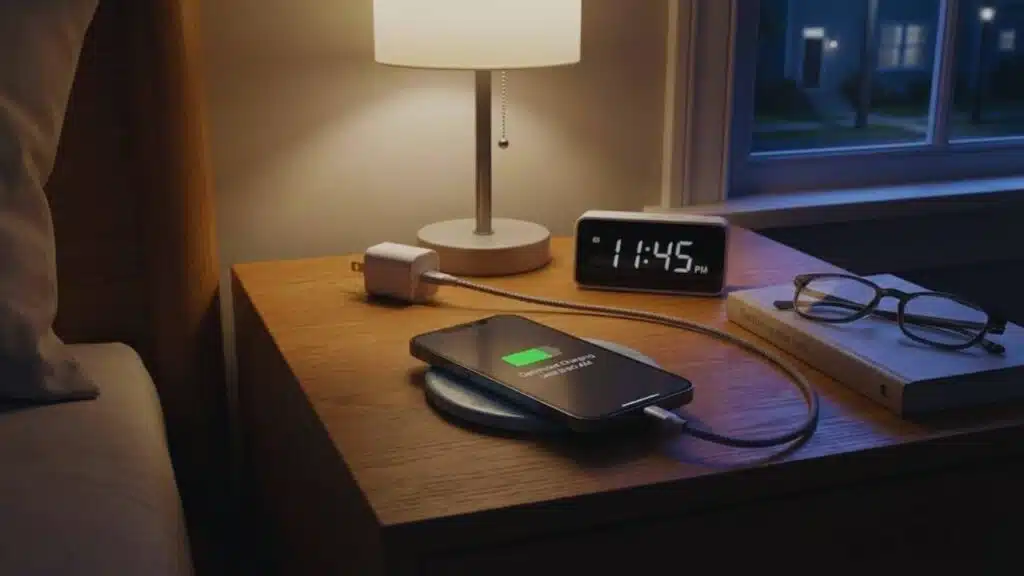
Battery saving tips are not only about making today last longer. They’re also about keeping your battery strong over time. Charging habits influence how quickly a battery ages, especially when heat is involved.
A practical goal is to reduce stress on the battery without turning your life into a science project. You don’t need perfect 20–80 behavior every day. You need fewer extreme situations: less heat, less time sitting at 100% in hot conditions, and fewer full drains.
If your device supports optimized charging or a charge limit, use it. These features are designed to reduce wear by managing time at high charge levels. They work quietly in the background.
The most important rule is heat management. Heat during charging is more harmful than the exact number on the screen. Keep charging cool and you’re already doing a lot.
| Charging habit | What it helps | Best simple version |
| Avoid heat while charging | Battery health + stability | Cool surface, case off if hot |
| Use optimized charging | Reduces wear over time | Leave it enabled |
| Avoid full drains often | Reduces stress | Plug in before 10% when possible |
| Don’t sit at 100% in heat | Reduces aging | Unplug if device is hot |
The 20–80 idea, explained in real life terms
The “20–80” idea is not a strict law. It’s a practical guideline that aims to reduce battery stress. Batteries tend to be under more stress at very high and very low states of charge, especially with heat.
In real life, your goal is moderation. If you’re going out for a long day, charging to 100% is fine. If you’re at home and don’t need a full charge, stopping around 80–90% can be gentle on the battery.
What matters most is not being perfect. What matters is reducing repeated extremes over months. Small improvements compound.
Simple approach:
- Charge to 100% when you need it
- Otherwise, unplug earlier when convenient
- Avoid living at 0% and 100% daily
Overnight charging: how to do it safely and smartly
Many people charge overnight because it’s convenient. The main concerns are heat and time spent at full charge. Modern devices manage charging better than older ones, but habits still matter.
If your device supports optimized overnight charging, turn it on. It may delay the final part of charging until closer to your wake time. That reduces time at full charge.
Also manage heat. Don’t charge under pillows or blankets. Don’t charge on soft surfaces. Use a quality charger and cable to reduce unnecessary heat and instability.
Overnight best practices:
- Use optimized charging if available
- Charge on a hard surface
- Keep the device cool and uncovered
Tip 11: Know when aging is the real problem
Sometimes you can optimize all day and still get poor runtime. That usually means your battery has aged. As batteries age, they lose capacity. That means “100%” simply holds less energy than it did when new.
Aged batteries often show unstable behavior. You may see sudden drops during heavy tasks. You may see shutdowns at 15% or 20%. You may notice the device getting warm more easily. These are signs that settings alone won’t restore the original experience.
This doesn’t mean optimization is useless. It still helps. But it changes expectations. The goal becomes “make the best of current capacity” and “avoid stress that speeds aging.”
If you’re unsure, compare your device’s current runtime to what it had when new. If the drop is major and consistent, replacement may be the most cost-effective fix.
| Sign | Likely cause | Practical next step |
| Major capacity loss | Normal aging | Consider replacement |
| Sudden drops under load | Aging or heat | Reduce heat, check health |
| Unexpected shutdowns | Aging or faulty battery | Service check recommended |
| Good health but high drain | Settings/apps | Focus on Tip 3 and Tip 12 |
Symptoms that point to capacity loss
Capacity loss looks like shorter total runtime no matter what you do. You can reduce drain, but the ceiling is lower. You may also notice that charging seems faster, because there is less capacity to fill.
Another sign is that the device struggles under heavy tasks. Camera use, navigation, video calls, and gaming demand more power. If the battery can’t deliver it smoothly, you get drops or shutdowns.
If you notice these symptoms, it’s smart to shift to “protect what you have.” Reduce heat, use optimized charging, and avoid deep drains. These habits slow further aging.
Common symptoms:
- Short runtime even with light use
- Sudden drops during heavy tasks
- Device gets warm quickly
- Battery percentage feels “less reliable”
When a battery replacement makes more sense than more tweaking
If you’ve applied the major fixes and still struggle daily, replacement can be the most effective solution. It restores capacity and improves stability. For many devices, the user experience improvement is bigger than any settings tweak.
Replacement is especially worth it if you rely on the device for work. Losing battery during travel, meetings, or assignments costs time and stress. A fresh battery can restore confidence.
If you are not ready for replacement, use saver mode and a power bank as a temporary solution. But if the battery is clearly aged, these are workarounds, not fixes.
Decision guide:
- If drain is new and sudden: troubleshoot first
- If drain has worsened slowly over years: likely aging
- If you see shutdowns or swelling: service immediately
Tip 12: Do a “battery reset” troubleshooting pass for sudden drain
Sudden battery drain is often a software problem. A new app, a recent update, or a stuck process can create runaway background activity. This is where structured troubleshooting beats random changes.
Think of it as a reset of battery behavior, not a reset of your whole device. You’ll restart, check battery stats, remove recent suspects, and retest. The goal is to quickly return to normal performance without losing data.
If the drain is severe, start with the simplest steps first. Restarting fixes many stuck issues. Then check the top battery-draining apps again. If one app is clearly misbehaving, focus there.
If nothing stands out, move to deeper steps like network resets or safe mode testing. Only consider factory reset as a last resort. Most people won’t need it if they identify the offender.
| Step | What it fixes | Time |
| Restart | Stuck processes | 1 minute |
| Recheck battery stats | Finds offenders | 2 minutes |
| Update/uninstall recent apps | Removes bugs | 10 minutes |
| Network settings reset | Fixes modem drain | 5 minutes |
| Last resort reset | Deep system issues | Longer, with backup |
The 10-minute checklist to stop runaway drain
This checklist is designed to be fast. It targets common causes: runaway apps, bad updates, and background syncing. Use it when your battery suddenly behaves far worse than yesterday.
Start with a restart. Then look at battery stats again. Many times you’ll see one app sitting at the top with high background activity. That’s your lead.
If you recently installed a new app or changed a setting, reverse it. Also check for apps that gained new permissions. Those changes can increase drain.
Checklist:
- Restart the device
- Check battery usage list
- Update or uninstall the top offender
- Disable background refresh for non-essential apps
- Turn on saver mode temporarily and retest
Network resets and last resorts, with a calm approach
Network issues can drain battery because the device constantly searches, reconnects, and negotiates connections. If you see drain spikes in poor coverage or constant switching, a network reset can help.
A network reset can remove saved networks and Bluetooth pairings, so be prepared. But it can fix hidden connection problems. After the reset, connect only to your main Wi-Fi and test again.
Factory reset is a last resort. It can help when the system is deeply unstable, but it costs time. If you go this route, back up first and restore carefully. Sometimes restoring every app and setting brings the drain back, so consider a clean setup if you suspect app-related issues.
Best order:
- Network reset if connectivity seems broken
- Safe mode testing if one app might be causing issues
- Factory reset only if you can’t stabilize drain otherwise
Battery optimization myths that waste your time
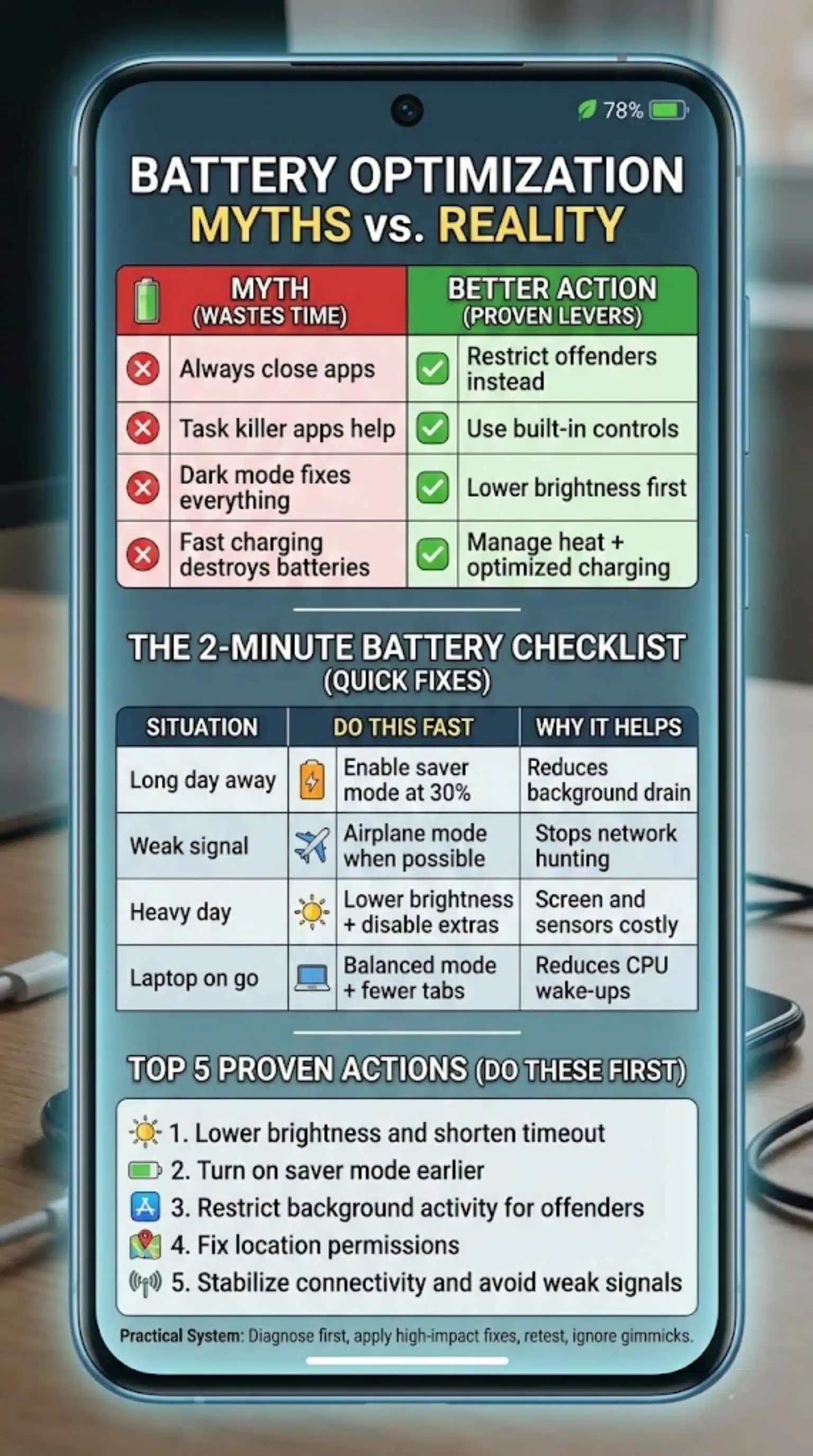
Battery myths spread because they sound logical. But modern devices manage memory and power aggressively. Some “tips” can even backfire by forcing more work in the background.
A big myth is that constantly closing apps saves battery. Sometimes it does, but often it makes the device reload apps repeatedly, which can cost CPU and power. A better approach is restricting background activity for specific offenders.
Another myth is that random “task killers” improve battery. Many of these apps create more background processes, more ads, and more notifications. They can reduce performance and cause instability.
Dark mode is also misunderstood. It can help in some cases, especially on certain screen types and brightness levels. But it’s not a magic fix. Brightness and screen time usually matter more.
Stick to proven levers: screen, background activity, location, connectivity, heat, and charging habits.
| Myth | Why it’s misleading | Better action |
| “Always close apps” | Reloading costs power | Restrict offenders instead |
| “Task killer apps help” | Adds overhead | Use built-in controls |
| “Dark mode fixes everything” | Depends on many factors | Lower brightness first |
| “Fast charging always destroys batteries” | Heat and habits matter more | Manage heat + use optimized charging |
What to do instead of chasing myths
The best alternative is measurement and targeted changes. You don’t need 50 tricks. You need the 5 that match your drain pattern.
Start with battery stats. Then change one thing at a time and watch what happens. This builds confidence because you can see real results. It also keeps your device stable.
Also focus on your routine. If you’re on video calls all day, your battery will drain. If you’re in weak signal areas, your battery will drain. Optimization helps, but it can’t break physics.
Your practical system:
- Diagnose first
- Apply high-impact fixes
- Retest and keep what works
- Ignore gimmicks
Quick reference: The 2-minute battery checklist
Some days you don’t want to think. You just want your battery to last. This checklist gives you the highest-impact moves you can apply quickly.
These steps work because they reduce continuous drains. They also work because they prevent accidental waste. Most people see better battery consistency the same day.
This is also a good “travel day” plan. When you’re away from charging, you want predictable battery. Saver mode, brightness control, and permission discipline are your best friends.
If you only do a few things, do them early. Battery saving is easier at 70% than at 7%. Early changes prevent you from entering crisis mode later.
| Situation | Do this fast | Why it helps |
| Long day away | Enable saver mode at 30% | Reduces background drain |
| Weak signal area | Airplane mode when possible | Stops network hunting |
| Heavy day (maps/camera) | Lower brightness + disable extras | Screen and sensors are costly |
| Laptop on the go | Balanced mode + fewer tabs | Reduces CPU wake-ups |
If you only do 5 things, do these
These are the most reliable battery saving tips for most people. They are simple, fast, and don’t break critical features.
They also scale. The more you use your device, the more these changes matter. If you’re a light user, you’ll still gain stability and reduce overnight drain.
Do them in this order. The first two give you immediate wins. The next three prevent hidden drain.
Top five:
- Lower brightness and shorten timeout
- Turn on saver mode earlier
- Restrict background activity for top offenders
- Fix location permissions
- Stabilize connectivity and avoid weak-signal hunting
A “travel day” setup that doesn’t ruin your phone
Travel days punish batteries. You use maps, camera, messaging, and sometimes spotty networks. The goal is to preserve battery without disabling everything.
Use saver mode earlier. Keep maps allowed to use location while using the app. Limit location for everything else. Prefer stable Wi-Fi in hotels, and don’t auto-join weak public networks.
Also consider power strategy. Charge when you can, not only when you must. Small top-ups during the day reduce stress and prevent emergencies.
Travel setup:
- Saver mode at 40% if you’ll be out late
- Maps location allowed while using
- Disable background refresh for non-essential apps
- Keep brightness moderate, not max
- Airplane mode in dead zones
Wrap-up
Battery life improves when you focus on the biggest drains, not tiny tricks. The most effective battery saving tips target screen power, background activity, location permissions, connectivity stability, and heat. Start with the 2-minute diagnosis, apply the tips that match your battery stats, and re-test with a simple baseline.
If your battery is healthy, these changes can add meaningful daily runtime and reduce overnight drain. If your battery is aged, the same steps still help, but they work within a smaller capacity. Either way, you now have a repeatable system you can use anytime battery life gets worse.
Use these battery saving tips as a toolkit. You don’t need every setting change every day. You just need the right changes for the right situation
FAQs
What are the best battery saving tips that work immediately?
Start with the biggest drains first. Lower screen brightness, reduce screen timeout, and turn on Battery Saver or Low Power Mode. Then check battery usage stats and restrict background activity for the top draining apps. These changes usually show results the same day.
Why does my battery drain fast even when I’m not using my phone?
This is usually background activity. Common causes include social apps refreshing, cloud sync, location running in the background, and constant notifications waking the device. Poor signal can also drain battery because your phone keeps searching for a stable connection.
Does dark mode really save battery?
Sometimes. Dark mode can save more power on phones with OLED displays, especially at higher brightness. On LCD screens, the savings are often smaller. In real life, lowering brightness and reducing screen-on time usually matters more than dark mode alone.
Is it okay to keep Battery Saver or Low Power Mode on all the time?
It depends on how you use your device. Keeping it on can reduce background refresh and performance, which may delay emails, updates, or syncing. A better approach is to enable it at 30% or when you know you’ll be away from charging for hours.
What drains a phone battery the most?
For most people, it’s one or more of these: screen brightness, long screen-on time, background app refresh, location services, and weak cellular signal. Heavy tasks like video calls, gaming, and navigation can also drain batteries quickly.
How do I stop battery drain overnight?
First, check battery stats to see which app is active in the background. Then restrict background activity for non-essential apps, disable background refresh, and turn off unnecessary notifications. If you’re in a weak signal area at night, airplane mode (or airplane mode with Wi-Fi on) can help.
Is it bad to charge my phone overnight?
Overnight charging is usually safe, but heat and time at full charge can increase long-term wear. If your phone supports optimized charging or a charge limit, turn it on. Also avoid charging under pillows or blankets, and charge on a cool surface.
Should I charge to 100% or stop at 80%?
For daily convenience, charging to 100% is fine when you need it. For long-term battery health, stopping around 80–90% when you don’t need a full charge can reduce stress. The most important thing is avoiding heat during charging.
Why does my battery drop from 30% to 10% suddenly?
That often points to battery aging or a battery that struggles under load. It can also happen if a device is very cold or if software is misreporting. If it happens regularly, check battery health and consider a battery replacement.
How can I extend laptop battery life quickly?
Lower screen brightness, turn on a battery saver mode, close heavy background apps, and reduce the number of browser tabs and extensions. Also disable non-essential startup apps so your laptop stays efficient on battery.
Do battery saver apps help?
Most third-party “battery booster” apps don’t help much and can make things worse by running in the background or pushing ads and notifications. Built-in system tools and targeted app restrictions are usually more effective and safer.
When should I replace my battery instead of using more battery saving tips?
If your battery life has steadily worsened over years, if you get sudden shutdowns, if the device gets hot during light tasks, or if battery health shows a major capacity drop, replacement may be the best fix. Optimization still helps, but it won’t restore lost capacity.