
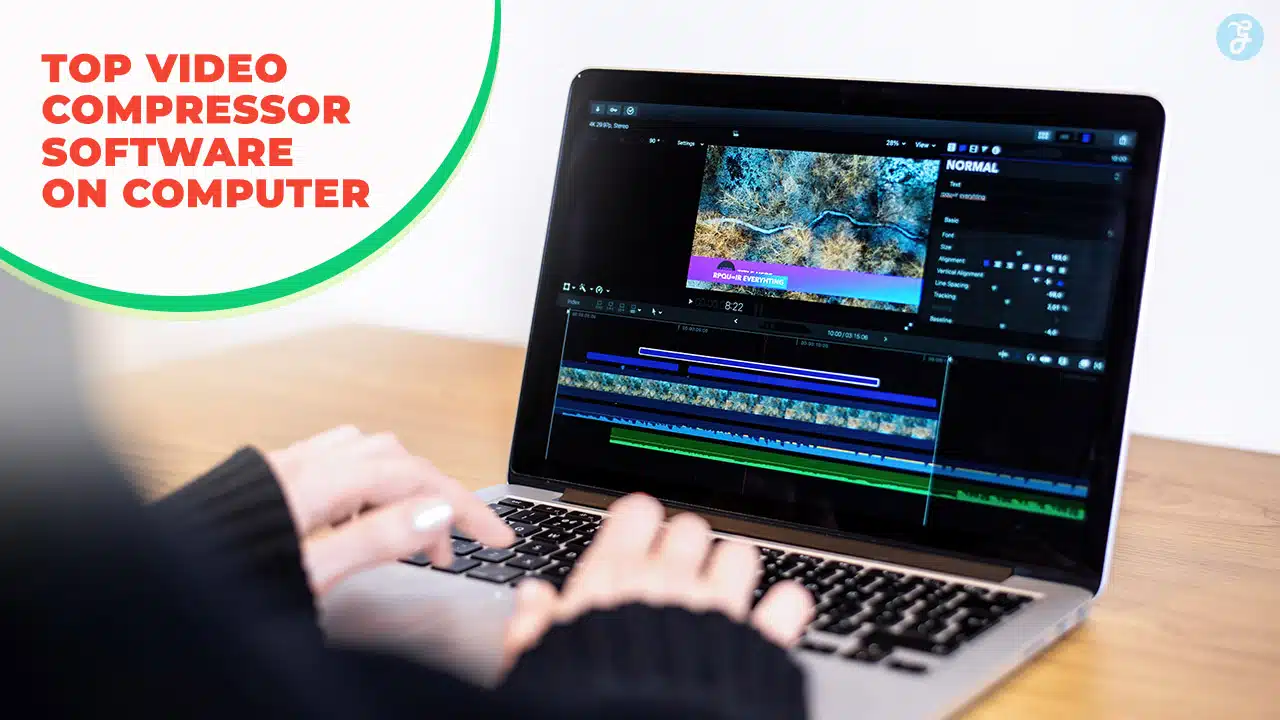
Does your computer feel slow because of huge video files? Maybe you tried to share a fun video, but it was too big for email or social media. This is a common problem, like trying to squeeze a giant into a tiny room.
Big video files quickly fill up your storage. They can make your computer run slowly. A good video compressor helps here. It offers smart video compression and file size reduction.
You get smaller files without losing video quality.
Here is a cool fact: tools like VideoProc Converter AI can compress videos directly. You pick the size, perfect for sharing on Discord or email. You can make big video files smaller.
Your crisp video stays clear, not blurry. This guide shows you the top 10 Video Compressor Software On Computer. We cover their features, what is good about them, and what is not. We will look at tools like Movavi Video Converter, HandBrake, and Freemake Video Converter.
We also check out free programs like VLC Media Player, FFmpeg, and Shutter Encoder. We will even see how GPU acceleration and H.265 codecs help. Find your best compression tool.
How to Choose the Best Video Compressor
Picking the best video compressor, it’s like finding that sweet spot, where your video looks great but doesn’t eat up all your storage space. You’ll want a program that handles your specific video file types, offers a friendly design, and even includes useful extras.
Compression quality vs. file size
Video compression involves a delicate balance. You want smaller files, but you also want good quality. This choice hinges on lossy versus lossless compression. Lossy compression drastically reduces video file size.
It removes some data permanently. This can affect the visual quality of your compressed videos. Imagine it like a chef trimming fat; the dish gets lighter, but some richness may disappear.
Lossless compression, by contrast, keeps all original data. It maintains the exact video quality. This method results in much larger file sizes. For instance, a 1080P, 1-hour H.264 video at 15 FPS consumes 23.3 GB of storage.
The same video at 120 FPS can balloon to 186.4 GB. Modern video compression algorithms, like H.264 and H.265 (HEVC codec), offer a great balance. They achieve significant file size reduction while preserving high quality.
A 2-minute video at 35 Mbps is 518.4 MB. Reducing its bitrate to 12 Mbps shrinks it to 172.8 MB. This clearly shows how bitrate impacts storage optimization for various video file formats.
Choosing the right video compressor or compression software means understanding these compromises.
Supported file formats and codecs
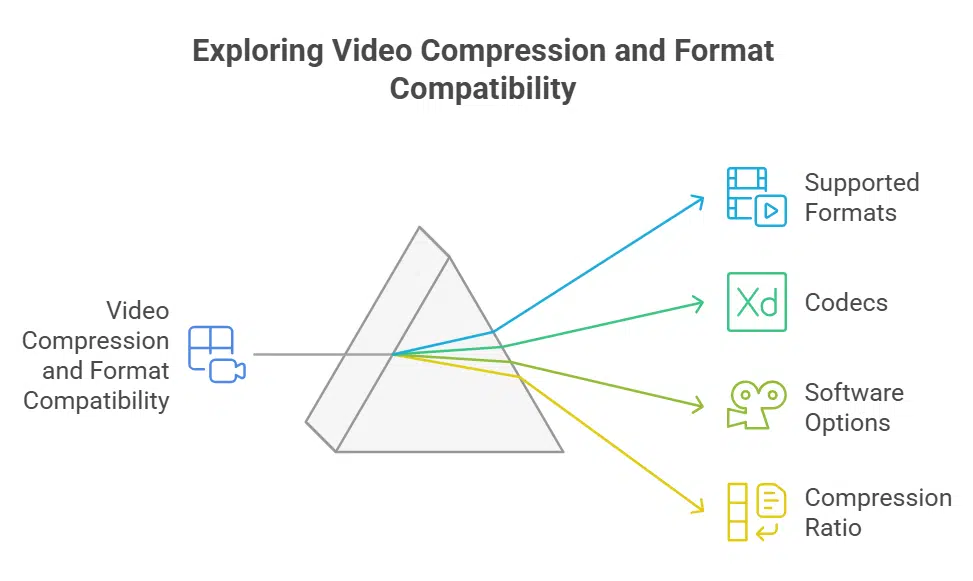
Moving beyond the balance of compression quality and file size, the supported formats of your chosen software become crucial. A capable `video compressor` must handle a diverse array of `media formats`.
You might need to `compress` an `AVCHD` file from a digital camera, or perhaps an `MP4` recording from your `iPhone`. A truly versatile tool will manage these different `video conversion` tasks with ease.
`VideoProc Converter AI` shines here, supporting over 370 distinct formats. `Movavi Video Converter` also offers extensive compatibility, working with more than 180 formats. This wide support helps achieve `file size reduction` across various input sources.
Codecs are the real power behind efficient `video compression`. These digital engines encode and decode your `video data`. Modern `codecs` like `H.264/AVC` and `H.265/HEVC` are excellent for `compressing` media.
`HEVC videos`, for instance, deliver a remarkable `compression ratio` while preserving visual clarity. `HandBrake`, an `open-source software`, specifically focuses on `MP4`, `MKV`, and `WEBM` formats, leveraging these advanced codecs.
`Any Video Converter` supports over 200 formats, including these essential `H.265 codec` options. Choosing software with up-to-date `codecs` leads to superior `storage optimization` for all your media.
Ease of use and interface
Choosing a video compressor often boils down to its ease of use. A friendly interface makes shrinking videos much simpler. Nobody wants to wrestle with complicated software. VideoProc Converter AI earns high marks, with a 4.1/5 rating, for its user-friendly design.
Movavi Video Converter also offers a sleek interface, making video conversion an easy process.
Some programs present more of a challenge. HandBrake, for instance, has a steep learning curve. Its interface is less intuitive for new users. VLC Media Player, while versatile for media playback, uses technical jargon for compression tasks.
This makes it less beginner-friendly for reducing file size. Freemake Video Converter was once simple, but its last update was in 2017. This makes it quite outdated for modern video compression needs.
You want a tool that gets the job done without extra headaches. Good usability helps you quickly optimize storage space.
Advanced features (batch processing, editing, etc.)
A smooth interface is good, but deeper functions truly make a video compressor shine. Many top programs offer advanced features. Batch processing lets you compress many video files together.
This saves a lot of time, especially for large projects. VideoProc Converter AI excels with this, also adding AI video enhancement for better quality.
Some tools go further, including video editing tools. You can trim unwanted parts or crop your video. Sony Vegas Pro provides extensive editing options. It also has AI features, like Text to Speech and Colorization, for creative control.
Movavi Video Converter handles batch conversion well, offering device-specific presets. HandBrake, an open-source software, also supports batch processing for custom jobs. Any Video Converter leverages GPU acceleration, using CUDA and NVIDIA power for quicker video conversion.
These features boost your storage optimization and file size reduction efforts.
VideoProc Converter AI
VideoProc Converter AI shrinks videos, using GPU acceleration to reduce their size, and offers many other features to explore.
Features & Description (VideoProc Converter AI)
VideoProc Converter AI acts as a powerful digital media transformer. This software employs AI to enhance and convert video files. It delivers 40-80% faster processing on Windows computers.
You can shrink video content by over 90% without visible quality compromise. This capability ensures significant file size reduction. The program supports more than 370 different video formats, operating at 47 times faster speeds.
Its GPU acceleration leverages your video processing unit for rapid work. This helps with efficient storage optimization.
The tool handles resolutions up to 10K, maintaining 99% of the original quality during compression. This is a big plus for high-definition media. It supports modern codecs like H.265 for superior video compression.
You can use this video compressor on Windows 7 and newer systems. It also runs smoothly on macOS 10.13 and later versions. The software provides reliable video conversion for various needs.
Pros & Cons (VideoProc Converter AI)
So, you have seen what this program can do. Now, let’s talk about where it shines, and where it might stumble a bit.
| Category | Details |
|---|---|
| Pros |
|
| Cons |
|
| Overall Assessment |
|
Movavi Video Converter
Movavi Video Converter offers a speedy solution for `video compression`, often leveraging `GPU acceleration` to shrink those cumbersome files, and there’s a whole lot more to uncover about its clever features.
Features & Description (Movavi Video Converter)
Movavi Video Converter stands as a powerful tool for video compression and file size reduction. It helps users shrink large video files without losing much quality. This software supports a wide array of formats, making video conversion simple for anyone.
You can change videos to popular types like MP4, AVI, or MOV with ease. It even handles less common file formats.
This program offers more than just basic conversion; it acts as a versatile video editor. Users can trim clips, crop frames, or adjust colors before saving. GPU acceleration speeds up the transcoding process significantly, meaning less waiting around.
It also supports modern codecs like H.265 for efficient storage optimization. For those needing to prepare videos for portable media players or streaming media, Movavi provides many device-specific presets.
It is a solid choice for anyone seeking a comprehensive video compressor on their computer.
Pros & Cons (Movavi Video Converter)
Looking at Movavi Video Converter? This program offers clear benefits, yet also carries some drawbacks for users.
| Pros | Cons |
|---|---|
| It offers a very intuitive user interface. | This program requires a purchase. |
| The software supports many file types. | Trial versions include watermarks. |
| Video compression happens quickly. | Advanced codec controls are limited. |
| It works well across many devices. | It can use significant computer resources. |
| Basic editing features are available. | Some users find frequent update notifications. |
| Output video quality stays high. |
HandBrake
HandBrake, a free open-source program, shrinks video files for you, even those with H.265; discover more below.
Features & Description (HandBrake)
HandBrake serves as a popular open-source video transcoder. It is a true workhorse for video conversion. This free software runs smoothly on Windows, Mac, and Linux. You can shrink your video files.
Convert them into popular formats like MP4, MKV, and WEBM. It helps users reduce file size greatly. Sharing or storage optimization becomes a breeze.
This tool offers extensive customization options. Users get great control over the output. One can fine-tune video compression settings. Select specific video codecs, such as H.264 or the efficient H.265 codec.
Batch processing is a handy feature. Compress many video files at once. It is a solid choice for powerful, free video editing tools. The learning curve is not steep.
Pros & Cons (HandBrake)
HandBrake offers a powerful solution for video compression, yet it comes with its own set of advantages and challenges.
| Pros | Cons |
|---|---|
| This transcoding tool costs nothing. | Its learning curve feels steep. |
| It operates as open-source software. | The user interface is less intuitive. |
| It handles many video file types. | New users might find it complex. |
| Compression is very efficient. | |
| Video quality stays high. | |
| The application receives constant updates. | |
| New features arrive regularly. |
Freemake Video Converter

Freemake Video Converter helps make your videos small, like WMV and MP4, saving space; find out more.
Features & Description (Freemake Video Converter)
Freemake Video Converter offers a straightforward approach for your media tasks. The software supports conversion across more than 500 formats. You can convert videos to crisp 4K and Full HD resolutions.
This video compressor remains free to use for all your video conversion needs. The program provides device-specific settings, making content ready for many gadgets. It even handles ripping Blu-ray discs or DVDs, a handy feature.
This tool aids in file size reduction, promoting better storage optimization. It processes various video formats, like WMV and VOB files. Audio files, such as MP3s, are also well-supported.
These capabilities help achieve efficient video compression. Now, let’s explore the advantages and disadvantages of using this popular video conversion tool.
Pros & Cons (Freemake Video Converter)
Freemake Video Converter offers a compelling proposition. It works as a free video compressor, supporting many video formats. Users can also find device-specific presets, making video conversion simpler. This app helps with file size reduction and storage optimization for various uses. However, its compression speed is quite slow. The software has not received updates since 2017.
A significant downside, the program applies watermarks to compressed videos unless you pay for an upgrade. Its compression ratio sits around 80 percent. This tool often experiences frequent crashes. There are also concerns about bundled malicious software, so an antivirus program is vital. Next, we will explore VLC Media Player and its compression capabilities.
VLC Media Player
That familiar orange cone, VLC Media Player, isn’t just for watching videos; it’s also a free, open-source powerhouse for video compression, capable of shrinking files, so stick around to learn its hidden tricks.
Features & Description (VLC Media Player)
VLC Media Player stands as a true workhorse in the digital landscape. This free, open-source software tackles almost any video or audio format you throw at it. Imagine this: you have a quirky video file; VLC likely plays it without a fuss.
It runs smoothly across Windows, Mac, and Linux systems, plus mobile devices. Its broad format support includes common types like MP4, AVI, and MKV, along with audio formats such as FLAC, AAC, and OGG.
This versatile app makes multimedia playback simple for everyone.
Beyond simple playback, VLC offers surprising capabilities, making it a capable video compressor. Many folks do not realize its ability to perform video conversion. This feature helps significantly with file size reduction.
You can take a large video, perhaps one shot in high definition, and convert it to a smaller, more manageable file. It supports various codecs, like H.264 and even the more efficient H.265 codec, for optimal video compression.
Need to stream content or handle less common files like Apple ProRes or old MPEG2 video? VLC handles these tasks too, proving itself a strong tool for any digital media enthusiast.
Pros & Cons (VLC Media Player)
This media player comes with many perks. It is completely free, saving you money right away. The software supports a vast array of file formats, making video conversion simple. You can play almost anything, from standard H.264 to newer H.265 codec files. It even handles audio types like WMA and M4A, alongside lossless formats such as WAV. This open-source software boasts a lightweight design, which means it will not hog your computer’s resources.
There are a few drawbacks, however. The video compression process can be quite slow, especially for larger files. Some users might find the technical jargon a bit much. The interface, while functional, is not always intuitive for new users. Despite these points, the tool offers a solid compression ratio, often reducing file size by around 85 percent. Advanced features are available too. It allows for audio/video synchronization and easy subtitle integration, including ASS/SSA files. This helps with overall storage optimization.
FFmpeg
FFmpeg, a free program, shrinks video files with typed commands; find out how it works.
Features & Description (FFmpeg)
FFmpeg stands as a powerful, open-source software suite. It handles many multimedia tasks, including video conversion and editing. You can also use it for streaming content. This tool helps you achieve significant file size reduction through effective video compression.
It supports a vast array of video codecs, like H.264 and H.265, along with audio formats such as WAV.
This utility operates primarily through command lines. While this might appear complex initially, its power is immense for digital media professionals. It runs on Windows, macOS, and Linux systems.
Many popular video editing tools actually use FFmpeg’s core technology behind the scenes. You can even generate animated GIFs or adjust a video’s frame rate using its robust features.
Pros & Cons (FFmpeg)
After examining FFmpeg’s core functions, it’s time to weigh its benefits and drawbacks. This open-source software is completely free, a huge plus for anyone needing a video compressor. It works across many operating systems, making it widely accessible. This tool is incredibly feature-rich, offering extensive video conversion and video compression options. You can often achieve a file size reduction of 20% to 80%, which is fantastic for storage optimization. Plus, a large, active community offers plenty of help.
However, this powerful utility comes with its own set of challenges. Its main interaction point is a command-line interface, which can feel quite intimidating. There is a steep learning curve involved for newcomers. Getting the best results for video compression, especially with codecs like H.264 or H.265, demands precise command input. Setting up GPU acceleration, a useful feature for faster processing, also requires some technical know-how. While mighty, it is not the easiest app for everyone to master.
Shutter Encoder
Shutter Encoder, a free and open-source media transcoder, delivers impressive performance for video compression, supporting numerous encoding options like H.265 and H.264, so continue reading to discover its full potential.
Features & Description (Shutter Encoder)
This video compressor stands out as a powerful, free tool. It handles video conversion with ease. Shutter Encoder supports both lossy and lossless formats. This gives you flexibility.
This software uses the mighty FFmpeg for its core encoding work. You get good file size reduction. Quality remains high. It runs smoothly on Windows and macOS systems.
The tool offers color grading. This is a nice touch for a free app. It even taps into GPU acceleration for faster processing. This open-source software helps with storage optimization.
It can compress files for easier sharing on platforms like Google Drive. Next, let’s explore the capabilities of Any Video Converter.
Pros & Cons (Shutter Encoder)
Shutter Encoder stands as a powerful, free video compressor. This open-source software provides advanced editing capabilities, a real boon for creators. Users can perform batch processing, converting many files at once. The program offers impressive file size reduction, often compressing videos by 50% to 90%. It receives regular updates, keeping its features current.
Despite its strengths, Shutter Encoder presents some challenges. Documentation for the tool feels limited, making it harder for new users to grasp its full potential. The software can also demand high CPU usage, especially during intensive video compression tasks. While generally user-friendly, its many options might overwhelm novices at first glance. It leverages FFmpeg and can use your graphics card for GPU acceleration, speeding up H.264 or H.265 codec encoding. This tool handles various formats, from uncompressed video to lossless audio, aiding storage optimization.
Any Video Converter
Any Video Converter, a neat **tool**, shrinks large video files, offering simple **file size reduction**; read on to see its full use.
Features & Description (Any Video Converter)
Any Video Converter serves as a dependable tool for your video conversion tasks. This software helps users compress videos, making files much smaller. Imagine fitting more movies onto your hard drive, a real space-saver! It offers free video compression, and you won’t see any annoying watermarks on your finished work.
Plus, the quality stays sharp; no fuzzy pixels here. This program handles over 200 video formats, a truly broad spectrum.
The interface feels simple and intuitive, a breeze to navigate. Powerful GPU acceleration, driven by CUDA and NVIDIA technologies, makes conversions super fast. This means less waiting around for your video files to shrink.
It effectively compresses large videos for better storage optimization. The tool capably manages popular codecs, including H.264 and H.265.
Pros & Cons (Any Video Converter)
Any Video Converter serves as a popular choice for many. It offers a free platform, a true gem for budget-conscious users. This software supports a wide array of video formats, making it quite versatile. You can convert files for almost any major device. It helps you shrink video file size significantly, achieving a 60%-90% compression ratio. This tool uses advanced compression standards, like H.264 and H.265 codecs. Both casual users and seasoned professionals find it useful for their video conversion needs. This application aids in excellent storage optimization.
Despite its many strengths, Any Video Converter has a few drawbacks. Its effectiveness for 4K video compression faces limitations. Users might find their high-resolution files do not shrink as much as expected. This can be a hurdle for those working with large 4K video projects. While it handles standard definition and HD well, pushing gigabytes of 4K content through it might not yield optimal results.
Sony Vegas Pro (with Compression Features)
Sony Vegas Pro, a top video editor, also offers strong video compression, helping you make files smaller and work with high frame rate videos; learn more about its many features.
Features & Overview (Sony Vegas Pro)
Vegas Pro delivers comprehensive video editing capabilities. It expertly manages large video files, supporting both 4K and 8K resolutions. This software offers a vast collection of essential video effects.
Users gain access to advanced editing options, bringing creative visions to life. Its artificial intelligence features are quite clever, including Text to Speech for narration. Colorization AI can breathe new life into older footage.
GPU acceleration aids in video compression, often leveraging modern codecs like H.265 for efficient file size reduction. This powerful tool assists with storage optimization, keeping your media assets tidy.
It is a solid choice for serious content creators.
Pros & Cons (Sony Vegas Pro)
Sony Vegas Pro offers some compelling advantages for video creators. It boasts efficient memory usage, which helps your system run smoothly. Users often praise its real-time playback, making editing feel more immediate. The program also provides powerful audio editing capabilities, letting you fine-tune your sound. Many users give it a high rating for its efficiency and performance. It excels at video compression and file size reduction.
This professional video editing application has a few drawbacks. Its rendering can be quite slow, which might test your patience on larger projects. Customer support sometimes feels limited, leaving users to troubleshoot on their own. Its timeline is intuitive for most tasks. The software struggles significantly with handling 4K video. This can make advanced video compression for high-resolution content a challenge.
iMovie (Mac Exclusive)
Mac users, iMovie helps make videos small, and it has many other cool tools.
Features & Overview (iMovie)
iMovie serves as a powerful **video editing tool**, exclusive to Apple devices. This user-friendly **app** makes movie creation simple for everyone. It handles high-quality footage with ease.
The program supports **4K video**, **ProRes**, and **ProRAW** formats. Users can craft professional-looking projects. Its built-in capabilities assist with **video compression**.
Quick video creation becomes a breeze. Features like **Magic Movie** and **Storyboards** guide your process. These tools help users build stories fast. Projects move seamlessly across your iPhone, iPad, and Mac.
This allows for great flexibility and **storage optimization**. You can edit on an iPhone, then finish on a Mac. This helps with **file size reduction** for sharing.
Pros & Cons (iMovie)
iMovie offers a delightful entry point for video enthusiasts. This video editing tool is quite affordable, making it accessible to many. Users consistently give it a high rating, averaging 4.5 out of 5 stars. New creators can craft professional-looking content with ease. Its user-friendly design helps beginners get started quickly. You can achieve significant file size reduction, often compressing videos by 30% or more. This helps with storage optimization. The app serves as a basic video compressor too.
Despite its strengths, the program has some drawbacks. Users sometimes report glitches when starting new projects. Beginners might face initial navigation issues with its interface. The compression process, while effective for video size reduction, can lead to high CPU usage. This might slow down your computer during video conversion. For advanced video compression, users might want greater control over codecs like H.265 or H.264. It is a powerful tool, but it has its quirks.
Takeaway
We looked at many video programs, like VideoProc Converter AI and HandBrake, that help manage large digital recordings. These tools shrink file sizes easily, saving space and making uploads faster.
Which of these great programs will you choose for your video collection? Imagine sharing videos fast, thanks to smart ways like H.265 compression. Try different settings; a small change often gives good results.
Manage your digital space well; make every gigabyte count. Big video files used to be a headache, but these tools truly helped.