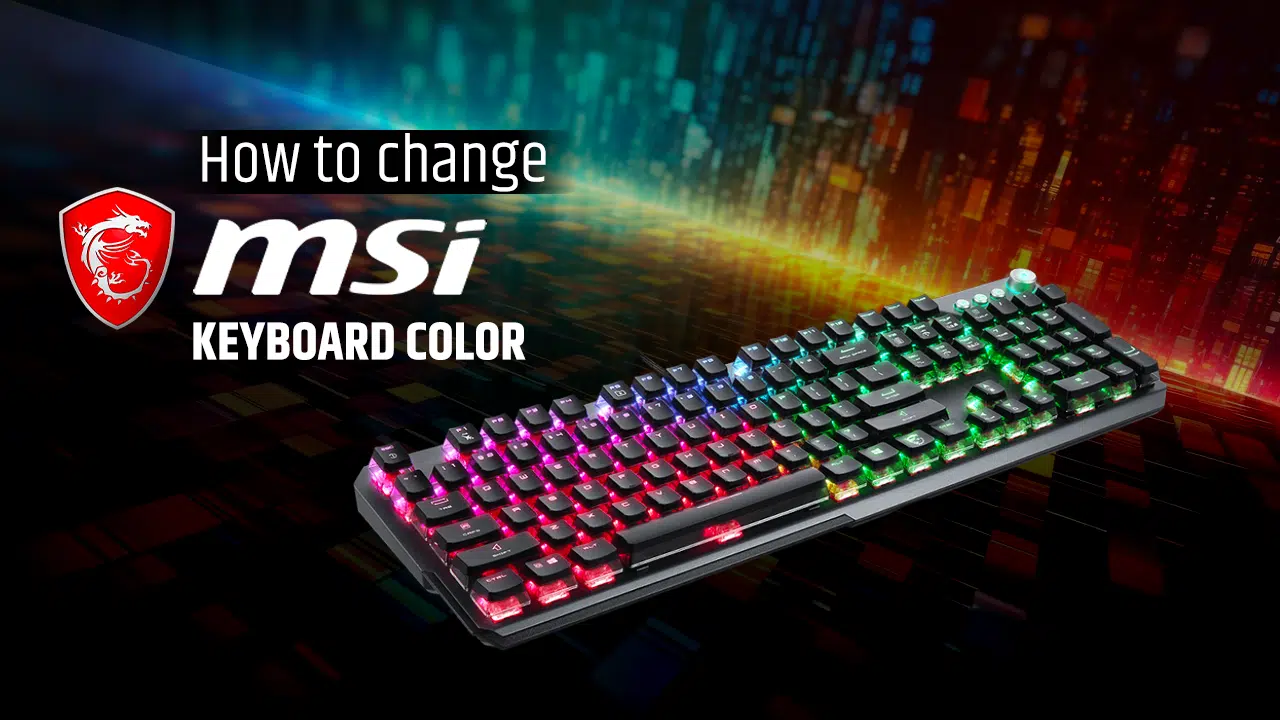
Have you ever caught yourself staring at your MSI keyboard, thinking it could really use a splash of color? If so, you’re in good company. Many of us crave that personal touch on our gear—something to make it unmistakably ours.
I recall those moments spent in front of my computer, feeling a twinge of dissatisfaction as my eyes met the uninspiring default backlight. Interestingly enough, MSI keyboards are designed with customization in mind, boasting full RGB lighting control to add that personalized flair.
In pursuit of making my setup not just cool but uniquely mine, I tried to change these colors. What I discovered were uncomplicated yet potent methods to breathe life into my keyboard: using function keys for on-the-fly adjustments, exploring the SteelSeries Engine 3 software for meticulous customization options, or navigating through the settings via MSI Dragon Center for those who favor an all-encompassing solution.
This guide shows you a step-by-step image guide on how to change MSI keyboard color.
How to Change MSI Keyboard Color [Step-by-Step Guide]
Changing your MSI keyboard color is easy and fun. I’ll show you how to do it in a few simple steps. First, we can use the function keys right on the keyboard. It’s fast and straightforward for a quick color change.
Second, there’s the SteelSeries Engine 3 software if your keyboard comes from SteelSeries. This app gives you more control over colors and effects. Then, we have the MSI Dragon Center for deeper customization options across all MSI devices.
Each method has its own perks—function keys for speed, SteelSeries Engine 3 for depth of choice, and MSI Dragon Center for syncing with other gadgets. Let’s dive in and light up that keyboard! Additionally, you can also read about- Best Gaming Keyboards.
Via Function Keys
I often change the color of my MSI keyboard to match my mood using function keys. It’s quick and doesn’t need any extra software.
- At first, look for the “Fn” key, usually found at the bottom row of the keyboard.
- Next, find the key with a keyboard icon and a color wheel, often labeled “C”. This is what controls the backlight colors: blue, red, green, and white.
- Now press “Fn” and this special key at the same time to cycle through different RGB combinations. Each press changes the color.
- If you want to adjust brightness, just use a designated brightness key if available or combine “Fn” with another function key that shows a sun icon or something similar.
- On your laptop without a SteelSeries function key, you may find out it only changes brightness levels because it has static backlight features.
This method makes customization easy and fast for me.
You May Find Interest: How to Clean Your Laptop Keyboard
Via SteelSeries Engine 3


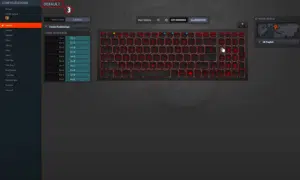
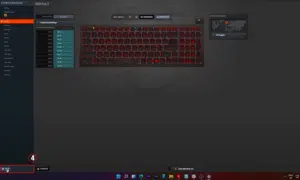
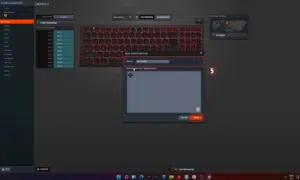
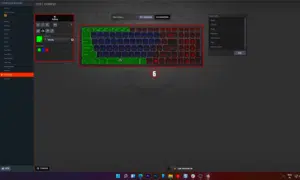
Changing MSI keyboard color is easy with SteelSeries Engine 3. This software gives me total control over the lighting. Here’s how I do it:
- First, open SteelSeries Engine 3 from the Start Menu. It’s right there, easy to find.
- Now click on MSI PER-KEY RGB. This option lets you change colors for each key.
- To make a new design, create a new configuration. This is where the fun starts.
- Selecting keys is simple. Just click on them or drag your mouse for group selection.
- The Magic Wand helps you pick keys with similar settings quickly.
- With the Paintbrush, you can color individual keys or groups any color you want.
- Sometimes you may make mistakes, but the Eraser fixes them in a snap.
- The Effect Picker is awesome for cool animations across your keyboard.
- Gamers like me love setting keybinds too, and it’s easy here.
SteelSeries Engine 3 makes my gaming setup look amazing and reflects my style perfectly without breaking a sweat!In addition, you can also read an article on- Pros and Cons of Using Wireless Keyboard.
Via MSI Dragon Center
I use MSI Dragon Center to customize my keyboard colors. It divides the keyboard into three areas, letting me pick different colors for each.
- At first, start by opening MSI Dragon Center on your laptop.
- Next, click on the “Mystic Light” section found in the dashboard.
- In Mystic Light, you will see the keyboard displayed in three parts: left, middle, and right.
- Just select each part one by one to choose a color. For example, I make the left side blue.
- Then, you need to adjust the brightness using a slider at the bottom of the screen. This makes your chosen color stand out more or less.
- If you want, you can also select effects like breathing or waves to make the colors move.
- After picking colors and effects, click “Apply” to save your choices.
- Sometimes, if your LED backlight doesn’t work right away, just check your BIOS settings to make sure everything is set up correctly.
This process makes it easy for me to personalize my keyboard’s look exactly how I like it.
Takeaways
Changing the color of my MSI keyboard brightens up my gaming and typing experience. With function keys, I cycle through blue, red, green, and white lights with ease. The SteelSeries Engine 3 software allows me to customize every key or zone on my keyboard, making it look just how I want.
If that’s not enough, the MSI Dragon Center splits my keyboard into three parts for even more color control. Sure, using my notebook or desktop is fun and personal!