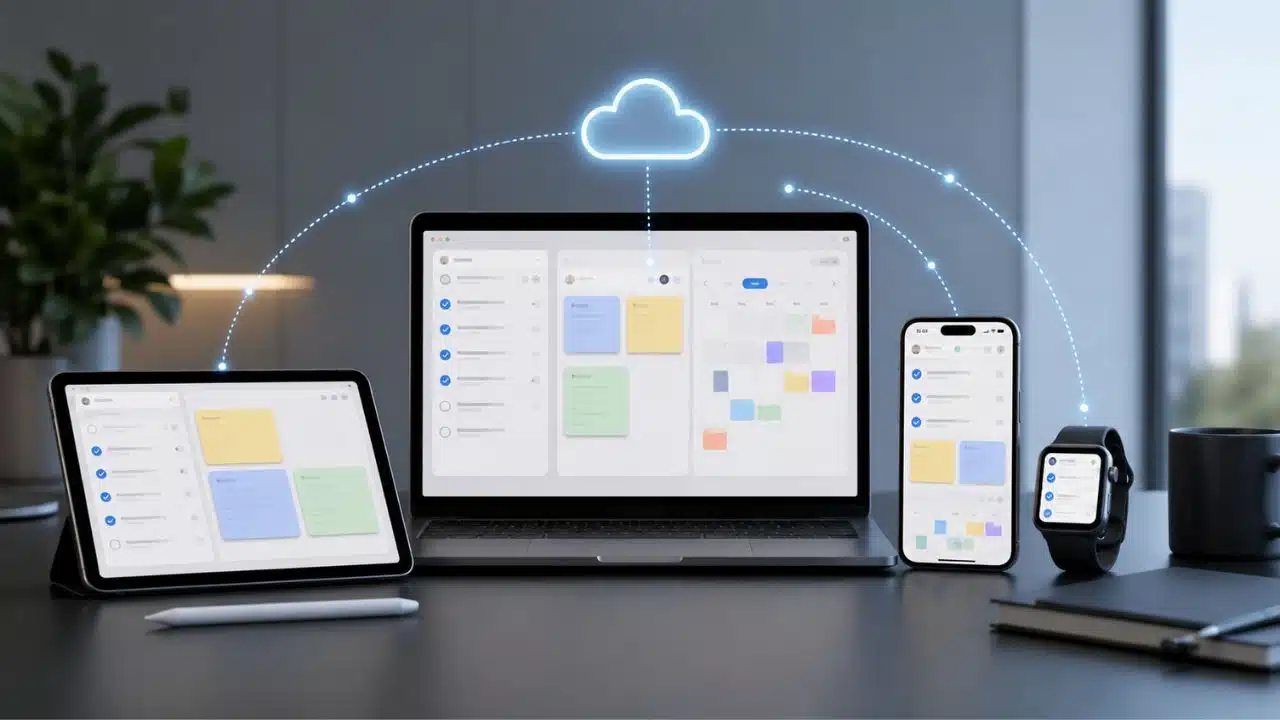
You probably own more devices than you think, and your tasks are scattered across all of them. The average number of connected devices per person worldwide rose from 2.4 in 2018 to 3.6 by 2023, per Statista, and the average U.S. household now runs about 21 connected devices, per Consumer Affairs.
Apple alone has more than 2.5 billion active devices worldwide, per its fiscal 2026 first-quarter earnings call. Yet most people still manage tasks in one app, notes in another, and a calendar that refuses to talk to either. This guide shows you how to sync all three across every device you own, with the exact tools and setups that actually work.
Why sync breaks in the first place
Here’s the uncomfortable truth: sync doesn’t fail because technology is bad. It fails because you’re mixing ecosystems.
I’ve watched this happen for years. Someone buys an iPhone for work, keeps an Android for personal use, and wonders why their Google Calendar events vanish from the Apple app. Or they take notes in Apple Notes on their Mac, then open a Windows laptop and find nothing there. Every major ecosystem syncs beautifully with itself and awkwardly with everyone else.
The math explains why this matters. The average person now carries a phone, a laptop, a tablet, and a watch, and each one defaults to a different home for your data. DataReportal counts 5.83 billion unique mobile users worldwide as of April 2026, and every one of those phones syncs somewhere. Until you pick one sync backbone and route everything through it, you’ll keep retyping tasks and losing notes.
The good news is the fix is simple in concept: one source of truth, accessible from everywhere. The rest of this guide shows you how to build that, whether you’re all-in on one ecosystem or hopping between three.
The sync options at a glance
Before you choose anything, understand the four basic approaches. I’ve watched people skip this step and regret it a year later, when they’re three subscriptions deep into a setup that still doesn’t talk to itself. Each one has a tradeoff, and the right answer depends on where your devices already live.
| Approach | How it works | Best for | The catch |
| Ecosystem sync | iCloud, Google, or Microsoft syncs everything across its own apps | People with one dominant ecosystem | Cross-platform gaps |
| Cross-platform apps | Todoist, Notion, Obsidian sync via their own cloud | Mixed-device households | One more subscription |
| Open standards | CalDAV and CardDAV sync through any compatible server | Power users who want control | Setup friction |
| Self-hosted | Nextcloud on your own server | Privacy-focused users | You maintain it |
Google Calendar alone has more than 500 million monthly active users, per EarthWeb, which tells you how deep the ecosystem approach runs. You’re not going to out-swim those defaults, and honestly, you don’t need to. Apple Calendar reaches the entire 2.5 billion-device installed base without anyone downloading anything. Those defaults are powerful, and fighting them is usually the wrong move. The smarter play is choosing which default wins and then bridging the gaps.
The Apple route: iCloud
If your devices are mostly Apple, stop here. iCloud is the least-effort sync you’ll ever set up.
Turn on iCloud for Calendar, Reminders, and Notes on your iPhone, and everything appears on your Mac, iPad, Apple Watch, and the web at icloud.com within seconds. Changes are instant, offline edits queue up and sync when you reconnect, and it all just works. Apple’s installed base of more than 2.5 billion active devices runs on exactly this promise, per Apple’s fiscal 2026 Q1 earnings.
The weaknesses are real but manageable. iCloud web access exists, so you’re not locked out of a Windows machine, but the experience is thinner than native apps. Reminders is powerful but simple, which frustrates people who want subtasks and tags. Notes handles text, lists, and attachments well but gets clumsy with heavy tables or collaboration.
My honest take: if you’re all-in on Apple, use iCloud for everything and don’t overthink it. The sync is the best-in-class feature you already paid for.
The Google route: Calendar, Tasks, Keep
Google’s approach spreads sync across three apps, and that’s both its strength and its weakness.
Google Calendar is the anchor, with over 500 million monthly active users, per EarthWeb. It syncs flawlessly to Android, iOS, and every web browser, and it’s the calendar most people already trust. Google Tasks lives inside Calendar’s side panel, which means tasks and events can sit on the same screen. Google Keep handles notes, lists, and voice memos, and it syncs everywhere Google does.
The catch is that Google splits what Apple keeps together. Tasks is a solid to-do list but not a project manager. Keep is a great scratchpad but weak for structured notes. Power users often end up pairing Google Calendar with a heavier tool like Notion or Todoist, which is a fine pattern as long as you accept the split.
If your phone is Android and your laptop is a Chromebook or Windows machine, Google is your path of least resistance. Everything syncs through one Google account, and the web apps mean no device is ever left out.
The Microsoft route: Outlook, To Do, OneNote
Microsoft quietly built one of the most complete sync stacks, and it’s the best choice if you live in Windows or use Microsoft 365 at work.
Outlook holds your calendar and email, and it syncs across Windows, macOS, iOS, and Android. Microsoft To Do syncs tasks with the same account and even pulls tasks from Outlook flagged emails. OneNote handles notes with deep hierarchy, tags, and handwriting support, and it syncs through OneDrive. Microsoft 365’s paid base runs into the hundreds of millions of seats, which is why this stack feels so polished inside corporate walls.
The strength here is the integration between tasks and email, and it’s genuinely underrated. Flag an email in Outlook and it becomes a task in To Do. That single flow saves more time than any fancy feature list. The weakness is that the apps are utilitarian rather than delightful, and OneNote’s sync can occasionally get tangled with large notebooks.
If you use Windows at work and an iPhone at home, Microsoft’s apps are the bridge that keeps everything talking.
Cross-platform tools that work anywhere
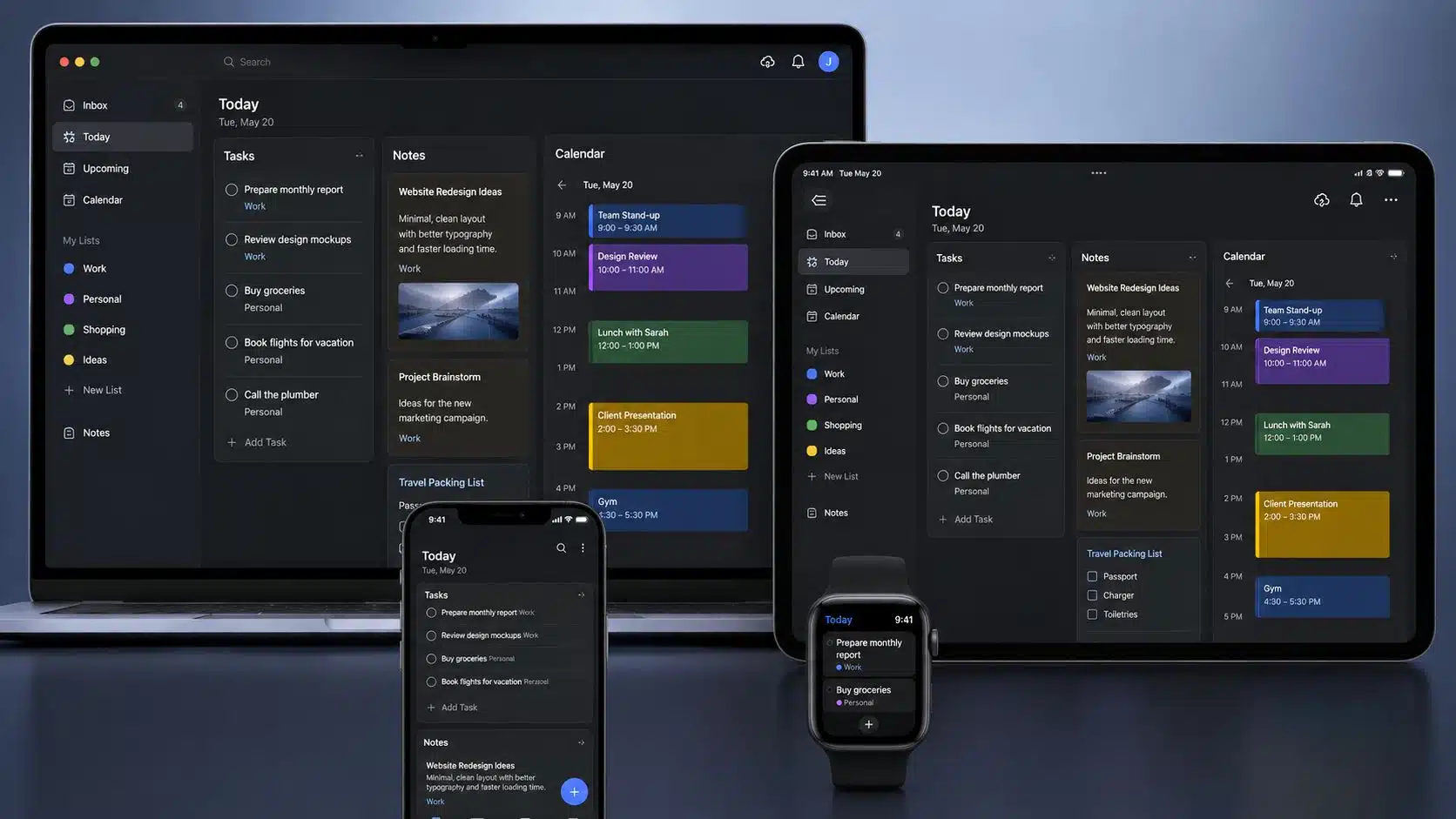
Sometimes you need one app that behaves identically on every device, with no ecosystem loyalties. Three tools dominate this space.
Todoist is the task manager that works on literally everything: iOS, Android, Windows, macOS, Linux, and every browser. Tasks sync in real time, and its natural-language date parsing is still the best in class. It’s the choice when your household mixes every platform under one roof.
Notion is the notes and database tool that passed 100 million users, and it syncs pages, databases, and now AI features across every platform. It’s heavier than a notes app and closer to a workspace, which is exactly what some people need and what others should avoid.
Obsidian is the local-first notes app built on plain Markdown files. Your notes live on disk, sync through its paid Sync service or any folder sync tool, and never depend on a vendor’s cloud. Power users love the plugins and the fact that their data is never held hostage.
Todoist
Todoist’s interface puts tasks, priorities, and due dates in one interactive list that works identically on every platform, which is the whole point of a cross-platform task manager. Screenshot: todoist.com, captured August 2026.
Notion
Notion’s workspace blends notes, databases, and calendar views in one syncable surface, and its calendar view is the natural home for time-blocked tasks. Screenshot: notion.com, captured August 2026.
The tradeoff across all three is the same: you’re adding a subscription and trusting a third-party cloud. For mixed-device households, that cost is worth the peace of mind.
The standards underneath: CalDAV and CardDAV
If you want to understand why any of this works, learn two acronyms: CalDAV and CardDAV.
CalDAV is the open standard for calendar sync, defined by the IETF in RFC 4791 in 2007. It’s built on WebDAV and uses the iCalendar format, and it’s what Apple Calendar, Thunderbird, Nextcloud, and dozens of other apps use to sync events across devices. CardDAV is its sibling for contacts, defined in RFC 6352, storing address books as vCards.
Why does this matter to you? Because standards mean choice. A CalDAV-compatible calendar app can sync with any CalDAV server, which is why you can point your iPhone’s calendar at a Nextcloud server, a Google account, or a corporate server without changing apps. When a sync setup feels flexible, it’s almost always because it speaks CalDAV and CardDAV underneath.
The practical takeaway: when choosing tools, prefer ones that support open standards. They’re the ones you can migrate away from later, and migration freedom is the quiet feature nobody puts on the pricing page. I’ve moved people off three different note apps over the years, and the ones who chose standards-based tools packed up in an afternoon. The others are still stuck.
Self-hosted sync with Nextcloud
For privacy-focused users, Nextcloud is the serious option: your own cloud server that syncs calendars, contacts, files, and notes.
Nextcloud natively supports CalDAV for calendars and CardDAV for contacts, which means your iPhone, Android phone, and desktop apps all sync to your own server. You control the data, the backups, and the retention. The URL pattern for the sync endpoint is predictable, which makes setup straightforward on any device.
The cost is maintenance. You’re running a server, keeping it updated, and handling backups yourself. If that sounds like a project, it is. But for people who refuse to store personal calendars on third-party clouds, Nextcloud is the answer that respects both privacy and sync quality.
My recommendation: try Nextcloud only if you already run servers or genuinely care about data ownership. For everyone else, the ecosystem routes earlier in this guide solve the same problem with far less effort.
Security and privacy: end-to-end encrypted options
Most sync services encrypt data in transit and at rest, but the provider holds the keys. For calendars and notes you’d rather not share with anyone, end-to-end encryption matters.
Standard Notes is the note-taking app built entirely around end-to-end encryption. Every note is encrypted on your device before it syncs, and even Standard Notes can’t read them. Proton offers a calendar and cloud drive with the same zero-access philosophy, and its apps cover the common platforms.
The tradeoff is real, and I won’t pretend it isn’t: E2EE services often lack the rich collaboration and app integrations of mainstream tools. You’re choosing privacy over convenience. For a personal calendar of doctor appointments and a private notes vault, that trade is usually worth it. For a shared team calendar, it’s usually not.
The simple rule I tell people: encrypt the notes you’d never want published, keep the shared calendar convenient, and don’t mix the two.
A practical setup for every type of user
Here’s the setup I recommend, broken down by who you are.
All-Apple user: Turn on iCloud for Calendar, Reminders, and Notes. Add nothing else. If you need deeper project management later, pair Todoist on top.
All-Google user: Use Google Calendar plus Google Tasks and Keep. Accept the split. If notes feel too light, move notes to Notion and keep tasks in Tasks.
Windows plus iPhone: Run Microsoft Outlook, To Do, and OneNote. The Outlook-To Do email flag flow alone is worth the switch.
Mixed household: Pick Todoist for tasks, Notion for notes, and Google Calendar for scheduling. Three subscriptions, zero fighting.
Privacy purist: Nextcloud for calendar and contacts, Standard Notes for notes. Own everything, maintain everything.
Unsure: Start with whatever calendar you already use, add one cross-platform notes app, and let the tools prove themselves for a month before buying anything.
Common sync mistakes
- Mixing ecosystems without a plan. Pick a backbone and bridge the rest.
- Keeping notes in Apple Notes while working on Windows. Notes apps are the hardest to migrate.
- Trusting local-only storage. If a note exists on one device, it doesn’t exist at all.
- Ignoring the web versions. iCloud, Google, and Microsoft all offer web access that rescues you on unfamiliar devices.
- Paying for three overlapping tools. One good task app beats three mediocre ones.
- Never testing offline behavior. The real test of sync is editing on a plane and seeing the change land everywhere later.
When sync stops working: troubleshooting
Let’s be honest: the reason you’re reading this article is probably that something already broke. Sync failures are almost never a mystery once you know the usual suspects.
The first check is the account itself. Open the settings app on the device that’s missing data, find the account section, and confirm you’re signed into the same account everywhere. Most sync problems turn out to be two different accounts wearing similar names. I’ve seen people run a personal Apple ID on their phone and a work Apple ID on their Mac for years without noticing.
The second check is the sync toggle. Apple, Google, and Microsoft all have per-app toggles, and updates or new devices can silently flip them off. Turn Calendar sync off, wait ten seconds, turn it on, and watch the data flow. This re-sync trick fixes a surprising number of issues.
The third check is time. If a change you made on one device isn’t showing on another, force a refresh on the second device by pulling down or reopening the app. Cloud sync is fast but not instant, and flaky connections queue changes until the next sync window.
The fourth check is the server. Outages happen at every provider, and checking the provider’s status page beats reconfiguring everything. Google, Apple, and Microsoft all publish status dashboards, and most sync problems vanish when the outage clears.
The fifth check is the hardest one: version mismatch. If one device runs an old operating system, it may refuse to sync a newer calendar format. Update the device, and the data usually follows.
Connecting your task app to your calendar
Here’s the pattern that separates people who feel organized from people who just look organized: your task list talks to your calendar.
Todoist offers two-way Google Calendar sync, which means tasks with due dates appear on your calendar, and events can be turned into tasks. That single integration closes the loop between what you need to do and when you’re free to do it. Set it up once and your calendar becomes a visual version of your task list.
Google Tasks already lives inside Google Calendar’s right-hand panel, so if you’re in the Google world, the connection is built in. Notion offers its own calendar view where database entries become dated events. The pattern across all of them is the same: choose which side is the source of truth, and let the other side display it.
Zapier
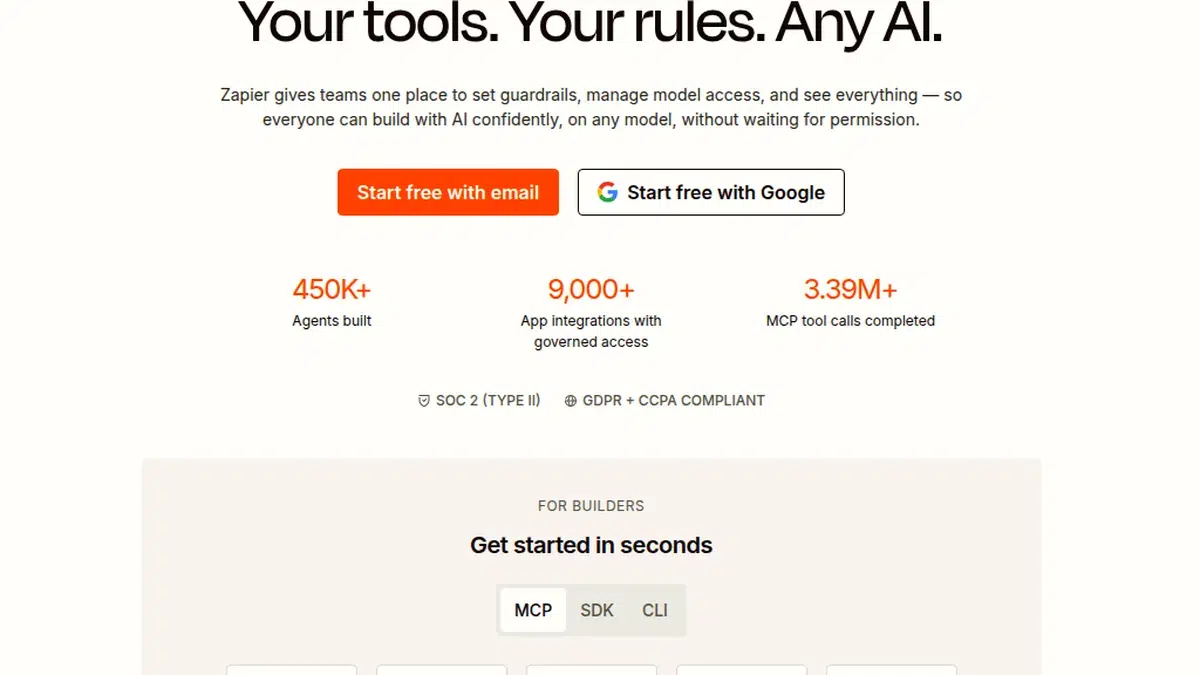
Zapier’s builder connects apps with trigger-and-action flows, and it’s the bridge when your task app and calendar don’t talk natively. Screenshot: zapier.com, captured August 2026.
IFTTT
IFTTT takes the same idea with simpler applets, pairing events like a completed task with actions like a calendar reminder. Screenshot: ifttt.com, captured August 2026.
If your tools don’t have native integrations, automation services like Zapier and IFTTT can bridge almost anything. A Zap can create a Google Calendar event whenever you complete a Todoist task, or add a Notion page when an event starts. The setup takes minutes and removes the manual copying that eats your day.
Time blocking: turning tasks into calendar blocks
The most underrated sync skill is time blocking: putting your tasks onto the calendar as actual blocks of time, not just due dates.
A due date says this needs to happen sometime. A calendar block says this happens from 10 to 11 on Tuesday. The second version gets done; the first gets postponed. When your task app syncs into your calendar, you can drag a task onto a specific hour and watch both sides update.
The practical setup: keep your tasks in Todoist or Notion with due dates, sync them to Google Calendar or Outlook, then block time for the important ones. The sync keeps the task and the block connected, so rescheduling in one place updates the other.
Calendly scheduling widget with clickable time slots
The same blocking idea powers scheduling tools like Calendly, where pickable time slots decide when work happens. When your own calendar blocks sync the same way, tasks become commitments. Screenshot: calendly.com, captured August 2026.
This is also where the multi-device payoff shows up. Block a task on your laptop in the morning, and it’s sitting on your phone when you’re standing in a queue at lunch. The habit only works because the sync works.
Sharing calendars and lists with family and teams
Sync isn’t just personal. The same backbone that connects your devices connects your people.
Apple’s iCloud Family Sharing lets family members share calendars, reminders, and notes with a single toggle. Google Calendar sharing works with any email address, and shared task lists live in Google Tasks or Keep. Microsoft’s family group does the same for Outlook calendars and To Do lists. Every major ecosystem has a sharing layer, and most people never turn it on.
For teams, the pattern is the same but heavier. Shared calendars for scheduling, shared task lists for responsibility, and shared notes for context. The rule I give everyone: share by default, and let the sync handle the rest. If a shared calendar is updated on one device, everyone else sees it on theirs within seconds.
Final thoughts
Sync isn’t a feature you buy once. It’s a discipline you set up once and stop thinking about. The data shows most of us carry three or four devices and split our lives across them, so the cost of bad sync is real: missed meetings, lost notes, tasks that live in a phantom app nobody opens.
Pick one ecosystem as your backbone, choose cross-platform apps for the gaps, and prefer tools that speak open standards like CalDAV and CardDAV so you always have an exit. Set it up once, test it on the apps you actually use, and let the sync run. In my experience, the hour you spend configuring this pays back every single week.
Frequently asked questions about syncing tasks, notes, and calendars
1. What’s the easiest way to sync everything across devices?
If you’re all-in on Apple, iCloud for Calendar, Reminders, and Notes. If you’re all-in on Google, Google Calendar, Tasks, and Keep. The easiest setup is always the one that uses the ecosystem you already live in.
2. Can I sync Apple Notes and Google Calendar together?
Not directly. Apple Notes has no open sync API, which is why it stays inside the Apple world. The practical pattern is to use Google Calendar for scheduling and a cross-platform notes app like Notion or Obsidian for notes.
3. What is CalDAV and do I need it?
CalDAV is the open standard for calendar sync, defined in RFC 4791. You don’t need to configure it if you use iCloud or Google, because they handle it for you. You need it when you want to sync a calendar to a server you control, like Nextcloud.
4. Are there privacy-focused sync options?
Yes. Standard Notes and Proton offer end-to-end encrypted notes and calendars where the provider cannot read your data. The tradeoff is fewer integrations and less collaboration compared to mainstream tools.
5. Is self-hosting sync worth it?
Only if you care about data ownership or already run servers. Nextcloud syncs calendars and contacts over CalDAV and CardDAV, but you maintain the server, updates, and backups yourself.