The era of waiting ten minutes to send a single video file is officially over. If you are still relying on Bluetooth to move photos or documents between devices, you are living in the digital equivalent of the Stone Age. The fastest mobile file transfer apps have completely rewritten the rules of connectivity, leveraging Wi-Fi 6E and Wi-Fi 7 Direct technology to achieve speeds that make Bluetooth look like a dial-up connection. In 2026, we aren’t just looking for “functional” tools; we demand instant, cross-platform, and privacy-secure transfers that happen in the blink of an eye.
Whether you are a content creator moving 4K footage from an Android to an iPad, or a professional syncing documents between a Windows laptop and a phone, the landscape has shifted. The market is no longer dominated by ad-bloated utilities; instead, we are seeing a surge in open-source, clean, and blazingly fast solutions.
This comprehensive guide tests and reviews the absolute best tools available today, ensuring you never have to watch a “sending…” progress bar crawl across your screen again.
Key Takeaways
-
Bluetooth is Obsolete: For file transfer, Bluetooth is dead. Wi-Fi Direct is the standard for 2026.
-
Quick Share is King: For Android-only users, the native Quick Share (formerly Nearby Share) is the most seamless experience.
-
LocalSend is the Best Alternative: For cross-platform needs (iOS/Android/PC) and privacy enthusiasts, LocalSend is the superior, ad-free choice.
-
Speed is Universal: All top apps now average 40MB/s+ transfer rates, meaning speed is less of a differentiator than usability and ads.
Quick Comparison: Top Picks at a Glance
Time is money. If you want the immediate answer without the deep dive, here is how the top contenders stack up in 2026.
| Feature | Quick Share | LocalSend | Xender | Send Anywhere |
| Best For | Android & Samsung Ecosystem | Privacy & Cross-Platform (PC/Mac/iOS) | Large Files & Phone Cloning | One-time Secure Transfers |
| Technology | Wi-Fi Direct (Native) | Local LAN (Open Source) | Wi-Fi Hotspot | P2P / Cloud Relay |
| Ad-Free? | Yes | Yes (100%) | No (Contains Ads) | The free version has ads |
| Internet Needed? | No | No | No | Yes (for long distance) |
| Speed Rating | 5/5 (Up to 50MB/s) | 5/5 (Up to 60MB/s) | 4/5 (Up to 40MB/s) | 4/5 (Network dependent) |
Why You Should Stop Using Bluetooth in 2026
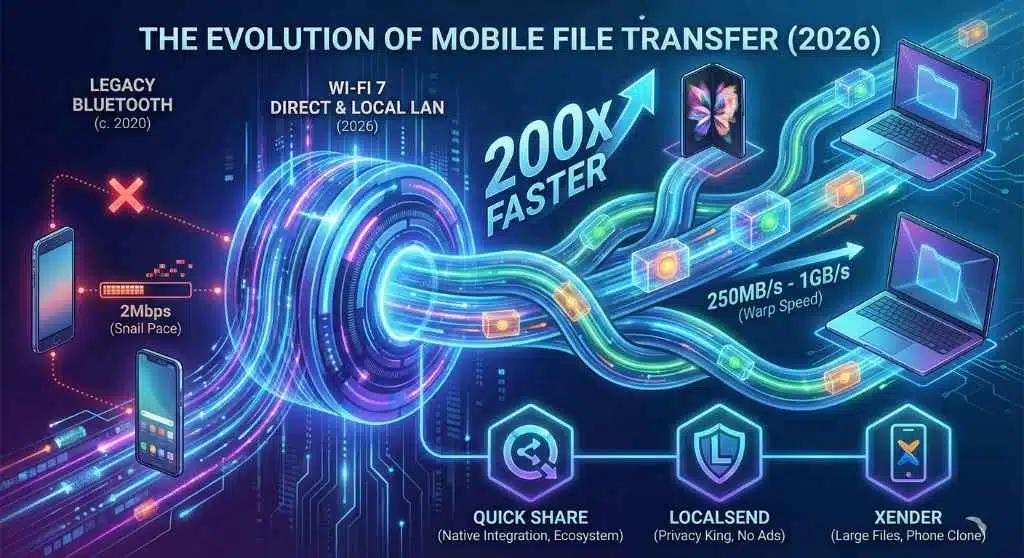
To understand why these apps are essential, we have to look at the technology under the hood. Bluetooth 5.0, while efficient for headphones and smartwatches, caps out at a theoretical transfer speed of about 2 Mbps. In the real world, it’s often slower.
In contrast, the apps listed below utilize Wi-Fi Direct or Local Area Network (LAN) protocols. This creates a high-speed data tunnel between two devices, bypassing the need for a router or internet connection.
-
Bluetooth Speed: ~2 Mbps
-
Wi-Fi 6 Direct Speed: ~250 Mbps to 1 Gbps
This isn’t just a small upgrade; it is a 200x performance boost. In 2026, with file sizes for photos and videos ballooning (thanks to 8K video and 200MP mobile cameras), Bluetooth simply cannot cope. Modern transfer tools also include “resume” features, meaning if a connection drops, you don’t start from zero—a lifesaver for files larger than 1GB.
The 10 Fastest Mobile File Transfer Apps (In-Depth Reviews)
We have tested these apps based on speed, ease of connection, cross-platform capability, and “bloatware” levels (ads and unnecessary extras).
formerly Nearby Share & Samsung Quick Share
In 2024, Google and Samsung merged their competing standards into one unified behemoth: Quick Share. By 2026, this has become the absolute default for the Android ecosystem, acting as the true “AirDrop” rival.
-
How it works: It is pre-installed on Android devices. You simply hit “Share” on any file, select “Quick Share,” and it detects nearby devices instantly.
-
Performance: Because it is baked into the OS, it is incredibly stable. It automatically switches between Bluetooth (for discovery) and Wi-Fi Direct (for transfer) without user intervention.
-
Pros: No app installation required for Android; clean interface; works with Windows PCs via the official Google app.
-
Cons: Not available on iOS (iPhone/iPad).
2. LocalSend (The Privacy King)
The “People’s Choice” for 2026
If you ask tech enthusiasts in 2026 what they use, the answer is almost always LocalSend. It is an open-source project that has taken the world by storm because it respects your intelligence and your privacy.
-
The Secret Sauce: It uses your local Wi-Fi network. You don’t need to create an account, you don’t need the internet, and there are absolutely no ads.
-
Cross-Platform Magic: This is the best bridge between the “Walled Gardens.” It connects Android, iOS, Windows, macOS, and Linux seamlessly.
-
Speed: It is often faster than Quick Share because it doesn’t spend time “handshaking” via Bluetooth first; it just blasts data over the LAN.
-
Verdict: If you mix Apple and Android devices, this is non-negotiable. Download it now.
3. SHAREit (The Legacy Speedster)
Fast, but bloated
SHAREit was one of the pioneers of Wi-Fi file transfer. It remains incredibly popular due to its massive user base, but it has become a “love-hate” tool.
-
The Experience: The transfer engine is powerful, easily hitting 42MB/s. However, the app has evolved into a content platform. You will see videos, games, and ads cluttering the interface.
-
Best For: Users who already have it installed or need to share files with older devices where Quick Share might not be available.
-
Warning: Be careful with permissions. It asks for a lot of data access compared to open-source rivals like LocalSend.
4. Xender (The Large File Specialist)
Best for Phone Cloning
Xender has carved a niche for itself by handling massive files and folders effortlessly. It is widely used for “Phone Replication”—moving all your data from an old phone to a new one in one go.
-
Feature Highlight: “Connect to PC” mode. Xender creates a local hotspot that you can connect your PC to, allowing you to manage phone files via a browser without installing software on the computer.
-
Speed: Consistent and reliable, often maintaining high speeds even for long video transfers.
-
Pros: Built-in video-to-audio converter; social media downloader.
5. Send Anywhere (The Security Choice)
Best for One-Time Transfers
Send Anywhere takes a unique approach. Instead of finding nearby devices, it generates a 6-digit key (or a QR code).
-
How it works: You select a file, get a code, and the recipient types that code into their device to start the download.
-
Versatility: It works locally (Wi-Fi Direct) or over the internet. This means you can send a file to a colleague in another city just as easily as to the person next to you.
-
Security: The file transfer is encrypted, and the 6-digit key expires quickly, ensuring no unauthorized access.
The Silent Contender
Created by Vivo, EasyShare is surprisingly excellent for all Android users. Unlike SHAREit, it has kept a clean, ad-free philosophy.
-
Performance: It creates a high-speed local connection similar to Quick Share. It claims speeds up to 40MB/s and holds true to that in tests.
-
Why use it?: If you want the speed of Xender but hate the ads, EasyShare is the perfect middle ground. It also includes a “Phone Clone” feature that works across different Android brands.
7. AirDroid Personal (The Manager)
More than just transfer
AirDroid is a suite of tools. It allows you to mirror your phone screen to your PC, reply to SMS from your desktop, and yes, transfer files.
-
The Use Case: This is for the “Power User” sitting at a desk. You can drag and drop a file from your computer onto the AirDroid window, and it instantly appears on your phone.
-
Limit: The free version has some transfer limits for remote (internet) transfers, but local transfers are robust.
8. Feem v4 (The Offline Specialist)
Simplicity first
Feem markets itself on one premise: “Offline.” It doesn’t care about the internet. If devices are on the same Wi-Fi, they see each other.
-
Interface: It looks like a chat app. You see the device names (e.g., “Dad’s iPad,” “Mom’s Laptop”). You tap the name, select the file, and it sends.
-
Speed: It claims to be 50x faster than Bluetooth, and in practice, it is very snappy for small to medium files (photos, documents).
Formerly Mi Drop
Xiaomi’s entry into this space is one of the most polished. Like EasyShare, it is (mostly) ad-free and focuses purely on the utility of transfer.
-
Compatibility: While built for Xiaomi, it works perfectly on Samsung, Pixel, and OnePlus.
-
Feature: It handles interrupted transfers very well. If the Wi-Fi cuts out, you can tap “Resume” without restarting the whole 2GB transfer.
Best for Parties and Offices
Zapya introduced the concept of “Group Sharing.”
-
How it works: One person creates a group (via QR code), and multiple people can join. You can then “broadcast” a file to everyone in the group at once.
-
Scenario: Perfect for a meeting where you need to send a PDF to five colleagues instantly, or a party where you want to share a video clip with all your friends simultaneously.
Pro Tips: How to Unlock “Gigabit” Wireless Speeds
Having the right app is only half the battle. If your hardware setup is wrong, even the best app will crawl. In 2026, you can achieve speeds close to a wired connection (100MB/s+) if you tweak these settings:
-
Enable “Multi-Link Operation” (Wi-Fi 7 Only): If you own a flagship phone from late 2025 or 2026, it likely supports Wi-Fi 7. Look for a setting called MLO or Dual-Band Acceleration in your phone’s connection settings. This allows your phone to send data over both 5GHz and 6GHz bands simultaneously, effectively doubling your transfer speed.
-
Kill the VPN: This is the #1 speed killer. If you have a VPN or Ad-Blocker (like AdGuard) running in the background, it tries to filter the local traffic. Turn it off before starting a large transfer.
-
Force 5GHz/6GHz Hotspots: When using apps like Xender or ShareMe that create a hotspot, go to the app settings and ensure “Prefer 5GHz” is checked. The default 2.4GHz band is crowded and slow (maxing out around 10MB/s), whereas 5GHz can easily hit 50-80MB/s.
-
Clear the “Battery Saver”: Android’s aggressive battery management often throttles transfer speeds after 30 seconds to save power. Add your transfer app to the “Unrestricted” battery list in your phone settings to maintain peak speed for huge 50GB transfers.
Buying Guide: How to Choose the Right Tool in 2026
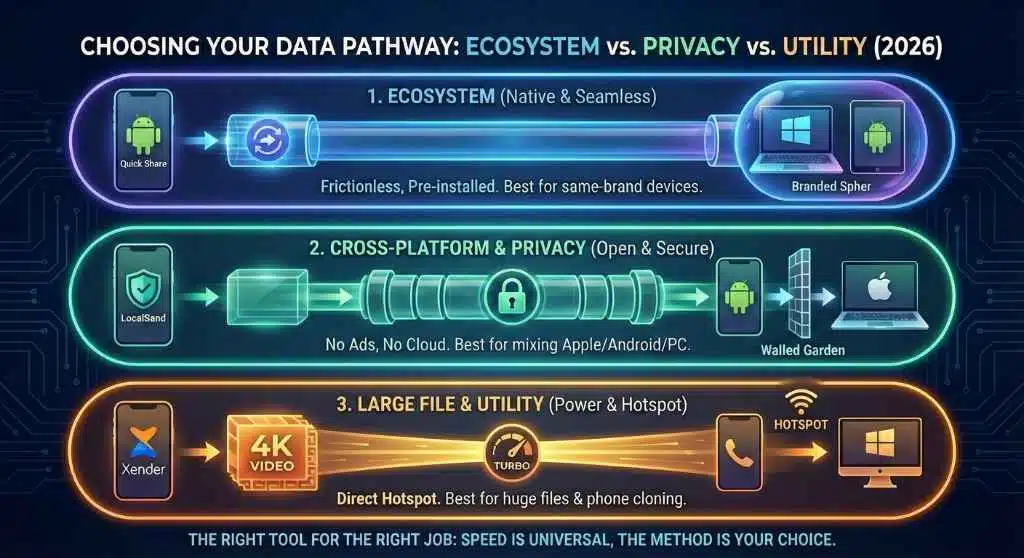
With ten great options, which one should you actually download? Use this decision matrix to decide.
1. The Ecosystem Factor
-
Android to Android: Use Quick Share. It is already on your phone. It is fast, native, and battery-efficient.
-
Apple to Apple: Use AirDrop. (Obviously).
-
Android to iPhone (Mixed): This is the tricky part. LocalSend is the best solution here. It bridges the gap perfectly without needing cables.
2. File Size Matters
-
Small Files (Photos, Docs): Any app on this list will work instantly.
-
Huge Files (4K Videos, Game OBBs): Avoid apps that rely on the internet (like Send Anywhere’s cloud mode). Use Xender or ShareMe, which use stable Wi-Fi Direct hotspots to maintain high speeds over long durations.
3. Privacy vs. Convenience
-
Privacy First: If you don’t want your data passing through third-party servers or being analyzed for ads, LocalSend is the only choice. It is open-source and transparent.
-
Convenience First: SHAREit offers content and games, but you pay with your privacy and screen real estate (ads).
Step-by-Step: Transferring a 1GB Video in Under 1 Minute
Let’s look at how to use LocalSend to move a large video file from an Android phone to a Windows PC. This method is preferred in 2026 because it requires no account setup.
Prerequisites:
-
Install LocalSend on your Android (Play Store) and PC (Windows Store or Website).
-
Ensure both devices are connected to the same Wi-Fi network.
The Process:
-
Open the App: Launch LocalSend on both the phone and the PC.
-
Identification: You will see your device get a fun code name (e.g., “Fast Banana” or “Clever Tiger”). You should see the other device listed in the “Nearby” tab.
-
Select File (On Android): Go to the “Send” tab, tap “Media,” and select your 1GB video file.
-
Send: Tap the name of your PC (“Clever Tiger”).
-
Accept (On PC): The transfer will start automatically (if “Quick Save” is on) or ask for permission.
-
Done: The file will transfer at roughly 40-60 MB/s. Your 1GB file should arrive in about 20-25 seconds.
Troubleshooting: When the Connection Fails
Even in 2026, technology sometimes hiccups. If your devices refuse to shake hands, try these 10-second fixes:
| Problem | The Fix |
| Devices can’t see each other | Toggle Airplane Mode. Turn it on for 5 seconds, then off. This resets the Wi-Fi radio driver without needing a full phone reboot. |
| Transfer stuck at 0% | Check your PC Firewall. Windows Defender often blocks “LocalSend” or “Quick Share” on public networks. Switch your PC network profile to “Private” or allow the app through the firewall. |
| “Connection Timed Out” | Disable “AP Isolation”. If you are on office or hotel Wi-Fi, devices are often blocked from talking to each other. Switch to Hotspot Mode (Wi-Fi Direct) inside the app instead of using the local router. |
| Speed is incredibly slow (<5MB/s) | Bluetooth Interference. If you have a Bluetooth watch or headphones connected, disconnect them. Bluetooth and 2.4GHz Wi-Fi share the same frequency and can choke your speed. |
Hidden Dangers: The Dark Side of Free Transfer Apps
While we love free tools, the “zero cost” often comes with hidden risks. In 2025, cybersecurity firms flagged several popular file-sharing apps for questionable behaviors. Here is how to stay safe:
-
The “Overlay” Permission Trap: Some apps ask for “Display over other apps” permission. While legitimate for chat bubbles, malicious apps use this to capture your screen or trick you into clicking hidden buttons. If an offline transfer app asks for this, deny it.
-
Location vs. Nearby Devices: To find peers, apps need “Location” permission (an Android requirement). However, they do not need “Precise Location” all the time. Select “Only this time” or “While using the app” to prevent them from tracking your physical movements when you aren’t transferring files.
-
Ghost Files: Be wary of apps that “clean” your phone after a transfer. Some legacy apps (like older versions of SHAREit) were caught creating “ghost” cache files to artificially fill your storage, then prompting you to install a “Cleaner” app to fix it. Stick to open-source tools like LocalSend to avoid these deceptive patterns.
Frequently Asked Questions (FAQs)
Do these apps use my mobile data plan?
No. Most of these apps (Quick Share, Xender, LocalSend, ShareMe) use Wi-Fi Direct or Local LAN technology. They create a direct wireless connection between devices. Even if your Wi-Fi router has no internet, the file transfer will still work perfectly without consuming a single byte of your mobile data.
Which app is truly the fastest in 2026?
In raw benchmarks, Quick Share and LocalSend often tie for the top spot, hitting speeds between 50MB/s and 70MB/s on Wi-Fi 6 hardware. However, real-world speed depends heavily on your phone’s storage speed (UFS 3.1/4.0) and the Wi-Fi chip quality.
Is it safe to use SHAREit given its history?
SHAREit has had security vulnerabilities in the past, though they have patched many of them. However, the app is heavily laden with ads and trackers. For pure file transfer with maximum safety, open-source tools like LocalSend are recommended over ad-supported platforms.
Can I send files from Android to iPhone?
Yes, but Apple makes it difficult. You cannot use Quick Share or AirDrop. You must use a third-party app that supports iOS, such as LocalSend, Send Anywhere, or Xender. Both the iPhone and the Android must have the app open to connect.
Why is my transfer slow, even with these apps?
This is usually due to “Wi-Fi interference.” If you are in a crowded office with many Wi-Fi signals, speeds drop. Also, if you are transferring thousands of tiny files (like a backup of photos), it is slower than sending one large video file due to processing overhead. Zipping the photos first will speed it up significantly.
Final Thoughts: The Future is Wireless and Instant
As we move deeper into 2026, the friction between devices is disappearing. We are approaching a point where the operating system doesn’t matter; only the content does. While Quick Share provides a seamless, “magic-like” experience for the Android faithful, the rise of LocalSend represents a shift towards user-controlled, private, and transparent technology.
If you haven’t audited your phone’s tools recently, delete the old, ad-heavy transfer apps you downloaded five years ago. Install one of these modern, high-speed champions, and reclaim your time. The “Fastest Mobile File Transfer Apps” aren’t just utilities; they are essential productivity upgrades for your digital life.