Installing smart security can feel like building with blocks. Everything looks simple on the box. The app promises “set up in minutes.” The devices look sleek and friendly. It is easy to assume the system will protect you the moment it powers on.
In real homes, it is different. Walls are thicker than you think. Wi-Fi is weaker at the front door than in your living room. Sunlight and shadows create motion alerts all day. A camera that looks perfect in daylight can be almost useless at night. And the most damaging problems often come from small choices you barely notice.
This guide explains smart home security installation mistakes in America in a clear, practical way. You will learn what people commonly do wrong and how to fix it without guesswork. You will also see checklists, quick tests, and tables that summarize each section. The goal is simple: make your system reliable, secure, and easy to live with.
Before You Install Anything
A strong install starts before you open the box. Planning feels boring, but it prevents most frustrations later. It also helps you avoid buying devices you do not need. When you plan first, you get fewer blind spots and fewer false alerts. You also spend less time re-mounting devices and re-pairing sensors. Most importantly, planning helps you build a system that matches your home and your habits.
Think of this as designing a small safety system, not just placing gadgets. You are deciding where to detect movement, what to record, and how you want to respond. You are also deciding how much privacy you want inside your home. The best setup is the one you will maintain, not the one with the most devices.
The 10-minute security map
Walk your home like a stranger would. Do it slowly. Imagine you are trying to approach without being noticed. Look for the easiest path to the front door, back door, and garage. Notice where bushes, fences, or parked cars hide someone. Then look at your home at night, even if it is just from memory. Dark corners matter more than bright ones.
Now mark your true “must cover” points. For most homes, that is the front door, back door, garage entry, and any ground-floor windows that are hidden from view. If you live in an apartment, your priorities change. Your door and hallway approach matter most, and shared spaces need careful motion zone control. If you rent, you also need renter-friendly mounting and non-damaging options.
Finally, mark Wi-Fi weak spots. Many doorbells and outdoor cameras sit at the edge of your network. If you fix Wi-Fi later, you may have to redo everything. Fixing Wi-Fi early makes the entire system feel “professional,” even if it is DIY.
Decide what “security” means for you
Smart security usually serves four goals. Deter means making your home look protected. Detect means noticing a person or entry attempt early. Document means capturing usable footage and event details. Respond means deciding what happens after an alert.
Your system does not need to do all four at maximum strength. Some people want simple awareness, like package alerts. Others want a full alarm and monitoring plan. Many families want a middle ground: reliable cameras, fewer false alerts, and strong account security. Choose your goal first. Then choose devices that match it.
Pre-install checklist
| What to check | Why it matters | Fast test |
| Entry points mapped | Prevents blind spots and wasted devices | Mark doors, garage, ground-floor windows |
| Wi-Fi strength where devices go | Prevents lag and offline cameras | Test Wi-Fi at each planned mount spot |
| Power plan (battery vs wired) | Avoids silent failures | Identify outlets, wiring options, charging routine |
| Account security plan | Stops account takeover and misuse | Password manager + 2FA ready before setup |
| Monitoring plan | Reduces panic and confusion | Decide self-monitoring vs professional monitoring |
Smart Home Security Installation Mistakes in America: Why They Happen So Often
The most common mistakes are not about intelligence. They are about assumptions. People assume the camera will “see everything.” They assume Wi-Fi is the same everywhere in the house. They assume the default settings are safe. They assume the system will remind them when something matters. Most systems do not work that way.
Another reason is speed. Many installs happen on a weekend. People rush because they want to feel protected fast. They mount devices quickly, then move on. Weeks later, they notice the doorbell lags or the backyard camera misses motion. By then, the mount feels “finished,” and they do not want to redo it.
Also, modern smart security is a mix of hardware and software. That means you are installing a device and configuring a digital account at the same time. A great camera can still be insecure if your account is weak. A perfect sensor setup can still fail if your phone blocks notifications. Security is a chain. The chain breaks at the weakest link.
Finally, American homes vary a lot. Apartments, townhomes, and large suburban houses each have different needs. A setup that works in a small condo can fail in a two-story home with a detached garage. That is why a one-size plan rarely works.
Why mistakes are common
| Common reason | What it causes | Better approach |
| “Plug-and-play” mindset | No plan, poor coverage | Map entry points and approach paths first |
| Weak home network | Dropouts, delays, missed clips | Improve Wi-Fi before installing cameras |
| Default settings left unchanged | False alerts and privacy issues | Tune zones, sensitivity, privacy, and notifications |
| No maintenance routine | Dead batteries, outdated firmware | Monthly 10-minute health check |
Mistake 1: Placing Cameras Where They Look Nice, Not Where They Work
Camera placement is the #1 reason people feel disappointed. It is easy to mount a camera where it blends in. It is harder to mount it where it gets a clear face. Many people put cameras too high because they fear tampering. That often creates footage that shows hats and hair, not faces. Others aim wide to “see more,” but the result is less detail where it matters.
Lighting also tricks people. Bright sky behind a subject can cause silhouettes. Porch lights can cause glare at night. Reflective surfaces can create washed-out clips. A camera can be expensive and still produce useless evidence if the angle is wrong. Placement is not decoration. It is strategy.
A good placement plan focuses on approach paths. Where does a person walk before reaching your door? Where do they pause? Where do they turn their head? Those moments are when you capture faces. If you only point at the door itself, you may miss the approach. And the approach is often the most useful part.
What goes wrong
- The camera captures the top of a head, not a face.
- People approach from the side and stay out of frame.
- Backlighting makes the subject too dark.
- Night vision is overwhelmed by nearby lights or shiny objects.
- You record too wide, so faces become tiny and unclear.
Fix: Approach-first placement that captures faces
- Aim at the path to the door, not just the door.
- Place cameras to capture people walking toward them at a slight angle.
- Avoid placing cameras directly facing bright windows or the open sky.
- Use a live-view “walk test” before drilling or sticking mounts.
- If you must mount high, tilt down and narrow the field to key zones.
Pro tips that save rework
- Mark the best spot with tape and test at day and night.
- Trim bushes that will trigger motion or block the lens.
- Clean the lens and check for spider webs on outdoor cameras.
- Use privacy zones to block neighbors while keeping your entry in view.
- If you want plate capture, place a dedicated camera with a tighter view on the driveway approach.
Camera placement quick rules
| Location | Best placement goal | Common mistake | Fast fix |
| Front door | Clear face at close range | Too high, shows forehead | Lower mount or tilt down more |
| Driveway | Capture approach path | Too wide, no detail | Tighten angle and zones |
| Backyard | Cover gates and back doors | Blocked by plants | Clear foliage, adjust mount |
| Indoors entryway | Document entry path | Facing windows (glare) | Face away from windows |
Mistake 2: Ignoring Wi-Fi Strength and Band Choice
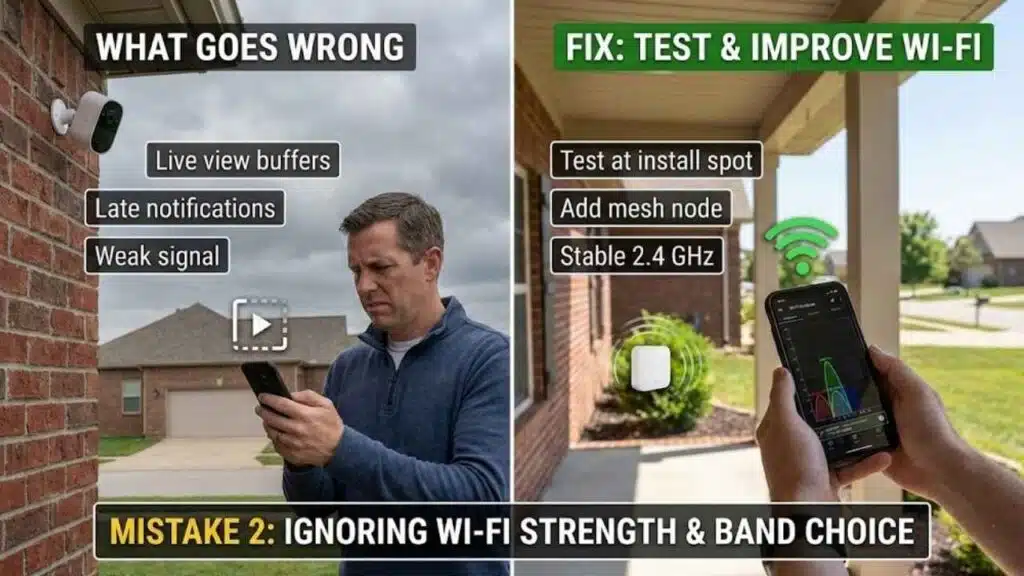
Most smart security problems look like “bad hardware,” but they are often bad connectivity. Wi-Fi in the living room does not equal Wi-Fi at the doorbell. Doorbells are usually far from the router. Outdoor cameras are often beyond thick walls. Garages can be Wi-Fi dead zones. When the connection is weak, the system becomes slow, inconsistent, and stressful.
Bandwidth matters too. Video needs stable upload, not just download. Many homes have decent download speeds but weaker upload speeds. If multiple devices upload at once, clips can fail or arrive late. That can make the system feel unreliable even if each device is fine on its own.
Band choice can also confuse people. Some devices prefer 2.4 GHz for range. Others support 5 GHz and perform better nearby. A camera that constantly “switches” bands can drop connections if your router’s steering is aggressive. Stability is the priority for security devices.
This is one of the most common smart home security installation mistakes in America because people install devices before they test the network. Fix the network first and your system improves overnight.
What goes wrong
- Live view buffers or takes too long to load.
- Motion notifications arrive late.
- Clips show gaps or missing seconds.
- Cameras disconnect during bad weather.
- Doorbell becomes slow exactly when you need it.
Fix: Test Wi-Fi at the exact install spot
- Stand where the camera will be mounted and test Wi-Fi strength.
- If it is weak, move the router, add a mesh node, or add a wired access point.
- Avoid placing the router in a cabinet or behind dense walls.
- Reduce interference by placing the router away from microwaves and large metal objects.
- If you can, separate smart devices onto a dedicated IoT network.
2.4 GHz vs 5 GHz in plain English
- 2.4 GHz usually travels farther and handles walls better.
- 5 GHz is often faster nearby but loses strength faster through walls.
- For a far outdoor camera, 2.4 GHz often feels more stable.
- For a close indoor camera, 5 GHz can handle higher quality video.
- If a device is unstable, locking it to one band can help.
Wi-Fi stability checklist
| Symptom | Likely cause | Fix |
| Camera goes offline randomly | Weak signal at mount spot | Add mesh node near camera |
| Doorbell delay | Edge-of-network coverage | Move node closer to front door |
| Choppy video | Network congestion | Reduce load, improve router placement |
| Frequent reconnects | Band steering issues | Lock device to 2.4 GHz if needed |
Mistake 3: Leaving Default Passwords or Weak Logins
Smart security is only as secure as your account. If someone gets into your security account, they may access live views, recordings, or settings. They might disable alerts. They might remove devices. They might learn patterns, like when you leave or return. This is why login security matters as much as camera quality.
Many people reuse passwords. It is understandable. Life is busy. But password reuse is one of the easiest paths to compromise. If one account gets leaked elsewhere, attackers try the same password on other services. Security apps are valuable targets because they offer real-world access and information.
Two-factor authentication is another step many people skip. It feels like a hassle. But it is one of the simplest ways to block account takeover. It adds a second proof, like a code, beyond the password. That means a stolen password alone is not enough.
This section matters because it prevents the most serious outcomes. It also helps you avoid a quiet failure, where your system “works” but is no longer under your control.
What goes wrong
- Default router or device credentials remain unchanged.
- One weak password is used for everything.
- Shared access is given without limits.
- 2FA is not enabled, so passwords are the only barrier.
- Old devices or guest phones stay logged in.
Fix: Secure three layers, not just one
- Router admin login
- Smart security account login
- Shared access permissions and device sessions
Practical steps:
- Use a password manager and unique passwords.
- Turn on 2FA for your security account.
- Review logged-in devices and remove old ones.
- Give family members their own access, not a shared password.
- Avoid sharing public links to clips unless you must.
“Do this now” 5-minute checklist
- Change router admin password.
- Change Wi-Fi password if it is old or shared widely.
- Enable 2FA for the security app.
- Update recovery email/phone so you can regain access safely.
- Review “shared users” and remove anyone who no longer needs access.
Account security actions
| What to secure | Minimum step | Better step |
| Router admin | Change admin password | Disable WPS and remote admin |
| Security account | Strong unique password | Enable 2FA + recovery settings |
| Shared access | Separate logins | Limit permissions and remove later |
Mistake 4: Skipping Firmware and App Updates After Setup
A smart security system is not a “set and forget” product. It is closer to a small computer network. Updates fix bugs, improve detection, and patch security issues. When you skip updates, small problems pile up. Sensors may misbehave. Cameras may disconnect more often. Features can break after phone updates. Over time, the system becomes unreliable.
People skip updates because everything seems fine. But many issues appear later, after a router restart or a phone OS update. If your devices and apps are behind, they can stop working smoothly together. That leads to frustration and “I’m done with this system” feelings.
Updates also affect privacy and controls. Some updates add better motion zones, smarter person detection, or improved battery management. If you never update, you might miss tools that make your system quieter and more useful.
This is one of the easiest smart home security installation mistakes in America to fix, because most improvements take minutes.
What goes wrong
- Devices run old firmware with known issues.
- The app becomes buggy on a newer phone OS.
- Detection accuracy stays weaker than it could be.
- Battery performance declines due to older optimization.
- Devices drift out of sync and require re-pairing.
Fix: Automate updates, then verify monthly
- Enable auto-updates for the app.
- Enable firmware auto-updates when available.
- Check updates after major phone OS updates.
- Restart the hub/router occasionally if it improves stability.
- Replace devices that no longer receive updates or support.
Simple monthly “update check”
- Open the security app and look for device alerts.
- Confirm each camera is online and updated.
- Review notification settings after updates.
- Confirm cloud storage settings did not change.
- Check router firmware status too.
Update routine
| Item | How often | What to check |
| Security app | Auto + monthly | Permissions and notification behavior |
| Camera firmware | Monthly | “Up to date” status |
| Router firmware | Monthly or auto | Stability improvements and security patches |
Mistake 5: Buying Too Many Devices at Once (Without a Plan)
More devices can create more noise. If your phone buzzes 40 times a day, you stop caring. That is a hidden failure: alert fatigue. It makes you ignore the one alert that matters. People also buy too many devices because bundles look like deals. They install everything quickly, then spend weeks turning off notifications and moving sensors.
Another issue is mixed ecosystems. Some homes use multiple brands that do not integrate cleanly. That can cause inconsistent settings, different apps, and confusing alert rules. It can also make troubleshooting harder because you do not know which device or app is the problem.
A better approach is layering. You start with the basics, then expand when you know what you really need. This is how professionals think. They cover the highest-risk points first. Then they fill in blind spots based on actual experience.
If you want to avoid smart home security installation mistakes in America, avoid the “everything at once” trap.
What goes wrong
- You install too many sensors and get overwhelmed.
- Overlapping coverage creates duplicate alerts.
- Mixed brands create inconsistent reliability.
- You spend money on devices that do not add real value.
- Your system becomes harder to maintain long-term.
Fix: Build in stages with clear goals
Stage 1: Protect main entry points
Stage 2: Add coverage to key approach paths
Stage 3: Add resilience (backup power, monitoring, better storage)
Start with:
- Doorbell or front camera
- Entry sensors on main doors
- One motion sensor covering the main path
Then expand based on real weak spots, not guesses.
Quick “starter vs strong vs fortified” approach
- Starter: awareness and basic evidence
- Strong: reliable coverage and reduced blind spots
- Fortified: resilience during outages and structured response
Sensible growth plan
| Stage | Devices | Goal |
| Starter | Doorbell + 2 entry sensors | Cover main entry |
| Strong | Add 1–2 outdoor cams + motion | Cover approach paths |
| Fortified | Add UPS + monitoring option | Maintain coverage during outages |
Mistake 6: Bad Sensor Placement That Triggers False Alarms
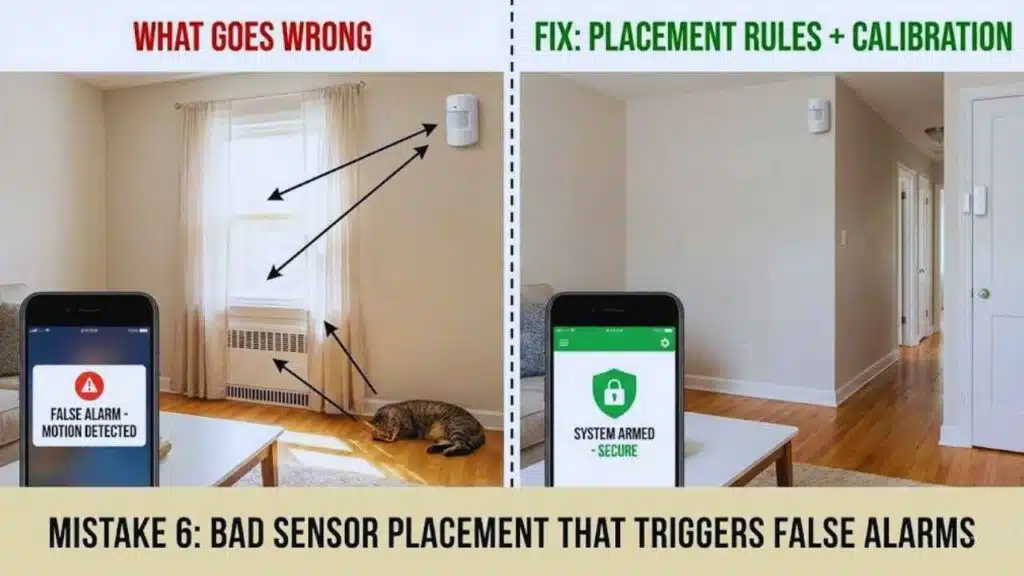
False alerts are the reason many people disable their system. A sensor that cries wolf all day is worse than useless. It trains you to ignore it. It also causes stress for families and neighbors. In some places, repeated false alarms can lead to fines or reduced response priority.
False alerts happen because sensors are sensitive by design. They detect motion, vibration, and changes in the environment. That is their job. But homes are full of motion that is not a threat: pets, curtains, HVAC airflow, shadows, and headlights through windows.
The fix is not to “turn everything off.” The fix is to place sensors correctly and tune them to your life. Good tuning turns chaos into meaningful alerts. It also makes you trust your system again.
This is one of the biggest smart home security installation mistakes in America because people mount sensors where it is convenient, not where it is accurate.
What goes wrong
- Motion sensors point at windows with moving shadows.
- Sensors face vents, causing airflow-triggered motion.
- Door magnets misalign and cause random open/close events.
- Glass sensors trigger from loud sounds or TV bass.
- Pet movement triggers alerts constantly.
Fix: Placement rules + calibration
- Motion sensors: aim at the path, not the window; avoid vents and fans.
- Entry sensors: align carefully; test open/close 10 times.
- Use entry/exit delays so normal movement does not trigger alarms.
- Use pet-friendly settings if you have animals.
- Reduce motion zones so you detect people, not traffic.
Quick tuning routine that works
- Start with medium sensitivity.
- Tighten zones first, before lowering sensitivity.
- Test during day and night.
- Adjust one setting at a time so you know what helped.
- Keep “critical alerts” for doors, not every motion event.
False alert prevention
| Device | Common trigger | Fix |
| Motion sensor | Pets, sunlight, curtains | Adjust angle, sensitivity, pet mode |
| Door/window sensor | Misalignment | Re-seat magnet, re-test |
| Glass break sensor | Loud audio | Move away from speakers, tune sensitivity |
| Doorbell cam | Passing cars | Tighten motion zones and alerts |
Mistake 7: Forgetting Power and Backup Plans
Power is the quiet dependency behind every smart system. If your router loses power, your Wi-Fi cameras lose their brain. If your hub dies, your sensors might stop reporting. If batteries drain, devices may go offline without you noticing. Many people only discover this after a missed event.
Outdoor devices also face temperature and weather. Cold can reduce battery performance. Heat can stress electronics. Rain and dust can affect mounting stability. Power planning is not just about charging. It is also about choosing the right device type for the environment.
Backup power is a simple upgrade that changes everything. You do not need a giant generator to get value. Even a small battery backup for the modem and router can keep cameras and alerts alive during short outages. That can be the difference between evidence and nothing.
This section matters because reliability is a form of security. If your system fails when you need it, it is not a system.
What goes wrong
- Battery cameras die quietly and stop recording.
- Doorbells lose power and miss deliveries or visitors.
- Short outages knock out the router and the whole system.
- Cold weather drains batteries faster than expected.
- Low-battery notifications are ignored or disabled.
Fix: Protect the network first, then devices
Start with:
- Backup power for modem and router
- Backup power for the hub if you use one
- Then manage batteries for cameras and sensors
Also:
- Turn on low-battery alerts.
- Create a battery rotation schedule.
- Keep spare batteries if your devices use standard cells.
- Consider wired power for high-traffic areas if possible.
- Mount devices so you can access them easily for charging.
A realistic battery routine for busy people
- Pick one day each month to check battery levels.
- Recharge or replace anything below a set threshold (like 30%).
- Keep one spare charged battery pack if your devices allow swapping.
- Clean and inspect mounts at the same time.
- Confirm recordings still save correctly after charging events.
Power reliability plan
| Risk | What fails | Fix |
| Short outage | Router/hub | Battery backup for modem/router/hub |
| Battery drain | Camera/sensor | Rotation schedule + spare power |
| Weather stress | Outdoor devices | Choose outdoor-rated devices, check mounts |
| Silent failures | Notifications off | Enable low-battery alerts and test monthly |
Mistake 8: Treating the Router Like an Appliance (Instead of a Security Gate)
Your router is the gateway to everything. If it is weak, your system is weak. Many people spend hundreds on cameras and locks, then leave the router on default settings. That is backwards. Your network is the foundation. Security devices depend on it for alerts, uploads, and remote access.
The router also controls who can connect. If your Wi-Fi password is old, shared widely, or easy to guess, that is a risk. If features like WPS or remote administration are enabled when you do not need them, that expands your attack surface. And if your router firmware is outdated, you may miss important fixes.
The good news is that most router security improvements are simple. You do not need to be a network expert. You need a short checklist and the discipline to apply it. This is one of the smartest upgrades you can make, and it supports every other fix in this guide.
What goes wrong
- Weak Wi-Fi encryption settings remain in place.
- WPS is enabled, making connections easier to exploit.
- Remote admin access is left on.
- Old firmware stays unpatched.
- Too many devices share one network without separation.
Fix: A simple router hardening checklist
- Use WPA3 Personal if available, or WPA2-AES.
- Disable WPS.
- Disable remote administration unless you absolutely need it.
- Disable UPnP if you do not rely on it.
- Update router firmware and reboot if stability improves.
- Create a guest or IoT network for smart devices if possible.
Easy “IoT network” approach
- Put cameras, doorbells, and smart locks on the IoT/guest network.
- Keep laptops and work devices on the main network.
- Do not reuse the same password for both networks.
- Limit which devices can talk to each other if your router supports it.
- Rename networks clearly so you do not confuse them during setup.
Router settings that matter
| Setting | Recommended | Why it helps |
| Encryption | WPA3 or WPA2-AES | Stronger Wi-Fi protection |
| WPS | Off | Reduces weak pairing pathways |
| Remote admin | Off | Limits remote attack exposure |
| UPnP | Off if possible | Reduces automatic port openings |
| Firmware | Updated | Improves security and stability |
Mistake 9: Overlooking Privacy, Boundaries, and Data Sharing
Security and privacy must coexist. If your system makes your household feel watched, it will not last. If it records too much of a neighbor’s property, it can create tension. If it shares clips too easily, it can expose private moments. Privacy mistakes can also lead to regret because clips can travel farther than you expect.
Many users also forget that indoor cameras are the most sensitive devices in the home. An indoor camera can capture daily routines, conversations, and personal moments. Even if you trust the system, you should still set boundaries. You can use cameras for security without recording everything.
Data sharing is another issue. Some systems allow public sharing links. Some integrate with third-party services. These features are convenient but can add risk. A privacy-first setup uses the minimum sharing needed and focuses recordings on entry points, not personal spaces.
This is a major category of smart home security installation mistakes in America because people install devices first and think about boundaries later. Do it the other way around.
What goes wrong
- Outdoor cameras capture more than intended.
- Indoor cameras face private areas like bedrooms or living rooms.
- Audio recording stays on when it is not needed.
- Sharing settings remain too open.
- Clips get saved longer than you want.
Fix: Privacy-first settings that still protect your home
- Use privacy zones to block neighbor windows and public sidewalks when possible.
- Use motion zones to focus only on entry points and gates.
- Disable indoor audio unless you have a clear reason to keep it.
- Limit shared access to trusted people, and remove it later.
- Review cloud settings and retention so you keep only what you need.
Healthy boundaries for indoor cameras
- If you use indoor cameras, aim them at entry paths, not living spaces.
- Consider turning indoor cameras off when you are home.
- Use “privacy mode” or a schedule if your system supports it.
- Avoid placing cameras where guests might feel uncomfortable.
- Make sure household members know what is recorded and why.
Privacy-first settings
| Control | What it does | Best practice |
| Privacy zones | Blocks parts of the view | Mask neighbor windows and sidewalks |
| Motion zones | Limits what triggers alerts | Focus on doors, gates, driveway |
| Audio recording | Captures sound | Disable indoors unless needed |
| Sharing permissions | Controls access | Least access, remove when done |
| Retention settings | Controls storage duration | Keep only what you need |
Mistake 10: Setting It and Forgetting It (No Testing, No Plan)
Security is not just installation. It is ongoing readiness. Many systems fail because of small changes: a phone setting blocks notifications, a battery dies, a sensor falls, or Wi-Fi changes after a router update. These failures are common and boring, which is why they are dangerous. They happen quietly.
The fix is simple: a short routine. You do not need to become a technician. You need a monthly habit. A 10-minute check can catch most issues early. It also keeps you confident that your system will work if something happens.
You should also have a response plan. What do you do when an alert comes in? Do you check live view first? Do you call a neighbor? Do you trigger a siren? If you have a plan, you respond calmly. If you do not, you waste time.
This section turns your devices into a real system.
What goes wrong
- Phone notifications get blocked by battery saver modes.
- Storage fills up or settings change.
- Sensors lose alignment over time.
- Time stamps drift after outages or reboots.
- You do not know what to do when an alert happens.
Fix: A monthly 10-minute health check
Once a month:
- Trigger each entry sensor.
- Walk past motion sensors.
- Check a recent recording from each camera.
- Verify notifications on your phone.
- Confirm battery levels and charging needs.
- Confirm Wi-Fi strength is still stable in key areas.
Create a simple “incident checklist”
When you get a serious alert:
- Check live view first.
- Confirm location and time.
- If you see a threat, prioritize safety and call local emergency services.
- Save relevant clips immediately if your app allows it.
- Write down basic details while fresh: time, appearance, direction of travel.
- If appropriate, share clips only with trusted parties.
Monthly testing routine
| Test | Takes | Why it matters |
| Trigger sensors | 2 min | Confirms detection works |
| Check recordings | 2 min | Confirms evidence quality |
| Check battery levels | 2 min | Prevents silent failure |
| Confirm phone permissions | 2 min | Prevents missed alerts |
| Review settings/updates | 2 min | Reduces system drift |
Fix-It-Fast Recap
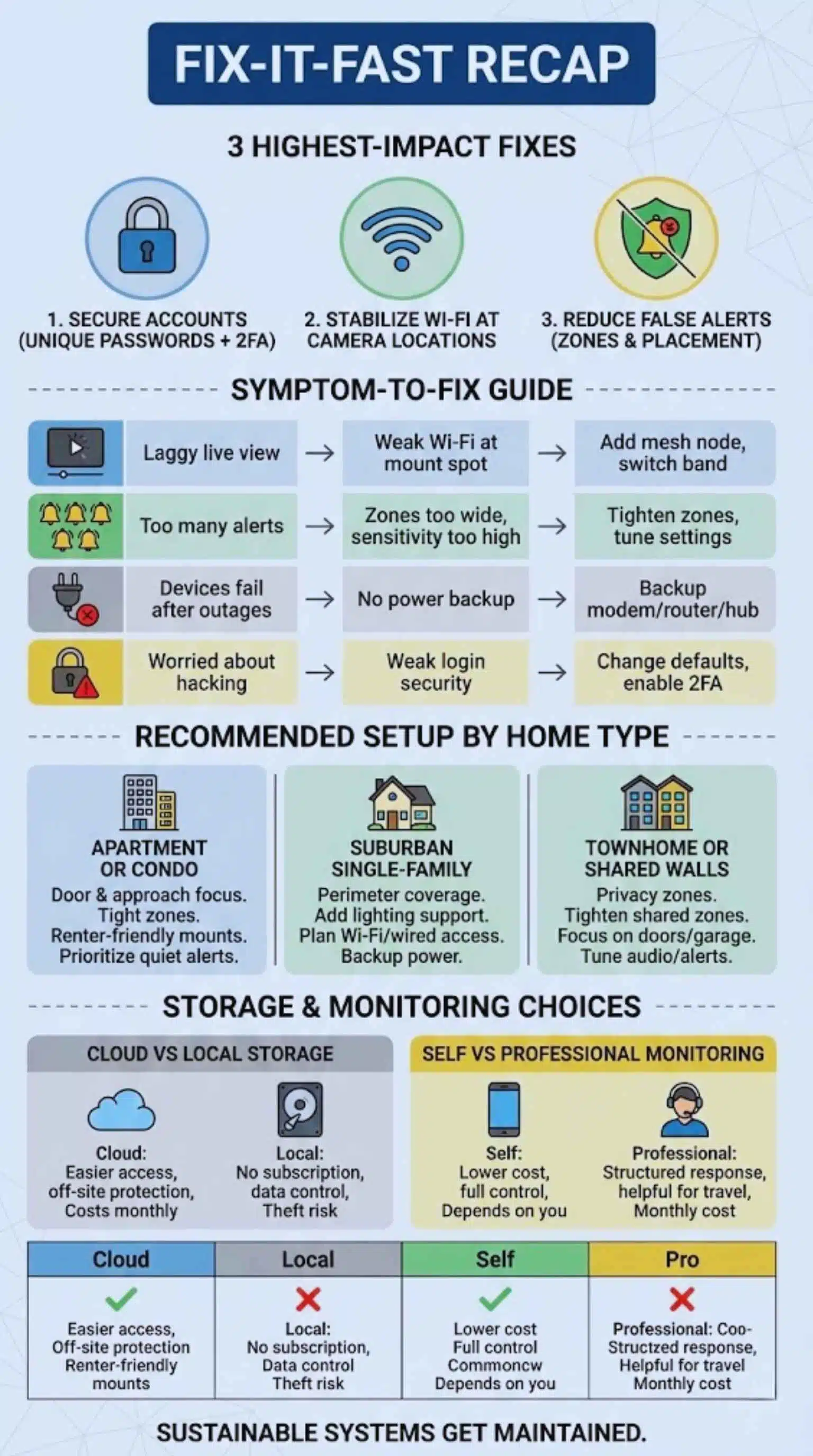
If you want quick wins, focus on the biggest impact changes. These are the steps that improve reliability and security the most. They are also the steps that reduce daily annoyance. A good system should feel calm, not noisy. It should alert you when something matters, not every time a car passes.
Many people try to fix problems by buying more devices. That rarely helps first. The better approach is to tune what you already have. Improve Wi-Fi, adjust placement, and lock down accounts. Then reduce false alerts so you stop ignoring notifications. Finally, add backup power and routines so the system stays ready.
These are the areas where smart home security installation mistakes in America show up the most. If you fix them, your system feels like it costs more than it did.
The 3 highest-impact fixes today
- Secure accounts: unique passwords + 2FA
- Stabilize Wi-Fi at camera locations
- Reduce false alerts with zones and placement
Quick symptom-to-fix guide
| If you see this | It usually means | Do this first |
| Laggy live view | Weak Wi-Fi at mount spot | Add mesh node, switch to stable band |
| Too many alerts | Zones too wide, sensitivity too high | Tighten zones, tune settings |
| Devices fail after outages | No power backup | Backup modem/router/hub |
| Worried about hacking | Weak login security | Change defaults, enable 2FA |
Recommended Setup by Home Type
A “perfect” setup depends on where you live. The goal is coverage with control. You want to cover the approaches without recording more than needed. You want alerts that reflect real risk, not normal life. You also want a system that fits your routine, so you actually maintain it.
Apartment living is different from a suburban home. Shared hallways create motion noise. Neighbor doors are close. Renters often cannot drill holes. In a larger home, the main challenge is Wi-Fi range and multiple entry points. In a townhome, privacy boundaries matter more because neighbors are close.
Use the home-type approach below as a starting point. Then adjust based on your security map and real-life alerts.
Apartment or condo
- Focus on your door, approach path, and interior entry area.
- Keep motion zones tight to avoid hallway traffic noise.
- Use renter-friendly mounts and avoid damaging surfaces.
- Consider a small indoor camera aimed only at the entry path.
- Prioritize quiet alerts so you do not ignore them.
Suburban single-family home
- Cover front approach, driveway, back door, and side access paths.
- Add lighting support where needed, especially near back doors.
- Use at least one camera that captures the approach toward the house.
- Plan mesh Wi-Fi or wired access for outdoor cameras.
- Add backup power for the modem/router to keep the system alive.
- Use privacy zones to avoid neighbor windows and patios.
- Tighten motion zones for shared walkways and drive lanes.
- Focus on door, garage, and patio access points.
- Be careful with audio recording where neighbors are close.
- Tune alerts to prioritize people near your door, not passersby.
Home-type priorities
| Home type | Priority | Why |
| Apartment | Alert control + privacy zones | Shared spaces trigger constant motion |
| Single-family | Perimeter coverage + Wi-Fi planning | More approach paths and longer distances |
| Townhome | Boundaries + focused zones | Neighbors are close and views overlap |
Cost, Storage, and Monitoring Choices That Affect Real Security
Cost is not just device price. It is also subscriptions, storage, and your time. Some systems push cloud plans for longer clip history. Others offer local storage but require more management. Monitoring services can add peace of mind but also add monthly fees. None of these choices are “always right.” They depend on how you want to respond and how much effort you can give.
Storage matters because it determines what evidence you will have later. Some people want a long history for peace of mind. Others want minimal retention for privacy. Your choice affects how often you must manage clips. It also affects what happens if a device is stolen.
Monitoring matters because it changes response behavior. With self-monitoring, you are the operator. With professional monitoring, a service may contact you or dispatch based on events. But that also depends on the service, your plan, and how alerts are verified. Think carefully about your lifestyle and availability.
This section helps you choose a setup that stays sustainable. Sustainable systems get maintained. Unstable systems get abandoned.
Cloud vs local storage
Cloud storage:
- Easier remote access
- Off-site protection if a camera is stolen
- Often better sharing and timeline tools
- Usually costs monthly
- Depends heavily on account security
Local storage:
- Can reduce subscription fees
- Keeps data closer to home
- Requires management and hardware reliability
- Can be lost if equipment is stolen or damaged
- May have limits on remote viewing
Self-monitoring vs professional monitoring
Self-monitoring:
- Lower ongoing cost
- Full control over alerts and response
- Depends on your availability and phone settings
- Works best with low alert noise
Professional monitoring:
- More structured response path
- Helpful if you travel or sleep deeply
- Adds monthly costs
- Still needs correct sensor placement and tuning
Storage and monitoring comparison
| Option | Pros | Cons |
| Cloud storage | Easy access, off-site clips | Subscription + account security risk |
| Local storage | More control, fewer fees | Theft/hardware risk + management |
| Self-monitoring | Flexible and affordable | Depends on your responsiveness |
| Professional monitoring | Structured response | Ongoing cost + setup still matters |
Troubleshooting: Common Problems and Quick Solutions
Troubleshooting is easier when you treat symptoms as clues. A camera that lags is usually a network issue. A camera that triggers constantly is usually a zone or placement issue. A sensor that misses events is often misaligned or mounted poorly. Most problems have a simple root cause, but you have to isolate it.
The biggest mistake in troubleshooting is changing ten settings at once. If you change everything, you do not know what fixed it. Instead, change one thing, then test. If it improves, keep it. If it does not, revert and try the next step. This approach is calm and reliable.
Also remember that phones can block alerts. Battery saver modes can silence notifications. Focus modes can hide alerts. Permissions can change after updates. If your system “stops alerting,” always check phone settings before blaming devices.
These quick fixes are designed to be practical. They do not require special tools. They are the steps most people wish they tried first.
Camera keeps going offline
- Check Wi-Fi strength at the camera, not near the router.
- Add a mesh node closer to the camera.
- Reduce distance and obstacles where possible.
- Lock to a more stable band if needed.
- Reboot router and camera after network changes.
Doorbell alerts are delayed
- Improve Wi-Fi at the front door.
- Reduce motion zone size so processing is lighter.
- Check upload speed and reduce video quality slightly if needed.
- Disable aggressive phone battery optimization for the app.
- Ensure the doorbell has stable power.
Too many notifications
- Tighten motion zones to only approach paths.
- Enable person detection if available.
- Set schedules for busy times (deliveries, school pickup).
- Turn off non-critical notifications like “all motion” in low-risk areas.
- Group alerts by priority: doors first, then motion, then general.
Troubleshooting shortcuts
| Problem | Fast check | Fast fix |
| Offline camera | Signal at mount point | Add mesh node, adjust placement |
| Delayed alerts | Upload + network edge | Improve front-door coverage |
| Alert spam | Zones too wide | Tighten zones, schedules |
| Missing clips | Storage settings | Increase retention or fix upload stability |
Takeaways
Smart security works best when it is treated like a system, not a set of gadgets. The fixes are not complicated, but they require intention. Place cameras to capture faces and approach paths. Stabilize Wi-Fi where devices actually sit. Lock down accounts with unique passwords and 2FA. Tune sensors so alerts mean something. Add backup power so short outages do not erase your coverage. Then test monthly so problems never surprise you.
When you avoid smart home security installation mistakes in America, you get the real benefit of smart security: calm awareness, reliable evidence, and fewer daily annoyances. The best system is the one you trust, the one you maintain, and the one that fits your life.
FAQs
What are the most common smart home security installation mistakes in America?
The most common issues are poor camera angles, weak Wi-Fi at the mount location, default or reused passwords, skipped updates, and sensor placement that causes false alerts. Many people also forget power backup and never test the system after installation. These mistakes are common because smart security feels simple, but it depends on networks, settings, and maintenance.
Do security cameras work if Wi-Fi goes out?
Many Wi-Fi cameras lose remote features without internet. Some may still record locally if they have local storage. Others stop recording if cloud upload is required. If your goal is reliable coverage, consider backup power for the modem/router and check whether your system supports local recording.
Is 2.4 GHz or 5 GHz better for cameras?
2.4 GHz usually reaches farther and handles walls better. 5 GHz is often faster nearby but loses strength faster through walls. For many outdoor devices far from the router, 2.4 GHz can feel more stable. For indoor devices close to the router, 5 GHz can support higher quality video.
How do I reduce false alarms and motion spam?
Start with motion zones. Tighten the zone so it covers only doors, gates, and approach paths. Then adjust sensitivity and use person detection if available. For indoor sensors, avoid pointing at windows, vents, and fans. For entry sensors, check alignment and test repeatedly.
Should I enable 2FA for my security account?
Yes. A strong password is good, but 2FA adds an extra barrier that helps stop account takeover. It is one of the best “high impact, low effort” security steps you can take. It is especially important for systems that allow live viewing or remote unlocking.
How often should I test my system?
A monthly 10-minute health check is realistic for most households. Test sensors, check recordings, verify notifications, and confirm battery levels. Also review any settings after phone updates. This routine prevents silent failure, which is the most dangerous kind.